

Reviewing pay periods
See who worked how many hours in any pay period, and spot shifts that need a second look.
Who can do this: Everyone can see their own time. Admins, dispatchers, accountants and technicians with View/record/edit everyone’s time see the whole team.
Also called: payroll period, timesheet history.
-
Open Timesheets. The page opens on the current pay period, and its dates are in the heading (for example Current pay period: the first day to the last day).
On a computer: Left menu → Timesheets On a phone: More → Timesheets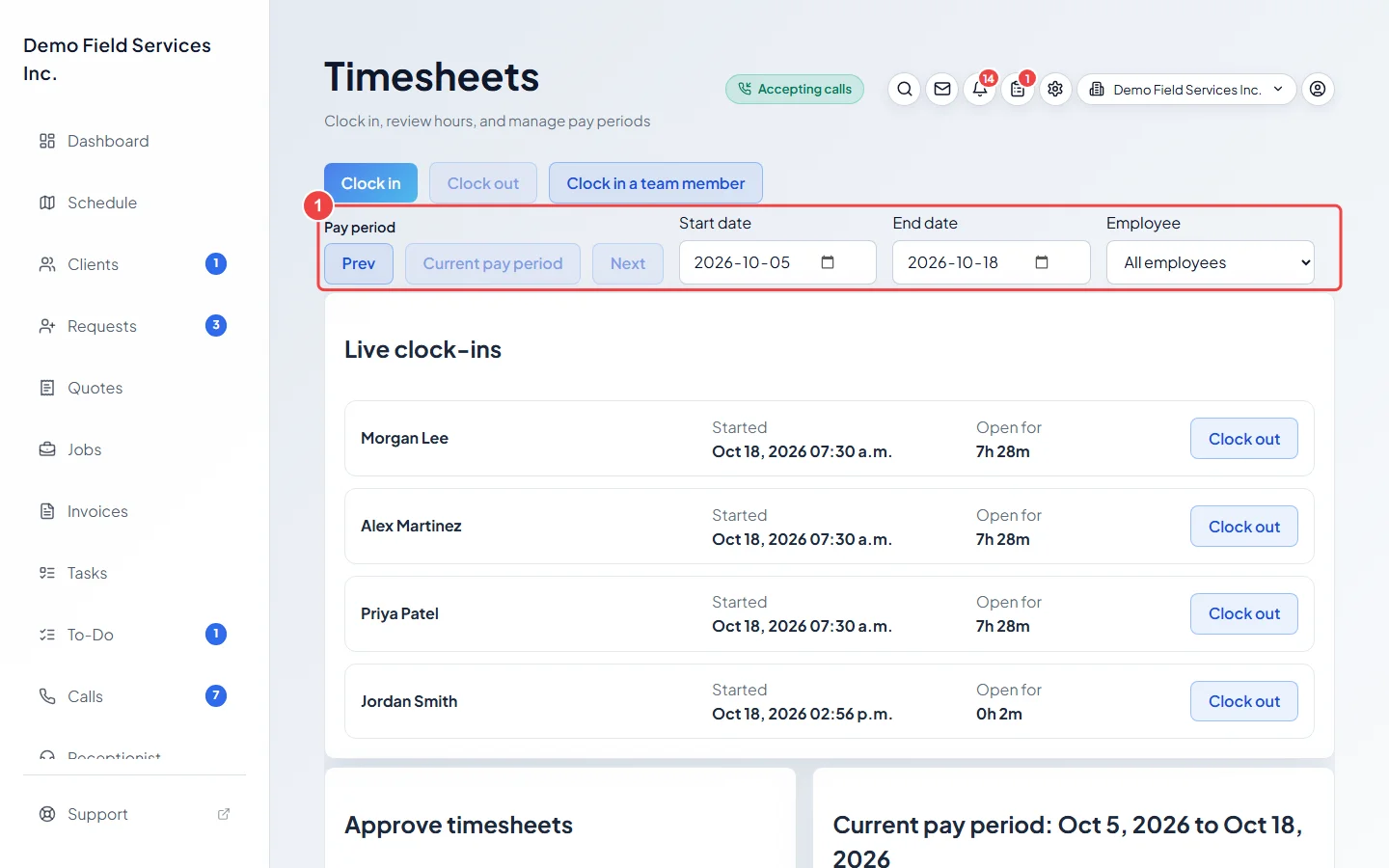
-
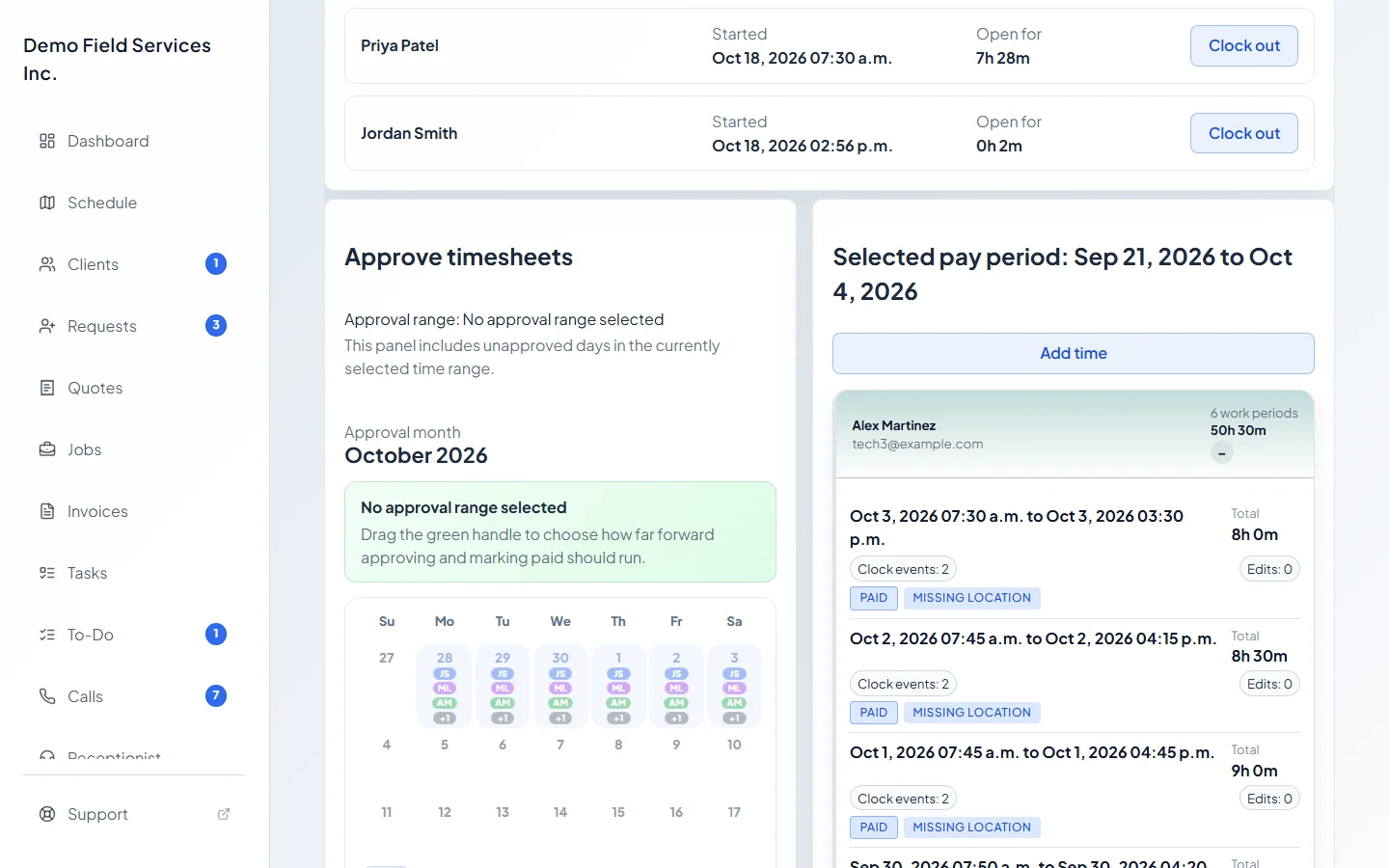
Click Prev to step back one pay period and Next to step forward. Current pay period jumps back to today. For any other stretch of days, set Start date and End date yourself. The heading changes to Selected pay period when you aren’t looking at the current one.
-
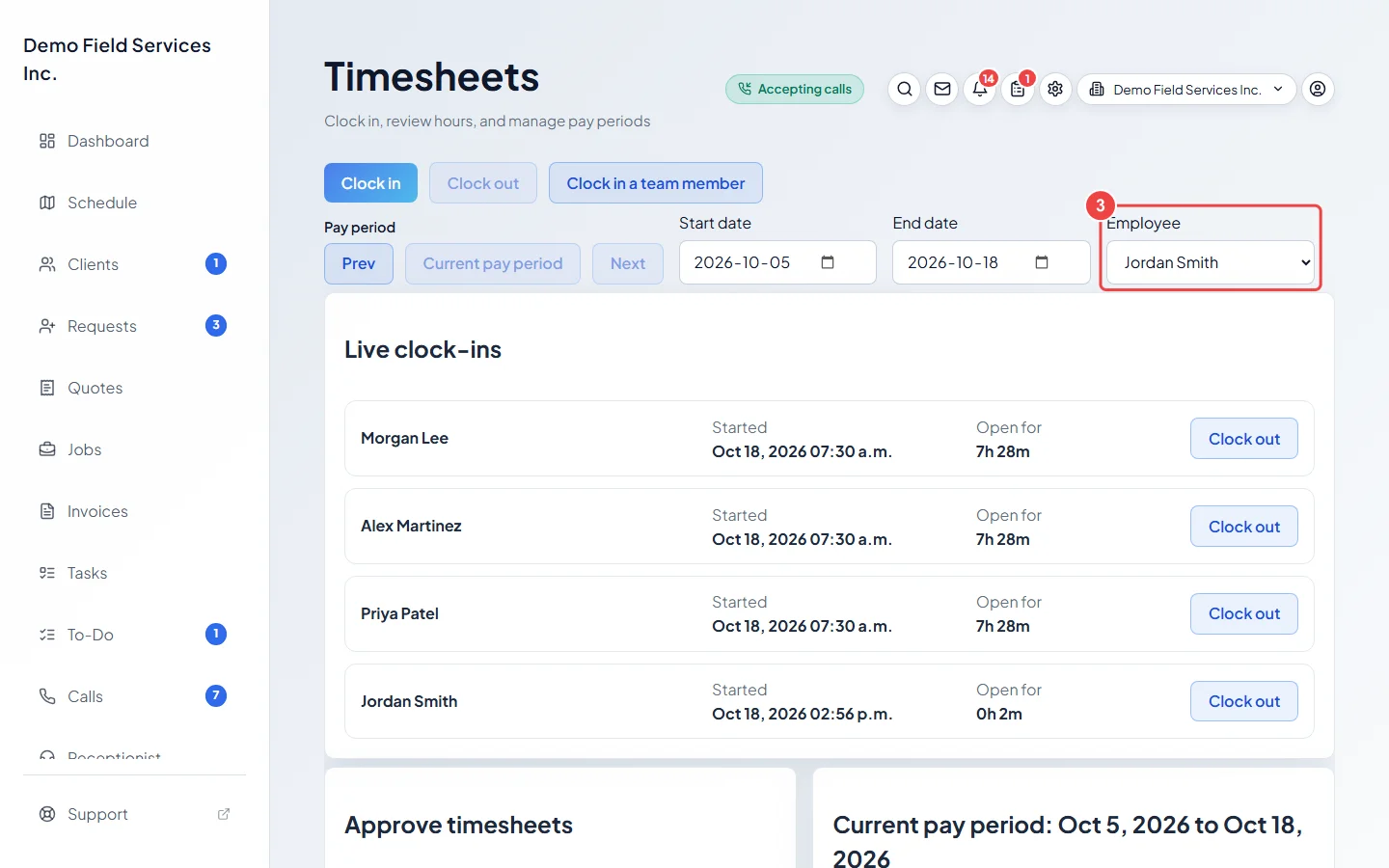
To see one person only, pick them in Employee. Choose All employees to see everyone again. Former team members are listed last, marked “(inactive)”.
-
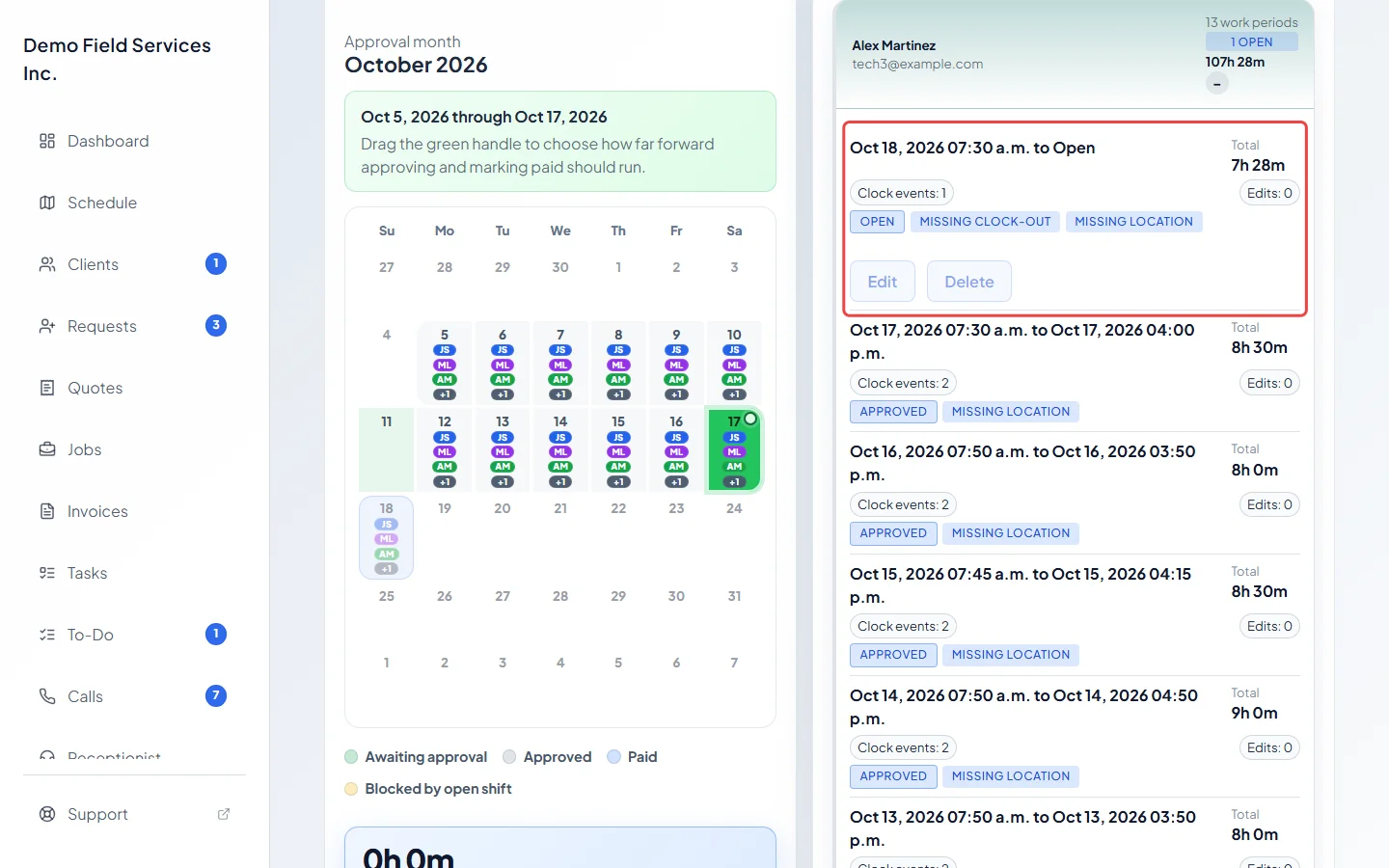
Each person shows how many work periods they have and their total hours. Click their name to see every work period with its start and end, its Total, how many Clock events and Edits it has, its status and any warning flags.
What the labels mean
Section titled “What the labels mean”- open: the person is still clocked in. Their running time counts toward the total, and the group shows how many are open.
- closed: clocked out and waiting for approval.
- approved and paid: locked. See Approving timesheets and Marking hours paid.
- Missing clock-out: the shift is still open. Long open shift: open for more than 12 hours.
- Long shift: more than 12 hours in one work period.
- Manual edit: someone changed the times by hand, added the time, or clocked the person in or out from the office.
- Missing location: a clock-in or clock-out was saved without a location. This always happens when the office clocks someone in or out.
- Overlap: this work period overlaps another one the same person has that day.
Good to know
Section titled “Good to know”- The length of a pay period comes from Pay schedule in Settings → Company settings: Weekly, Bi-weekly, Every 3 weeks, Every 4 weeks or Monthly. Week-based schedules count from the Cycle start date; monthly ones run from the first to the last day of the month. Click Save pay schedule after changing it.
- Next stops at the current pay period, so you can’t move into the future.
- Admins and dispatchers can filter by employee. Everyone else sees the whole list (or only their own time).
Related articles
Section titled “Related articles”Checked against Astragal on October 17, 2026