

Visits
Get a list of every visit in a period, with arrival times, time on site and the value of the work.
Who can do this: Admins, dispatchers and accountants who can open Reports. Technicians can’t open it, because it shows client contact details.
Also called: appointments report, service calls report.
-
Open Reports, pick Visits, and set the dates. The figures are Visits, Completed, “Value of completed work” and Booked online.
On a computer: Left menu → Reports On a phone: More → Reports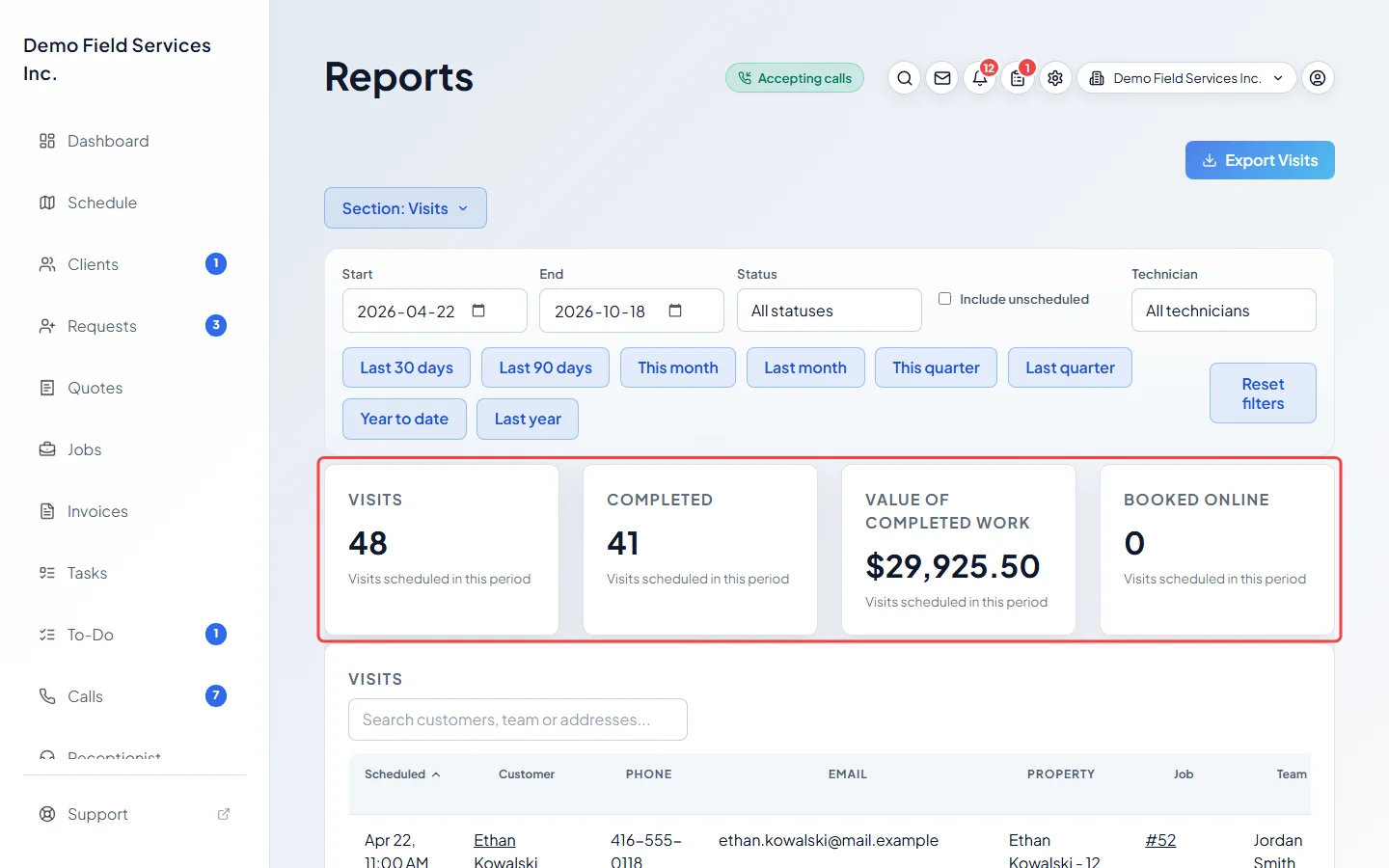
-
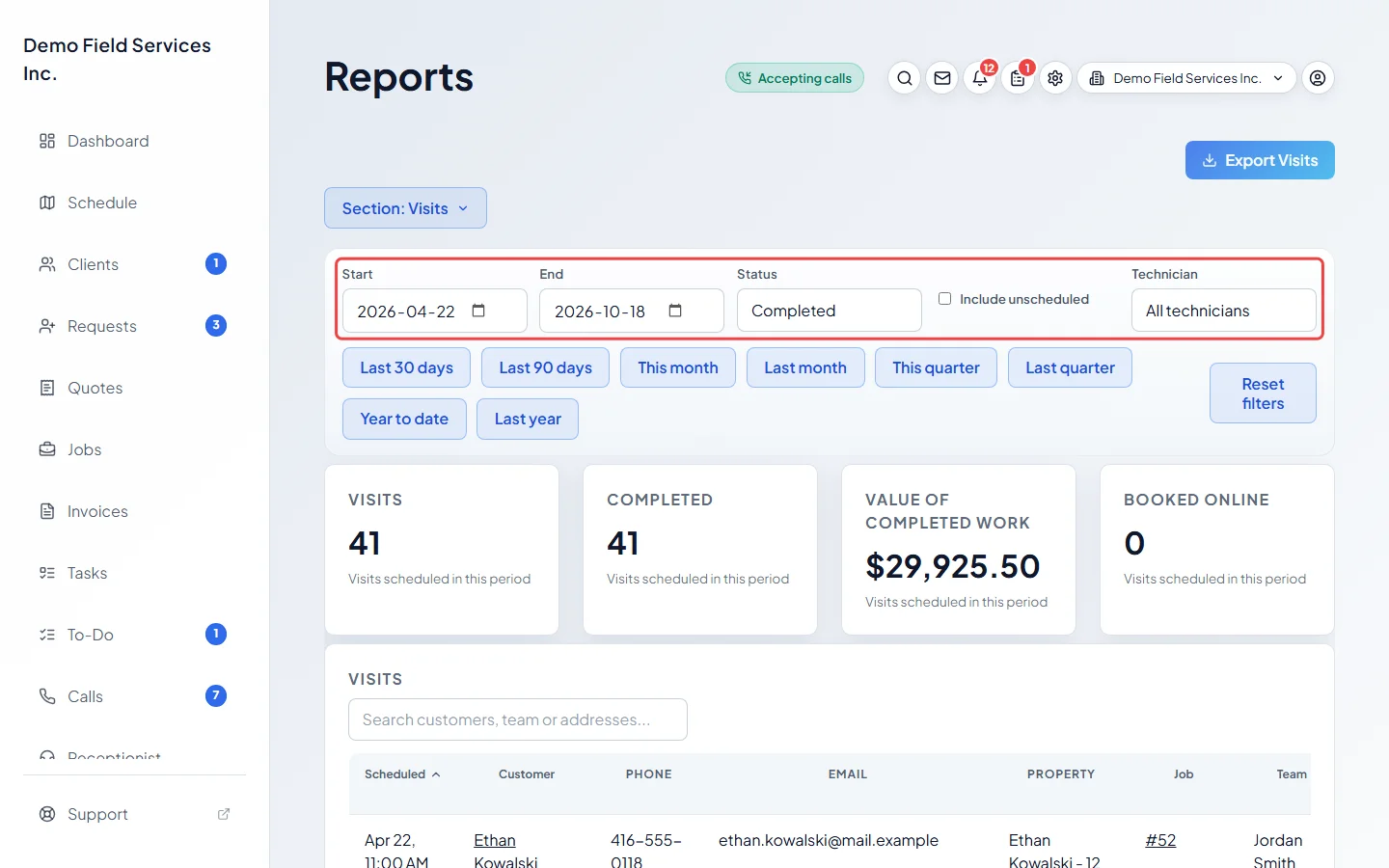
Narrow the list with Technician, and Status (Scheduled, Completed or Cancelled). Tick Include unscheduled to add visits that have no date yet.
-
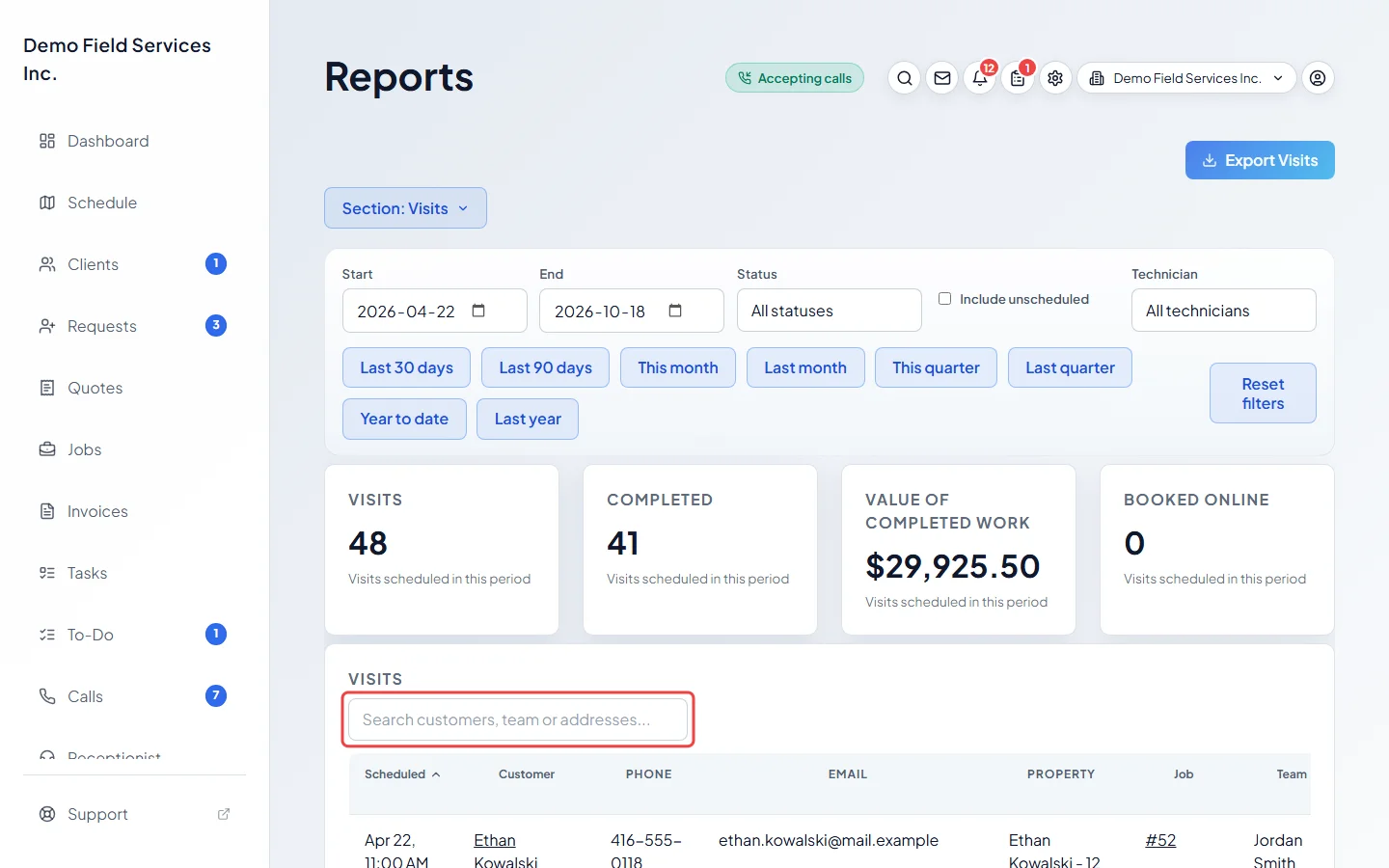
Search for a client, team member, address or job number in Search customers, team or addresses…, and click a column heading to sort. Click a client name or job number to open it.
What each column shows
Section titled “What each column shows”Scheduled (date and start time), client, Phone, Email, Property, Job, Team (everyone on the visit), Status, Type (One-off, Recurring or Warranty), Promised window, Scheduled length, Arrived (from the on-my-way tracking), Completed, Time on site, Value and Booked online.
Good to know
Section titled “Good to know”- A visit counts in the period by its scheduled start, as a UTC (Greenwich time) date, so an evening visit in North America can land on the next day.
- Value is before tax and after discounts, and shows only for completed visits whose invoice has been sent or paid. A one-off job’s invoices are shared across its visits; a recurring visit counts its own invoice; a warranty visit counts its warranty bill even before it’s sent.
- Arrived is only filled in when the technician’s arrival was tracked. Time on site runs from Arrived to Completed, so it’s blank when there’s no arrival. See Live tracking.
- The screen shows up to 5,000 visits. The export always has them all.
Related articles
Section titled “Related articles”Checked against Astragal on October 17, 2026