

Customers changing or cancelling a booking
Let customers move or cancel their own appointment online, within the limits you set, without calling you.
Who can do this: The customer, from the private link in their booking confirmation. No sign-in is needed.
Also called: reschedule link, manage my booking.
Customers get the link with their confirmation when they book straight onto your schedule, when you send a booking confirmation for a request you approved, or when you click Send booking link on a scheduled visit that was booked online. No menu leads to the page; it works like a parcel-tracking link.
-
The customer opens the link. The page shows your company name, the service, the day and arrival window, the address, and a reminder if they said their time is flexible.
On a computer: Link in the customer's booking confirmation On a phone: Link in the customer's booking confirmation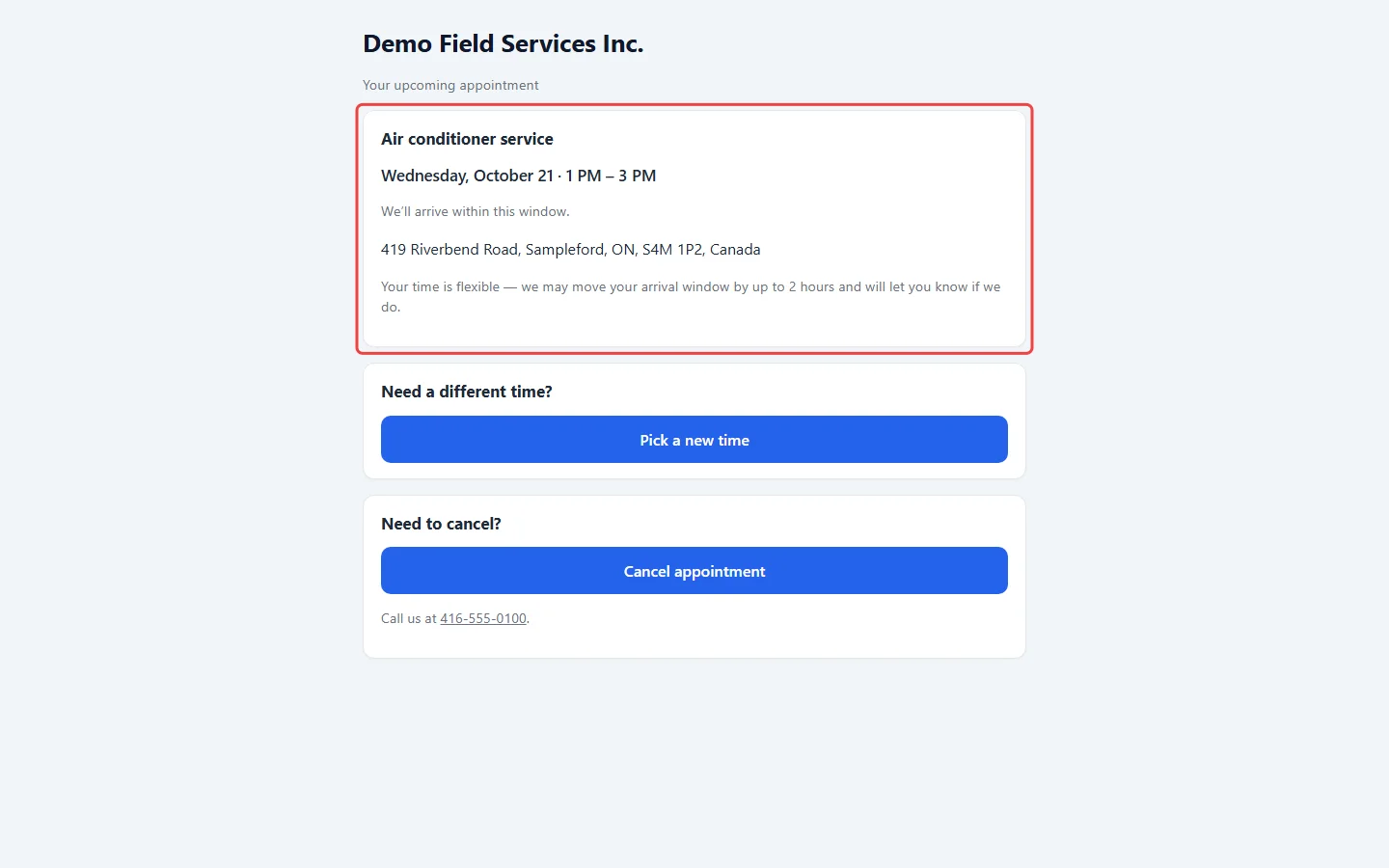
-
Under “Need a different time?”, they click Pick a new time. The same day columns as your booking page appear, checked against the route for their address. There’s no Anytime here.
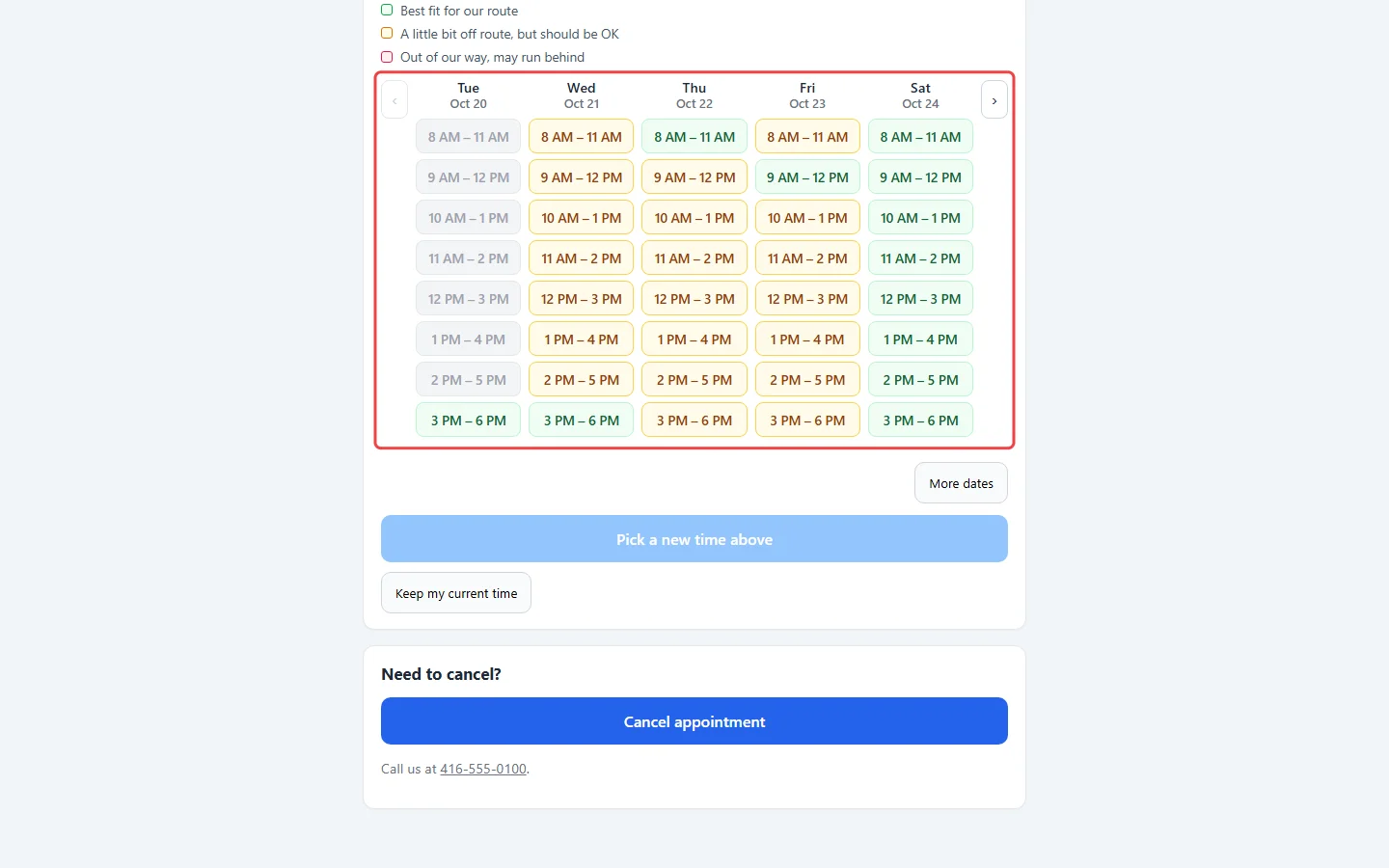
-
They pick a time and press the button that names it (“Move to” the new day and window). Keep my current time closes the calendar without changing anything. If the time was taken meanwhile, they’re asked to pick another.
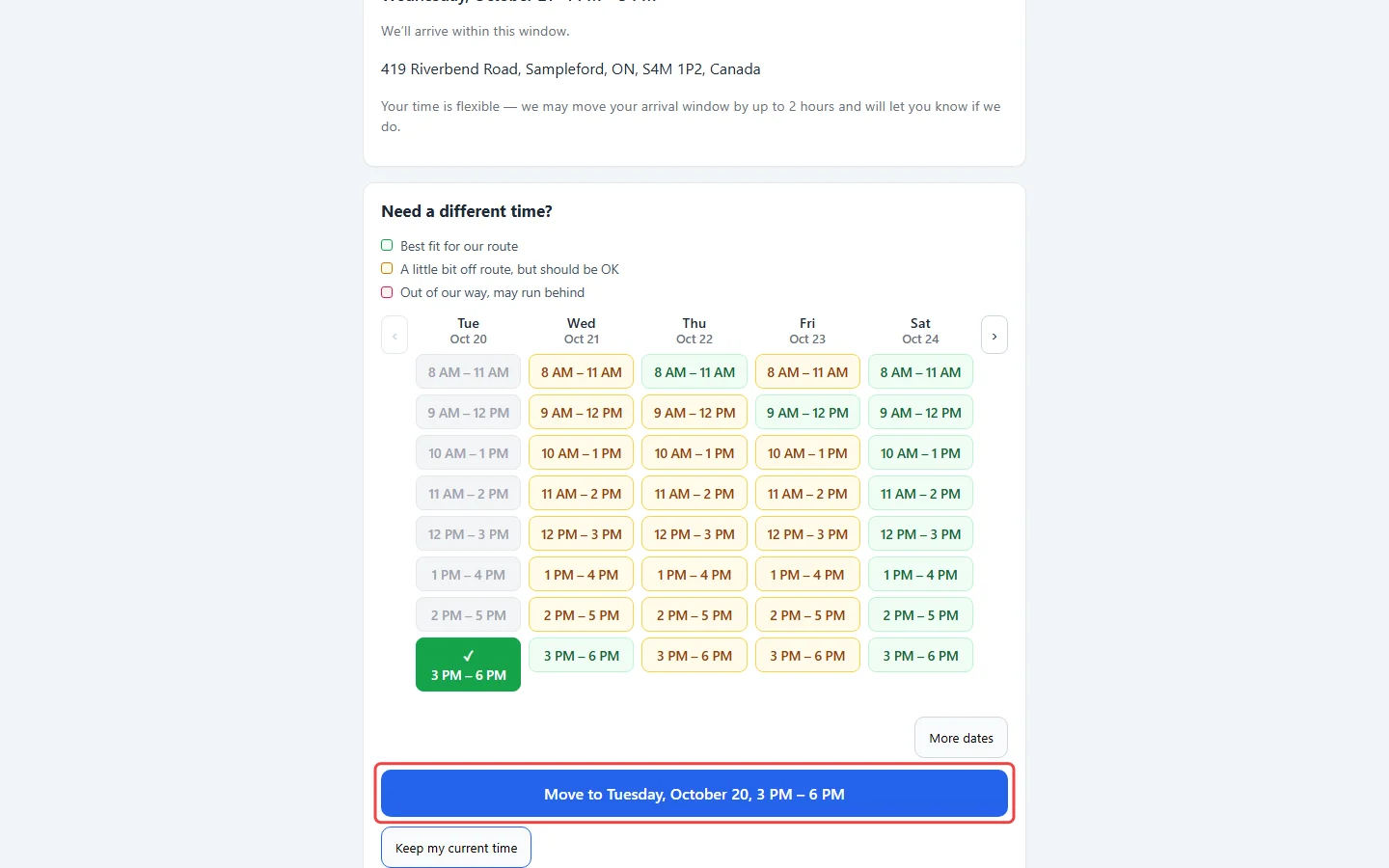
-
Under “Need to cancel?”, they click Cancel appointment (or Cancel estimate visit), and then Yes, cancel it to confirm, or Keep my appointment (Keep my estimate visit for an estimate) to go back. A cancelled appointment can’t be brought back online.
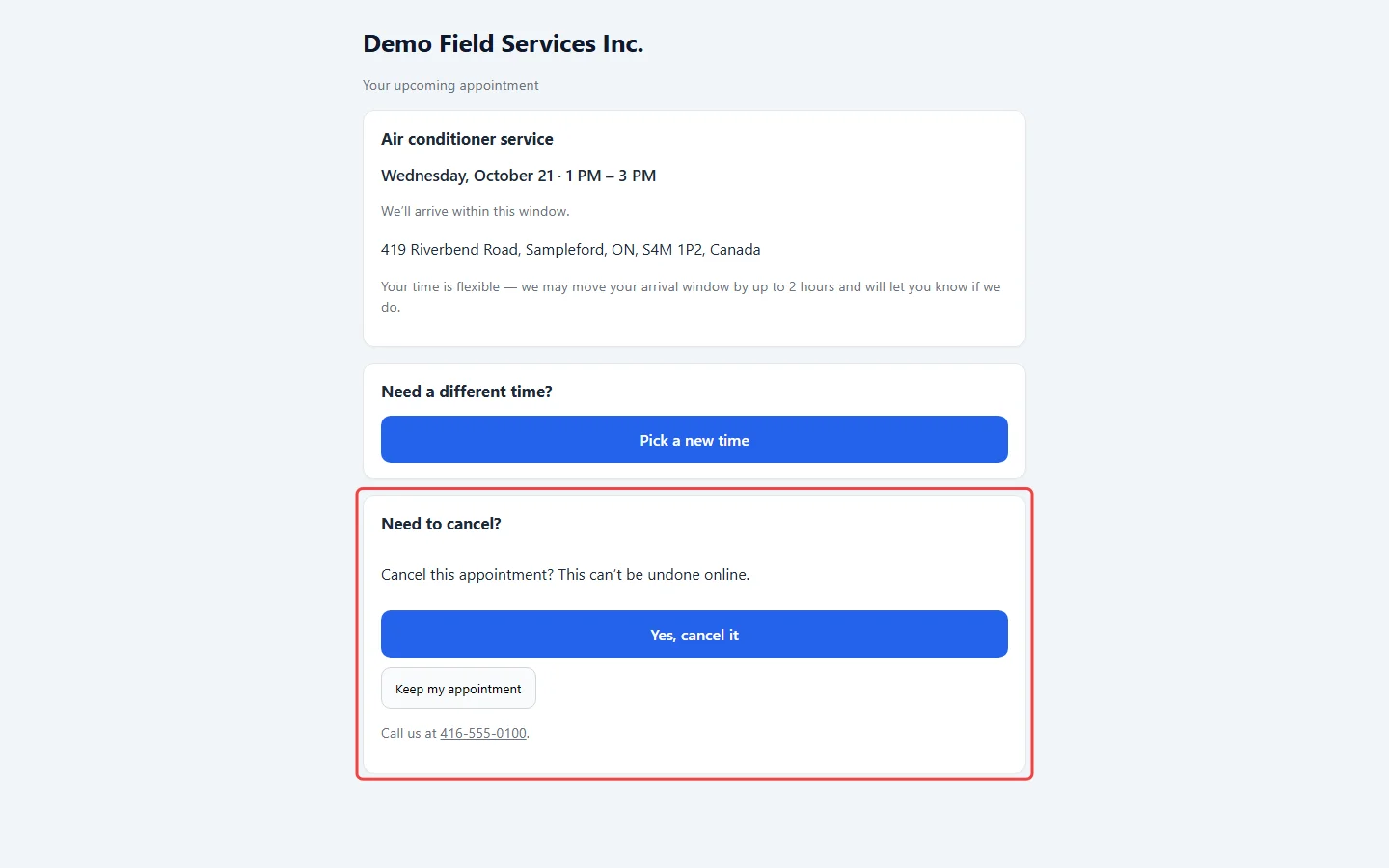
What happens next
Section titled “What happens next”- Moved: the visit moves to the new time on your schedule. The customer gets a message with the new time and your office gets an alert.
- Cancelled: the visit is cancelled (and the job, when nothing else is left on it). Upcoming reminders stop. The customer gets a message saying it’s cancelled and your office gets an alert. Any payment is left as it is.
- Estimate visits: a move changes the time on the request; a cancel archives the request and marks it cancelled by the customer.
When customers can’t change it online
Section titled “When customers can’t change it online”The page explains why and gives your phone number instead of the button:
- after the cutoffs you set under Booking limits: Customers can move their appointment online until (hours before) and Customers can cancel online until (hours before). The page shows the last moment they can still do it. See Service area and booking limits.
- once their arrival window has started, or the technician is already on the way.
- moving only: when more than one technician is on the visit, when the address was never found on the map, when the booking has no service on record, or when nobody who takes online bookings can do the service right now. They can still cancel.
Good to know
Section titled “Good to know”- An estimate visit that you turn into a job on the same day keeps its link; the customer can still cancel online but is asked to call you to move it. Turned into a job on another day, or into a quote, the link stops working.
- A customer who’d rather not change it online can call you, and you move it yourself, see Rescheduling a visit.
Related articles
Section titled “Related articles”Checked against Astragal on October 18, 2026