

Invoice from a completed job
When a job is done, Astragal can build its invoice for you from what is already on the job.
Who can do this: Admins, dispatchers, accountants, and team members whose invoices permission is View, edit, and create or View, edit, create, and delete.
-
Open the job. Every visit on it must be finished.
On a computer: Left menu → Jobs On a phone: More → Jobs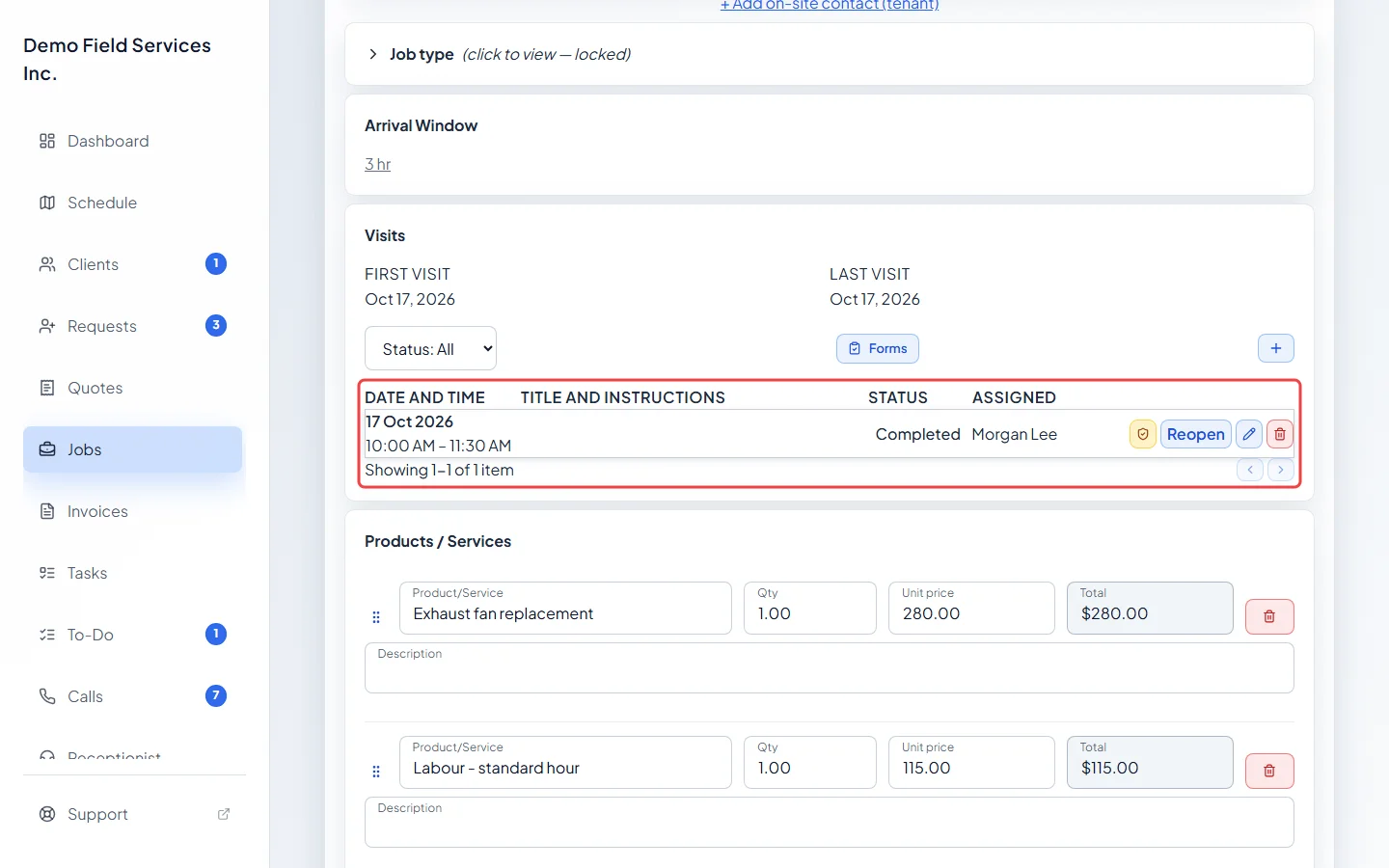
-
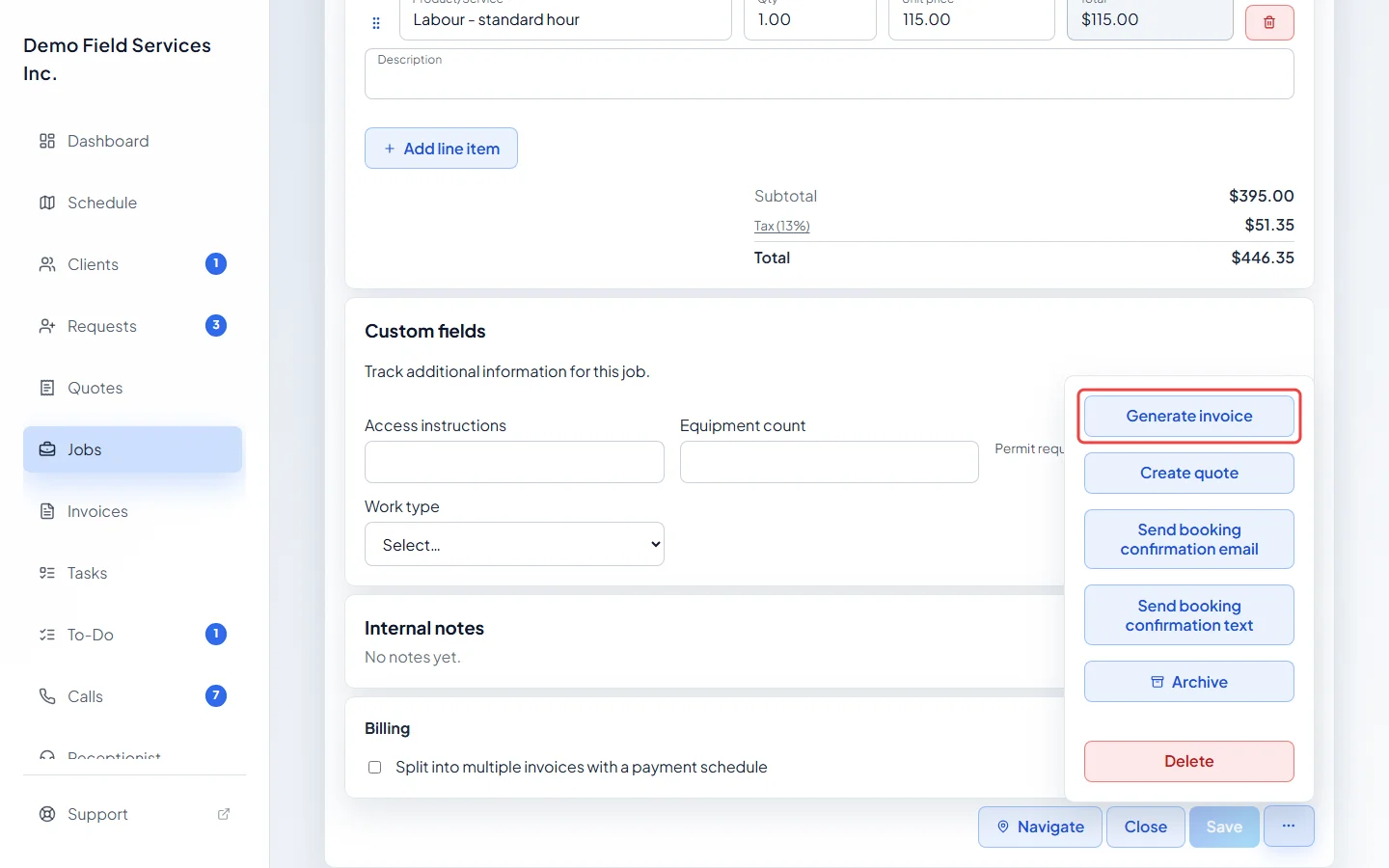
Click the ••• More actions button at the bottom of the job and choose Generate invoice. If the job is still open, choose Mark job complete first. When something else is in the way, such as an unfinished visit or unsaved changes, Astragal tells you what to do instead of making the invoice.
-
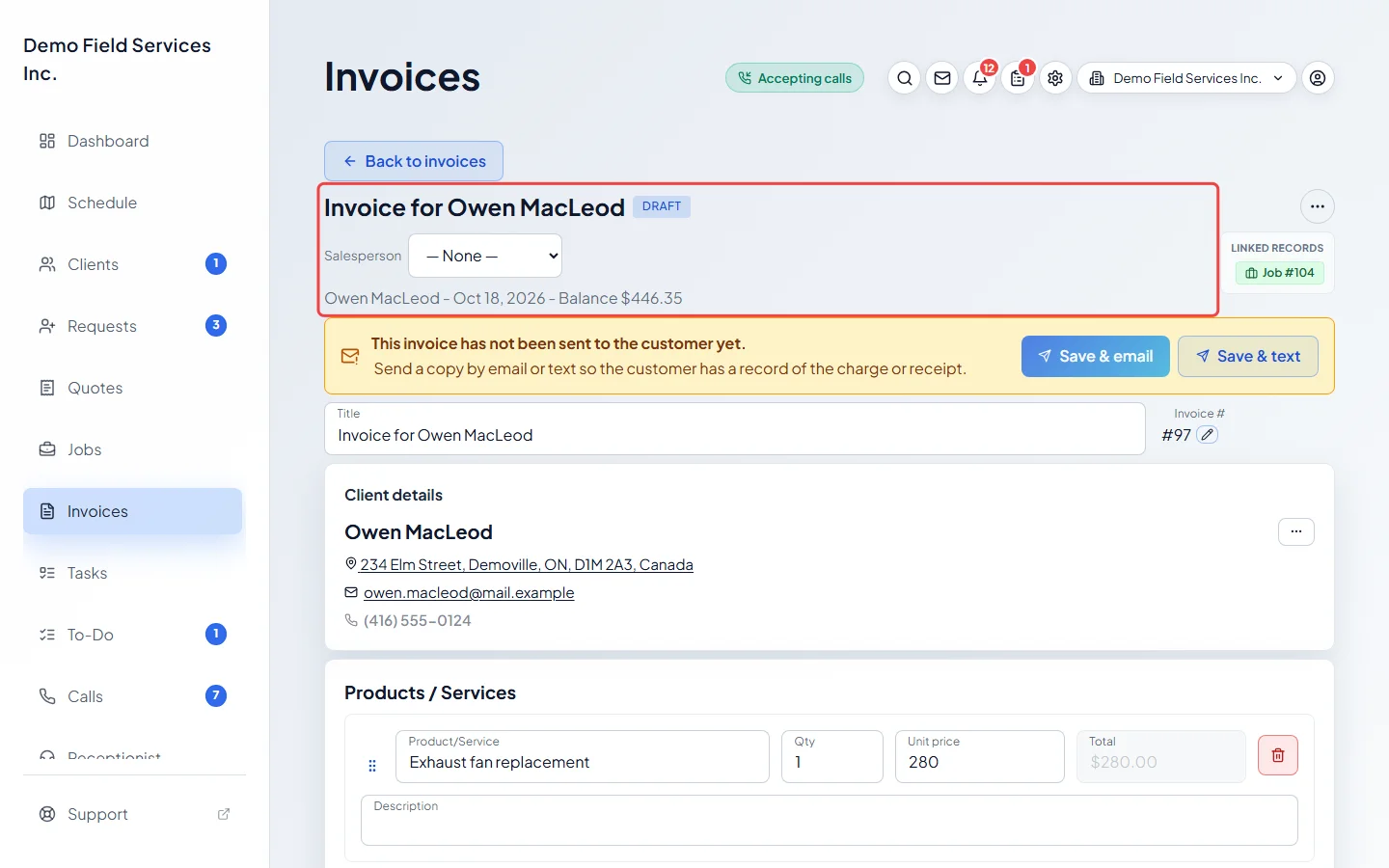
The new invoice opens as a draft, called “Invoice for” and the client’s name. Check the lines, the totals and the due date, and change anything that needs it. If the job came from a quote, or bills on a payment schedule, its lines can’t be changed on the invoice: change them on the job instead.
-
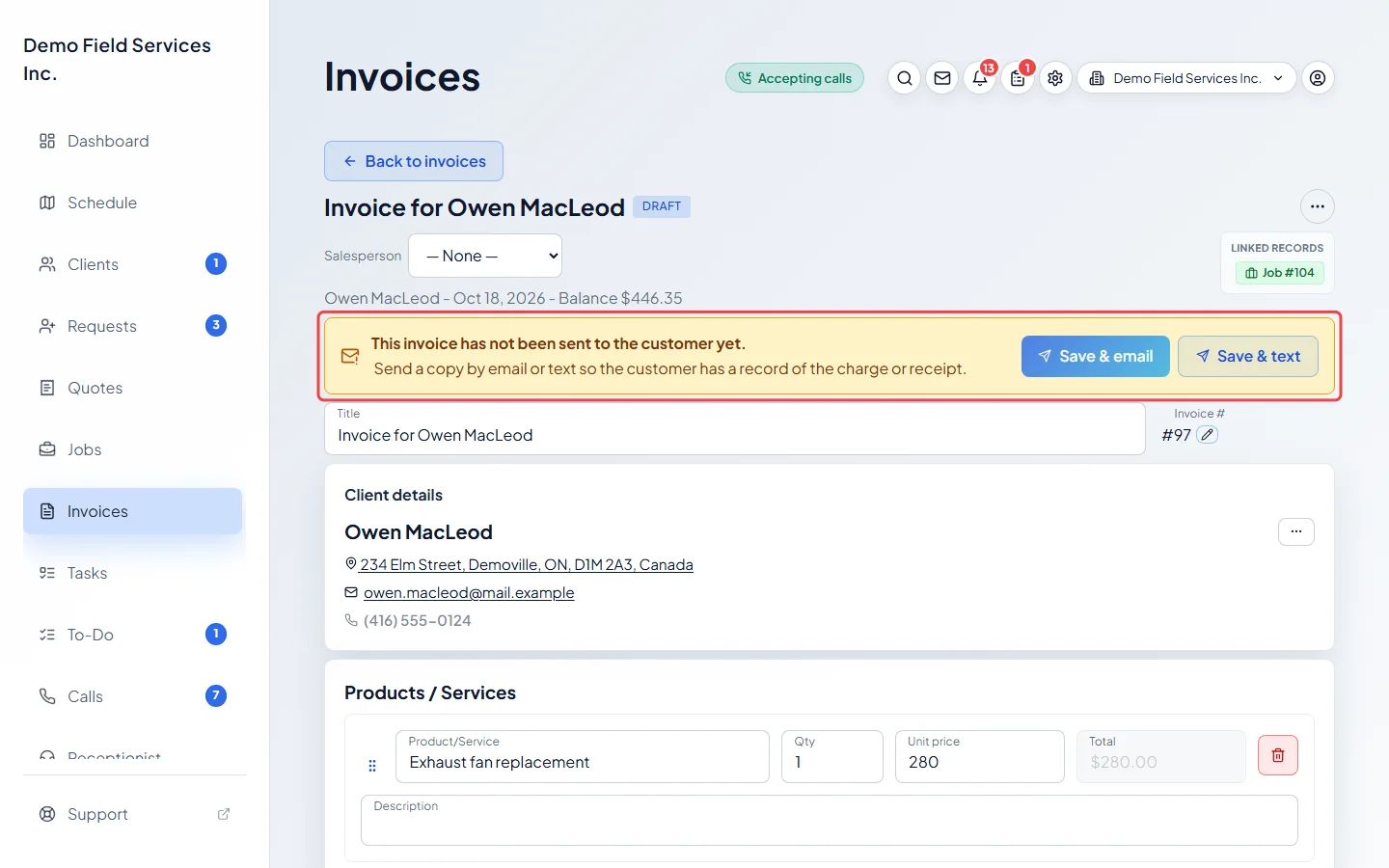
When it looks right, send it with Save & email or Save & text. Nothing goes to the client until you do.
What the invoice copies from the job
Section titled “What the invoice copies from the job”- The client, the property and the contact person.
- The job’s line items. Lines that belong to a warranty visit are left off, because warranty work is never billed.
- The job’s tax rate and discount, and the job’s notes for the client, which go in Notes to customer.
- Custom fields that are shared between clients, properties, jobs and invoices.
- The due date is set to today (upon receipt). Change it on the invoice if you give the client longer.
If the job came from a quote and the client paid a deposit, the deposit is taken off the invoice as a credit line, so the invoice asks only for what is left.
Other ways to get there
Section titled “Other ways to get there”- When the last visit is finished, a Complete job window asks what happens next. Close job & invoice now closes the job and opens its new invoice in one click.
- From the invoices list, click New invoice, pick the job under Create from job, and click Create from job. This works on any job, finished or not, so check the job is done first.
Good to know
Section titled “Good to know”- A job only gets one invoice. Once it has one, the menu shows View invoice instead of Generate invoice. To start again, void or delete that invoice first. See Voiding or deleting an invoice.
- A job set up with a payment schedule makes one invoice for each scheduled payment, all at once. If one of them is voided or deleted later, Generate missing installment makes only the missing one. See Payment schedules.
- A recurring job billed per visit is invoiced visit by visit instead. See Recurring invoices.
- A job whose visits are all warranty visits can’t be invoiced.
Related articles
Section titled “Related articles”Next step: Sending an invoice to a client
Checked against Astragal on October 17, 2026