

Converting a quote to a job
Once the client says yes, turn the quote into a job so your team can schedule and do the work.
Who can do this: Team members who can edit quotes and create jobs: admins, dispatchers and accountants, and technicians with both permissions.
Also called: turn a quote into a job, book the work.
-
Open the approved quote, open the ••• menu at the top right and click Convert to Job. There’s also a Convert to Job button at the bottom of the quote (under Actions there when the buttons don’t fit on one row, such as on a phone).
On a computer: Left menu → Quotes → open a quote On a phone: More → Quotes → open a quote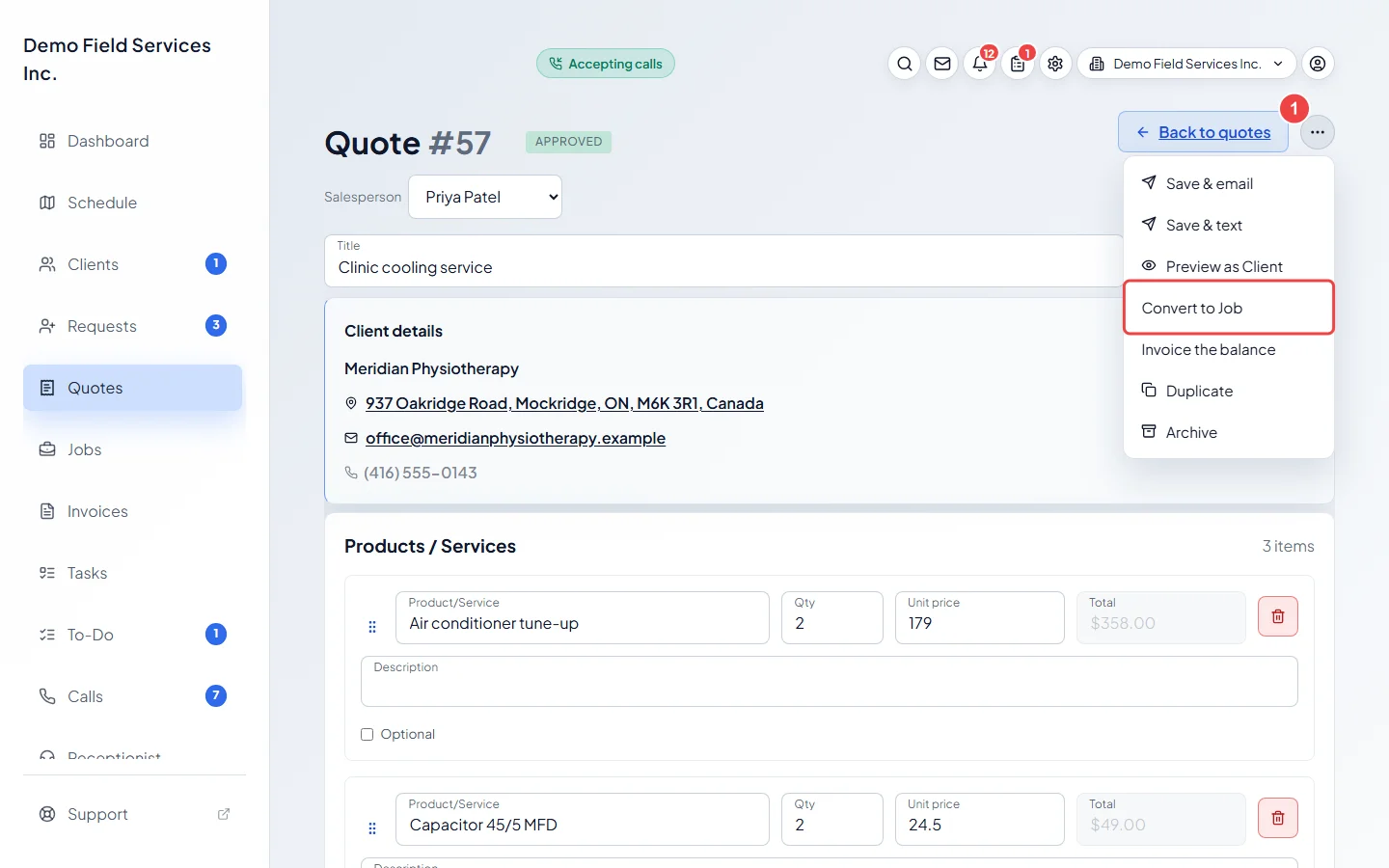
-
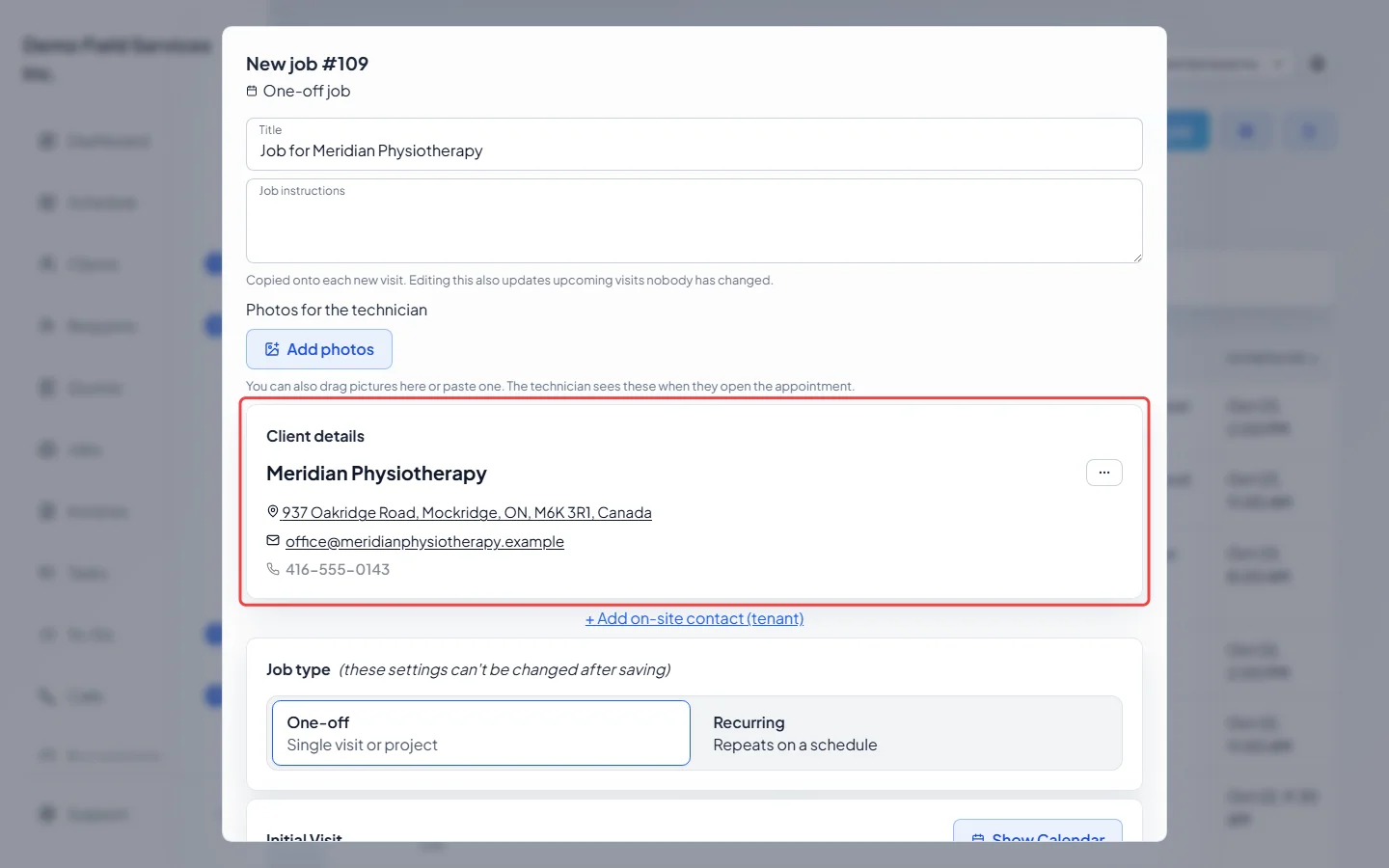
The New job form opens with the quote’s client, property, line items, tax, discount, custom fields, notes and salesperson already filled in. The client can’t be changed here. Optional add-ons the client didn’t choose are left off.
-
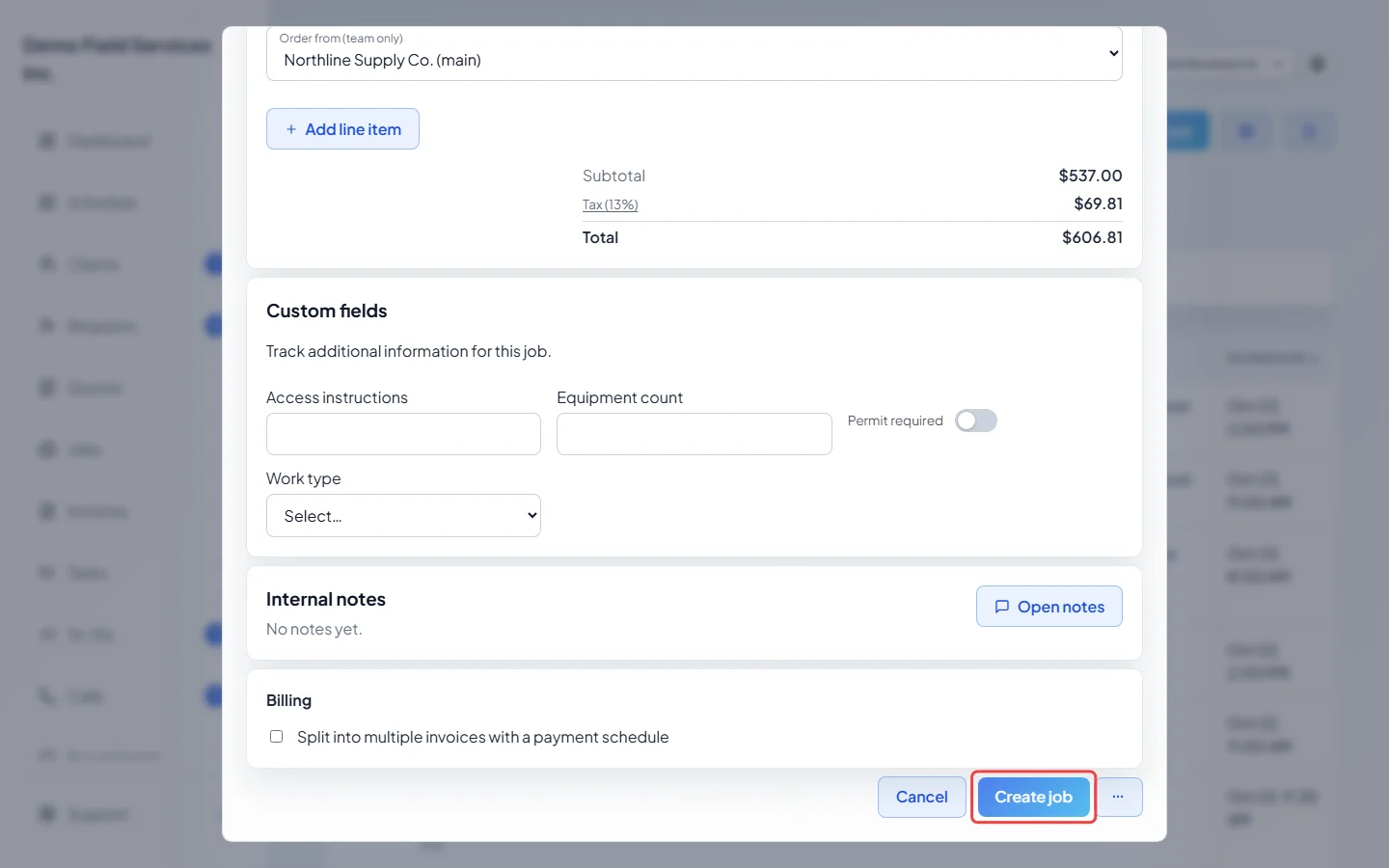
Pick the date, time and technician, check the lines, then click Create job. You can also leave the schedule empty and book it later.
-
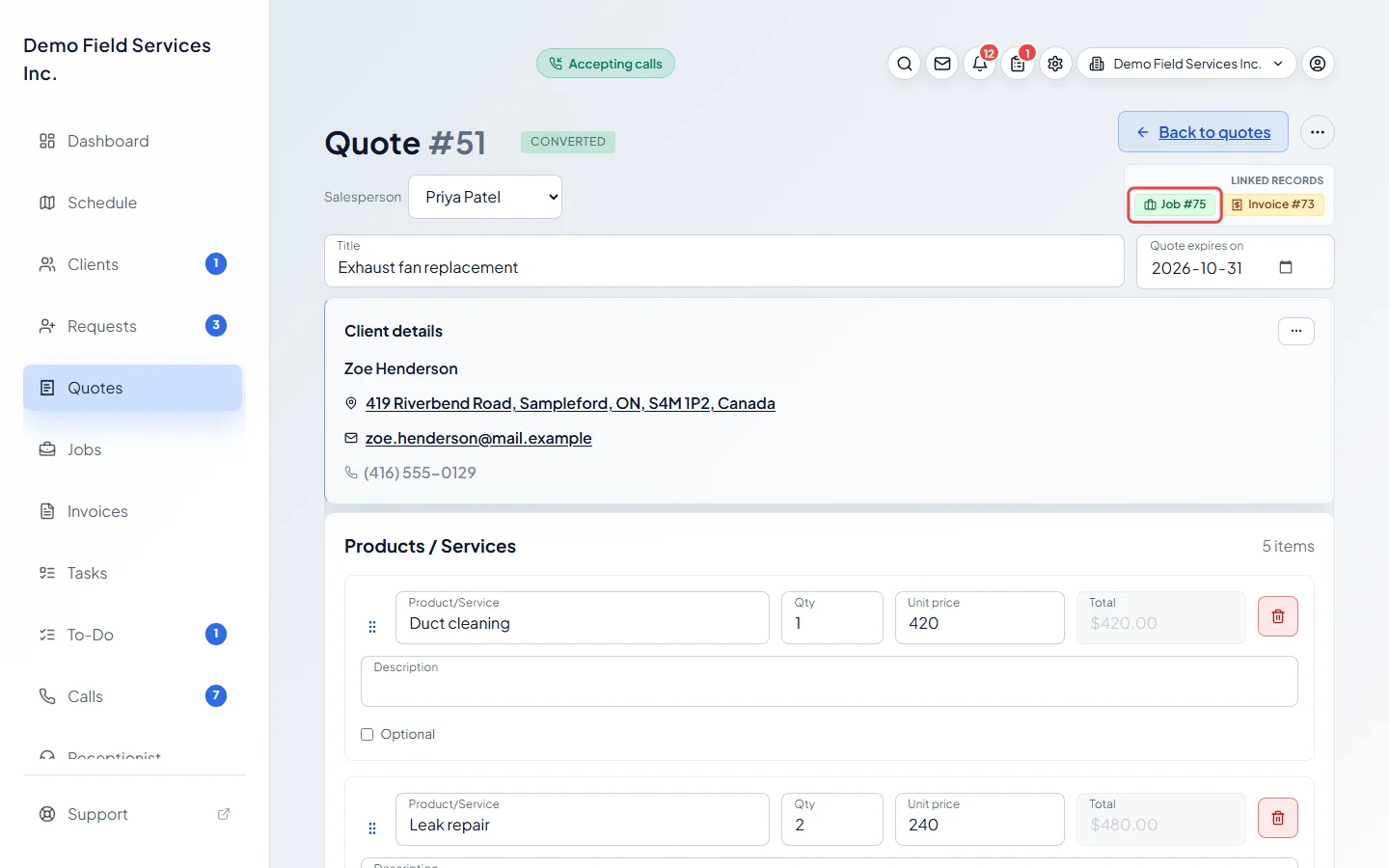
You land back on the quote. It now shows Converted, with a “Job #…” link under Back to quotes that opens the new job.
What carries over
Section titled “What carries over”- The deposit stays on the quote’s own deposit invoice. If the quote has a payment plan, the plan moves to the job.
- Supplier orders raised for the quote point at the new job, and their pickup date follows the job’s schedule.
- Stock the quote set aside when it was approved now belongs to the job.
- Photos attached to the request the quote came from follow it onto the job.
When Convert to Job doesn’t work
Section titled “When Convert to Job doesn’t work”The reason shows next to the greyed-out menu item, or in a box when you click the button at the bottom. The usual reasons:
- You have unsaved changes. Click Save first.
- The quote is archived. Restore it first.
- It was already converted, or it was billed with Invoice the balance.
- You don’t have permission to create jobs.
Good to know
Section titled “Good to know”- Converting a quote the client hasn’t approved yet asks you first, then approves it on your team’s say-so. Click Convert & approve to go ahead.
- After converting, change prices, lines, the deposit and the payment plan on the job, not the quote.
- A sale with no work to do, where the client is only buying products, can be billed straight from the quote with Invoice the balance. See Billing a product-only sale.
- A converted quote can be archived but not deleted.
Related articles
Section titled “Related articles”- Quote approval and rejection
- Creating a one-off job
- Invoice from a completed job
- Billing a product-only sale
Next step: Invoice from a completed job
Checked against Astragal on October 17, 2026