

Contact and property lists
Two ready-made lists of all your clients and all their properties, to look through or download.
Who can do this: Admins, dispatchers and accountants who can open Reports. Technicians can’t open them, because they show contact details and access notes.
Also called: client list export, address list.
-
Open Reports and pick Contact list. Every active client is listed with Name, Company, Emails, Phones, Billing address, Lead source and Created.
On a computer: Left menu → Reports On a phone: More → Reports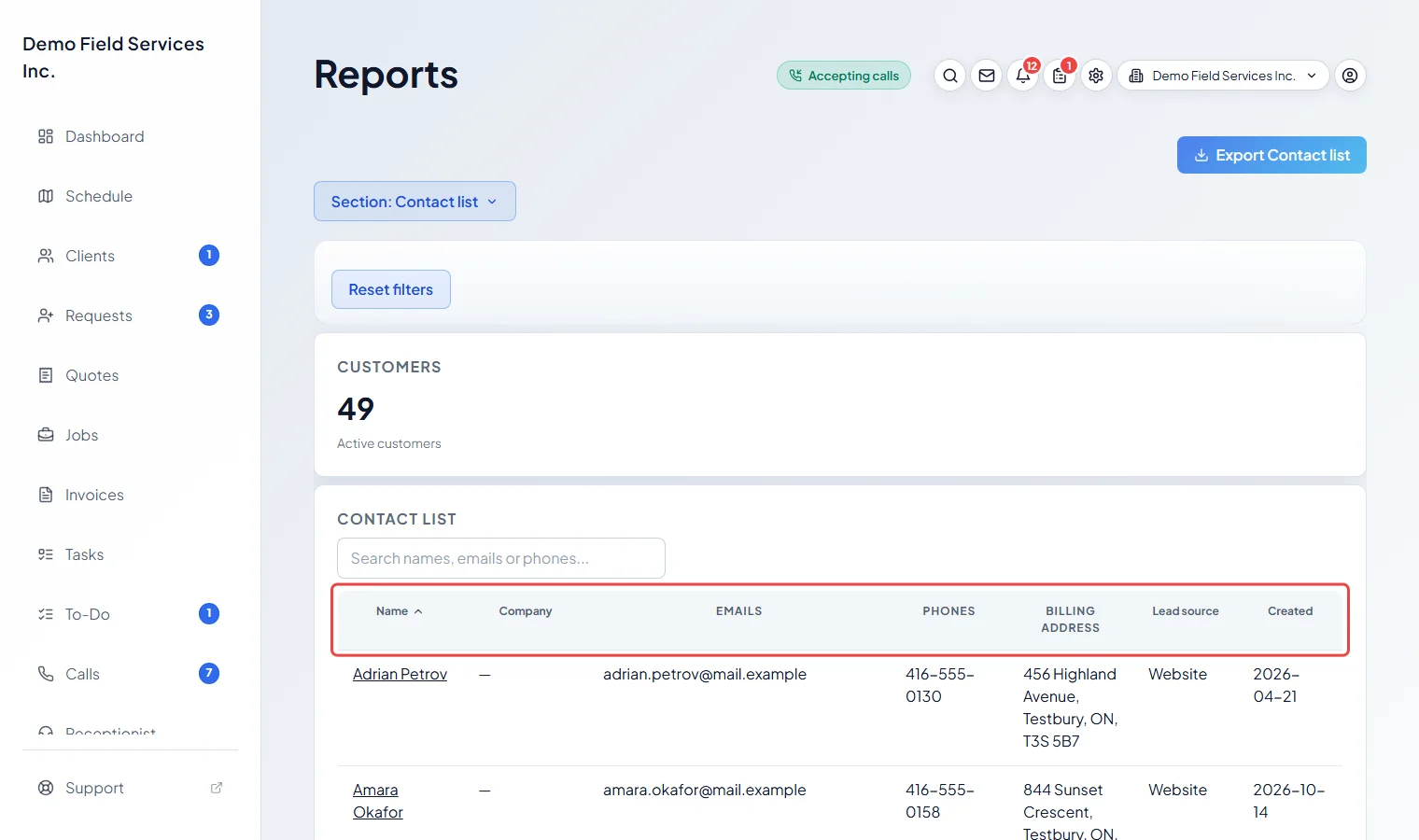
-
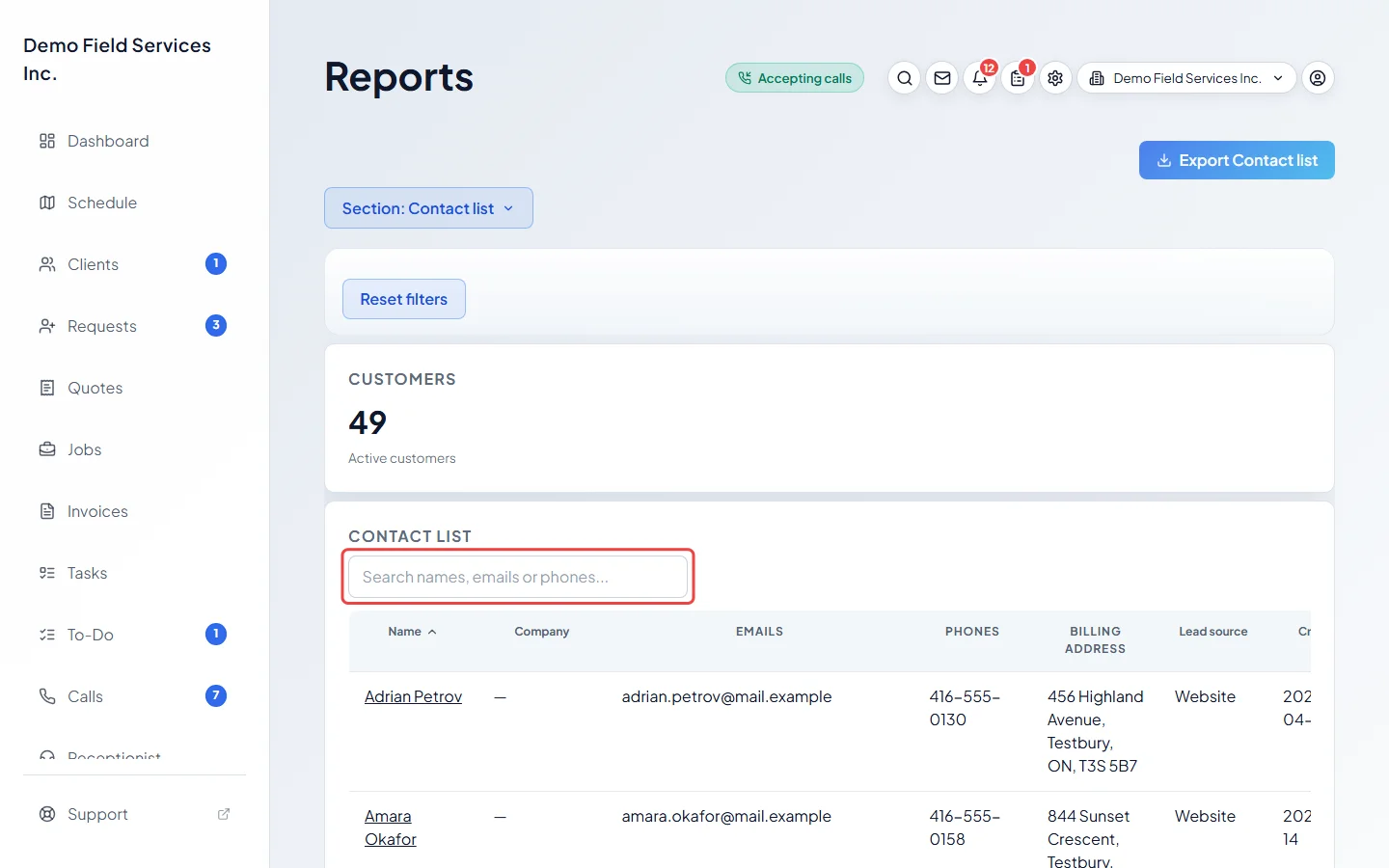
Type in Search names, emails or phones… to find someone, or click a column heading to sort. Click a name to open the client.
-
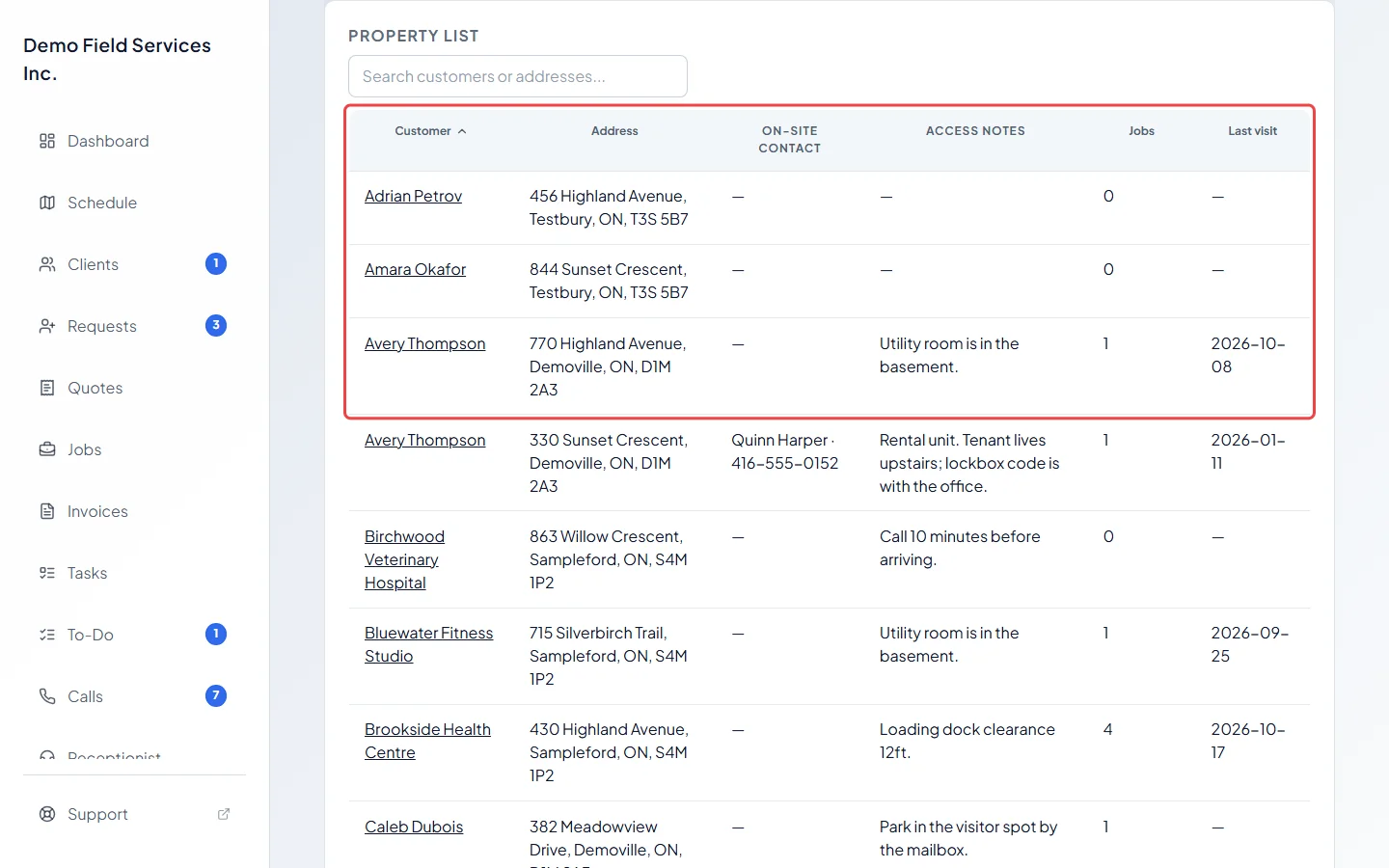
Click Section: and pick Property list. Every property of an active client is listed with its client, Address, On-site contact (name and phone), Access notes, how many Jobs it has ever had (cancelled ones included) and the date of its Last visit that was completed.
Good to know
Section titled “Good to know”- Both lists cover your whole history, so they have no filters or dates.
- “Active” means the client isn’t archived or merged into another client.
- Emails and Phones list every address and number on file, the main one first, separated by semicolons. A household member’s name is shown in brackets.
- Nothing is sent from these lists. To use one for a mail-out, download it with the Export button. See Exporting a report.
- To change an on-site contact or access notes, see On-site contacts.
Related articles
Section titled “Related articles”Checked against Astragal on October 17, 2026