

From quote to job to invoice
Walk one piece of work through Astragal from start to finish, so you know how quotes, jobs and invoices connect.
Who can do this: Admins, dispatchers and accountants. Technicians can too if an admin has allowed them to create quotes, jobs and invoices.
Also called: estimate, work order, bill.
Step 4 of 6 in setting up Astragal for your company.
Use the practice client you added in the last step. Quotes and invoices only go out when you choose to email or text them, but automatic messages such as visit reminders and follow-ups can still reach the practice client, so use your own email and phone number.
Write the quote
Section titled “Write the quote”-
Open Quotes and click New quote. You can also use Create → Quote in the left menu.
On a computer: Left menu → Quotes On a phone: More → Quotes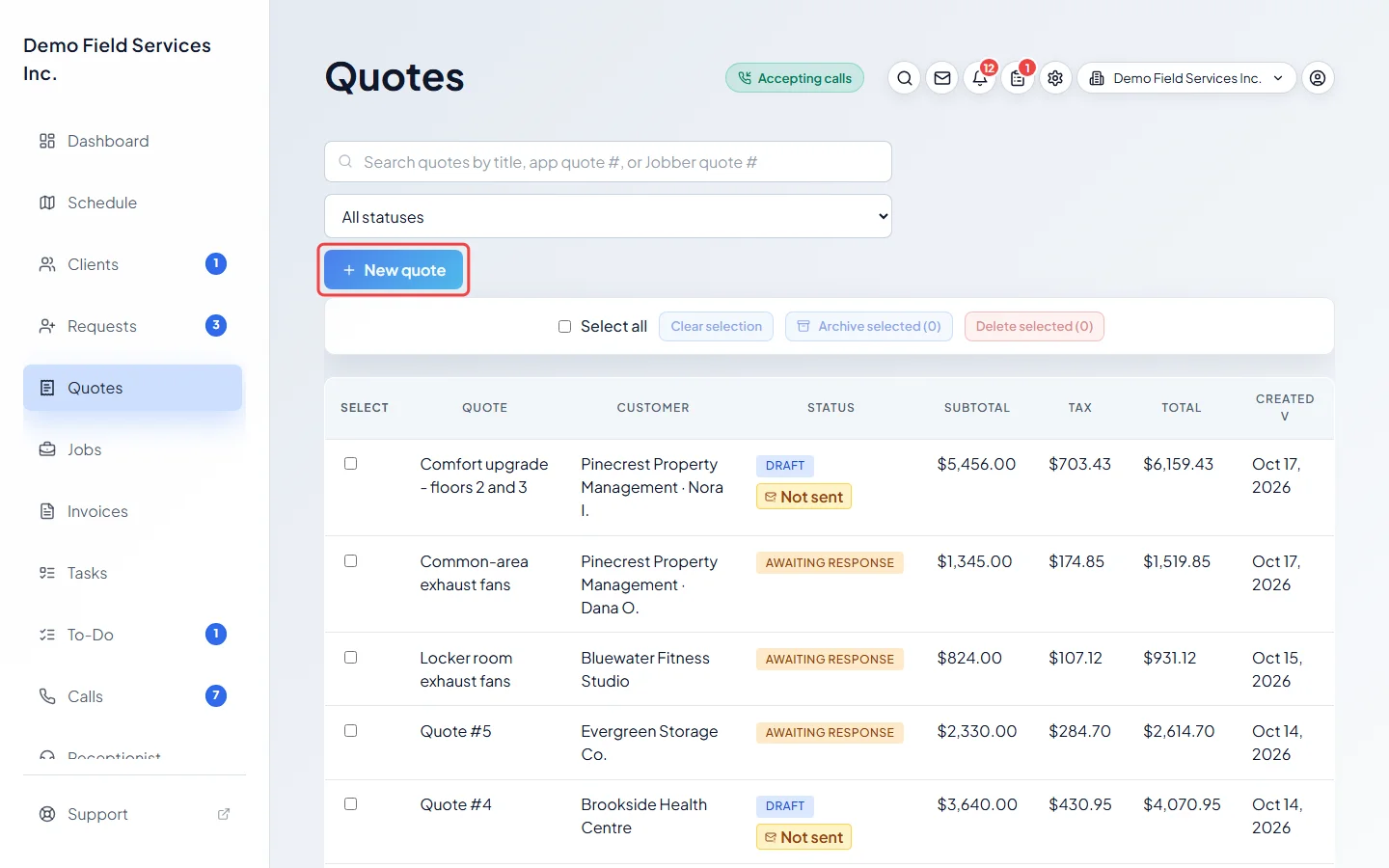
-
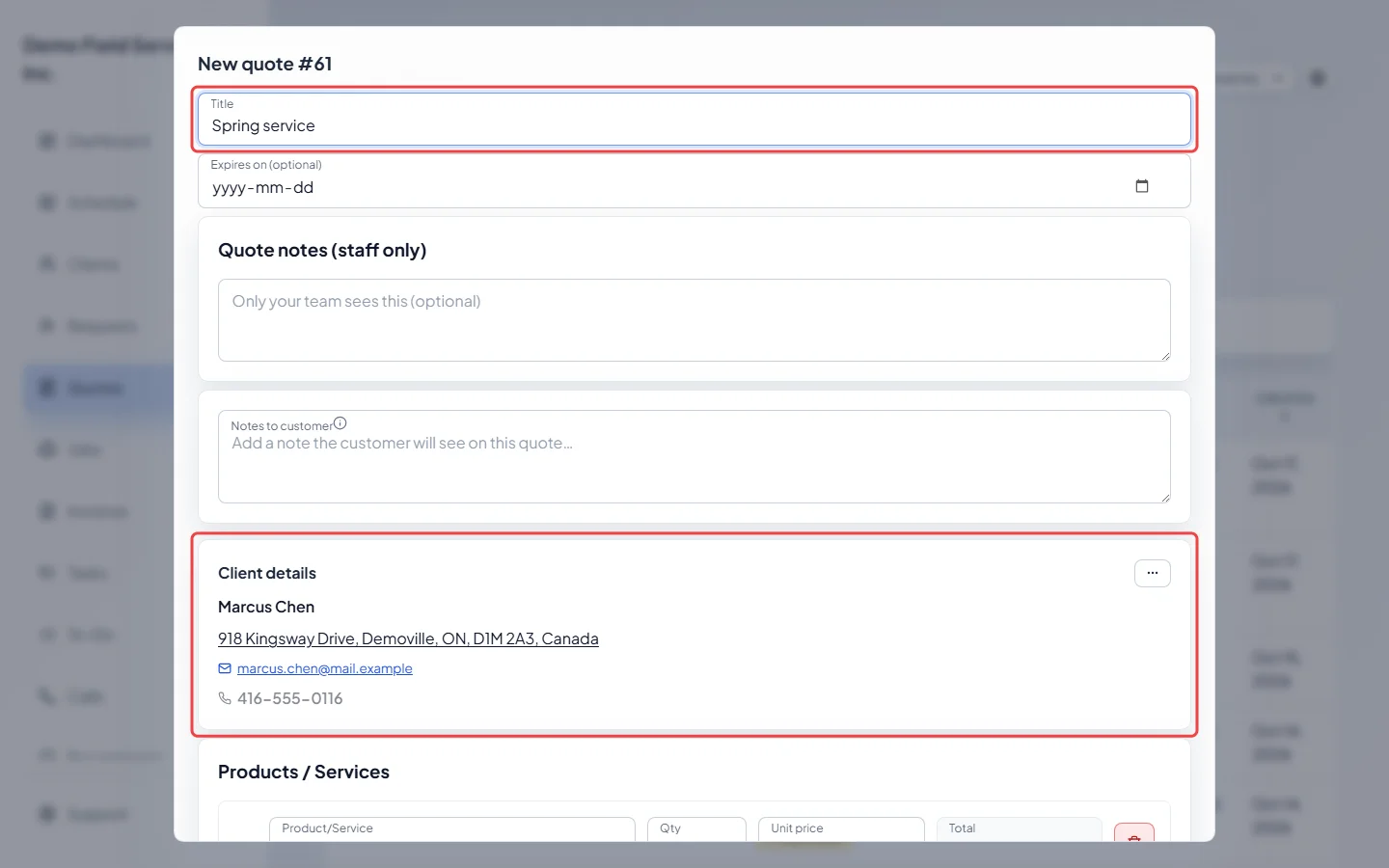
Click Select a customer and pick your client. Give the quote a Title that describes the work, such as “Spring service”.
-
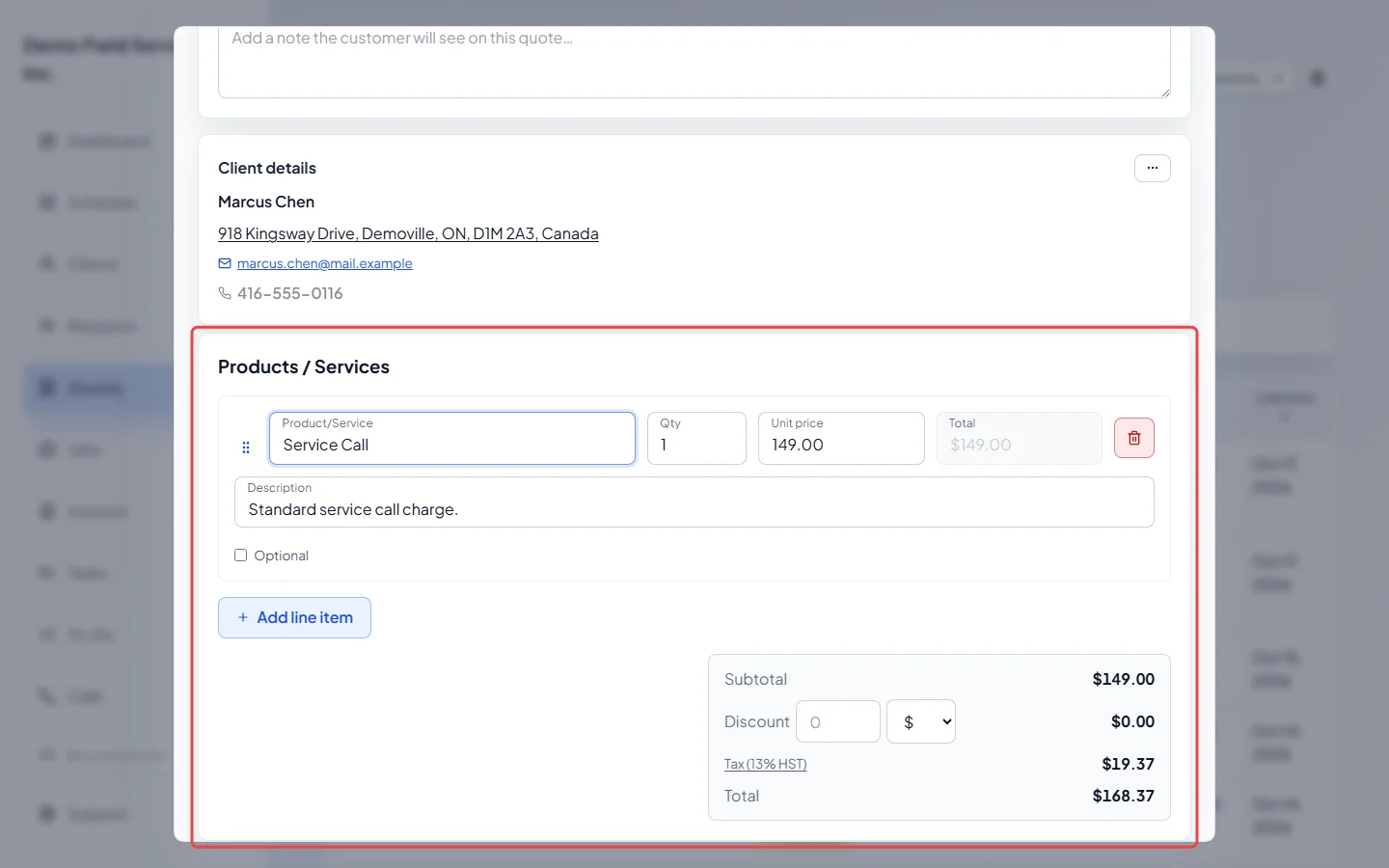
Under Products / Services, start typing one of the services you added in the first line. Pick it, and its name and price fill in. Change the quantity or price if you need to. Click Add line item for each extra line.
-
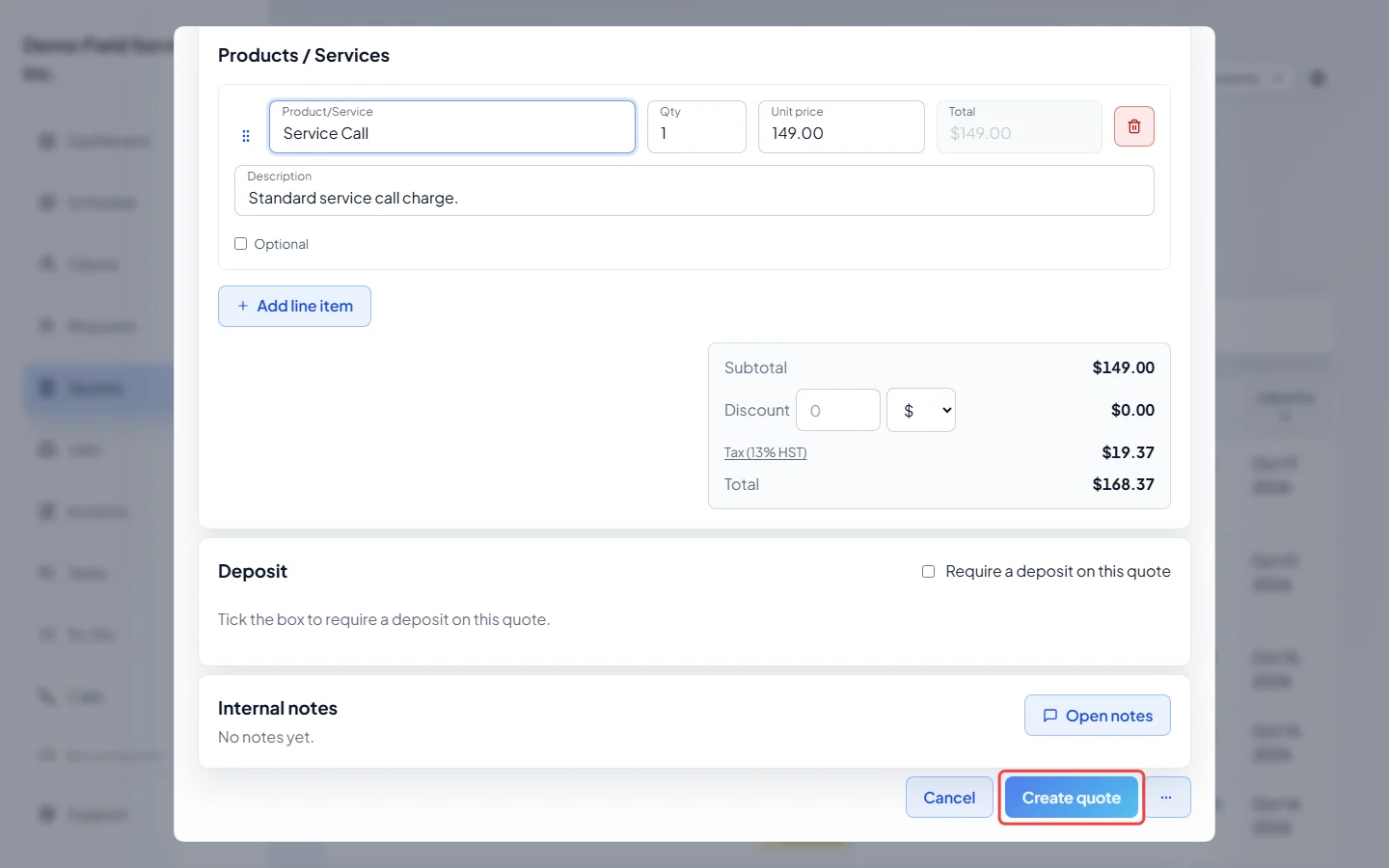
Click Create quote. The quote opens. When you’re ready to send it for real, click Save & email or Save & text; you see the message before it goes.
Book the job
Section titled “Book the job”-
When the client says yes, open the quote. If they approved it online it already says so. If they said yes on the phone, open the ••• menu at the top right, click Approve and confirm.
On a computer: Left menu → Quotes → the quote On a phone: More → Quotes → the quote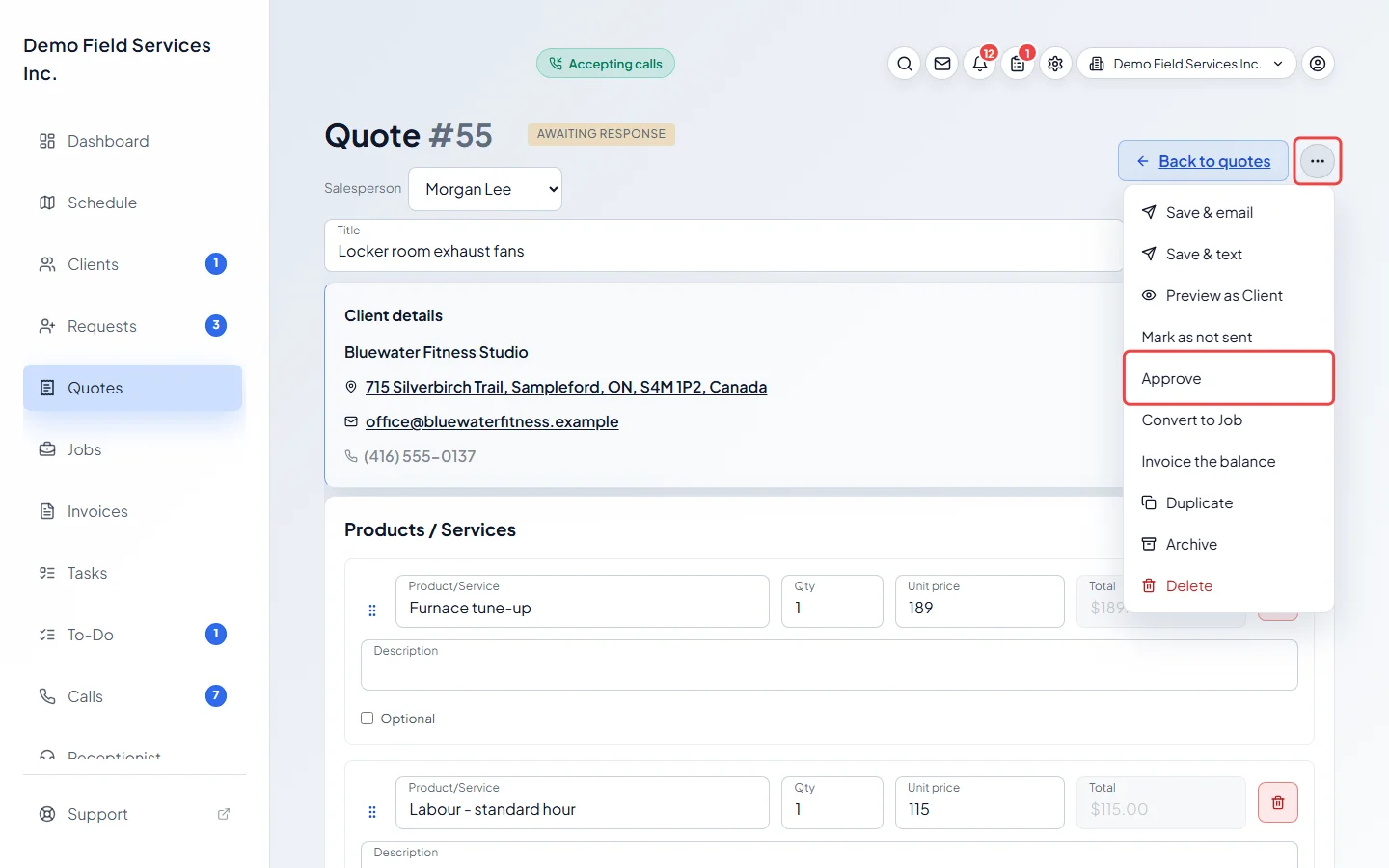
-
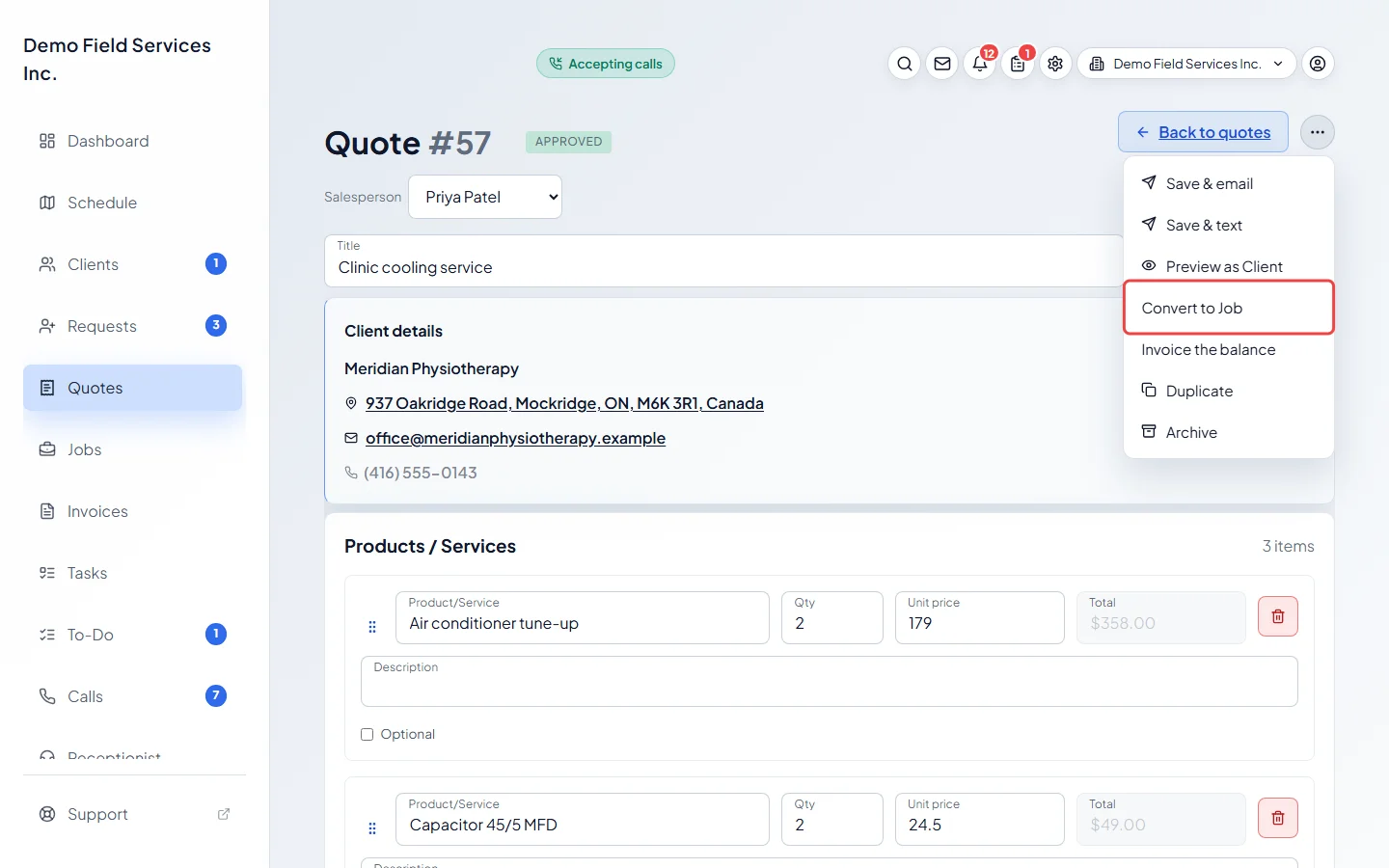
Open the ••• menu again and click Convert to Job. The new job window opens with the client, property and line items filled in from the quote. If the quote wasn’t approved yet, Astragal asks first; click Convert & approve to approve it on your say-so.
-
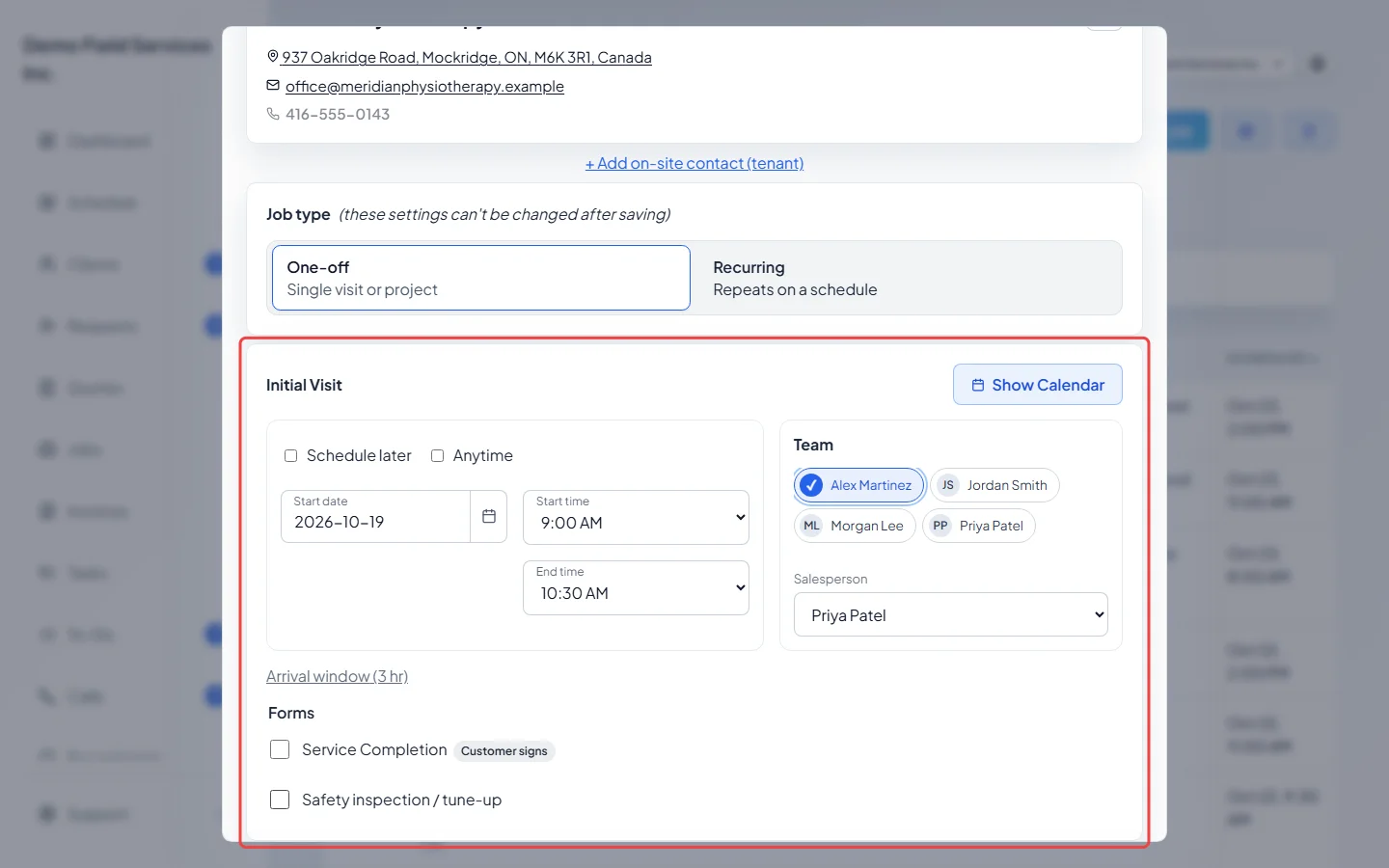
Under Initial Visit, pick the Start date, Start time and End time. Under Team, tick who’s doing the work. Then click Create job; nothing is saved until you do. The visit appears on the Schedule and on your team’s phones.
Invoice it
Section titled “Invoice it”-
When the work is done, open the visit and click Mark complete. Astragal asks what happens next; click Close job & invoice now and the invoice opens with the job’s line items. To do it later instead, open the job, click the More actions button (three dots) and choose Mark job complete, then Generate invoice.
On a computer: Left menu → Jobs → the job On a phone: More → Jobs → the job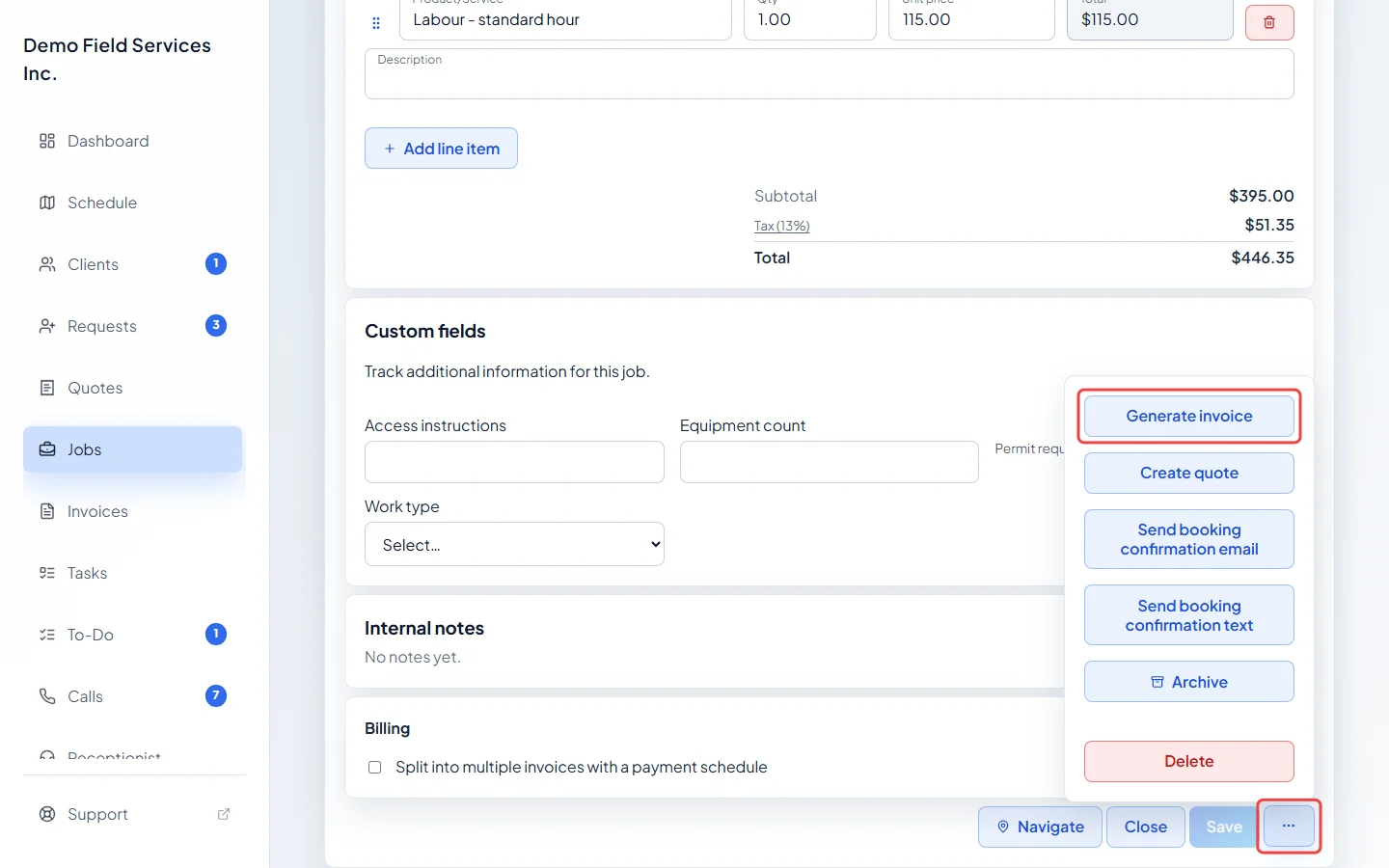
-
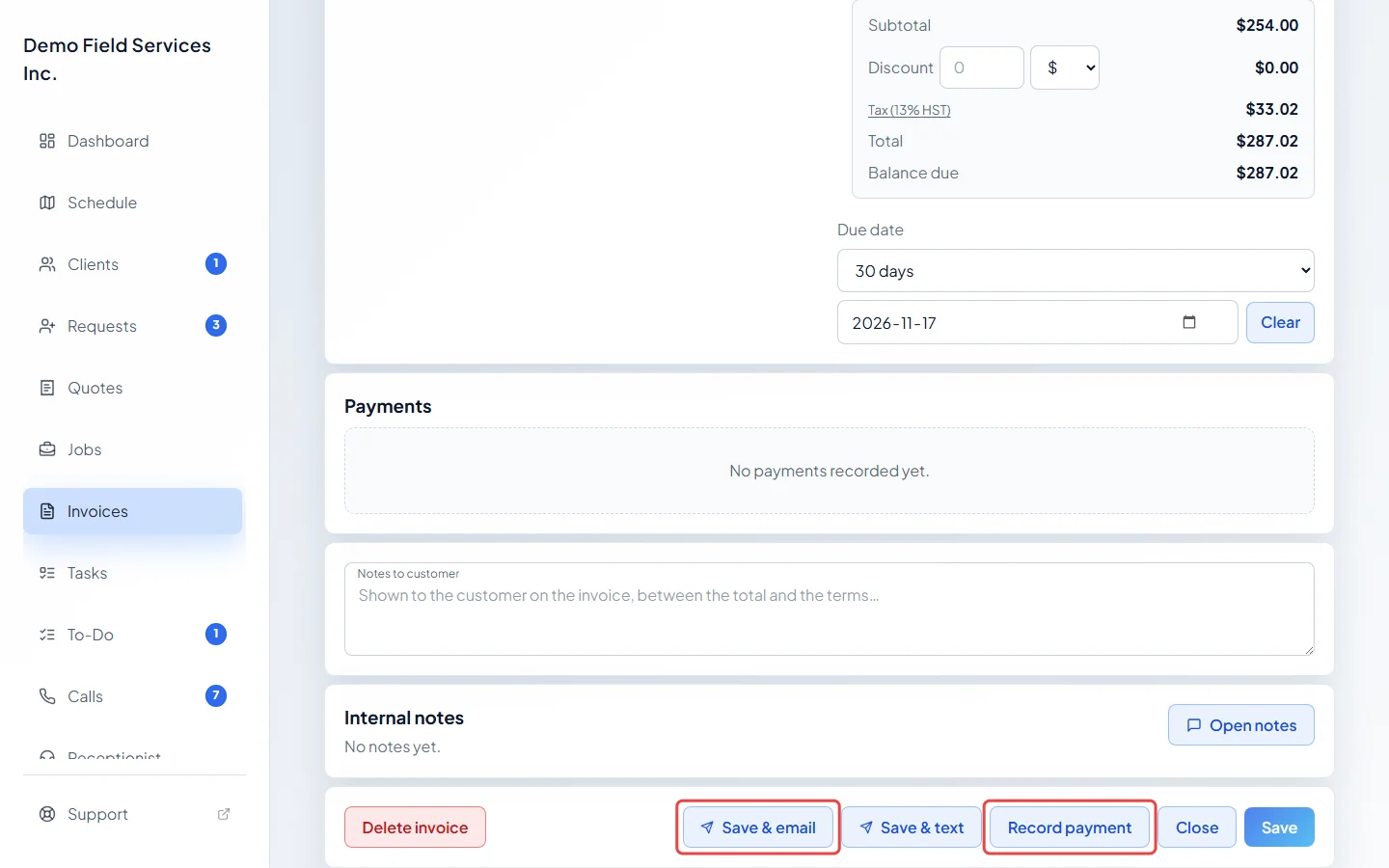
Click Save & email or Save & text to send it. When the client pays you by cash, cheque or transfer, click Record payment. If you’ve connected card payments, the client can pay online from the invoice.
Good to know
Section titled “Good to know”- You don’t have to start with a quote. For work that’s already agreed, click New job on the jobs list, or Create → Job. For a quick sale, click New invoice on the invoices list.
- Done practising? Delete the practice invoice, job and quote, or keep them as examples. If you sent the invoice, void it instead, and remove any payment you recorded first. See Before you go live.
Related articles
Section titled “Related articles”Next step: Inviting your team
Checked against Astragal on October 18, 2026