

Request alerts
Get your team told the moment a customer sends a request or books online, so nobody has to keep checking.
Who can do this: Admins, dispatchers and accountants.
Also called: lead alerts, new request notifications, office alerts.
-
Open Request alerts and make sure Enable request alerts is on. It starts on, unless you changed it while setting up your company. The switch saves as soon as you click it.
On a computer: Left menu → Settings → Request alerts On a phone: More → Settings → Request alerts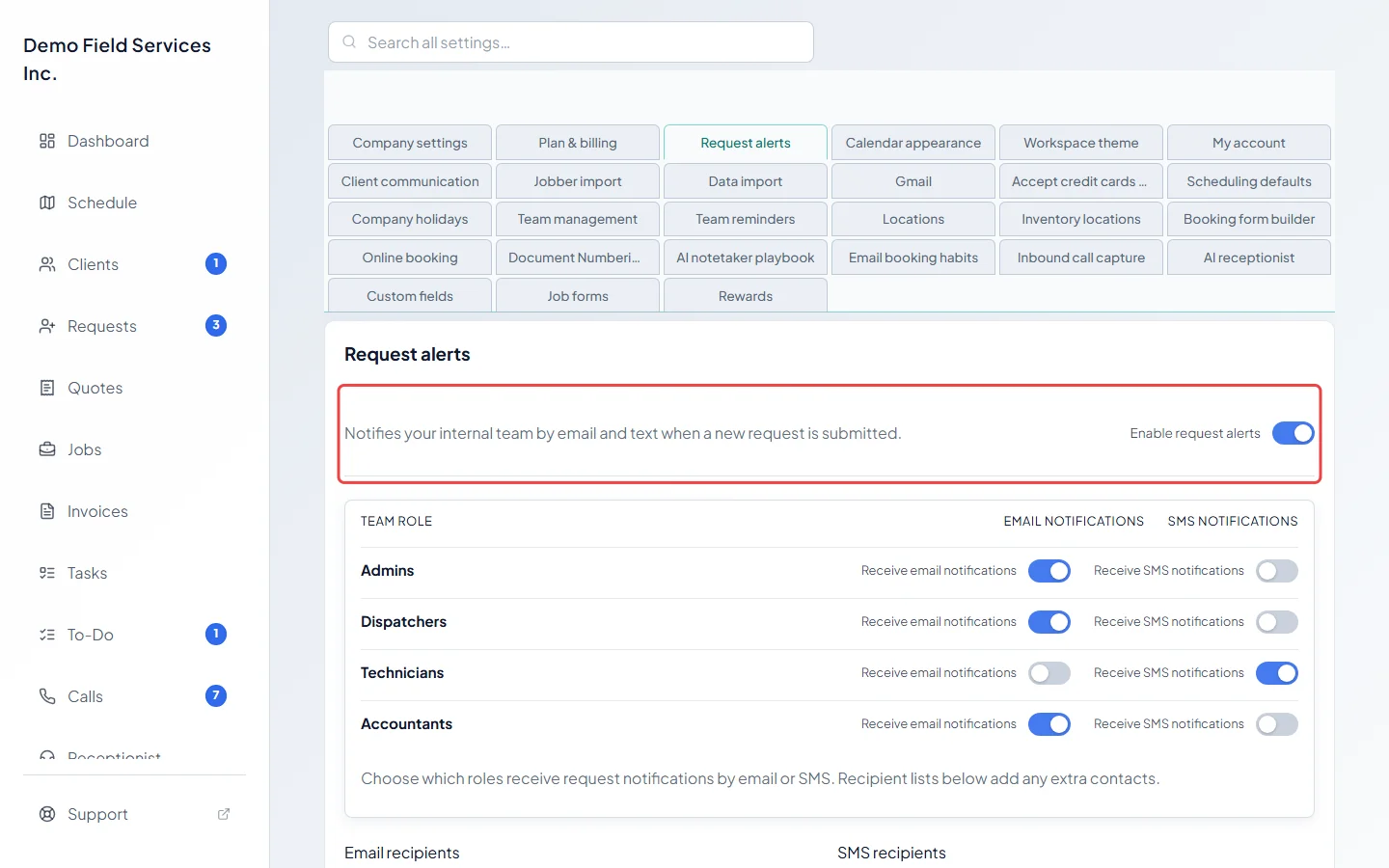
-
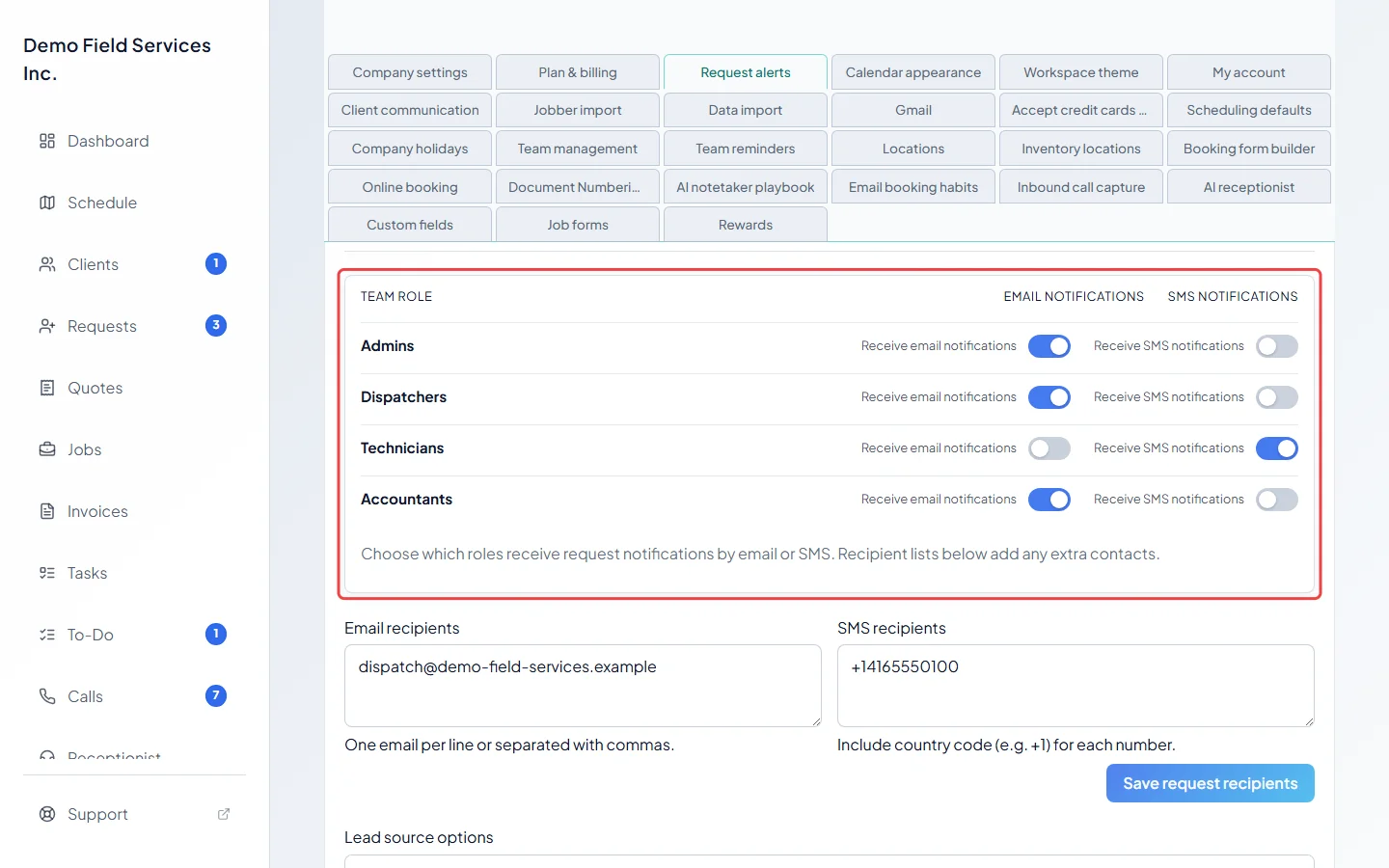
Choose which roles are told. Each row is a role (Admins, Dispatchers, Technicians, Accountants). Turn on Receive email notifications for a role and every active team member with that role gets the alert at the email they sign in with. Each switch saves straight away.
-
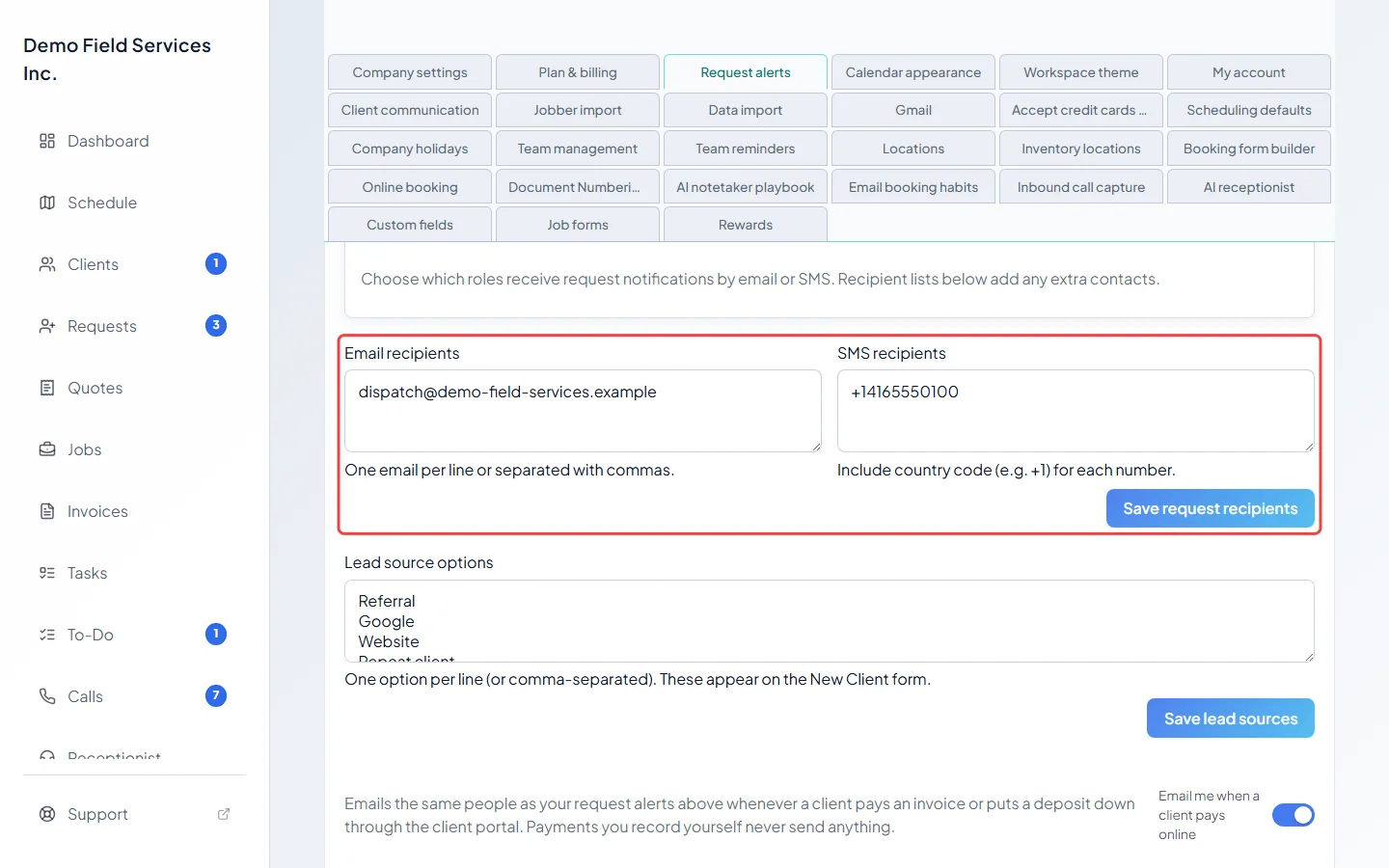
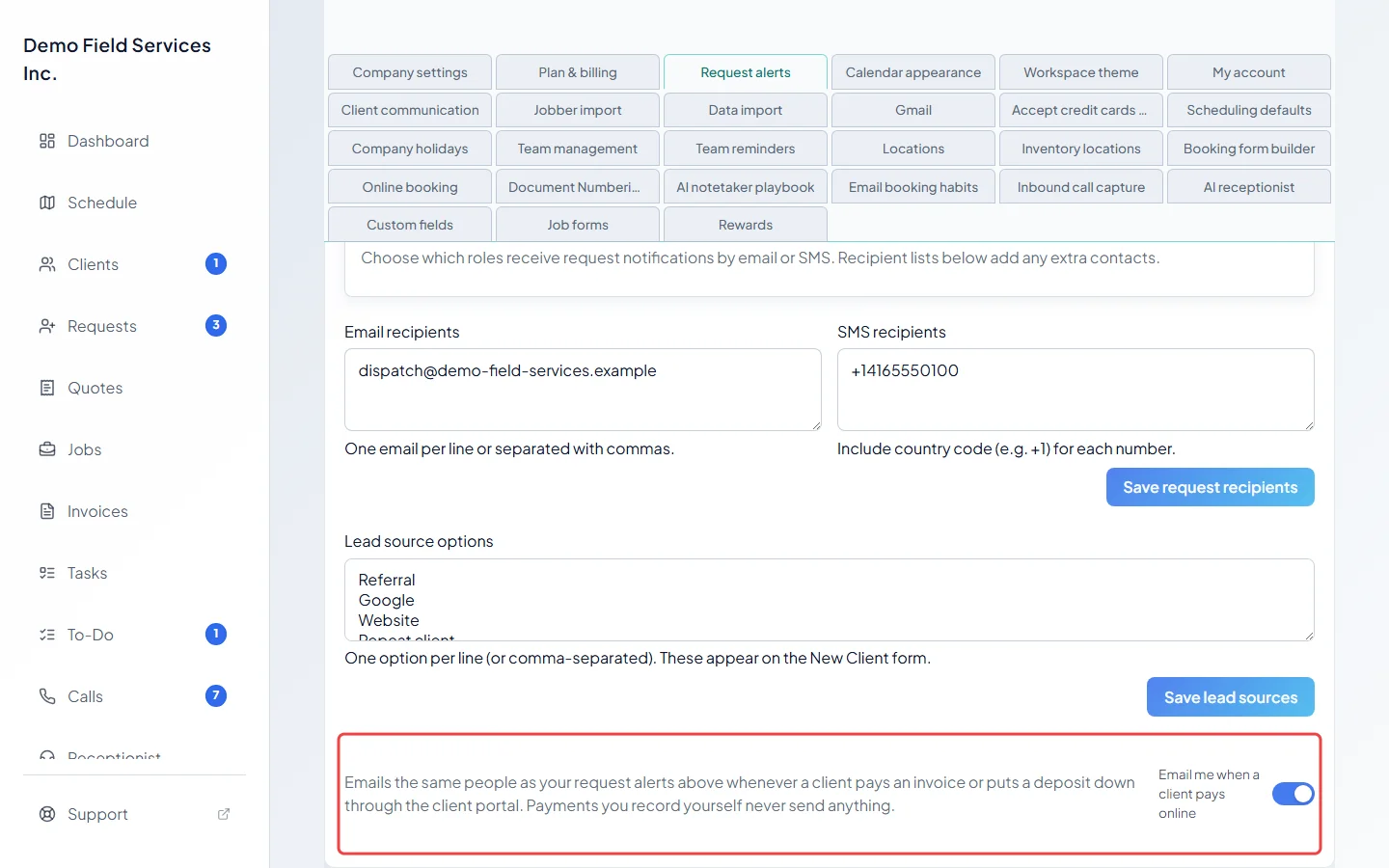
To add people who aren’t on your team list, such as a shared office inbox, type them into Email recipients, one per line or separated by commas, and click Save request recipients.
-
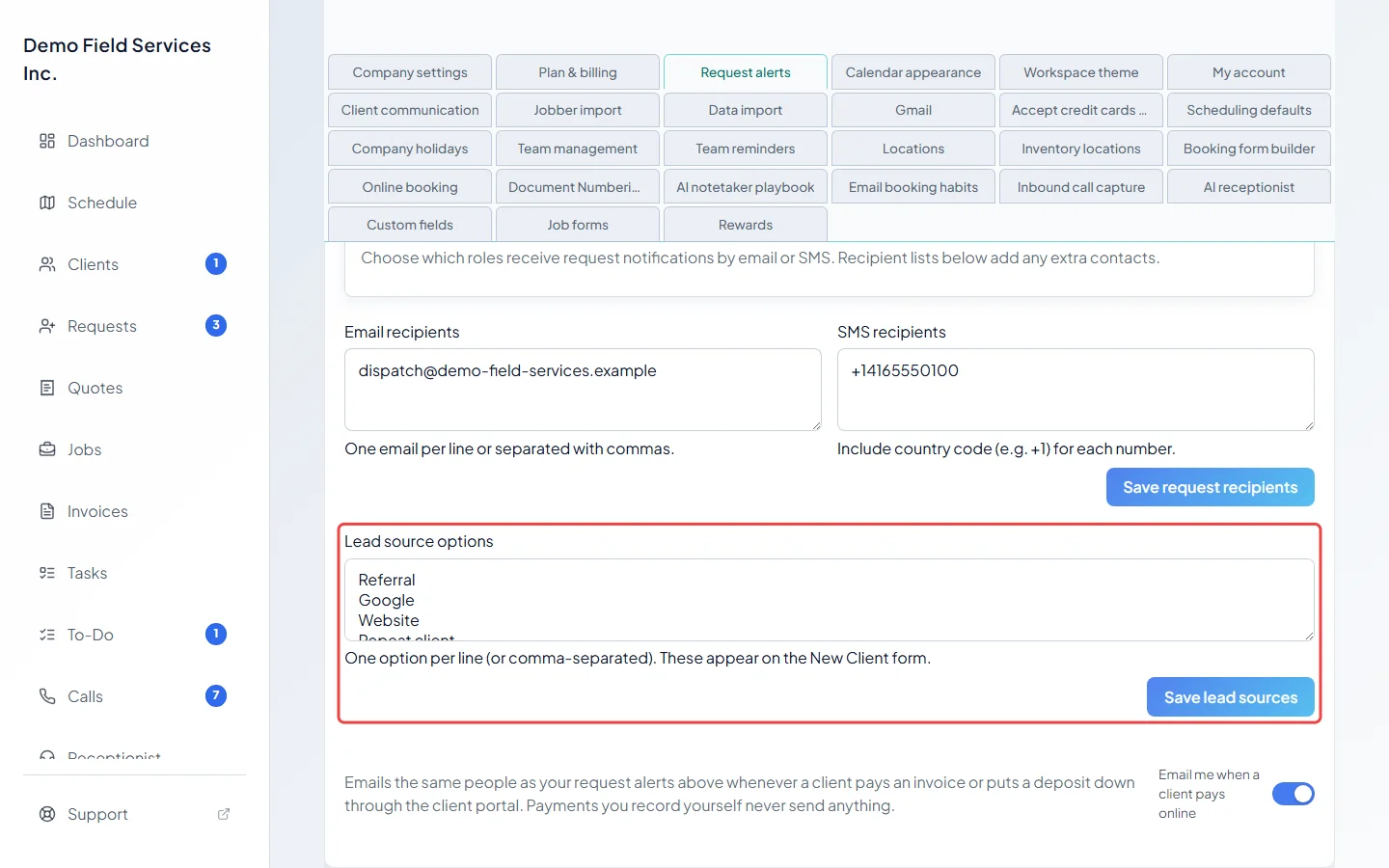
In Lead source options, list the answers to “where did this client hear about you?”, one per line, and click Save lead sources. They appear on the new client form, and on your booking page and request form when those ask how the customer heard about you.
-
Turn on Email me when a client pays online to get an email whenever a client pays an invoice or puts a deposit down through the client portal. It goes to the same people as your request alerts. Payments you record yourself never send it.
What sends a request alert
Section titled “What sends a request alert”With Enable request alerts on, the people above get an email when:
- a customer sends your request form,
- a customer sends a request through your website chatbot,
- a customer books on your online booking page and the booking waits for you to approve it,
- a customer books on your online booking page and it goes straight onto the schedule.
Good to know
Section titled “Good to know”- Alerts go out by email. The SMS notifications switches and the SMS recipients box are saved, but no alert sends a text at the moment.
- The same email list also gets other office emails, for example when a client approves or declines a quote online, or cancels or moves an online booking. Those still go out when Enable request alerts is off.
- If nobody is set to get emails, online payment emails go to your company email instead.
Related articles
Section titled “Related articles”Checked against Astragal on October 18, 2026