

The schedule calendar
The Schedule is your calendar of visits, tasks and requests, laid out by day and by team member.
Who can do this: Everyone. Admins, dispatchers and accountants see the whole team. Technicians see their own work, and can also see or change everyone’s if their schedule permission allows it.
Also called: calendar, dispatch board.
-
Open the Schedule.
On a computer: Left menu → Schedule On a phone: Bottom bar → Schedule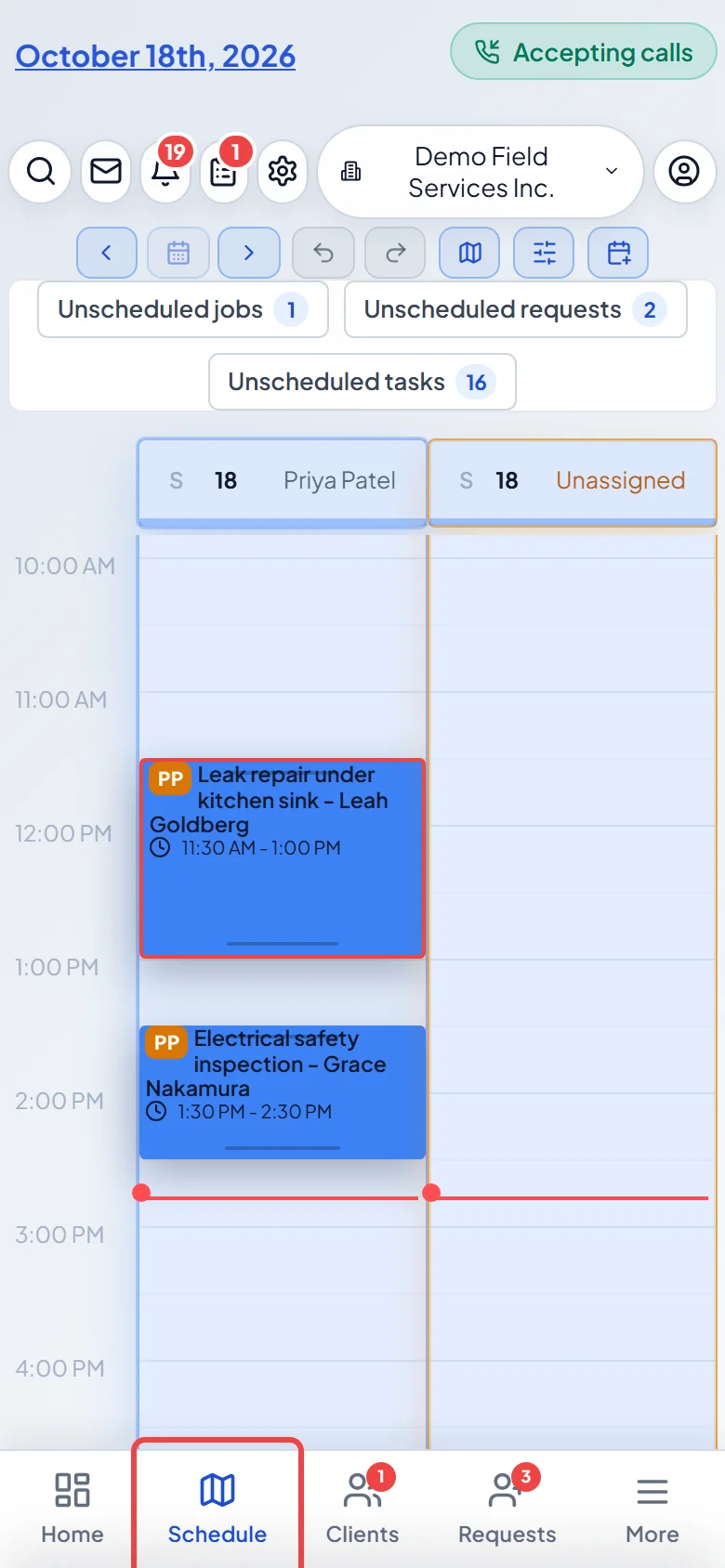
-
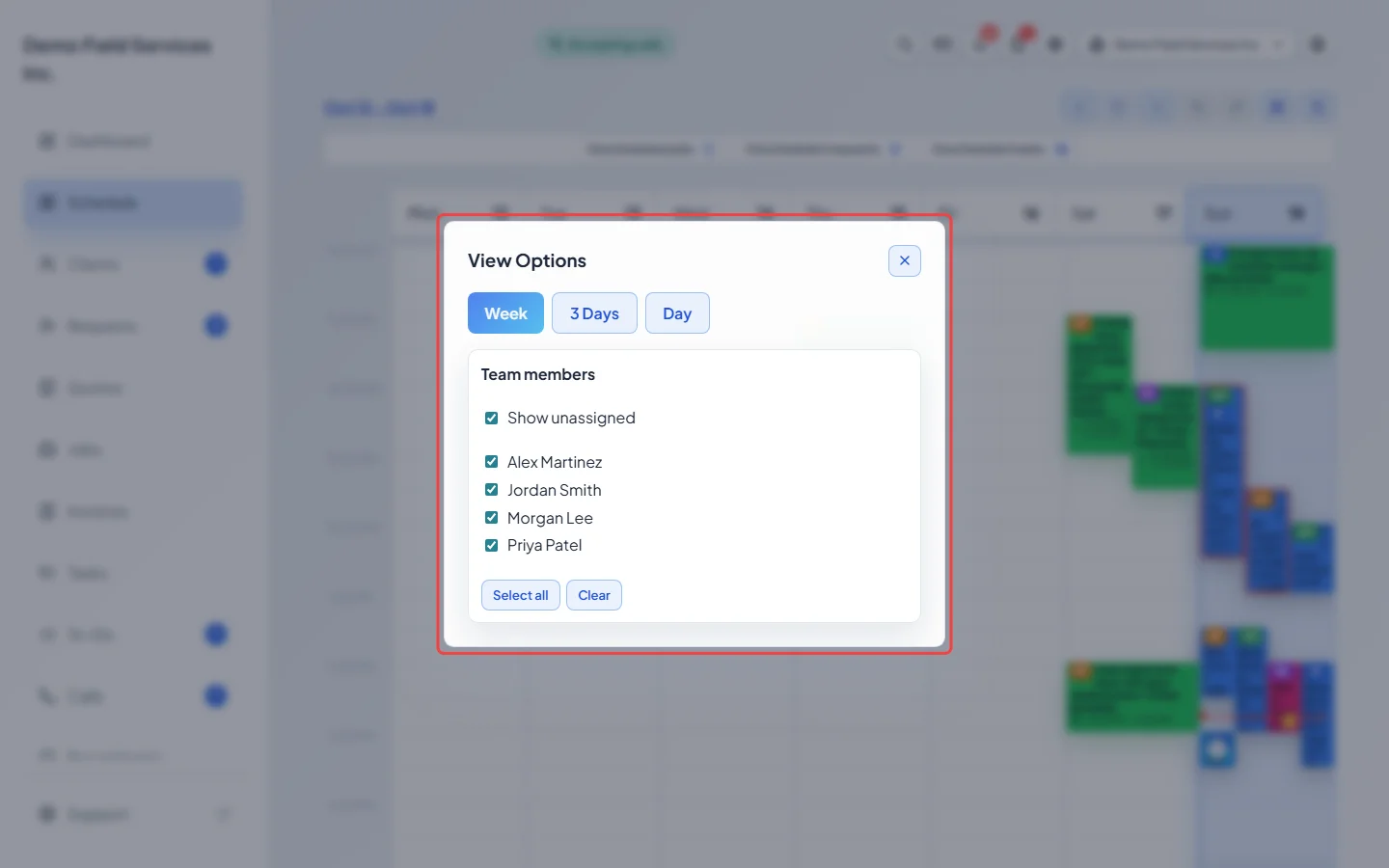
Click View options (the sliders button) to choose Week, 3 Days or Day, and tick which Team members show. Show unassigned adds a column for work nobody is assigned to. In 3 Days you see one team member at a time. Astragal remembers your choice.
-
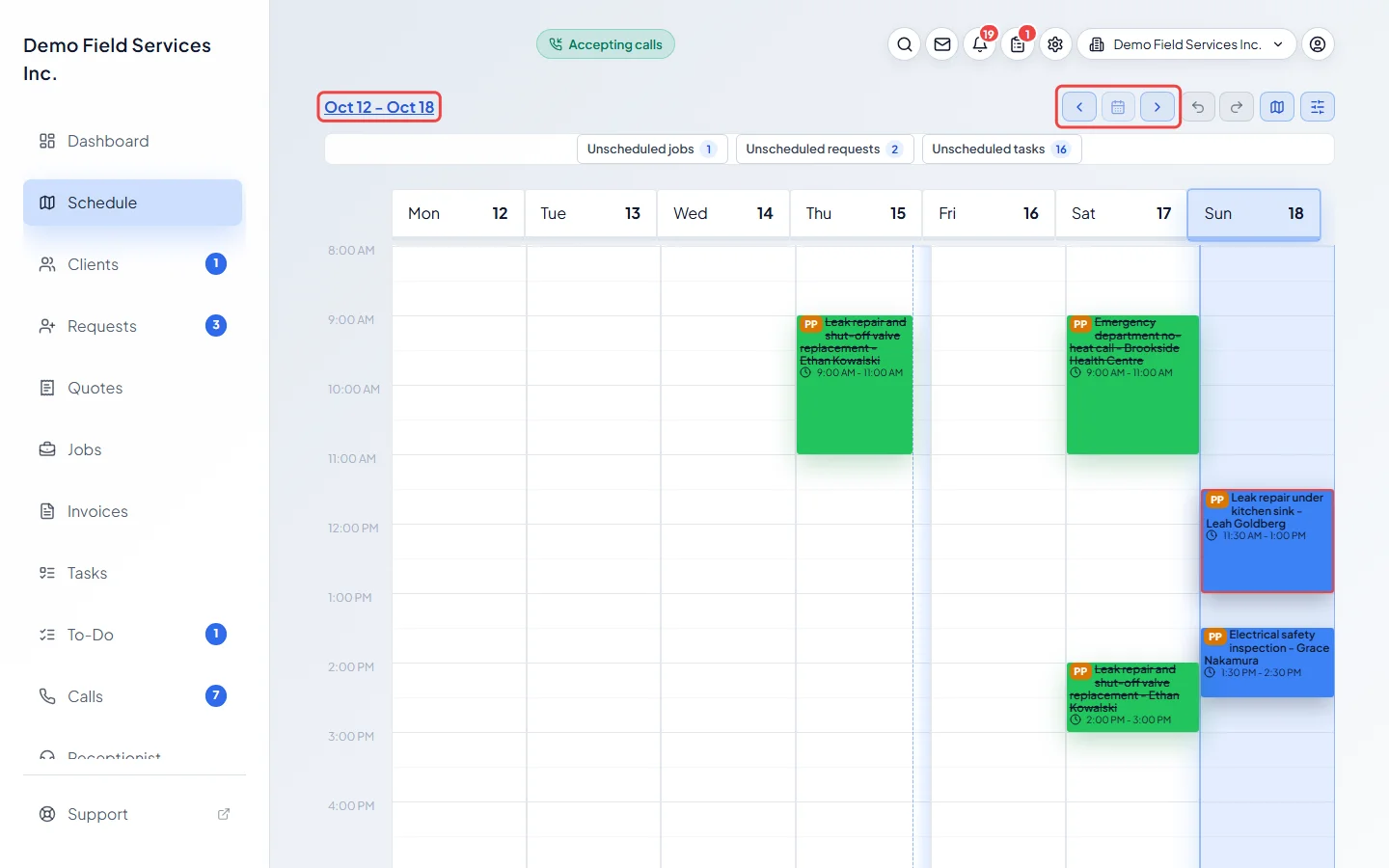
Move between dates with the arrows at the top right. The calendar button between them (Today) brings you back to today. Click the date at the top left to jump to any day.
-
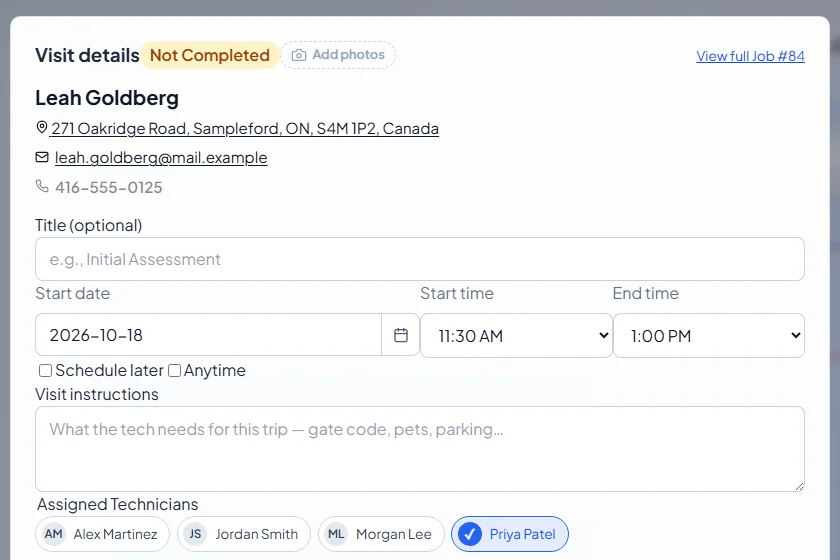
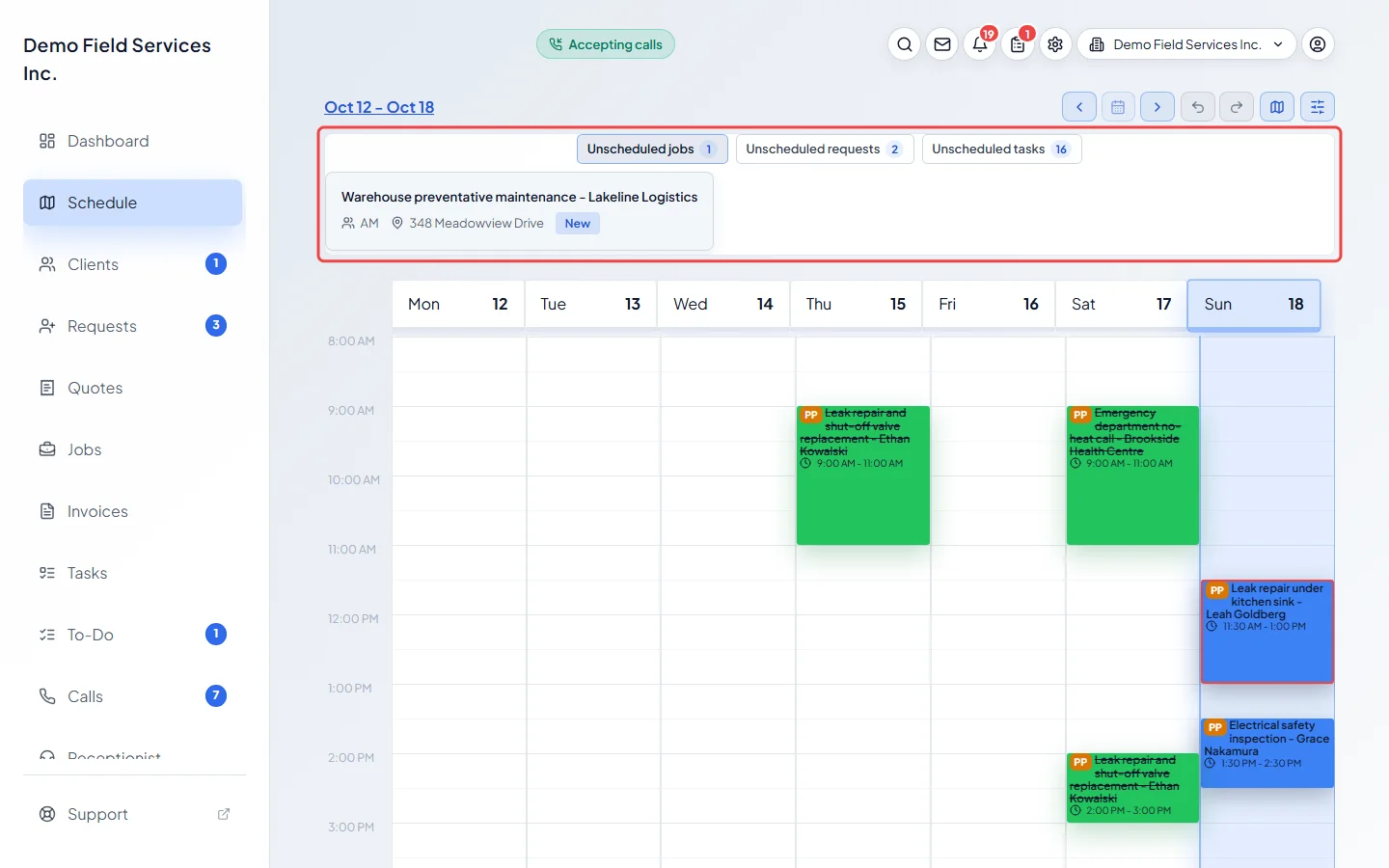
Click a card to open it. A visit opens its Visit details window, where you can change the time, the team and the notes. Each card shows the team members’ initials, the job title and client, and the time. Its colour follows your schedule colours: completed, warranty, unassigned or regular work. Tasks have a dashed border and a tick button to complete them; requests start with “Request:”.
-
Click Unscheduled jobs, Unscheduled requests or Unscheduled tasks above the calendar to list work that has no date yet. Click one to open it and give it a time.
-
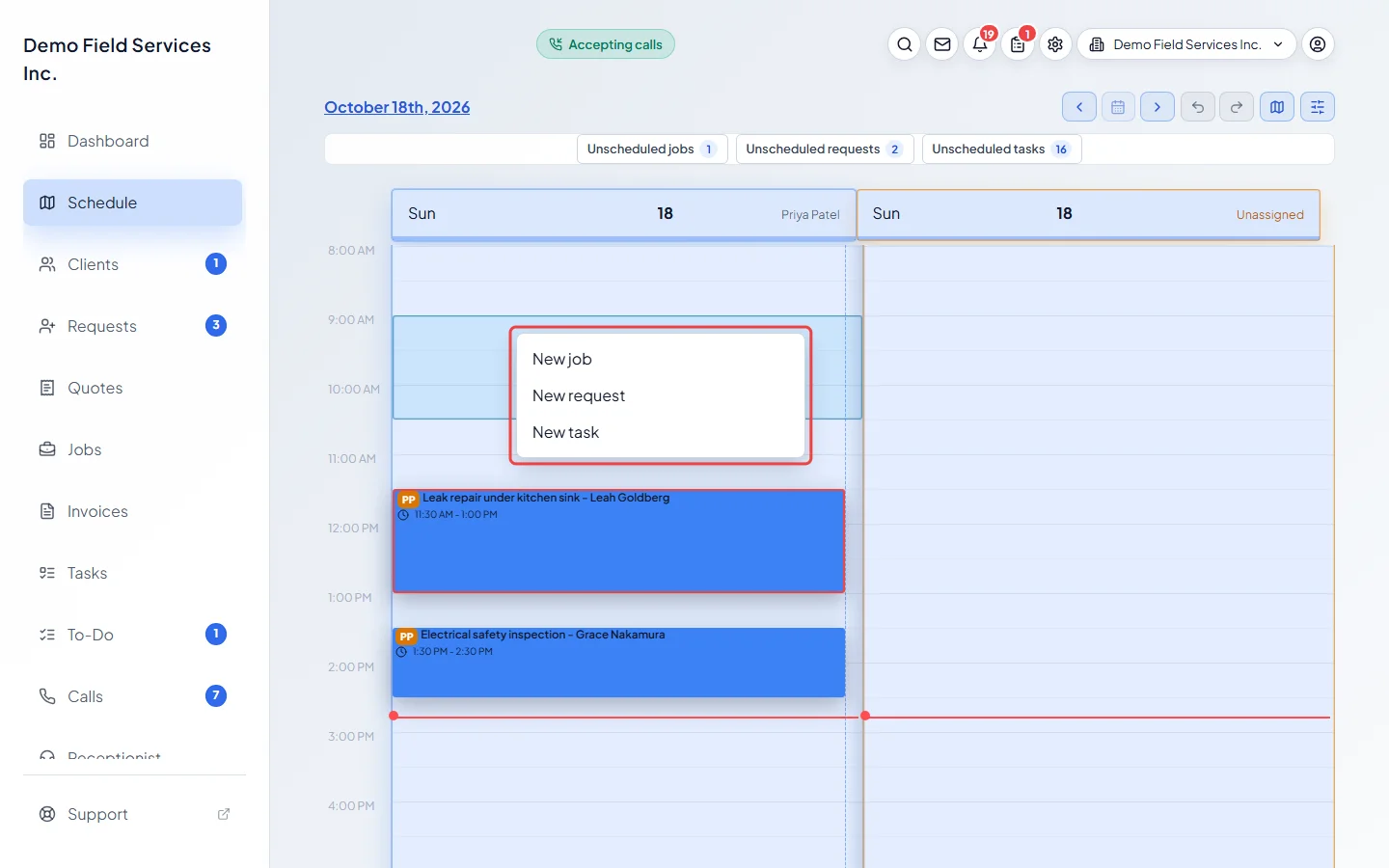
To add work at a time, click an empty spot on the calendar (or drag down to draw a longer slot), then pick New job, New request or New task. The form opens with that time and team member filled in. On a phone, tap Add at time first, then tap the spot.
Good to know
Section titled “Good to know”- The red line across the calendar is the time now. Shaded hours are outside your business hours.
- Work with no set time sits in the Anytime row at the top.
- The Map button opens the same day on the map. On a computer, hovering a day’s header also shows a map button for that day.
- While you fill in a new job, Show Calendar opens a small view of the Schedule so you can see who is free without leaving the form.
- Technicians never see the unscheduled lists, and only see Show unassigned if they can view everyone’s schedule.
Related articles
Section titled “Related articles”Checked against Astragal on October 18, 2026