

On-site contacts
An on-site contact is the person who lets you in at a property, such as a tenant, when someone else pays the bills.
Who can do this: Team members set to View full client and property info can see on-site contacts. Changing them needs admin or View and edit full client and property info or higher. People with less access don’t see on-site contacts at all.
Also called: tenant, site contact.
The on-site contact gets the visit texts (booking, reminders, on my way). They never see prices or invoices; those still go to the client.
-
Open the client and find the property in the Properties card on the Profile tab. A property that already has one shows “On-site contact:” with their name, cell and email.
On a computer: Left menu → Clients On a phone: Bottom bar → Clients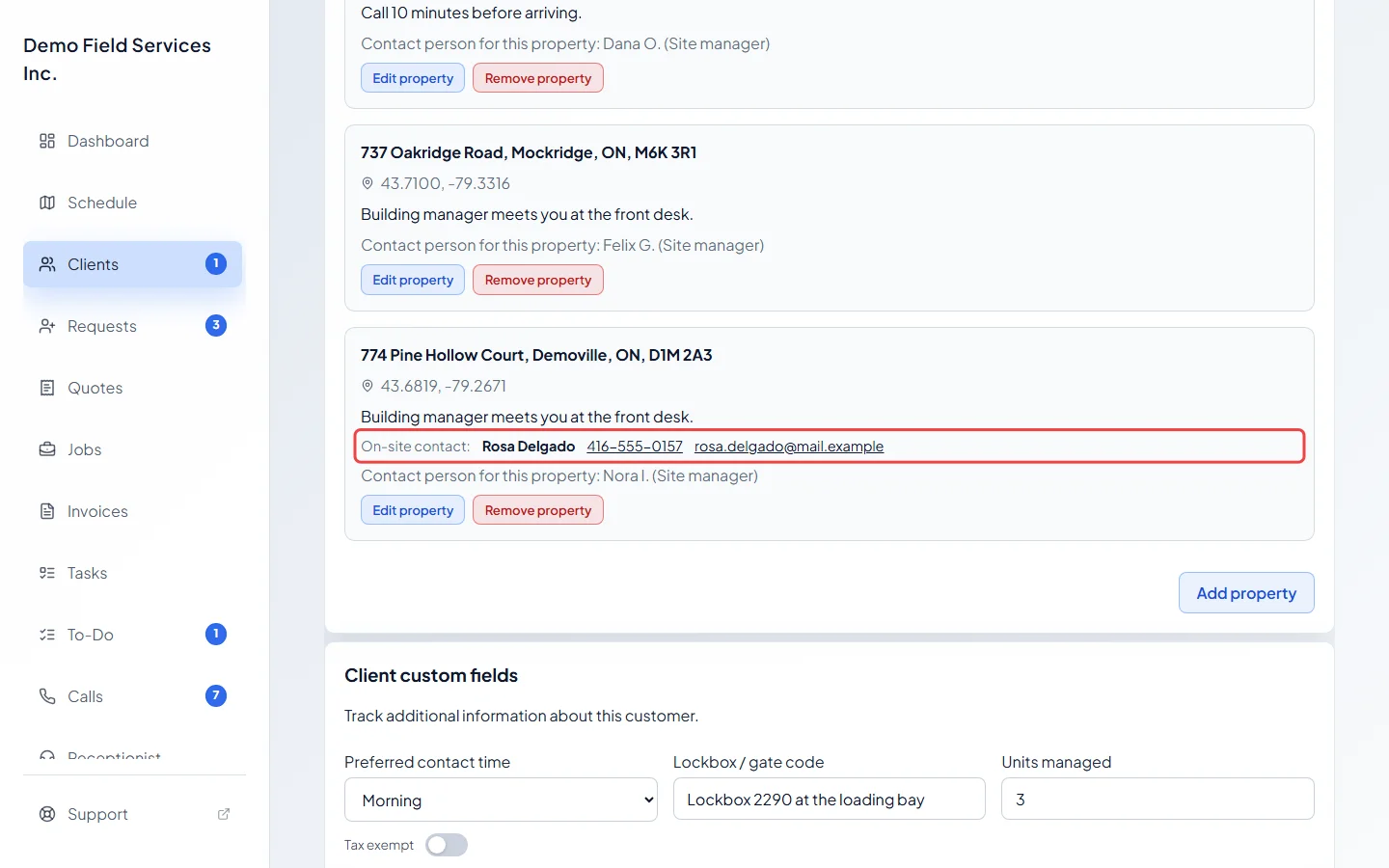
-
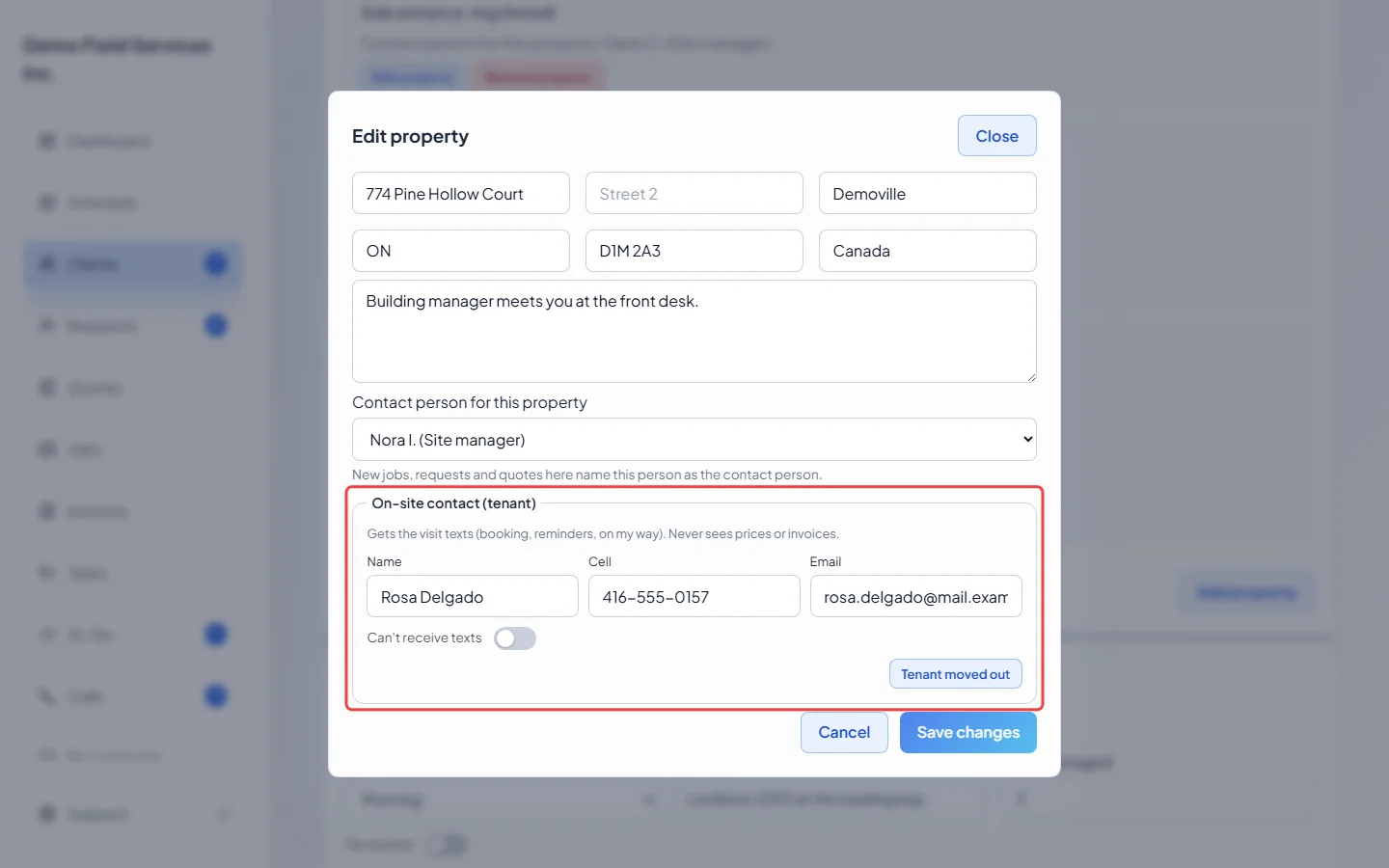
Click Edit property. Under On-site contact (tenant), fill in Name, Cell and Email. If the section is folded away, click + Add on-site contact (tenant) first. A cell number or an email is needed.
-
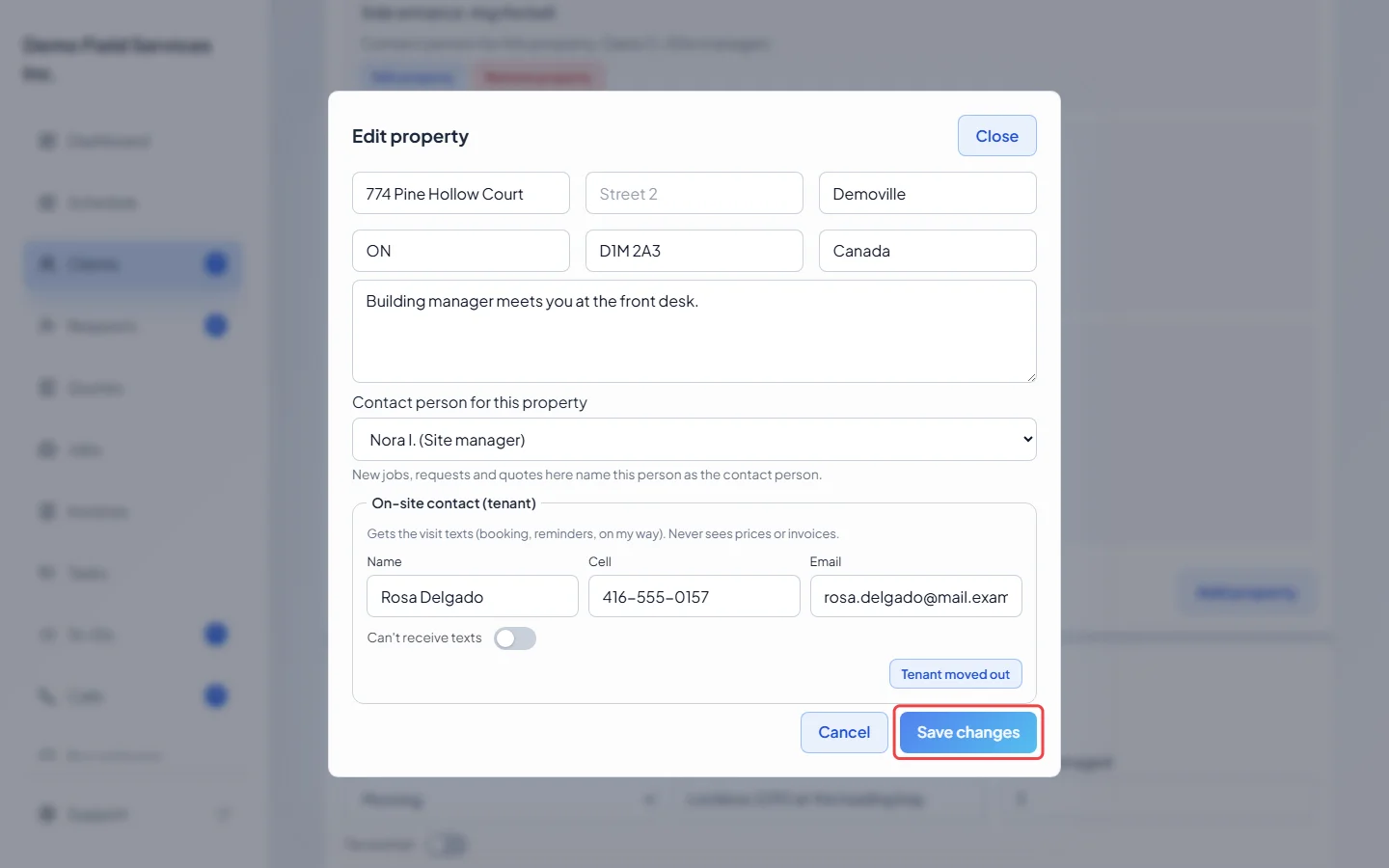
Click Save changes.
-
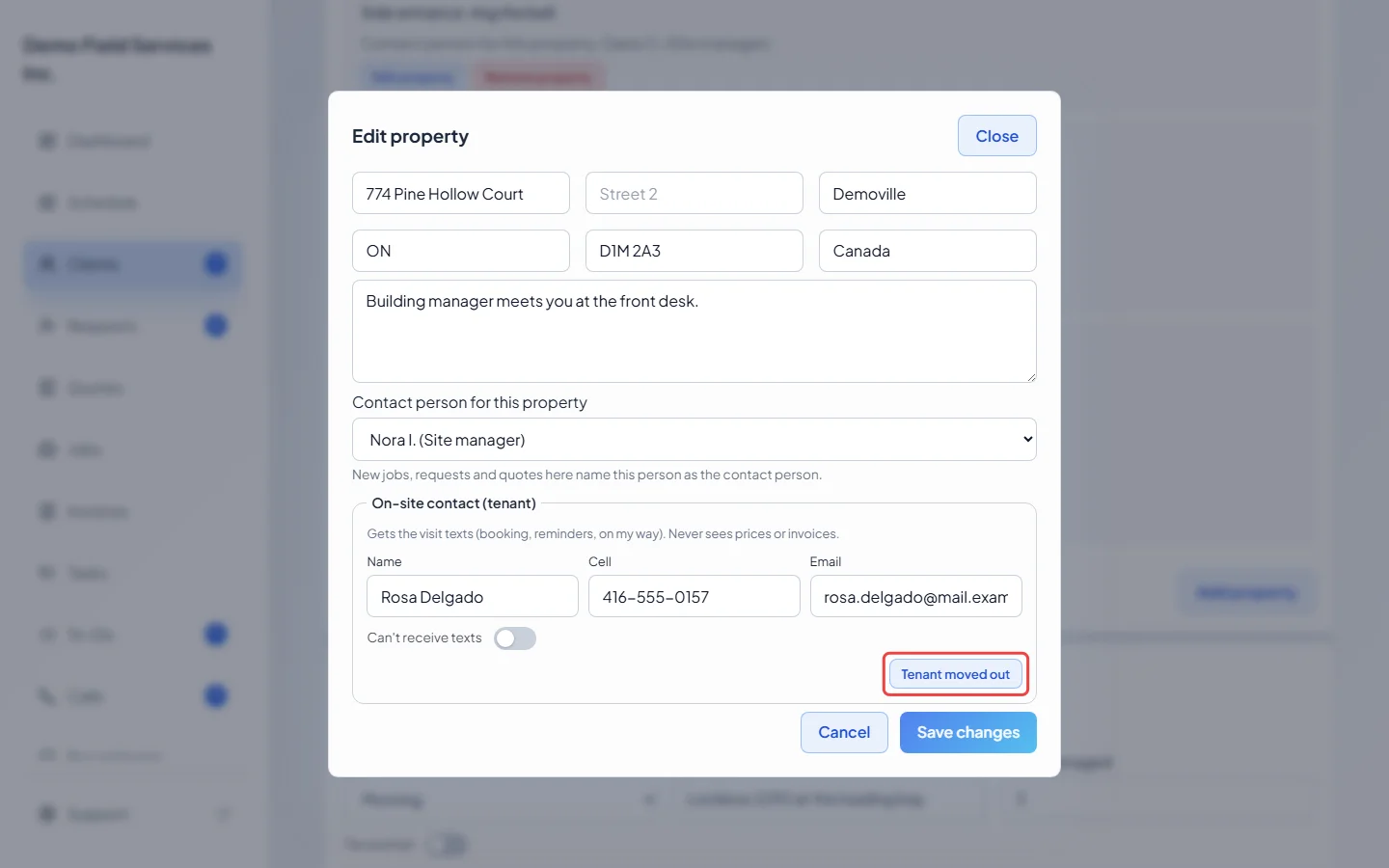
When the tenant leaves, open Edit property again, click Tenant moved out, and click Save changes. Their details are cleared from the property.
On new requests and jobs
Section titled “On new requests and jobs”The new request and new job screens have the same On-site contact (tenant) section, filled in from the property you picked:
- Save as this property’s on-site contact keeps what you typed on the property for next time. Leave it off for a one-time contact.
- No on-site contact for this visit sends this visit’s texts to the client only.
- If the saved contact is more than six months old, Astragal asks “Still the on-site contact?”. Click Yes to keep them or Change to type someone new.
- Tenant moved out clears the property’s contact straight away.
Good to know
Section titled “Good to know”- If the number can’t get texts, turn on Can’t receive texts in Edit property. It appears once the cell number is saved and takes effect straight away, without clicking Save changes. Their texts then go to the client instead, and the property shows the date this started.
- Astragal warns you if the on-site contact’s number is the client’s own main number, or if they are also on the client’s own contacts (they would keep getting invoices).
- To copy the client on a tenant’s visit texts, turn on Also send appointment texts to this client when a property has a tenant in the client’s communication settings.
- You can text the on-site contact from the client’s Messaging tab: pick a job or request Template, choose the job or request, and the tenant appears under Recipients marked “(tenant)”. See Messaging a client.
- An on-site contact is not part of the client’s account. For people who share the account, such as a spouse or property manager, see People on an account.
Related articles
Section titled “Related articles”Checked against Astragal on October 17, 2026