

Set up your company
Create your Astragal account and give it the company details your quotes, invoices and messages will use.
Who can do this: Anyone can sign up. The person who signs up becomes the company’s admin, and only admins see the setup wizard.
Also called: sign up, creating an account, onboarding.
Step 1 of 6 in setting up Astragal for your company.
Sign up
Section titled “Sign up”-
Open the Astragal sign-in page and click New here? Start a free trial. The Start your free trial page opens. The trial lasts 14 days and doesn’t need a card.
On a computer: Sign-in page → New here? Start a free trial On a phone: Sign-in page → New here? Start a free trial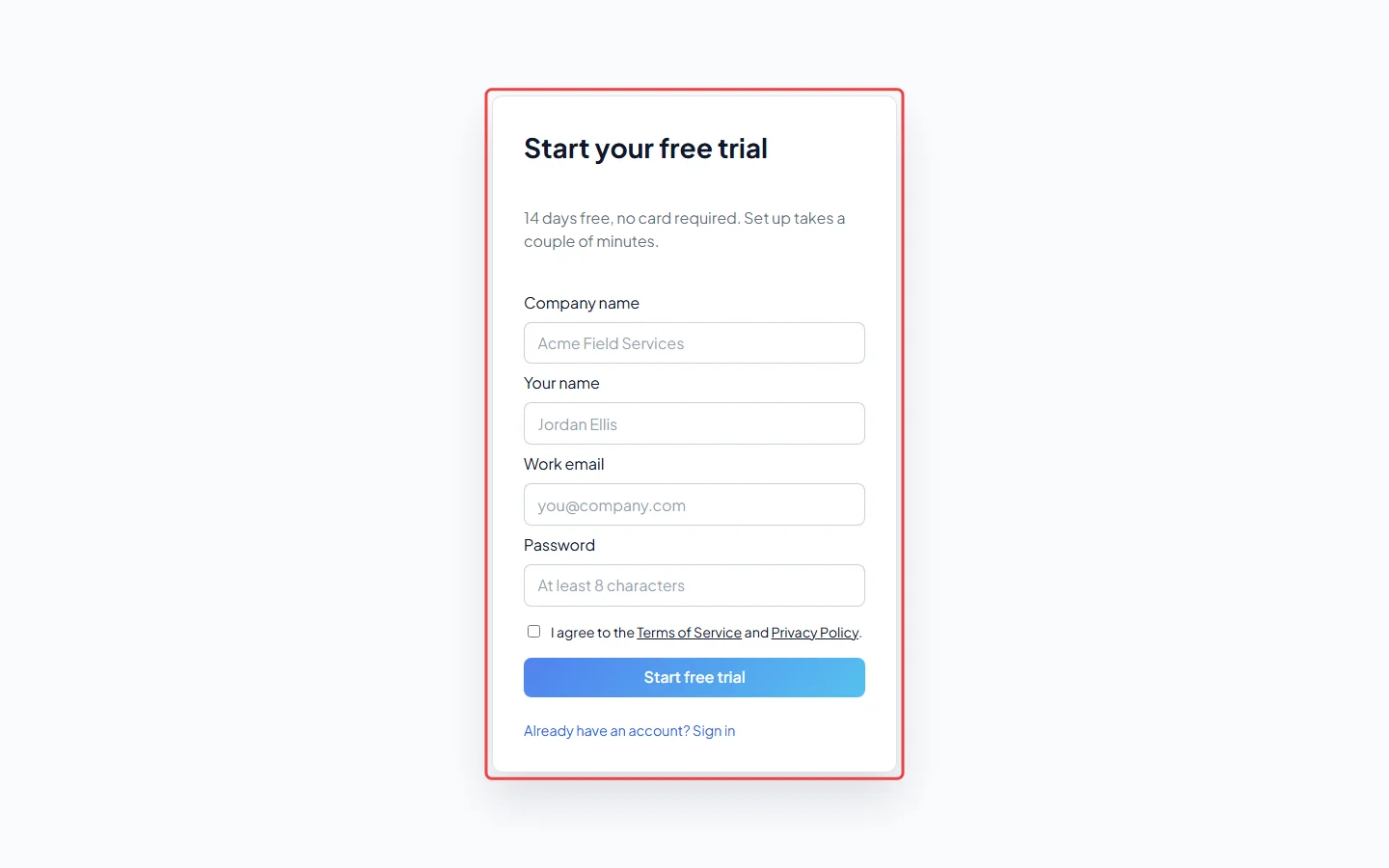
-
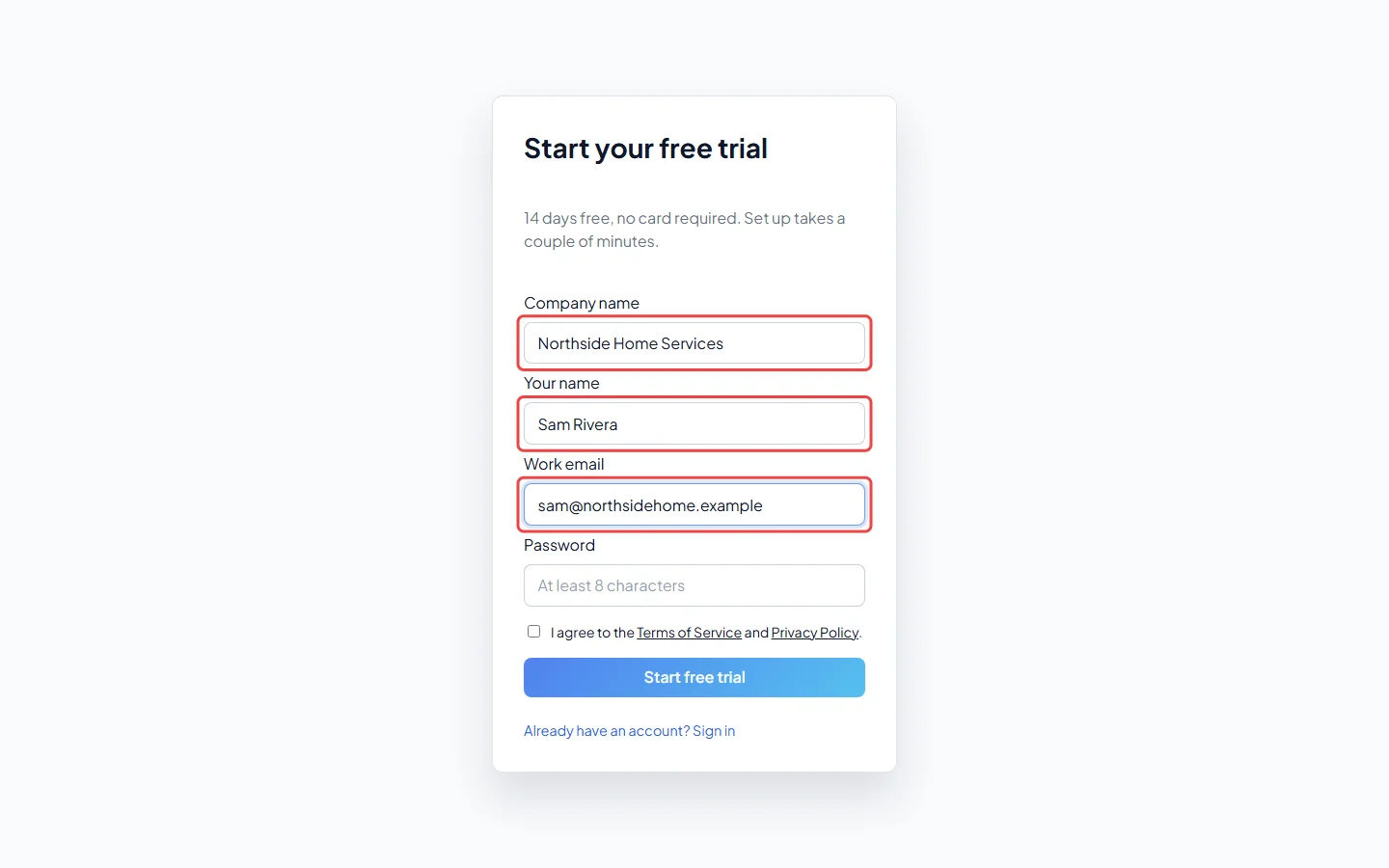
Type your Company name, Your name and your Work email. If the page also asks for an Invite code, type the code you were given.
-
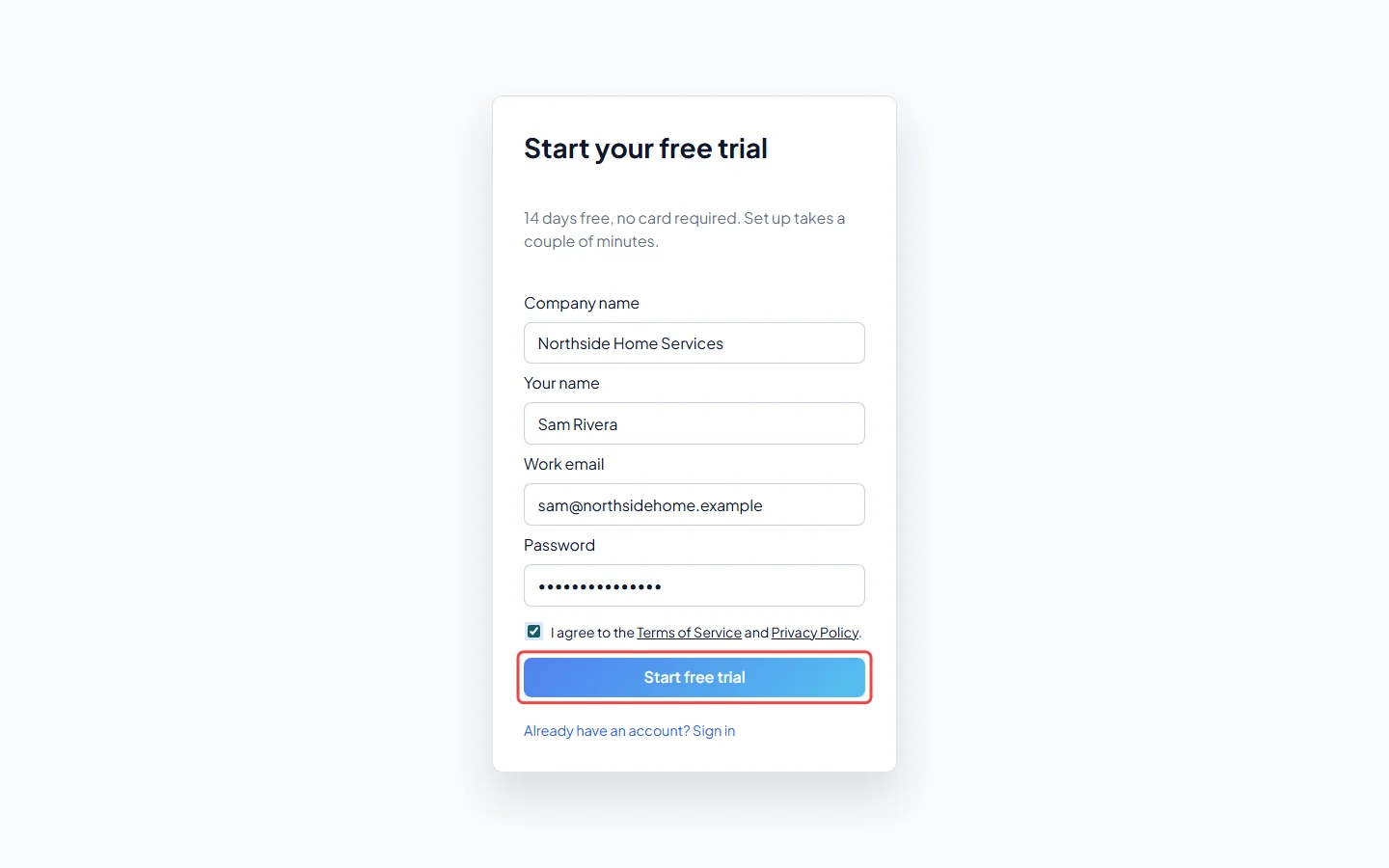
Choose a Password of at least 8 characters, tick the box to agree to the Terms of Service and Privacy Policy, and click Start free trial. Astragal creates your company and opens the setup wizard.
Astragal also emails you a link to confirm your address. You can use the app straight away, but until you click that link a banner says Verify your email to enable sending, and sending to clients stays switched off. If the email didn’t arrive, click Resend link on the banner. The link works for 7 days.
The setup wizard
Section titled “The setup wizard”The wizard walks you through your company’s settings one screen at a time. It has three parts. The top of each screen shows which part you’re in and how far through that part you are.
On every screen:
- Continue saves what you typed and moves on.
- Skip moves on without saving. You can come back to a skipped screen later.
- Back goes to the screen before, within the same part.
- The ✕ in the top corner closes the wizard and takes you to the dashboard.
Part 1: The basics
Section titled “Part 1: The basics”| Screen | What you fill in |
|---|---|
| Company info | Your Company name (required), phone, email and website. |
| Business address | Your street, unit, country, city, province or state, and postal code. It prints on quotes and invoices. |
| Region & timezone | Your country, time zone, how dates and times are written (for example 12-hour or 24-hour), and whether the week starts on Sunday or Monday. |
| Business hours | Tick the days you’re open and set opening and closing times. It starts as Monday to Friday, 8 AM to 5 PM. |
| Default tax rate | The tax name and rate added to new quotes and invoices, plus your tax number if you want it printed. You can add more taxes later. |
| Document numbers | Where quote, job, invoice and request numbers start. Handy if you’re moving from another app and want to carry on your numbering. |
Part 2: Operations & branding
Section titled “Part 2: Operations & branding”| Screen | What you fill in |
|---|---|
| Upload your logo | A PNG or JPG up to 5 MB. It shows on quotes, invoices and the client portal. Continue works once a logo is uploaded; otherwise click Skip. |
| Invite your first technician | A teammate’s name, email and phone. Send invite & Continue emails them a link to set their password. |
| Appointment defaults | How long a new visit lasts, and the arrival window you promise clients. |
| Lead alerts | Who gets an email or text when a new request comes in. |
| Lead sources | The list your team picks from to record how a client found you, one per line. |
| Business phone number | Get my number buys your company a phone number for calls and texts, near the area code of the company phone you entered. It’s set up as soon as you click it. Only admins can do this. |
| What your business does | A few sentences about the work you do, the work you don’t do, and the area you cover. The AI receptionist and your online booking form use it. |
| Phone add-ons | Switch on AI answering for missed calls, or run your whole phone line in the app. Anything you switch on is added to your bill. During the free trial nothing is charged and no card is needed. See Phone add-ons. |
| Call greetings & forwarding | Open call settings takes you to the greetings and forwarding for your phone line. |
Part 3: Full coverage
Section titled “Part 3: Full coverage”| Screen | What you fill in |
|---|---|
| Customer templates | Open templates opens the wording of the emails and texts your clients get. |
| Automations | Open automations opens the automatic reminders and follow-ups. |
| Public booking form | Open booking form settings opens the questions on your public request form. |
| Payroll schedule | How often your team’s pay periods roll over, and the day the first one starts. |
| Overdue invoice reminders | An extra overdue-invoice chaser, with how many days apart and how many times. It starts switched off. Separately, the Overdue invoice follow-ups in Client communication are already on for new companies, so leave this off unless you want both. |
| Import existing data | Open data import opens the tools for bringing in clients and history from another app. |
Screens that open another page give you a link that opens in a new tab. When you’re done there, come back and click Mark as done.
At the end of each part, click Finish for now to stop, or Continue to Phase 2 / Continue to Phase 3 to keep going. After the last screen of Part 3, Astragal says Your workspace is fully set up.
Good to know
Section titled “Good to know”- Until every screen is done or skipped, your dashboard shows Finish setting up your workspace, listing the screens you haven’t finished. Skipped ones say Skipped — pick up. Click one to jump back into the wizard. Once every screen is done or skipped the card goes away, and you change those things in Settings instead. The ✕ on that card hides it for now; it comes back the next time you open Astragal.
- Everything in the wizard can be changed later in Settings. For example your address, hours and tax are under Company settings. See Company info and branding.
- Signing up inside the iPhone app isn’t possible. Sign up on a computer, then sign in on your phone.
Related articles
Section titled “Related articles”Next step: Services and prices
Checked against Astragal on October 18, 2026