

Moving your data from Jobber or another app
Bring the records you already have into Astragal, so you don’t start from an empty list.
Who can do this: Admins.
Also called: importing, migrating, CSV upload.
There are two ways in:
- From Jobber, directly: connect your Jobber account and Astragal copies your records across for you. This is the easiest way if you use Jobber.
- From a spreadsheet: upload a CSV or Excel file exported from Jobber. A products and services list can come from any app.
-
To copy straight from Jobber, open Jobber import and click Connect Jobber Account. Sign in to Jobber in the window that opens and allow access. Back in Astragal, click Sync All to bring over your clients, requests, quotes, jobs and invoices. The buttons next to it bring over the rest: Sync Products & Services, Sync Files & Images, Sync tasks and Sync timesheets. You can keep working while it runs, and syncing again later won’t make copies.
On a computer: Left menu → Settings → Jobber import On a phone: More → Settings → Jobber import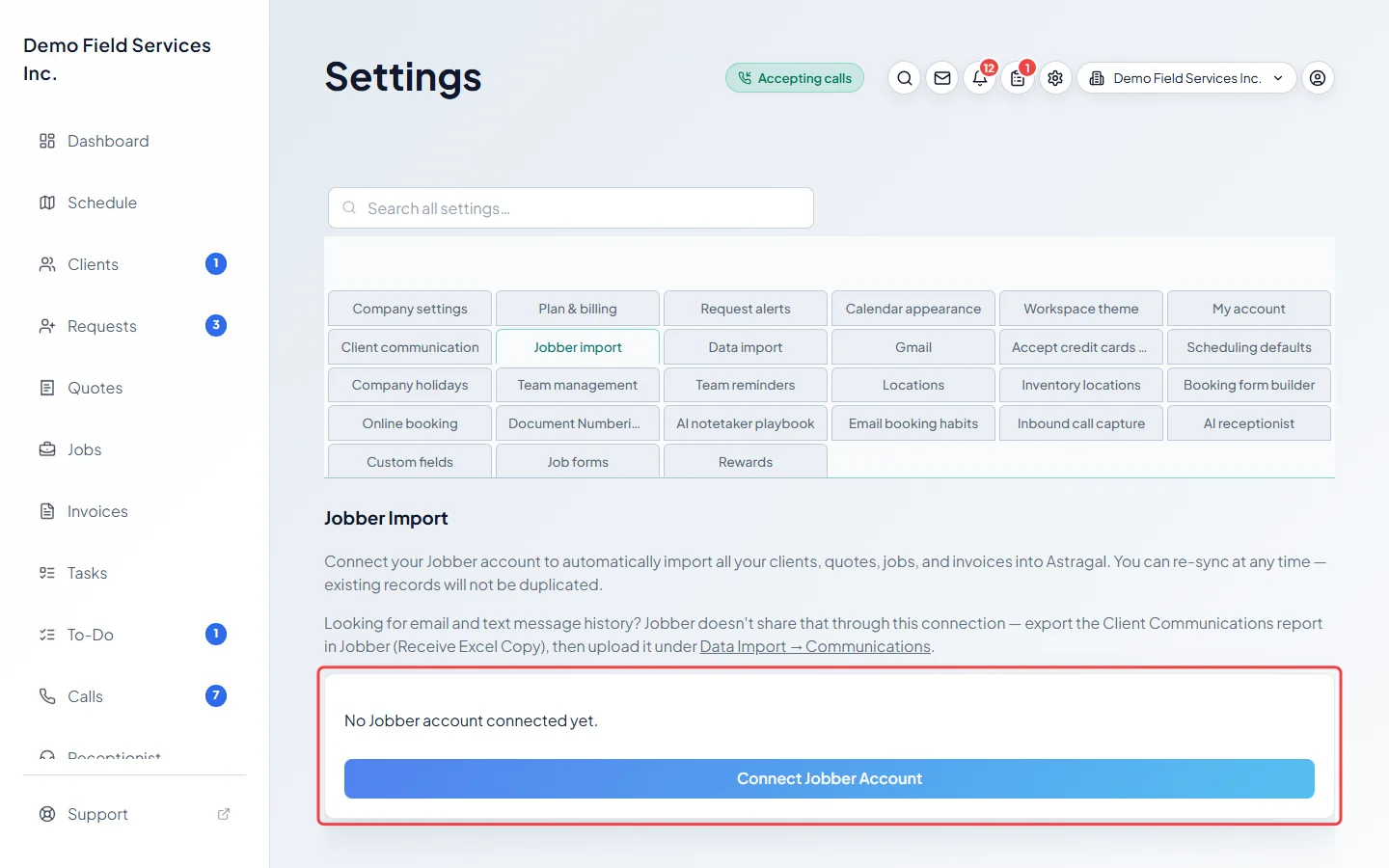
-
To import a spreadsheet, open Data import. Pick what’s in the file from Import type: Clients, Requests, Quotes, Jobs, Visits, Invoices, Products & Services or Communications. Click Choose file, pick your CSV or Excel file and click Upload and preview. Import clients first, so the other records can be matched to them.
On a computer: Left menu → Settings → Data import On a phone: More → Settings → Data import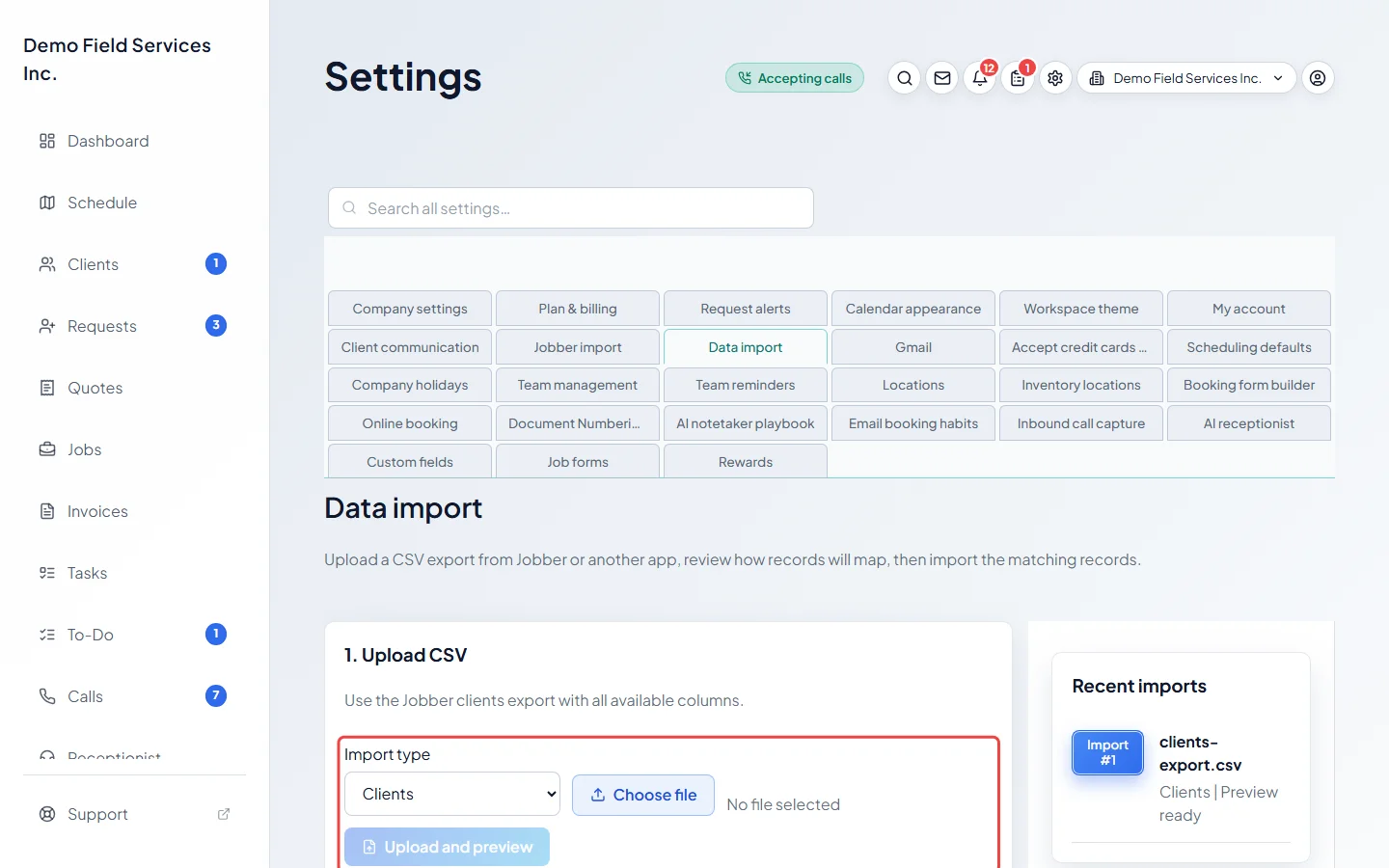
-
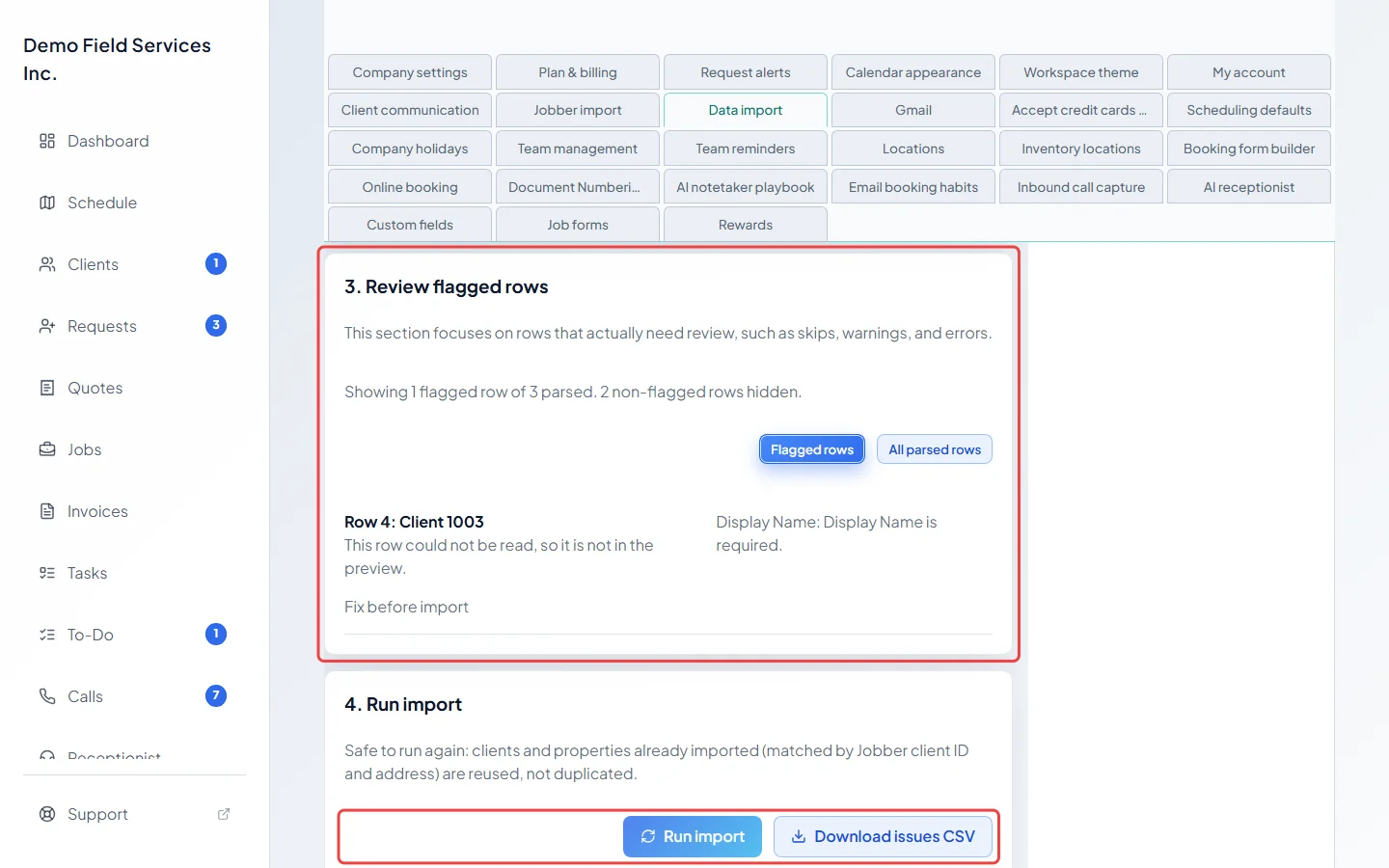
Check the preview. Preview mapping shows how many records will be created or matched to ones you already have, and Review flagged rows lists any rows with problems. When it looks right, click Run import. Click Download issues CSV for a list of rows that need fixing.
Good to know
Section titled “Good to know”- Connecting Jobber has to be done on a computer, not in the iPhone app.
- Jobber’s connection doesn’t include your email and text history. Export Jobber’s Client Communications report and upload it with Import type set to Communications, after your clients are in. Jobber’s report doesn’t include the message wording, so you get a record of what was sent and when, not the messages themselves.
- The spreadsheet import is built around Jobber’s export files. A Products & Services file can come from any app, as long as it has a column for the product name. For other records from another app, email support@astragalhq.com and we’ll help.
- Running the same file again skips records that were already imported, so a second run won’t make duplicates.
- Only have a price list? Use Import spreadsheet on the Products & Services page. See Importing products.
- Want your numbering to carry on from your old app? Set the next quote, job, invoice and request numbers in Document numbering.
Related articles
Section titled “Related articles”Checked against Astragal on October 18, 2026