

Internal notes and custom fields
Internal notes are for your team only; the client never sees them. Custom fields hold the extra details your business tracks.
Who can do this: Opening, adding and editing notes, and changing custom fields, need View and edit full client and property info or higher. Team members set to View full client and property info see only how many notes there are and the latest one; those set to View client name and address only don’t see the notes card.
Also called: client notes, private notes, extra fields.
Internal notes
Section titled “Internal notes”-
Open the client and scroll to the Internal notes card on the Profile tab. It shows how many notes there are and the latest one.
On a computer: Left menu → Clients On a phone: Bottom bar → Clients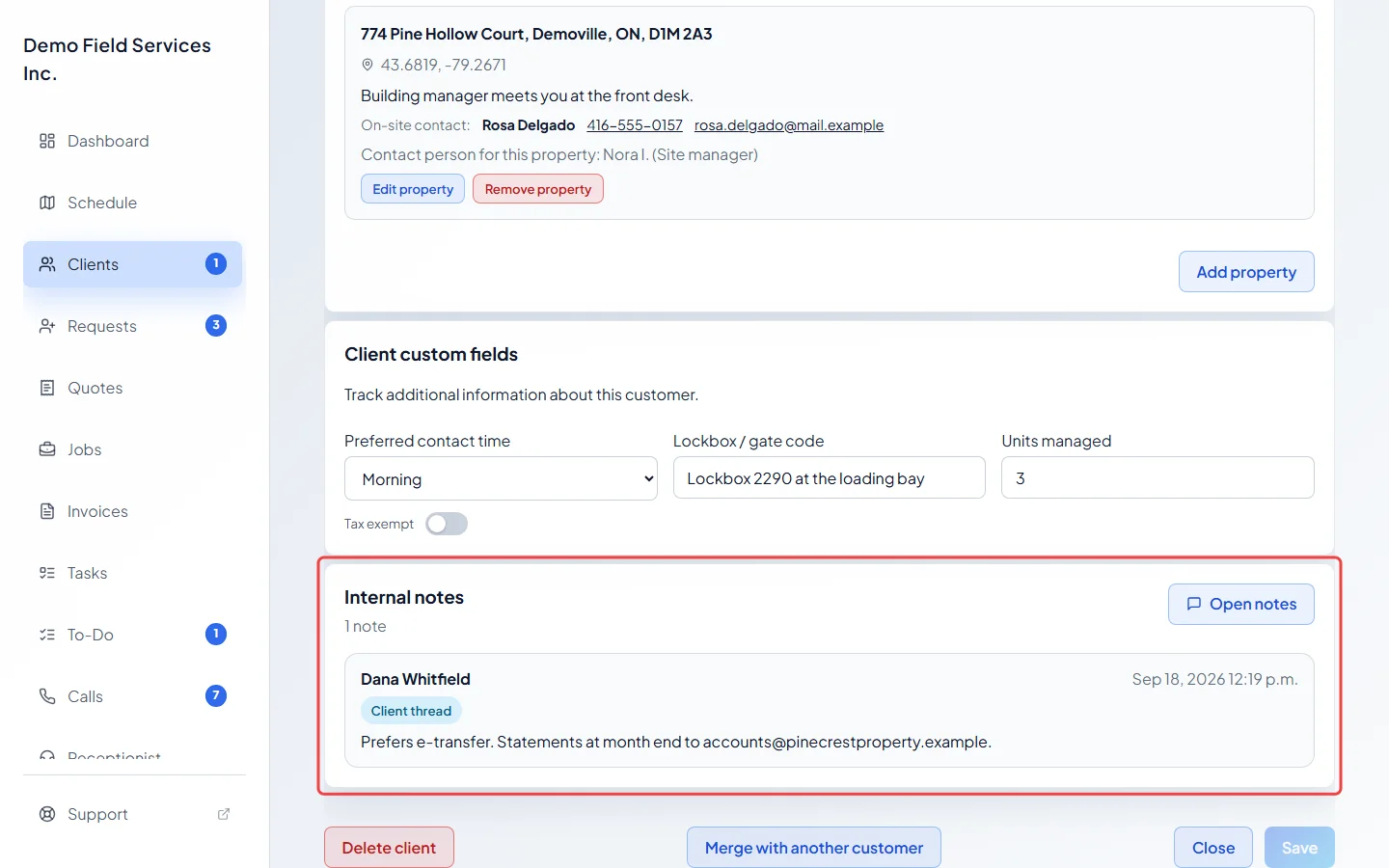
-
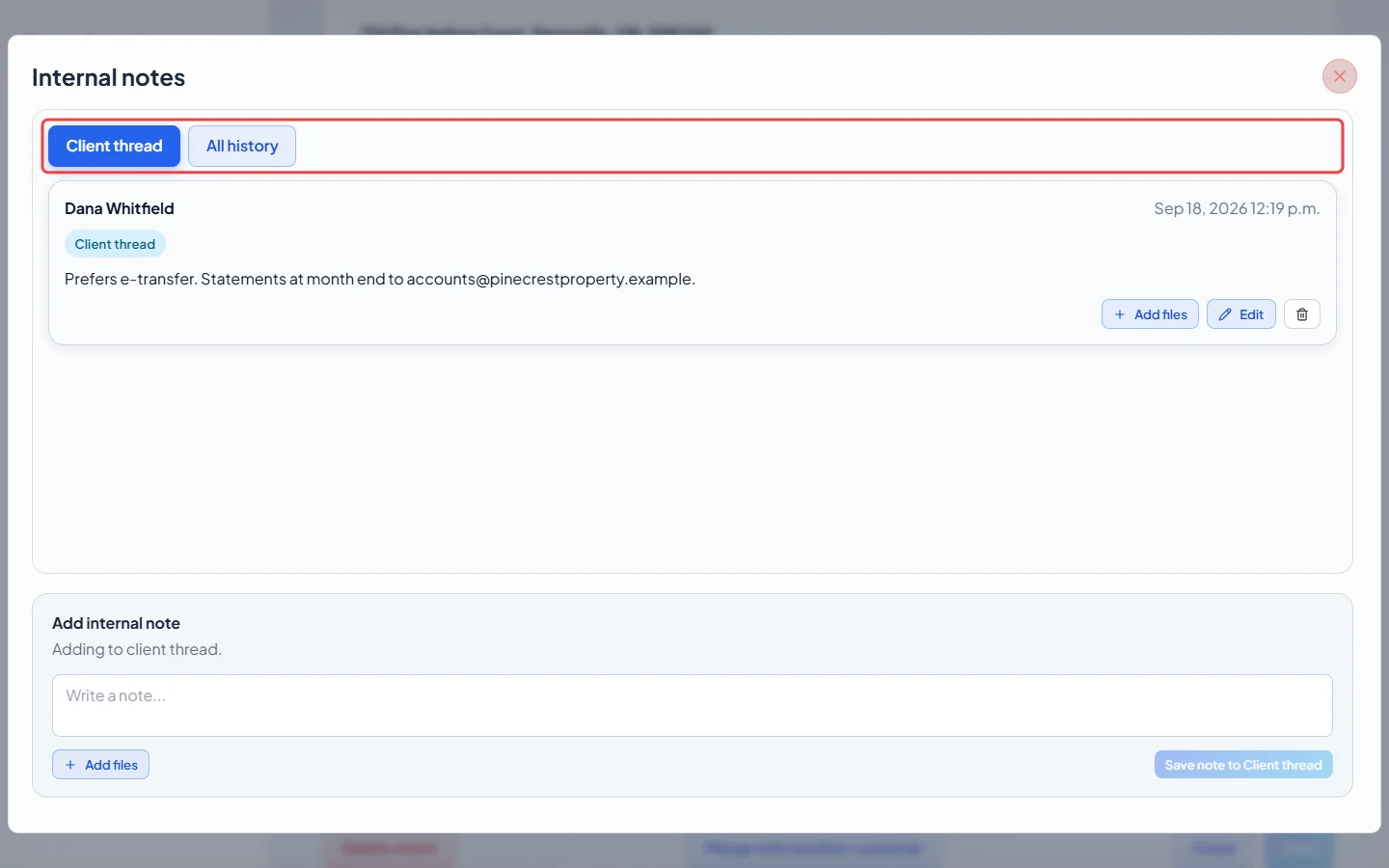
Click Open notes. The Client thread tab lists every note saved on this client, newest first.
-
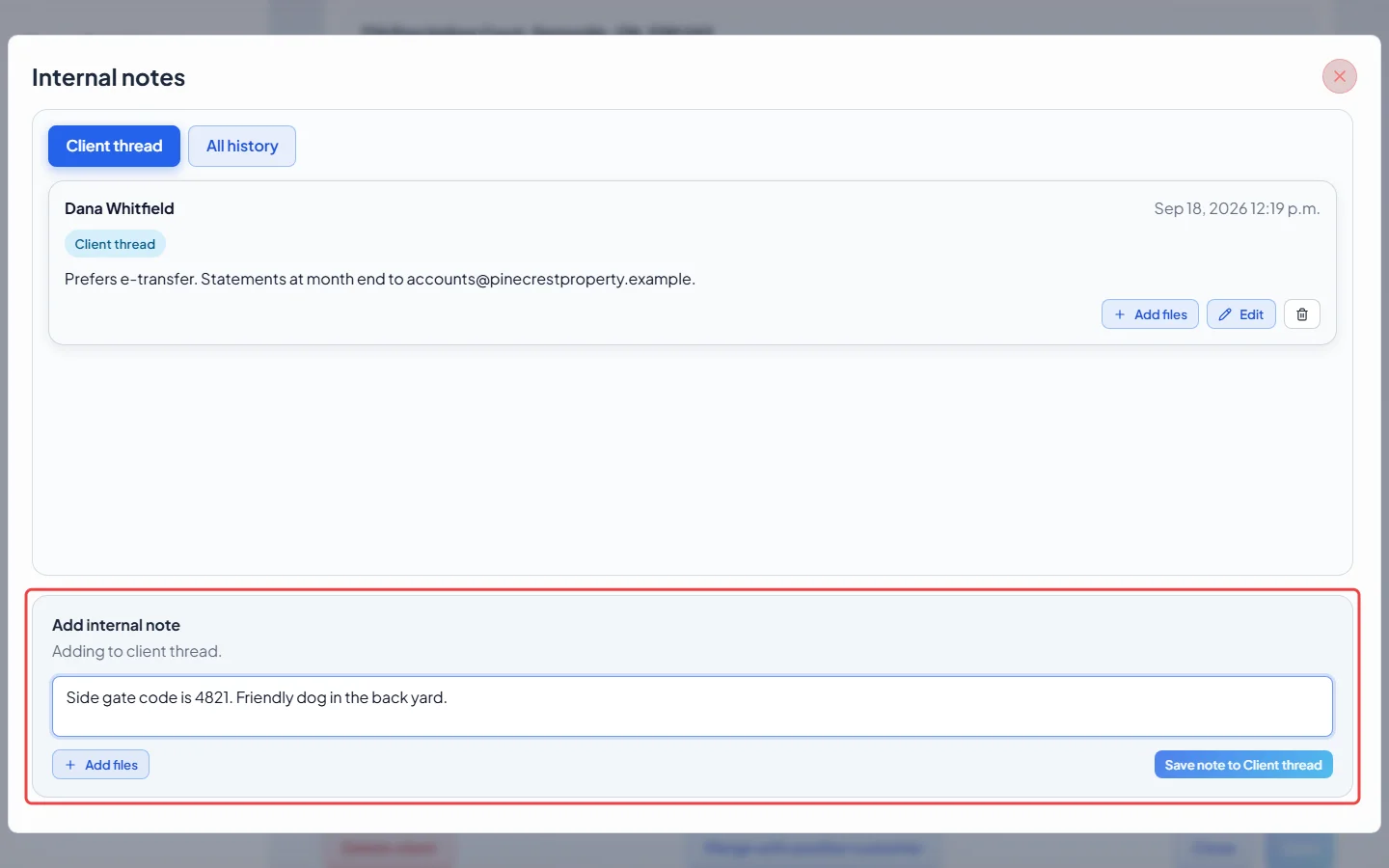
Under Add internal note, type in Write a note…. Click Add files to attach photos or documents (up to 20 MB in total per note). Click “Save note to Client thread” under the box.
-
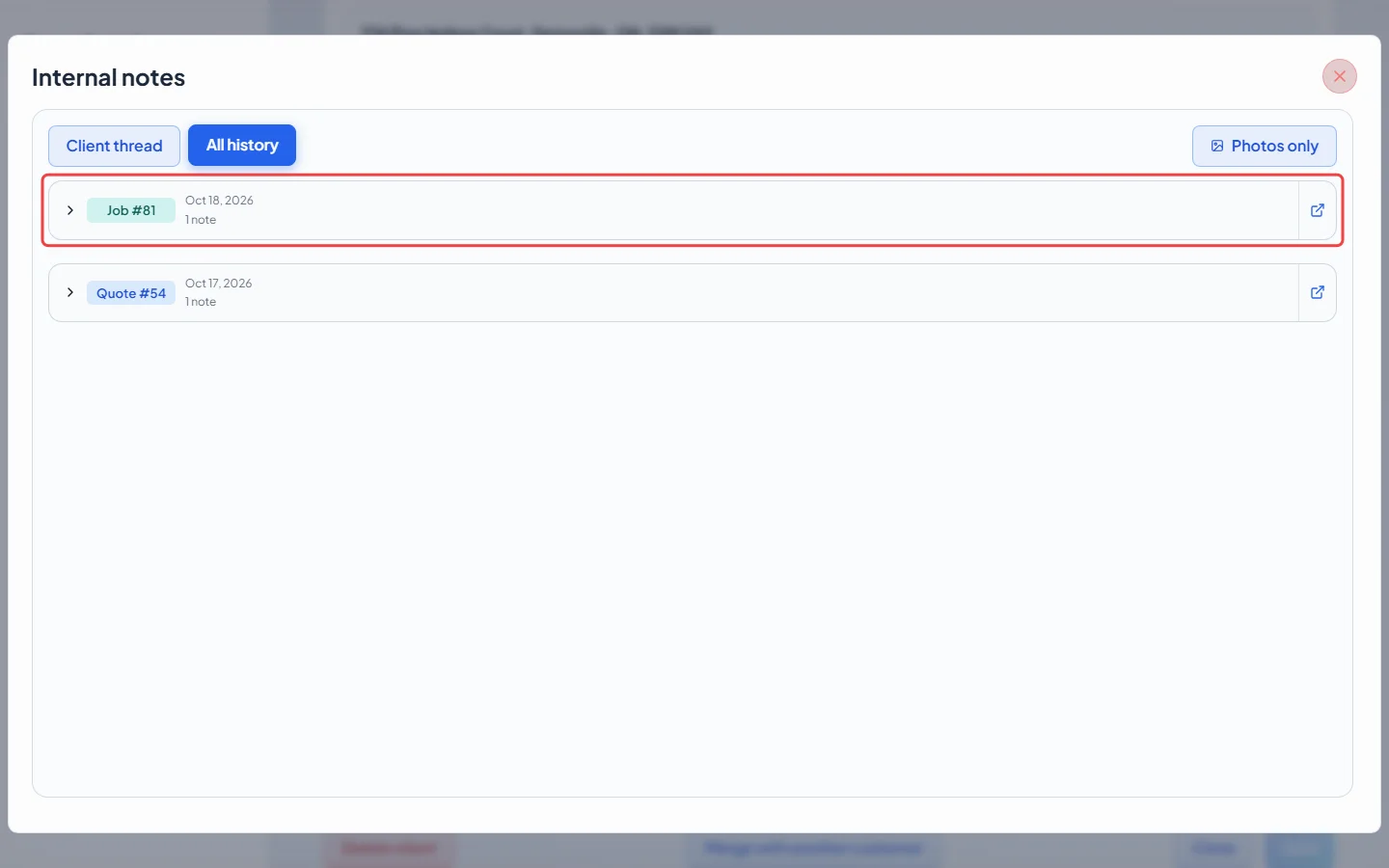
Click All history to see notes from every request, quote, job and invoice for this client, grouped by record. Click a group to open it, or the arrow beside it to go to that record. Click Photos only to see just the notes with photos.
To change or remove a note in the client thread, click Edit or the bin beside it. Saved website chats can be deleted but not edited. Each note also has its own Add files button, and a note’s files can be deleted. All history is read-only.
Custom fields
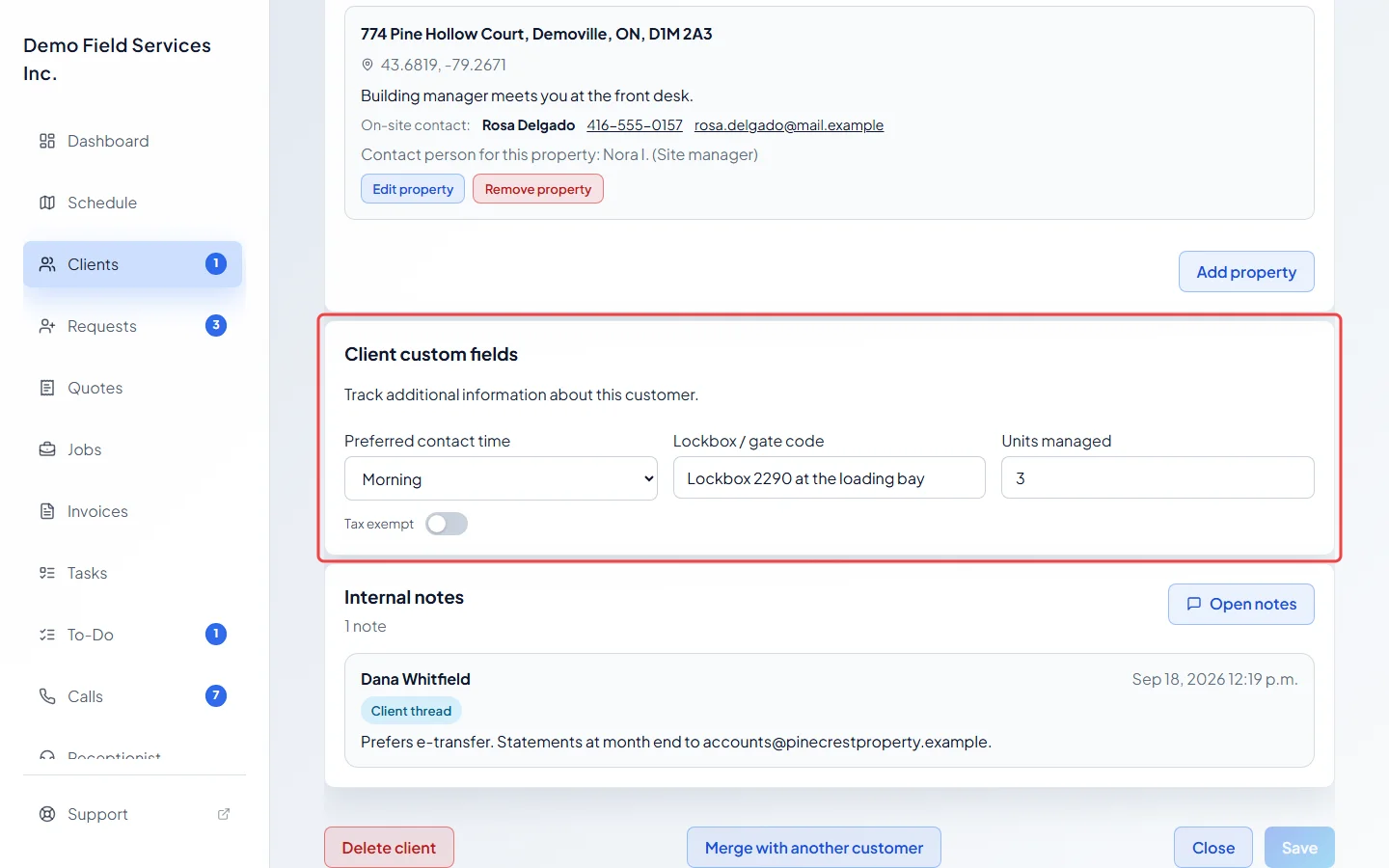
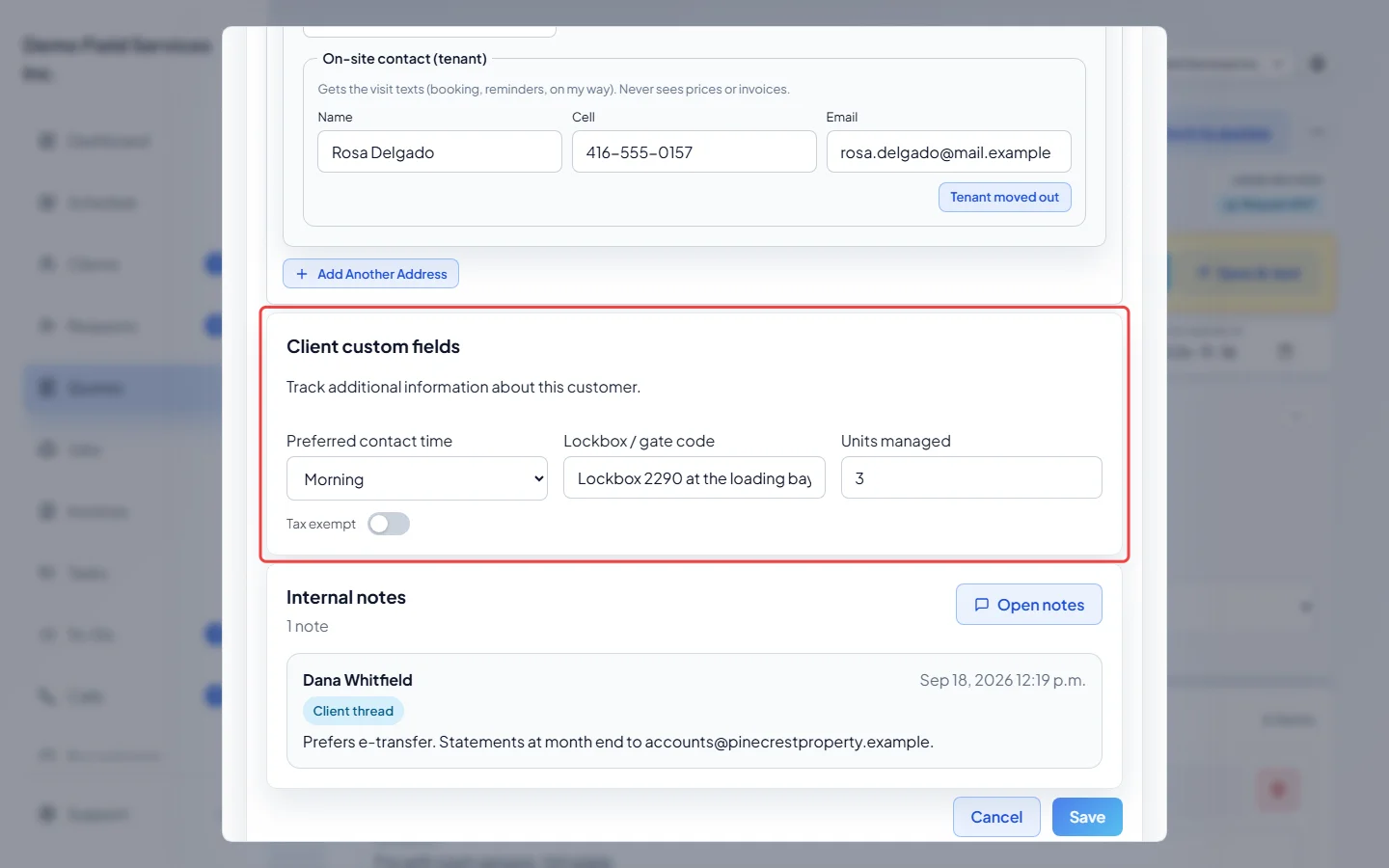
Section titled “Custom fields”If your company has set up client custom fields, a Client custom fields card appears on the Profile tab, above Internal notes. Changes made on that card aren’t saved by the Profile tab’s Save button on their own, so change custom fields in Edit client details as shown below. Fields can be text, numbers, a yes/no switch, a drop-down choice, or a length × width area. A dot beside a field means it shows on the quote the client sees.
-
Check the fields on the Client custom fields card on the client’s Profile tab.
-
To change them, open a quote, job, request, invoice or task for the client, click the ⋯ button on the client card and click Edit client details. Change the fields under Client custom fields and click Save.
Good to know
Section titled “Good to know”- You can add notes and fill custom fields while adding a client. The notes are saved when you click Create client.
- Notes written on a job, quote or invoice stay on that record and also show under All history here. See Notes and files on a job.
- To add, rename or retire custom fields, see Custom fields.
Related articles
Section titled “Related articles”Checked against Astragal on October 17, 2026