

A day in the field on your phone
Use Astragal on your phone to see your day, open each visit and get to the client.
Who can do this: Everyone. Technicians see only the pages their admin has turned on, so your menus may have more or fewer items than shown here.
Also called: the phone app, the field app.
The phone app and the website are the same Astragal. Everything here works in the Android app, the iPhone app and in a phone’s web browser. The apps add things a browser can’t do, like work calls that ring and location sharing with the screen off.
-
Open Astragal. On a phone the menu moves to the bar along the bottom: Home, Schedule, then Clients and Requests if you’re allowed to see them, and More. A number on Clients is possible duplicate clients to review; a number on Requests is new requests.
On a computer: Left menu → Dashboard On a phone: Bottom bar → Home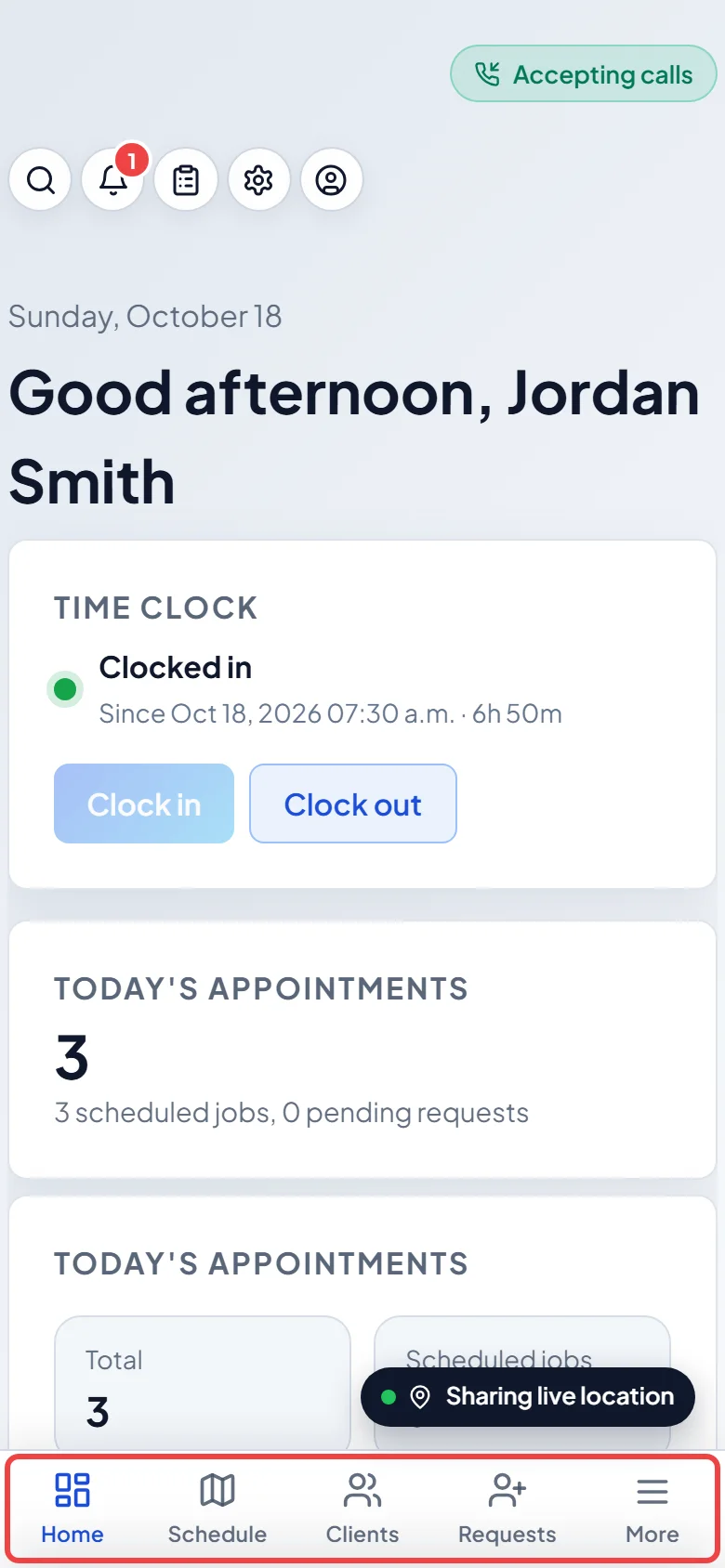
-
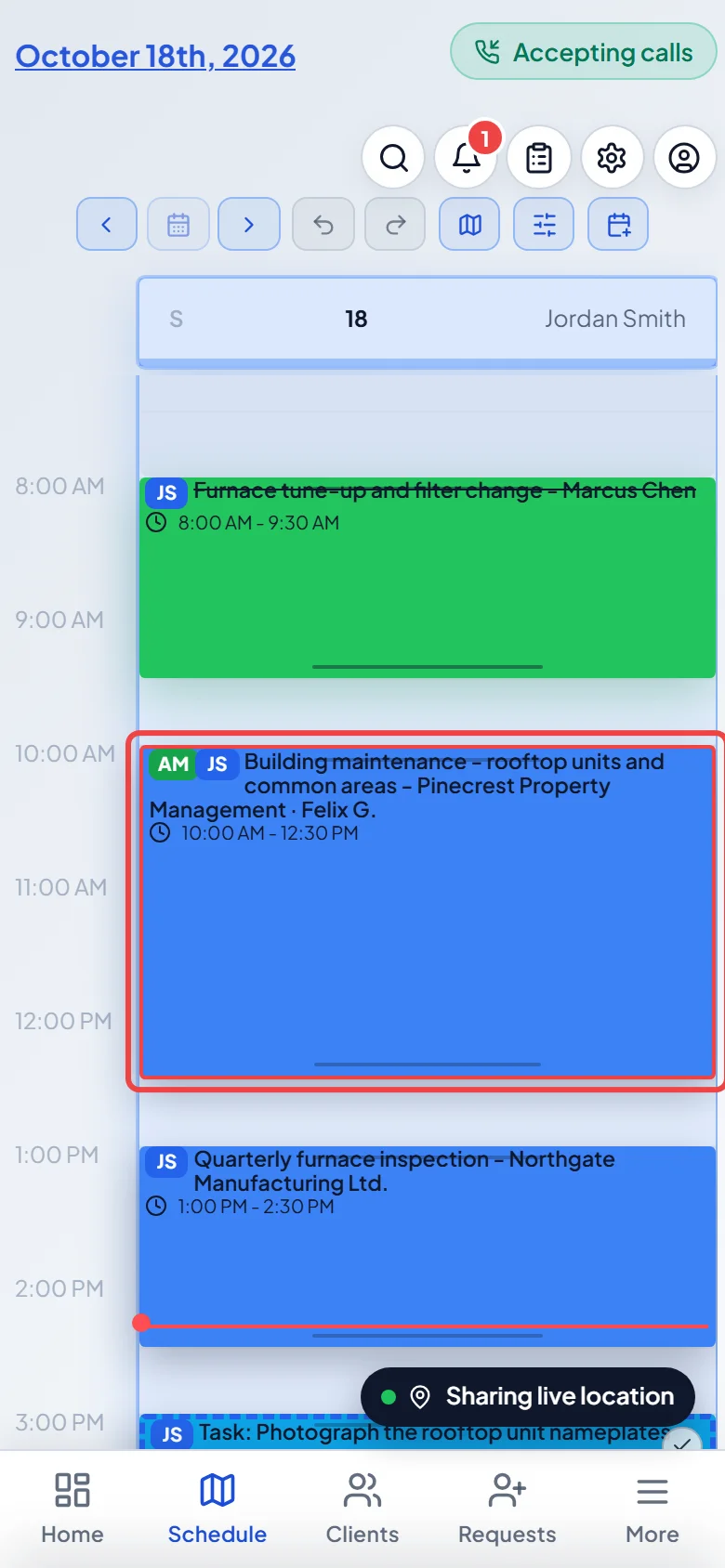
Tap Schedule to see your visits laid out by day. Tap a visit to open it.
-
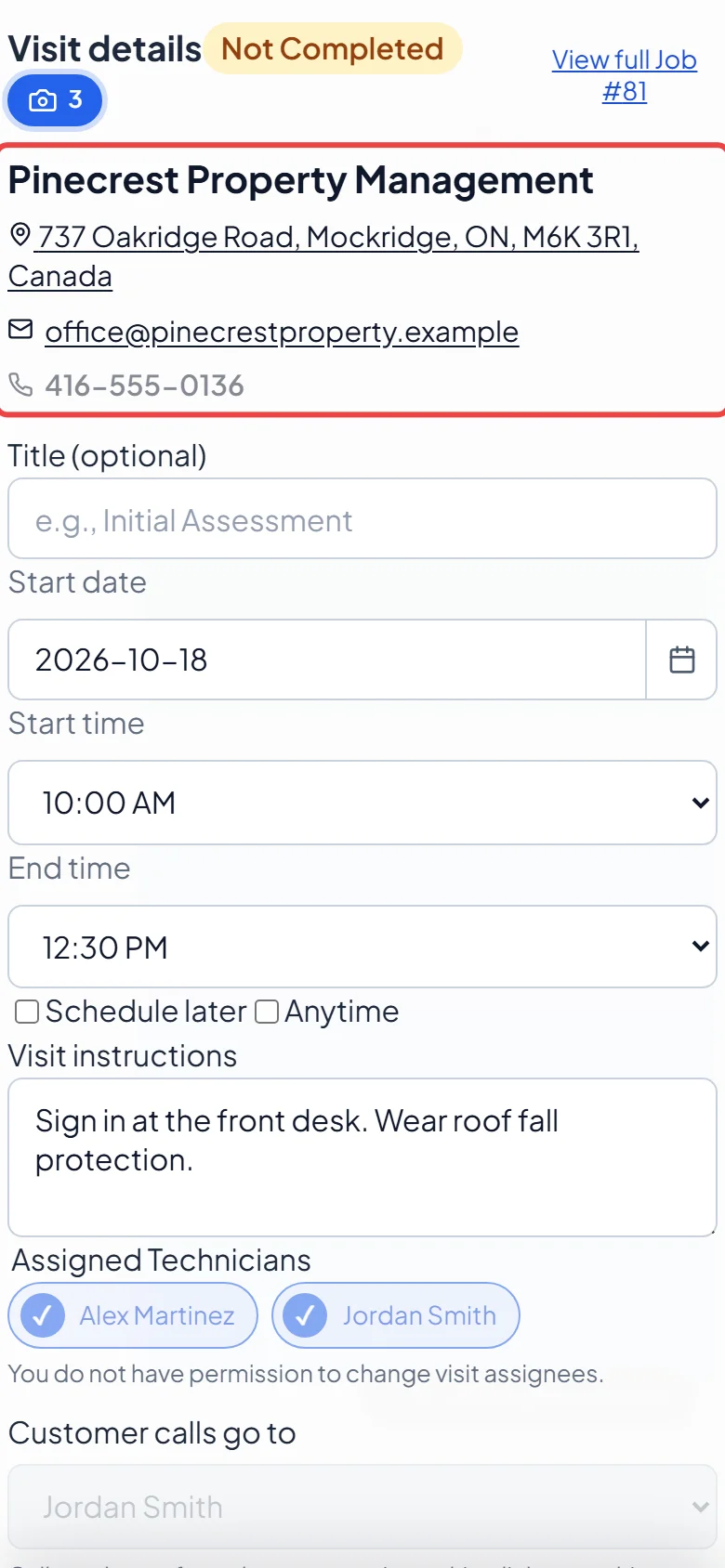
At the top of the visit is the client. Tap the address to open it in your phone’s maps app (Apple Maps in the iPhone app, Google Maps everywhere else). Tap the phone number, then Call, to call the client through Astragal. If you’re not allowed to make calls, the number shows as plain text. Below that are the visit’s details, instructions and job forms.
-
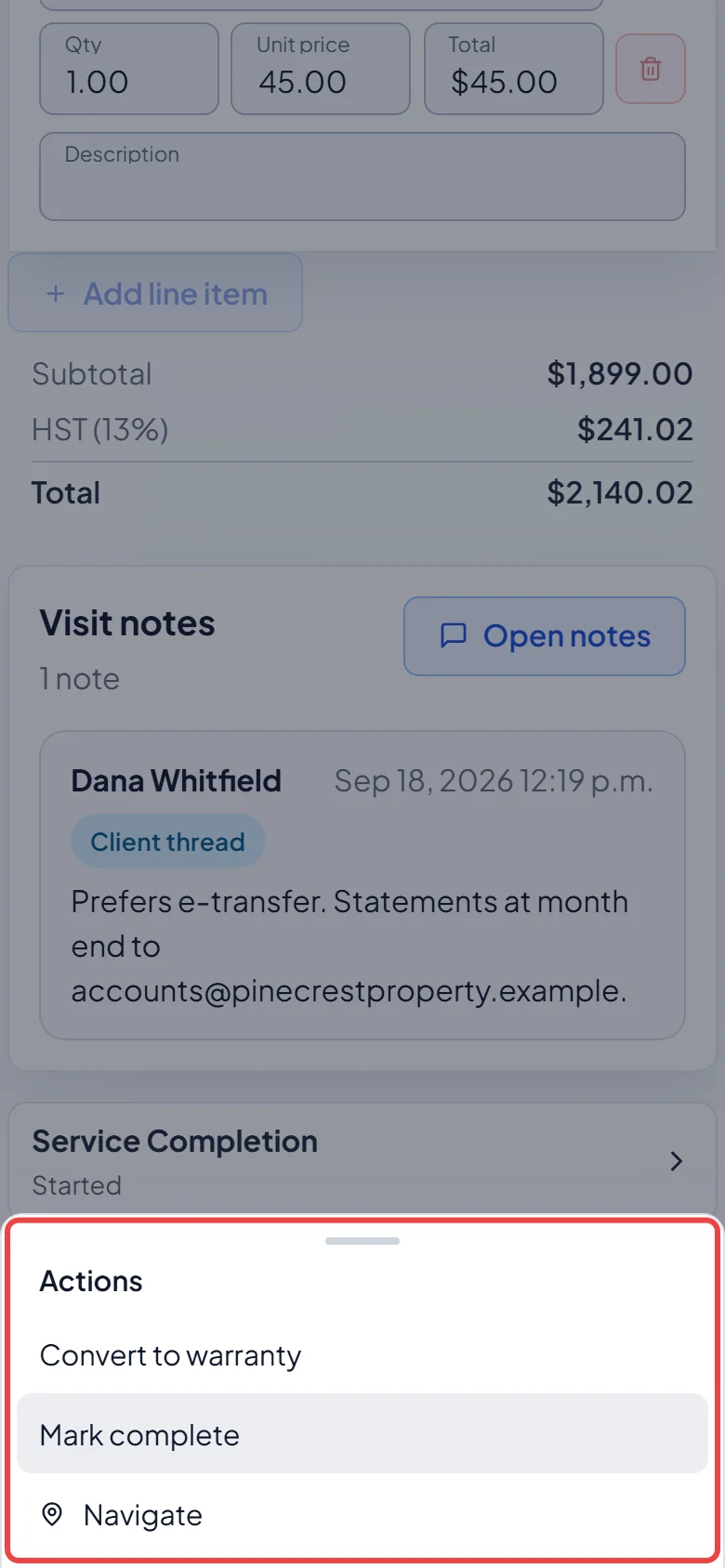
Tap Actions at the bottom of the visit. Navigate opens the on-my-way message, where Send and navigate texts the client and starts your directions. To get directions without texting, tap ••• and then Navigate without sending. Mark complete finishes the visit. If a job form still has required answers missing, Astragal warns you first. If it was the job’s last visit, Astragal then asks what should happen next with the job.
-
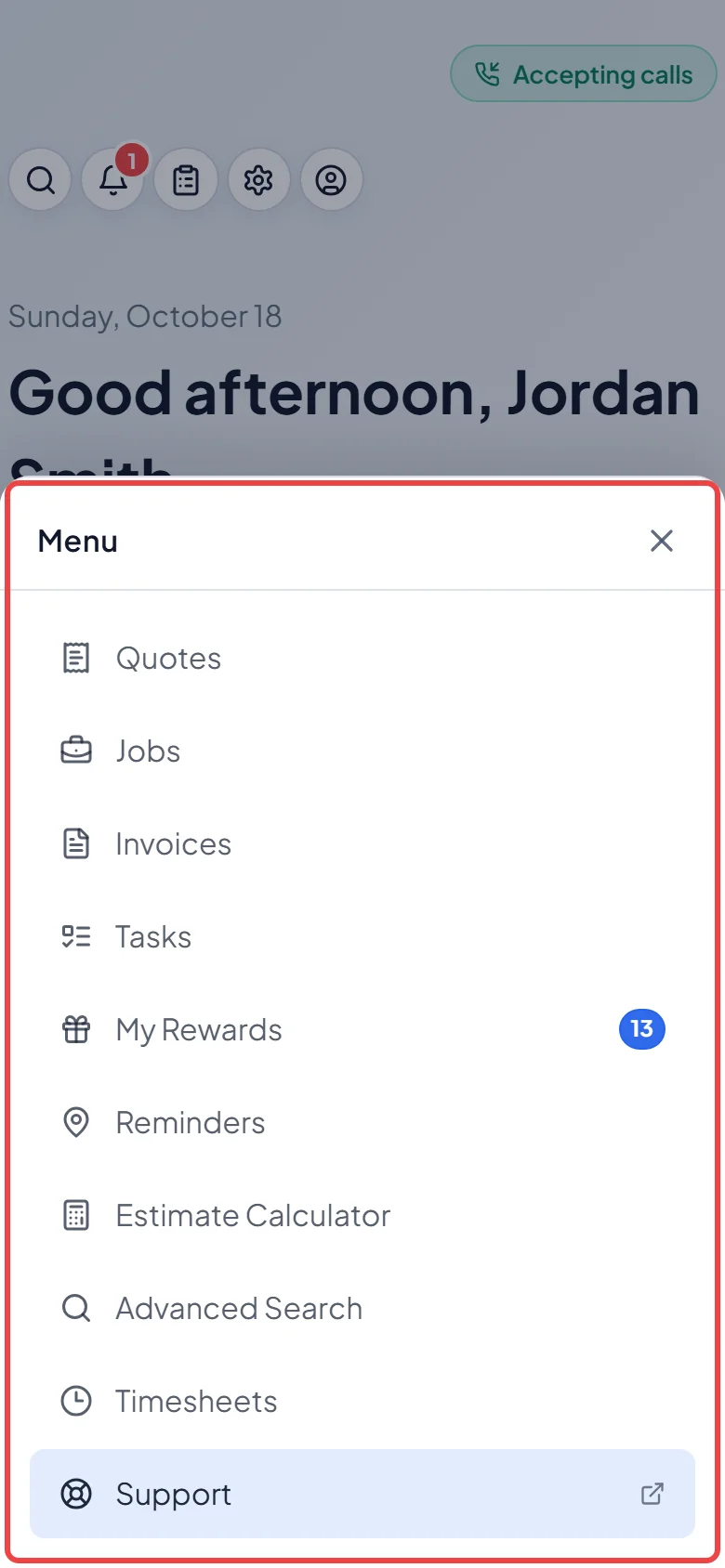
Tap More for everything else your admin has given you, such as Tasks, Reminders, Estimate Calculator and Timesheets. Tap a page to go there, or the X to close the menu.
Good to know
Section titled “Good to know”- The gear at the top opens Settings for admins. For everyone else it opens Preferences, with My account at the bottom.
- Lost signal halfway through a visit? Job forms keep working. See Working with no signal.
- In the iPhone app, links you share (like a tracking link) open your phone’s share sheet so you can send them by Messages, Mail or another app.
- The Android and iPhone apps load the latest Astragal by themselves. See Updating the app.
Related articles
Section titled “Related articles”Checked against Astragal on October 18, 2026