

Drag and drop scheduling
Drag a card on the Schedule to give it a new time or day, without opening a form.
Who can do this: Admins, dispatchers and accountants. Technicians whose schedule permission is Edit their own schedule can drag their own cards; technicians who can edit everyone’s schedule can drag any card.
-
Open the Schedule and press and hold a card, drag it to the new time or another day, and let go. It snaps to 15 minutes and saves straight away; a message such as “Visit rescheduled” confirms it. On a phone, hold your finger on the card for a moment until it lifts, then drag.
On a computer: Left menu → Schedule On a phone: Bottom bar → Schedule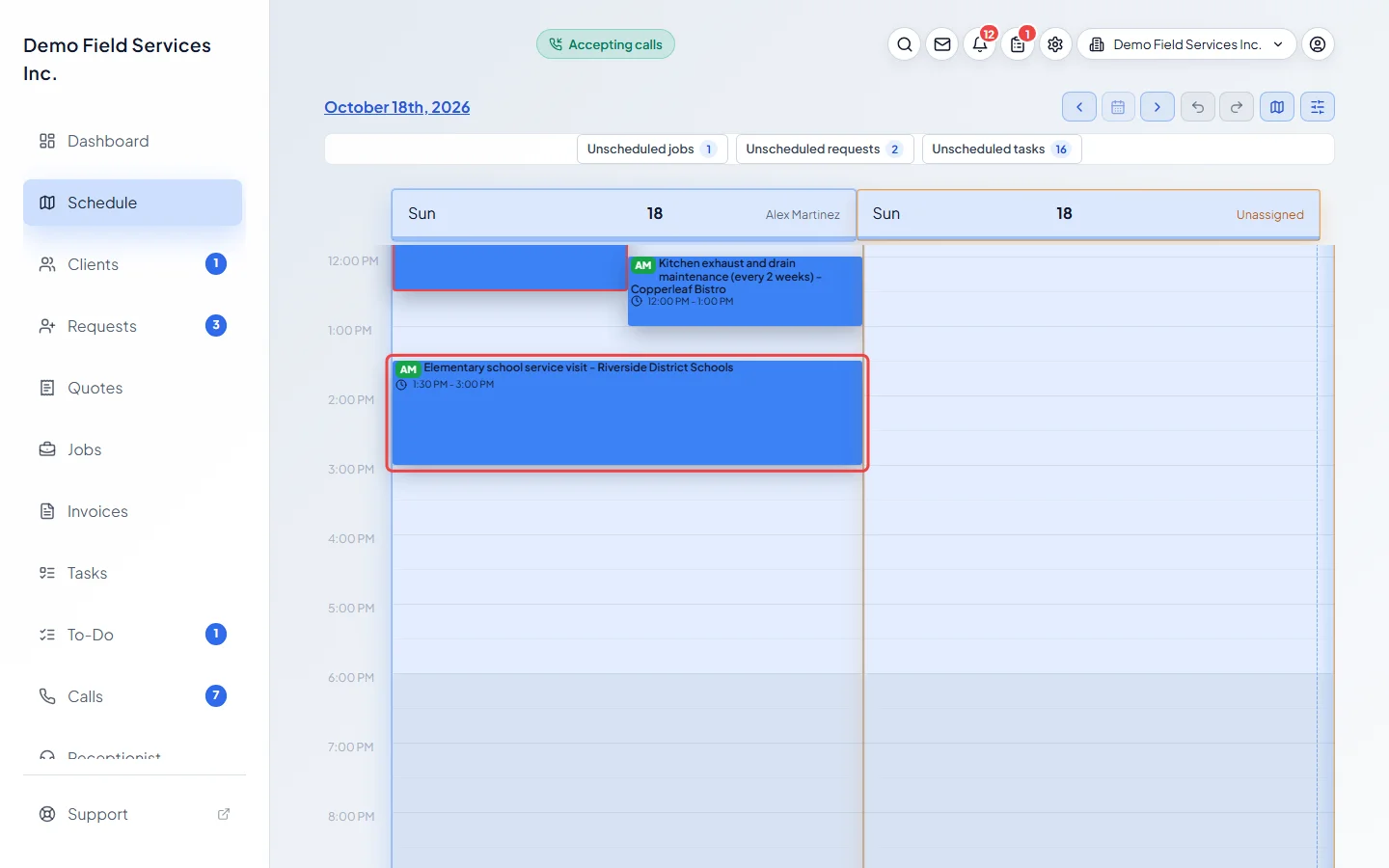
-
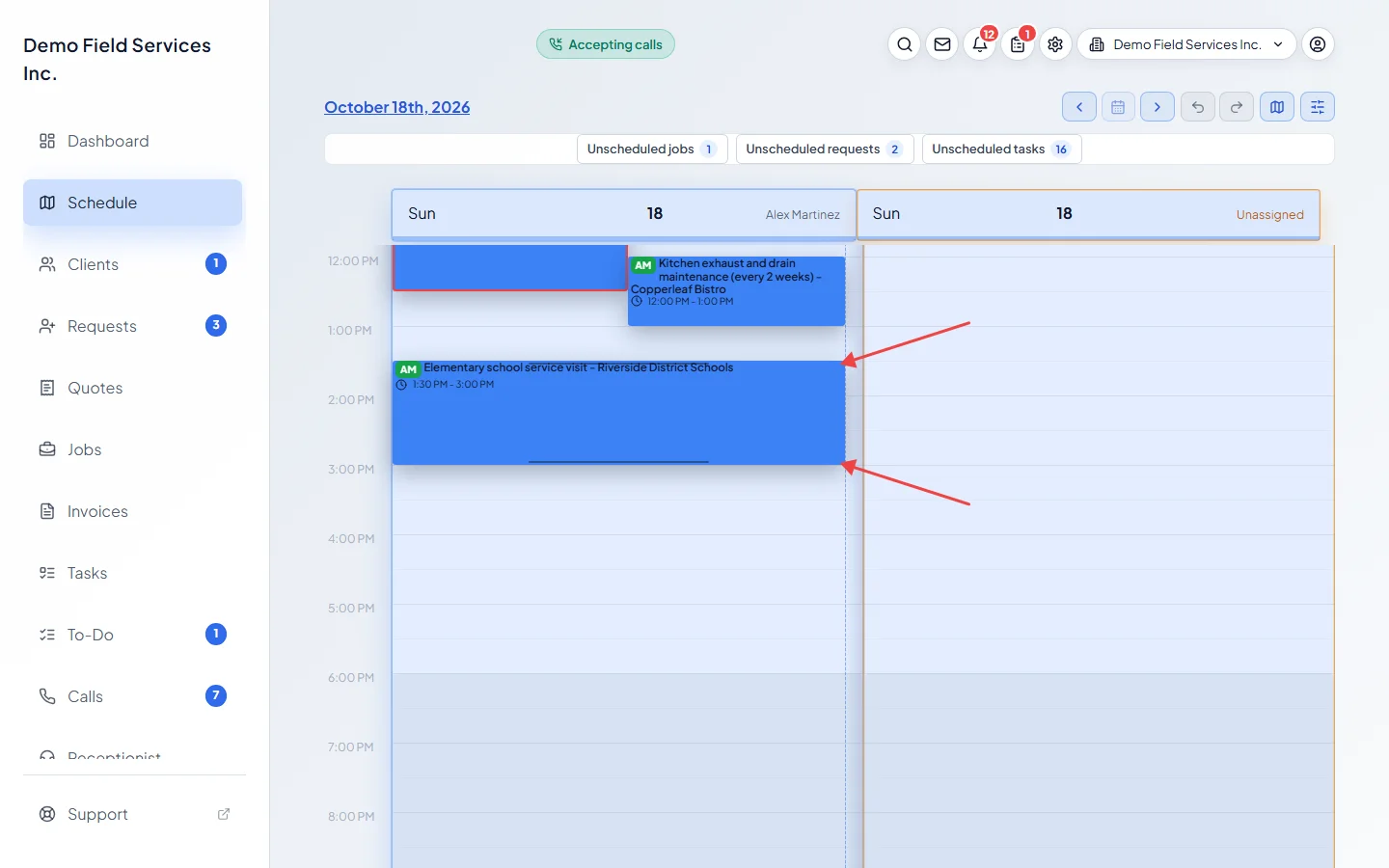
To change how long it takes, drag the card’s top edge (the start) or bottom edge (the end). The shortest is 15 minutes.
-
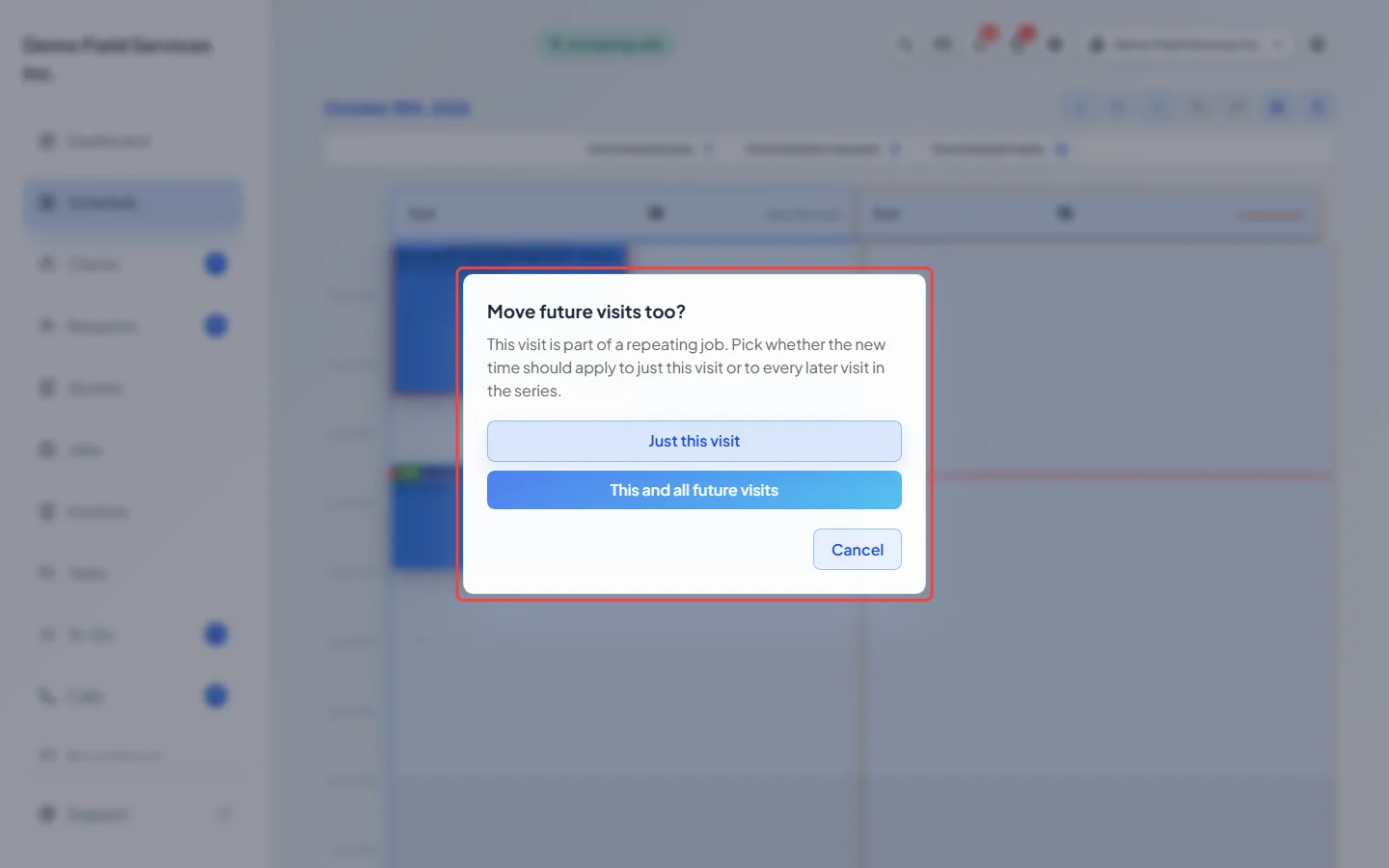
If the visit is part of a repeating job, Astragal asks Move future visits too? (or Change the length of future visits too?). Pick Just this visit, This and all future visits, or, when you moved it to another day, Move all future visits to the new time only or Slide all future visits by the same days and time. Cancel puts the card back.
-
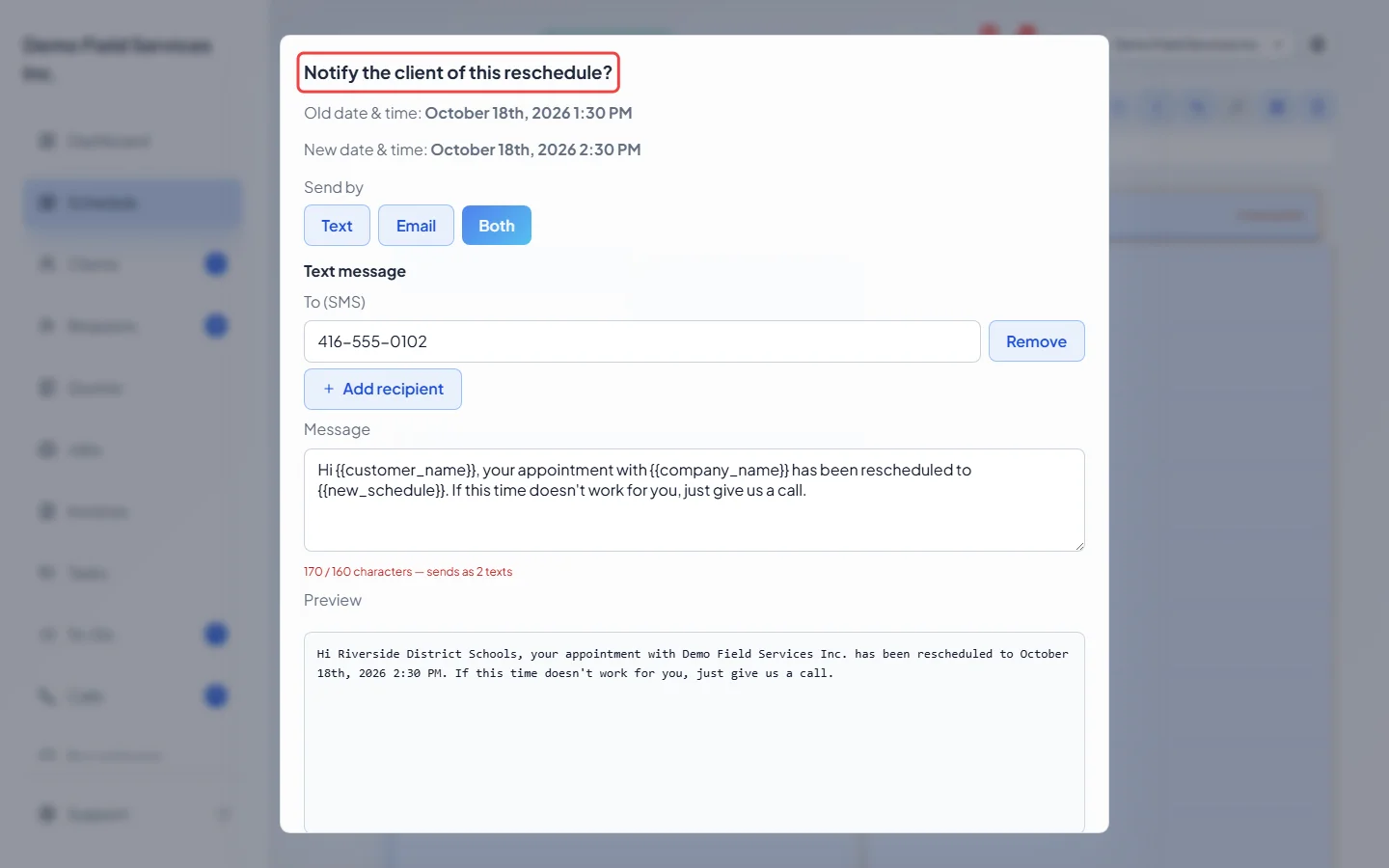
When the start time changes, Astragal asks Notify the client of this reschedule? Send the client a text, an email or both, click Don’t notify to keep the move without a message, or Cancel (undo move) to put it back. See Rescheduling a visit for the message options.
-
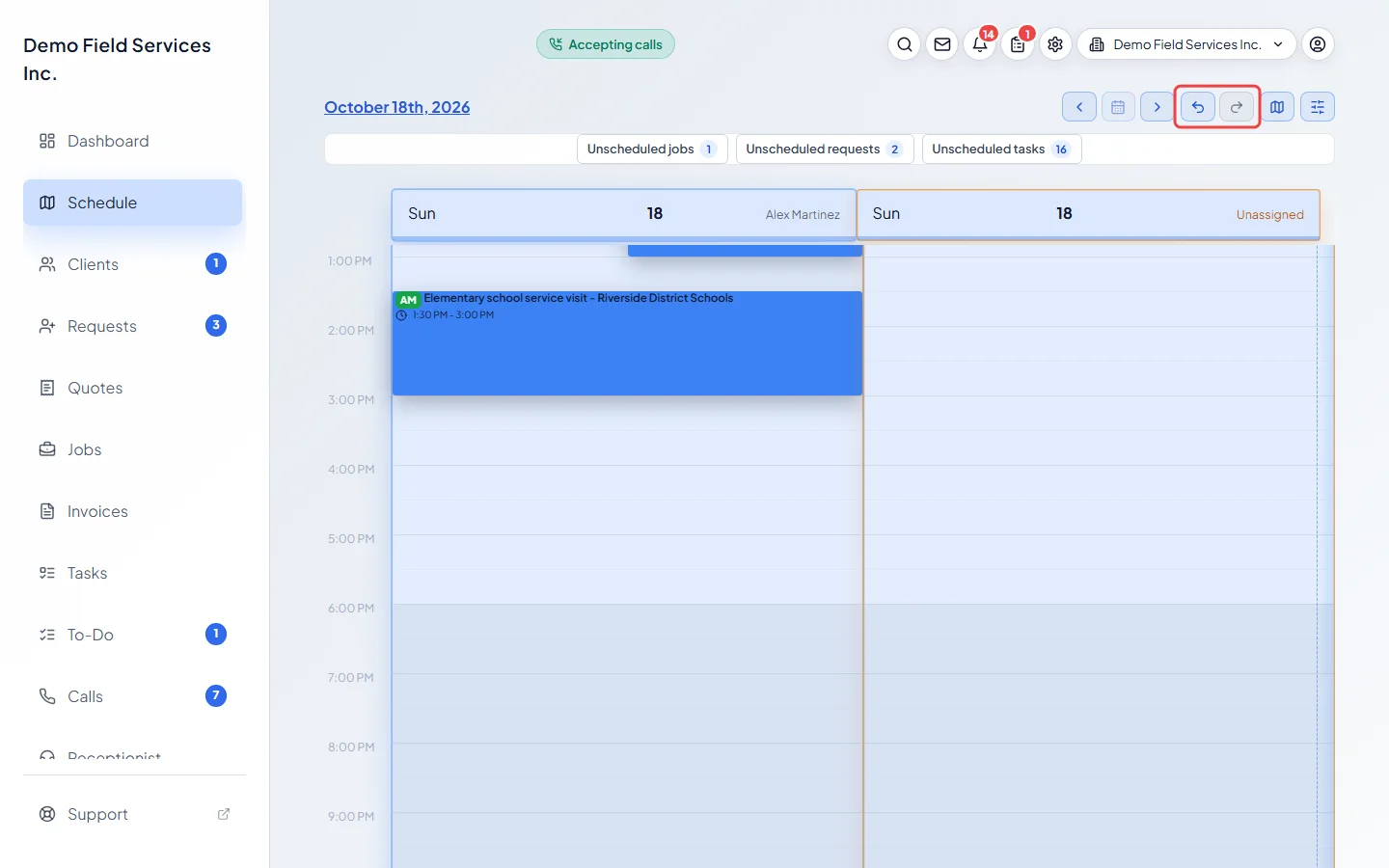
Made a mistake? Click the undo arrow at the top right (or press Ctrl+Z) to put the last move back. The redo arrow (Ctrl+Shift+Z) does it again.
Good to know
Section titled “Good to know”- Dropping a card in another team member’s column changes only its time and day, not who is assigned. To change the team, open the visit and change Assigned Technicians.
- Undo only covers drags on the Schedule, keeps the last 50 moves, and is cleared when you reload the page. Undo never asks about notifying the client.
- The notify question isn’t asked for tasks, for a change to the end time only, for a move that stays inside the client’s promised arrival window, or when the client has no mobile number or email.
- Cards in the Anytime row and in the unscheduled lists can’t be dragged; open them to set a time.
- Completed visits can still be dragged, so take care not to move finished work by accident.
Related articles
Section titled “Related articles”Checked against Astragal on October 18, 2026