

What customers see when booking
See your booking page through your customer’s eyes, so you know what they’re asked and what each message means.
Who can do this: Anyone with your booking link. No sign-in is needed.
Also called: the booking widget, the “Book now” page.
The page shows your logo, your company name (or the page’s own heading) and a short intro, then three steps. Open it yourself with Preview on a page card in Settings.
-
Under “1. What do you need?”, the customer taps a service. Each one shows its price (or Free, or no price) and about how long it takes. Estimate visits are marked as such. A service nobody can be booked for says to call you.
On a computer: Your booking link → 1. What do you need? On a phone: Your booking link → 1. What do you need?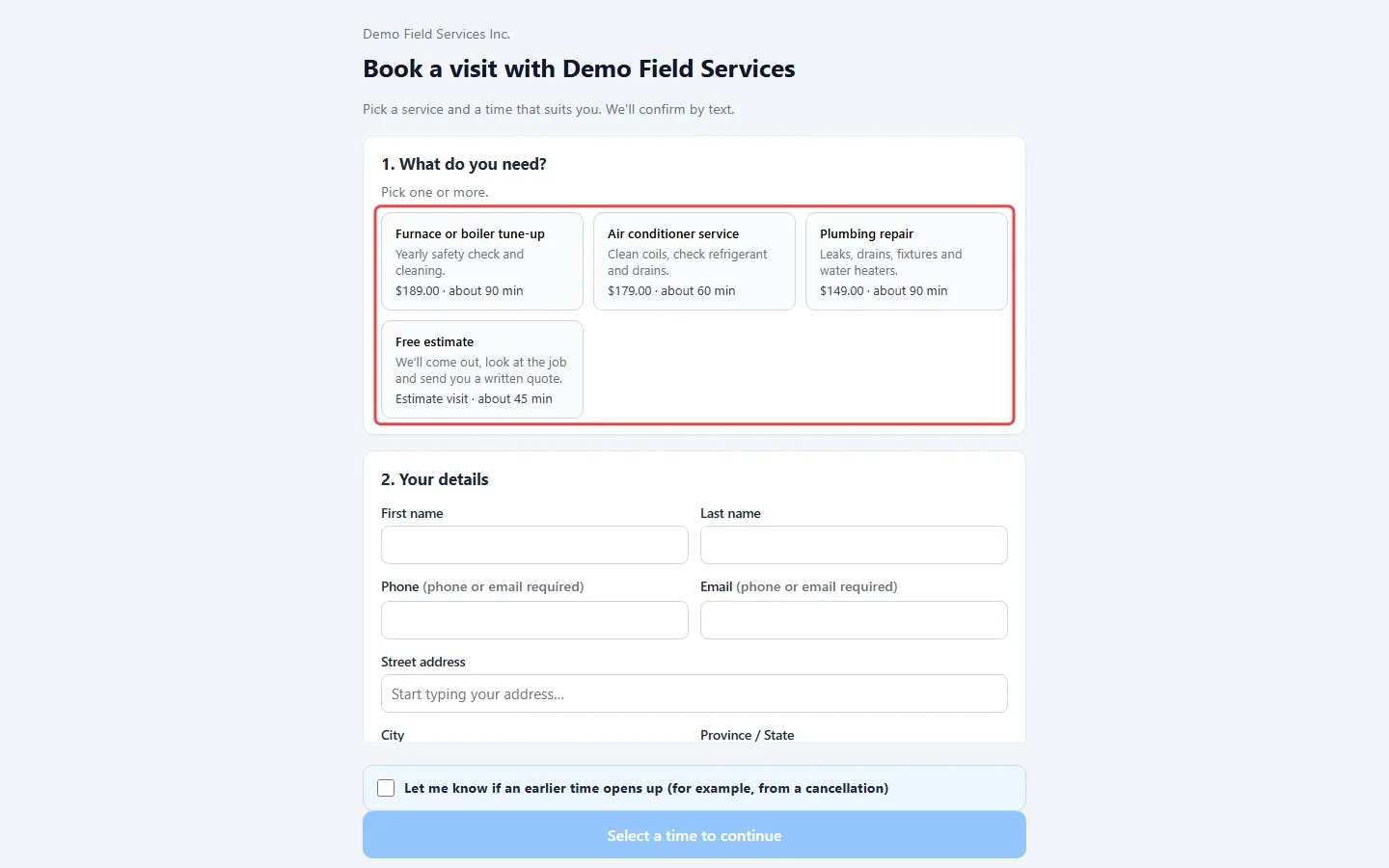
-
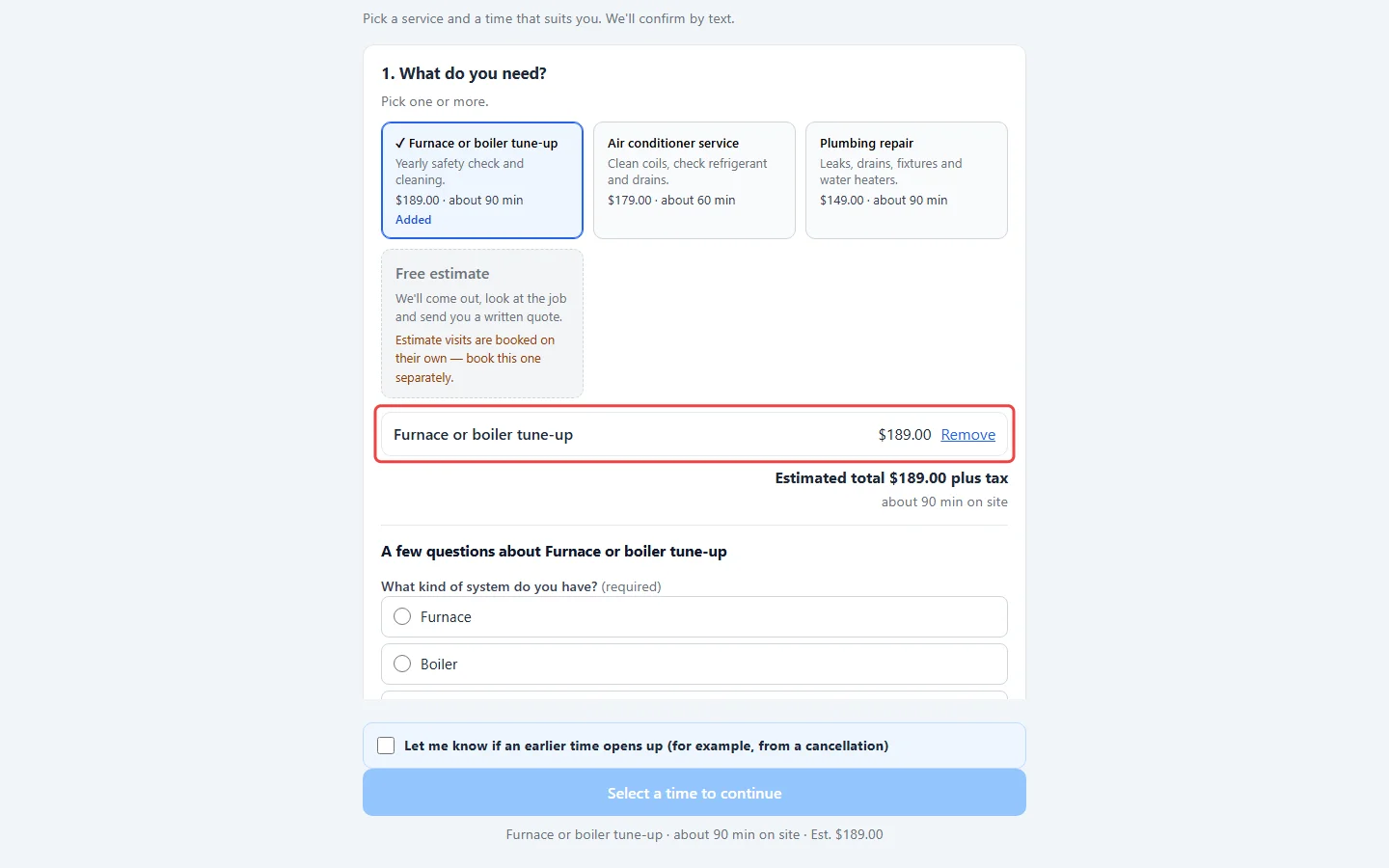
A picked service is marked Added and listed under the services with its price, a Remove link, and plus and minus buttons when they can choose how many. When at least one picked service has a price, an estimated total and the time on site show underneath. When you let them book more than one service, they can keep adding.
-
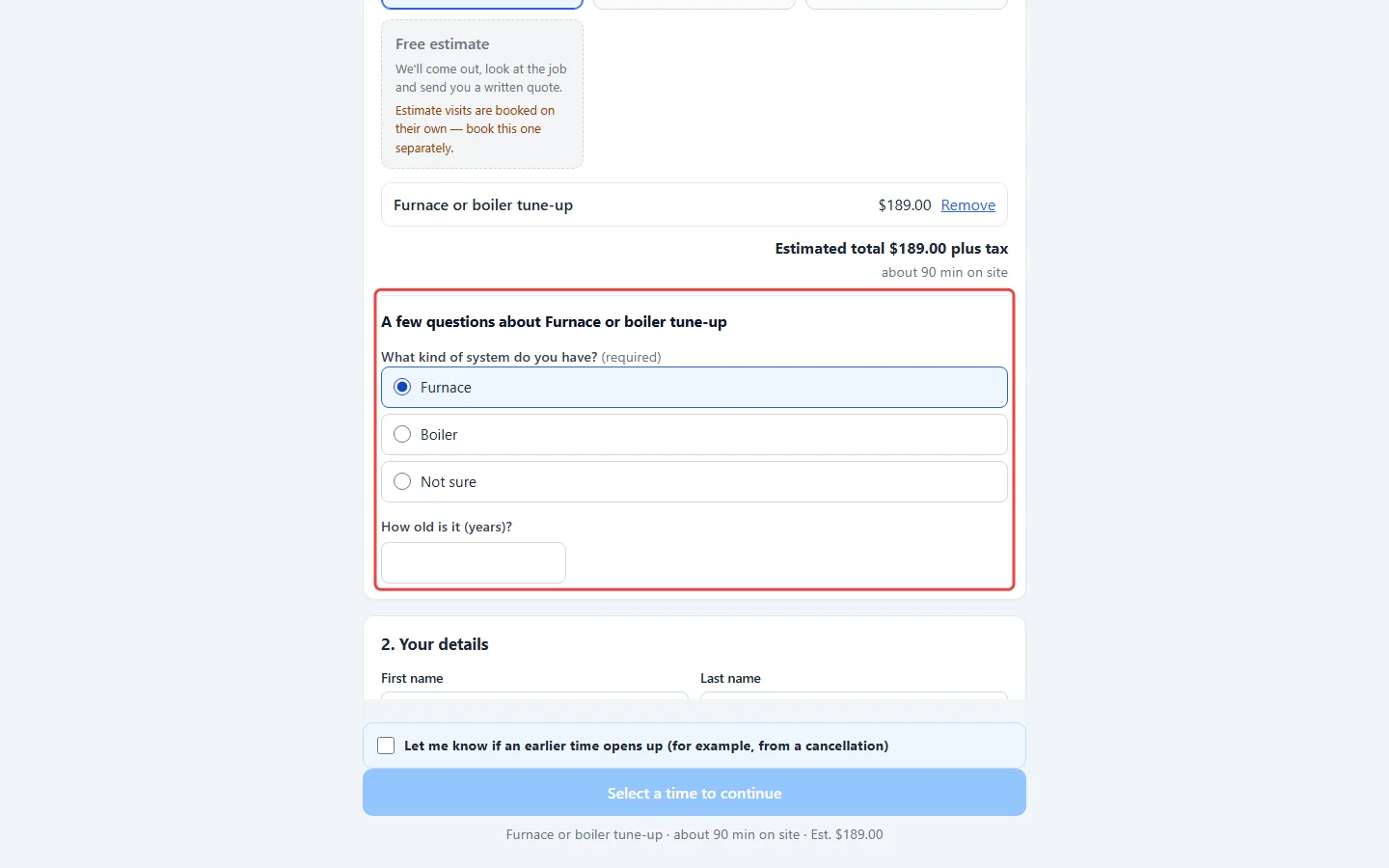
If the service has questions, “A few questions about” it appears right under the services. Required ones are marked “(required)”, and follow-ups appear as they answer. See Extra questions per service.
-
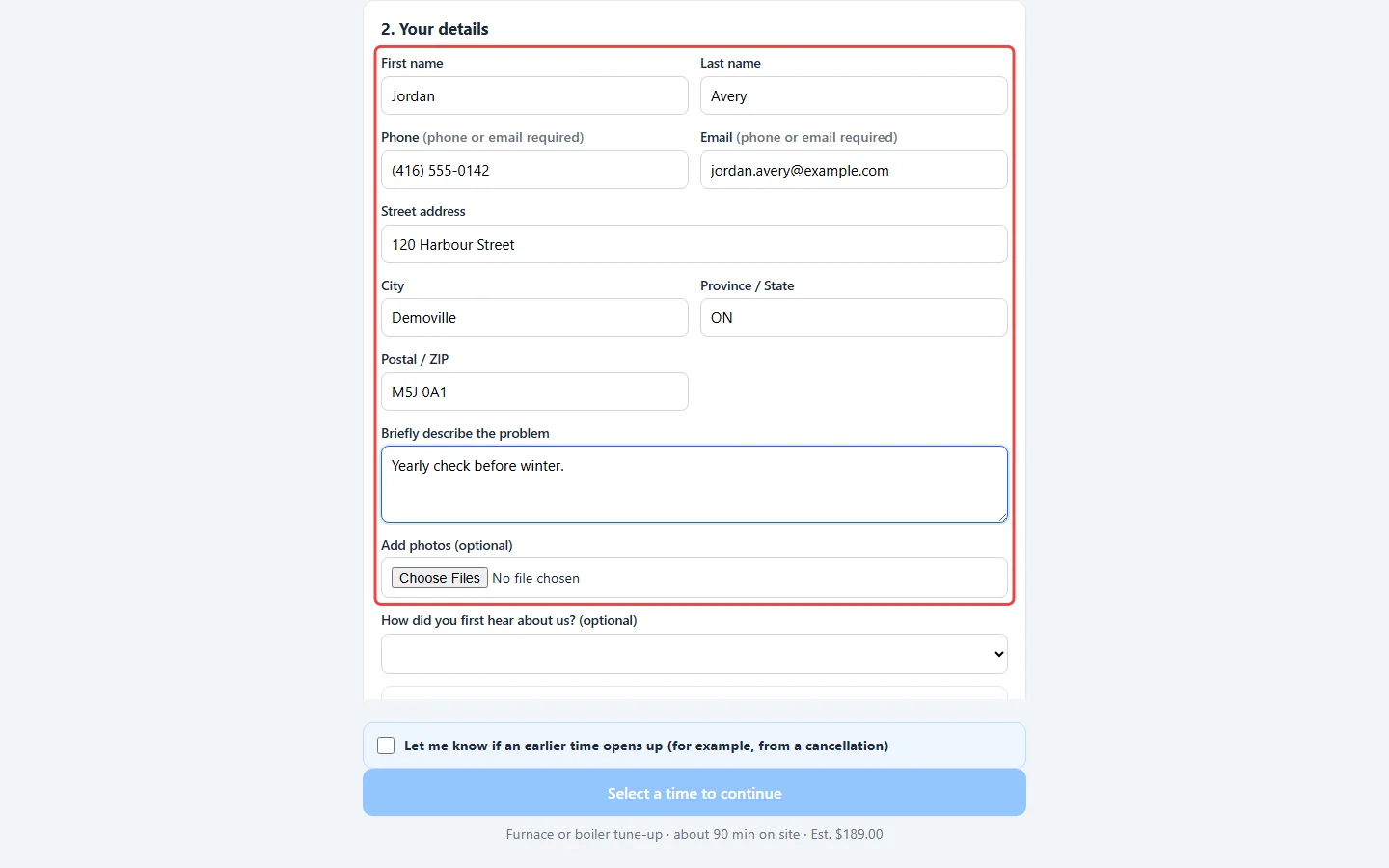
Under “2. Your details”, they fill in their name, a phone number or email (one is required), their address, a short description of the problem, and photos if they like. If you ask, they also see “How did you first hear about us? (optional)” and the permission box for your texts and emails. If you’ve set a service area, once they pick their address from the suggestions they see whether they’re inside it.
-
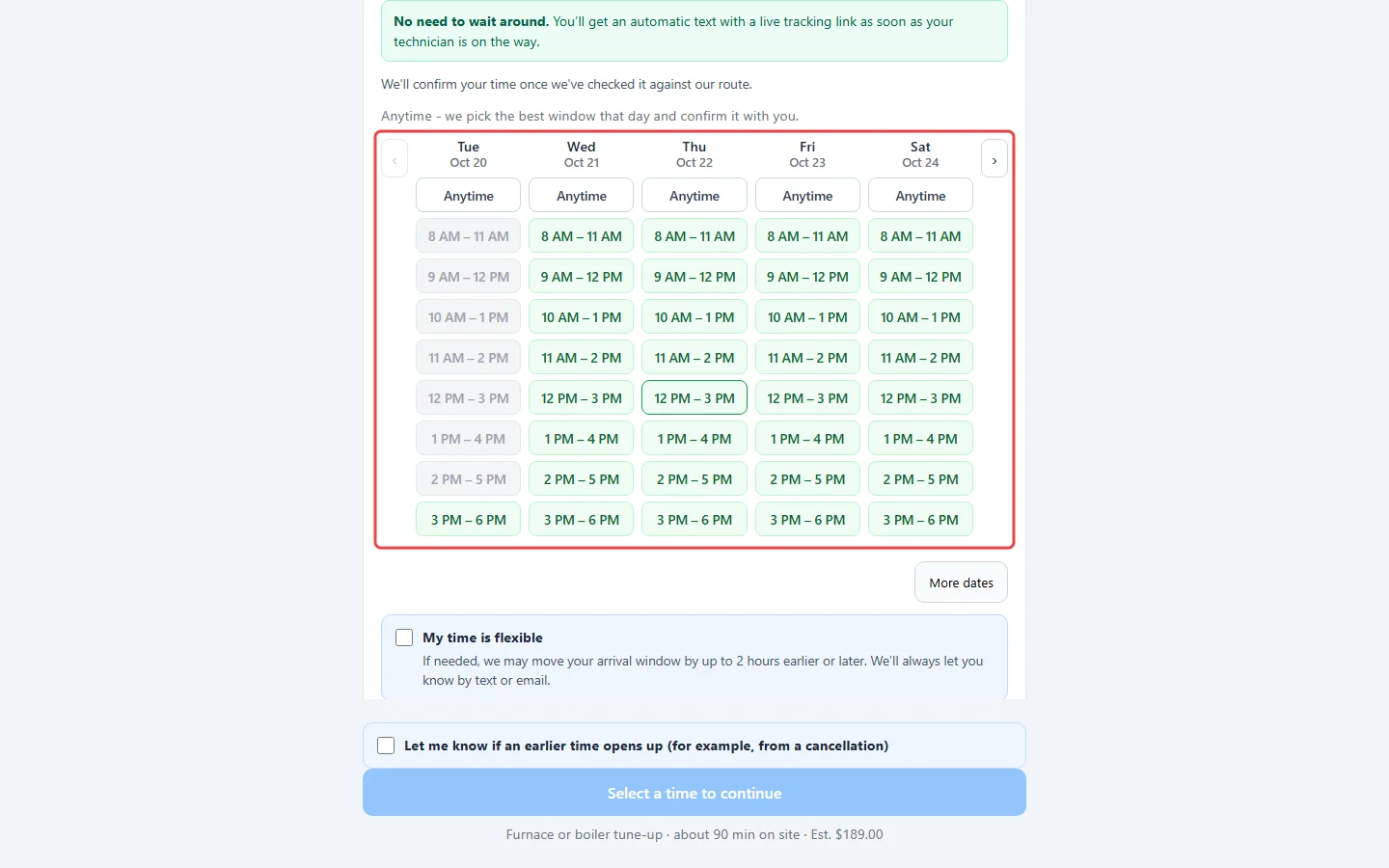
Under “3. Pick a time”, each day is a column with its times from earliest to latest. Times appear once a service is picked and the full address is typed, because times are checked against your technician’s route for that address (the next three weeks; later days are offered from the calendar only). Anytime at the top of a day means “pick the best window that day and confirm it with me”. More dates loads the next days.
-
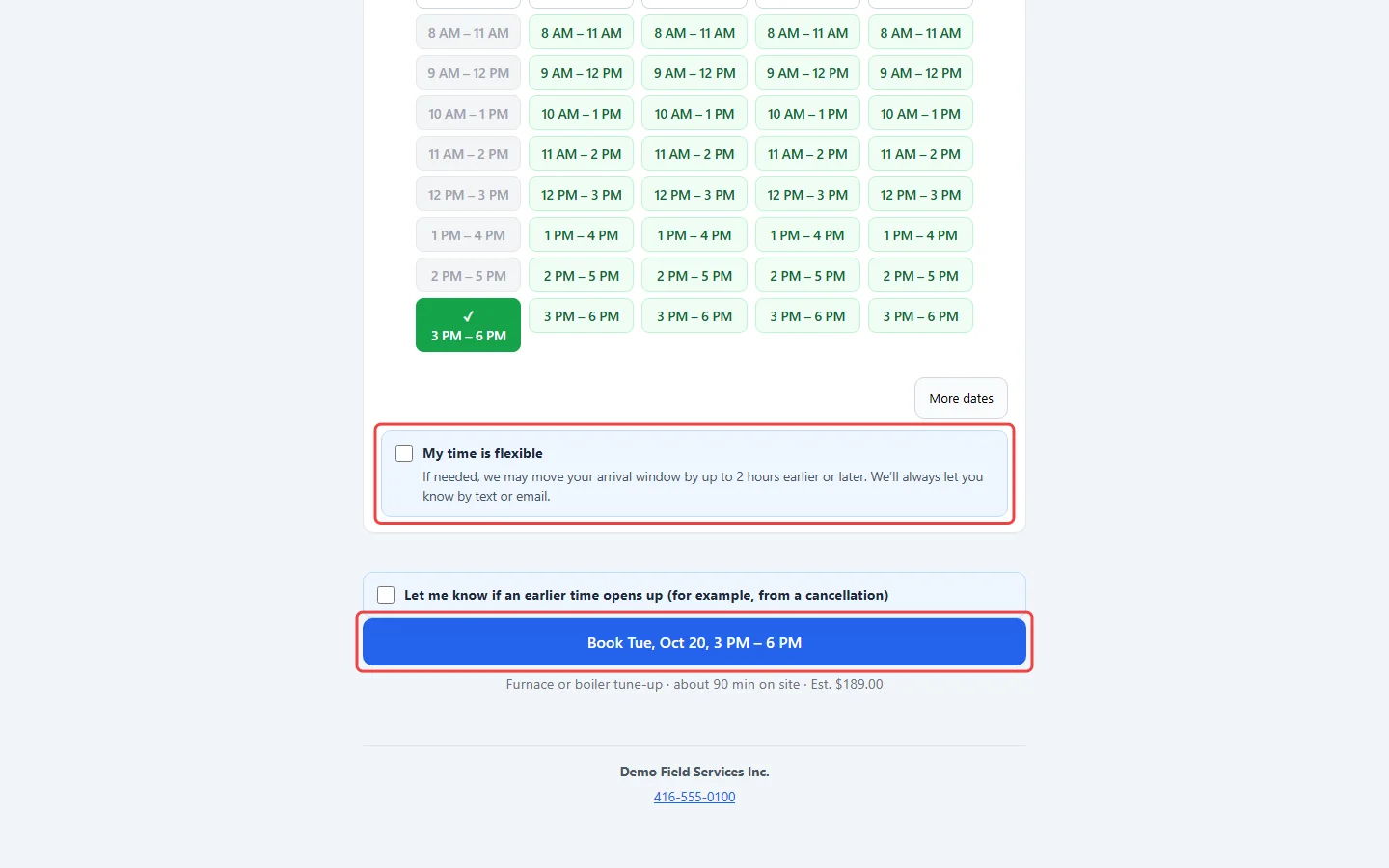
If you allow flexible hours, they can tick My time is flexible under the times (you may move their window by the hours you allow, and they’ll always be told), and “Let me know if an earlier time opens up”. Your team sees that tick on the request or visit, and it’s listed in your office alert when another customer cancels. The Book button then names the day and window they picked, with a summary of the visit underneath.
What the colours mean
Section titled “What the colours mean”When the times are checked against the route, a short legend explains the colours (shown when at least one time isn’t green):
- Green, “Best fit for our route”: the stop fits exactly where the route would put it.
- Orange, “A little bit off route, but should be OK”: up to 20 extra minutes of driving or waiting, or the technician would arrive late in the window.
- Red, “Out of our way, may run behind”: more than 20 extra minutes of driving, or a customer already booked would be left with very little of their window to spare.
Every coloured time can be booked; the colours only help customers pick a time that’s more likely to run on schedule. A time that’s already passed, taken, can’t be reached without making another customer late, or would run past closing stays in the list greyed out. A day with nothing left says “No times left”. A blackout date stays in the list and says “We’re closed on this date” (or its name). If your plan includes live tracking, a note at the top tells customers they’ll get a text with a live tracking link when their technician is on the way.
After they press Book
Section titled “After they press Book”- “You’re booked!” (or “Your estimate visit is booked!”) with the day and window, the services and prices, and their confirmation.
- “Request received” when the booking waits for you, with what they asked for and the sentence you chose in Setting up online booking.
- “We couldn’t book that” when the out-of-scope filter turned it away.
- If their time disappears while the page is open, or the day fills up as they press Book, nothing is booked: the page keeps everything they typed and asks them to pick another time. If the time was taken at the very moment they pressed Book, it comes in as a request and they see “Request received”.
- Book another service starts a new booking that keeps their name and address.
On a phone
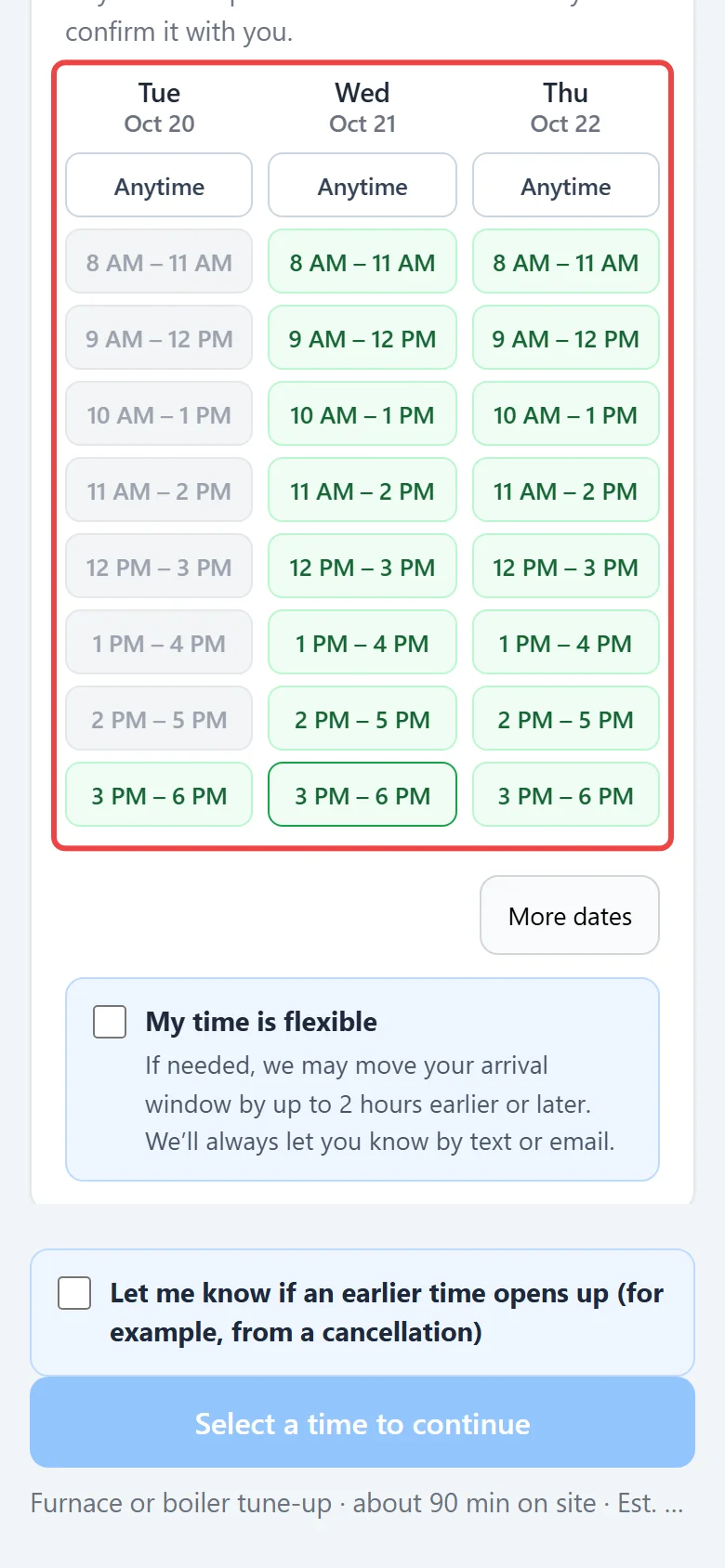
Section titled “On a phone”About three days show at once and customers swipe sideways for more; on a computer, about five show, with arrows for earlier and later days.
Good to know
Section titled “Good to know”- Your company’s phone, website and social links show at the bottom of the page.
- When online booking is off, the page says “Online booking isn’t available right now.” with your phone number.
- To see why a time is greyed out for an address, drop a lookup pin on the schedule map, see Checking a new address on the map.
Related articles
Section titled “Related articles”Checked against Astragal on October 18, 2026