

Live tracking
The live tracking page lets your client see how many stops are ahead of them and, once you’re driving, where you are and how far away.
Who can do this: Clients open the page from a link; they don’t sign in. Admins, dispatchers, accountants and technicians can copy the link; sending it in an On my way text needs Jobs access of View, edit, and create or higher for technicians.
Also called: tracking link, ETA page.
How the client gets the link
Section titled “How the client gets the link”- Automatically: on plans with live tracking, each visit later today that has a technician assigned gets one text with its tracking link (to the on-site contact if the job has one). Astragal checks on the hour and half hour from 7:00 AM to 8:30 PM Eastern time. The wording comes from the “Appointment Tracking Link” template.
- With the On my way text: tapping Send and navigate texts the link (when the template includes it) and starts your trip. See On my way messages.
- By hand: Copy tracking link in the On my way window copies it without texting the client.
The link stops working 12 hours after the visit’s end time.
What the client sees
Section titled “What the client sees”-
The client taps the link on their phone. The page opens on a card about their visit. To see the page yourself, open the visit, then Navigate, then Copy tracking link.
On a computer: Left menu → Schedule On a phone: Bottom bar → Schedule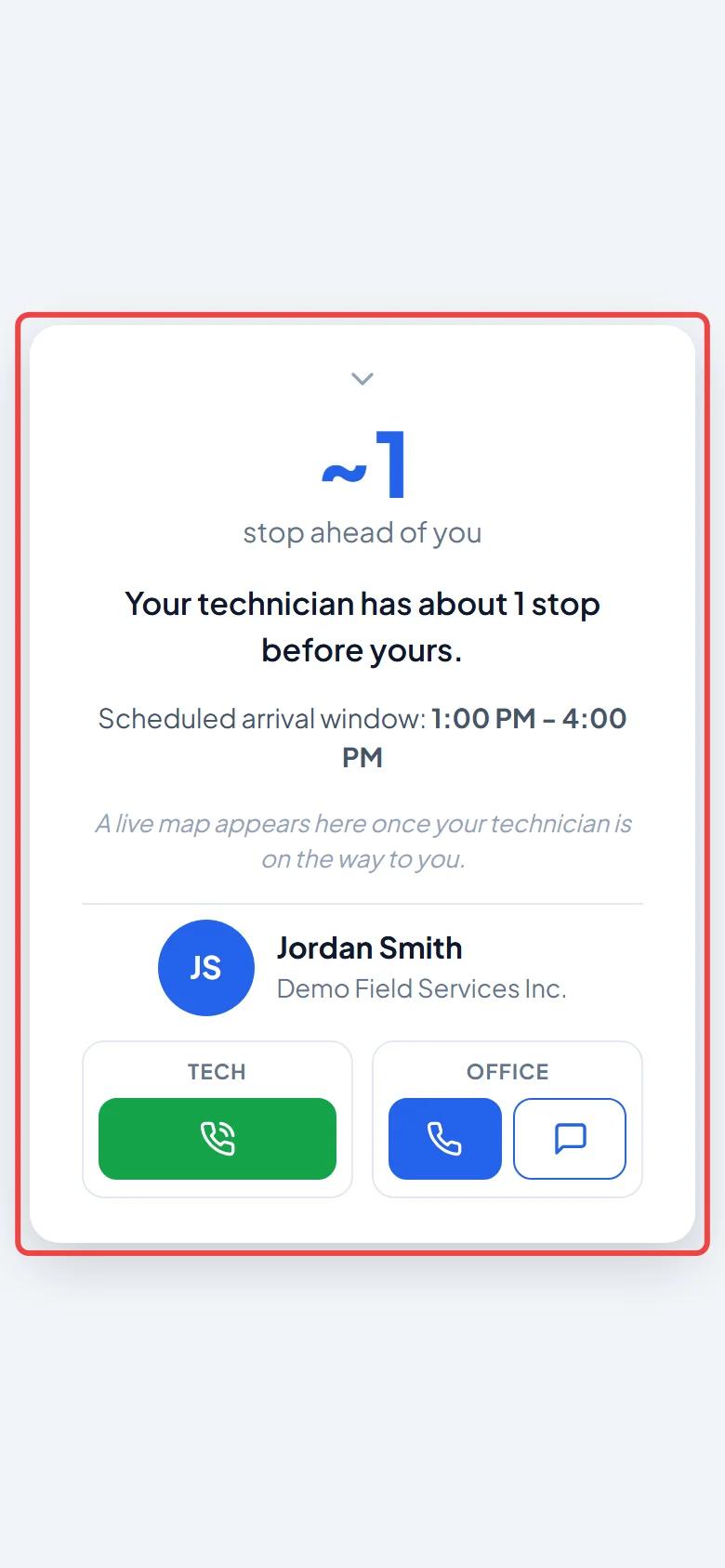
-
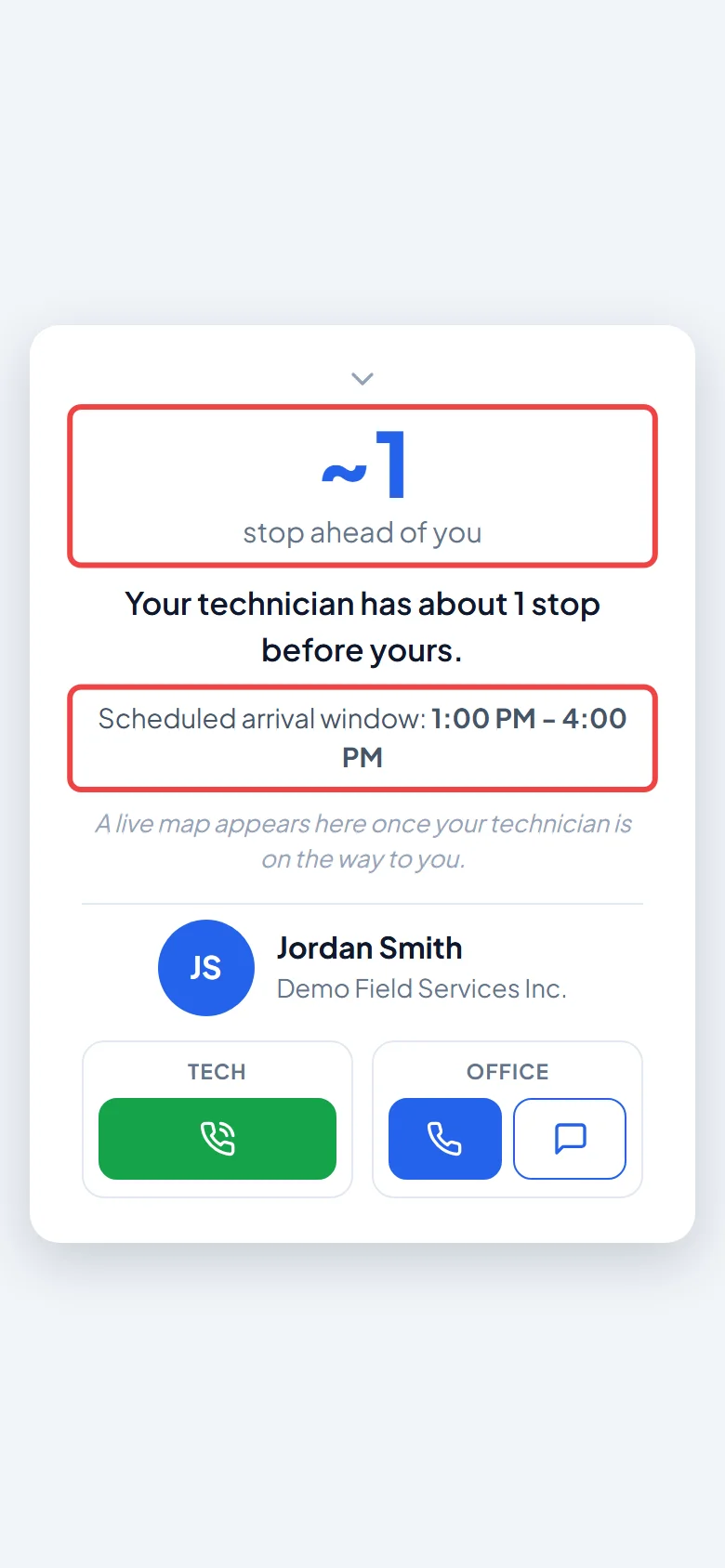
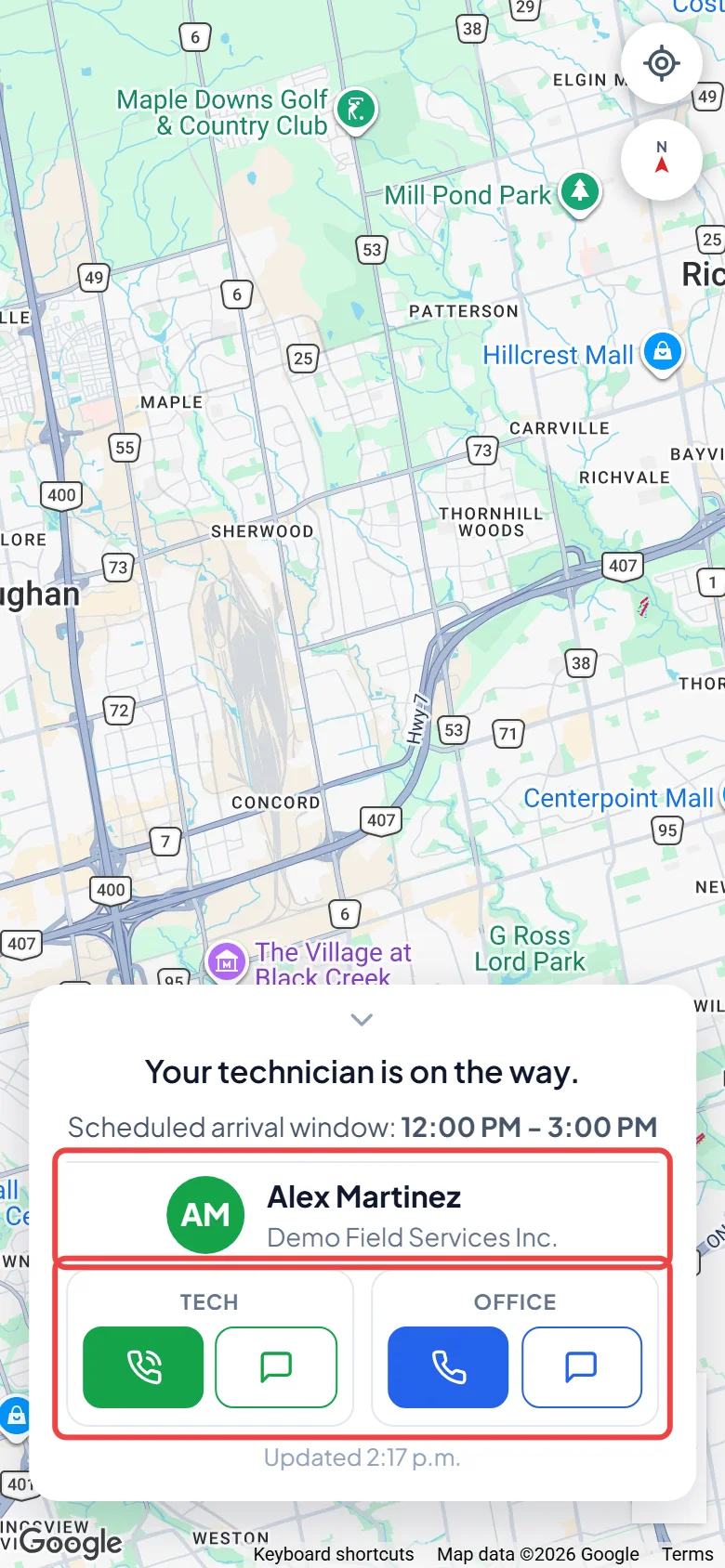
Before you set off, the card shows how many stops are ahead of theirs (“stops ahead of you”), or “You’re next” when none are, plus their Scheduled arrival window. Once you send your On my way text, the page switches to a live map showing how many minutes away you are; it updates by itself. When your phone reaches the address it says “Your technician has arrived.” After the visit is marked complete, reopening the page shows “This visit is complete.” A cancelled visit shows “This appointment was cancelled.”
-
The card shows who is coming and buttons to reach you. Tech call rings the client’s phone first, then connects them to the technician without showing the technician’s number. It needs your company’s own Astragal phone number. Tech text appears while the technician is driving to a visit and is passed on to them. Office call and text use your company phone number. Each button asks before it calls or texts.
Good to know
Section titled “Good to know”- The client can fold the card down with the arrow to see more of the map. A button re-centres the map on the technician, and the card shows when it was last updated.
- If you open the link yourself while signed in to Astragal, the contact buttons are greyed out so you can’t call yourself by mistake.
- When the visit has several technicians, the page names them all. Customer calls go to on the visit decides who the client reaches. See Assigning technicians.
- The client also gets a text when the technician arrives. It’s on by default; admins can turn it off with Arrival notification under Settings → Client communication. See Automatic client messages.
- The map needs the technician’s phone to share its location. See Sharing your location.
Related articles
Section titled “Related articles”Checked against Astragal on October 18, 2026