

Booking from an email
Turn a client’s email into a booked job or a quote request without retyping their details.
Who can do this: Admins. Your plan must include Gmail, and it isn’t available in demo workspaces. Picking from your inbox also needs Gmail connected; pasting an email works without it.
Also called: email to job.
-
Click Book from email (the envelope button at the top of the screen, next to search).
On a computer: Top bar → envelope button On a phone: Top bar → envelope button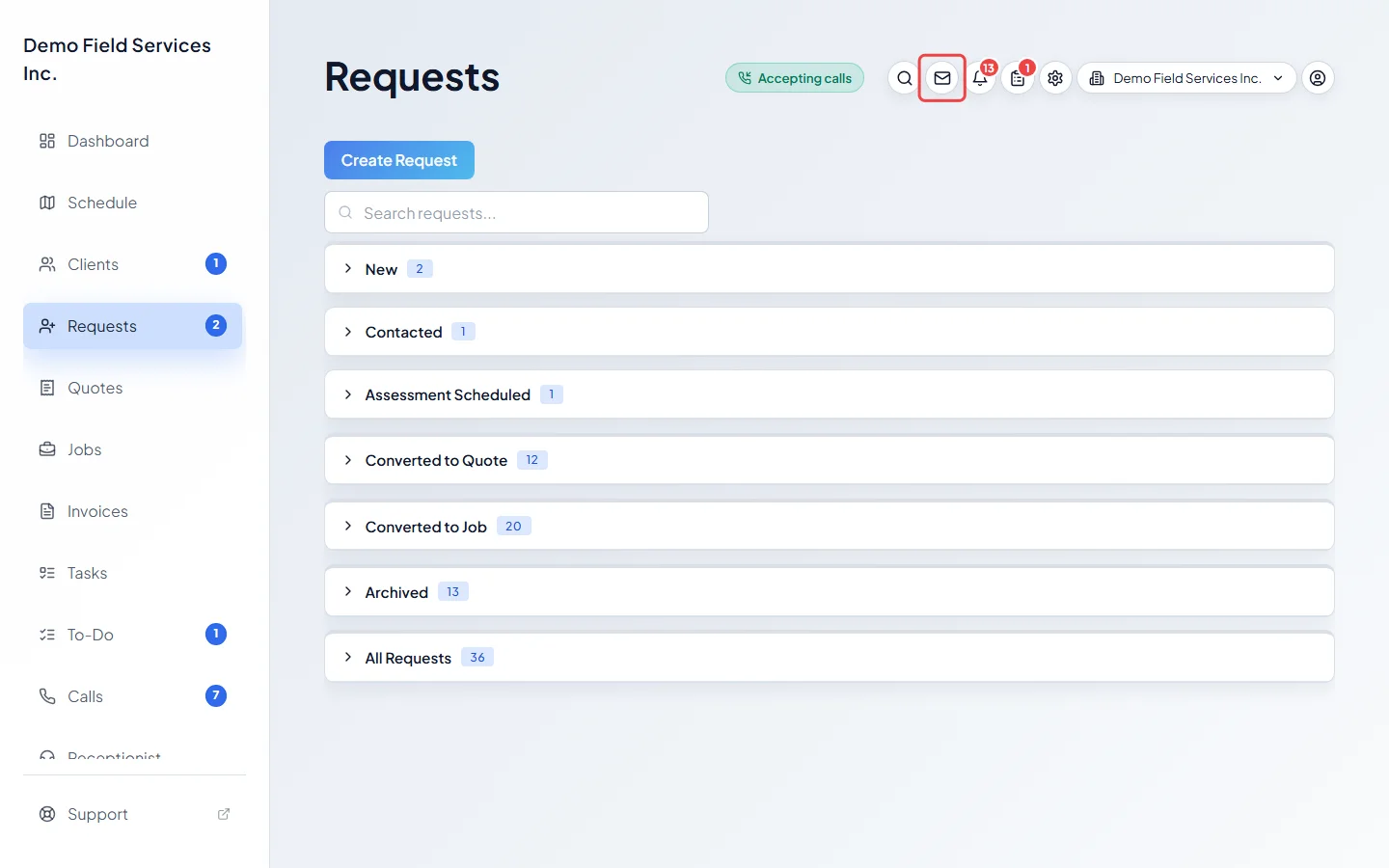
-
Click the Paste an email tab. (To pick from your inbox instead, see below.)
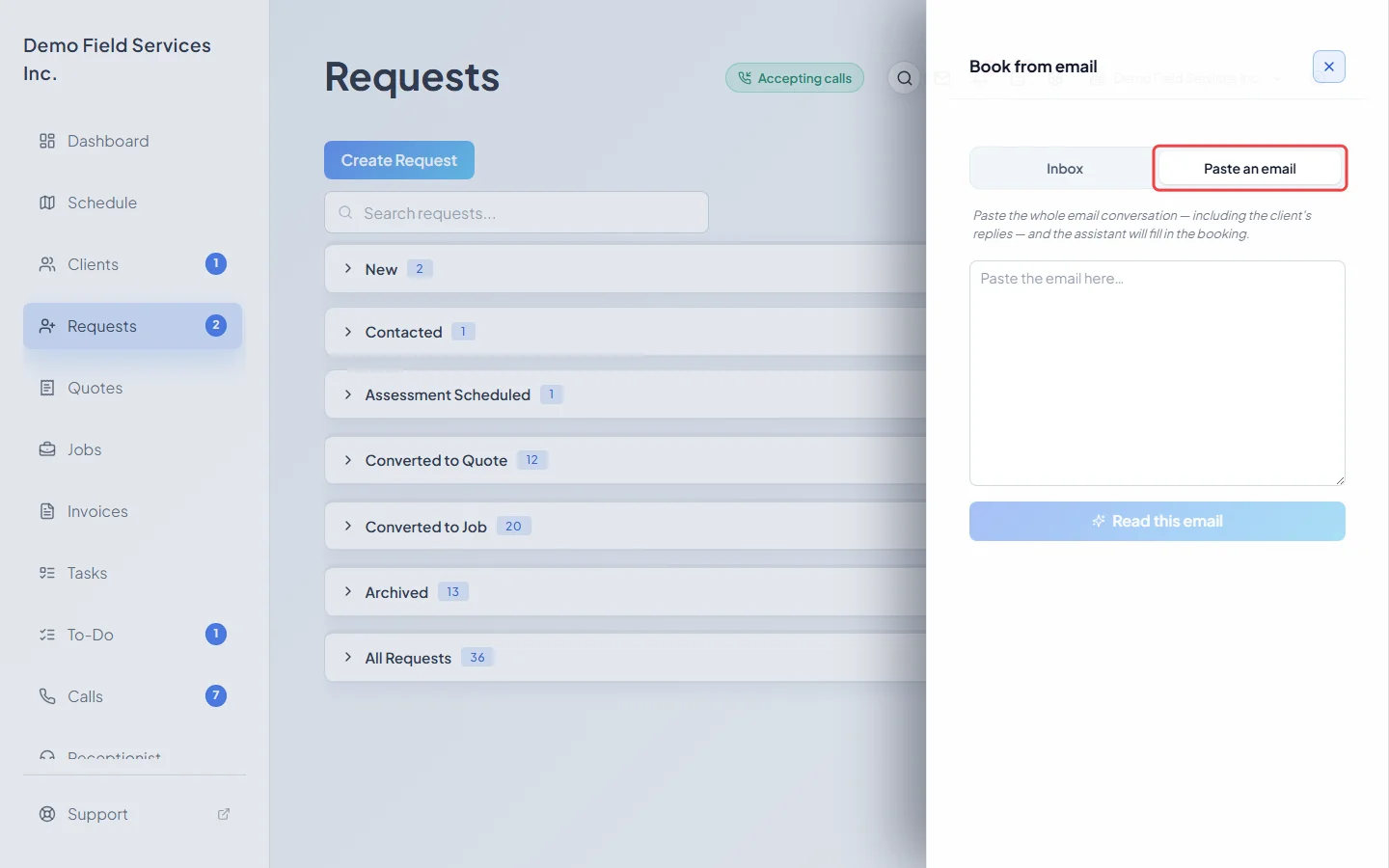
-
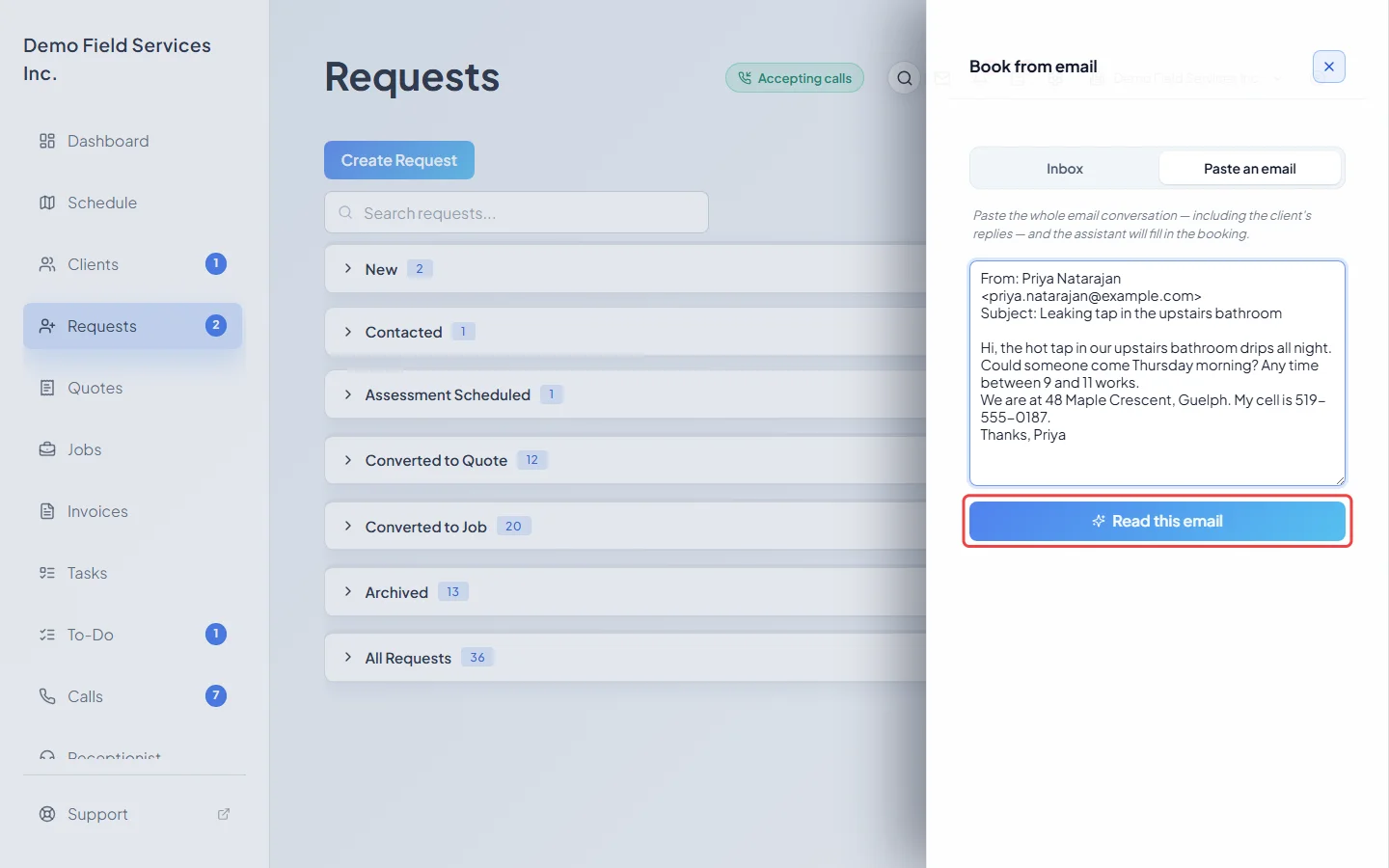
Paste the whole conversation, including the client’s replies, and click Read this email.
Picking from your inbox
Section titled “Picking from your inbox”The panel opens on the Inbox tab. If Gmail is connected, it lists your recent email conversations, each with its subject, sender, date and first line. Conversations from people who are already clients show their name. Click one and the assistant reads it, just like a pasted email. Use Search your recent email and Search to find an older conversation, and Load more to see more. If Gmail isn’t connected or can’t be reached, the tab says so and offers Connect email, Reconnect email or Try again; you can always use Paste an email instead. See Connecting Gmail.
After the assistant reads the email
Section titled “After the assistant reads the email”The assistant fills in a booking for you to check. Nothing is saved until you click Create the booking.
- Check the details. Choose Job (real work on the calendar) or Quote request (a free estimate or site visit). Then check the Client, Phone numbers, Emails, Service address, the title and Notes for the technician, When, Who is going, Line items (jobs only, and not for warranty work) and the Summary under Notes for staff. Anything the email wasn’t clear about is outlined, with a note saying what to look at.
- Match the client. If the sender looks like an existing client, their name shows with how confident the match is. Save to this existing client is switched on only for a strong match; otherwise a new client is made from the details. If this email was already booked, you see Already booked from this email. with a button to open the existing job (or request). Carrying on makes a second booking.
- Pick a time, or not. Set Start time (the earliest time promised), How long the work takes and Arrival window promised to client, or tick Schedule later (no time agreed in the email).
- Confirm. Click Review and confirm. Under About to create you see what will be made, for whom, where and when. Under Tell the client, switch on Email confirmation to client or Text confirmation to client if you want them told; each shows exactly who it goes to. Both start off. A switch is greyed out if the booking has no email address, or no number that can get texts.
- Create. Click Create the booking. A job is added to the schedule; a quote request lands in New on the requests board. Click Open it to see it, or Book another.
Pick a different email and Back to the details let you step back at any point.
Good to know
Section titled “Good to know”- If the connection drops while creating, try again. For an email picked from your inbox, Astragal tells you if it was already created rather than booking it twice.
- Unassigned is fine: you can save with nobody in Who is going and assign later.
- Setting the line items’ quantity to zero leaves that item off the job.
Related articles
Section titled “Related articles”Next step: The request details page
Checked against Astragal on October 18, 2026