

Optimizing a route
Optimize Route works out the order a team member should visit their stops in, keeping to each client’s arrival window.
Who can do this: Admins and dispatchers, for any team member. Technicians, for their own day.
Also called: route planning, best route.
-
Open the map and pick one team member under Technician, and the day.
On a computer: Left menu → Schedule → Map On a phone: Bottom bar → Schedule → Map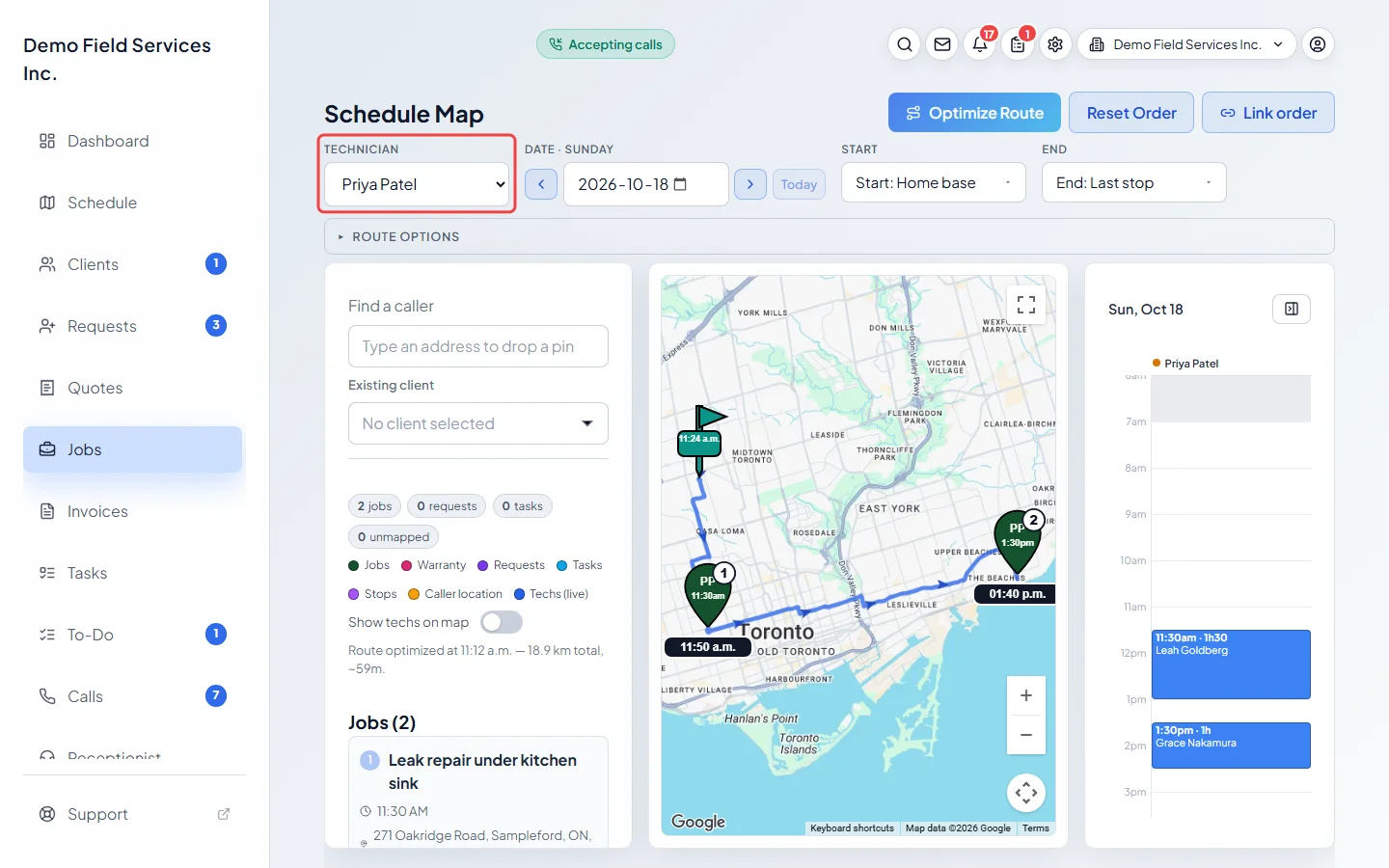
-
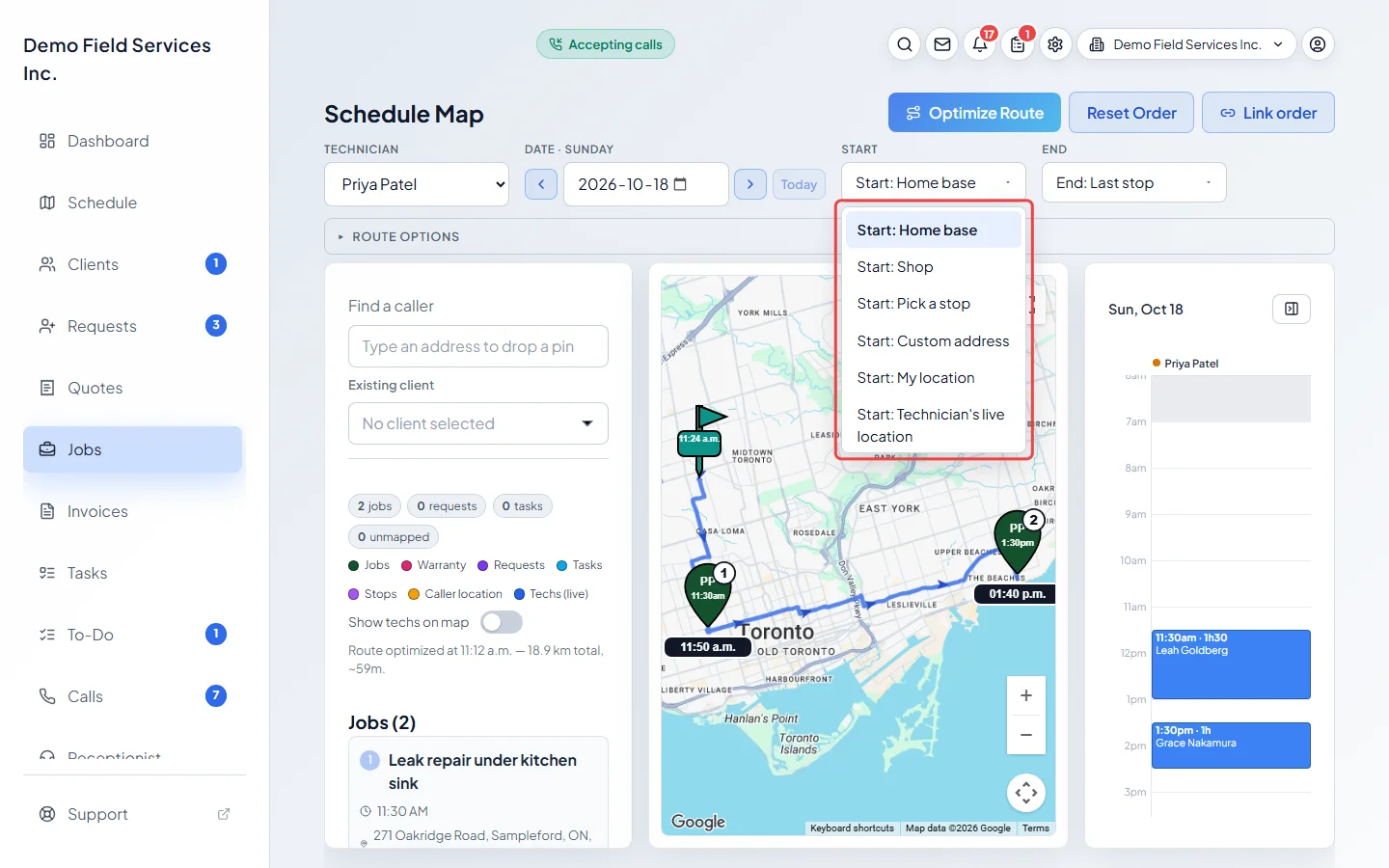
Choose where the day starts and ends. Start: Start: Home base (the team member’s own start point, or your shop if they have none), Start: Shop, Start: Pick a stop, Start: Custom address or Start: My location. End: End: Last stop, End: Return to start, End: Custom address, End: Pick a stop or End: Shop.
-
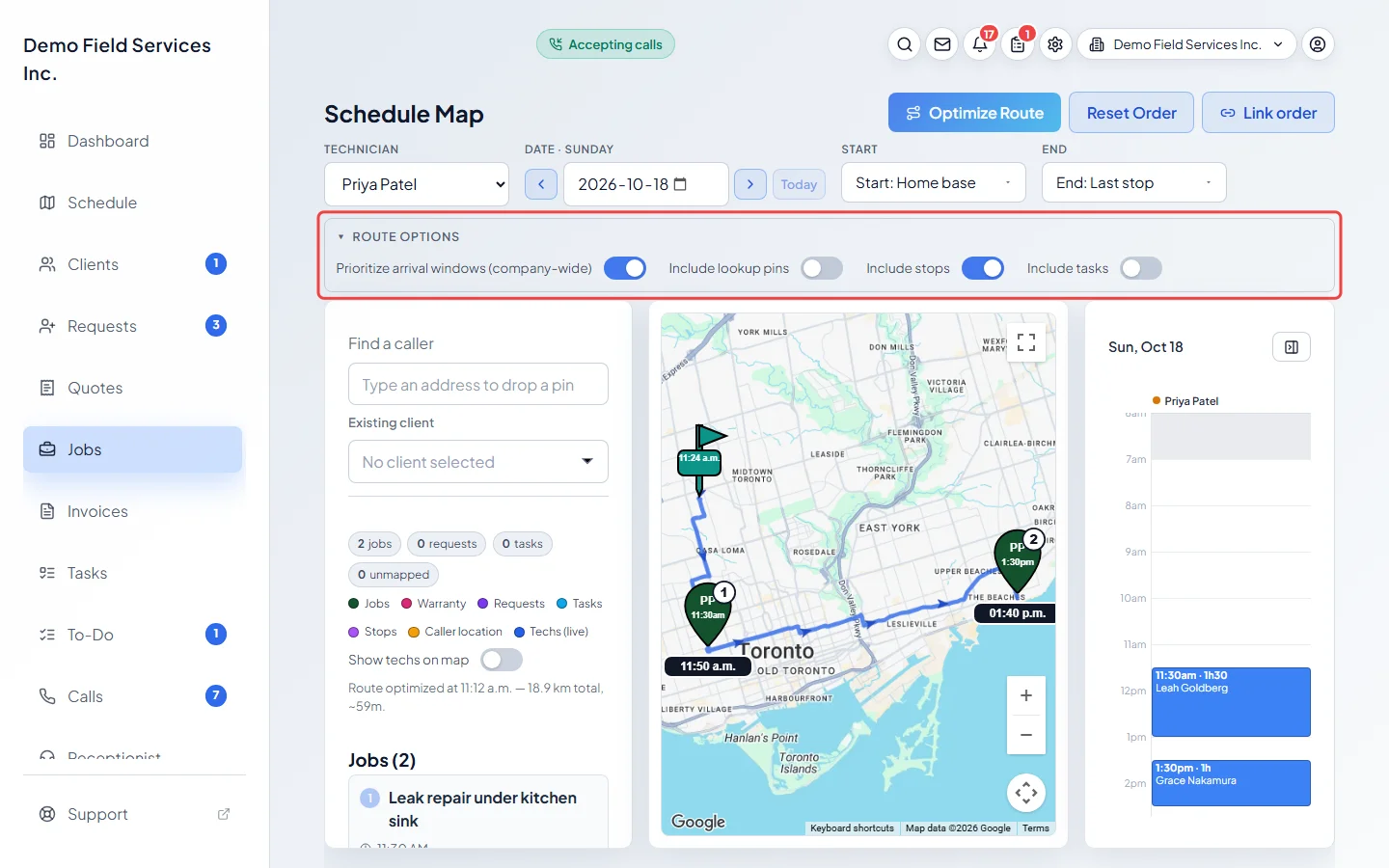
Open Route options to decide what goes in the route: Include stops (errand stops), Include tasks, and Include lookup pins (addresses you’re checking). Prioritize arrival windows (company-wide) avoids sending someone to a job hours before its window opens, even if the drive is a little longer; only office staff can change it.
-
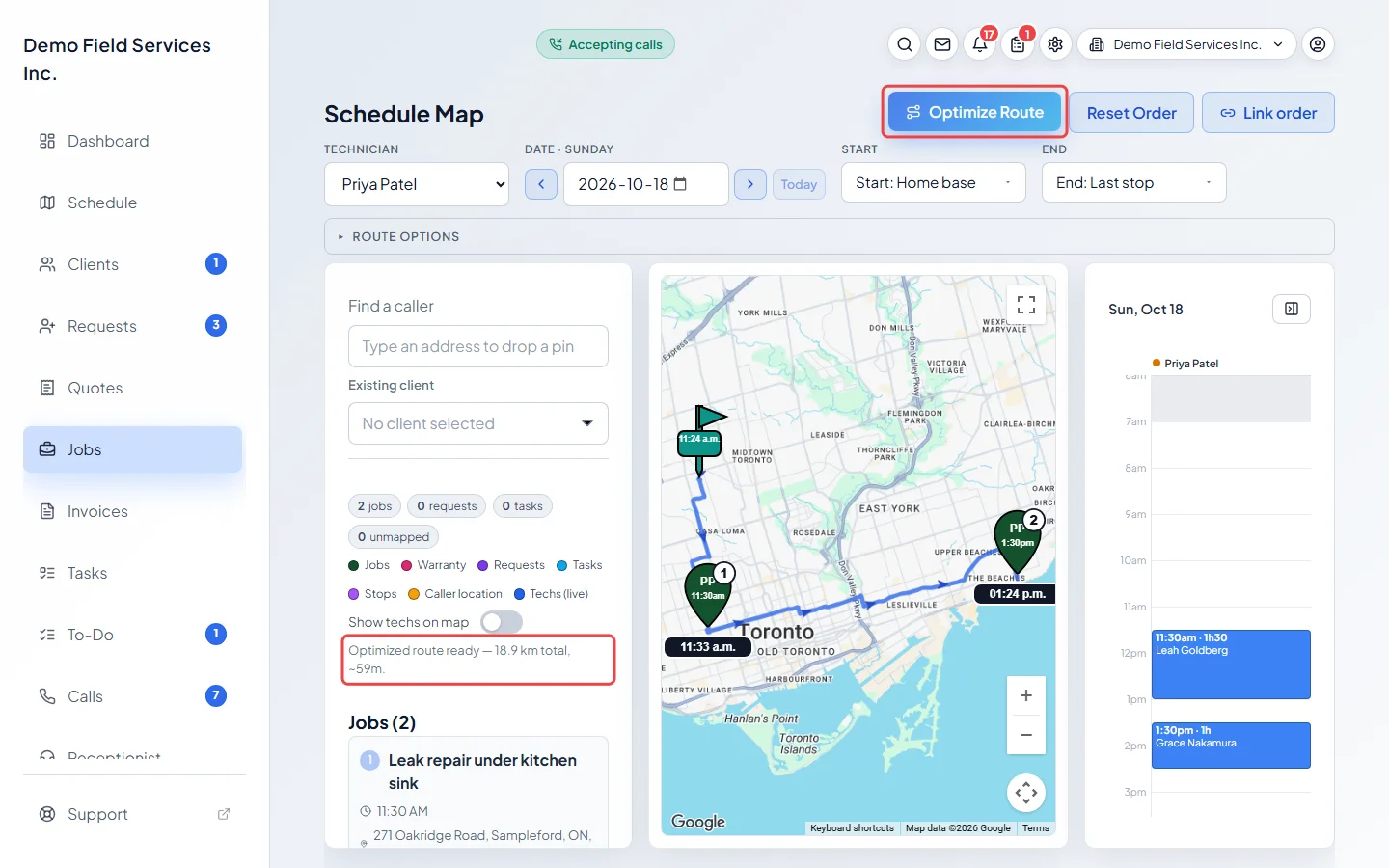
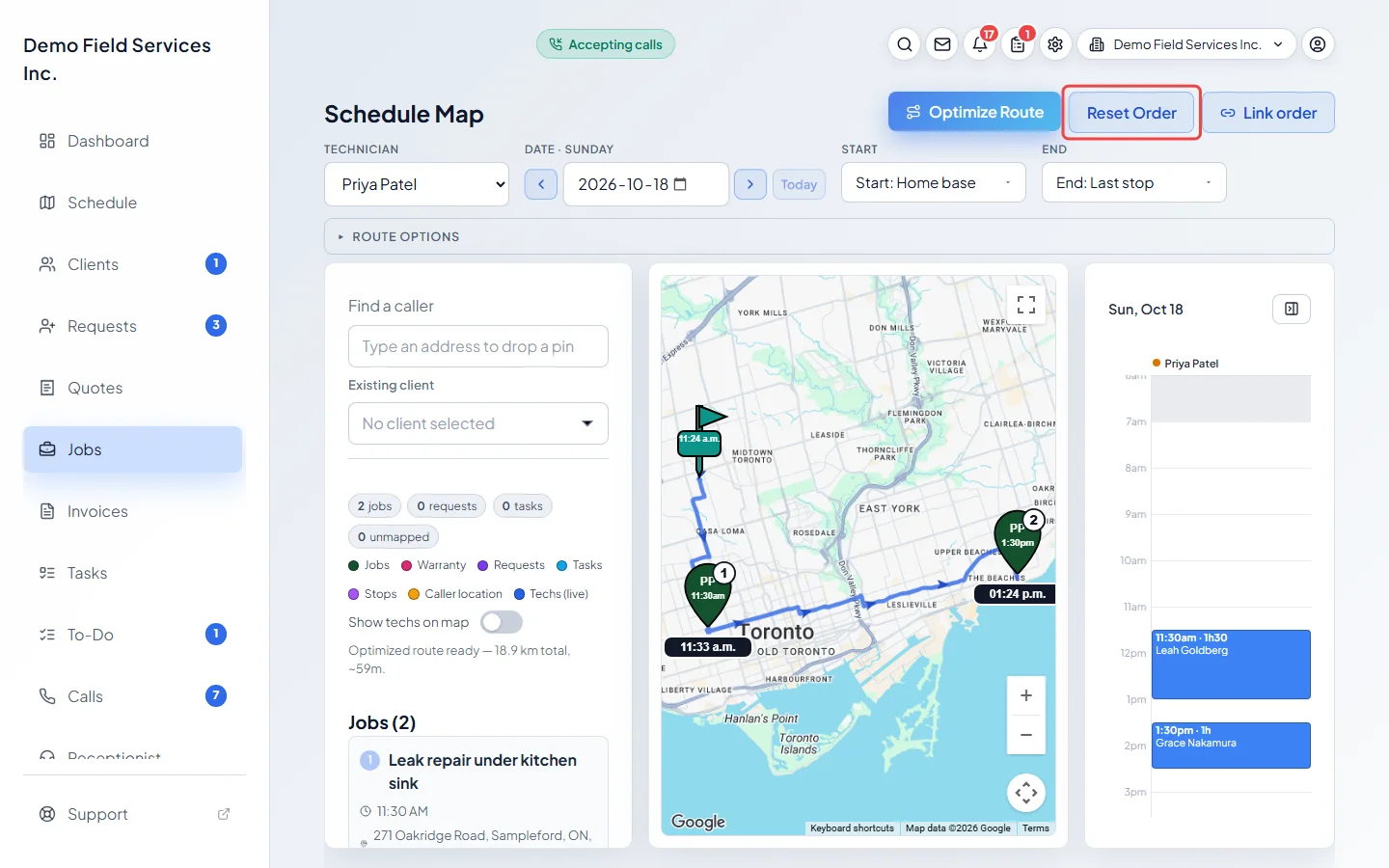
Click Optimize Route. The route is drawn on the map, each pin gets its number in the order, and the times they should arrive show under the pins. A line under the map gives the total distance and driving time, for example “Optimized route ready — 46.0 km total, ~57m.”
-
To go back to the booked order, click Reset Order. It clears the drawn route and its numbers, but keeps fixed places and rules.
Good to know
Section titled “Good to know”- You need at least two stops with a map location. With All technicians showing, the button asks you to pick a technician.
- A red number on a pin means that stop is expected to miss its arrival window. The map explains why, for example when arrival windows overlap too tightly.
- On today’s date, the route is planned from the time now. Admins and dispatchers can also start from Start: Technician’s live location.
- The order is saved, so everyone who opens that team member’s day sees the same route. See Sharing the optimized route.
- If the day’s visits change, or the route is more than four hours old, the drawn route is cleared and you’re asked to run Optimize Route again.
- To keep a stop first, second or last, or to say one stop must come before another, see Fixed stop numbers and stop rules.
Related articles
Section titled “Related articles”Checked against Astragal on October 18, 2026