

Choosing a voice
Choose how your business sounds on the phone: the AI receptionist’s voice, and the voice that reads your recorded greetings.
Who can do this: Admins, dispatchers and accountants.
Add-on: AI receptionistAlso called: natural voice, lifelike voice.
There are two voices to choose. The AI voice is the AI receptionist talking with callers. The Greeting voice reads your greetings, the text-back spoken line and the “thanks for holding” messages. The natural, human-sounding voices come with the AI receptionist add-on; there’s nothing extra to buy.
-
Open the AI receptionist settings and pick from AI voice. Default voice (recommended) is Alexandra. The others are listed by accent (American, British, Australian) with a word about how each sounds. Click Play sample to hear the one you picked.
On a computer: Left menu → Settings → AI receptionist On a phone: More → Settings → AI receptionist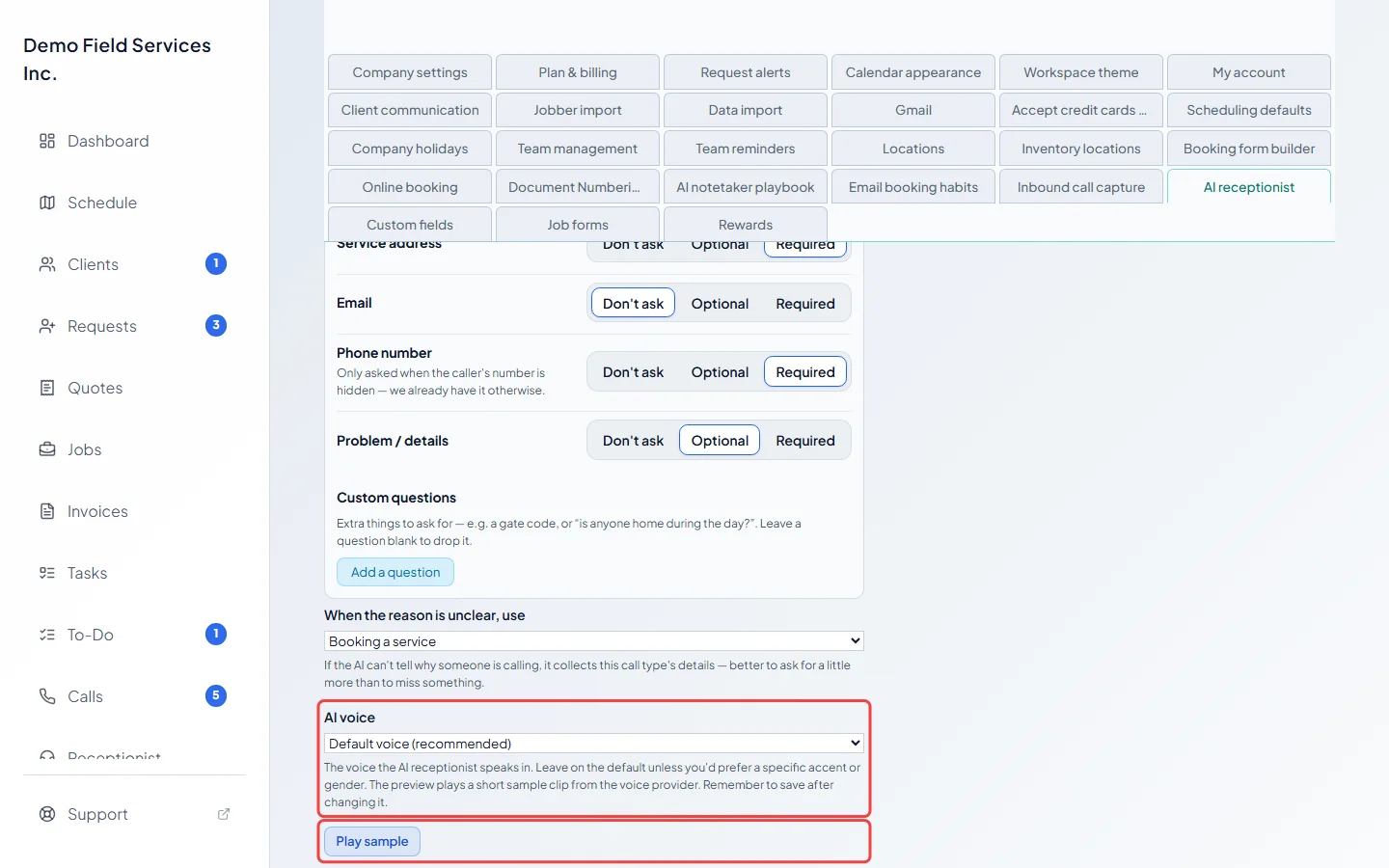
-
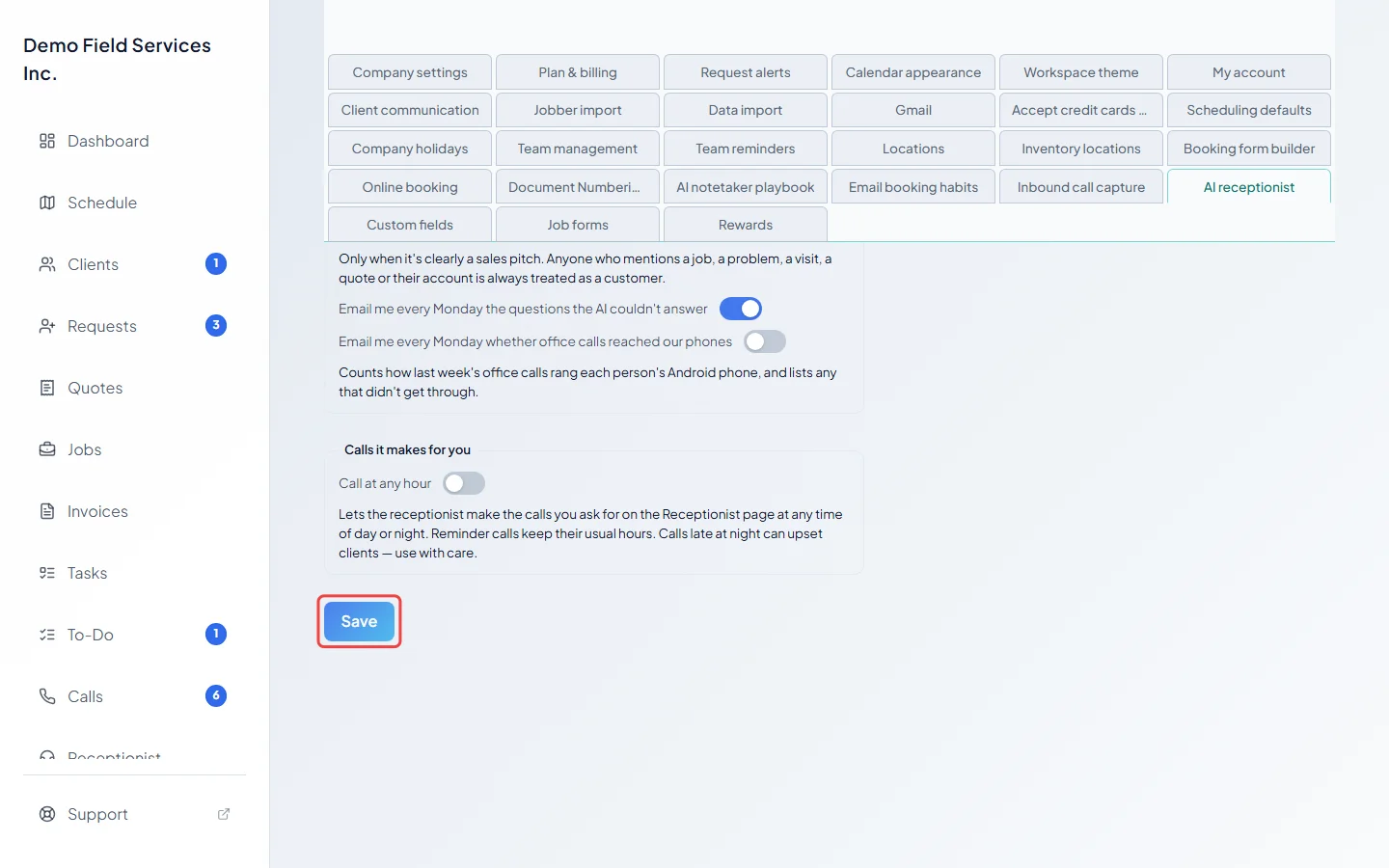
Click Save at the bottom of the AI receptionist settings. It becomes clickable once you’ve changed something.
-
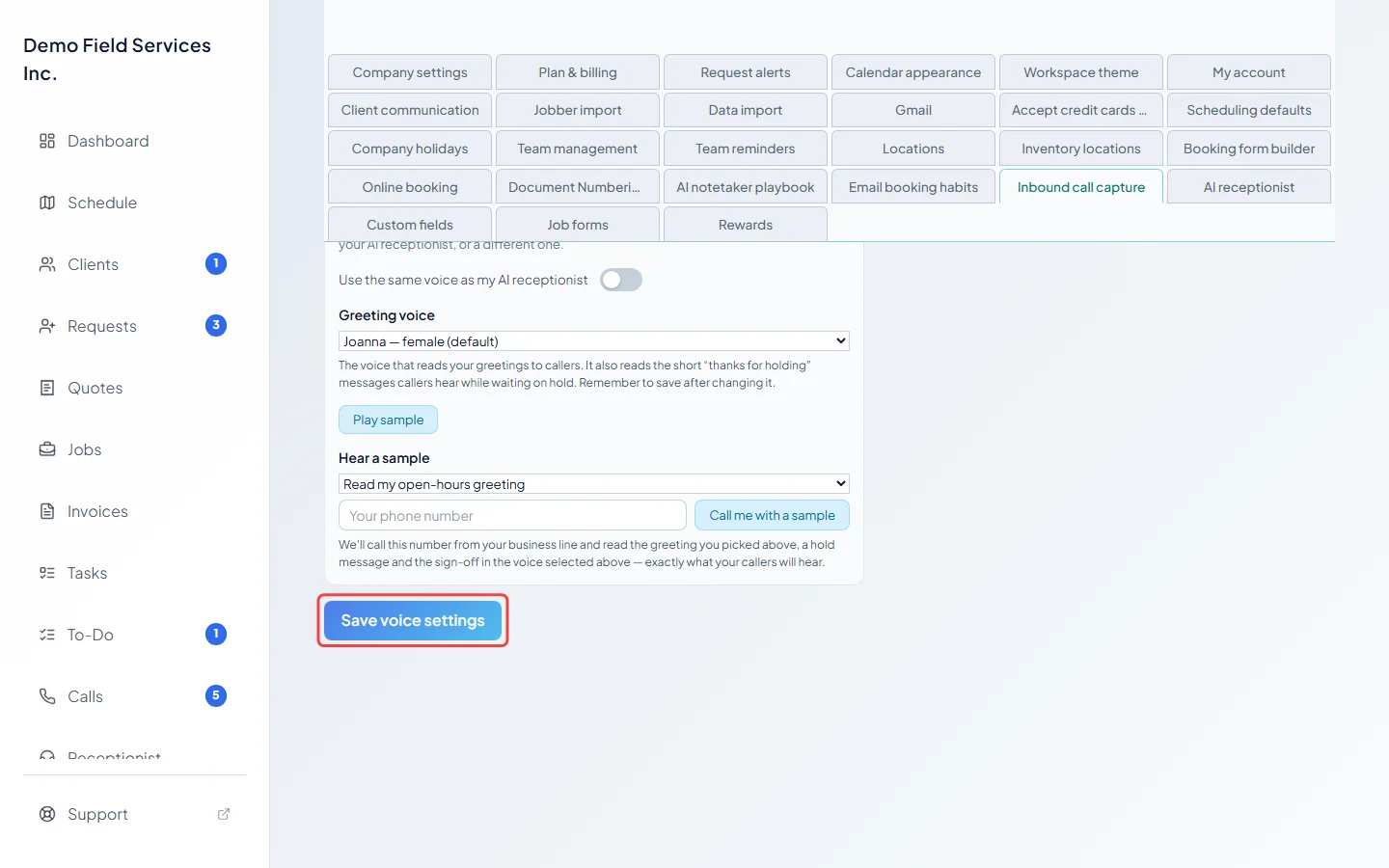
Open Inbound call capture and then The voice for spoken messages. Turn on Use the same voice as my AI receptionist to keep one voice everywhere (it copies the AI voice you last saved, and is greyed out during the free trial), or pick a Greeting voice yourself. The voices under Lifelike greeting voices (free) — English only are at the top; below them are standard voices in many languages. When you pick a lifelike voice, also pick one under “If the new voice isn’t available, callers hear:”. A whole call is always read in one voice, never a mix.
On a computer: Left menu → Settings → Inbound call capture On a phone: More → Settings → Inbound call capture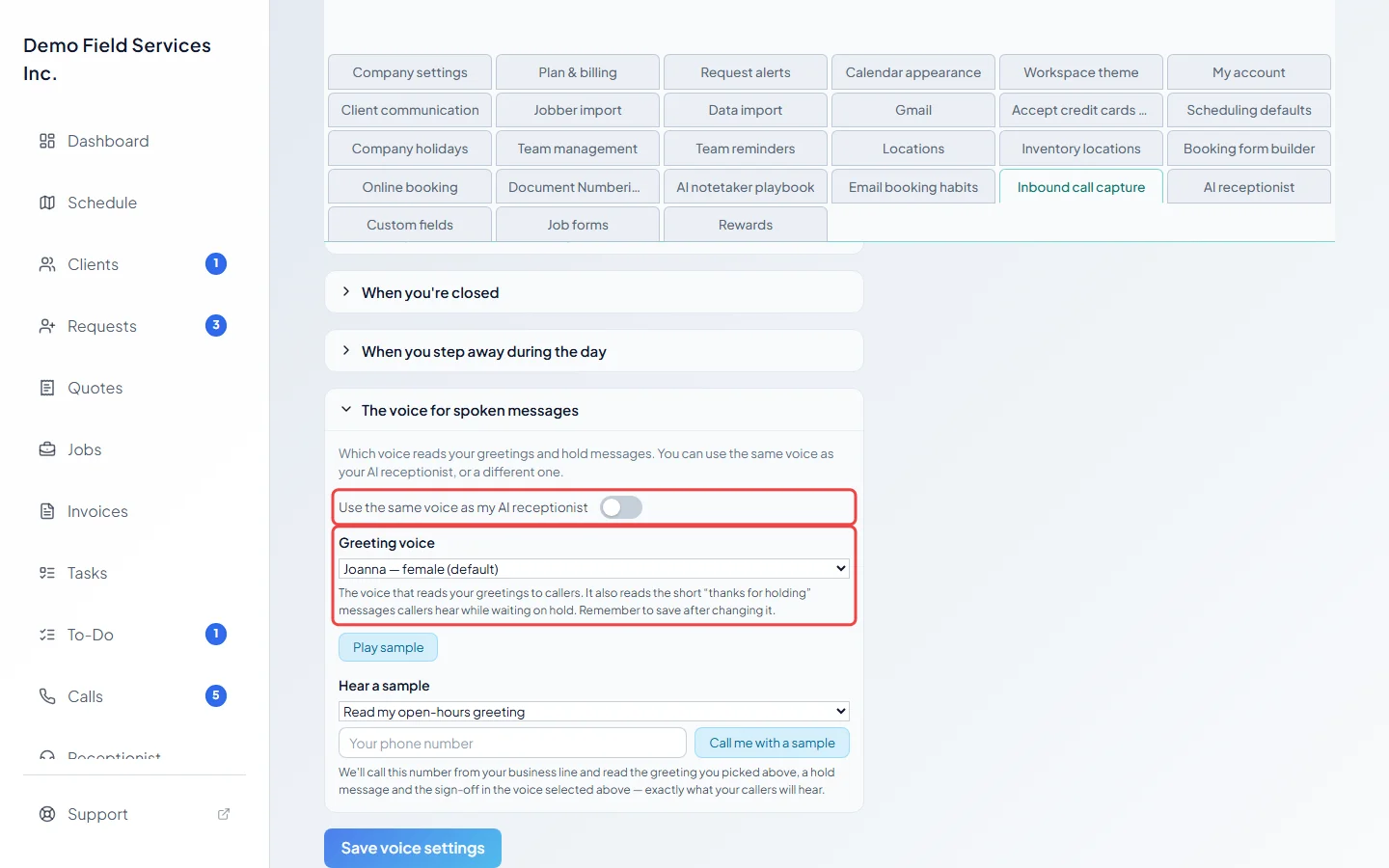
-
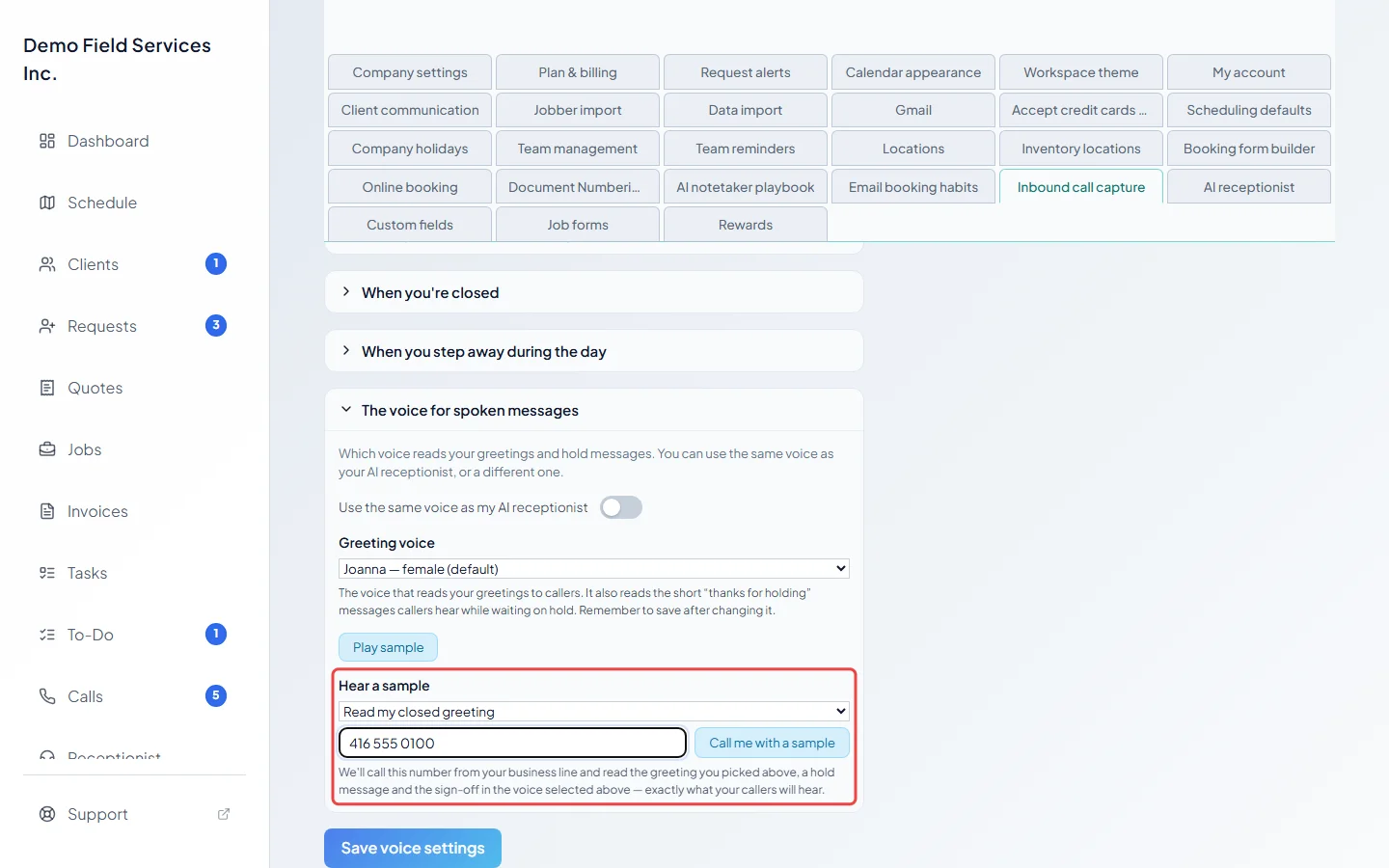
Under Hear a sample, choose Read my open-hours greeting or Read my closed greeting, type your phone number and click Call me with a sample. Astragal calls you from your business line, says “Here is a sample of your voicemail greeting.”, then reads that greeting (including changes you haven’t saved yet), your saved hold message and the sign-off. A very long greeting is cut short on the sample. You can ask for 5 sample calls every 10 minutes, and your inbound phone number must be set up first.
-
Click Save voice settings.
Good to know
Section titled “Good to know”- A new lifelike greeting voice takes a little while to prepare. A line under the list says when callers are hearing it; until then they hear your standard voice, so nobody hears anything odd. If your greetings are too long for it, the line tells you to shorten them.
- During your free trial the lifelike greeting voices are shown but can’t be picked. They become available when the trial ends.
- If you pick a lifelike voice while the standard voice underneath speaks another language, Astragal warns you once. Click Save voice settings again to keep both.
- Now and then callers may get the backup voice for the AI instead of the lifelike one. A note under AI voice says so when that happens. There’s nothing for you to do; it comes back on its own.
- Each AI-answered call on the Calls page says which voice answered (Backup voice or Lifelike voice), and, when a lifelike voice read the greeting, which one.
Related articles
Section titled “Related articles”Checked against Astragal on October 17, 2026