

Vendors
Vendors are the suppliers you buy parts and stock from. You need them for purchase orders, supplier orders and each product’s suppliers.
Who can do this: Admins, dispatchers and accountants, on a plan that includes purchase orders or supplier orders.
Also called: suppliers, wholesalers.
-
Open Vendors. The list shows each vendor’s Name, Primary contact, Phone, Email and Notes.
On a computer: Left menu → Inventory → Vendors On a phone: More → Vendors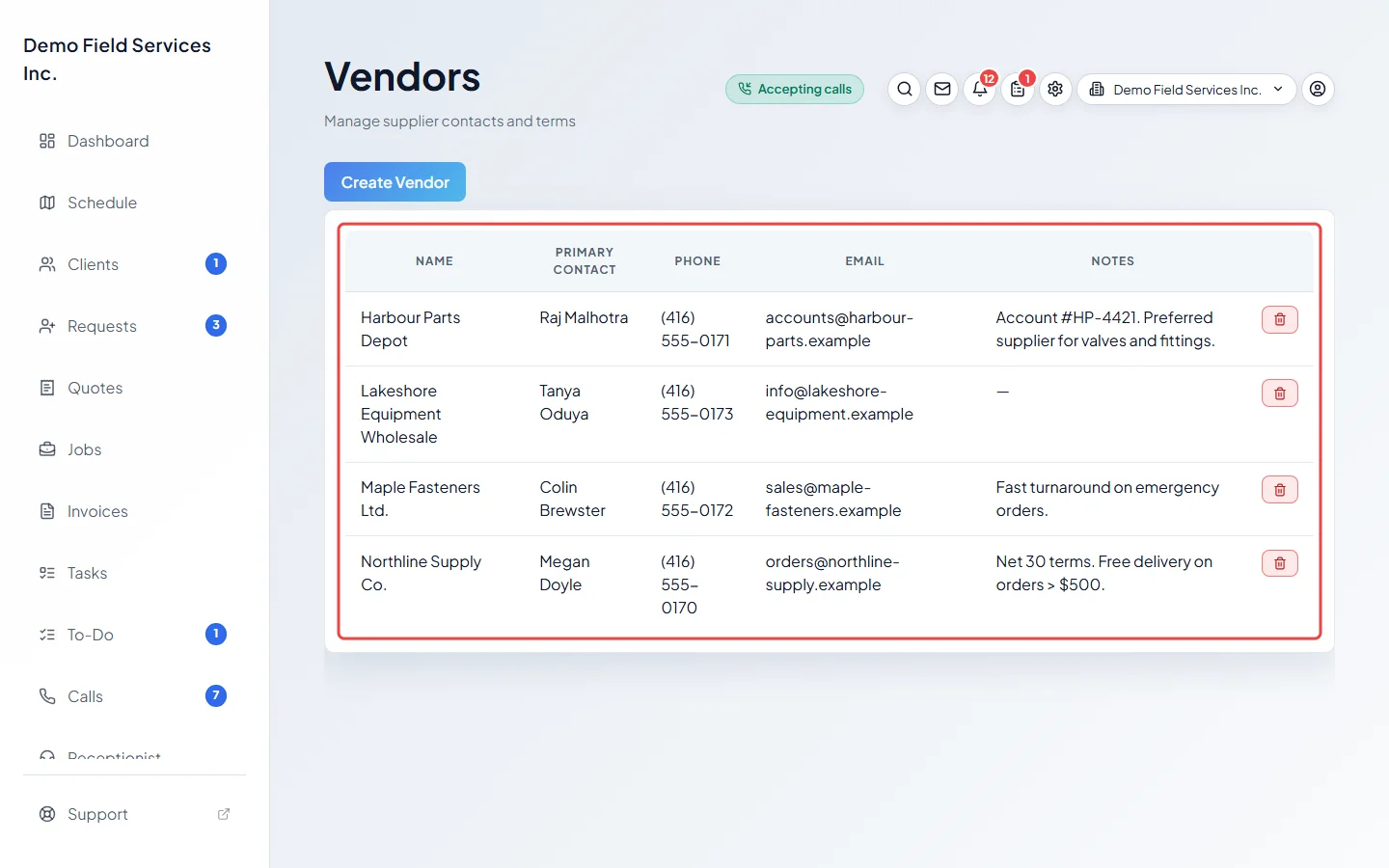
-
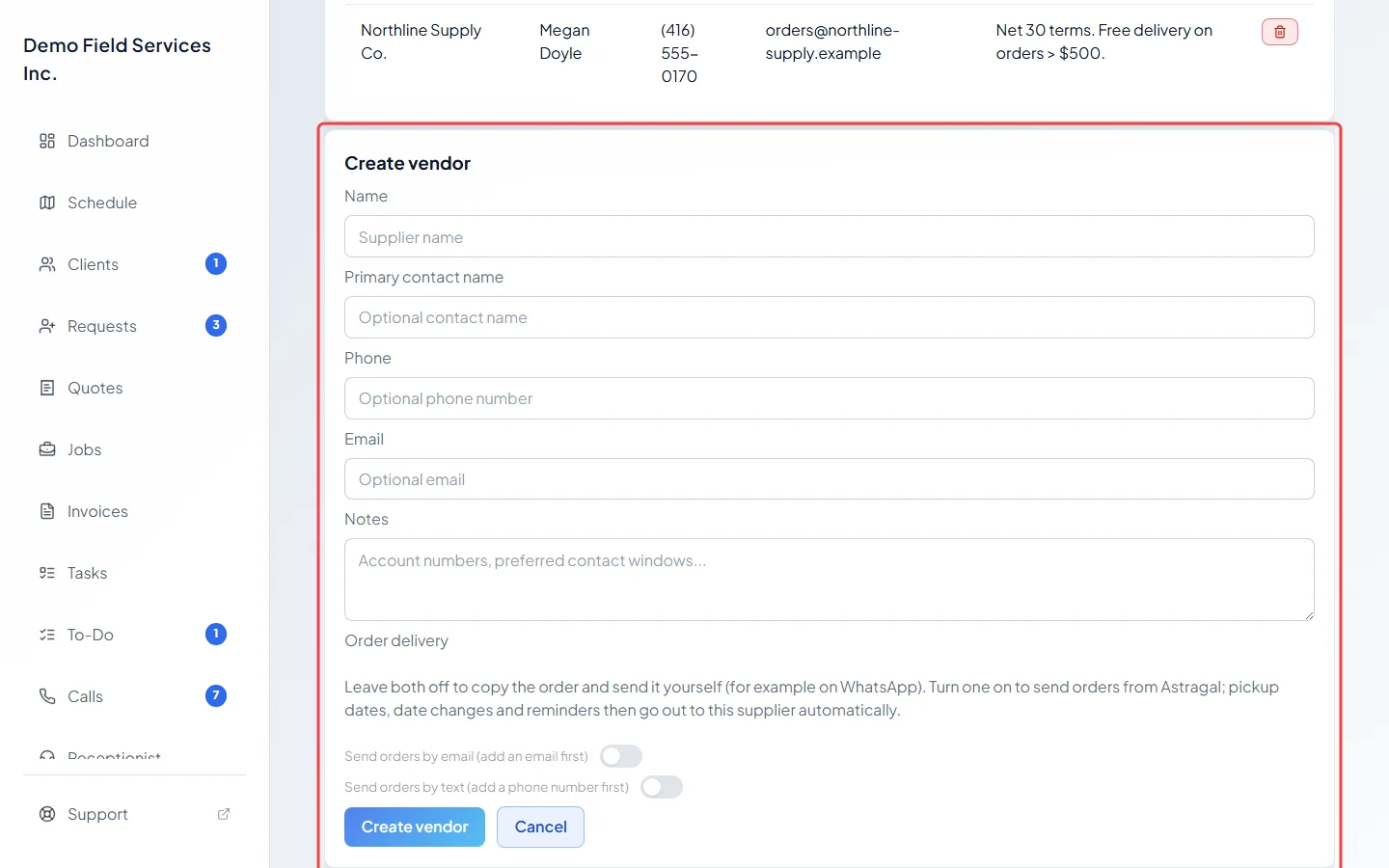
Click Create Vendor. The form opens under the list.
-
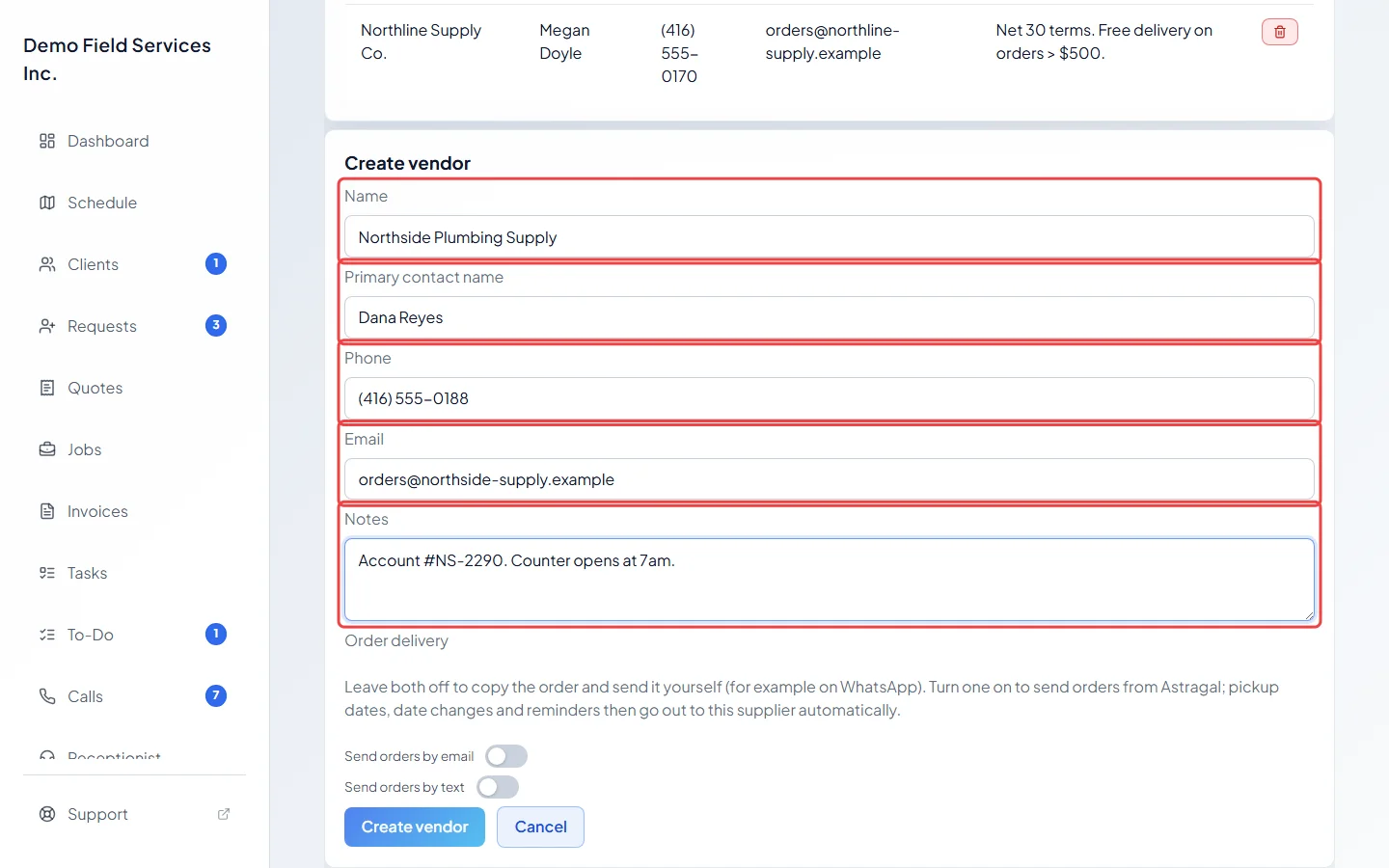
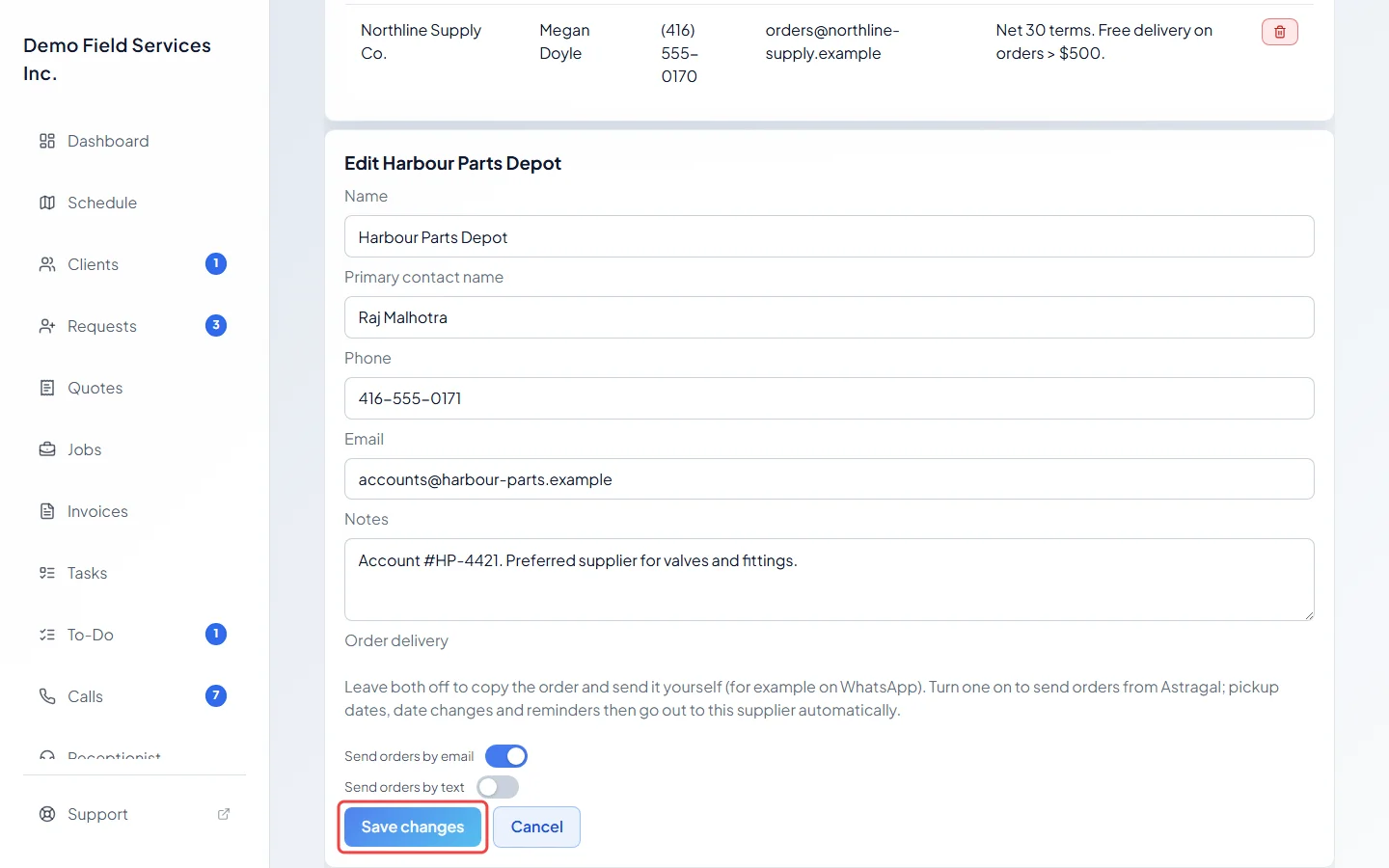
Type the Name (required, and different from your other vendors), and if you like the Primary contact name, Phone, Email and Notes, such as your account number or the best time to call.
-
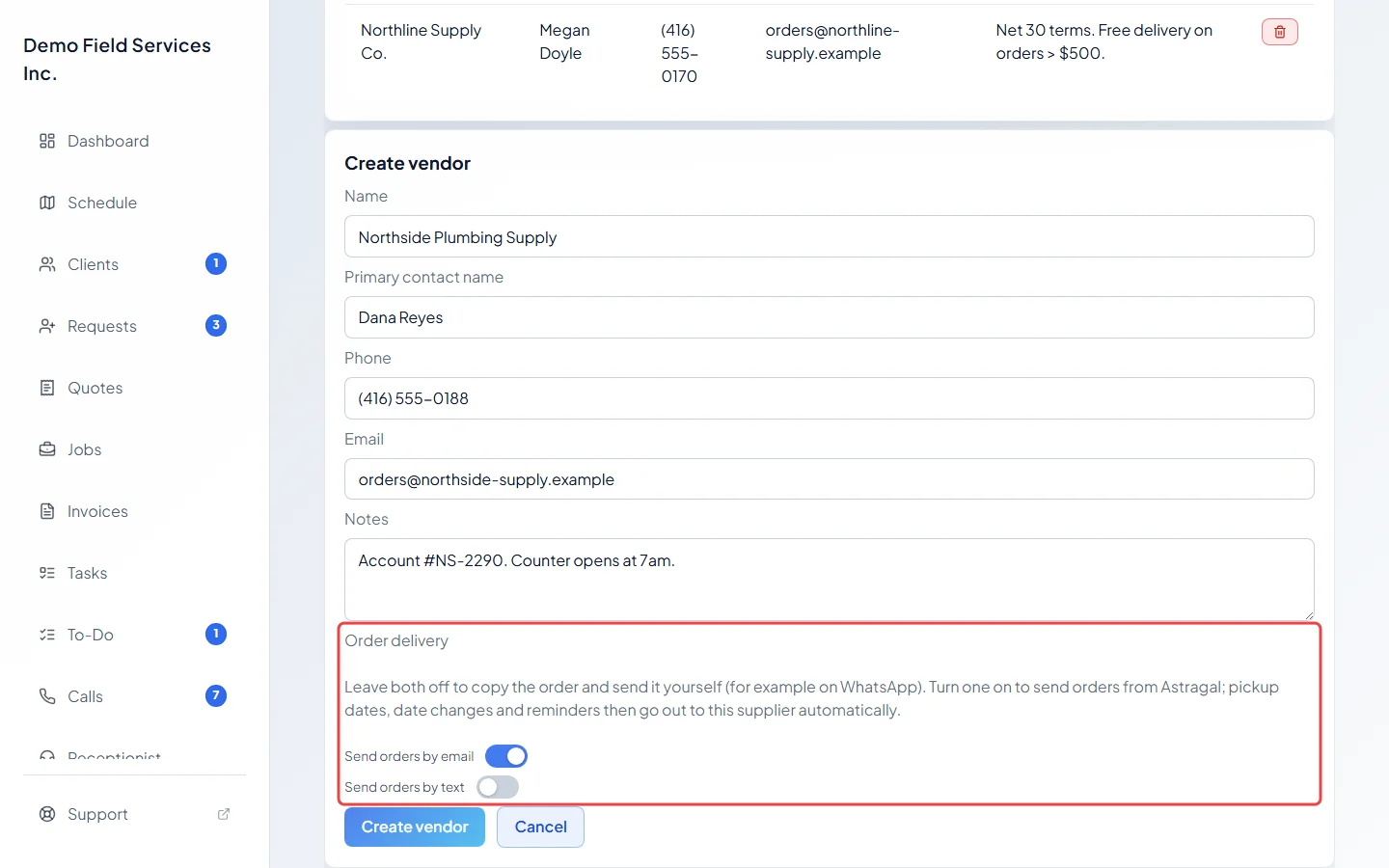
Under Order delivery, choose how supplier orders reach them. Leave both switches off to copy each order and send it yourself, for example on WhatsApp. Turn on Send orders by email or Send orders by text and each order gets a Send to supplier button that sends it from Astragal; pickup dates, date changes and reminders then go to this supplier automatically. Each switch needs the matching email or phone number first.
-
Click Create vendor. To change a vendor later, click its row, edit the form and click Save changes.
Deleting a vendor
Section titled “Deleting a vendor”Click the red bin on the vendor’s row and confirm. A vendor can’t be deleted when it already has purchase orders or supplier orders, or when it’s chosen on a line of an open quote or job. If it was a product’s main supplier, the product’s next supplier becomes the main one.
Good to know
Section titled “Good to know”- If you clear a vendor’s email or phone number, the matching delivery switch turns off by itself.
Related articles
Section titled “Related articles”Checked against Astragal on October 17, 2026