

How clients view and approve quotes
See exactly what your client sees when they open a quote, and how they say yes or no to it.
Who can do this: Your clients, in their portal. The account holder can answer any quote; another person on the account can answer only the quotes that name them as the contact person.
Also called: estimate.
-
The client opens the quote from the link in your email, or clicks Quotes in their portal. Each card shows the quote number, the date, the total and a status: Awaiting response, Approved, Converted, Declined or Expired.
On a computer: Portal menu → Quotes On a phone: Portal bottom bar → Quotes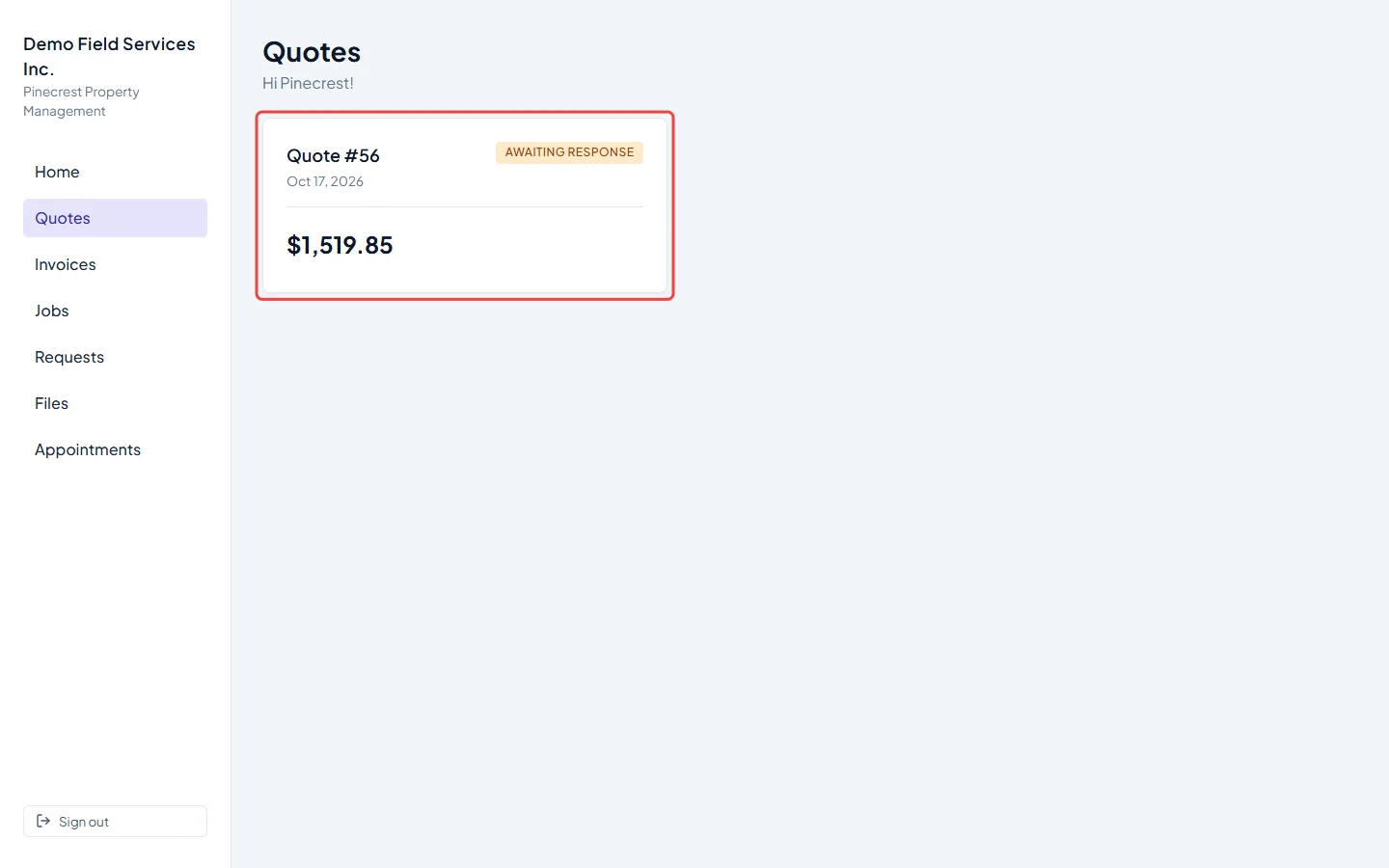
-
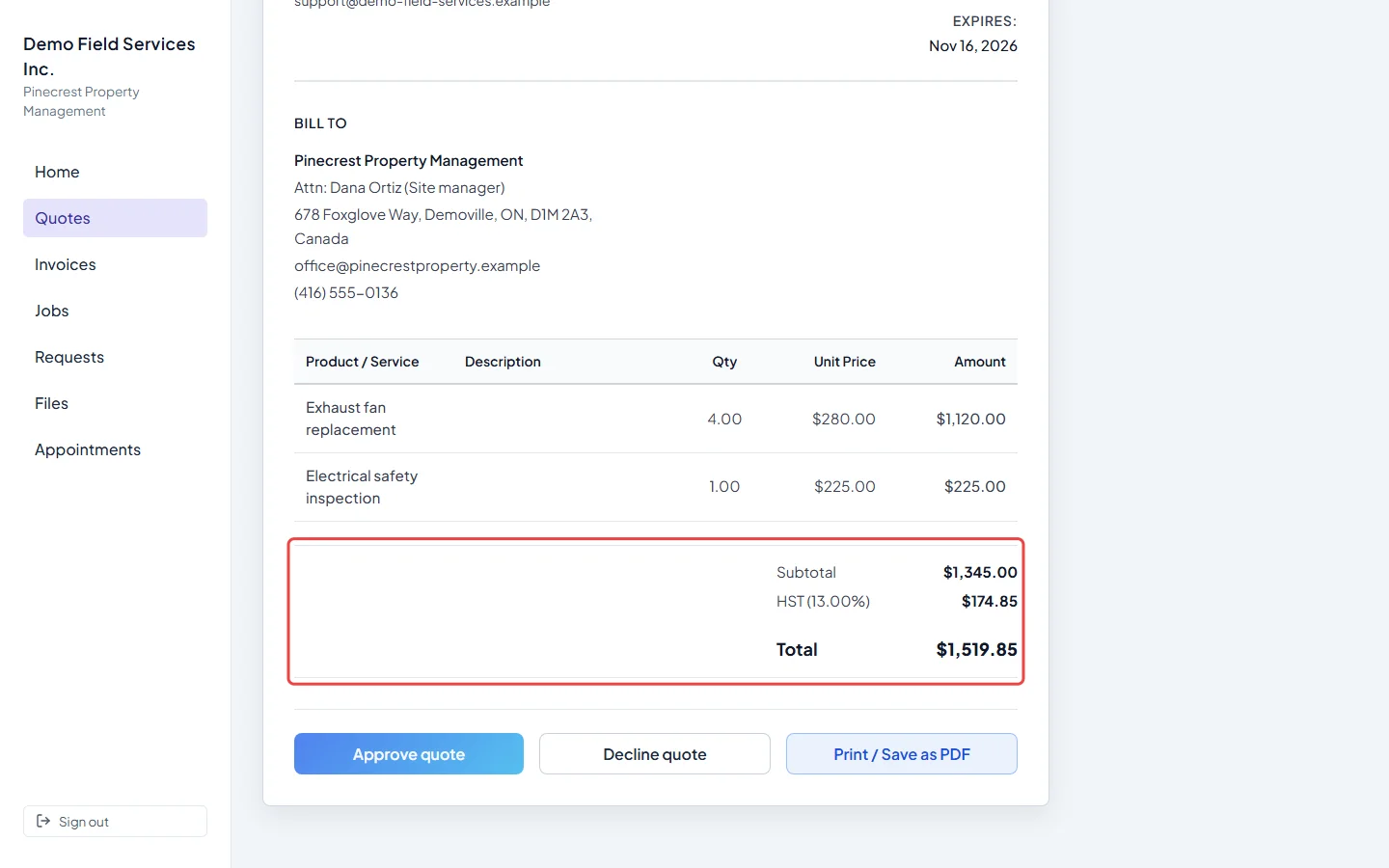
The quote opens as a document: your logo and contact details, the Issued: and Expires: dates, Bill To and Service Address, then each line with Qty, Unit Price and Amount. Below are the Subtotal, any Discount, tax and Total, any Required deposit or Payment plan, your Notes for the client and your quote Terms.
-
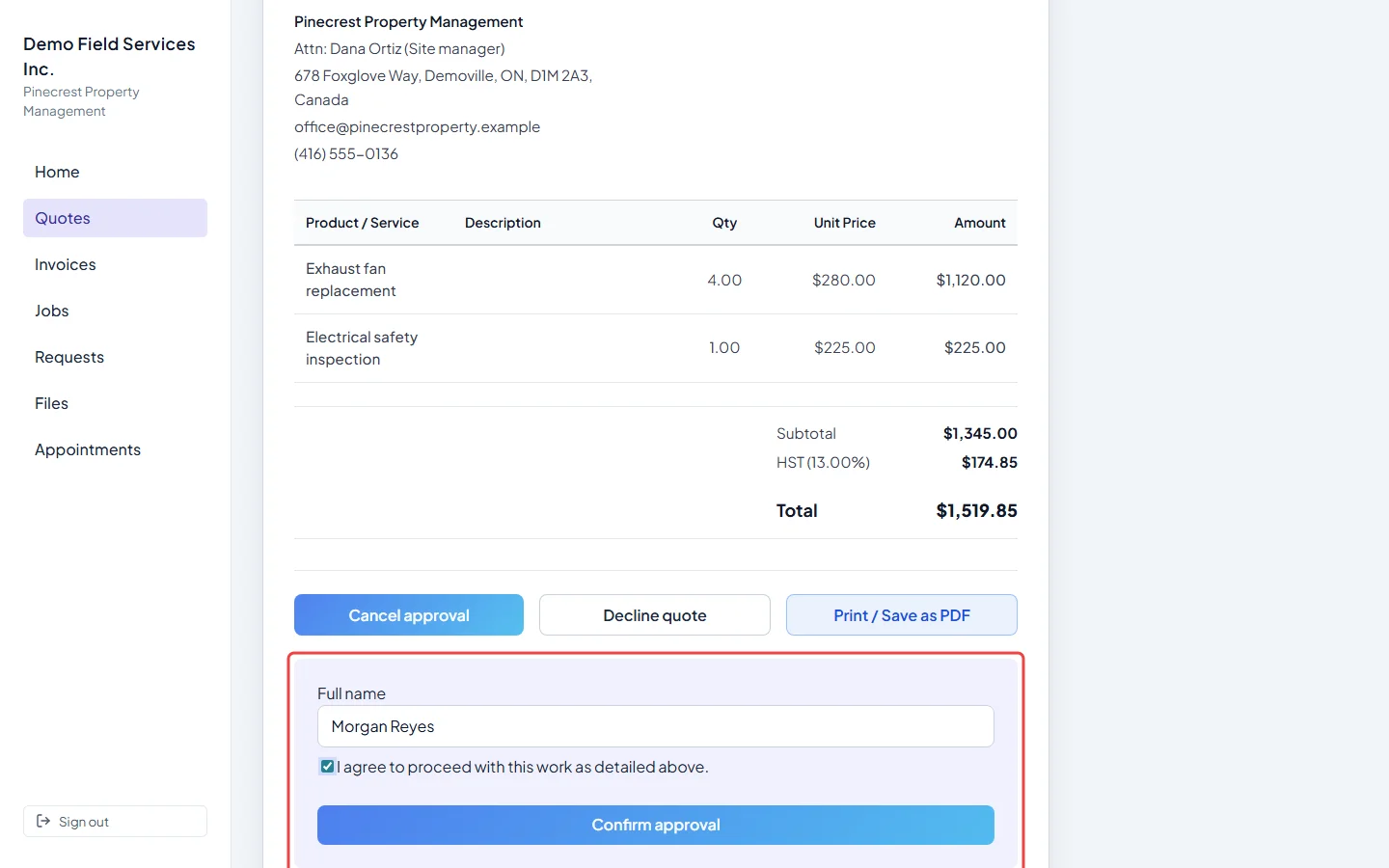
To approve, the client clicks Approve quote, types their name under Full name, ticks I agree to proceed with this work as detailed above. and clicks Confirm approval. The quote turns approved in Astragal straight away. You get an alert, and the client gets a confirmation email.
-
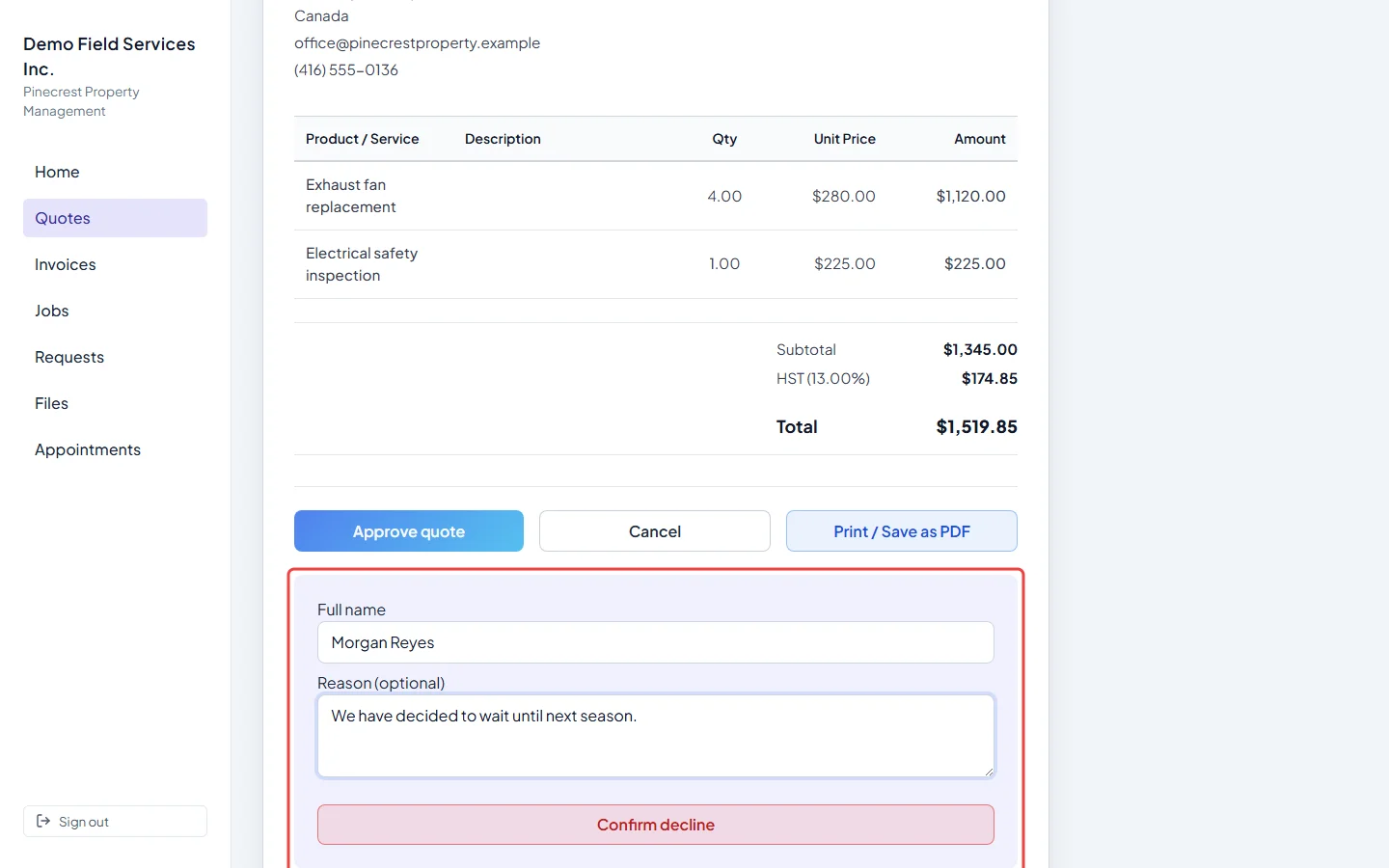
To say no, the client clicks Decline quote, types their Full name, can add a Reason (optional), and clicks Confirm decline. You get an alert with their reason, and the quote shows as declined.
Options, add-ons and deposits
Section titled “Options, add-ons and deposits”- Optional add-ons: lines you marked optional show an Optional add-on tag with a tick box. The client ticks or unticks them and the totals update, with a count such as “1 of 2 add-ons included”. See Line items, taxes and totals.
- Product options: where you let the client choose, an option shows Change. They pick another choice, and its price difference shows beside it. See Choosing product options on a quote.
- Deposits: if the quote asks for a deposit and you accept cards, a Pay deposit button shows the amount due. Once it’s paid, Deposit paid appears. If card payments aren’t set up, the client is asked to contact you to pay another way. See Asking for a deposit.
- Paying the deposit doesn’t approve the quote; the client still clicks Approve quote. When a quote with a deposit is approved, a deposit bill also appears under Invoices.
- After approval, a deposit payment, or once the quote has expired or been declined, the add-ons and options lock, and a note above the lines says why.
Good to know
Section titled “Good to know”- Print / Save as PDF prints the quote or saves it as a PDF. It isn’t shown inside the iPhone app.
- When the client approves in the portal, their typed name appears as a Signature: line on the quote, with the date it was signed.
- A quote can’t be approved after its expiry date. The client sees a note asking them to contact you for an updated quote.
- While a sent quote is open in the portal, your team sees that the client is looking at it.
- If you pull a sent quote back to draft, the link still opens but the client can’t approve, decline or change it until you send it again.
Related articles
Section titled “Related articles”- Sending a quote to a client
- Quote approval and rejection
- Asking for a deposit
- Client portal overview
Next step: Converting a quote to a job
Checked against Astragal on October 17, 2026