

Signing in on your phone
Sign in to the Astragal app on your phone with the same email and password you use on a computer.
Who can do this: Anyone your company has added to its team.
Also called: logging in, log on.
You need an account first. Accounts are made by whoever runs Astragal at your company: they invite you, and you set your password from the invite email. See Joining your team’s account.
-
Open the Astragal app. After the Astragal logo, the Sign in screen opens.
On a computer: Astragal web address → Sign in On a phone: Astragal app → Sign in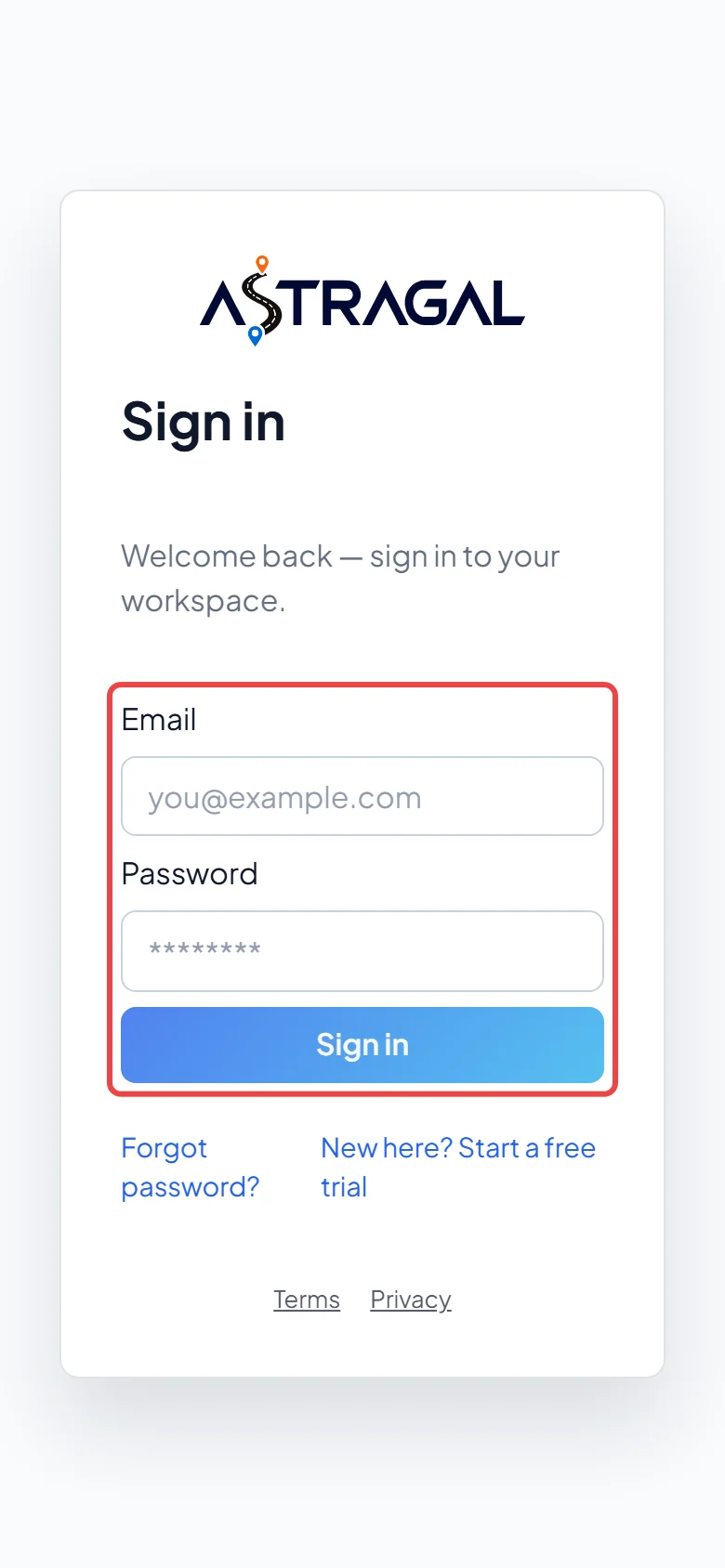
-
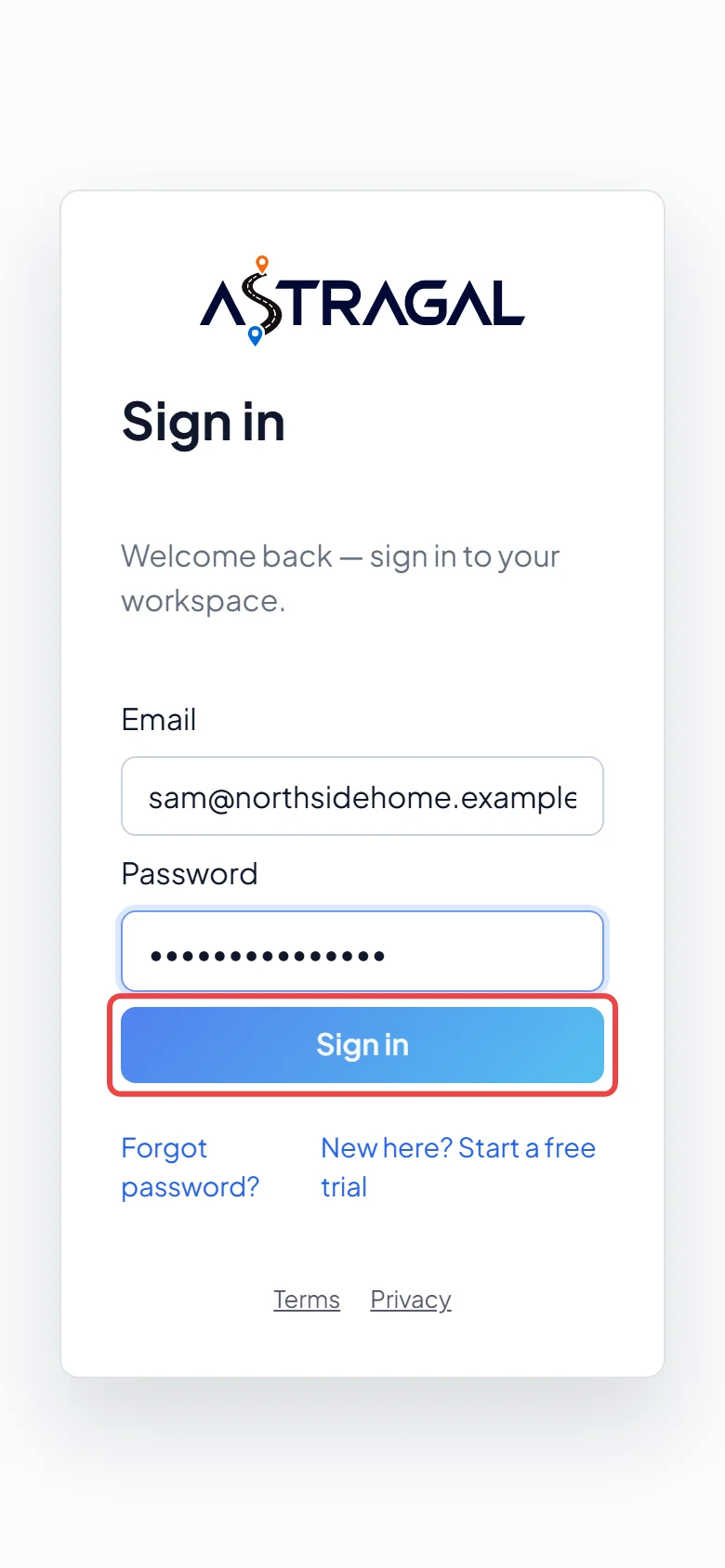
Type your Email and Password, then tap Sign in. Your phone may offer to fill in or save the password for you. You land on Home.
-
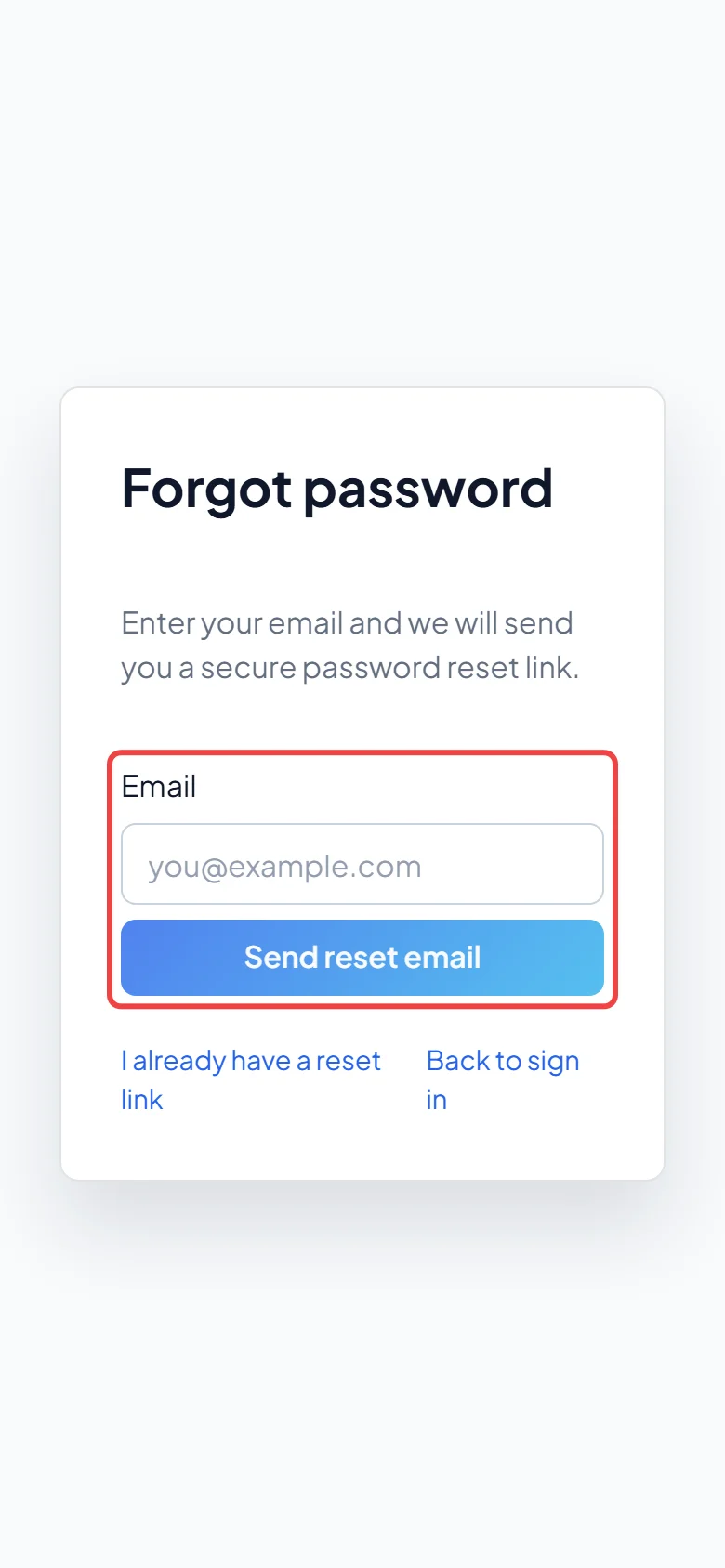
Forgot your password? Tap Forgot password?, type your email and tap Send reset email. Open the link in the email to choose a new password, then sign in again.
Staying signed in
Section titled “Staying signed in”The app keeps you signed in, and each time you use it your sign-in is renewed. If you haven’t opened it for a while, it asks you to sign in again. To sign out, tap the person icon at the top, then Sign out.
If job forms are still waiting to upload when you sign out, Astragal asks first. The sign-in screen then shows how many forms are saved on the phone. They upload when you sign in again; anyone else from your company who signs in is asked whether to upload them. See Working with no signal.
Good to know
Section titled “Good to know”- The iPhone app has no sign-up link. Instead the sign-in screen explains that whoever runs Astragal at your company adds you to the team.
- After you sign in for the first time, the app may ask to send alerts and use the microphone or location. See Notifications and permissions.
- If you belong to more than one company, sign in once and switch between them. See Switching between companies.
- To make the app ask for Face ID when it opens, see App lock and app details.
Related articles
Section titled “Related articles”Checked against Astragal on October 18, 2026