

The jobs list
The jobs list shows every job in one table so you can find, check and open any of them.
Who can do this: Admins, dispatchers and accountants. Technicians see it when their Jobs permission is View only, View, edit, and create or View, edit, create, and delete. Deleting needs View, edit, create, and delete. Technicians see only the jobs they’re on, unless their Schedule permission is Edit everyone’s schedule or Edit and delete everyone’s schedule.
Also called: work orders.
-
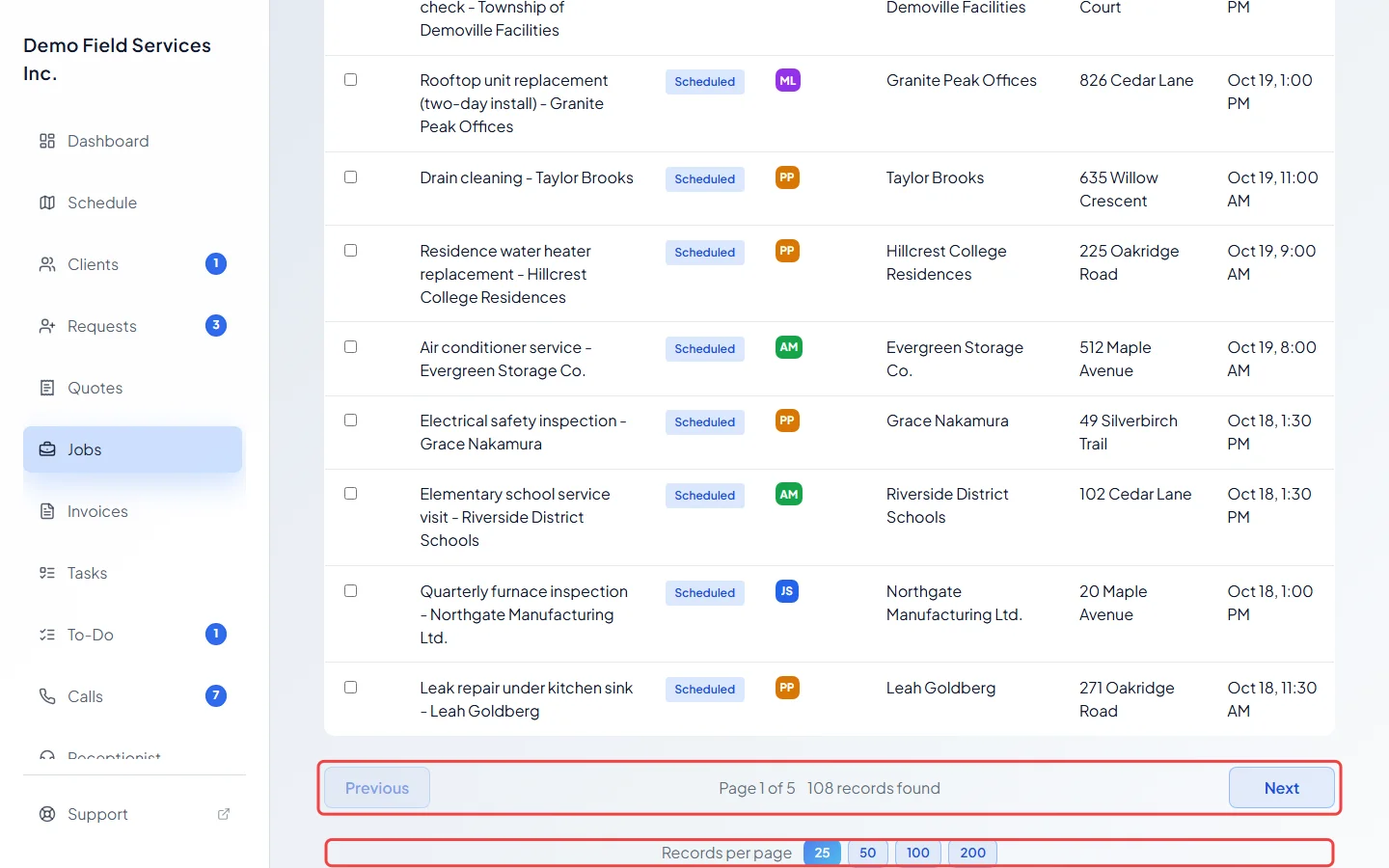
Open the jobs list. Each row shows the job’s title, status, technicians, client, property street and when it is scheduled. When your company uses the jobs map, the map button next to New job shows the day’s jobs on a map.
On a computer: Left menu → Jobs On a phone: More → Jobs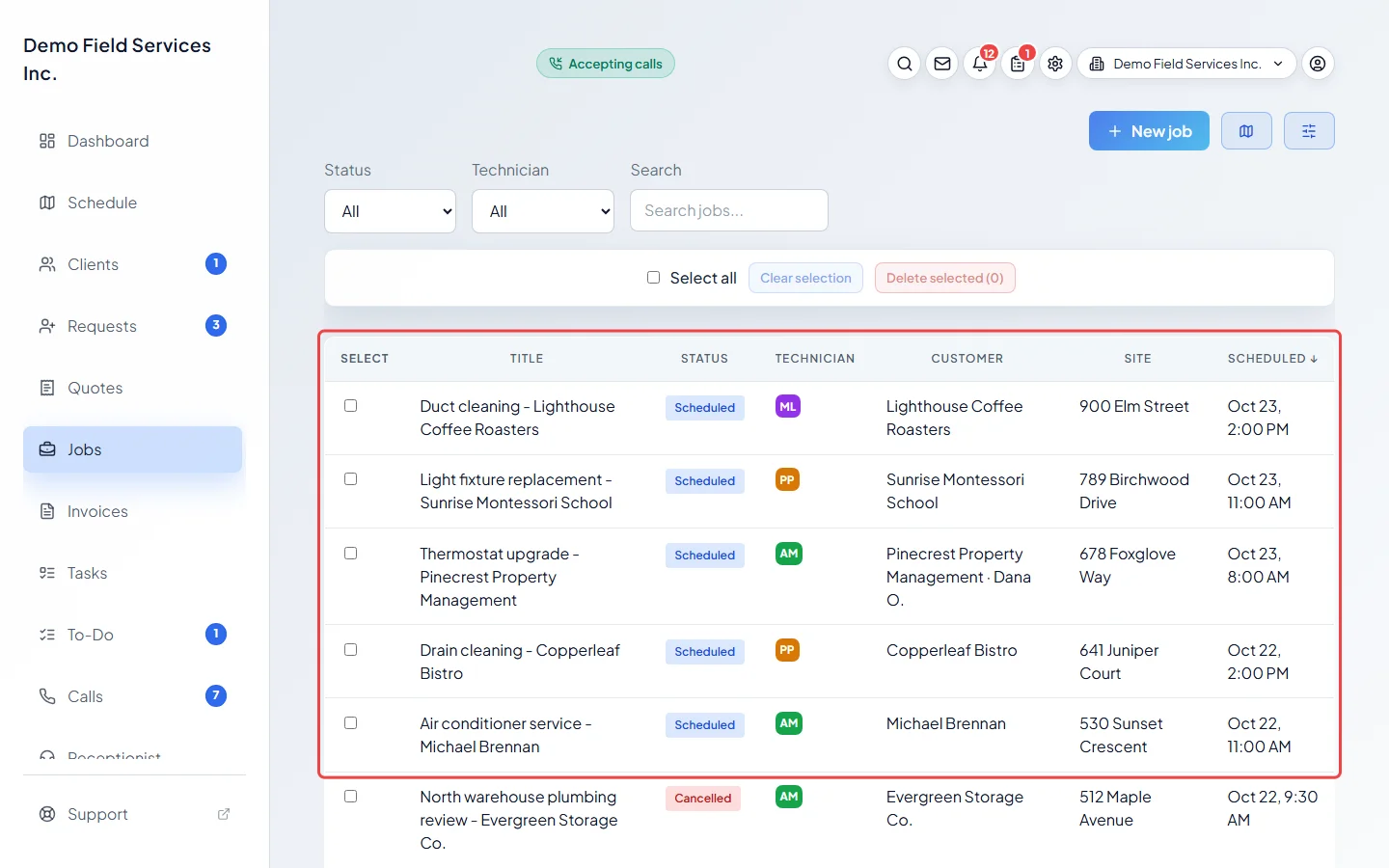
-
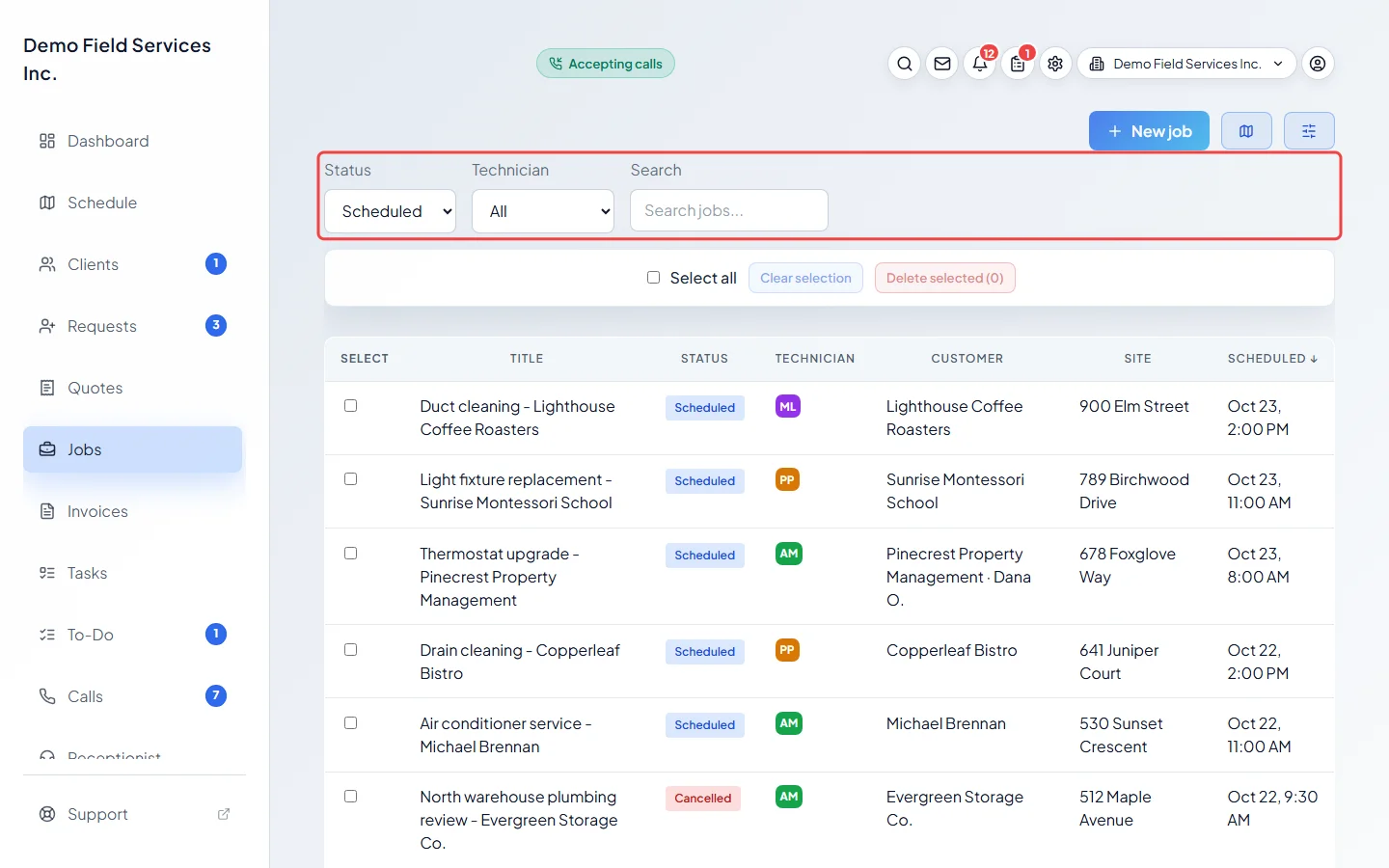
Narrow the list with the boxes at the top:
- Status: All, New, Scheduled, In progress, Completed or Cancelled.
- Technician: one person, or Unassigned for jobs nobody is on yet.
- Search: type in Search jobs… to find a job by its number, title, client or technician.
-
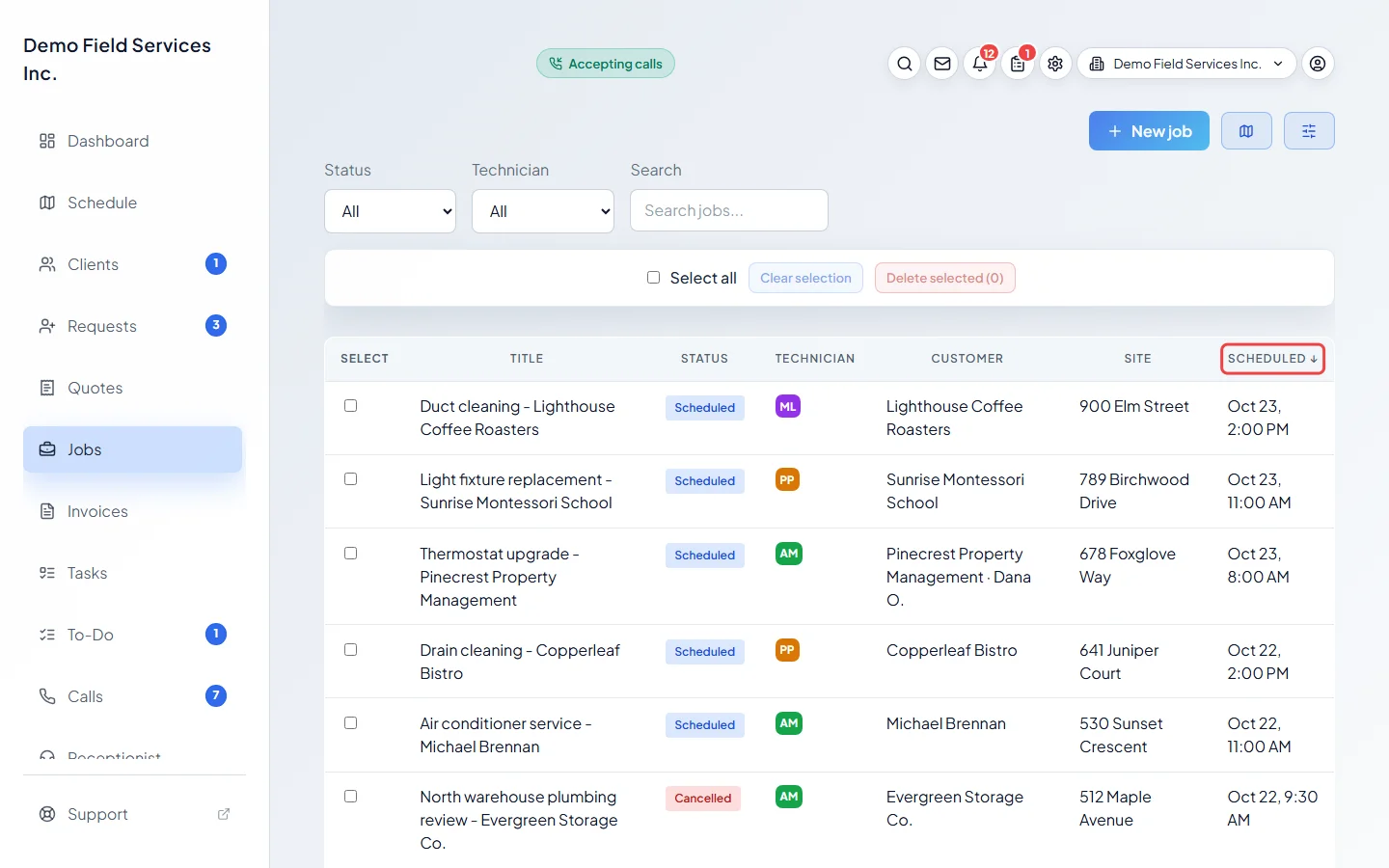
Click a column heading (Title, Status, Technician, Customer, Site or Scheduled) to sort by it. Click it again to flip the order. An arrow shows which column is sorted.
-
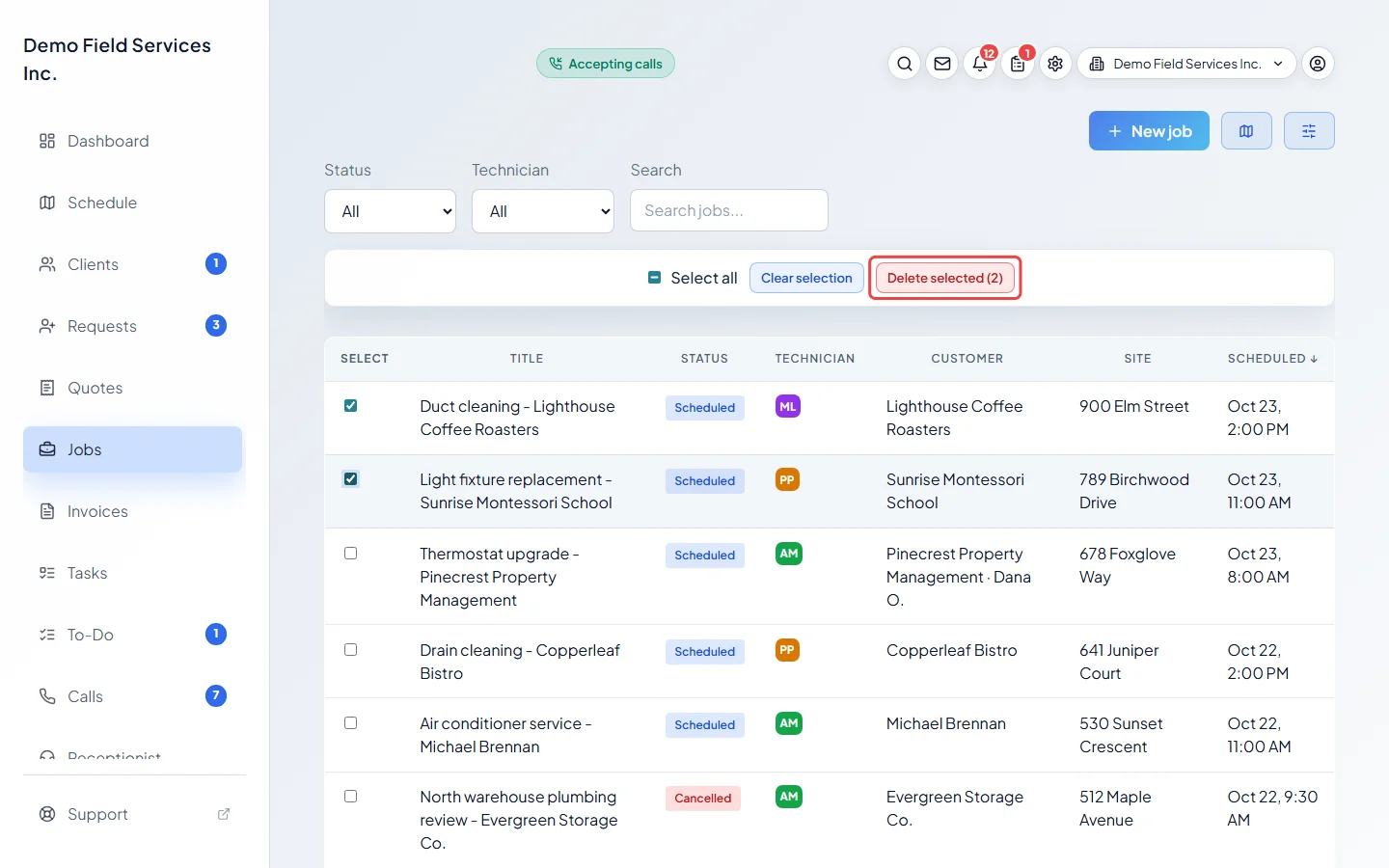
To delete several jobs at once, tick the box at the start of each row (or Select all), then click Delete selected. Astragal asks before it deletes. Select all ticks the jobs on this page. Jobs that have an invoice can’t be deleted and are skipped with a message, so archive those from their own page. Clear selection unticks everything.
-
At the bottom, use Previous and Next to move between pages, and Records per page to show 25, 50, 100 or 200 jobs at a time. Click any row to open the job.
What the status means
Section titled “What the status means”- New: the job has no date yet.
- Scheduled: it has a visit on the calendar.
- In progress: used on some older or imported jobs. Astragal doesn’t switch a job to it by itself.
- Late: a scheduled visit’s arrival window has passed and nobody has started it.
- Needs Invoicing: the job is completed but has no invoice yet.
- Completed and Cancelled: finished jobs.
A small globe next to the title means a visit on the job was booked online. When your company shows arrival windows, the Scheduled column shows the date and window instead of a start time.
On a phone
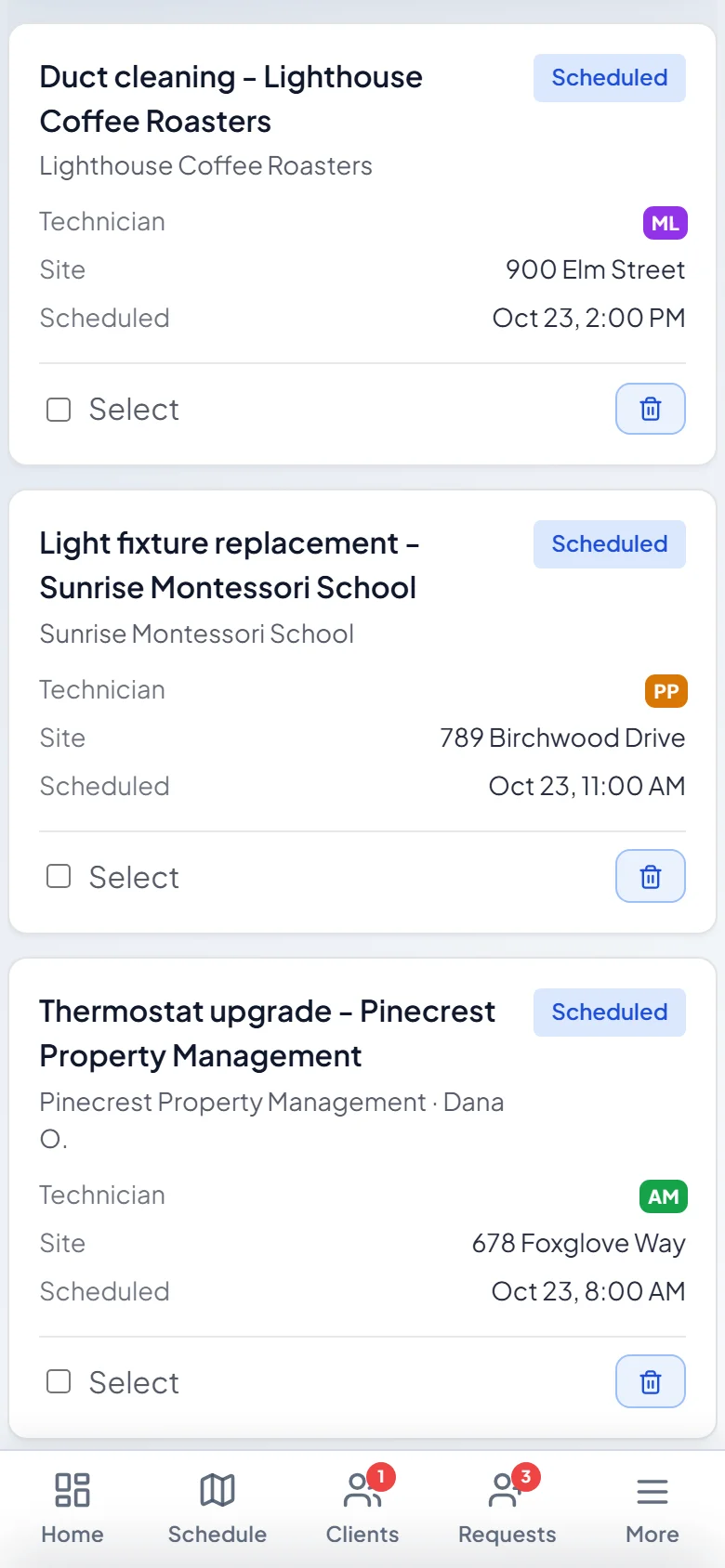
Section titled “On a phone”The list turns into cards. Each card has a Select box and a delete button. A job that already has an invoice shows an archive button instead, because a job with an invoice can only be archived.
Good to know
Section titled “Good to know”- If any ticked jobs are completed and took products from your stock, Astragal asks once: Release & delete puts the products back, Delete only leaves your stock as it is. See Deleting a job or visit.
- Archived jobs don’t show in this list. Find one with the search box at the top of the screen, where it’s tagged Archived.
- To see jobs by day and time instead, use the schedule calendar.
Related articles
Section titled “Related articles”Checked against Astragal on October 18, 2026