

The quotes list
See every quote in one place, find the one you need and check which ones still need sending or a reply.
Who can do this: Admins, dispatchers and accountants, and technicians with Quotes switched on for them, from View all, read-only up.
Also called: estimates list.
-
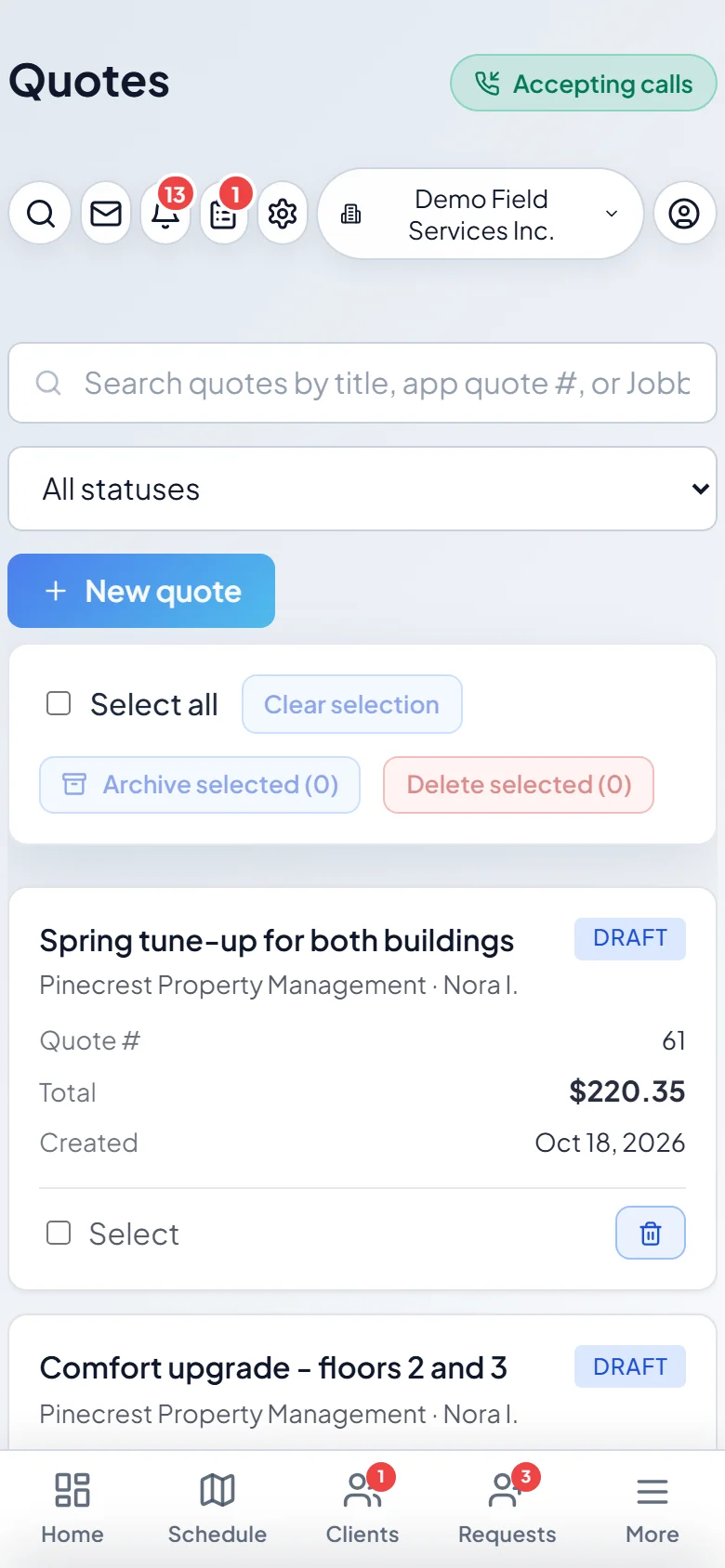
Open the quotes list. The newest quotes are at the top. Each row shows the quote’s title (or its number if it has none), the client (and contact person), its status, subtotal, tax, total and the date it was made.
On a computer: Left menu → Quotes On a phone: More → Quotes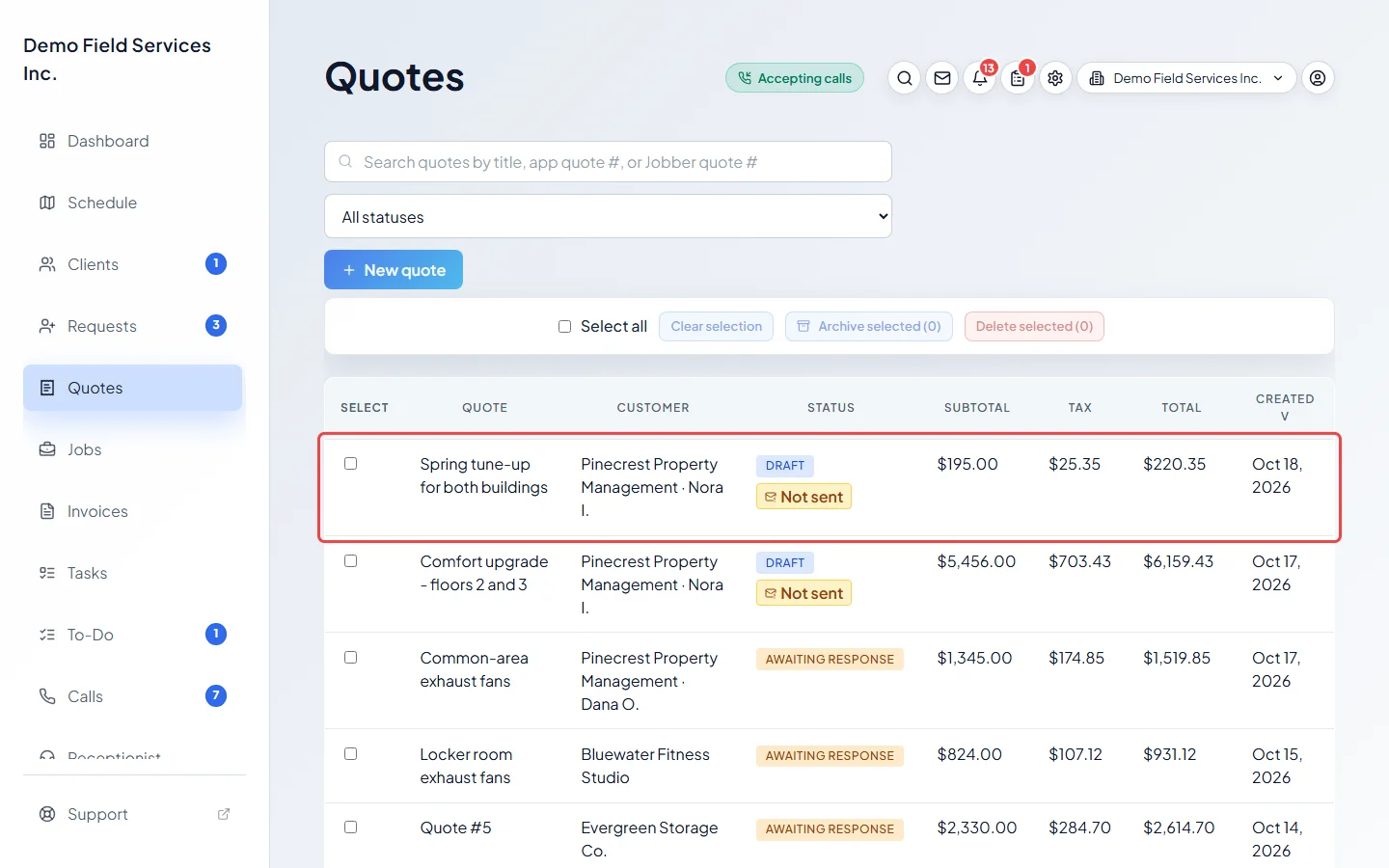
-
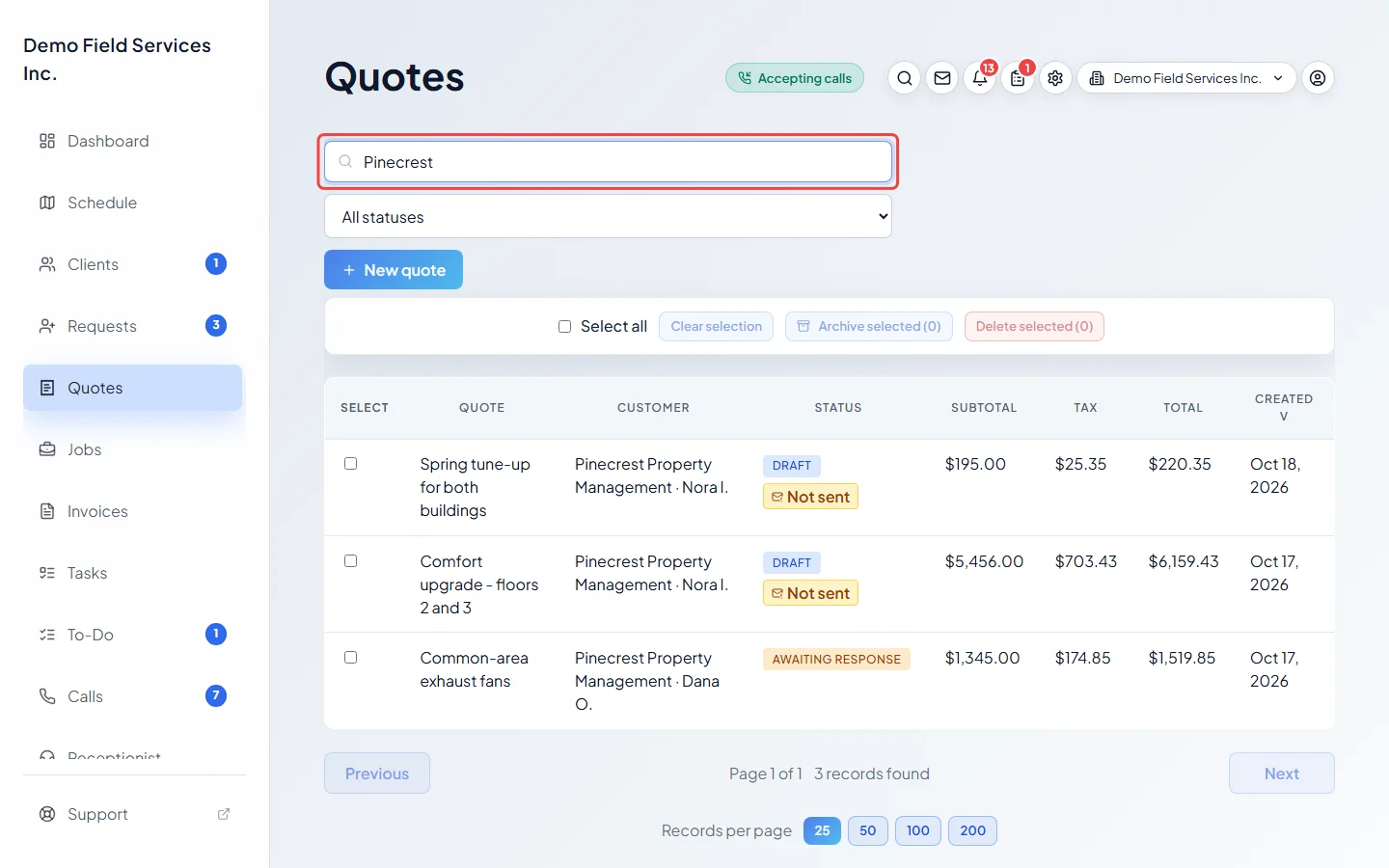
To find a quote, type in the search box. It matches the quote’s title, its number, the client’s name, its staff notes, and the quote number from Jobber for quotes you brought over.
-
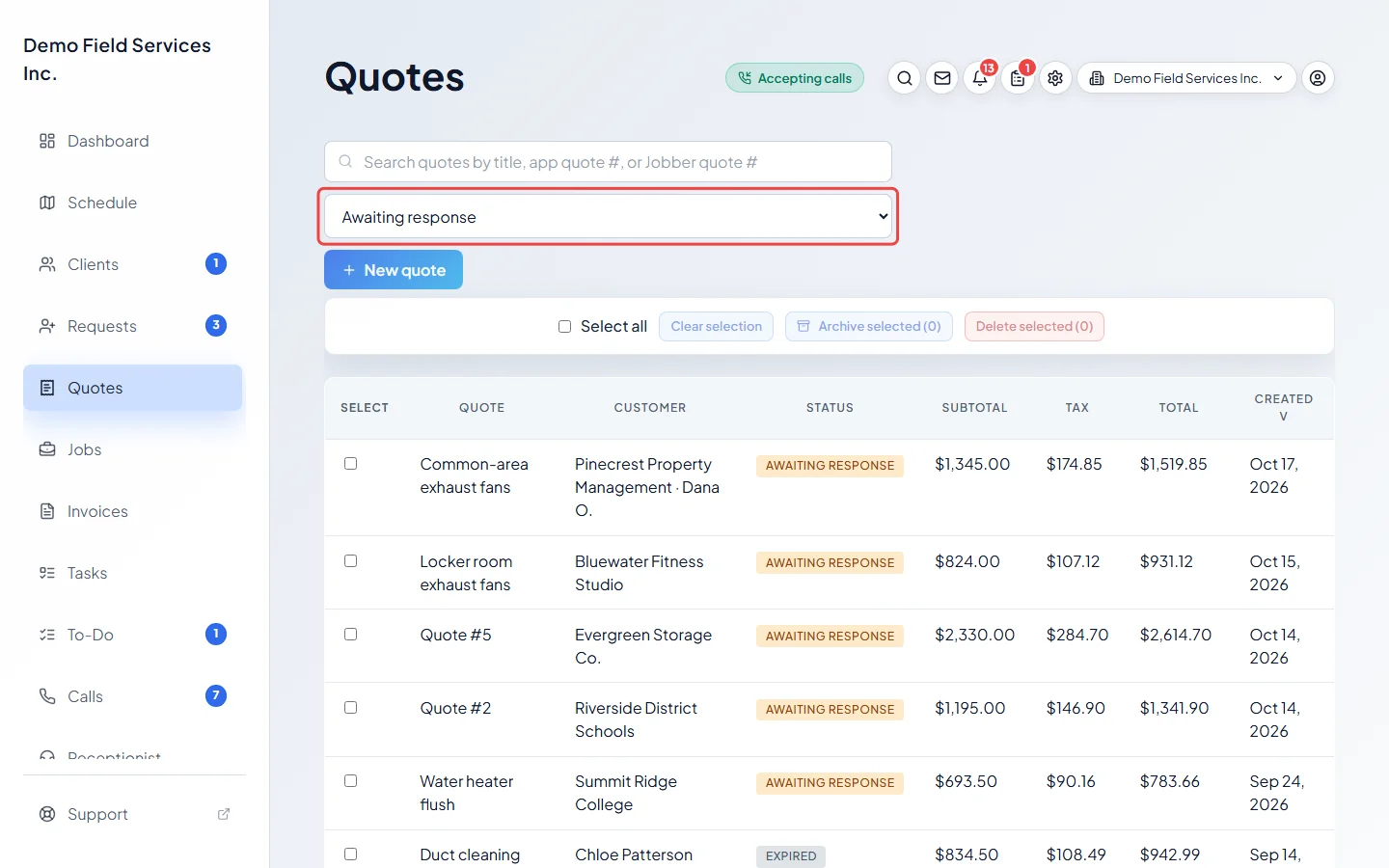
To see one kind of quote, pick it from the status list next to the search box, for example Awaiting response.
-
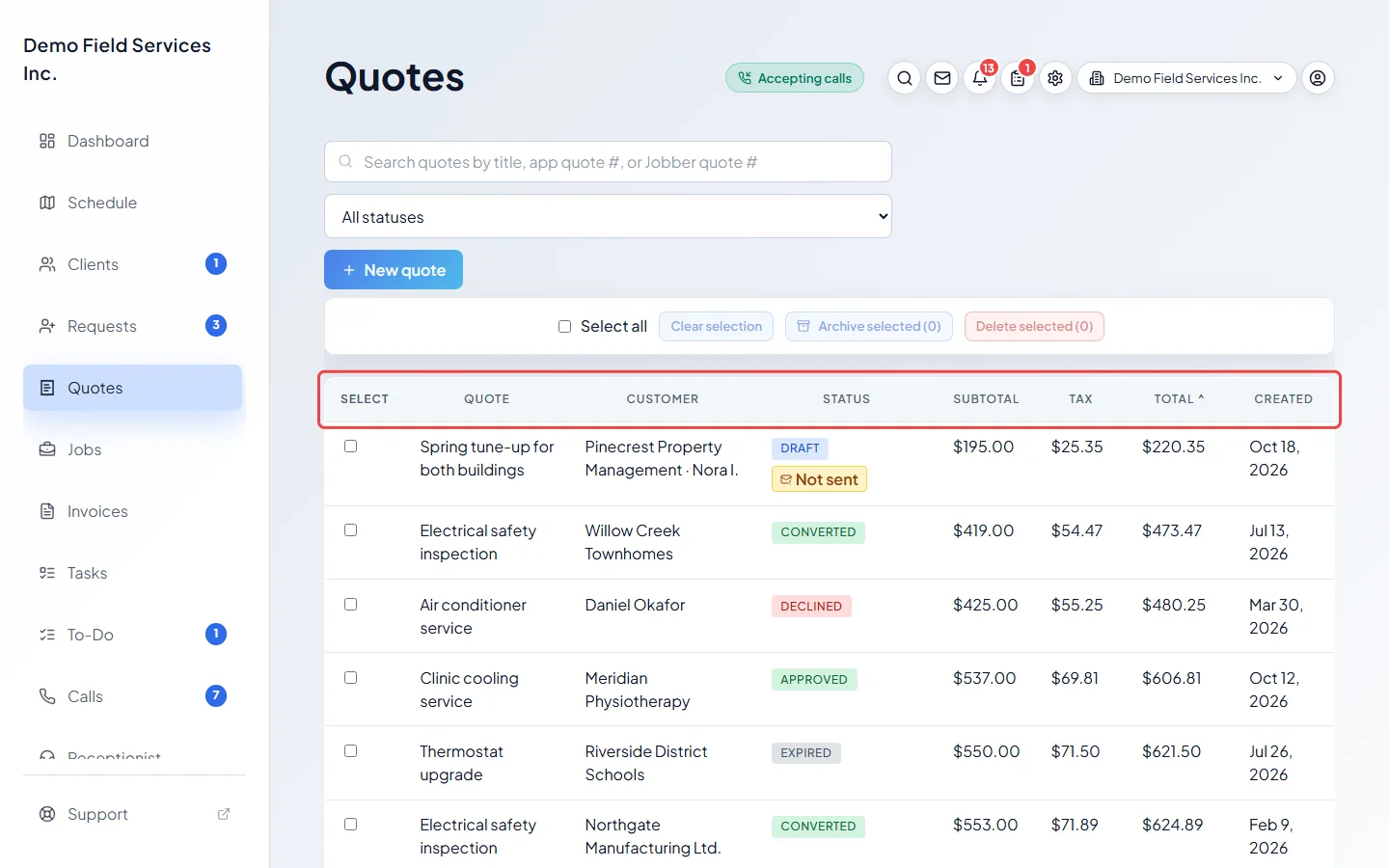
Click a column heading, such as Total or Created, to sort by it. Click it again to flip the order. Then click any row to open the quote.
What the statuses mean
Section titled “What the statuses mean”| Status | What it means |
|---|---|
| Draft | Saved but not sent to the client yet. |
| Awaiting response | Sent. The client hasn’t approved or declined it. |
| Expired | Sent, but its expiry date has passed without an answer. |
| Approved | The client approved it, or your team approved it for them. |
| Declined | The client declined it from their portal. |
| Converted | Turned into a job. |
| Invoiced | Billed in full with Invoice the balance, with no job. |
| Archived | Put away before the client answered. Approved, declined, converted and invoiced quotes keep their own badge when archived. |
Expired isn’t a choice in the status list. Pick Awaiting response to find expired quotes too.
A Not sent chip next to the status means the client hasn’t been sent a copy yet. Click it to open the quote and send it. The Not sent to client choice in the status list shows just those quotes.
Good to know
Section titled “Good to know”- Archived quotes only show when you pick Archived in the status list. See Archiving quotes.
- Records per page at the bottom shows 25, 50, 100 or 200 quotes at a time. Astragal remembers your choice.
- Tick quotes, or Select all, to use Archive selected or Delete selected. Only admins, dispatchers, accountants and technicians with delete access can use them.
- On a phone, each quote shows as a card with its number, total and date, plus its own archive, restore or delete button.
Related articles
Section titled “Related articles”Checked against Astragal on October 17, 2026