

Product options and their prices
Options let one catalog item come in several versions, such as sizes, models or finishes, each with its own price.
Who can do this: Admins, dispatchers and accountants.
Also called: variants, price grid, price matrix.
-
Open the catalog and click the product to open its details. Scroll to Product options. (A brand-new item has to be saved once before you can add options.)
On a computer: Left menu → Inventory → Products & Services On a phone: More → Products & Services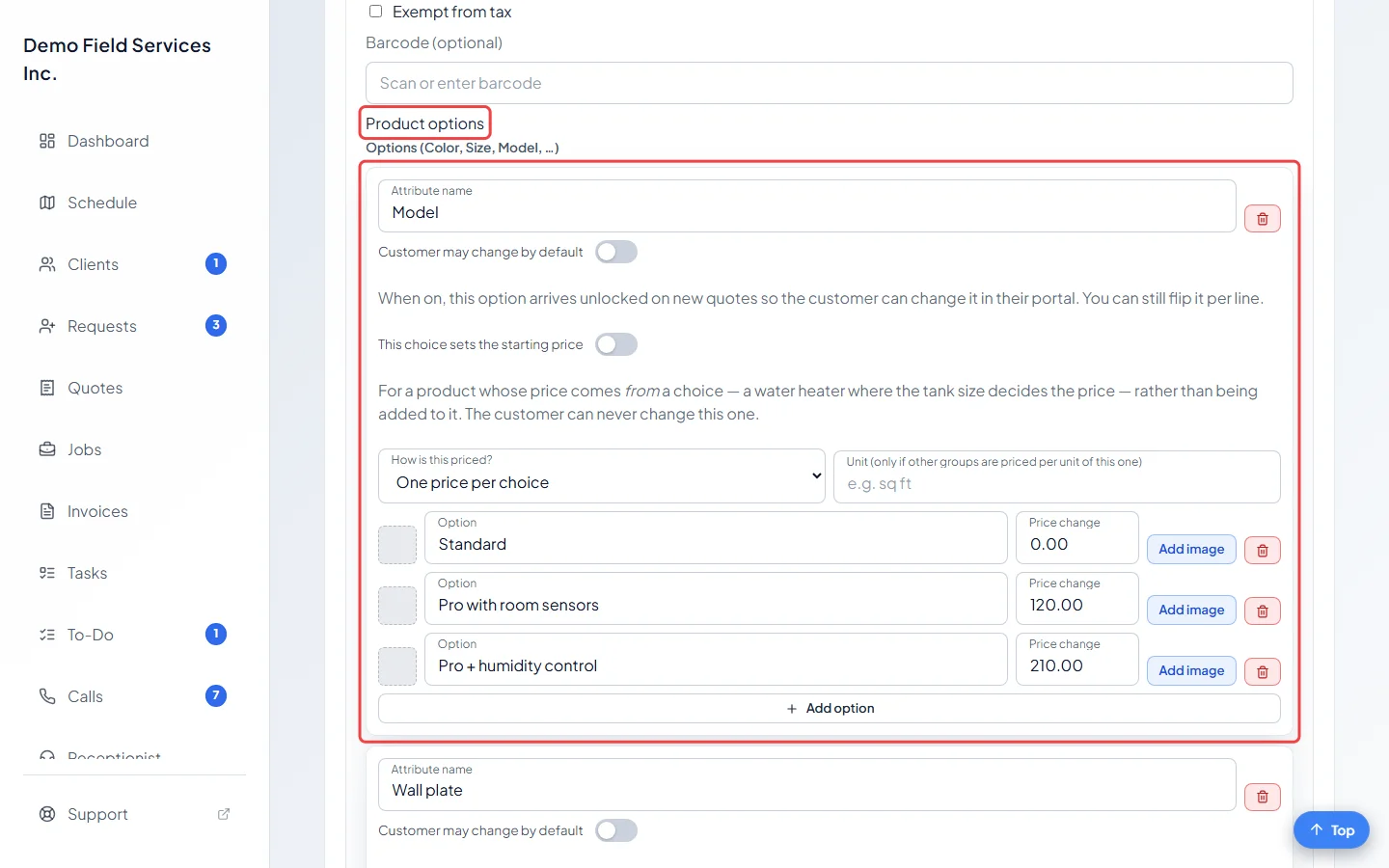
-
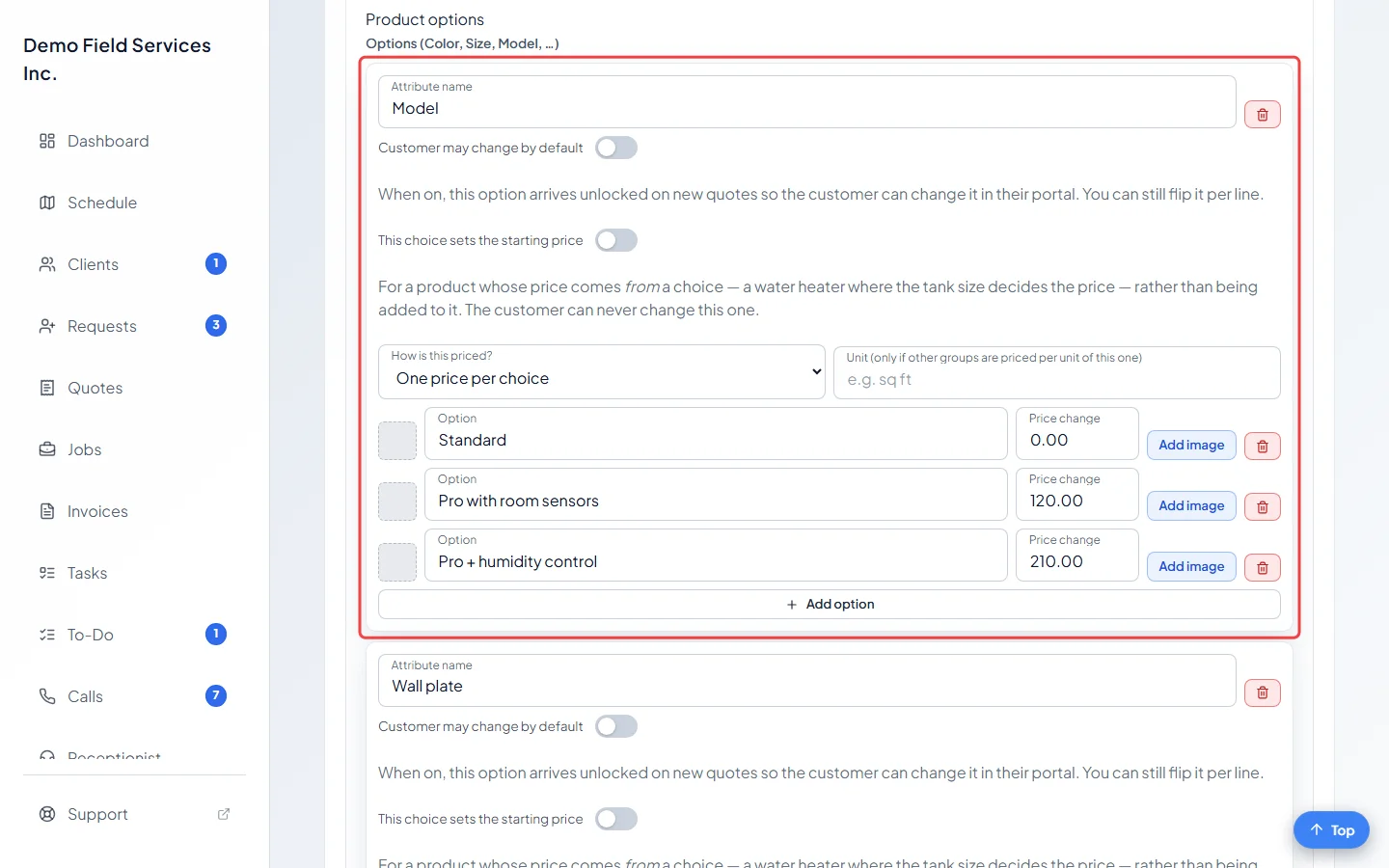
Click Add attribute and type the group’s name in Attribute name, such as Size or Model. Click Add option for each choice, type it in Option, and type its Price change: how much it adds to the line’s price (use a minus sign for a cheaper choice, or 0 for no change). Add image puts a picture next to a choice.
-
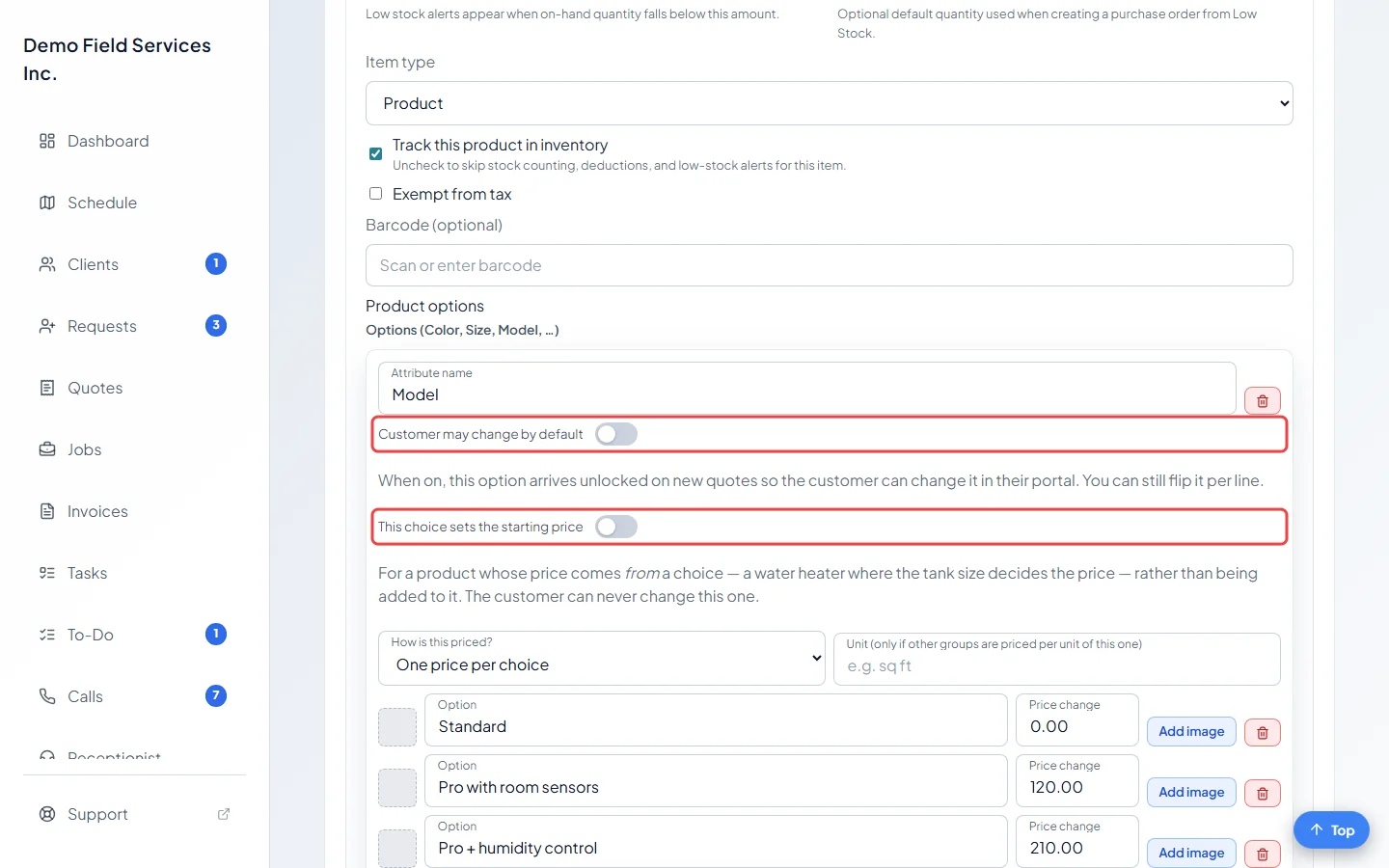
Decide who can change the group. Turn on Customer may change by default to let the client switch this choice themselves in their portal on new quotes (you can still lock or unlock it on each line). Turn on This choice sets the starting price when the choice decides the whole price rather than adding to it, such as a tank size. Only one group per product can do that.
-
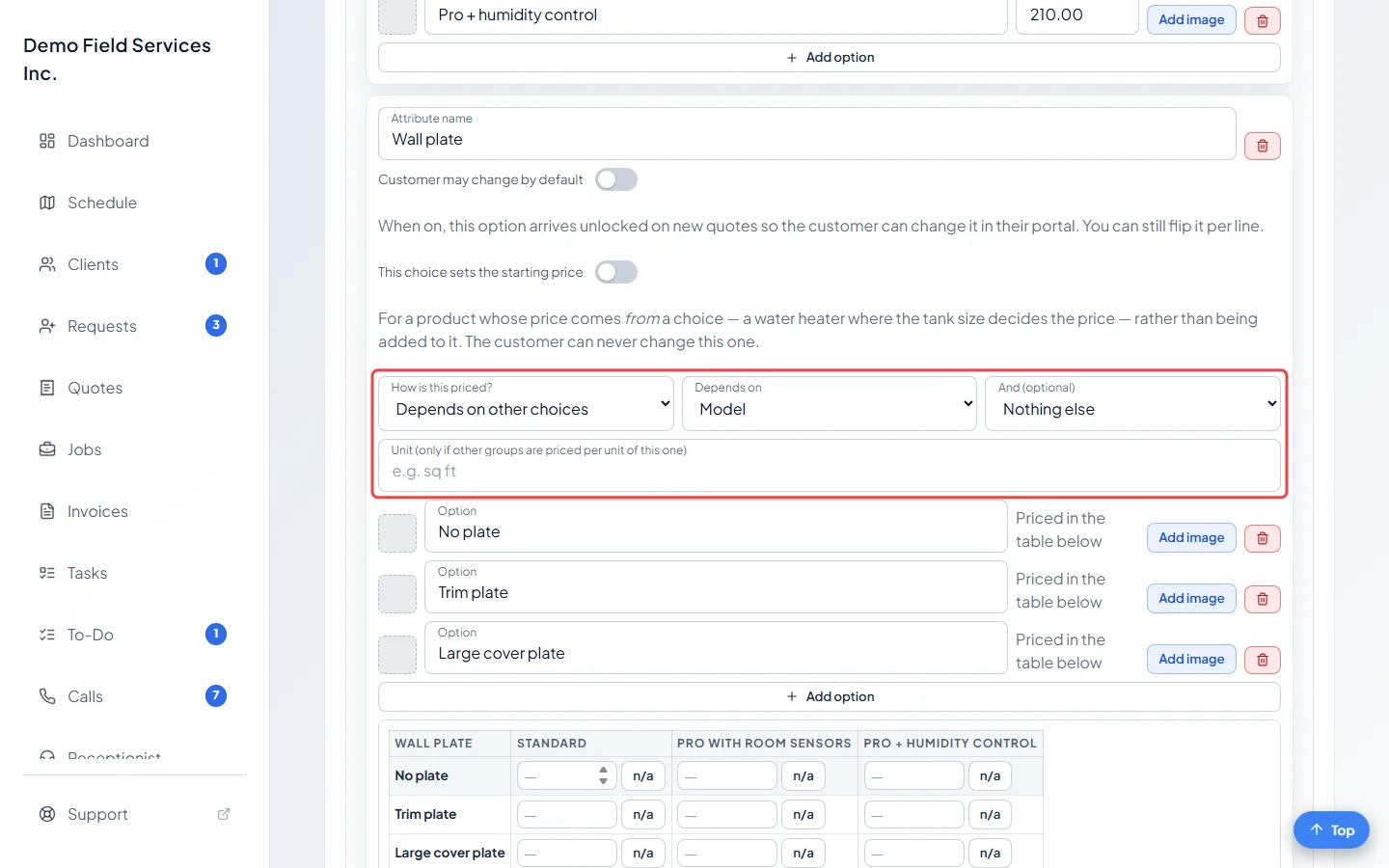
If a choice costs different amounts depending on another group, change How is this priced?. Depends on other choices and Per unit of measure can only be picked once another option group with choices has been saved. Pick Depends on other choices and choose the group in Depends on (and a second one in And (optional) if needed). Or pick Per unit of measure and choose the group in Measured by: each choice then gets a flat amount plus a rate for each unit. For that, the other group needs its unit typed in Unit (only if other groups are priced per unit of this one), such as sq ft, and a number for each of its choices.
-
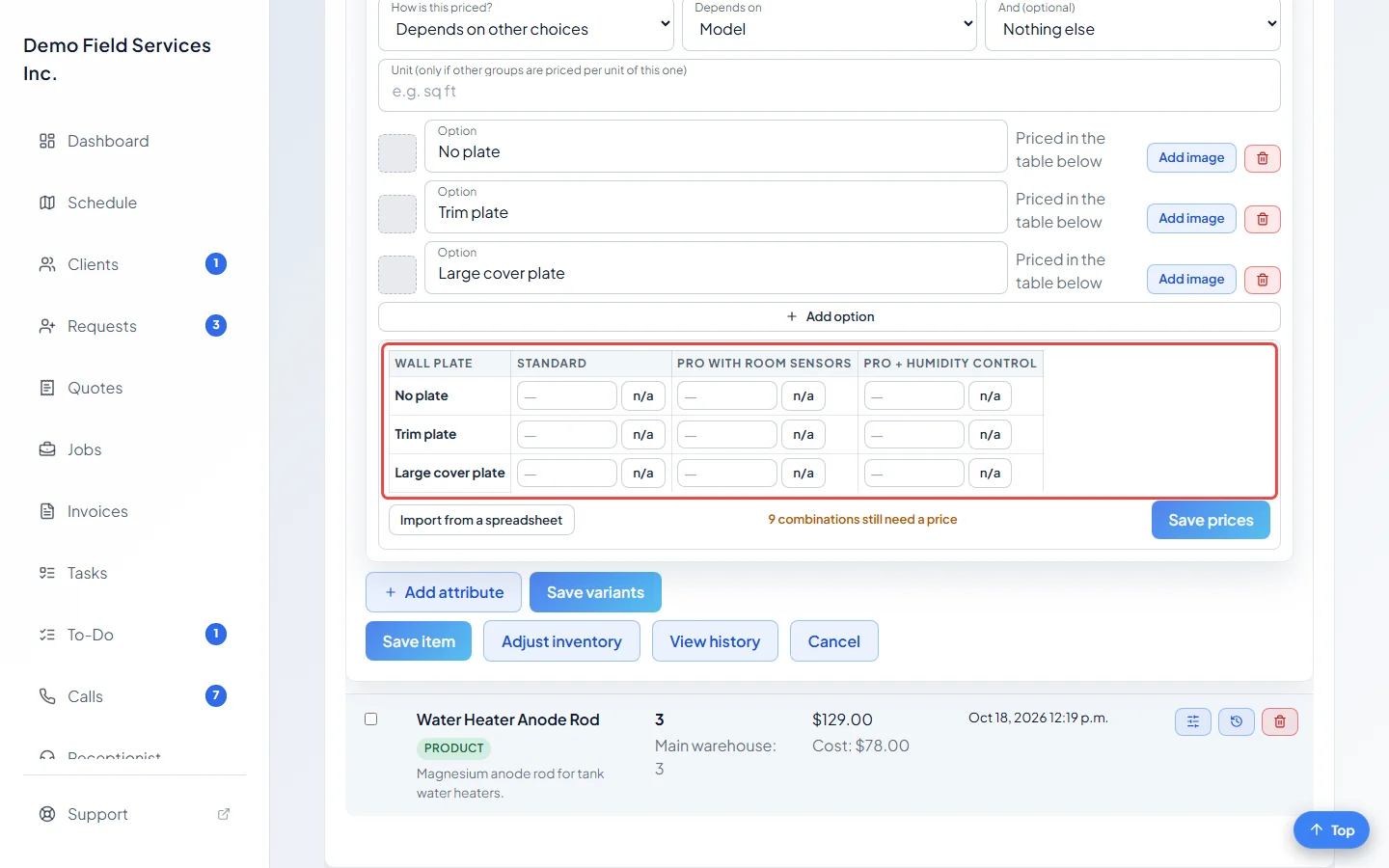
Click Save variants. A price table appears under the group: one row per choice in this group and one column per choice in the group it depends on. When there are two groups it depends on, pick the second one’s choice above the table to see that part of it.
-
Type a price in each box. Click n/a for a combination you don’t sell. (For Per unit of measure, the table has a Flat column and a per-unit column for each choice instead, and no n/a.) Under the table, Astragal counts how many combinations still need a price. Click Save prices.
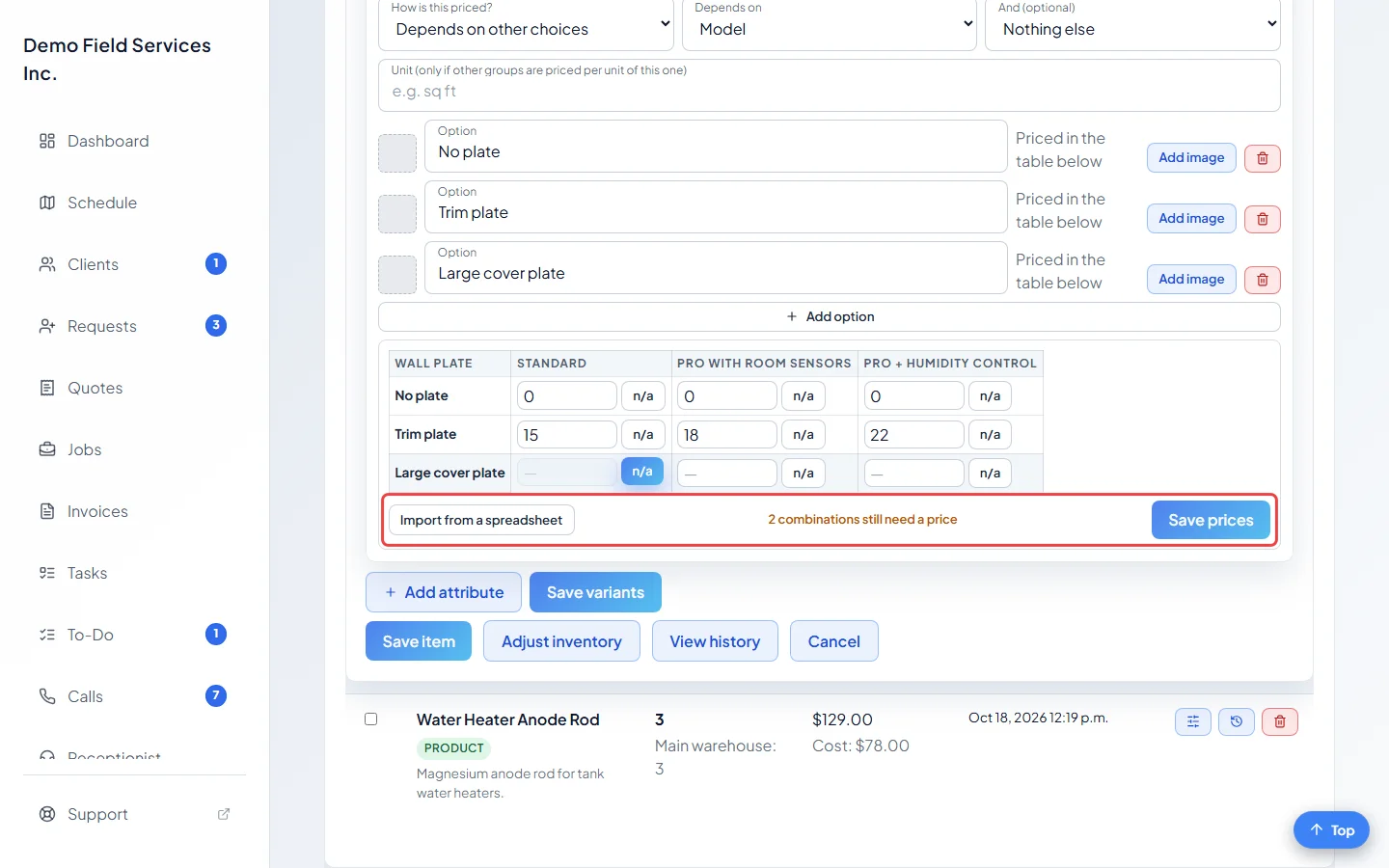
What a box in the price table means
Section titled “What a box in the price table means”| The box | What it means |
|---|---|
| A number | That combination costs that much. A minus number is a discount. |
| n/a | You don’t offer that combination. Nobody sees it, staff or client. |
| Empty | Nobody has priced it yet. |
An empty box is never treated as free. A quote or job can’t be saved with an unpriced combination chosen: Astragal names the combination that needs a price so you can set it here first.
Good to know
Section titled “Good to know”- The group that sets the starting price, and any group another group’s price depends on, can never be changed by the client in their portal, because that would change prices underneath it. Your team can still change them.
- Changing which group a group depends on clears the prices you already set for it. Astragal tells you how many before you agree.
- Removing a choice that other prices depended on removes those prices too, and the message after saving says how many.
- A supplier’s price sheet can fill the table for you. See Importing products and option prices.
- Changing prices here doesn’t change quotes you already saved. New quotes get the new prices.
Related articles
Section titled “Related articles”Checked against Astragal on October 17, 2026