

Joining your team's account
Accept your invite to your company’s Astragal account and sign in for the first time.
Who can do this: Anyone whose employer has added them in Astragal.
Also called: accepting an invite, setting up your login.
When your boss adds you, Astragal emails you a link to choose a password. The email’s subject ends in “team account setup”.
-
Open the invite email on your phone or computer and tap the link. The Reset password page opens with the Reset token already filled in.
On a computer: Invite email → link On a phone: Invite email → link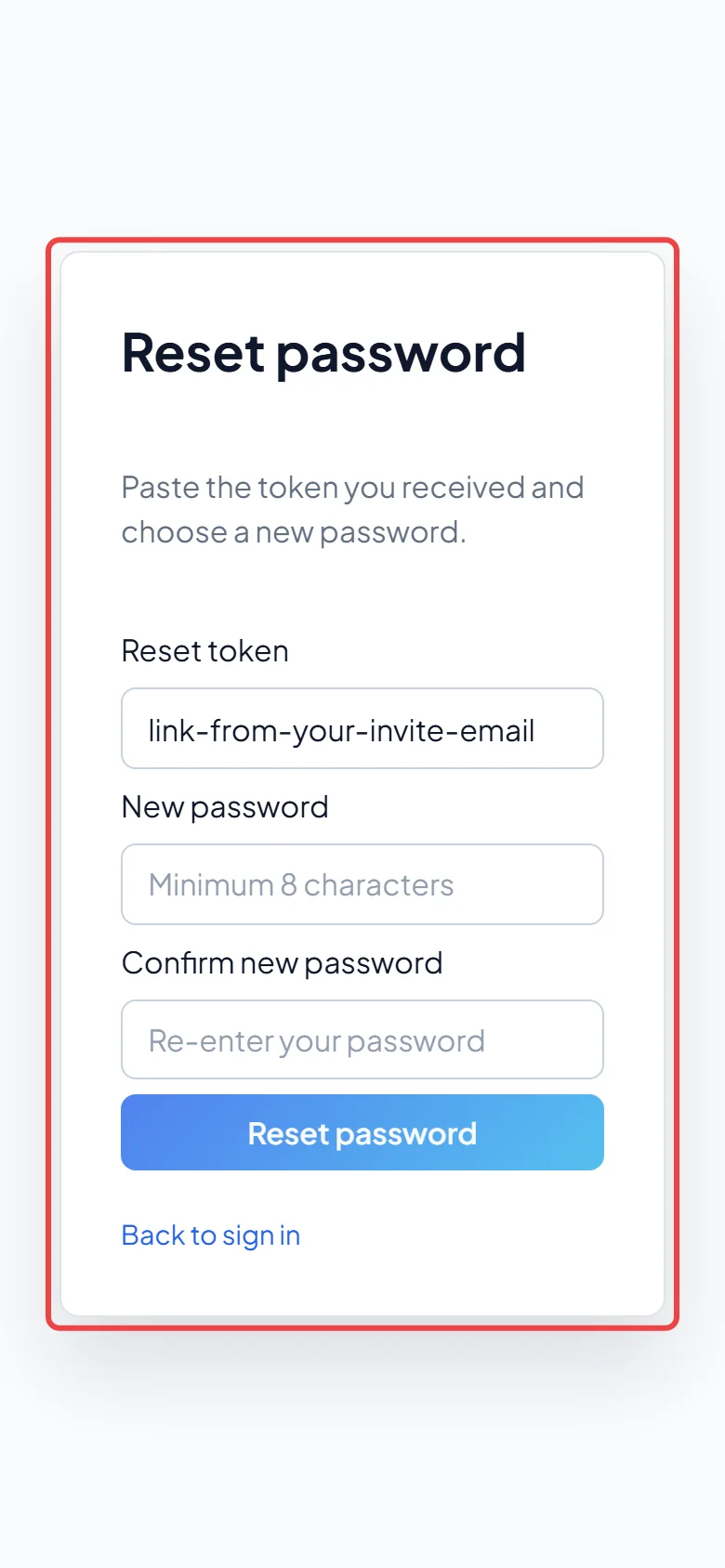
-
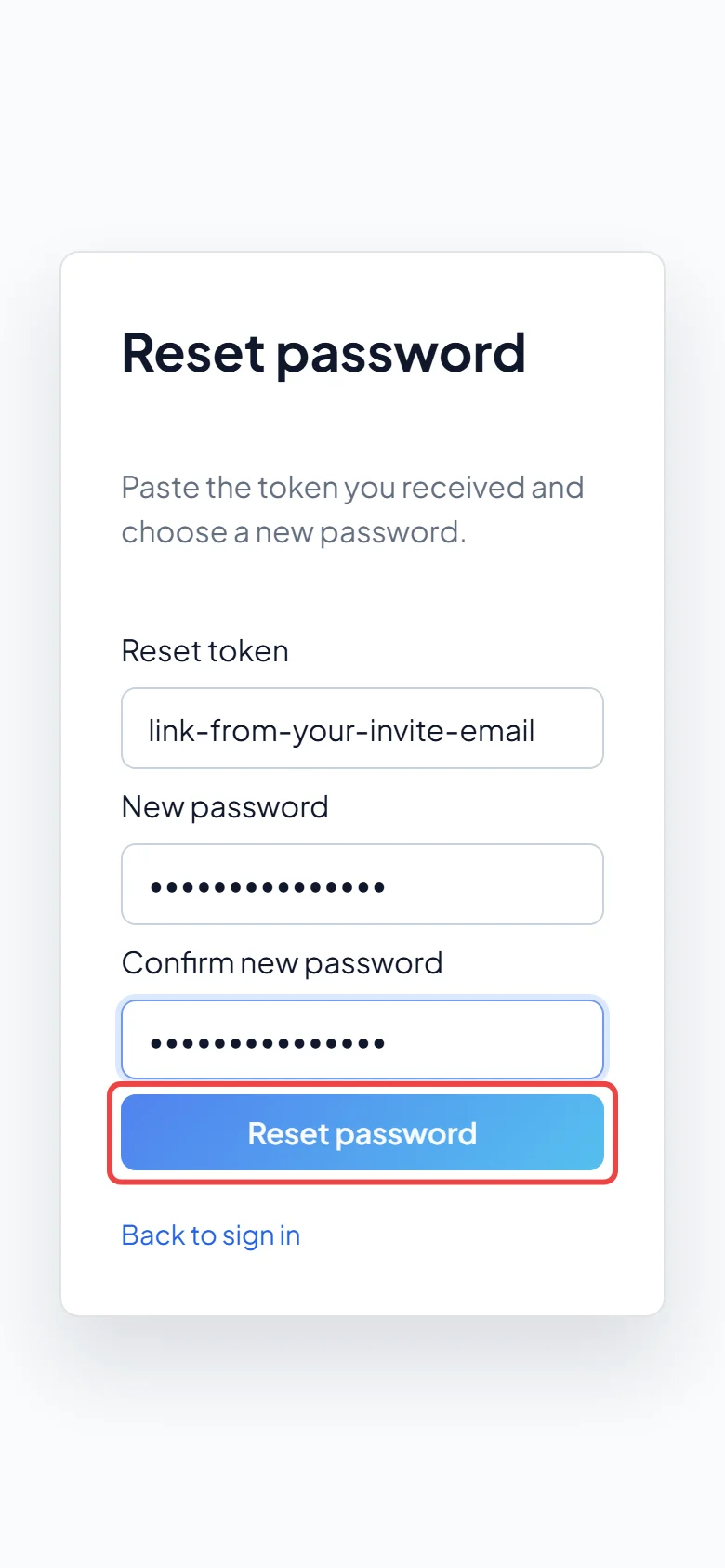
Type a password of at least 8 characters in New password, type it again in Confirm new password, and tap Reset password. Astragal confirms the password and takes you to the sign-in page.
-
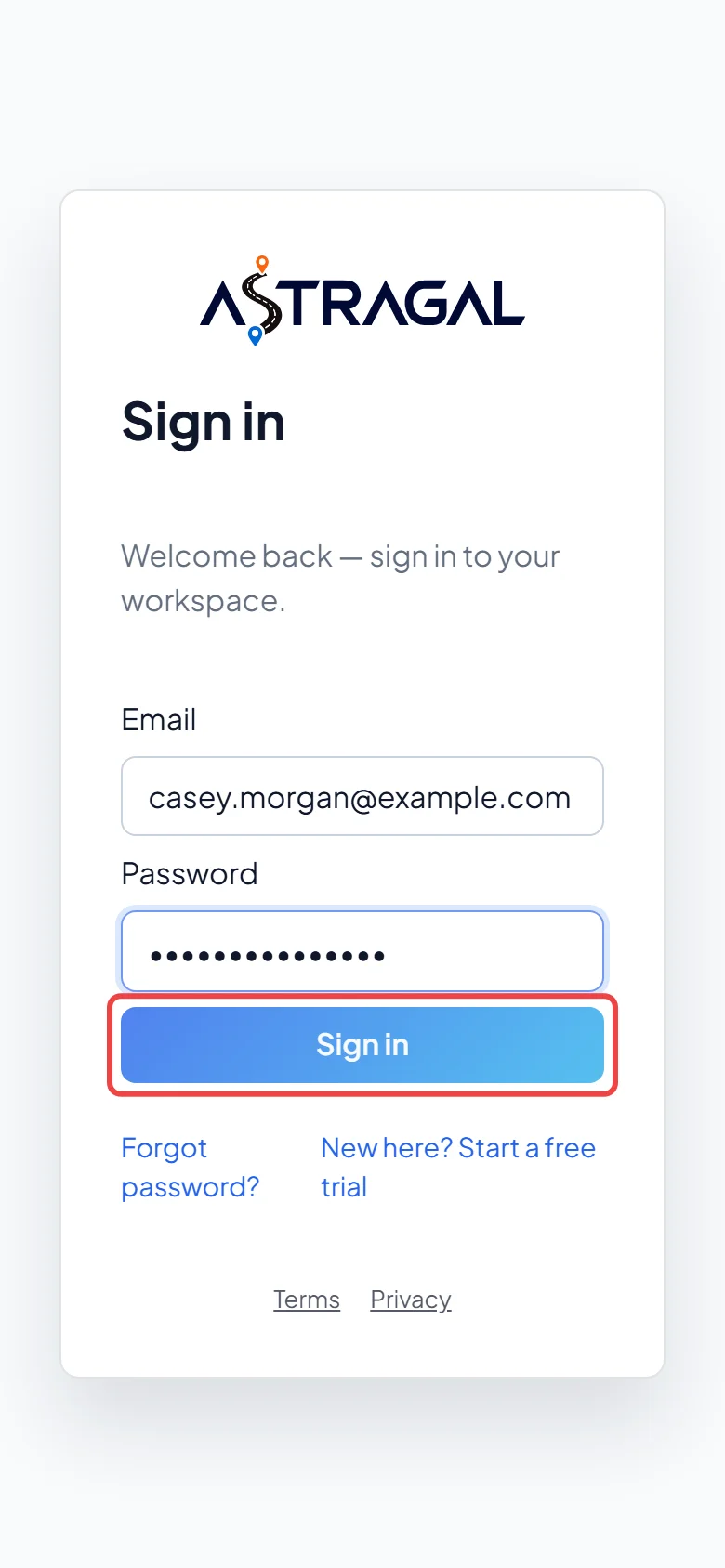
Type your Email (the one the invite came to) and your new Password, then tap Sign in. You’re in your company’s account.
Already use Astragal with another company?
Section titled “Already use Astragal with another company?”Then the email asks you to join instead. The link opens a page headed Join and your company’s name. Type the password you already use and tap the button that says Join and your company’s name. If you’re already signed in with the invited email, there’s nothing to type: just tap that button, or tap Not now to leave without joining. You can switch between your companies at any time.

Good to know
Section titled “Good to know”- The set-password link stops working after 7 days, and a join invitation after 14. If yours has expired, ask your admin to send it again.
- If you lose the email, you can also use Forgot password? on the sign-in page with the email your admin used. That link works for 60 minutes.
- On your phone, the Astragal app works best. See Installing on Android.
Related articles
Section titled “Related articles”Checked against Astragal on October 18, 2026