

Deleting a job or visit
Delete a visit or job that was made by mistake. Deleting can’t be undone, so archive a job you only want out of the way.
Who can do this: Deleting a visit: admins, dispatchers, accountants, and technicians whose Jobs permission is View, edit, and create or higher. Deleting or archiving a job: admins, dispatchers, accountants, and technicians with View, edit, create, and delete.
Also called: removing a job.
Deleting one visit
Section titled “Deleting one visit”-
Open the job and, in the Visits list, click the bin on the visit.
On a computer: Left menu → Jobs On a phone: More → Jobs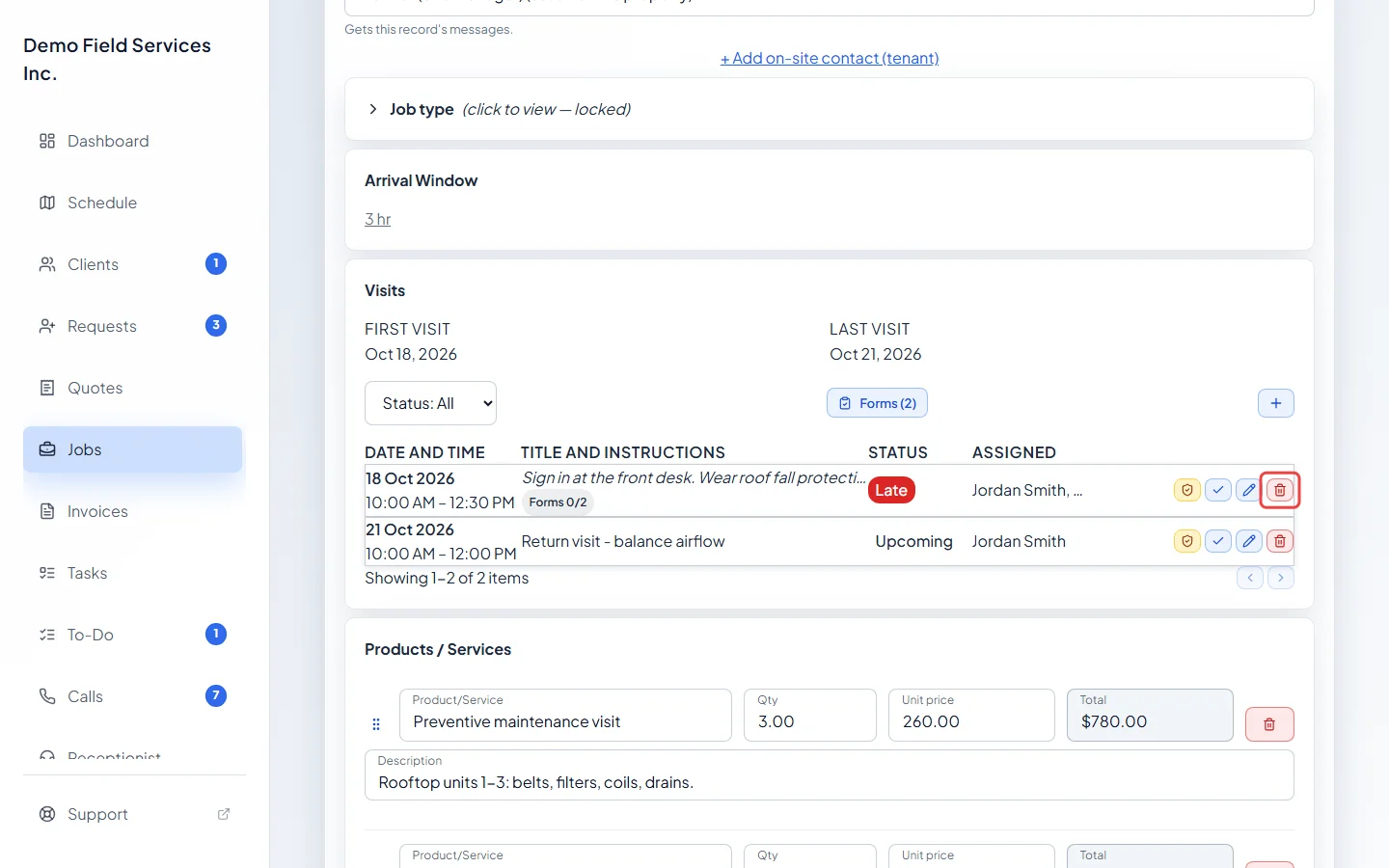
-
Delete this visit? shows the visit’s date, any filled forms that will be deleted with it, and any invoice linked to it. Click Delete visit, or Cancel to keep it.
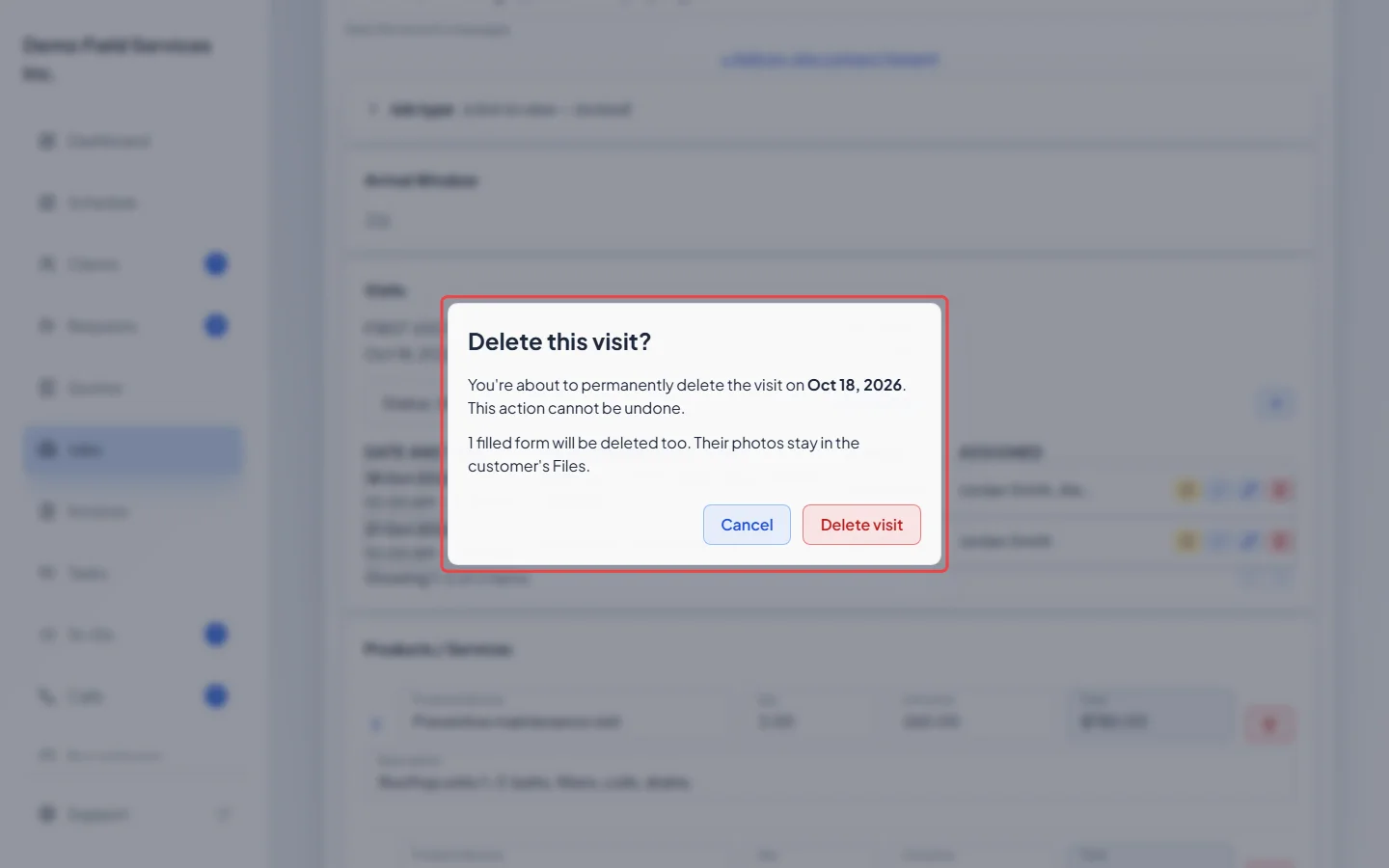
If an invoice linked to the visit has payments recorded, the visit can’t be deleted until those payments are removed from the invoice. Photos from filled forms stay in the client’s files. A visit with a signed service form on an invoice can’t be deleted. Cancel the visit instead. Deleting a warranty visit also removes its warranty record and puts its parts back in stock.
Deleting a whole job
Section titled “Deleting a whole job”-
Open the job, click the ⋯ button at the bottom of the page, and click Delete.
On a computer: Left menu → Jobs On a phone: More → Jobs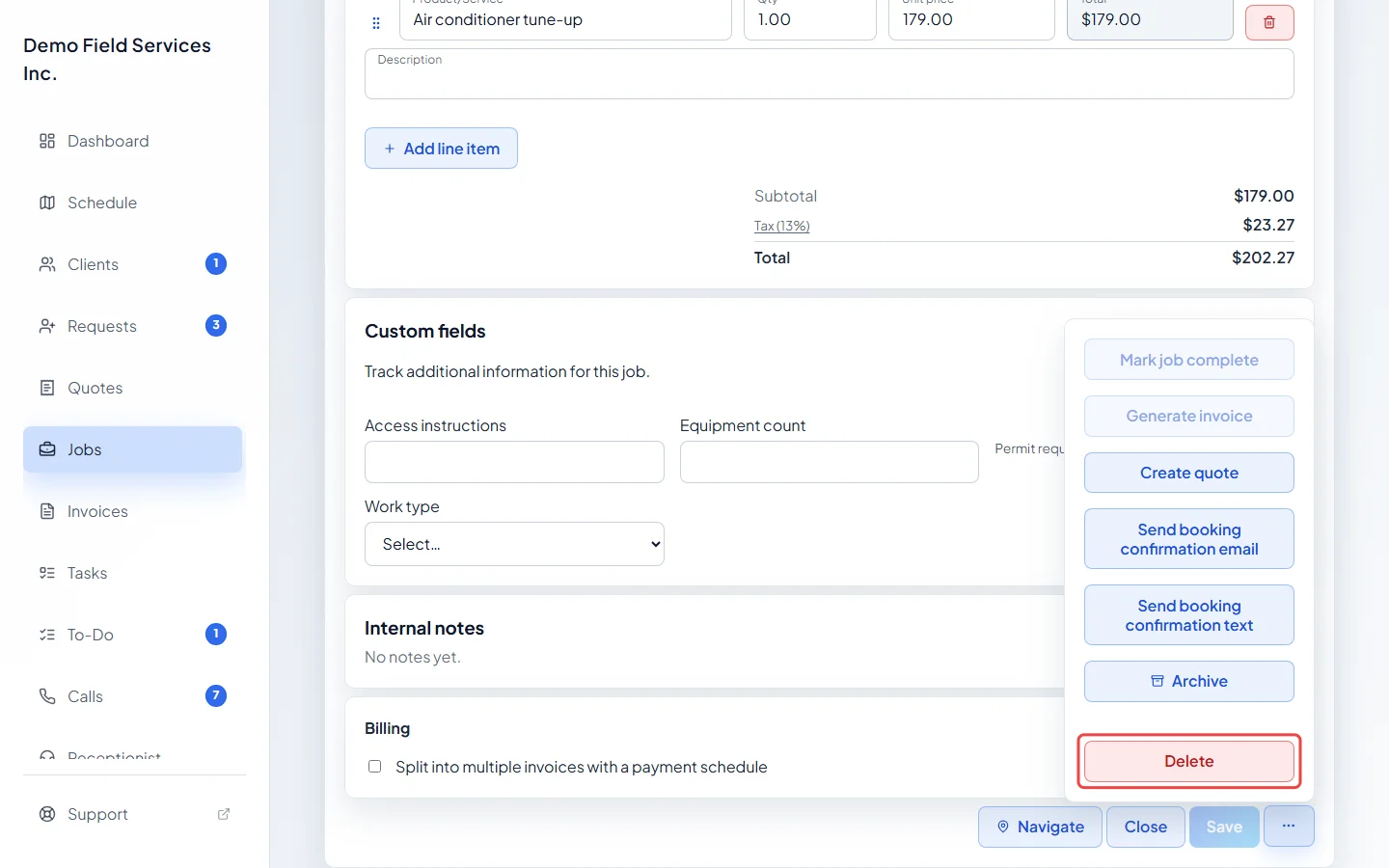
-
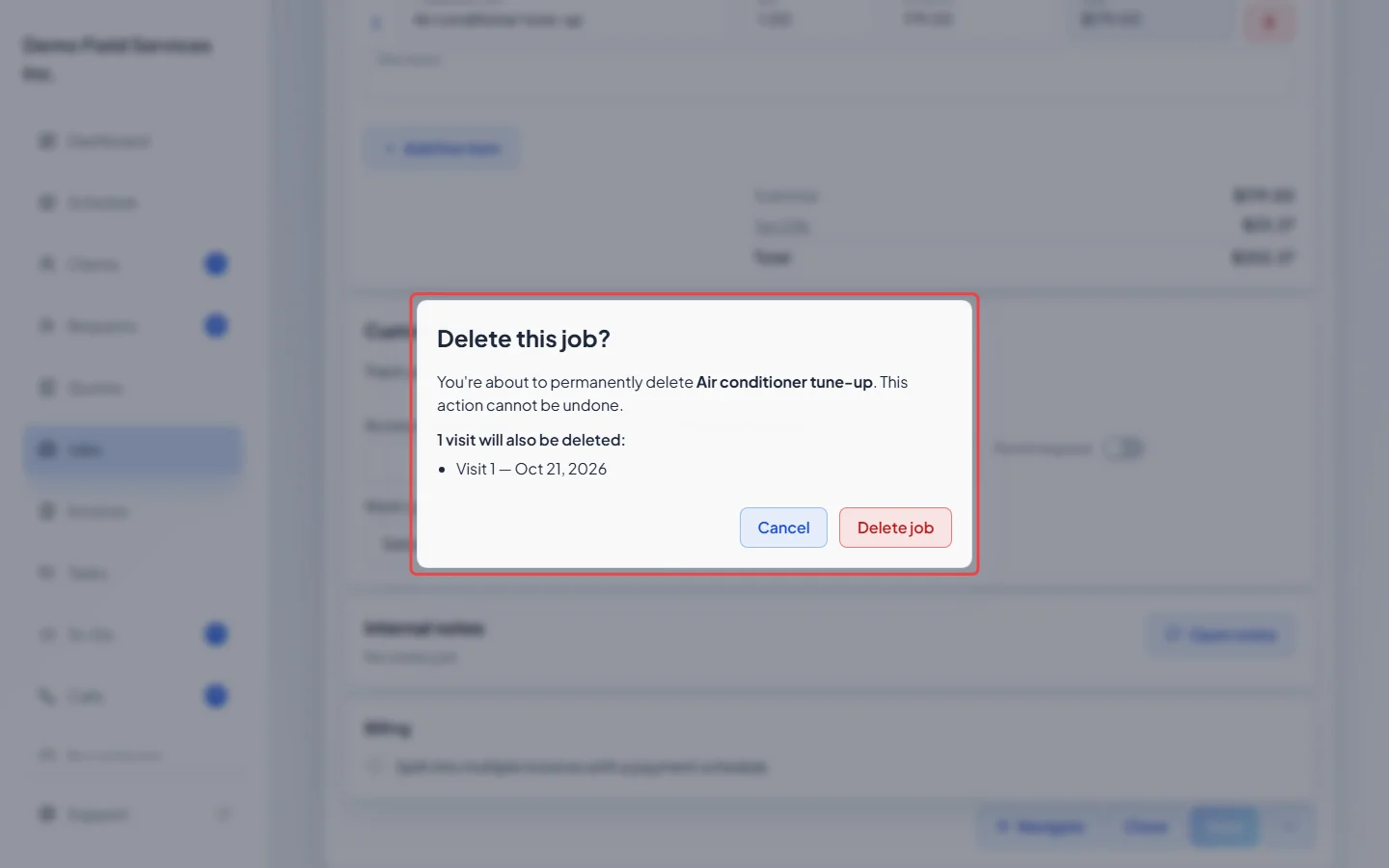
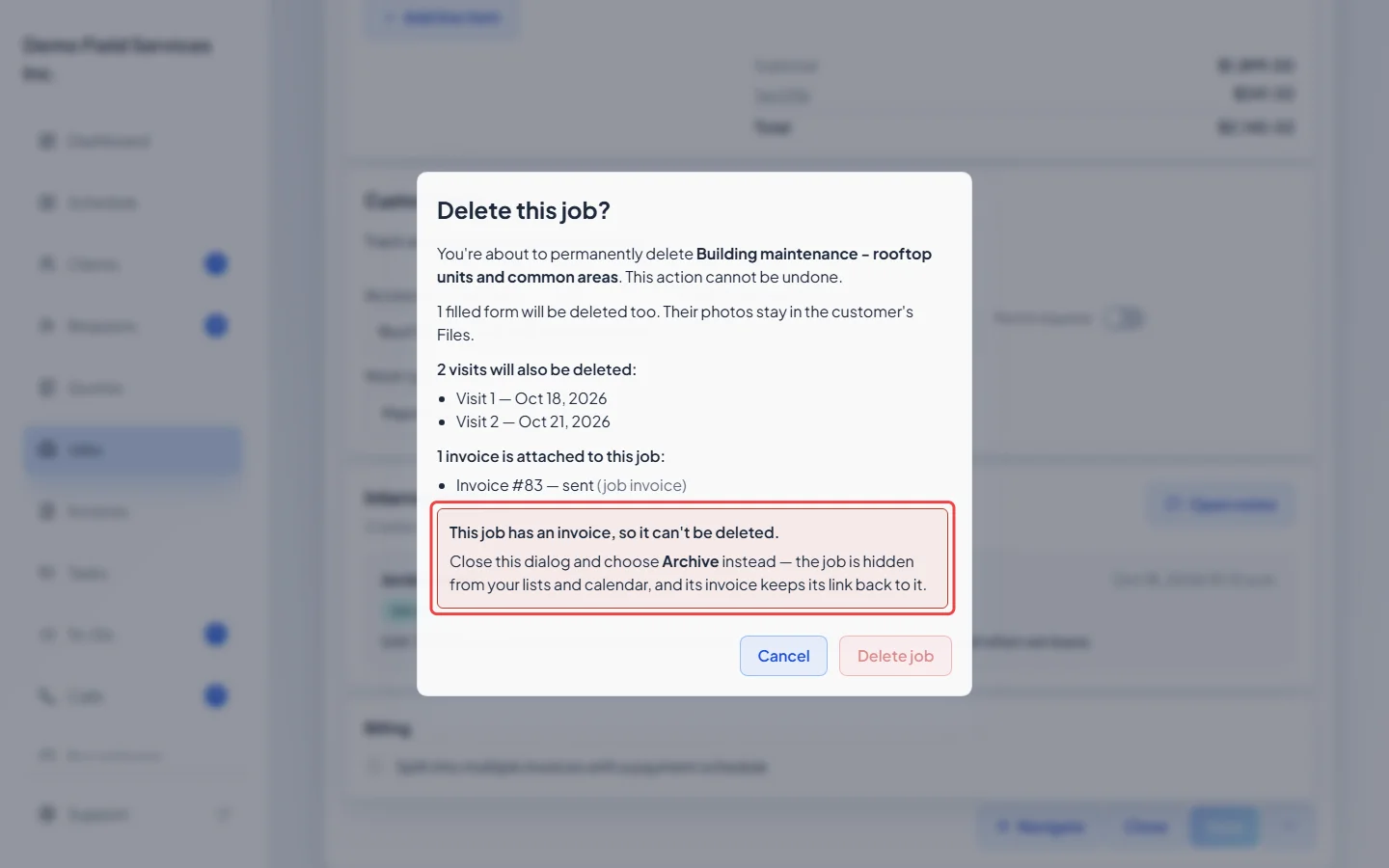
Delete this job? lists every visit that will be deleted with it, and any filled forms. On a recurring job the whole series is removed. Click Delete job to confirm.
-
A job with an invoice can’t be deleted. The window lists its invoices and says to archive the job instead. Close it, open the ⋯ menu again and click Archive. The job is hidden from your lists and calendar, and the invoice keeps its link to it.
Good to know
Section titled “Good to know”- Products already taken from stock: when a completed job used products you track in inventory, Astragal asks Inventory already deducted. Click Release back to inventory to put them back before deleting, or Delete permanently to leave your stock as it is.
- From the jobs list: tick jobs and click Delete selected to delete several at once. On a phone, each job card has its own delete button (or an archive button for a job with an invoice). Jobs with an invoice are skipped. Archive those one at a time. See The jobs list.
- Getting an archived job back: find it with the search box at the top of the screen (it’s tagged Archived), open it and click Restore, or Restore from archive in the ⋯ menu.
- Deleting a job made from a request or quote puts the request back in your list, and the quote back to the status it had before it became a job.
- Taking a visit off the schedule without deleting it? Edit it and tick Schedule later instead.
Related articles
Section titled “Related articles”Checked against Astragal on October 18, 2026