

Sending a quote to a client
Send a quote by email or text so the client can open it, choose any add-ons and approve it online.
Who can do this: Admins, dispatchers and accountants, and technicians set to View, edit, and create quotes or View, edit, create, and delete quotes.
Also called: email a quote, text a quote.
-
Open the quote. A quote that hasn’t gone out yet shows This quote has not been sent to the customer yet. with Save & email and Save & text buttons.
On a computer: Left menu → Quotes → open a quote On a phone: More → Quotes → open a quote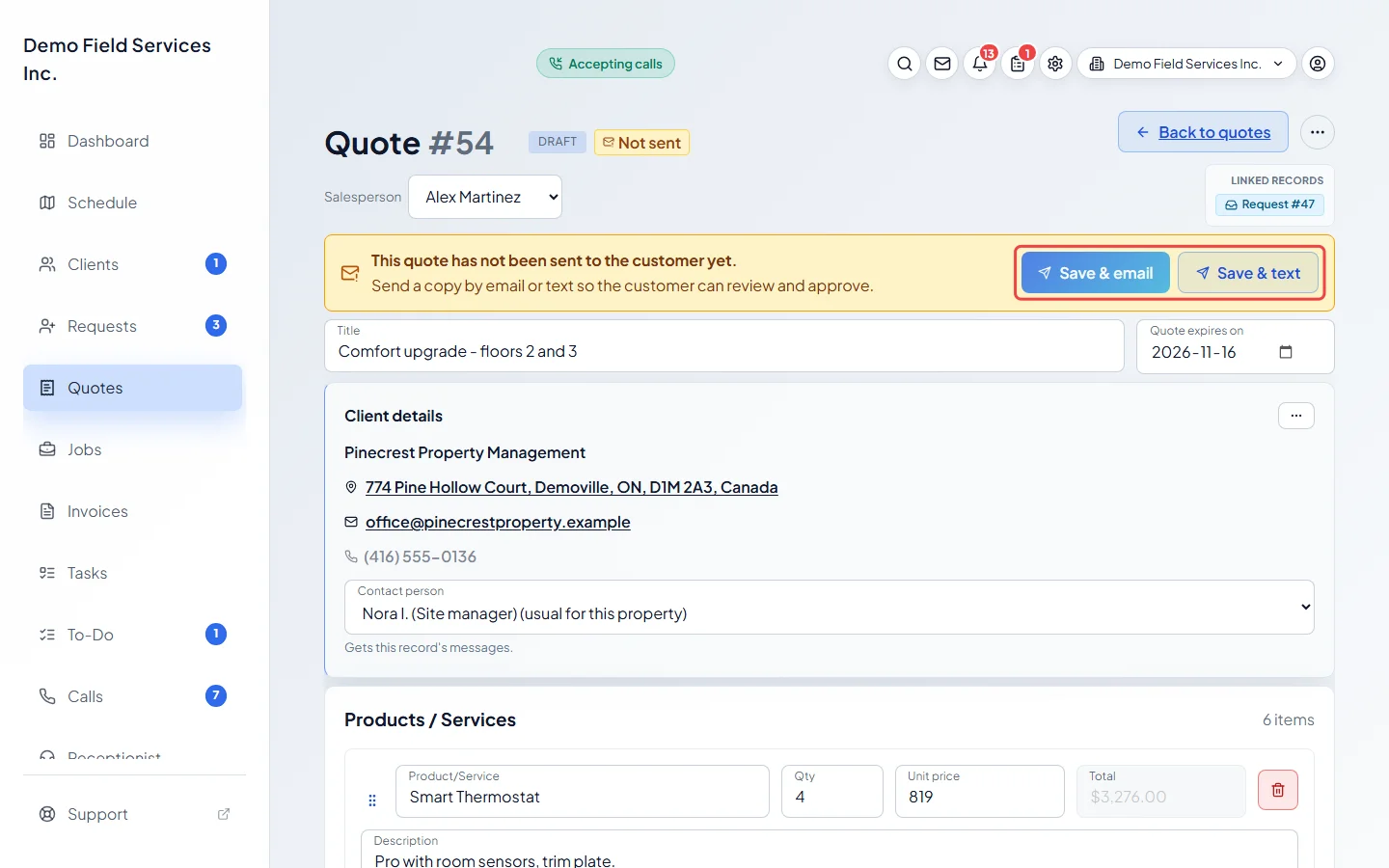
-
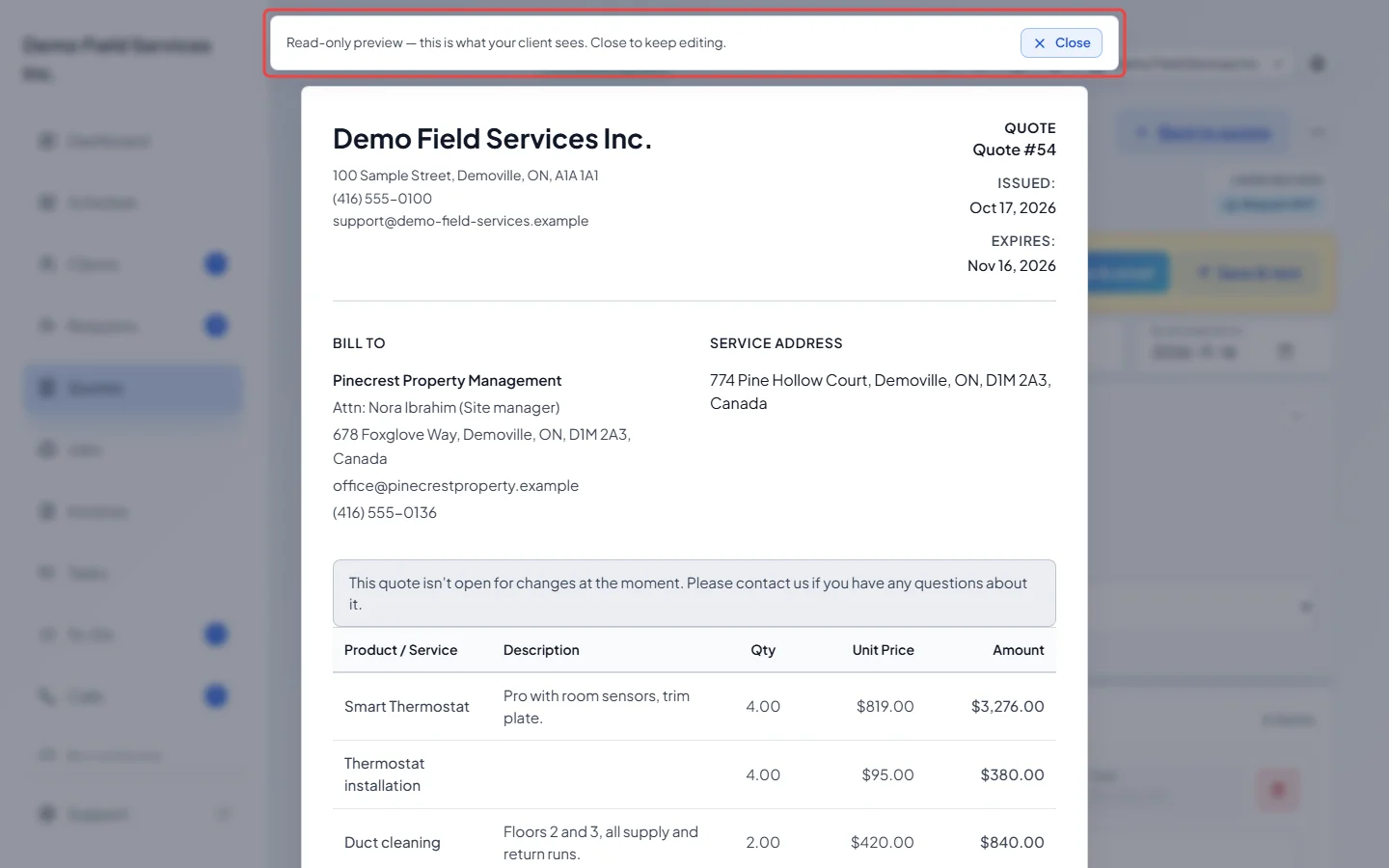
Optional: open the ••• menu at the top right and click Preview as Client to see the quote exactly as the client will. Their buttons show but don’t work here. The preview shows the last saved version.
-
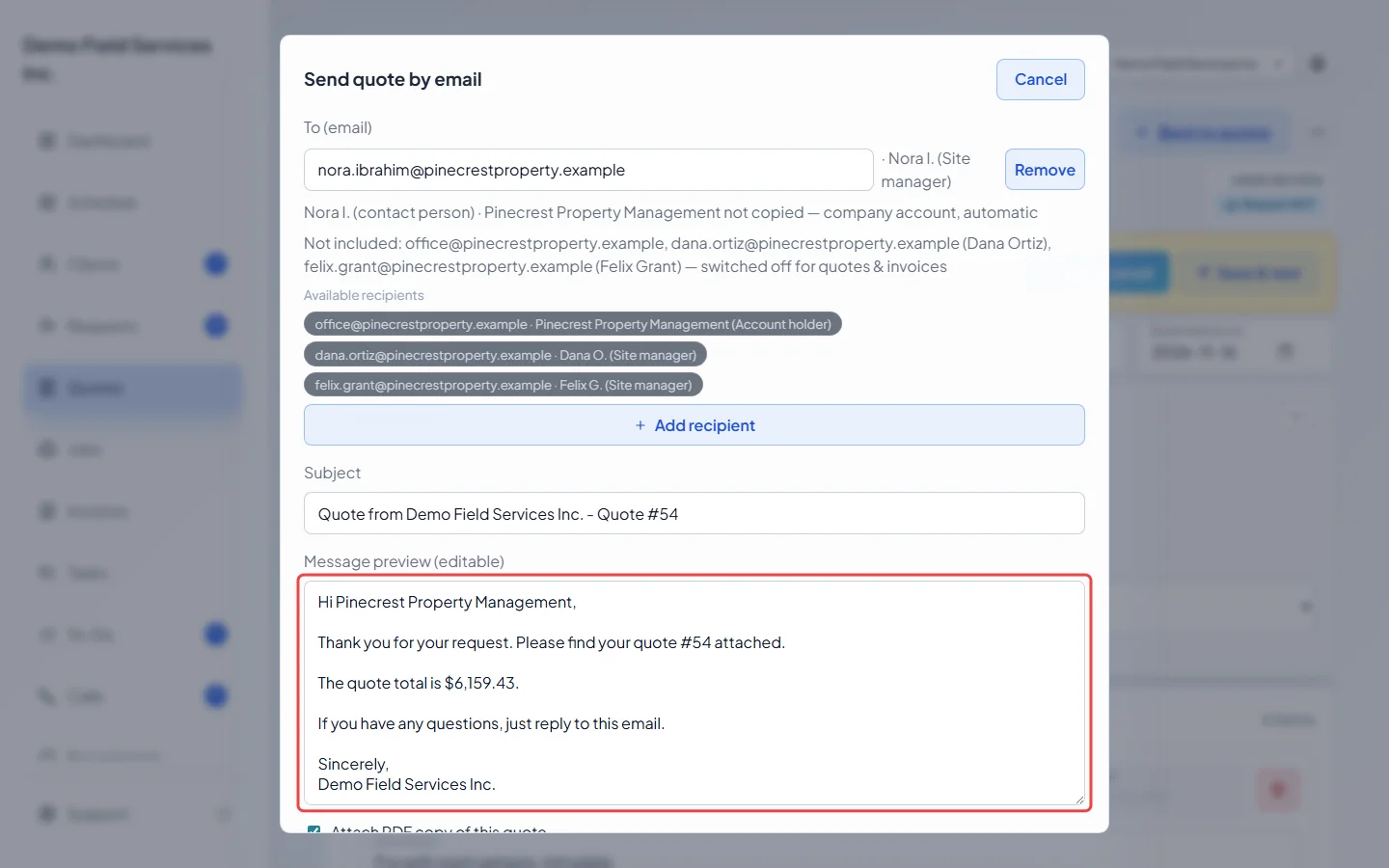
Click Save & email. Astragal saves any changes first, then opens Send quote by email with your quote message filled in.
-
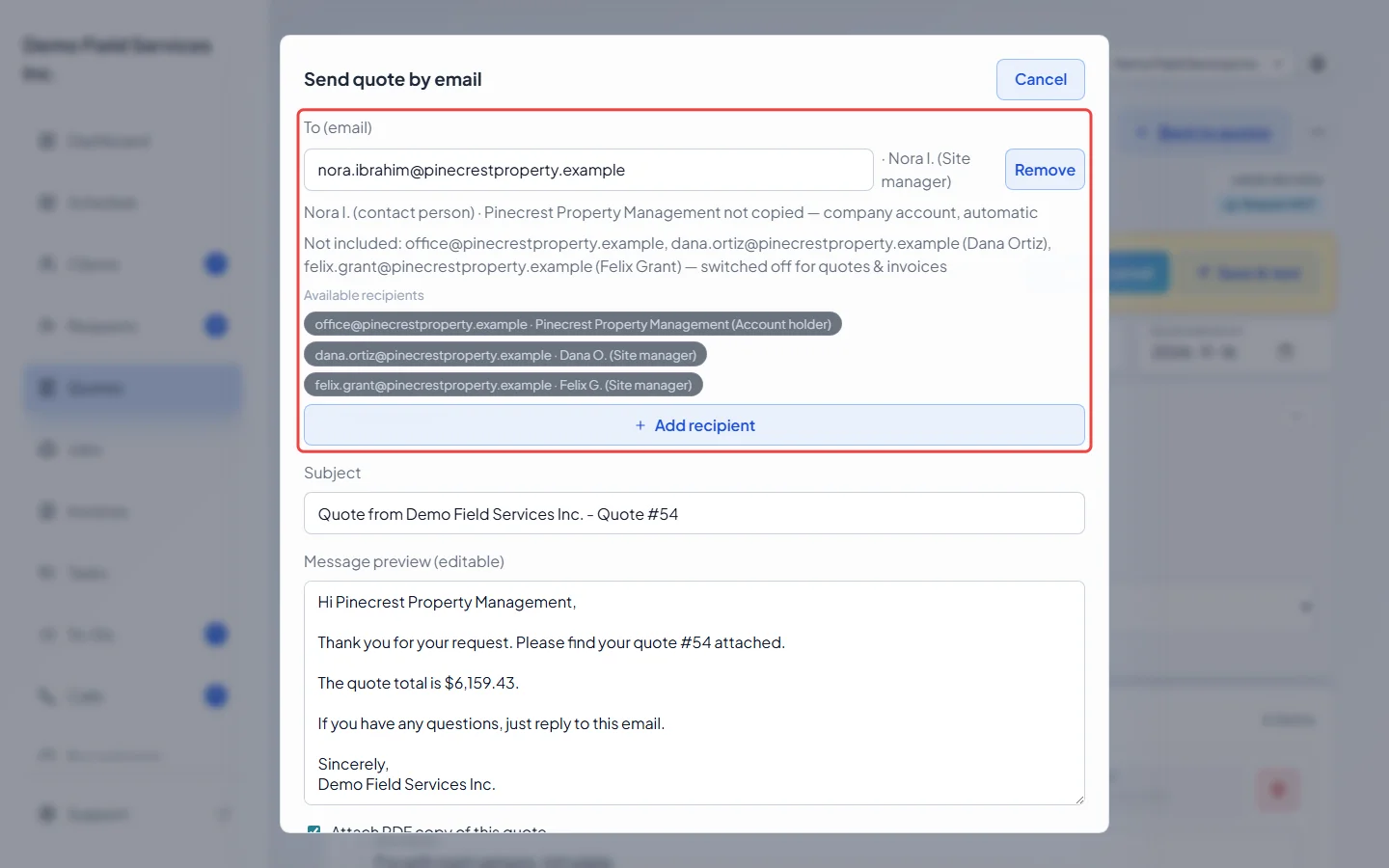
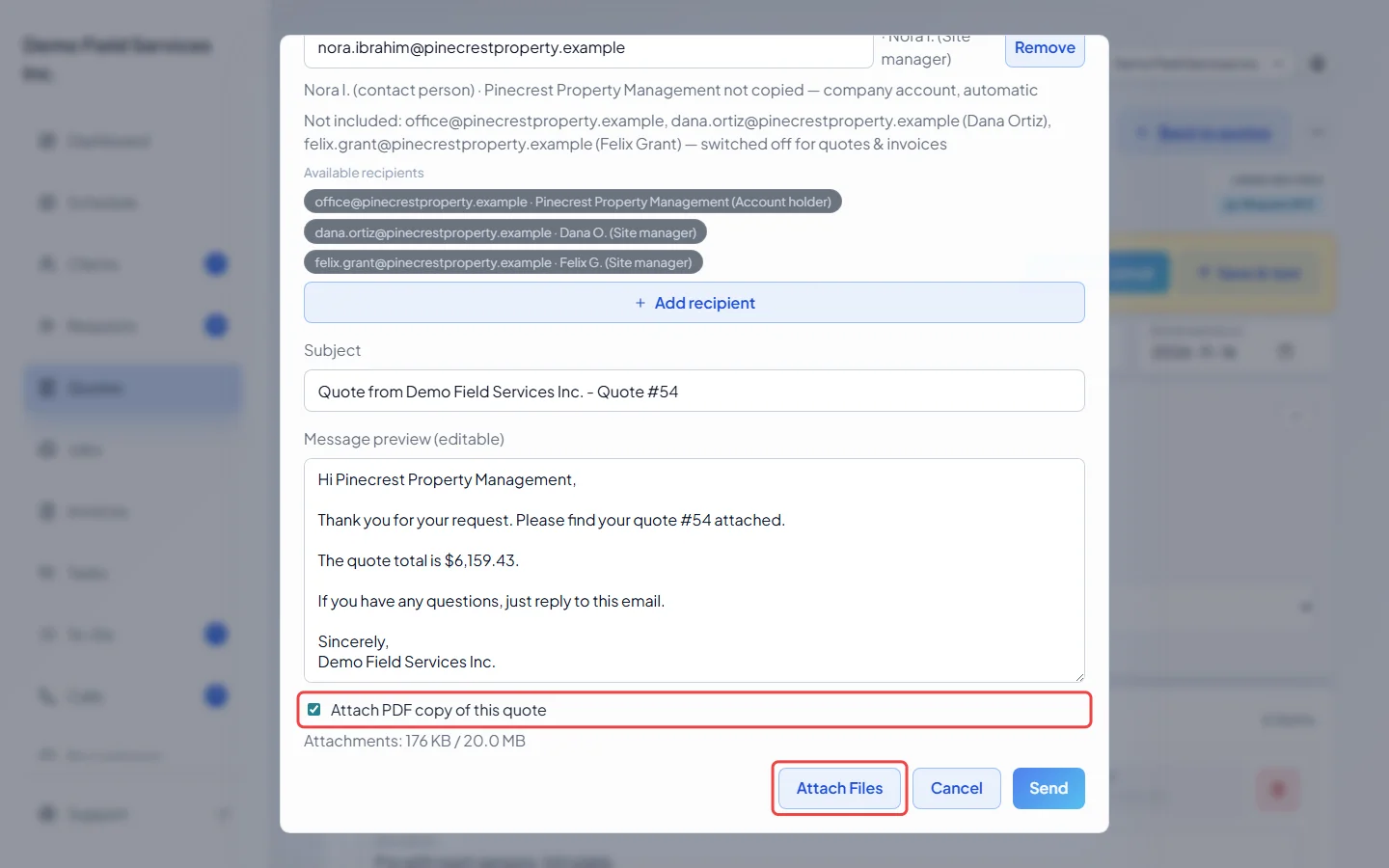
Check who it goes to under “To (email)” at the top. Click a name under Available recipients, or Add recipient, to add someone. Click Remove to take someone off. There must always be at least one. Change the Subject or the Message preview (editable) box if you like. These edits are for this one send only.
-
Leave Attach PDF copy of this quote ticked to include a PDF. Click Attach Files to add photos or documents. All attachments together can be up to 20 MB.
-
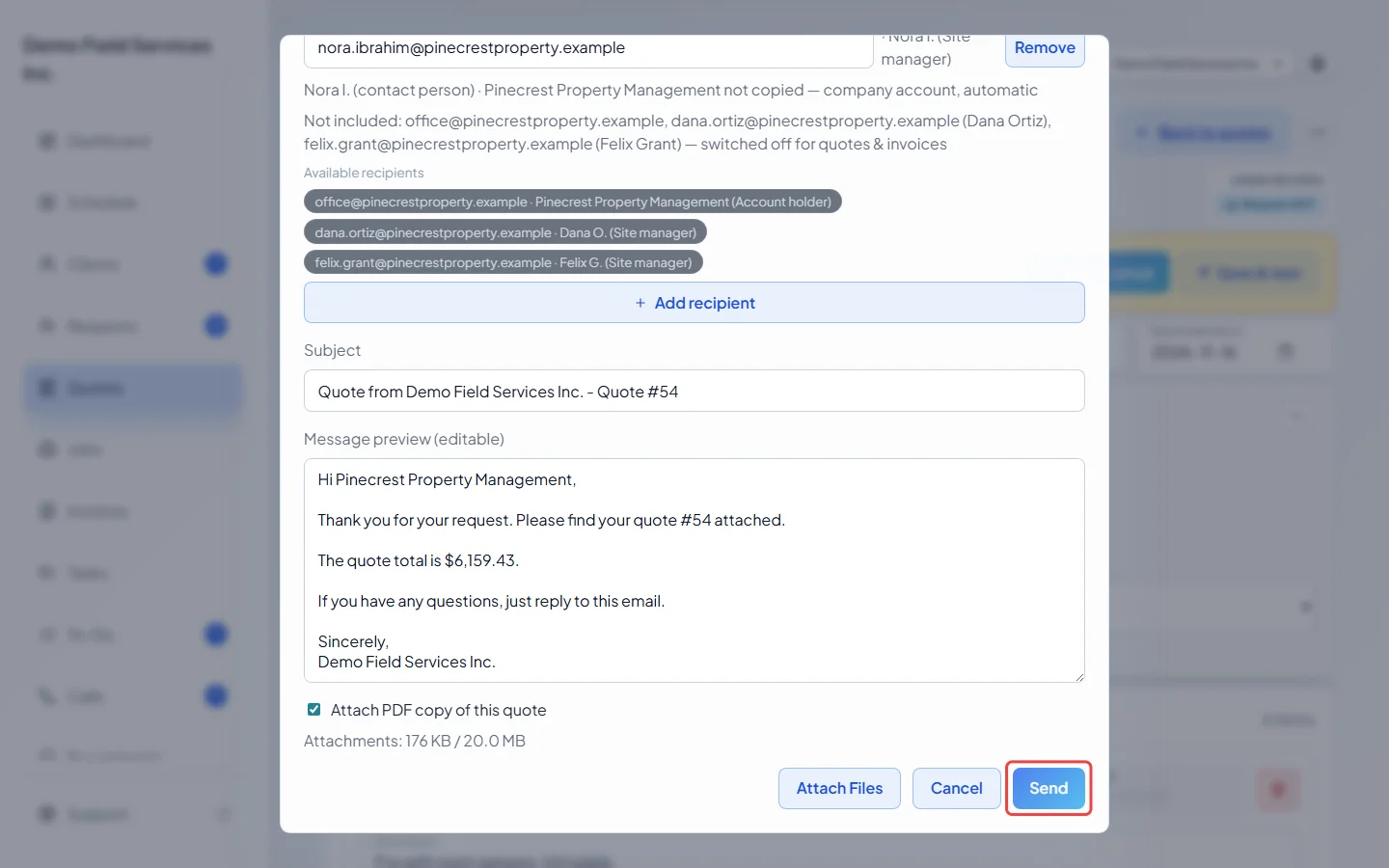
Click Send. The quote moves to Awaiting response, and the client gets a link to open it in their portal.
Sending by text
Section titled “Sending by text”Click Save & text instead. Send quote by text opens with your text message and the client’s mobile numbers. A line under the message shows how long the text is. Texts can’t carry attachments, but they include a link to the quote.
Good to know
Section titled “Good to know”- If the quote has a contact person, it goes to them by default, and a line under the recipients says who was left out and why. See People on an account.
- If you already sent this quote on the same channel and nothing the client sees has changed, a warning says “This quote was already emailed to the client” before you send it again.
- Sending sets the expiry date if the quote doesn’t have one yet, or if it has already passed, using your company’s Quote validity (days).
- Sending a declined quote again reopens it so the client can answer again.
- Gave the client a copy some other way? Use Mark as sent in the ••• menu. Nothing is emailed or texted: the warning clears, the quote moves to Awaiting response, and its expiry starts counting. While it’s awaiting a response, Mark as not sent moves it back to Draft and brings the warning back.
- Under the quote’s title you can see “Email opened” or “Email not yet opened”, and when the client viewed it in their portal.
- The wording of the quote email and text comes from your message templates. See Message templates.
Related articles
Section titled “Related articles”- Quote approval and rejection
- Following up on outstanding quotes
- How clients view quotes
- People on an account
Next step: Quote approval and rejection
Checked against Astragal on October 17, 2026