

Approving redemptions
Decide on the rewards your technicians have asked for. Nothing pays out until you say so.
Who can do this: Admins only.
Company switch: RewardsAlso called: reward requests, cashing in points.
-
Open Rewards in Settings and click Redemptions. It opens on Pending requests, each showing who asked, the reward, the points and the date.
On a computer: Left menu → Settings → Rewards On a phone: More → Settings → Rewards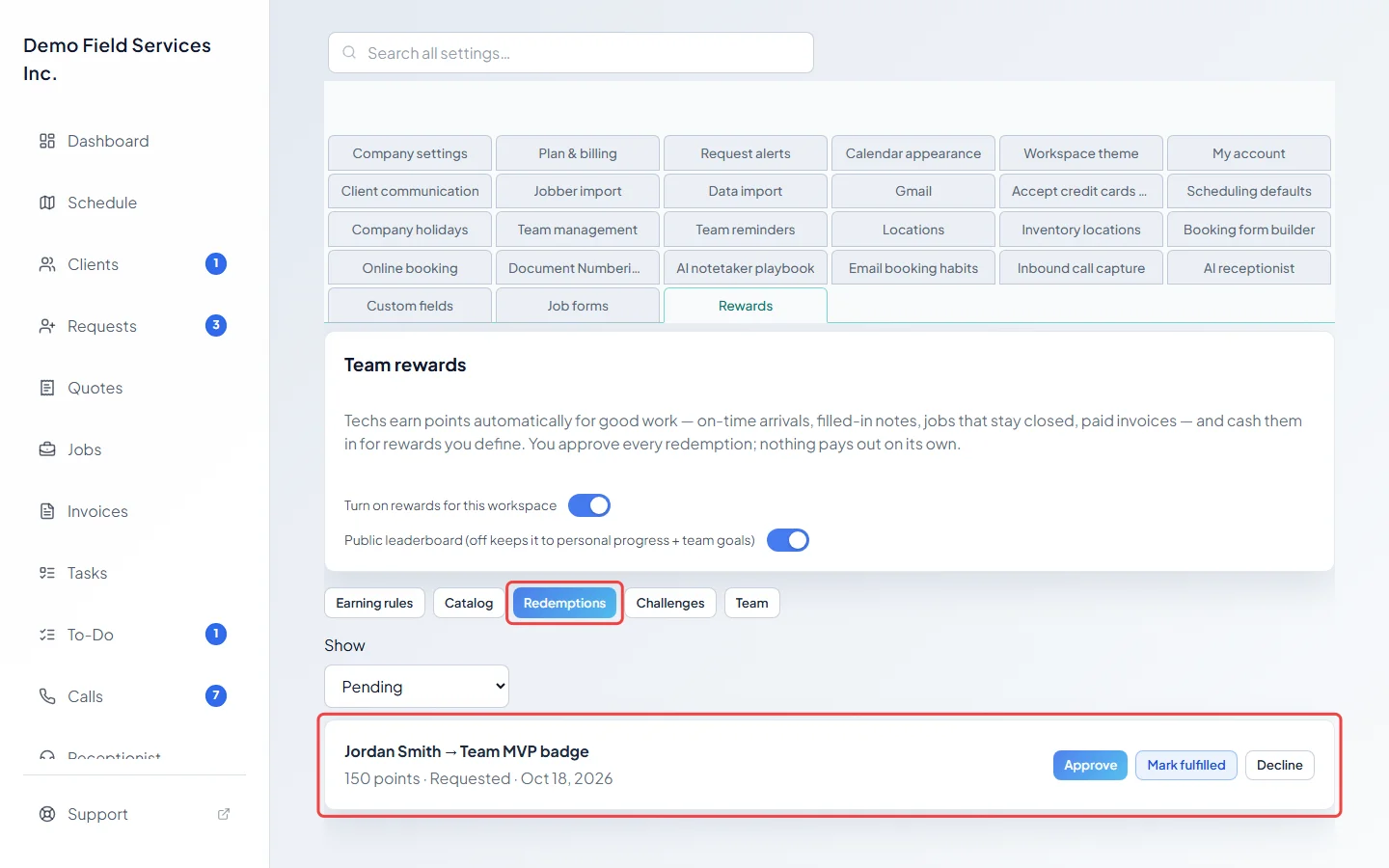
-
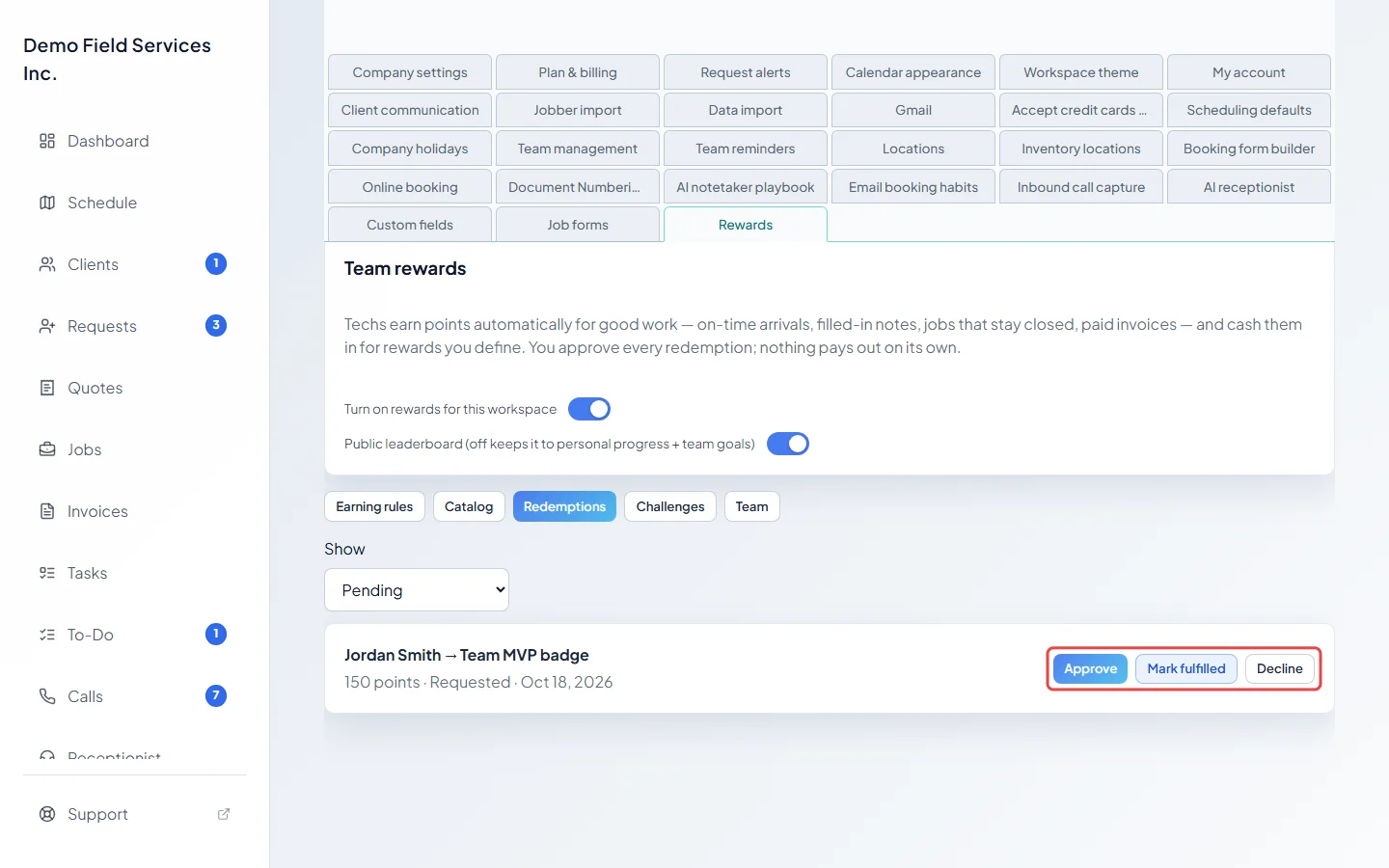
Decide on the request:
- Approve: you’ve agreed and are arranging it. The points stay on hold.
- Mark fulfilled: they’ve had the reward. The points are spent. You can mark a request fulfilled without approving it first.
- Decline: asks you to confirm with Decline request, then gives the points back.
The technician gets a phone notification each time.
-
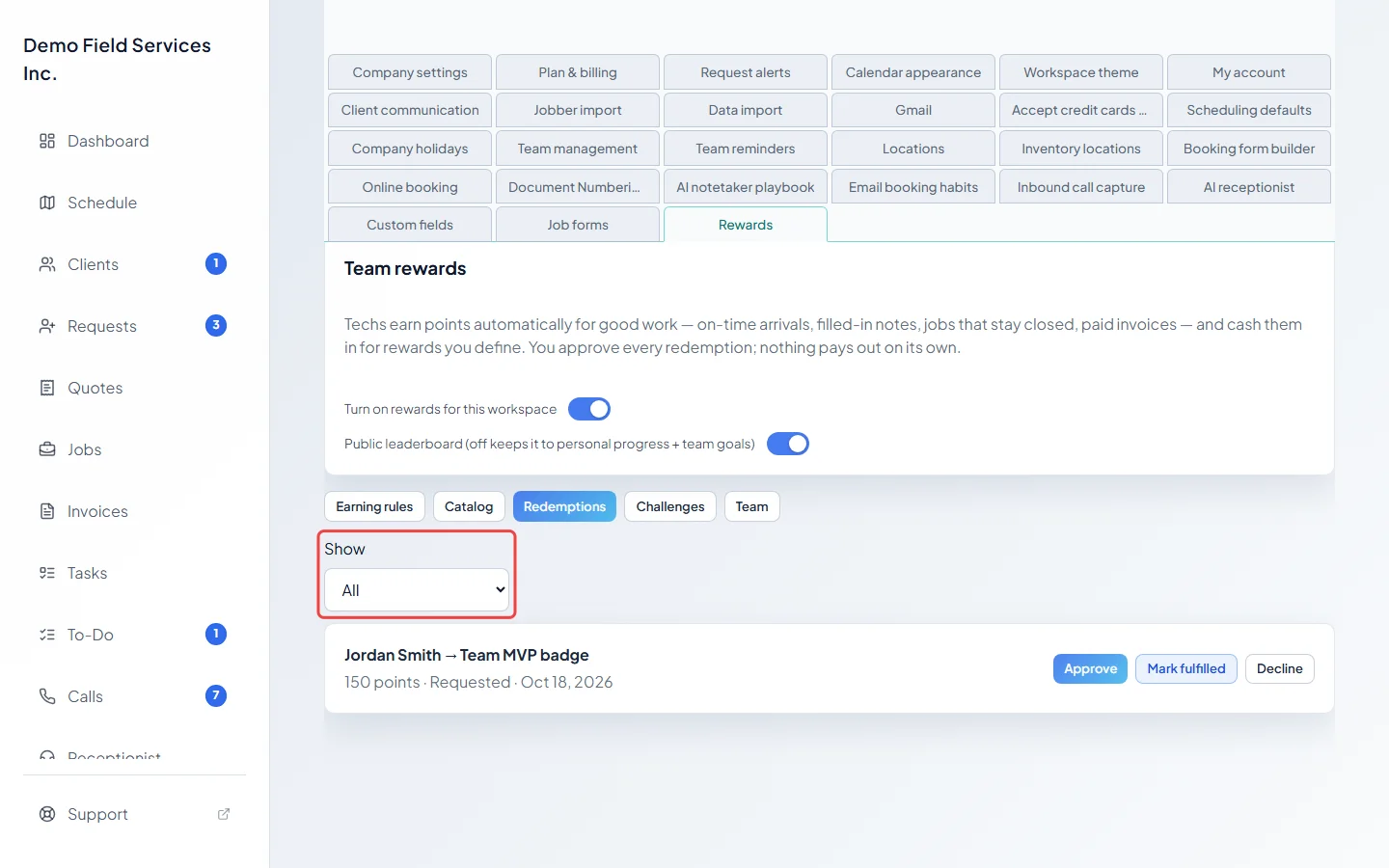
Use Show to see Approved, Fulfilled, Denied or All requests. An approved request can still be marked fulfilled or declined. Declined requests are listed under Denied.
Good to know
Section titled “Good to know”- Points on hold can’t be spent twice: a technician’s available points drop as soon as they ask.
- Once a request is fulfilled or declined it’s final.
Related articles
Section titled “Related articles”Checked against Astragal on October 17, 2026