

How clients view and pay invoices
See what your client sees when they open an invoice, and how they pay it online.
Who can do this: Your clients, in their portal.
Also called: bill.
-
The client opens the invoice from the link in your email, or clicks Invoices in their portal. Each card shows the invoice number, the Issued: and Due: dates, the total, the status and, if anything is owed, the balance due. A deposit bill is labelled Deposit instead of Invoice.
On a computer: Portal menu → Invoices On a phone: Portal bottom bar → Invoices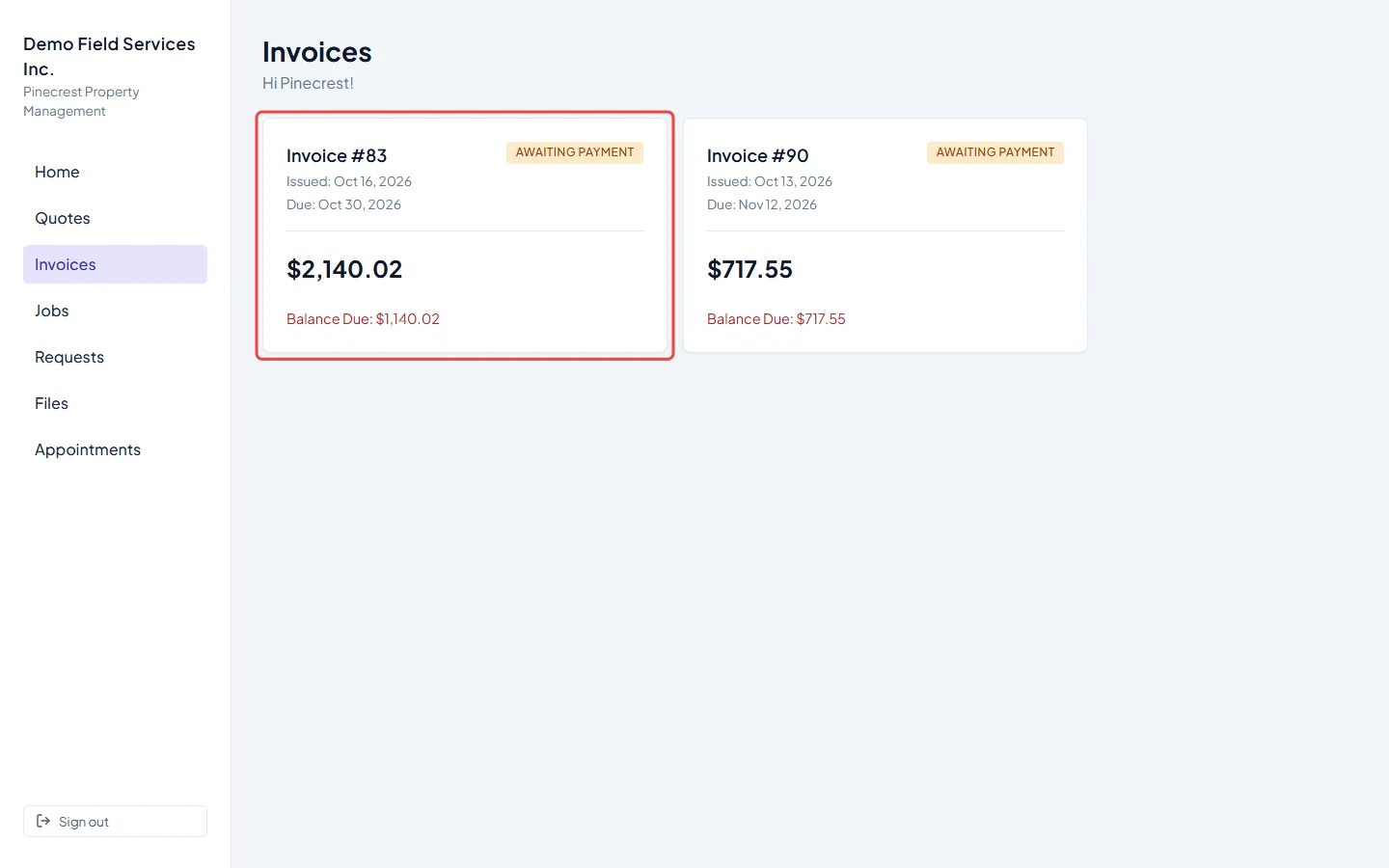
-
The invoice opens as a document: your logo and contact details (and your tax number, if you set one), Bill To and Service Address, any custom fields you chose to show clients, the lines, then Subtotal, tax, Total and the balance (Balance Due while anything is owed). Your Notes for the client and your invoice Terms follow.
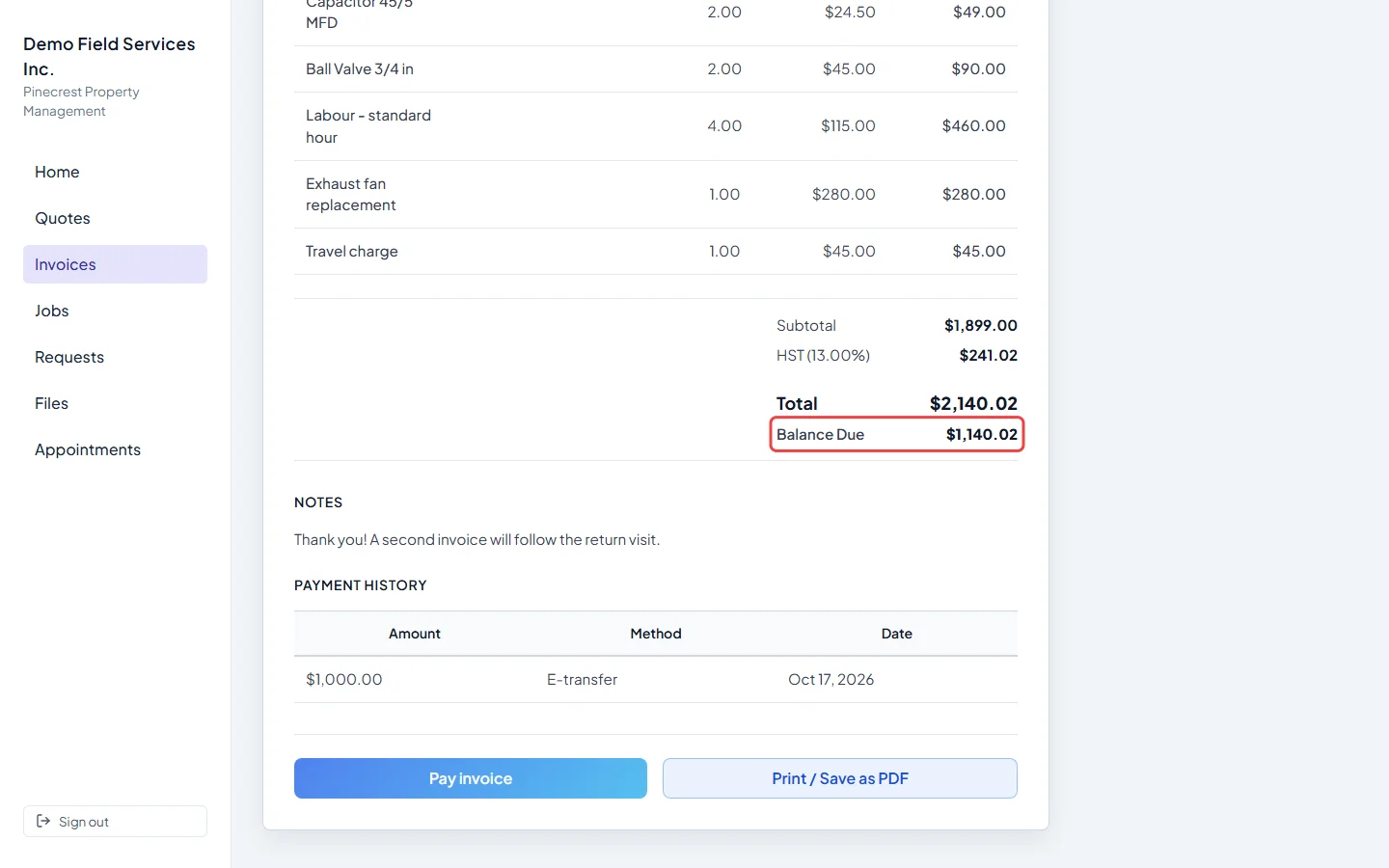
-
To pay, the client clicks Pay invoice. A secure card form opens for the balance due. When the payment goes through they see Payment received, and the invoice updates in Astragal and in the portal. The client is emailed a receipt and you get an alert.
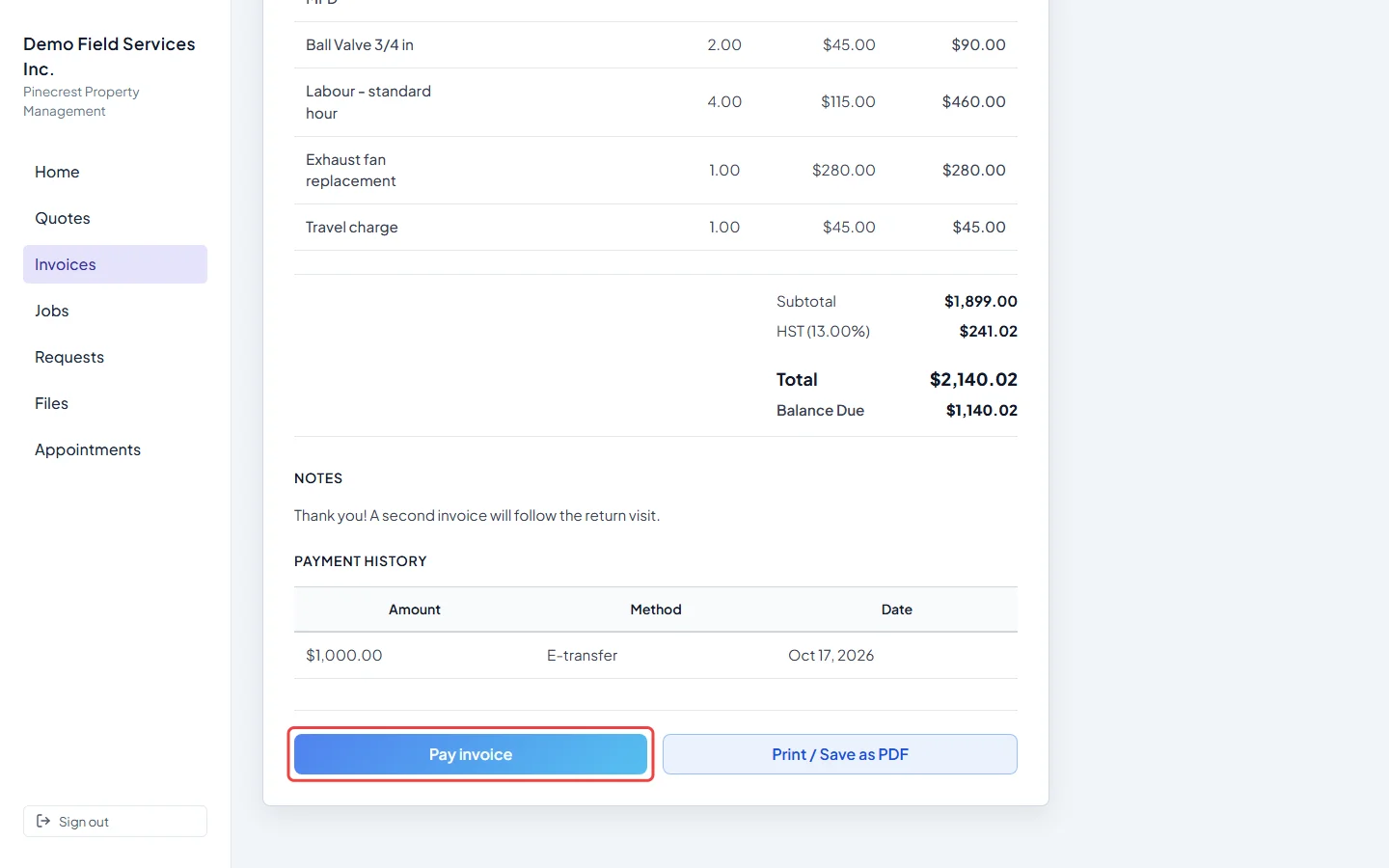
-
Every payment shows under Payment History with its amount, how it was paid (for example Credit Card, Cheque or E-transfer) and the date. A refund shows as its own line under the payment it came from.
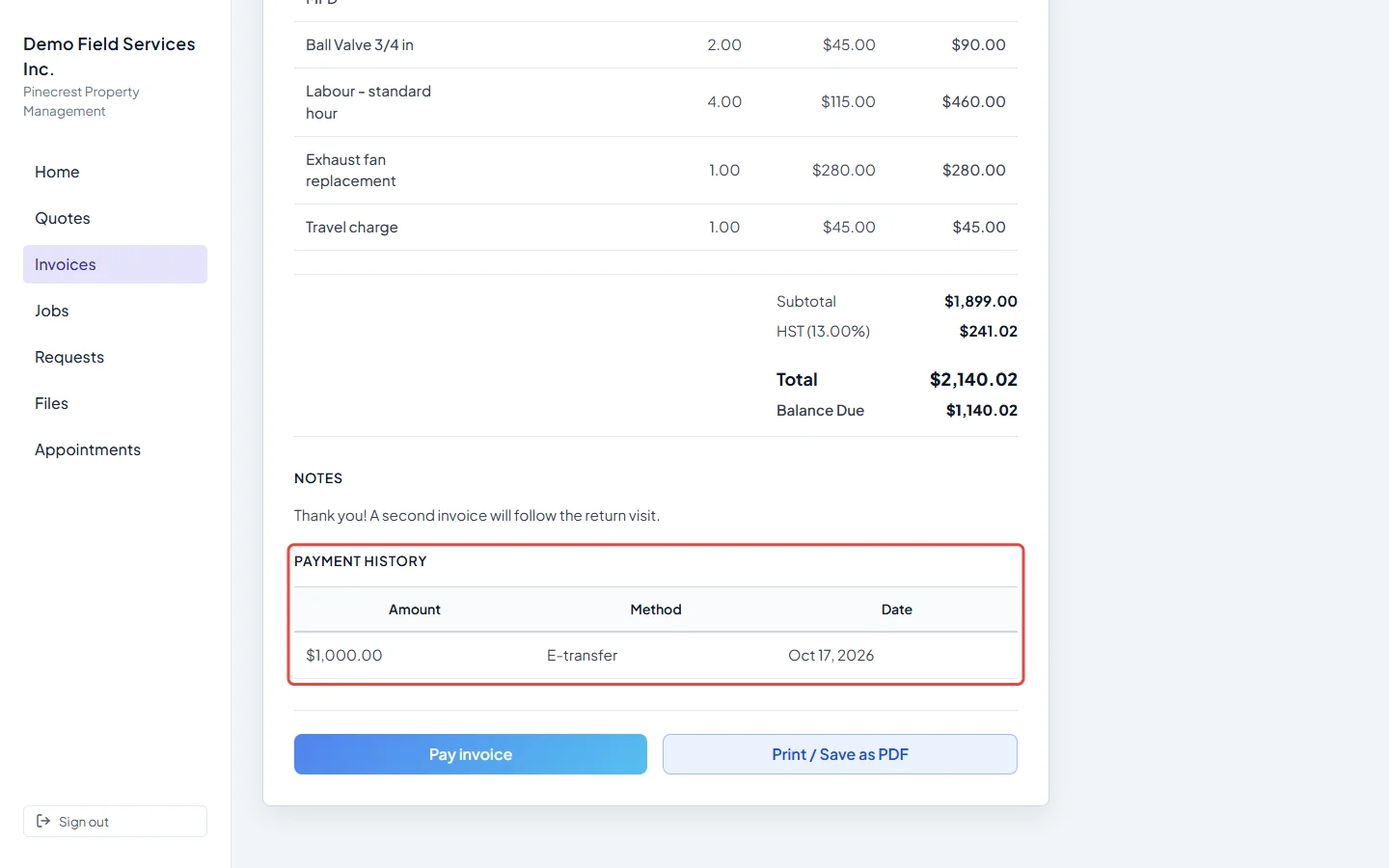
Good to know
Section titled “Good to know”- Pay invoice only shows when you accept card payments. Otherwise the client reads “Card payments aren’t set up for this business yet. Contact us to arrange another way to pay.” See Accepting card payments.
- The client always pays the whole balance due. Record cash, cheque or e-transfer payments yourself; see Recording payments.
- Once nothing is owed, the invoice is stamped PAID (or REFUNDED if every payment was given back) and reads “Paid in full”. A paid deposit is never stamped; it says Deposit paid and names the quote it counts towards.
- An invoice that’s part of a payment schedule says, for example, “This is invoice 2 of 3 in your payment schedule.”
- A warranty record says Warranty service — no charge. and shows a balance of nothing owed.
- Only invoices you have sent, and paid invoices, appear. Drafts and void invoices stay hidden.
- Print / Save as PDF prints the invoice or saves it as a PDF. It isn’t shown inside the iPhone app.
Related articles
Section titled “Related articles”Checked against Astragal on October 17, 2026