

Notifications and permissions
Allow the phone app to send alerts and use the microphone, location and camera, so nothing you need gets missed.
Who can do this: Everyone using the Android or iPhone app. You only get asked about what your role uses.
Also called: push notifications, alerts, app permissions.
Alerts reach you even when Astragal is closed: reminders (including location reminders and team reminders), missed calls, and calls ringing if you take work calls. Alerts only come to the phone apps, never to a web browser.
-
Sign in to the app. On an iPhone, the first time, a Before you start screen lists the questions your iPhone is about to ask and why: Alerts, Microphone (only if you can make calls in Astragal) and Location (only for technicians). Tap Continue and answer each one. On Android, the phone asks for each permission the first time Astragal needs it.
On a computer: Not on a computer On a phone: Astragal app → Sign in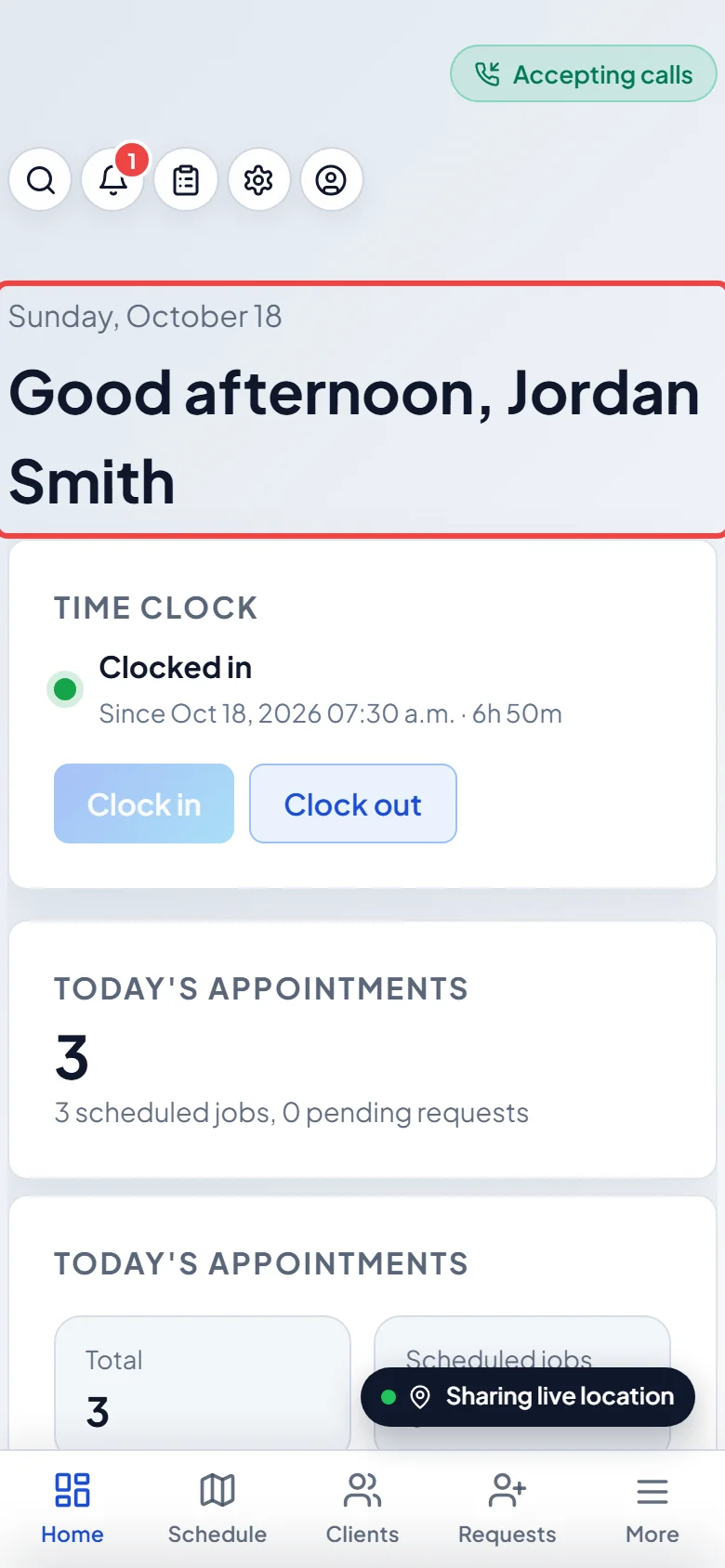
-
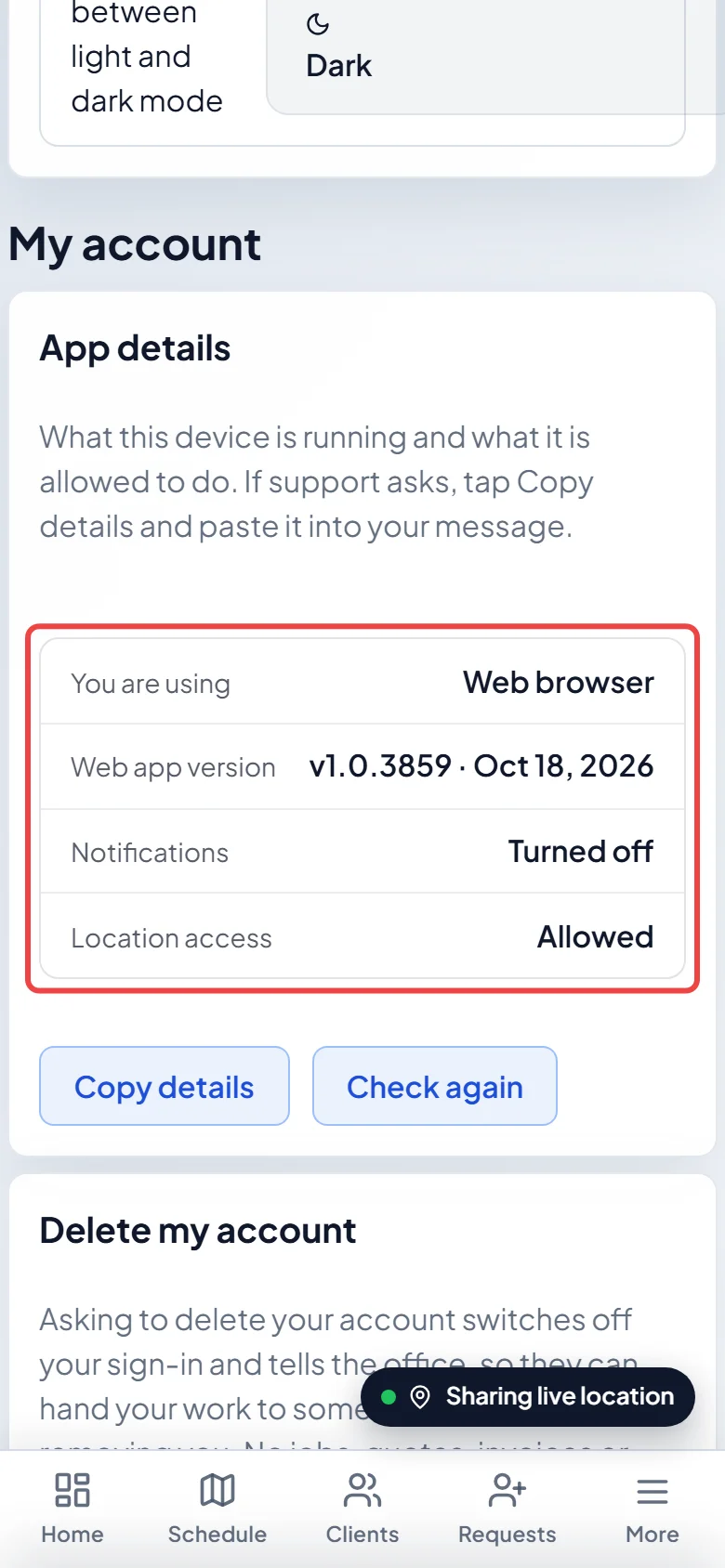
To see what this phone allows, open App details in Settings → My account. On an iPhone, Notifications says Allowed, Turned off or Not asked yet, and Location access and Location accuracy say what Astragal may use. On Android, only Location access is shown. The picture shows the card in a phone’s web browser.
What each permission is for
Section titled “What each permission is for”| Permission | Used for |
|---|---|
| Notifications | Reminders, missed calls and ringing calls. |
| Microphone | So callers hear you on calls you answer or make in Astragal. |
| Location | Clocking in at the job, the jobs map, and sharing your location while you’re clocked in or on the way to a client. |
| Camera and photos | Job photos and barcode scanning. |
| Nearby devices (Android) | Using a Bluetooth headset on calls. |
| Contacts | Only when you tap Import from this phone to bring in phone contacts. |
| Face ID | Only if you turn on the app lock (iPhone). |
If alerts are turned off
Section titled “If alerts are turned off”If you said no to alerts, a bar at the top of the app says Alerts are turned off for this app on this phone — you will miss reminders. Tap Turn alerts on to jump to the right page of your phone’s settings and switch them on. If you turned alerts off, the office can also see that they aren’t reaching your phone.
On an iPhone that delivers alerts silently (no banner and no sound, or held for a scheduled summary), the bar says Alerts arrive silently on this phone, with no banner or sound — you may miss reminders.
Tap the X to hide the bar. It stays hidden for about a week, or comes back straight away if your phone’s setting changes.
Good to know
Section titled “Good to know”- To change any permission later: on Android, open your phone’s Settings → Apps → Astragal. On an iPhone, open Settings → Astragal (on newer iPhones, Settings → Apps → Astragal).
- Coming back to the app after changing a setting is enough. Astragal notices the change and tells the office within seconds.
- The Before you start screen shows once per iPhone, not every time you sign in.
Related articles
Section titled “Related articles”Checked against Astragal on October 18, 2026