

Sharing your location
Let the office see where you are during your shift, and let a client watch you arrive.
Who can do this: Technicians. Location is only shared while you’re clocked in or on the way to a client.
Also called: GPS, live tracking, the tracking pill.
Location sharing runs best in the Android app or the iPhone app, which keep sharing with the screen off. In a web browser it only works while Astragal is open on screen.
-
Clock in on the Time clock card when you start work. While you’re clocked in, your phone can share where you are with your team, so the office sees you on the map. The first time, Astragal says Your location is shared with your team while you’re clocked in.
On a computer: Left menu → Dashboard On a phone: Bottom bar → Home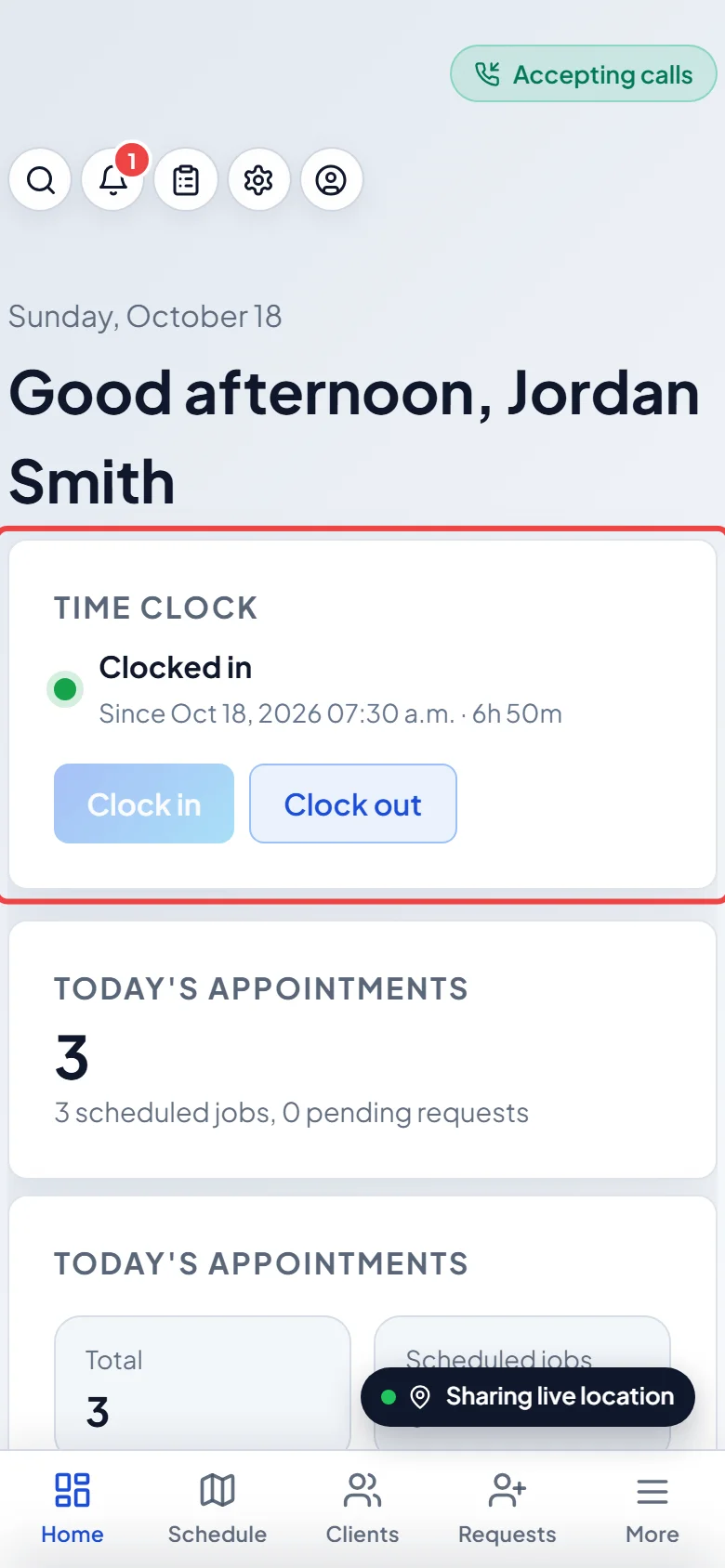
-
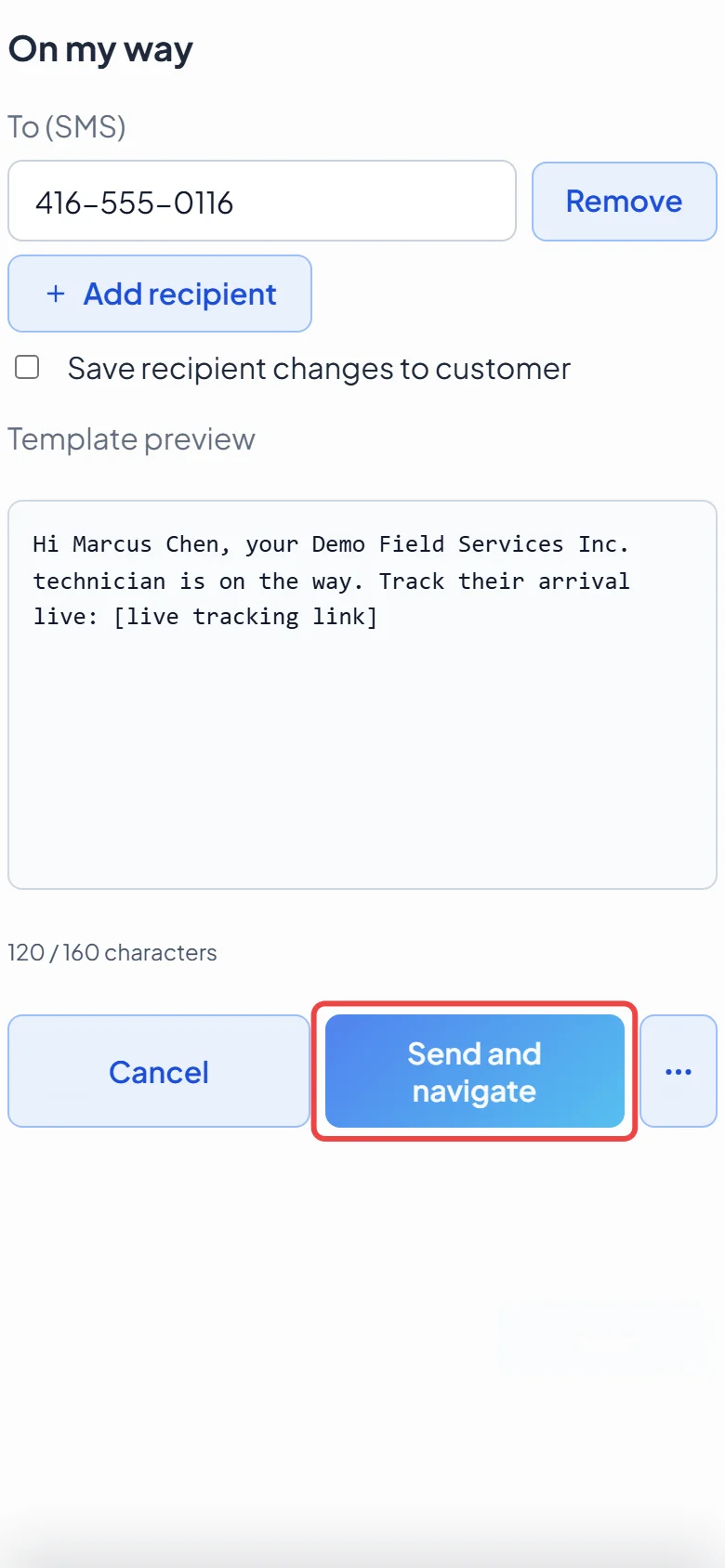
When you head to a visit, tap Actions → Navigate, then Send and navigate. That texts the client and starts your trip. The client’s tracking page shows you moving towards them, and your phone sends its location more often. Sharing with the client stops when you arrive. Navigate without sending opens directions without starting a trip.
-
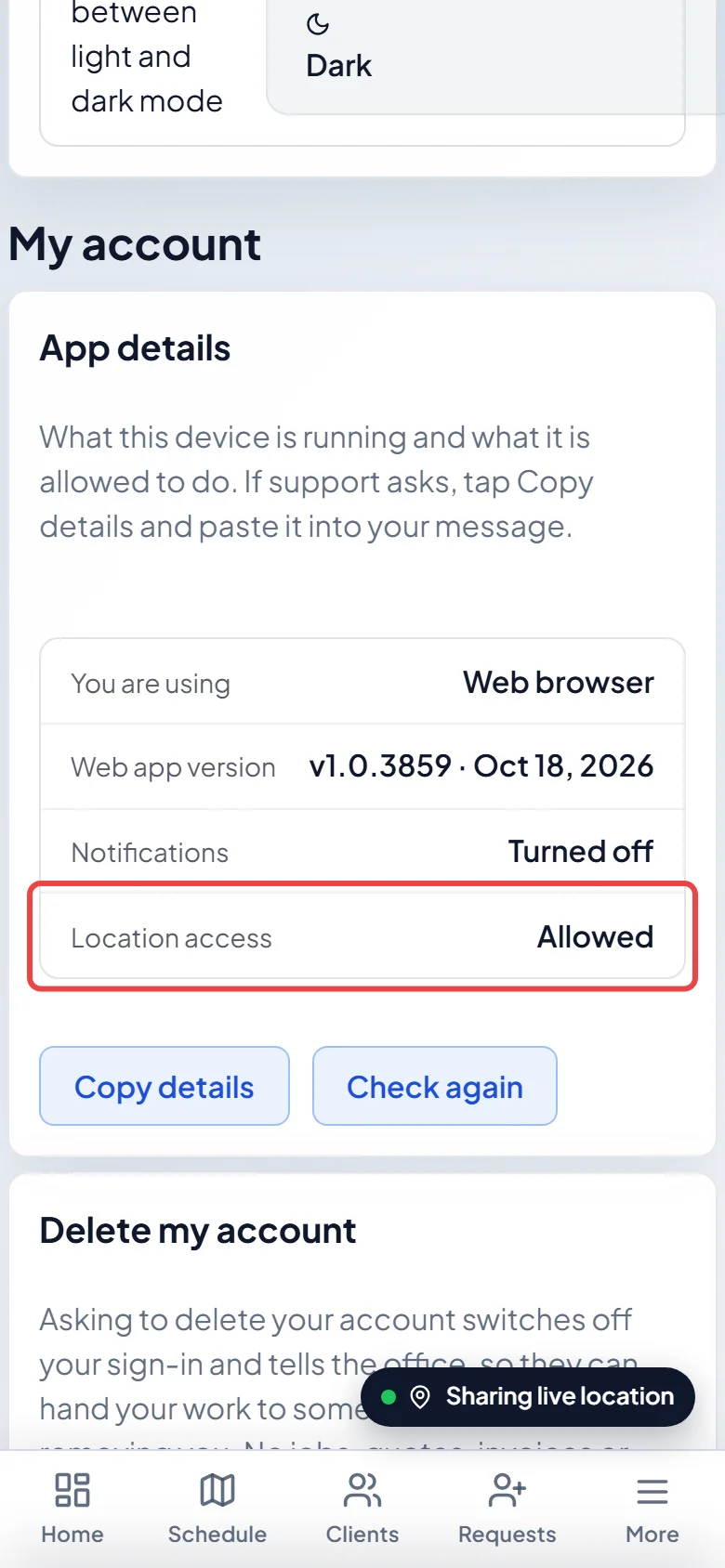
Check that your phone allows it. Open App details in Settings → My account. On an iPhone, Location access should say Always and Location accuracy should say Precise. On Android it should say Allowed. Sharing your location right now shows whether it’s working. The picture shows the same card in a phone’s web browser, which has only the Notifications and Location access rows.
The sharing pill
Section titled “The sharing pill”While your phone is sharing, a small pill says Sharing live location. Drag it anywhere on the screen to move it out of the way. During a trip it has a Stop trip button. Tap it, then Stop trip again to confirm, or Keep driving to carry on. The client no longer sees you on the map, and sharing drops back to the slower all-shift rate if you’re still clocked in.
Sharing stops by itself when you clock out and aren’t on the way to anyone.
What your phone asks
Section titled “What your phone asks”On Android, allow location when the app asks. While sharing, Android shows a “Sharing your live location” notification. That’s normal, and it’s what keeps sharing going with the screen off. It shows during your whole shift, not only on the way to a client.
On an iPhone, the first time you sign in a Before you start screen explains the question. When the iPhone asks, tap “Allow While Using App”. If it later offers “Change to Always Allow”, tap that too, so sharing keeps working with the phone in your pocket. Precise Location must be on: with approximate location nothing is shared.
The iPhone app tells you when something holds sharing back:
- Sharing pauses whenever Astragal is not on screen: update the app from the App Store.
- Sharing stops if you close Astragal: location is set to While Using the App. Change it to Always.
- Low Power Mode is on, so your location updates less often
- If the iPhone stops letting Astragal use your exact location, the pill says Location sharing is off. Open the iPhone’s Settings, find Astragal (on newer iPhones it’s under Apps), tap Location, choose Always and turn on Precise Location.
Good to know
Section titled “Good to know”- If sharing can’t start at all, Astragal says so and tells you to check the app’s location permission in your phone’s settings.
- Opening the app again after it’s been in your pocket makes it re-check straight away whether it should be sharing.
- Clients only see you during a trip to their visit, never during the rest of your shift. See Live tracking.
Related articles
Section titled “Related articles”Checked against Astragal on October 18, 2026