

Importing a spreadsheet
Bring records in from a spreadsheet, see exactly what will happen to each row, and only then import them.
Who can do this: Admins.
Also called: CSV upload, Excel import.
For the big picture, and the direct Jobber connection, see Moving your data from Jobber or another app.
-
Open Data import. The page works top to bottom in four cards, with your past uploads under Recent imports on the right.
On a computer: Left menu → Settings → Data import On a phone: More → Settings → Data import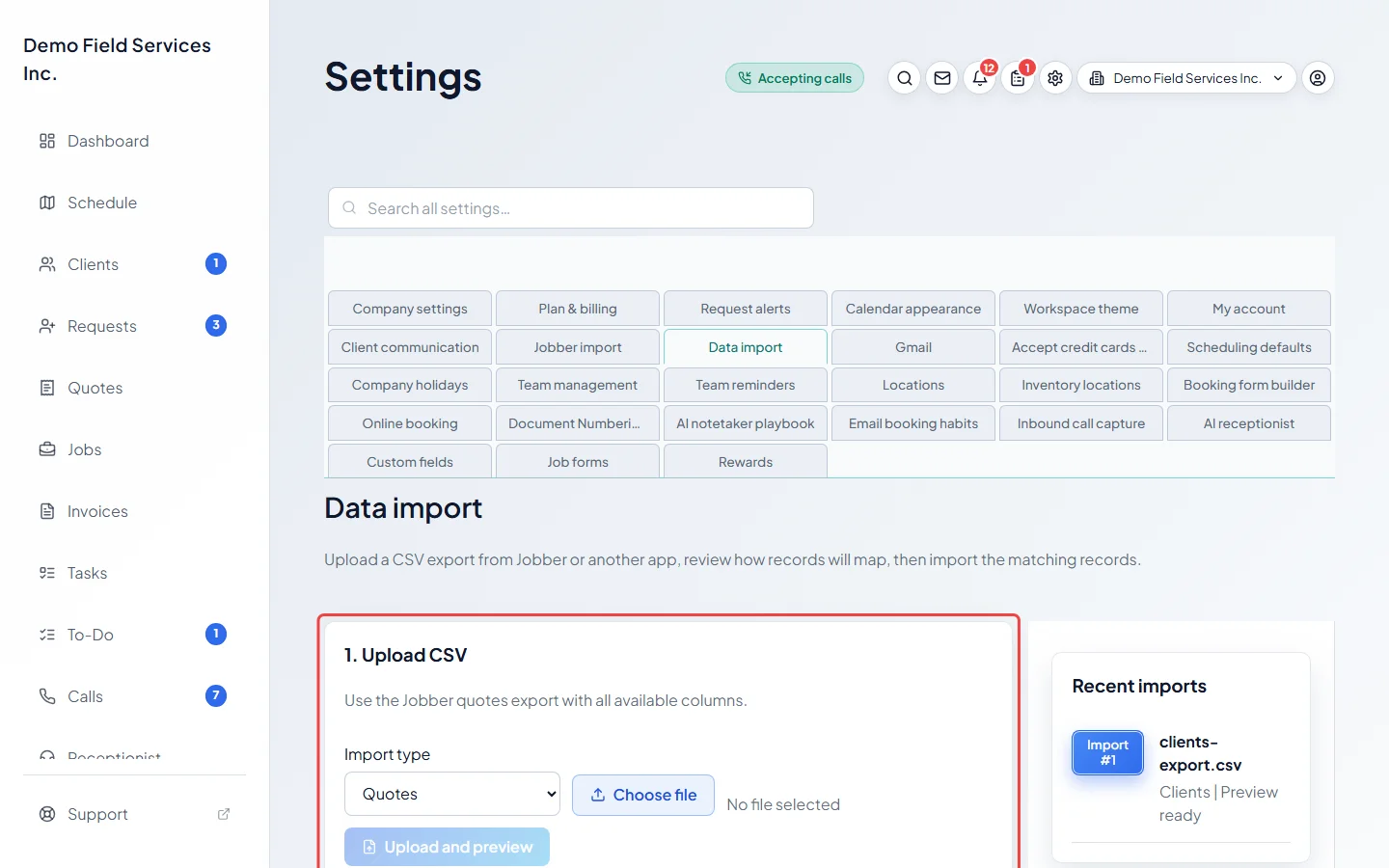
-
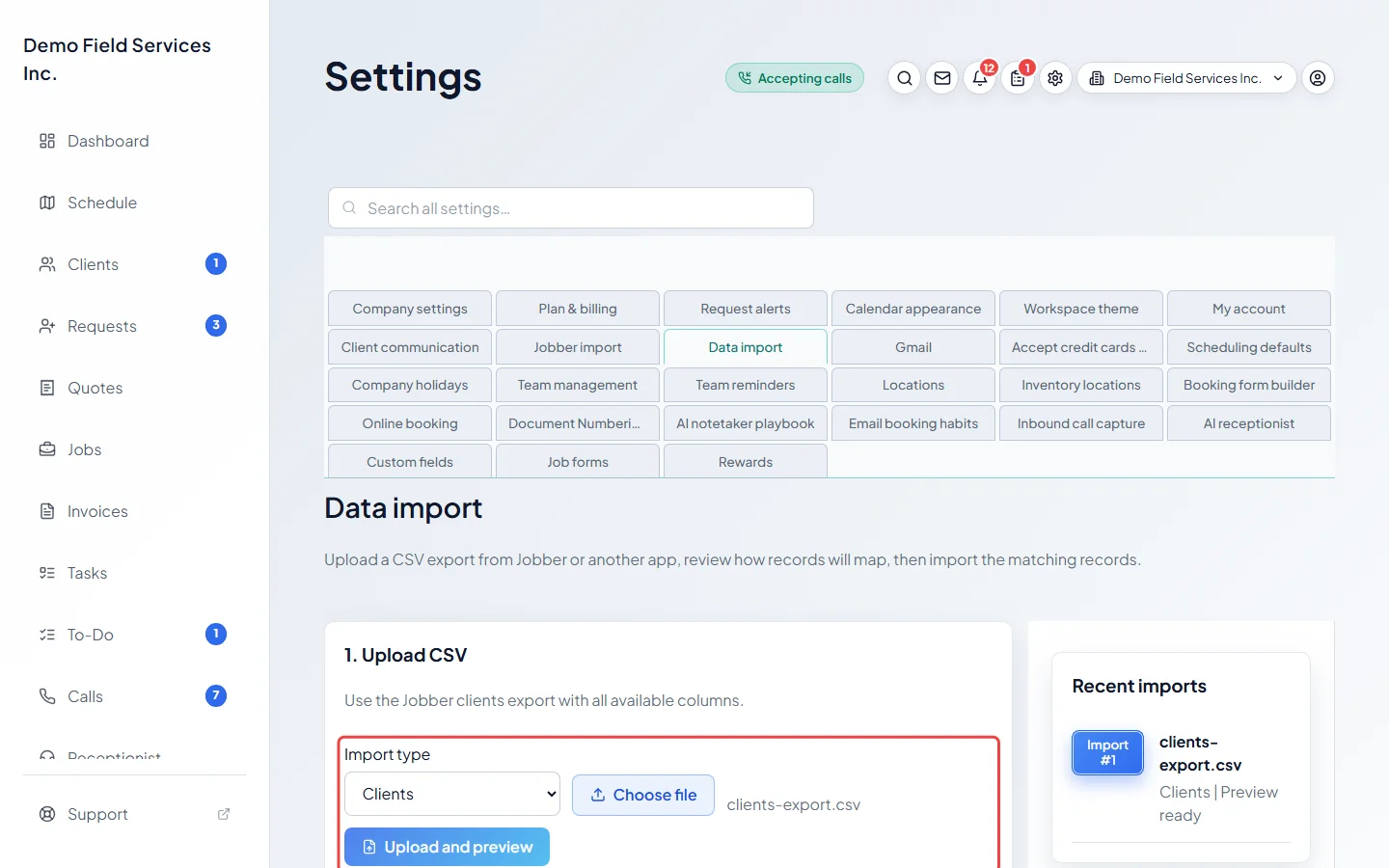
In 1. Upload CSV, pick what’s in the file from Import type: Quotes, Jobs, Invoices, Requests, Clients, Visits, Products & Services or Communications. The line above the box tells you which export it expects. Click Choose file, pick your CSV or Excel (.xlsx) file, then click Upload and preview.
-
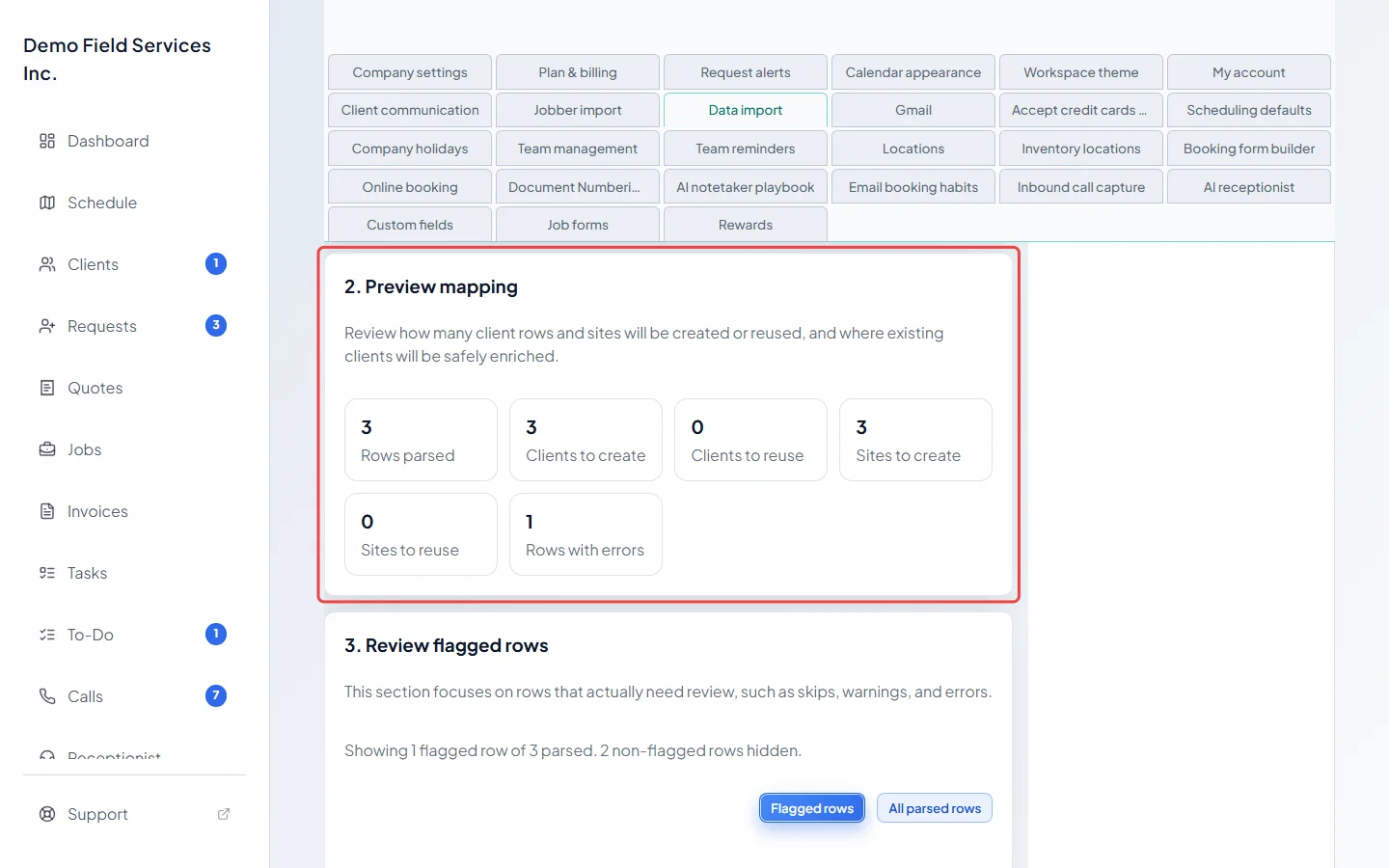
Wait for the preview. A bar shows the upload and then how many rows have been checked. You can leave the page meanwhile: a small box in the corner keeps showing Uploading import file, then Analyzing import, then Import file ready with View preview. When it’s ready, 2. Preview mapping shows how many rows were read and how many clients, properties (sites) and records will be created or reused, plus Rows with errors.
-
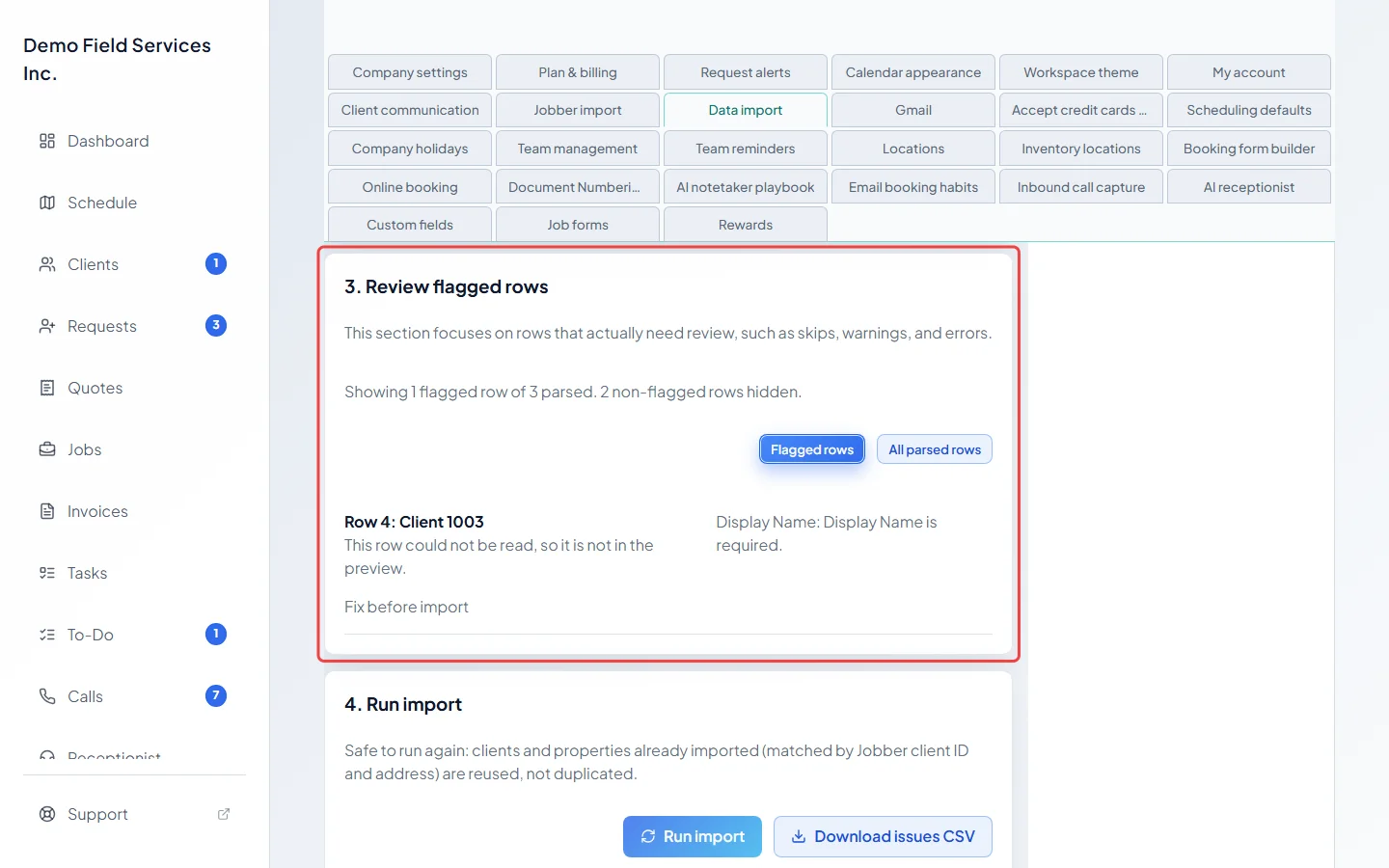
Check 3. Review flagged rows. It lists the rows worth a look: rows that will be skipped because the record already exists, warnings and errors, each with what will happen to it and why. A row that couldn’t be read at all says so and shows the problem, such as a missing name. Click All parsed rows to see every row, or Flagged rows to go back.
-
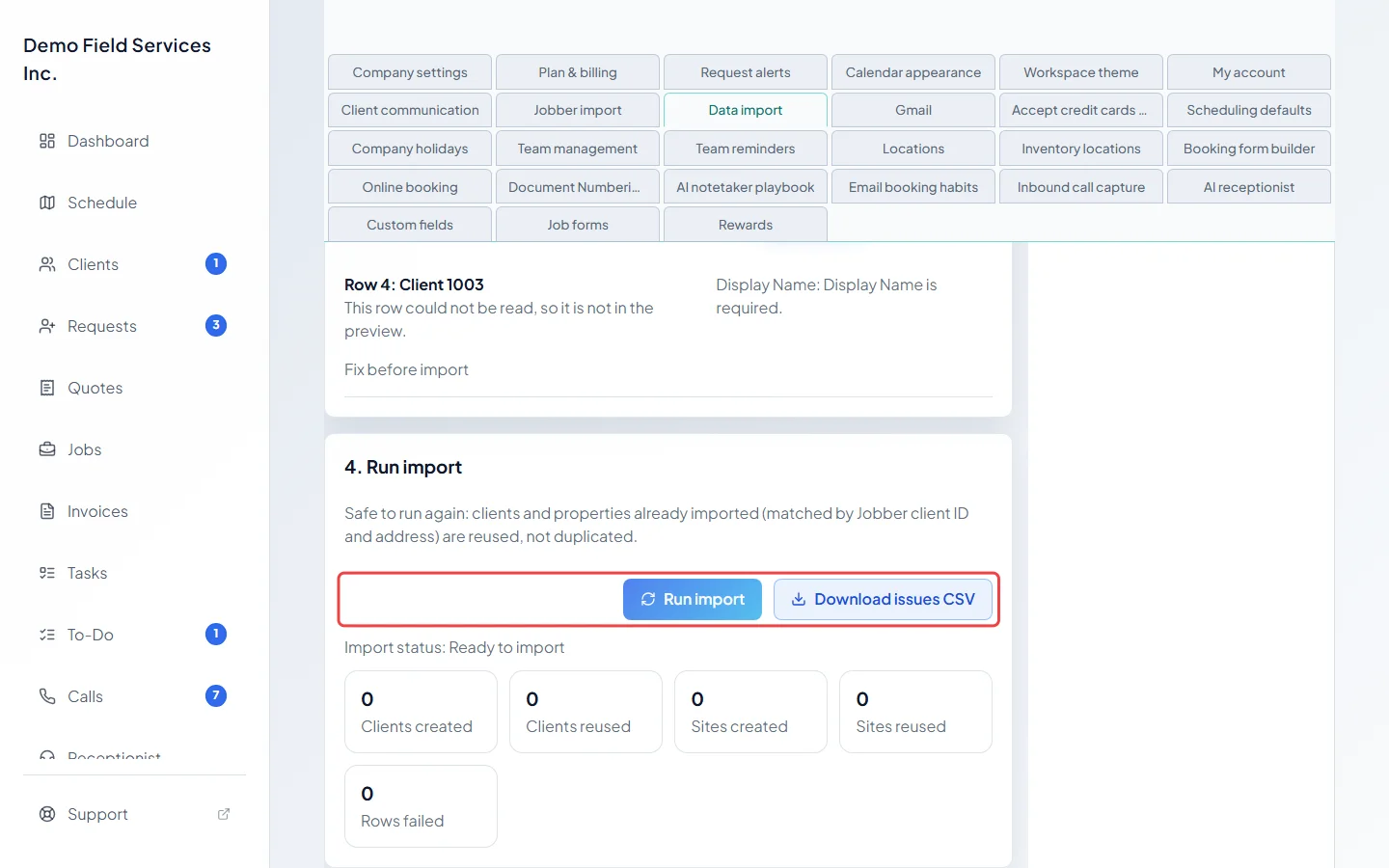
In 4. Run import, click Run import. A line then says how many records were imported and how many were skipped. Click Download issues CSV for a spreadsheet of every row with a problem, so you can fix them and upload again.
Which order to import in
Section titled “Which order to import in”Import Clients first, so everything else can be matched to them. Then requests, quotes, jobs, visits and invoices. Communications needs your clients in already: it matches each message to an existing client by name, email or phone, and a message with no match is skipped. Each message lands in the client’s message history with its date, who it went to, its subject and whether it was opened. The message text itself isn’t in Jobber’s export, so it can’t come across.
Good to know
Section titled “Good to know”- The other import types are built around Jobber’s own export files. A Products & Services file can come from any app: only a column with the product name is needed. Products you already have are matched by name, and their price, cost, tax setting and active state are replaced with the file’s. For other records from another app, email support@astragalhq.com and we’ll help.
- Importing the same file again is safe for every type except Visits: records already brought in are skipped (or, for clients and properties, reused). A visits file adds its visits again each time, so upload it once.
- A Clients import also matches clients you already have by name, phone, email or address. It adds the row to that client and fills in details that are blank, instead of making a copy.
- Once an import has run, its button reads Import completed. To import another batch, upload a new file.
- If rows failed, the card lists them; click Show row in table to jump to the row in the preview.
- A jobs import can create placeholder team members for names it doesn’t recognise. Add a real team member with the same name and their jobs are linked to them. See Inviting your team.
- Click any upload under Recent imports to open its preview again.
Related articles
Section titled “Related articles”Checked against Astragal on October 18, 2026