

Setting up the AI receptionist
Get the AI receptionist answering the calls you can’t, in a few minutes.
Who can do this: Admins, dispatchers and accountants. Technicians can look at these settings but not change them.
Add-on: AI receptionistAlso called: answering service setup.
-
Open Inbound call capture and turn on Answer and capture incoming calls. While it’s off, the panel below it says Call capture is off. and callers are turned away.
On a computer: Left menu → Settings → Inbound call capture On a phone: More → Settings → Inbound call capture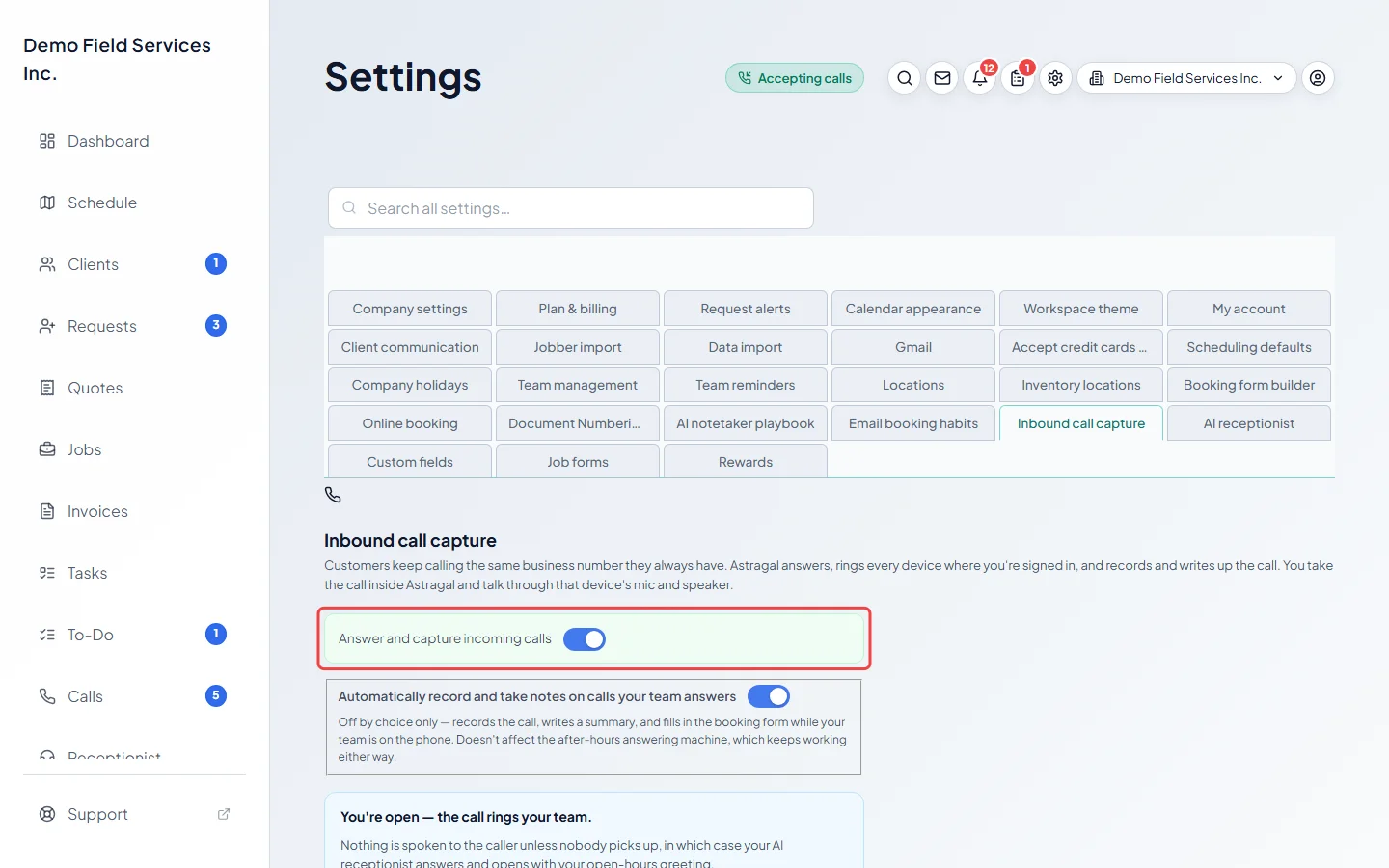
-
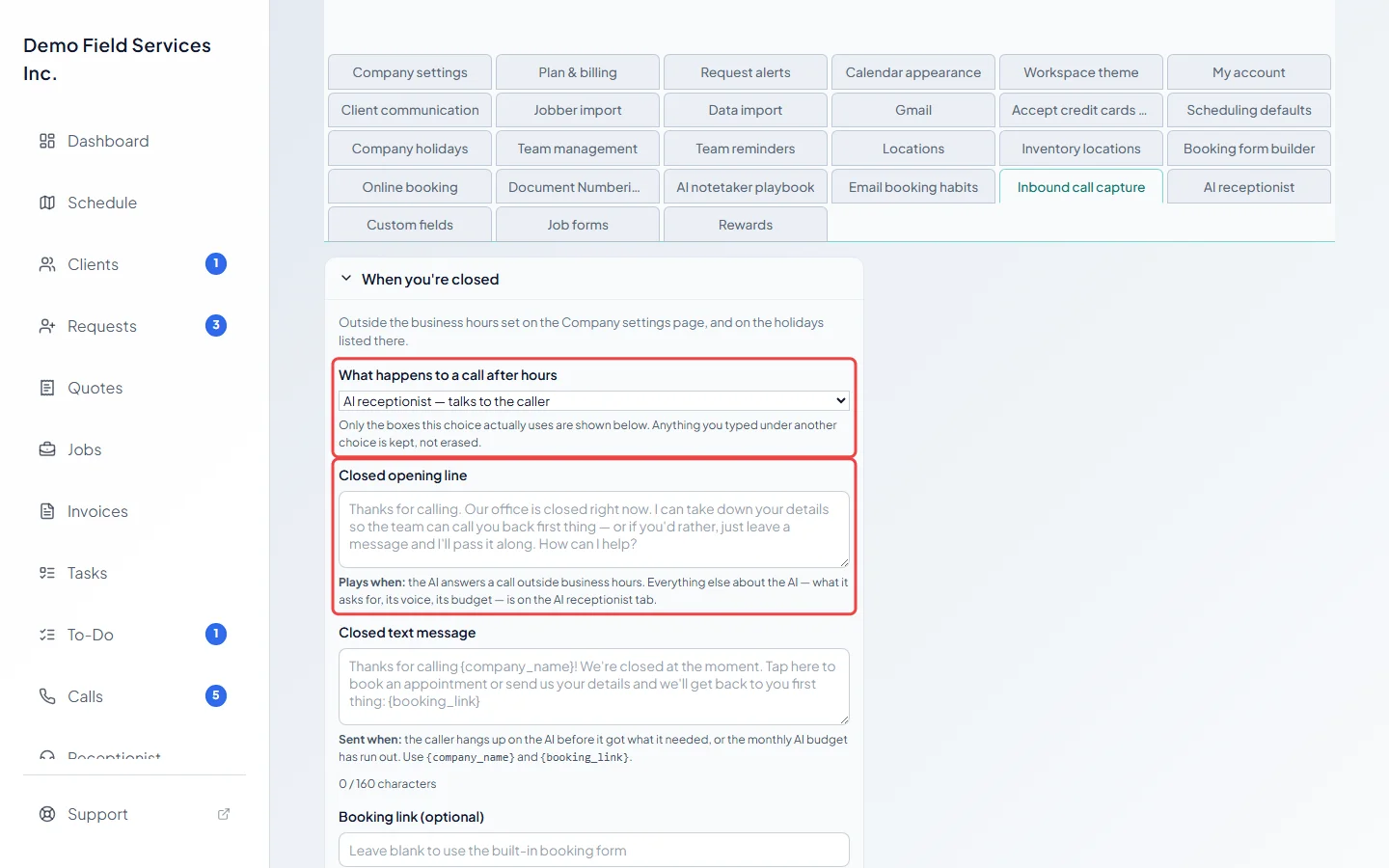
Open When you’re closed and set What happens to a call after hours to AI receptionist — talks to the caller. Optionally write a Closed opening line (what the AI says first) and a Closed text message (sent if the caller hangs up before the AI has what it needs, or when the month’s AI budget has run out). Leave a box empty to use the wording shown in grey.
-
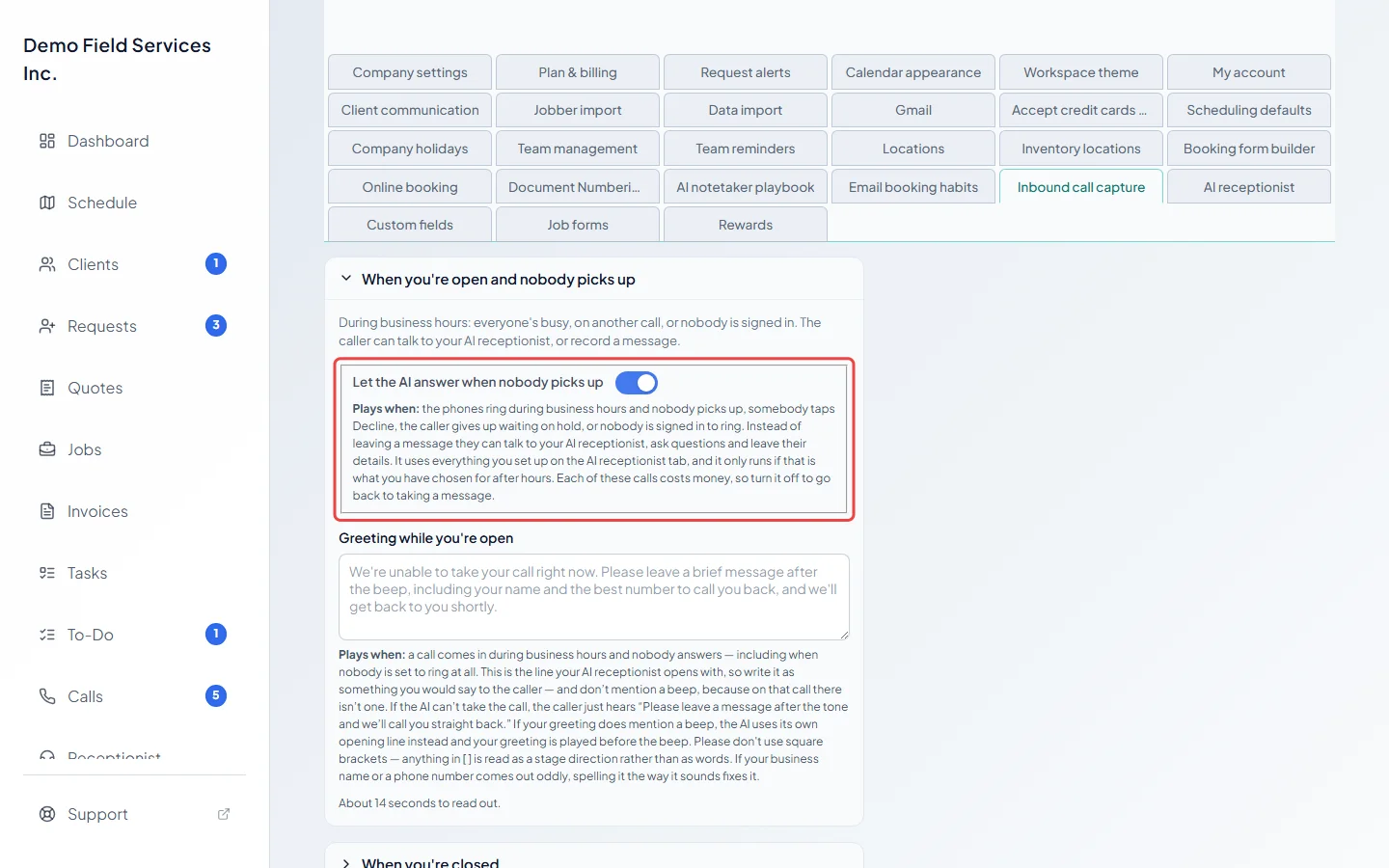
To have it take daytime calls nobody answers, open When you’re open and nobody picks up and leave Let the AI answer when nobody picks up on (it starts on). These calls use AI minutes, which is why the screen warns that each one costs money. It only does this when the AI receptionist is your after-hours choice. Its first words are your Greeting while you’re open, so don’t mention a beep there.
-
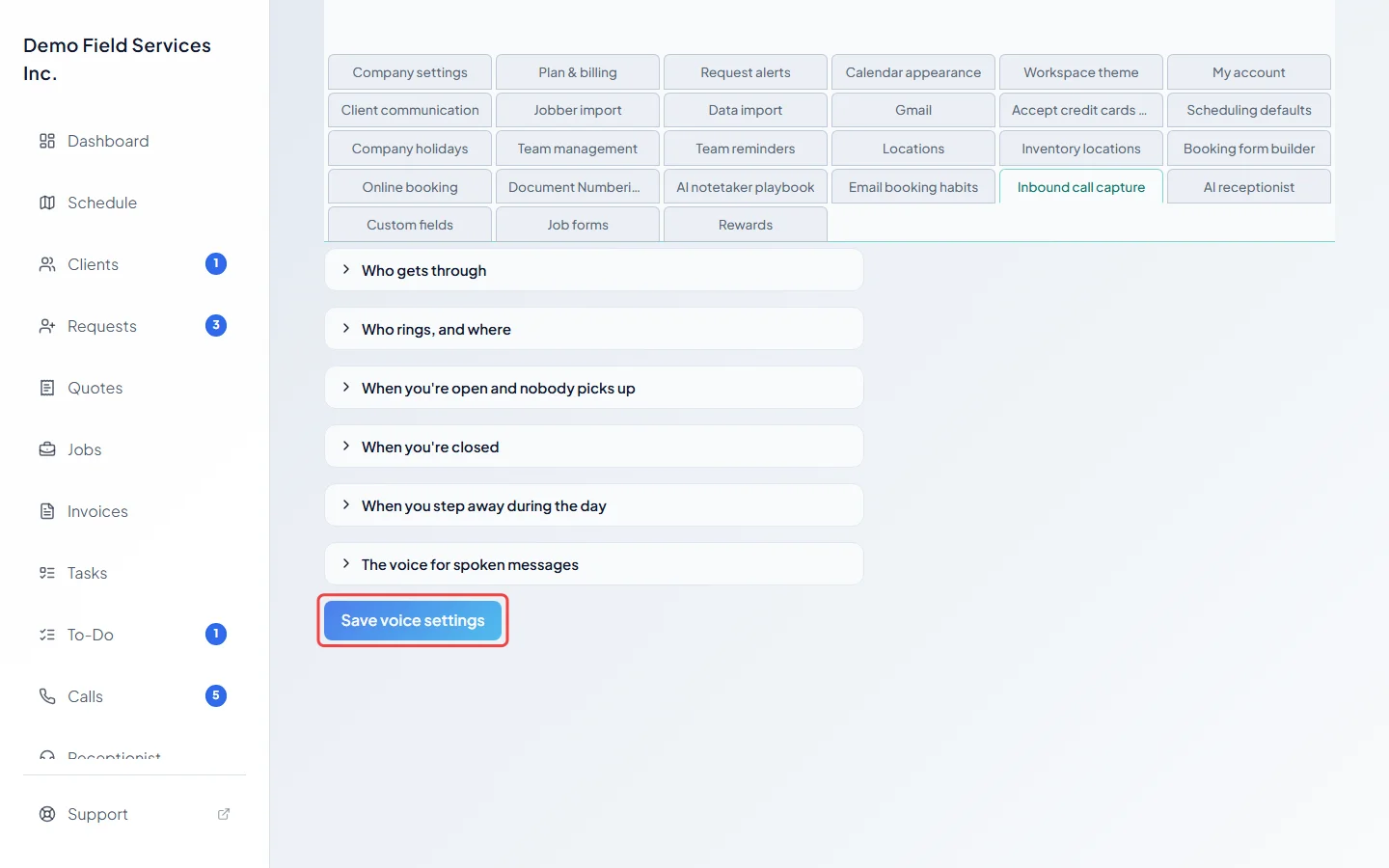
Click Save voice settings. The panel at the top now tells you what a caller gets right now.
-
Open the AI receptionist settings. In What the AI should know (optional), describe your business: what you do and don’t do, where you work, and anything a caller often asks. Leave it blank and the AI just takes a message. Don’t use square brackets; the AI reads anything in [ ] as a stage direction.
On a computer: Left menu → Settings → AI receptionist On a phone: More → Settings → AI receptionist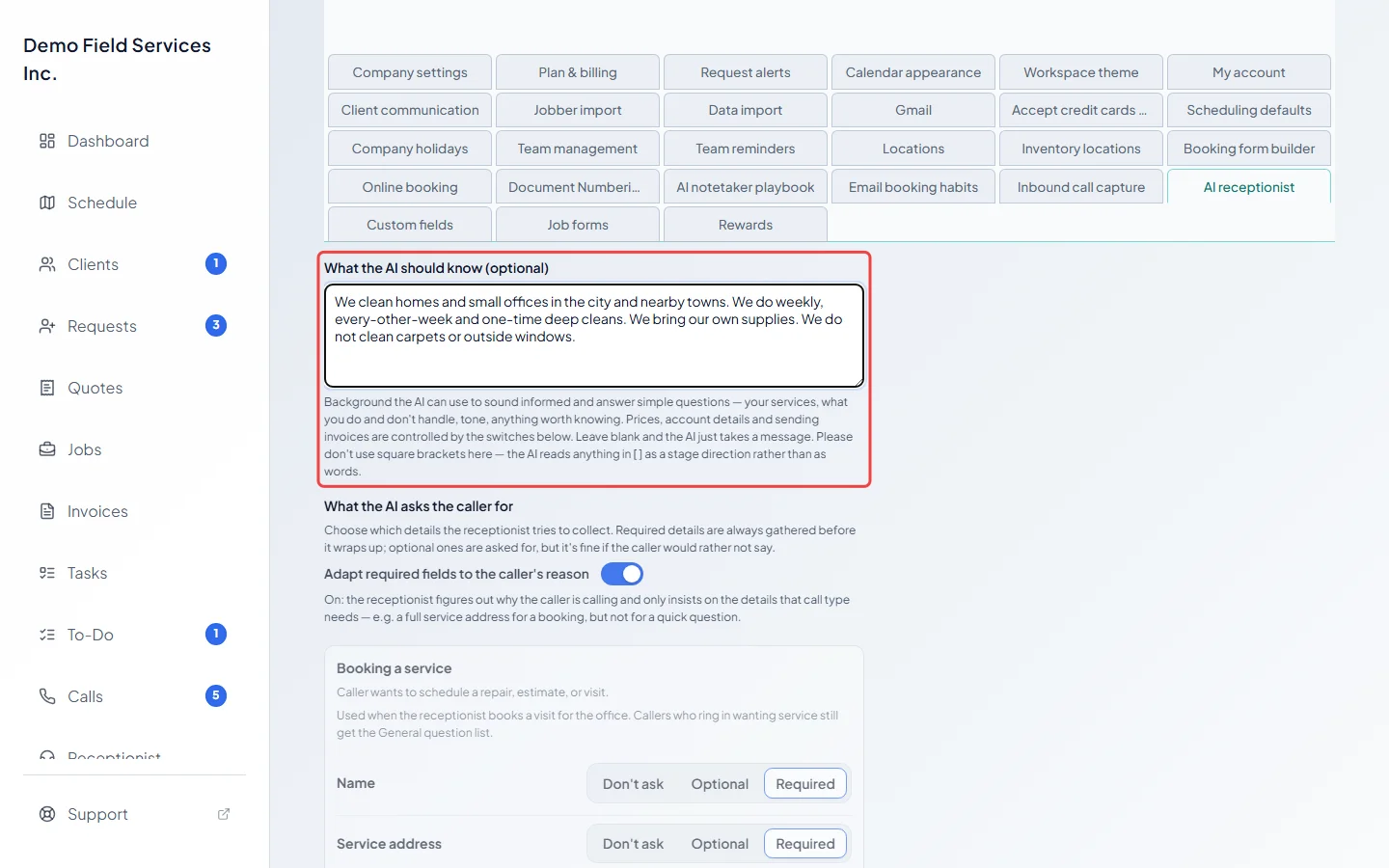
-
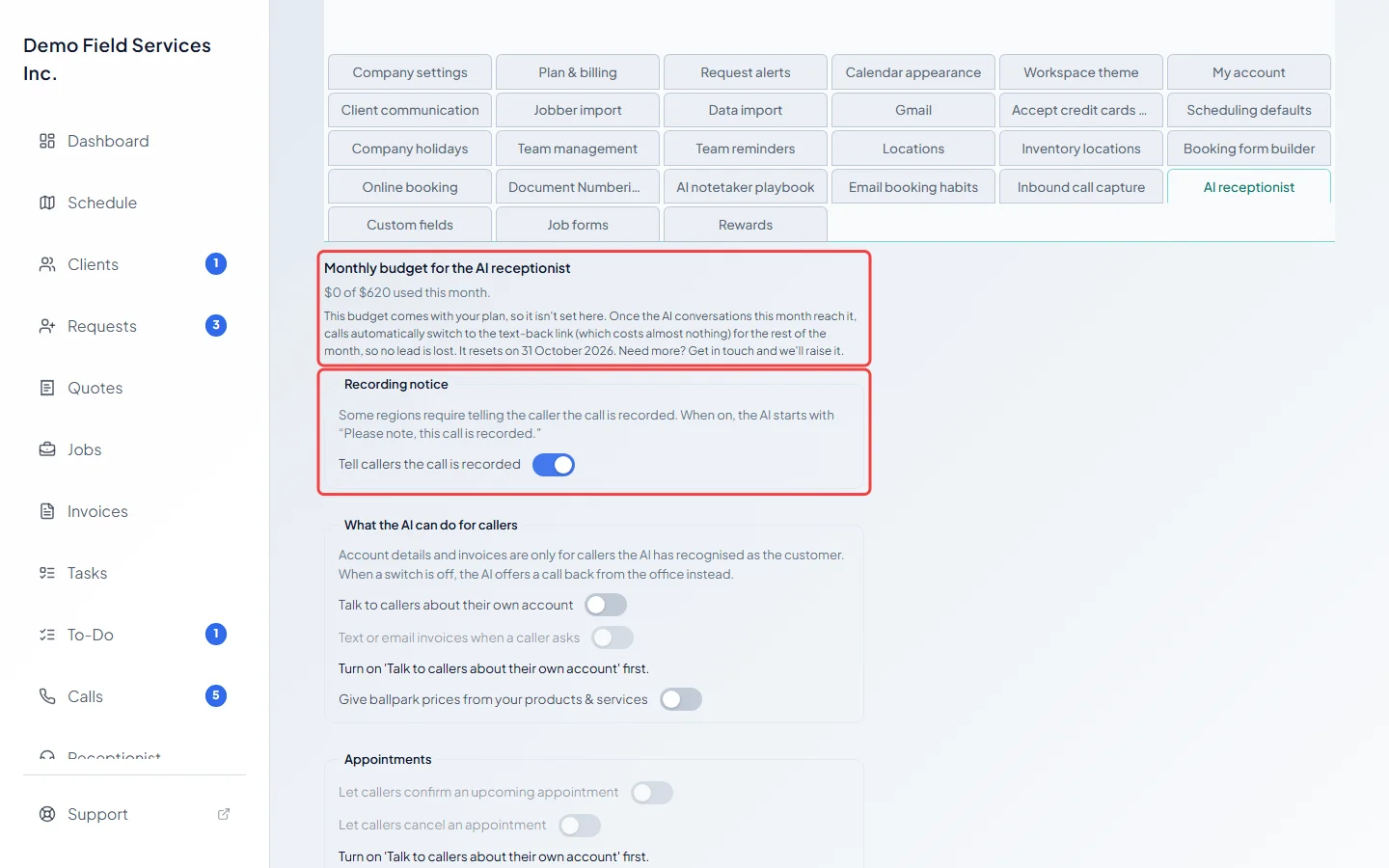
Under Recording notice, leave Tell callers the call is recorded on if your region requires it. The AI then starts with “Please note, this call is recorded.” Monthly budget for the AI receptionist shows how much of this month’s budget is used (as a percentage in the iPhone app).
-
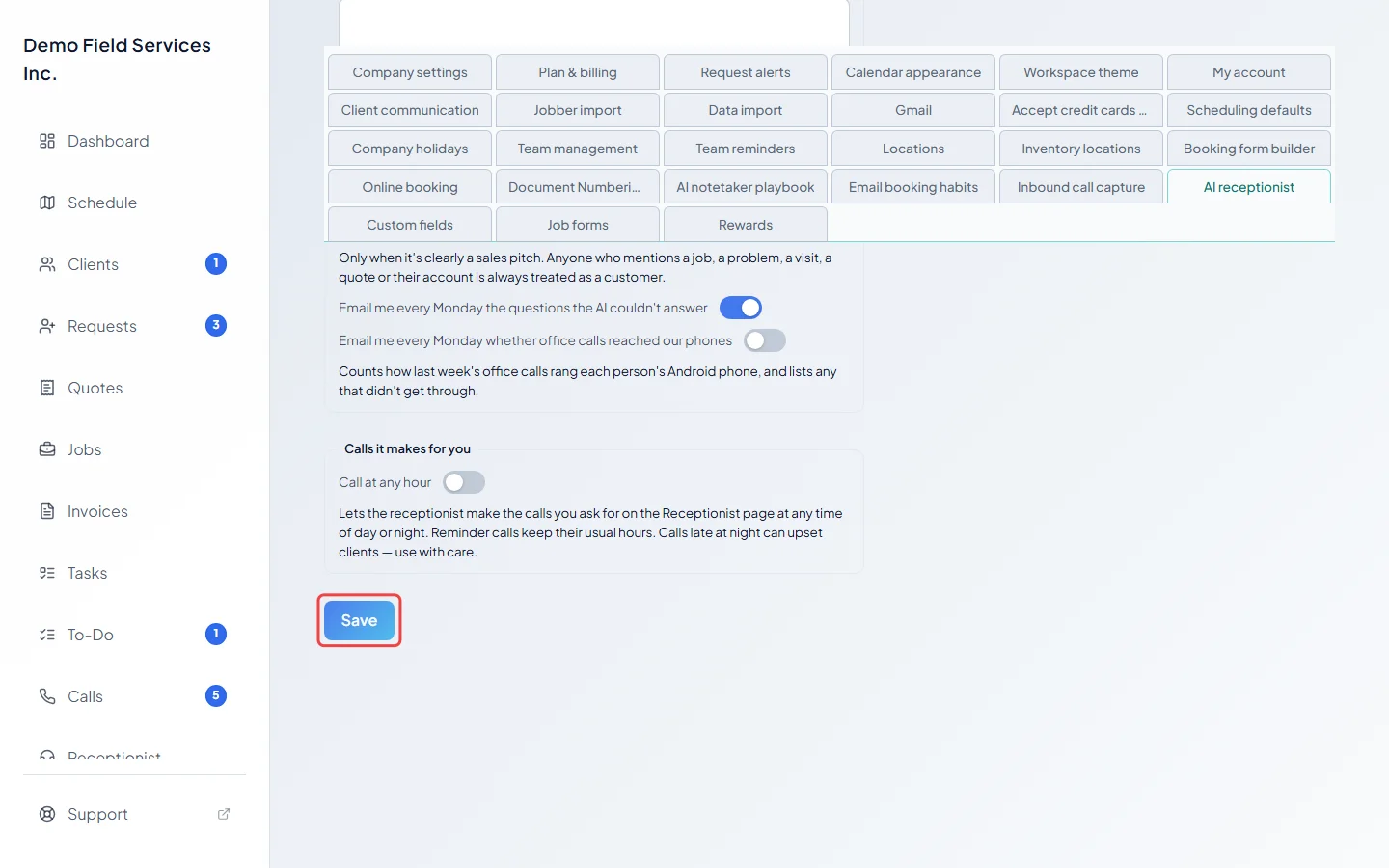
Click Save. It becomes clickable once you’ve changed something.
Good to know
Section titled “Good to know”- The AI budget comes with your plan, so you can’t change it here. When the month’s AI calls reach it, callers are texted your booking link instead for the rest of the month. It resets at the start of each billing month. Need more? Contact support@astragalhq.com.
- To let the AI receptionist make the calls you ask for at any time of day, turn on Call at any hour under Calls it makes for you. See Giving the receptionist tasks.
- These settings apply to every call the AI takes: after hours, daytime calls nobody picks up, and when you step away.
- Next, choose what it asks callers and what it may do for them: Custom questions for callers and What the AI can do for callers.
- Your open hours and holidays come from Company settings. See Business hours.
Related articles
Section titled “Related articles”Checked against Astragal on October 17, 2026