

Choosing product options on a quote
Price a product that comes in different versions, like a model, size or finish, right on the quote line.
Who can do this: Admins, dispatchers and accountants, and technicians set to View, edit, and create quotes or View, edit, create, and delete quotes.
Also called: variants, product choices.
-
Open the quote and click Add line item under Products / Services.
On a computer: Left menu → Quotes → open a quote On a phone: More → Quotes → open a quote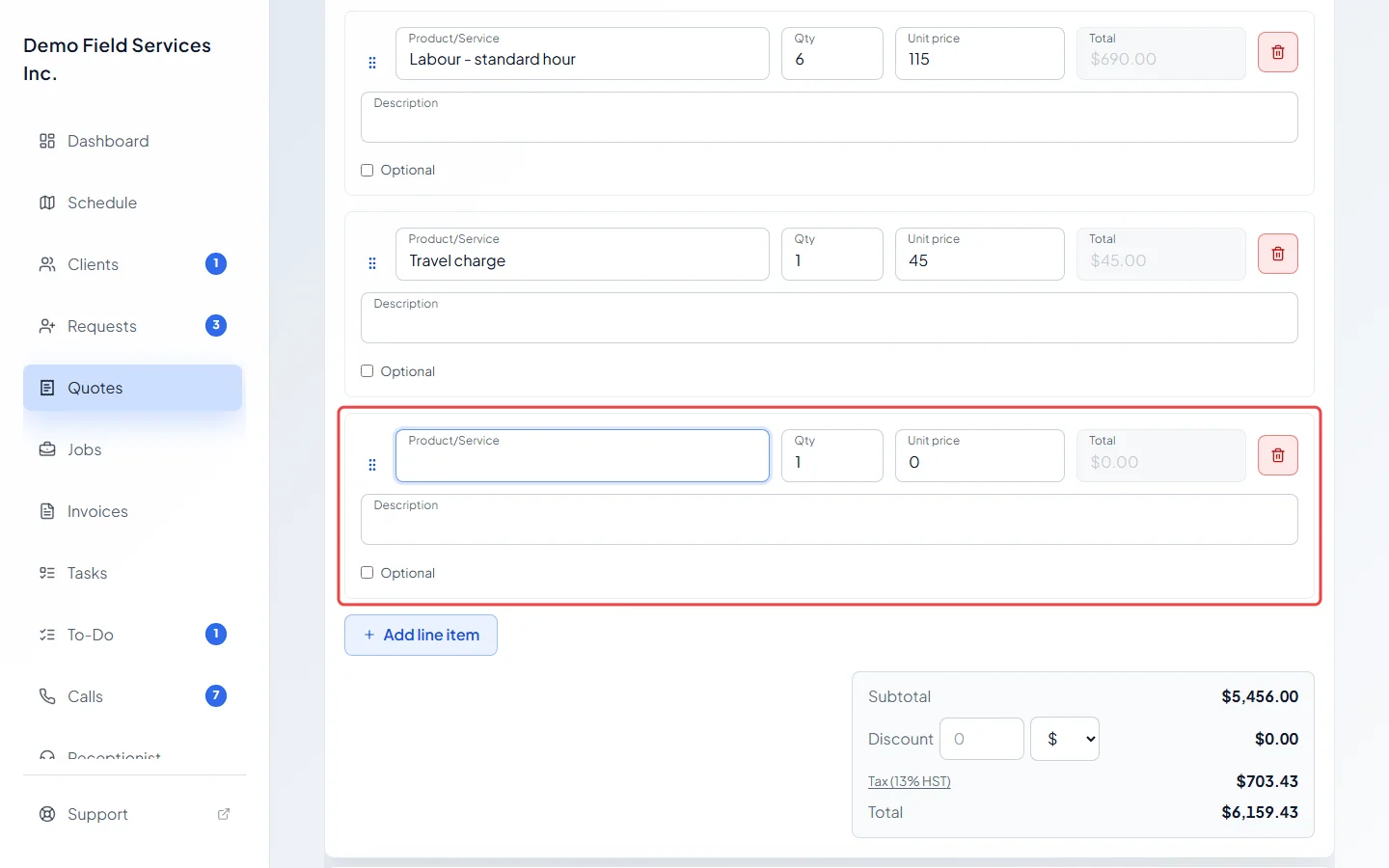
-
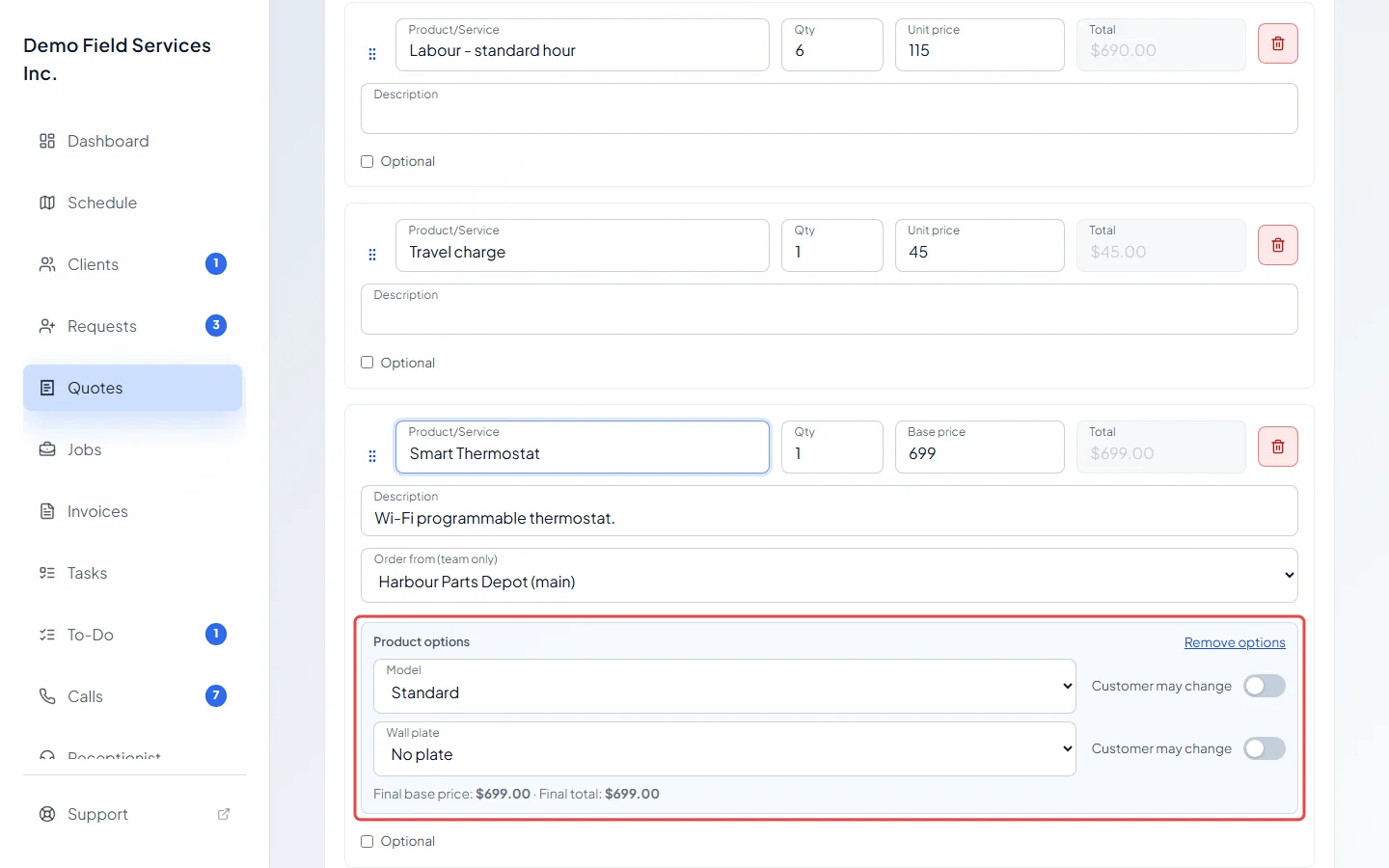
In Product/Service, pick a product that has options. A Product options panel opens under the line, with a list for each option group. The price field becomes Base price: the product’s price before any options.
-
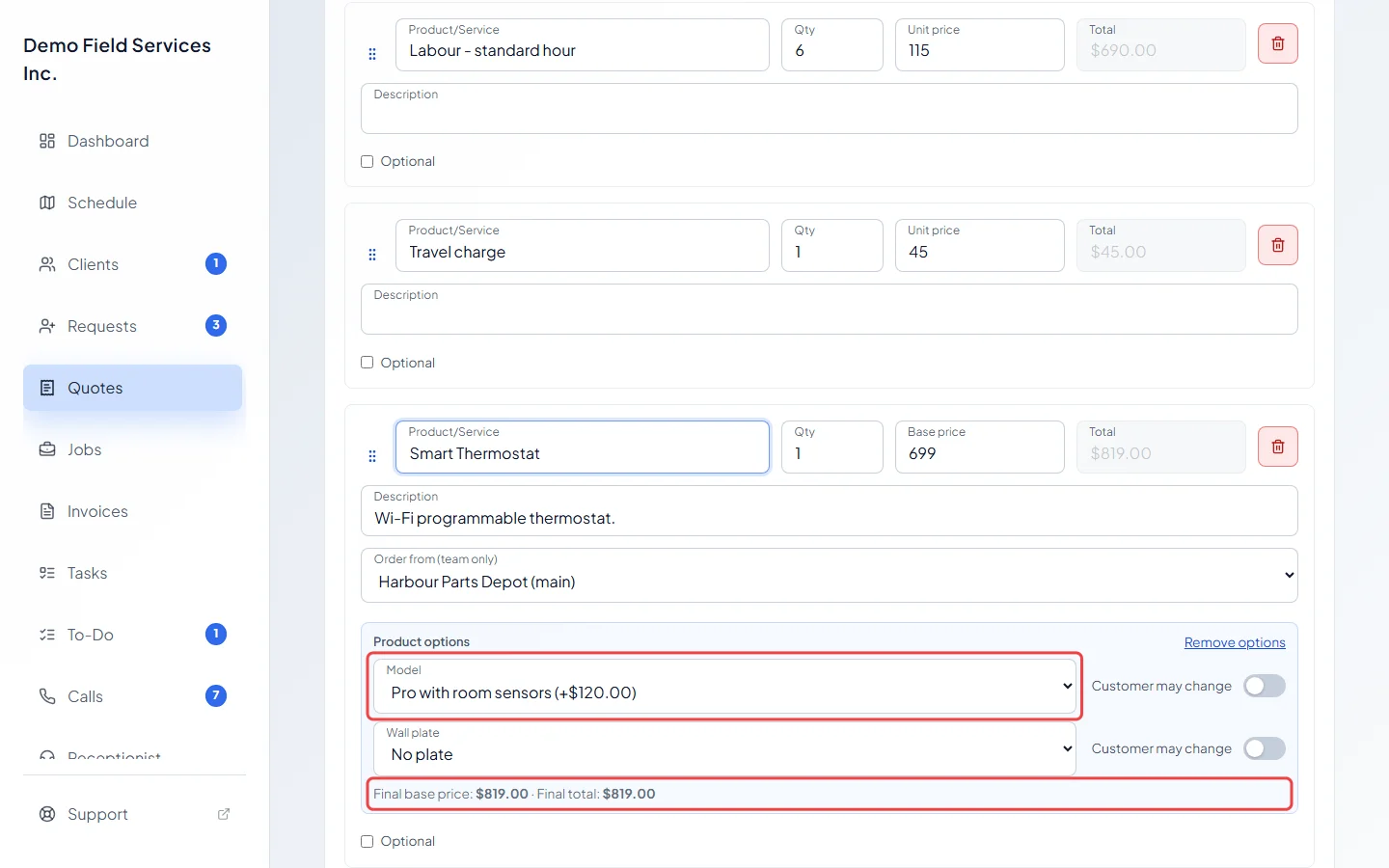
Pick a choice in each list. Each one shows what it adds to, or takes off, the price. Final base price and Final total at the bottom of the panel update as you pick.
-
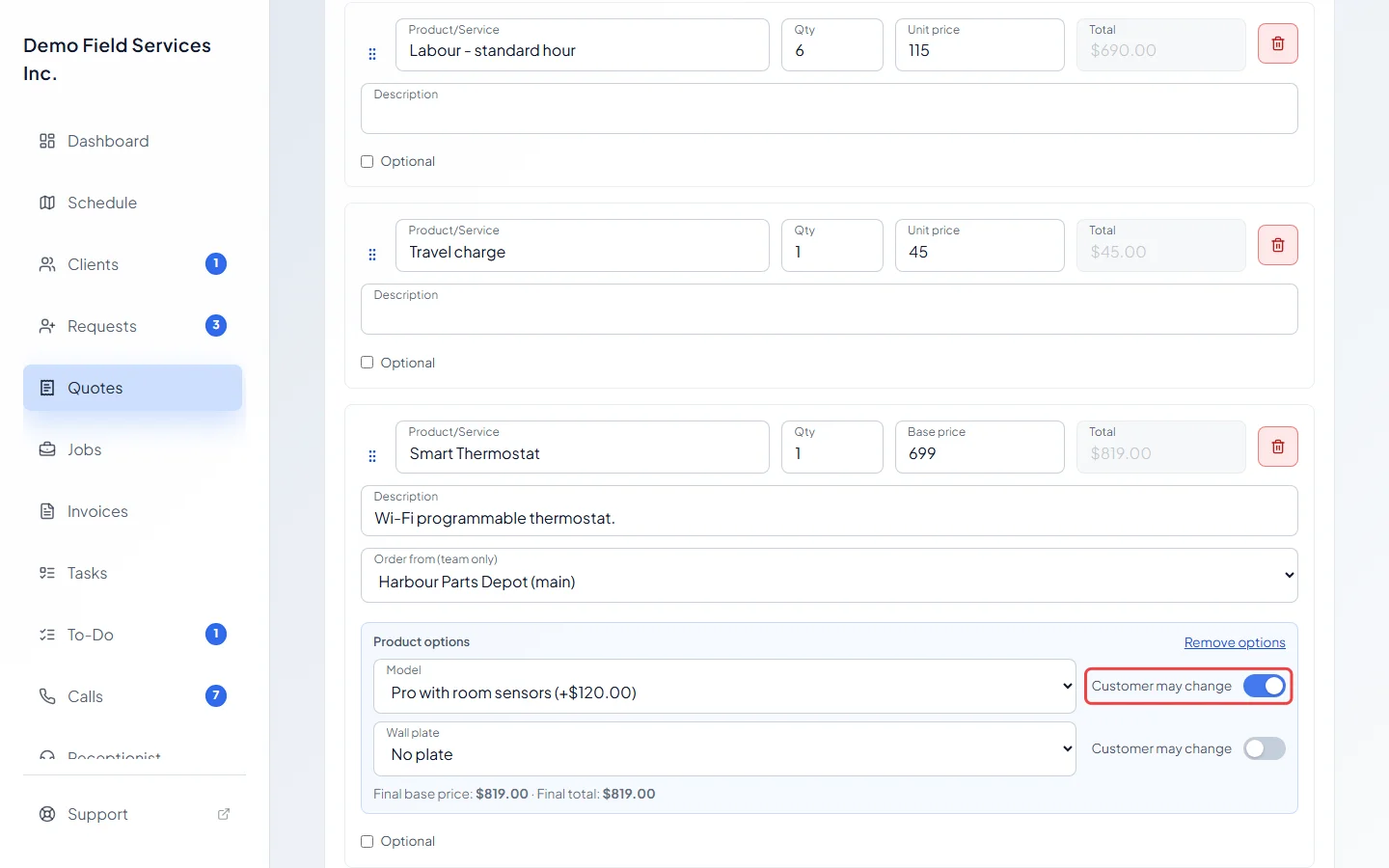
Switch on Customer may change next to any option the client can change from their portal. Their total updates as they choose.
-
Click Save.
Good to know
Section titled “Good to know”- A choice marked “No price set” hasn’t been priced in your catalog. A line using one can’t be saved until you set its price in the product’s options. See Product options and prices.
- When one option sets the price, such as a size, the panel says “Choose a size — it sets this line’s price.” until you pick one. That option can’t be switched to Customer may change, and neither can an option other prices depend on.
- Remove options turns the line back into a plain line. If that changes the price, Astragal tells you the new price and asks first.
- When a client changes options in their portal, your quote shows “Customer changed product selections — totals updated.” for a few minutes.
- Options and their prices carry onto the job when you convert the quote, so converting never re-prices it.
Related articles
Section titled “Related articles”Checked against Astragal on October 17, 2026