

Asking for a card
Have customers save a card on your booking page so you can charge it after the work is done, without chasing payment.
Who can do this: Admins and dispatchers choose the setting. Anyone who can record payments on invoices can charge a saved card.
Also called: card on file, saved card.
Nothing is charged when a customer books, and a saved card is never charged automatically. Only someone on your team charging it from a sent invoice can.
-
Open Online booking in Settings and scroll to Ask for a card.
On a computer: Left menu → Settings → Online booking On a phone: More → Settings → Online booking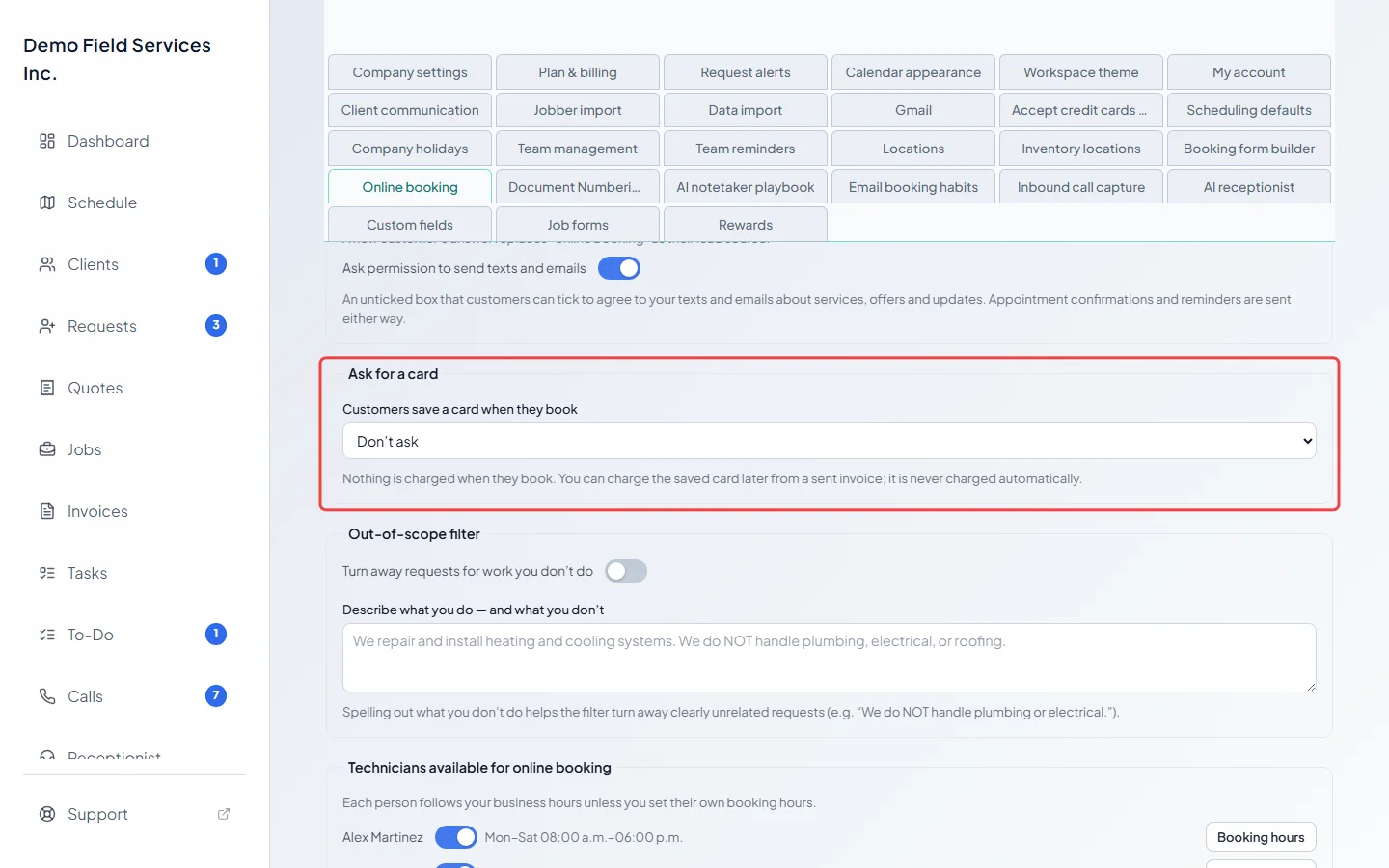
-
Under Customers save a card when they book, choose Don’t ask (the starting choice), Ask but optional or Required to book. It saves straight away and applies to all your booking pages.
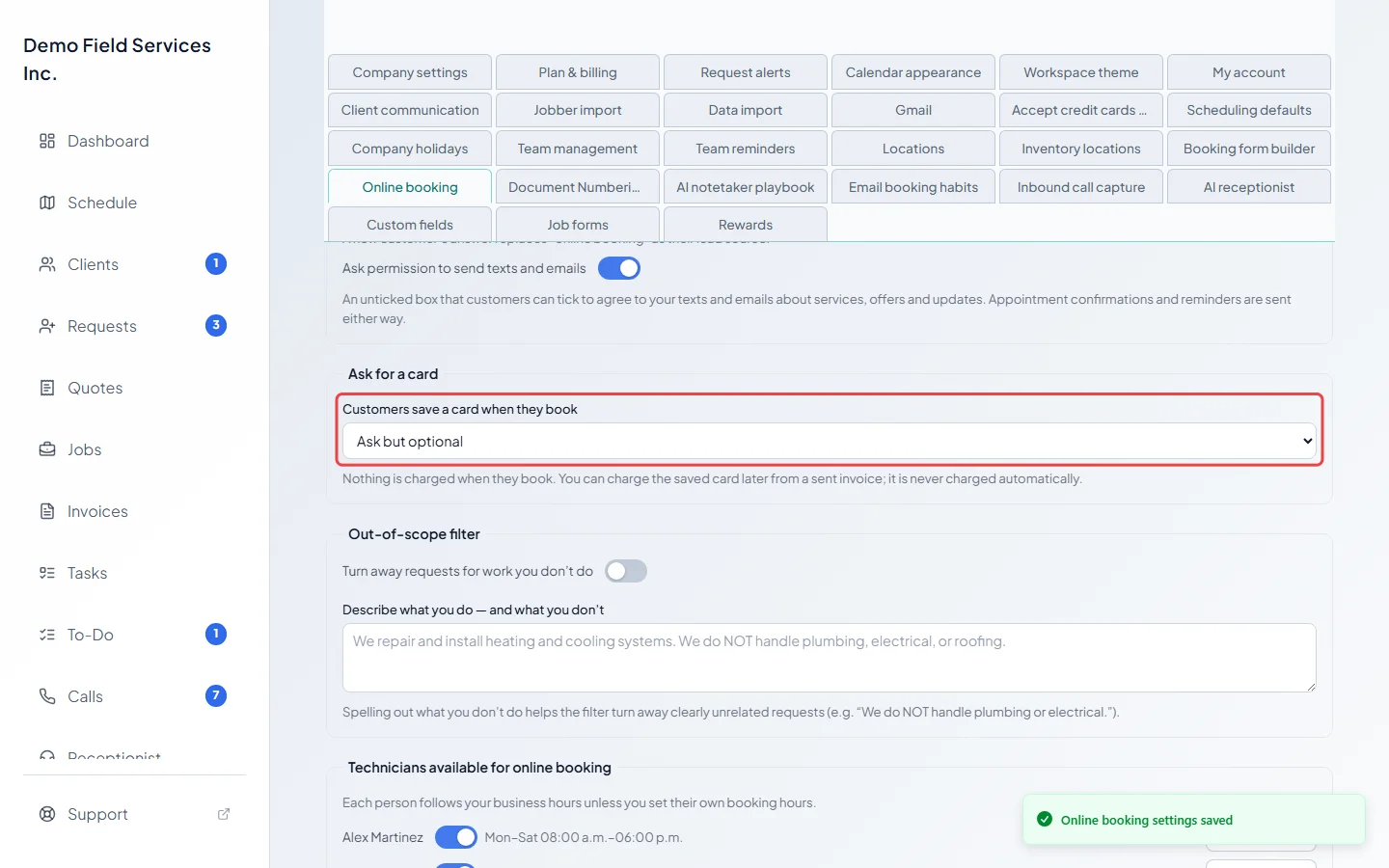
Saving cards works only when your company takes card payments through its own Stripe account (see Accepting card payments). Until you connect it, you can still choose a setting, but the screen says “Connect Stripe in Payment setup first” and the booking page won’t ask for a card. If your company takes cards through another processor, it says “Coming later for your card processor.” The quick request form never asks for a card.
What your customer sees
Section titled “What your customer sees”A Card on file box appears just above the Book button (marked “(optional)” when it’s optional). Until the customer has picked a time and typed their name and a phone number or email, the card boxes are greyed out with “Pick a time and fill in your name and a phone or email first.” Then they:
- type their card (the Name on card starts as the name they booked with),
- tick “I allow” your company “to save this card and charge it for work they do for me. Nothing is charged now.”,
- and press Book.
If their bank asks for an extra check, it appears on screen first. A card that’s accepted shows “Card ready — nothing is charged.” with Use a different card. A declined card shows why under the box and nothing is booked; with Ask but optional they can press Book without saving a card instead. Their confirmation and the screen after booking both say the card was saved and nothing was charged.
If card entry isn’t working (for example the card company is down), customers can still book, even with Required to book, and your office alert says the card couldn’t be collected.
Seeing a saved card
Section titled “Seeing a saved card”-
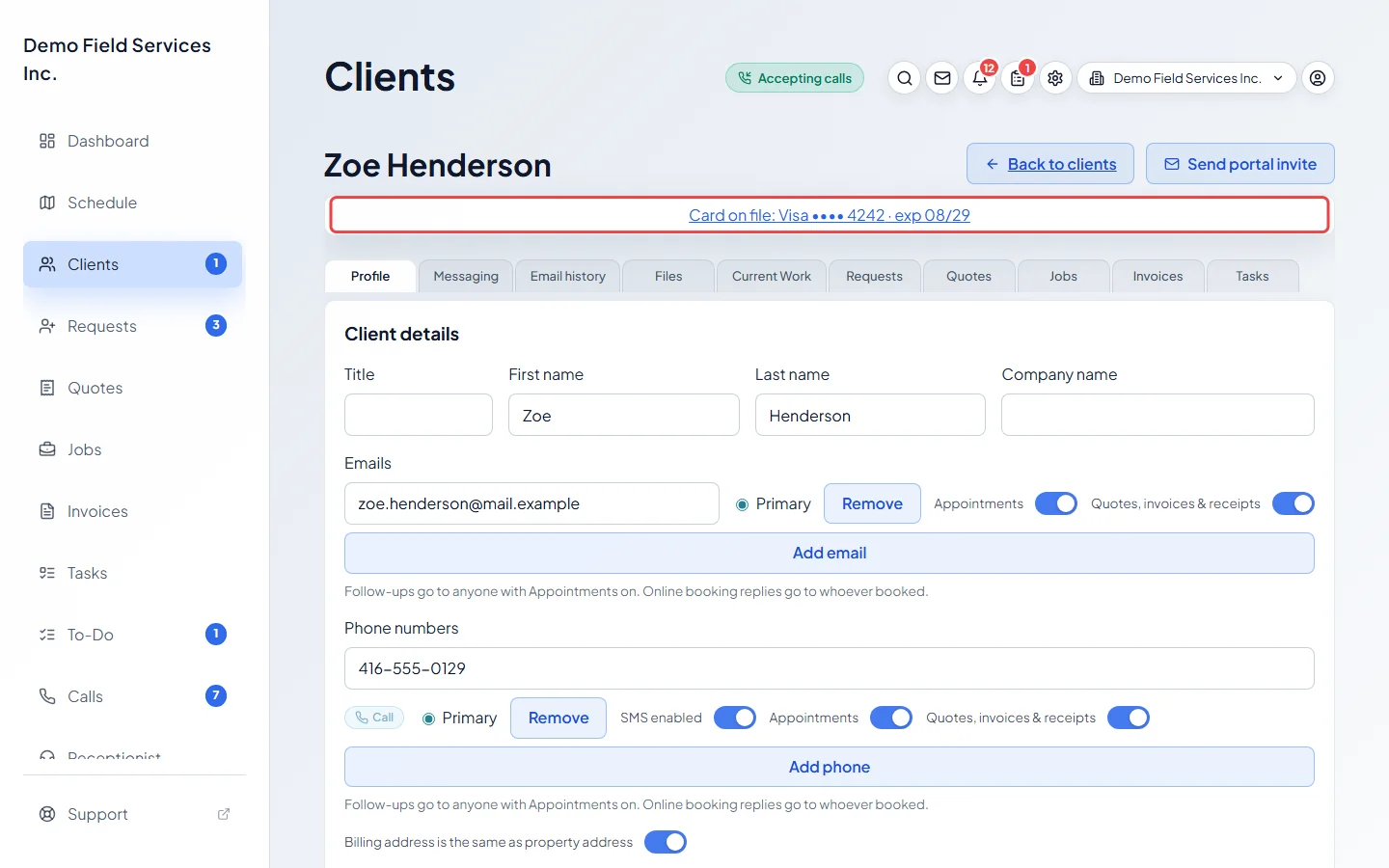
Open the client. Saved cards show as a Card on file line near the top of their details, with the card and its expiry.
-
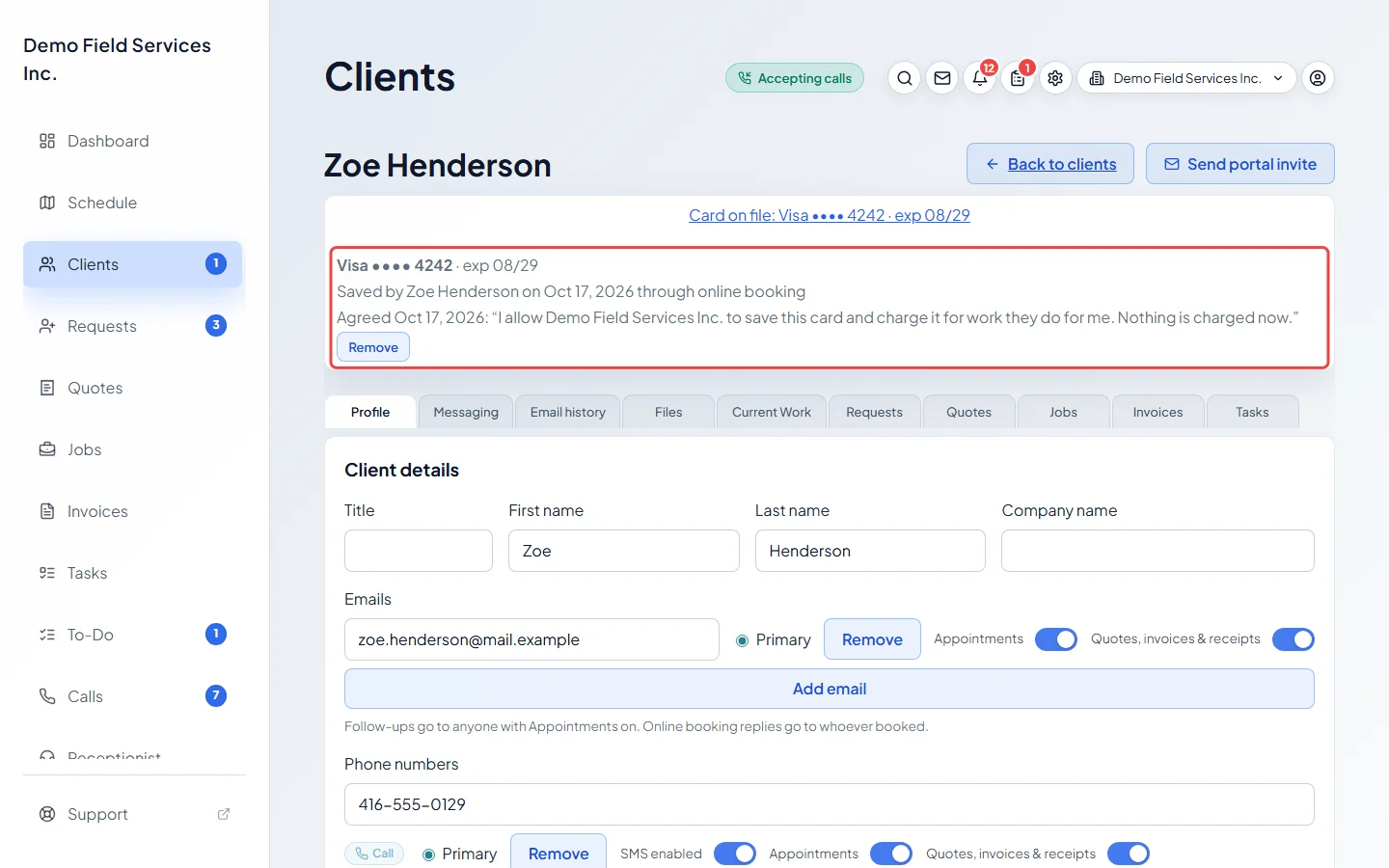
Click the line to see each card, who saved it and when, and the exact wording they agreed to. Cards that can’t be charged (expired, card payments paused in Stripe, or saved on a Stripe account you’ve since changed) are hidden under Not chargeable with a count; click it to see them. Remove takes a card off after you confirm (you need permission to edit clients); a removed card can’t be charged again.
Charging a saved card
Section titled “Charging a saved card”Open the invoice once it’s been sent and click Record payment. In the method list, pick the card (it reads “Card on file:” and the card), enter the amount and click Charge card on file, then confirm. The payment shows on the invoice as a card on file payment, and the customer gets the card company’s emailed receipt if they have an email. You can’t charge more than the balance, and deposit bills, void invoices and warranty records can’t be charged this way. See Recording payments.
Good to know
Section titled “Good to know”- Customers can’t remove a saved card themselves; they ask you.
- Deleting a client also removes their saved cards. When you merge two clients with different names, the merged-away client’s card isn’t carried over.
- Saved cards live on your own Stripe account.
Related articles
Section titled “Related articles”Checked against Astragal on October 18, 2026