

Exporting a report
Download a report as a CSV file you can open in Excel, Google Sheets or Numbers.
Who can do this: Anyone who can open Reports (see The reports page).
Also called: download, CSV, spreadsheet.
-
Open Reports and pick the report you want.
On a computer: Left menu → Reports On a phone: More → Reports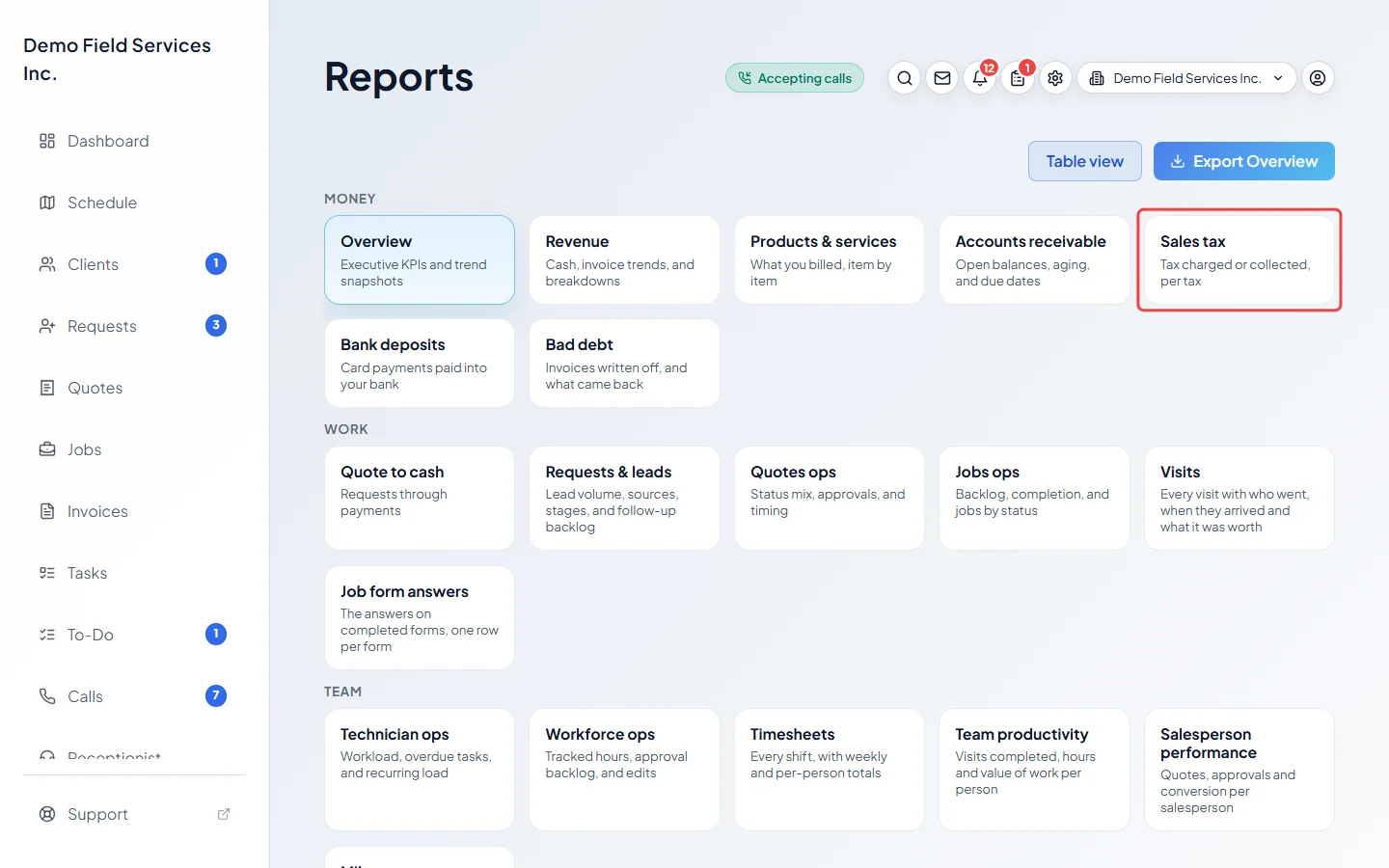
-
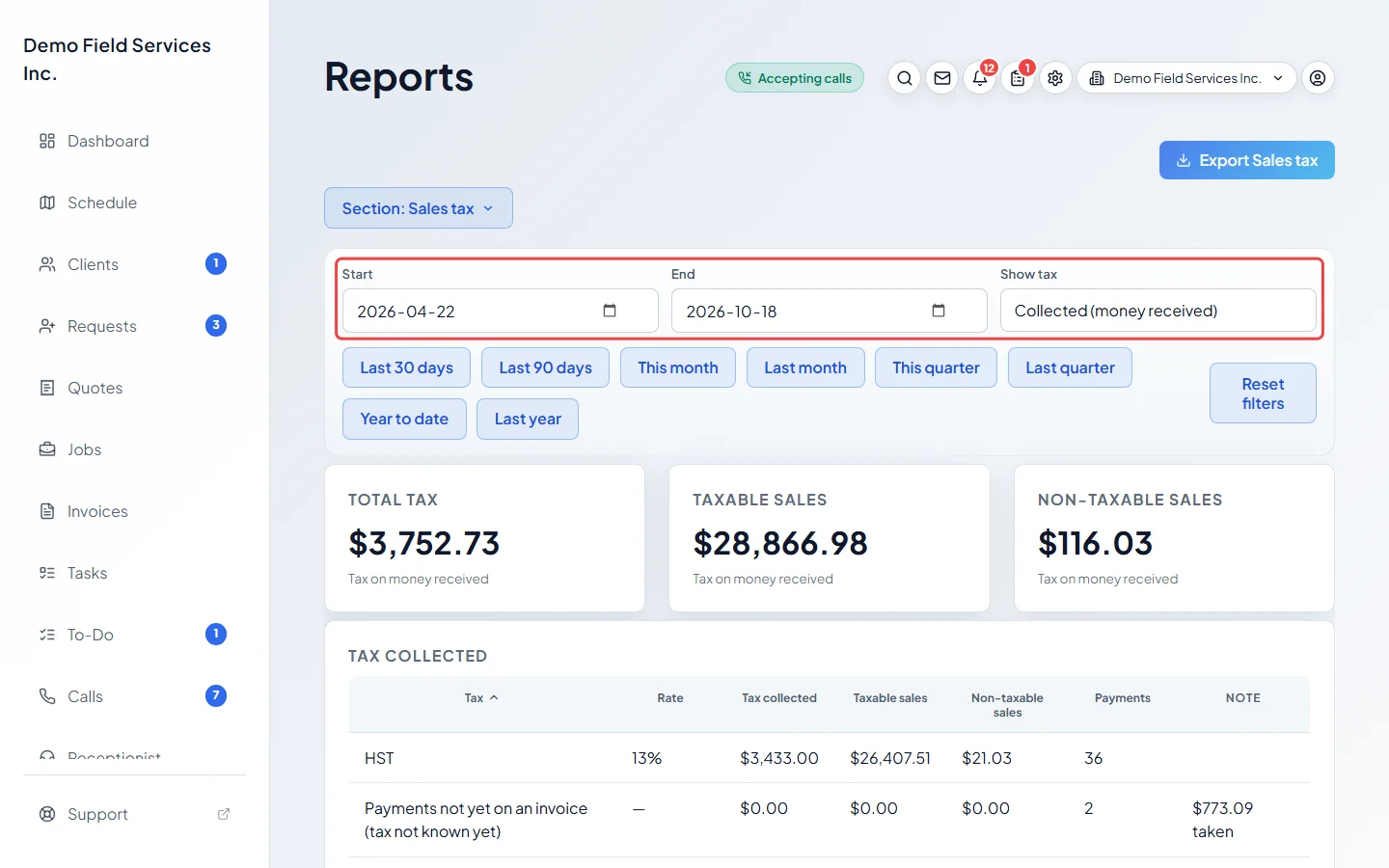
Set the dates and filters. The file uses the same dates and filters as the screen. Searching or re-sorting a list on screen doesn’t change the file; it always has every row.
-
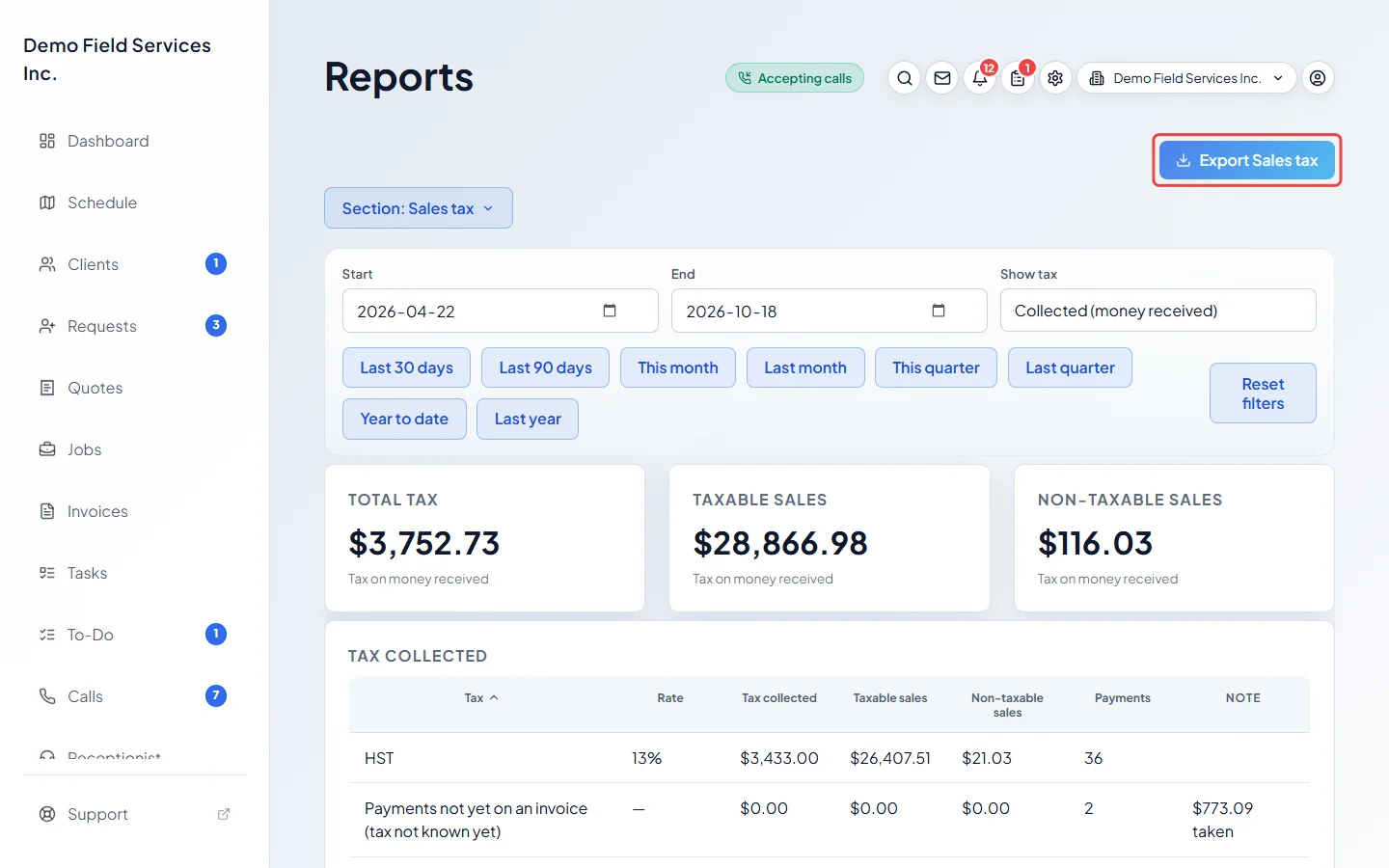
Click the Export button at the top right. It names the report you’re on, for example “Export Sales tax”. The file downloads straight away. On the iPhone app, the share sheet opens so you can save or send the file.
Good to know
Section titled “Good to know”- The file always has every row, even when the screen stops at the first 5,000 and says “Showing the first 5,000 — download for the full list.”
- What goes in the file depends on the report:
- Overview: one line per figure, with the previous value and the change as a decimal (0.12 means up 12%).
- Revenue: the revenue by customer table.
- Products & services: one line per invoice line, with the item, invoice number, date, client, quantity, unit price and amount.
- Accounts receivable, Customer value, Quote to cash and the operations reports: the table on screen.
- The newer reports (Sales tax, Bad debt, Visits, Timesheets and the rest): the list on screen. The file name has the report’s dates, or today’s date for Contact list, Property list and Customers who haven’t been back.
- Bank deposits has a second button, Payments in these deposits, for one line per payment inside each deposit. See Bank deposits.
- If a download fails on the iPhone app, you see “That report could not be exported.” Try again in a moment.
Related articles
Section titled “Related articles”Checked against Astragal on October 17, 2026