

Warranty visits
A warranty visit is a free return trip to fix something from earlier work. It’s never invoiced to the client.
Who can do this: Admins, dispatchers and accountants, and technicians whose Jobs permission is View, edit, and create or View, edit, create, and delete (technicians without Edit everyone’s schedule only on jobs they’re assigned to).
Also called: callback, recall.
Booking a warranty visit
Section titled “Booking a warranty visit”-
Open the client and go to their Jobs tab. Find the job the warranty is for and click Book warranty.
On a computer: Left menu → Clients On a phone: Bottom bar → Clients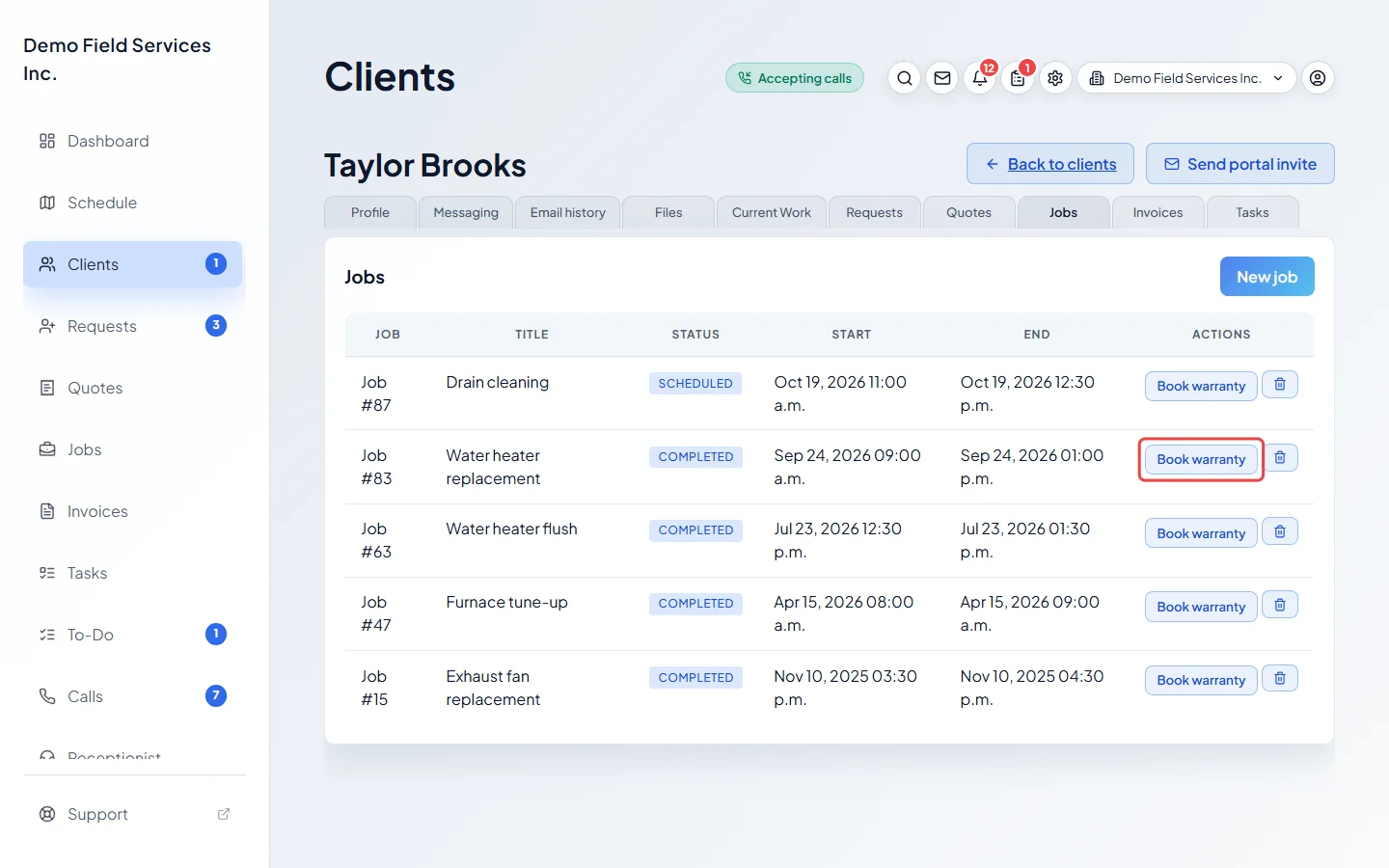
-
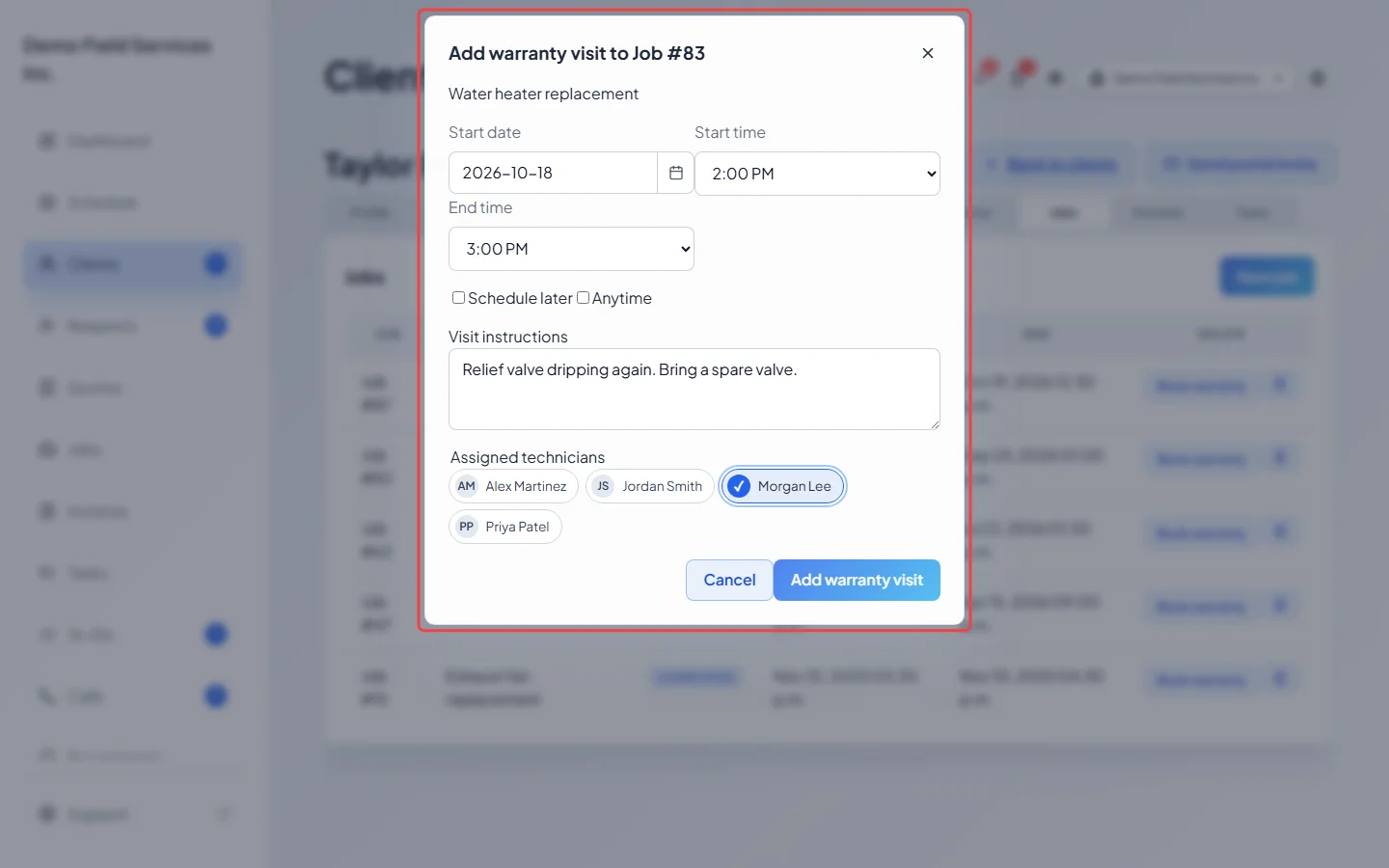
In Add warranty visit to Job, pick the Start date, Start time and End time (or tick Schedule later or Anytime), write Visit instructions, and tick the Assigned technicians. With two or more technicians, choose who the client reaches under Customer calls go to. Click Add warranty visit.
-
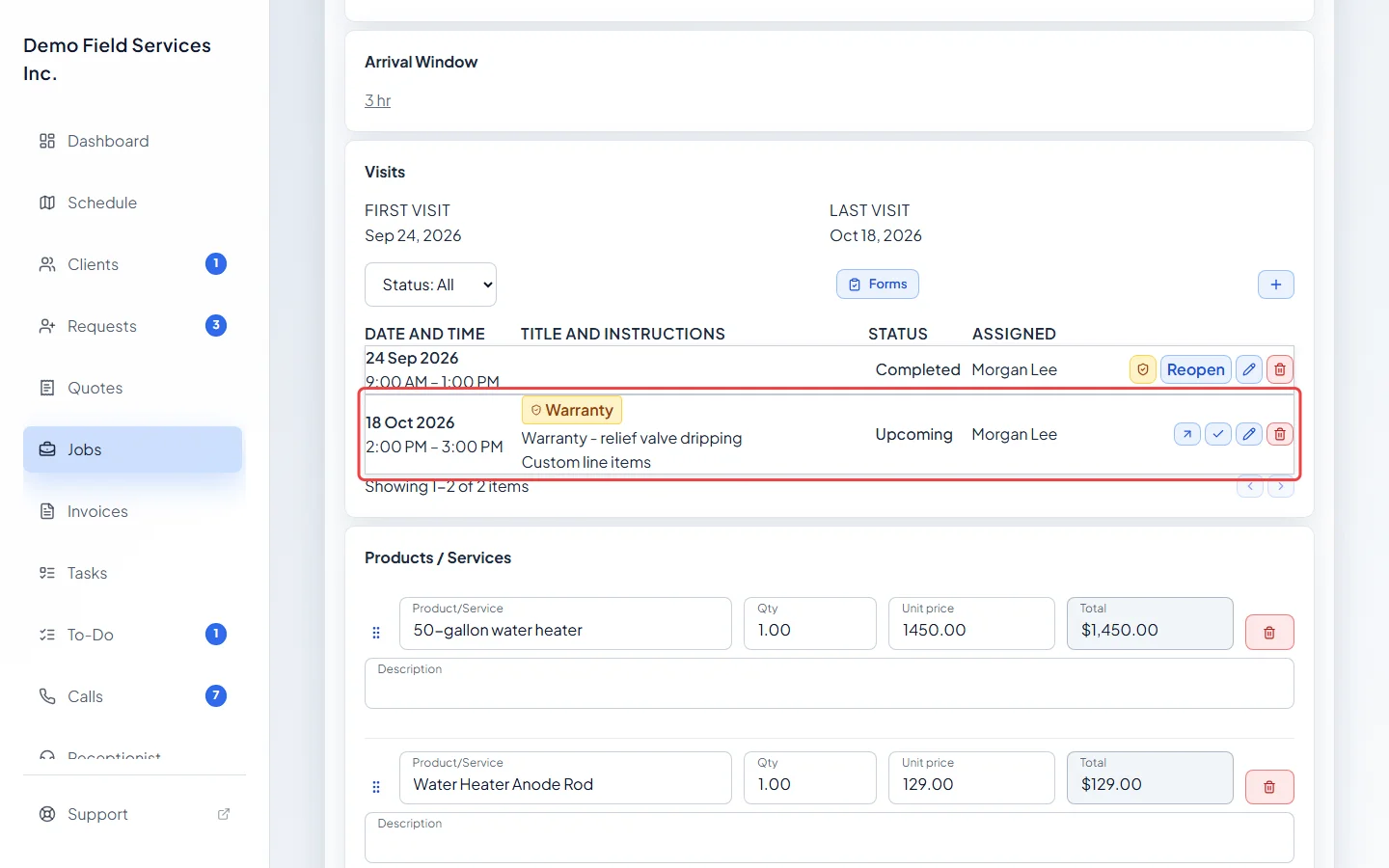
The visit is added to the original job with a Warranty badge, and shows on the schedule in the warranty colour.
-
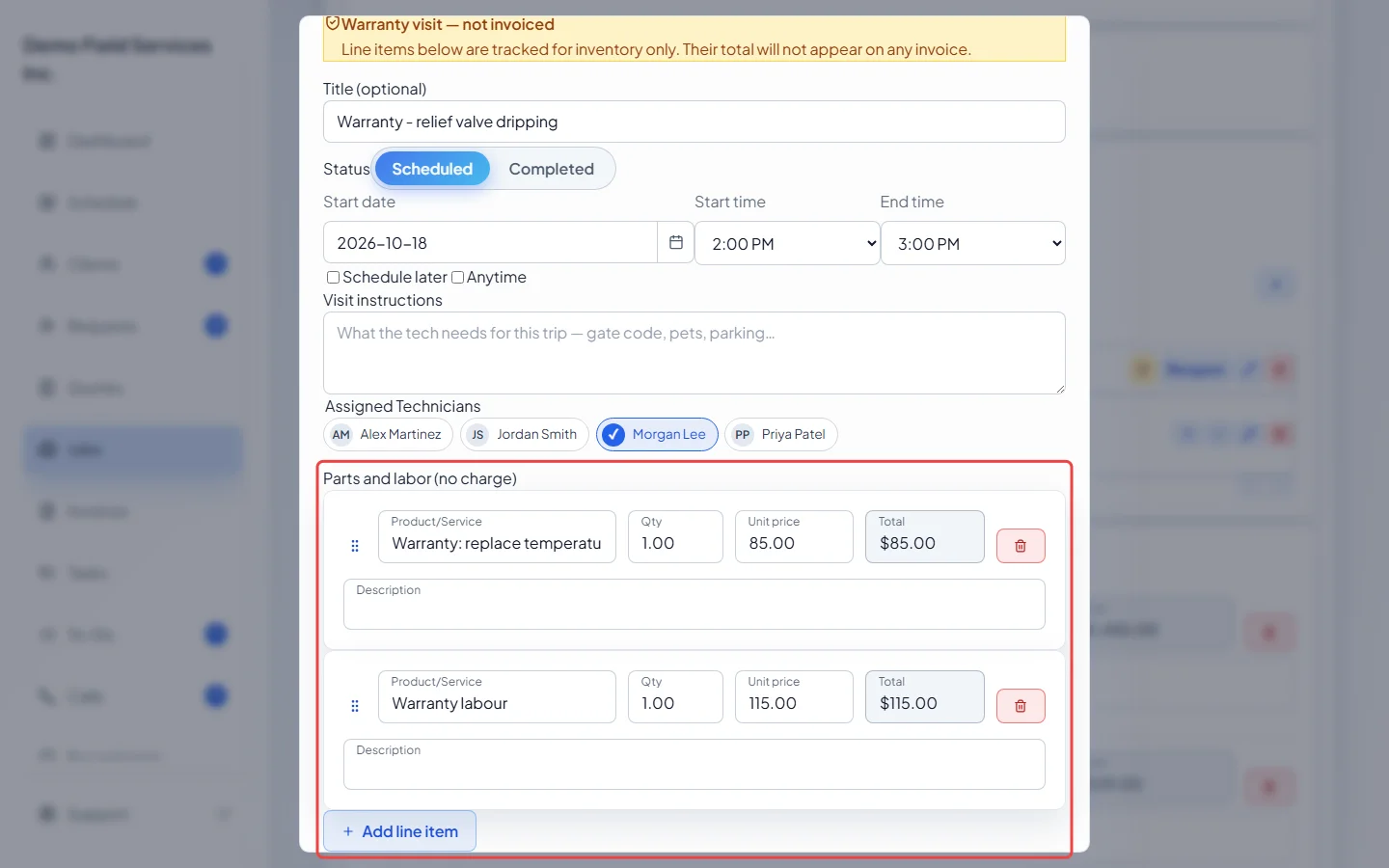
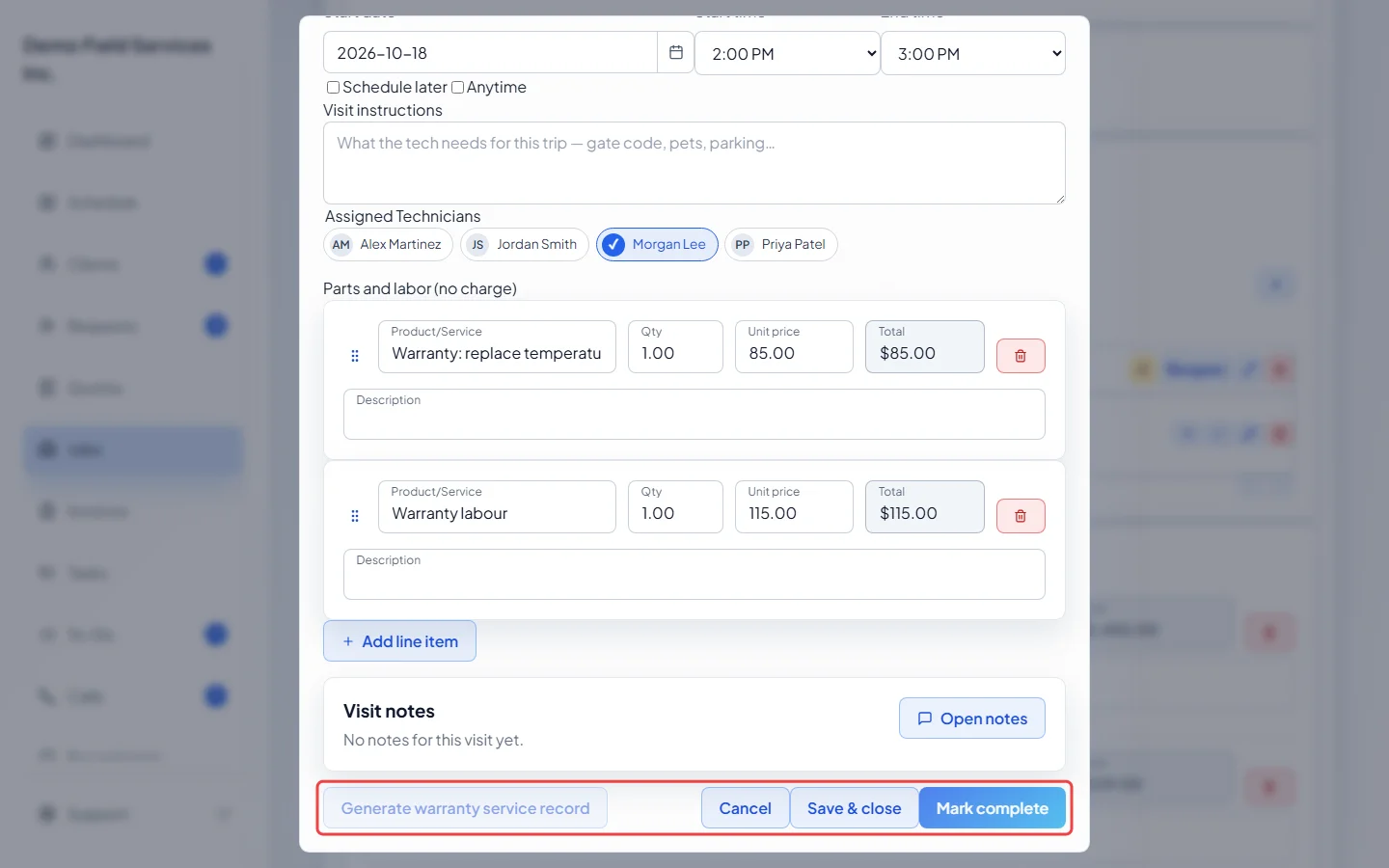
Open the visit to edit it. A banner says Warranty visit — not invoiced. List the parts and labour used under Parts and labor (no charge). They take parts out of your stock when the visit is completed, but never appear on an invoice.
-
Click Mark complete, then Generate warranty service record. This makes a no-charge record of the work (it needs at least one part or labour line) and opens it so you can send it to the client in place of an invoice. Click Done instead to make it later from the visit. Once made, the visit links to Warranty Service Record #.
Turning an existing visit into warranty work
Section titled “Turning an existing visit into warranty work”If you booked a normal visit and it turns out to be warranty work, convert it.
-
On the job’s Visits list, click the shield button on the visit (or Convert to warranty in the visit window). In Which job is this warranty for?, pick This job — keep the visit here (offered only when the job has another regular visit), or an earlier job of the client’s to move the visit there. Preview calendar shows the schedule while you choose.
On a computer: Left menu → Jobs On a phone: More → Jobs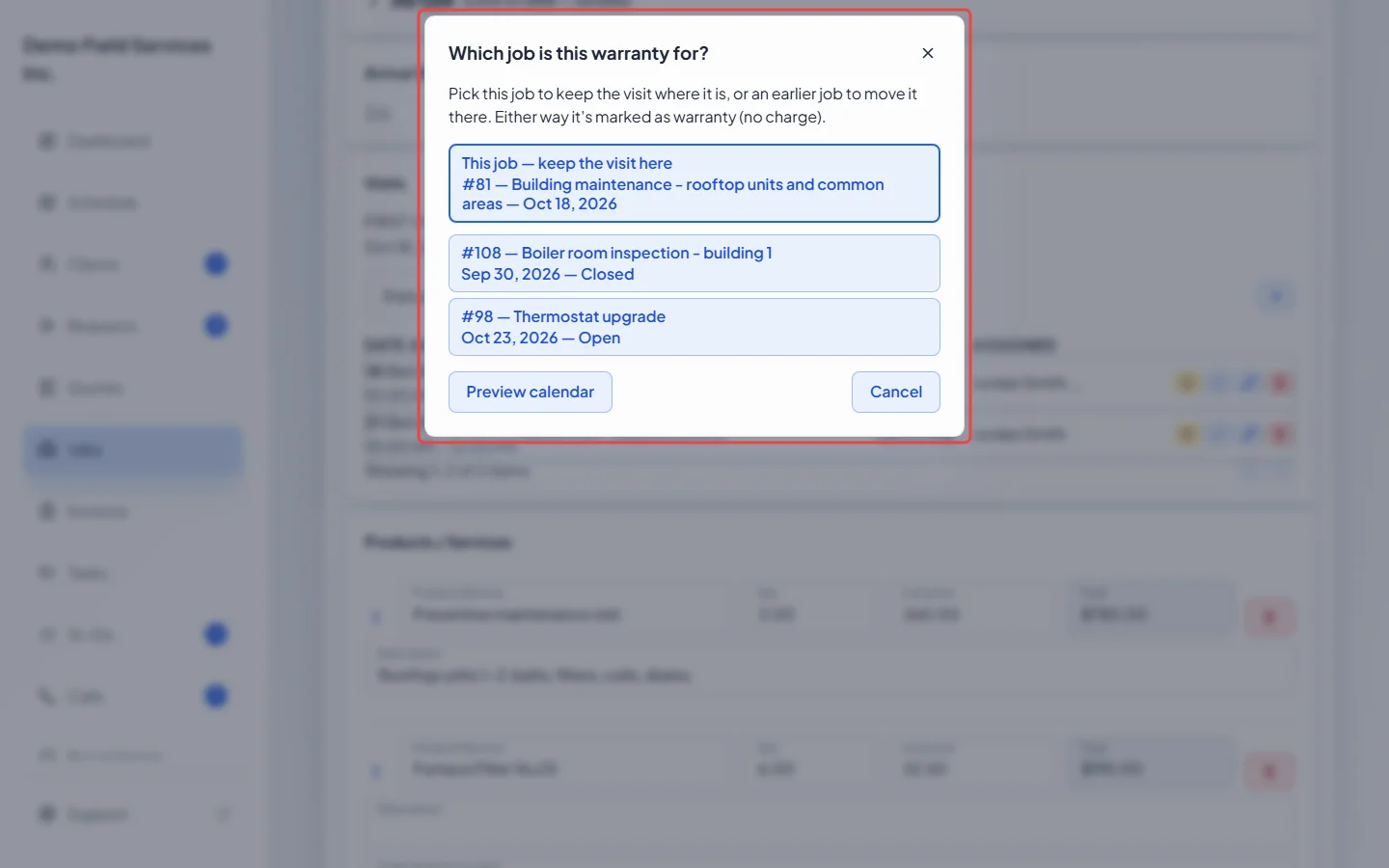
Astragal marks the visit as warranty (no charge) and opens it so you can list the parts used. If you moved the job’s only visit, that job’s line items move with it and the empty job is removed. A visit that is already invoiced, or a visit on a recurring job, can’t be converted.
To undo it, click the arrow button on the warranty visit, then Move to new job. The visit moves to a new billable job with no line items yet; if the old job has no visits left, it’s removed.
Good to know
Section titled “Good to know”- A warranty visit always keeps its own line items, whatever kind of job it’s on.
- A job made only of warranty visits never offers an invoice: closing it says This is a warranty job — no invoice will be created.
- On a recurring job, a warranty visit doesn’t count towards the series and isn’t changed when the series is.
- Reopening a completed warranty visit puts its parts back in stock and deletes its warranty service record. Make a new one after you complete it again.
- To choose whether the record shows what the work was worth (struck through, marked no charge), go to Settings → Company settings → Warranty service records and use Show prices.
Related articles
Section titled “Related articles”Checked against Astragal on October 18, 2026