

Messaging a client
The Messaging tab keeps every text and email between your business and a client in one conversation, and lets you send a new one.
Who can do this: Team members set to View full client and property info or higher, with the Client communications switch on in their permissions, can read messages. Sending needs admin, or View, edit, and delete full client and property info with Client communications on.
Also called: texting, SMS, email.
-
Open the client and click the Messaging tab.
On a computer: Left menu → Clients On a phone: Bottom bar → Clients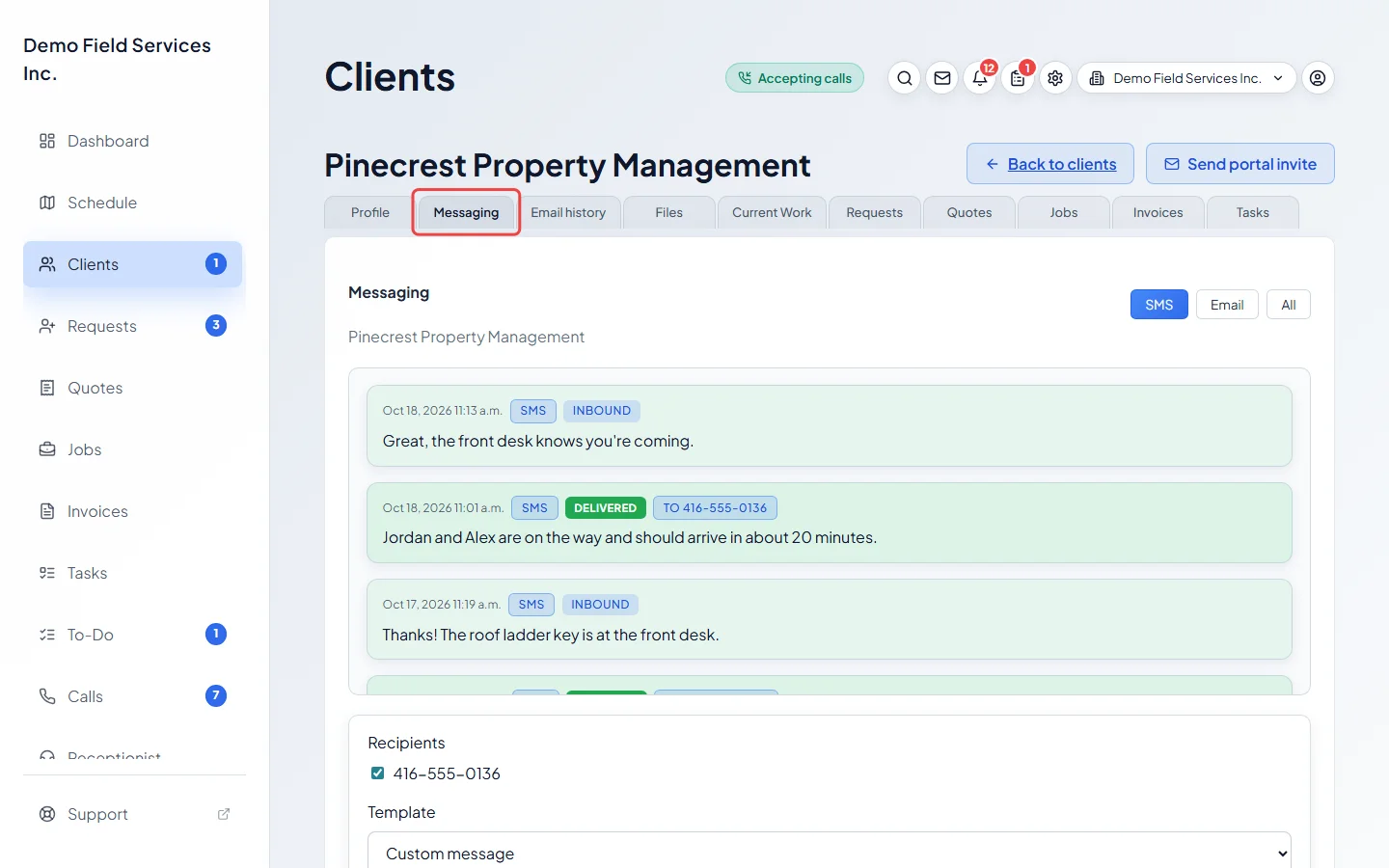
-
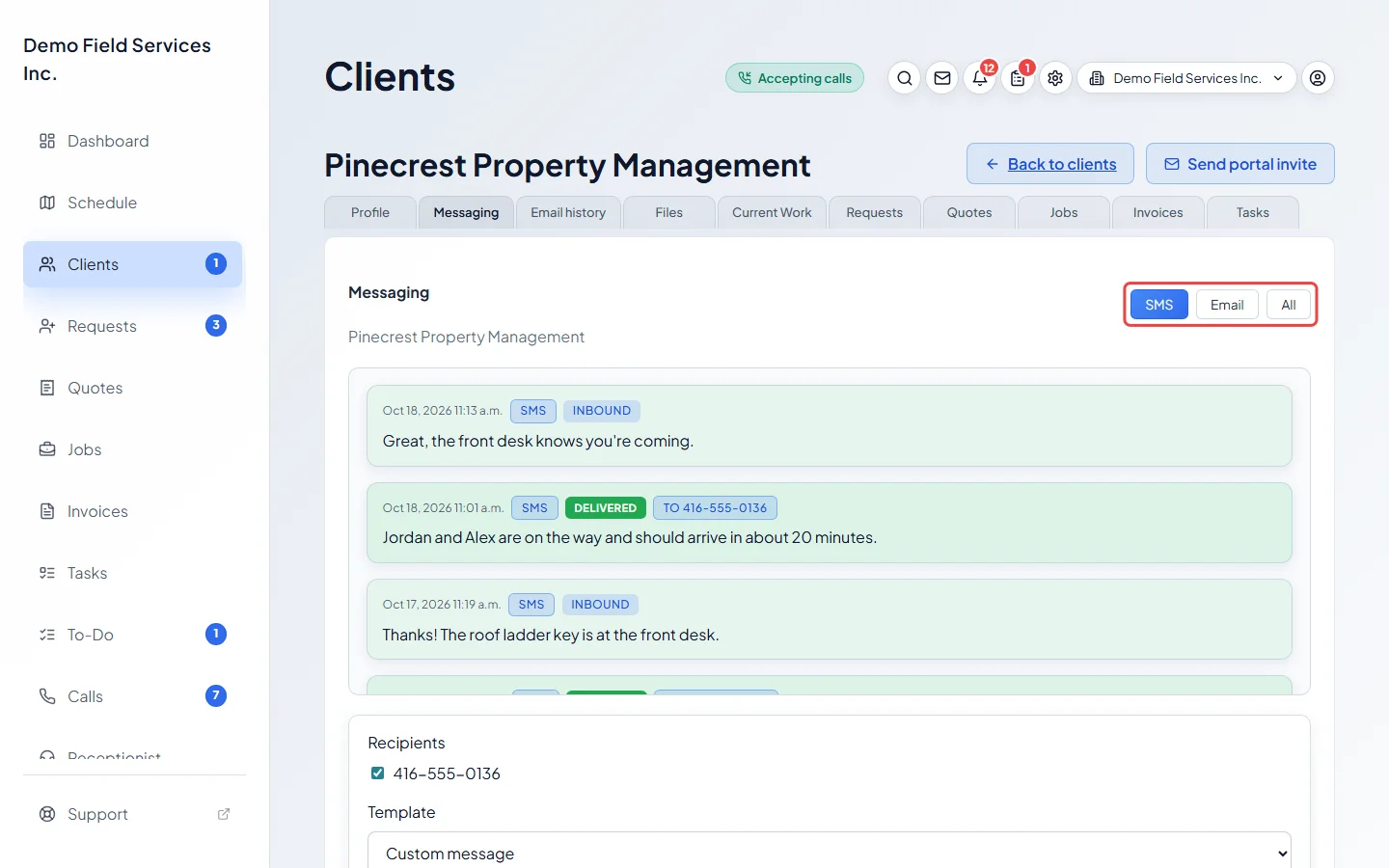
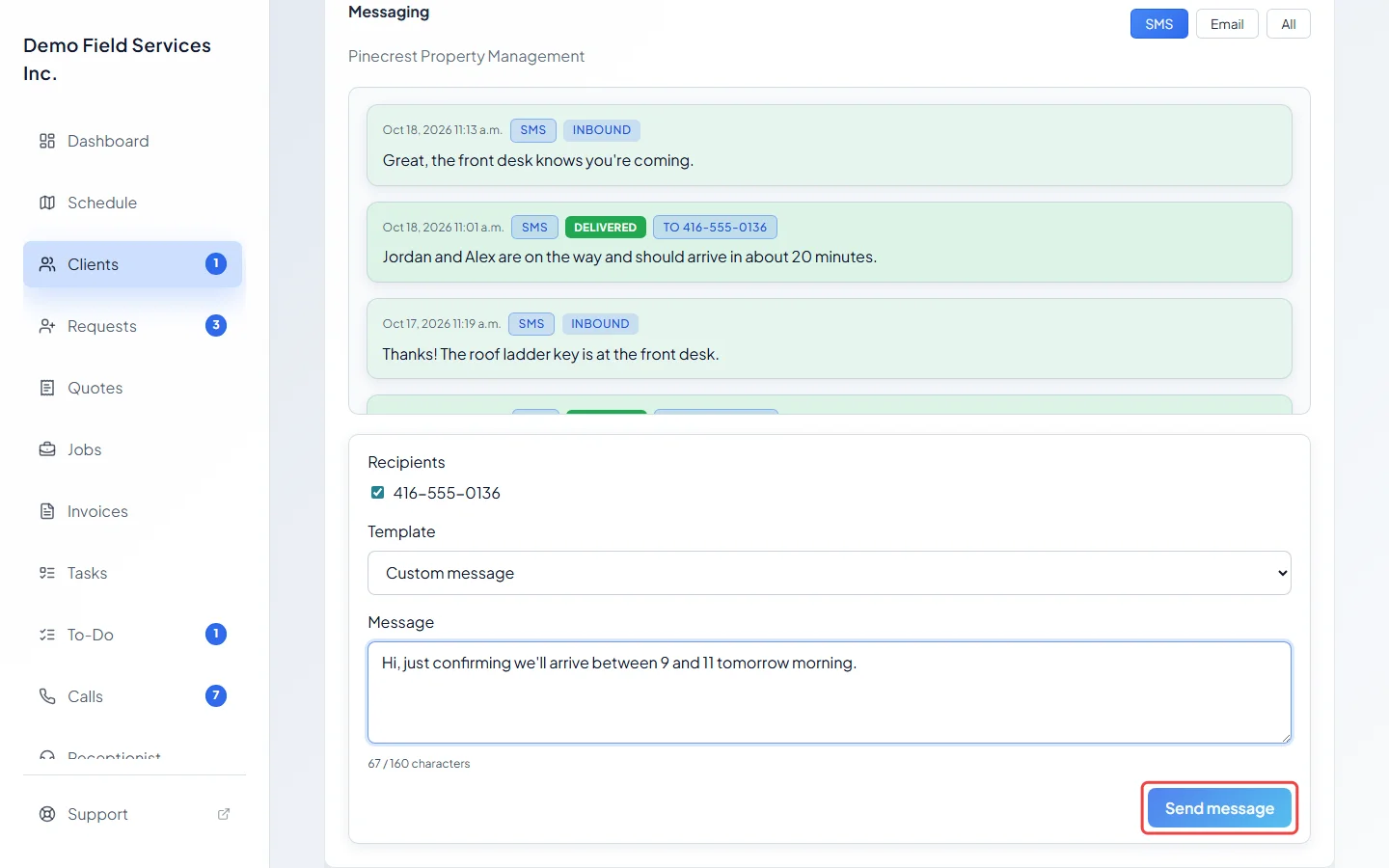
Pick SMS, Email or All at the top. SMS and Email also choose how your next message is sent. Each message shows when it was sent and and, for messages you sent, whether it was Queued, Sent, Delivered, Delayed or Failed; emails the client opened say Opened. Messages the client sent you are marked Inbound.
-
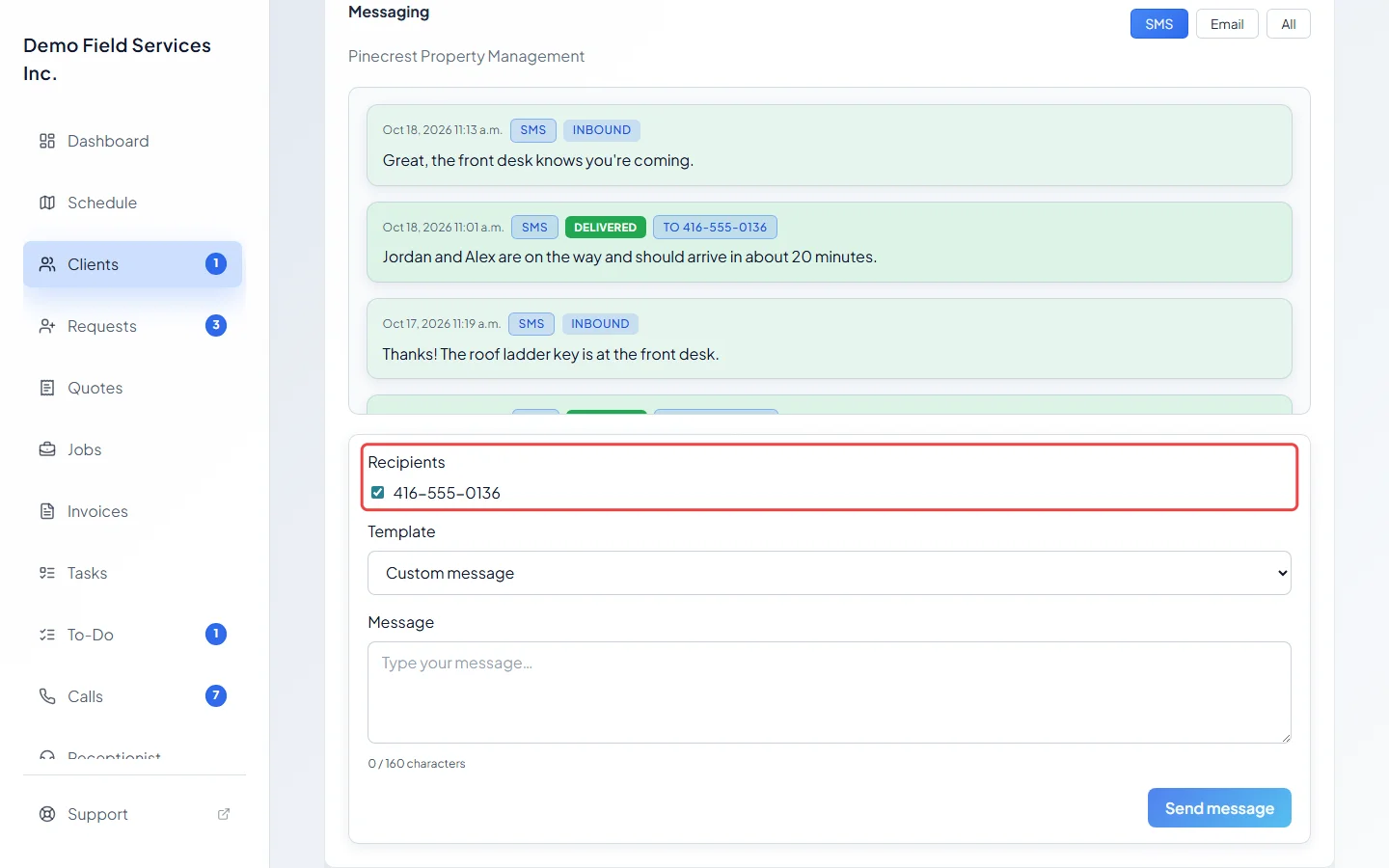
Under Recipients, everyone starts ticked; untick anyone who shouldn’t get it. You see the client’s phone numbers for a text, or their emails for an email. When you pick a job or request template, a property’s tenant is added too, marked “(tenant)”, and the client’s own numbers are marked “(client)”.
-
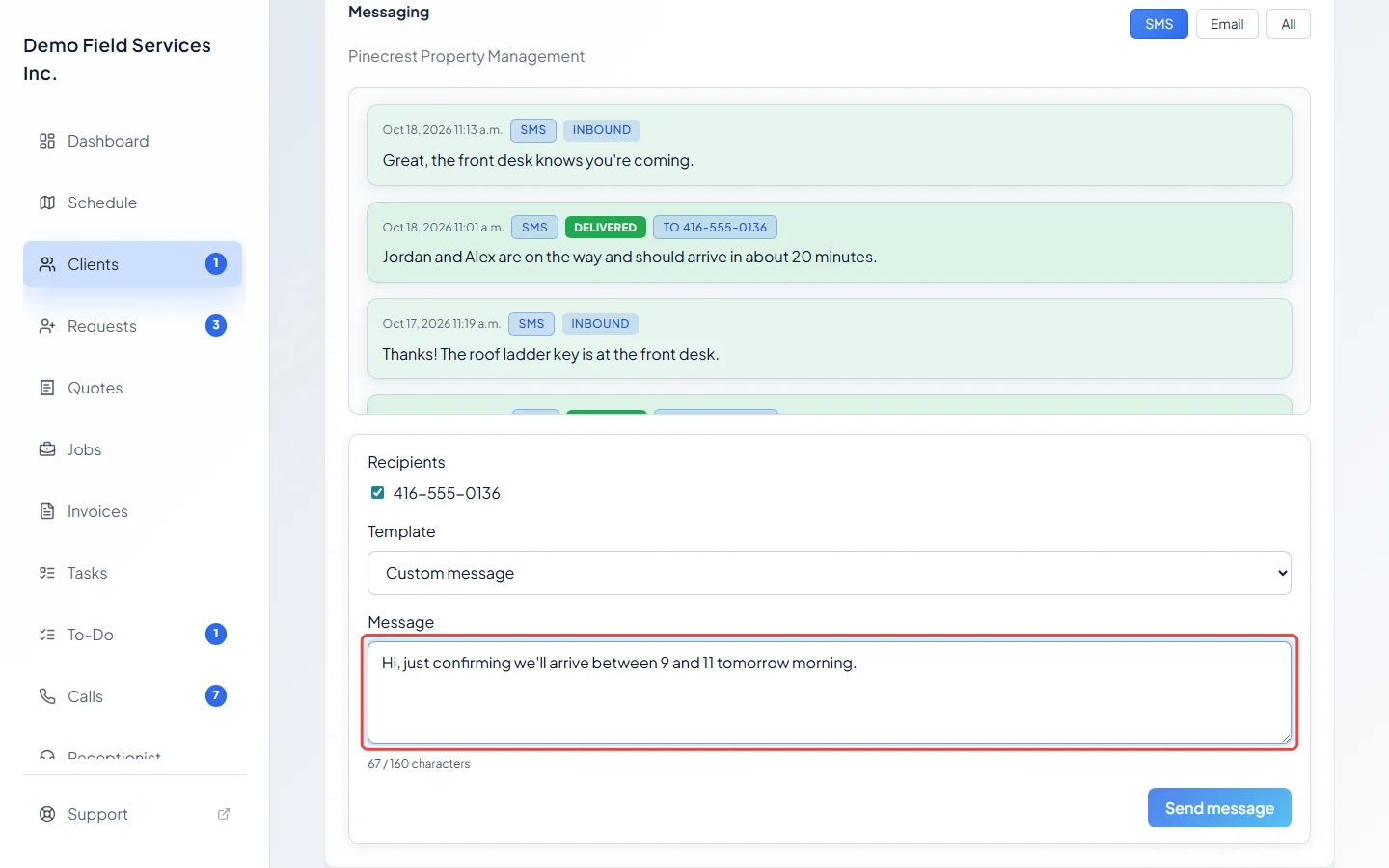
Type your message, or pick a saved message from Template. If the template is about a job, quote, invoice or request, choose which one, and fill in any Remaining fields it asks for. Emails also have a Subject, filled in for you (“Message from” your business name, or the template’s own subject); you can change it.
-
Click Send message.
Good to know
Section titled “Good to know”- As you type a text, a counter shows how many characters you’ve used and whether it will send as more than one text.
- If a message fails, the reason appears under it in red. See Why didn’t my message send?.
- Messages imported from Jobber say Imported from Jobber; Jobber’s export doesn’t include their text.
- People who can read but not send see “You can review this conversation, but your permissions do not allow sending messages.”
- To stop automatic messages, such as visit reminders, for one client, see communication settings.
Related articles
Section titled “Related articles”Checked against Astragal on October 17, 2026