

Adding a client
Add a new client so you can quote, schedule and invoice work for them.
Who can do this: Admins and team members set to View, edit, and delete full client and property info.
Also called: customer, account.
-
Open the clients list and click New client.
On a computer: Left menu → Clients On a phone: Bottom bar → Clients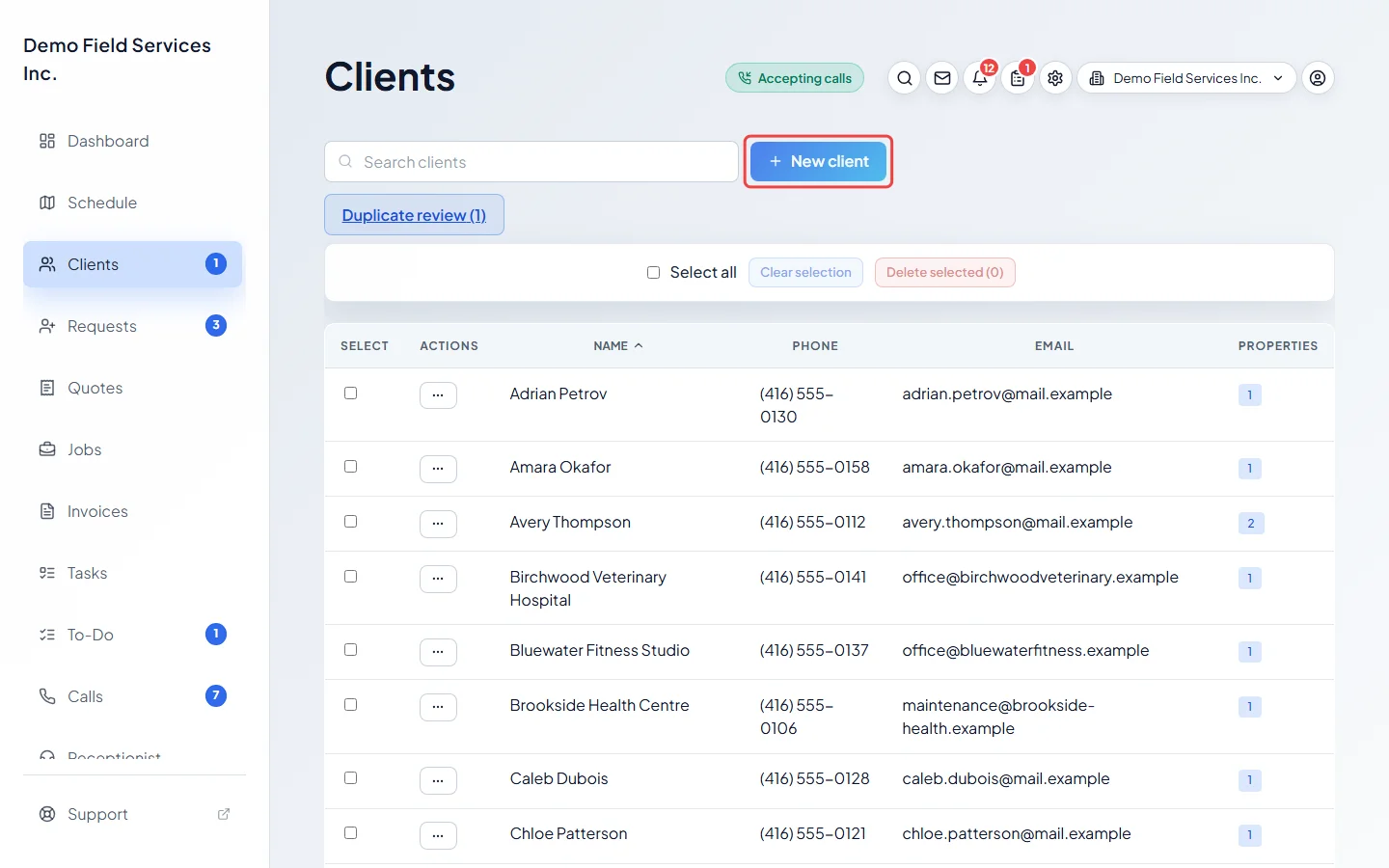
-
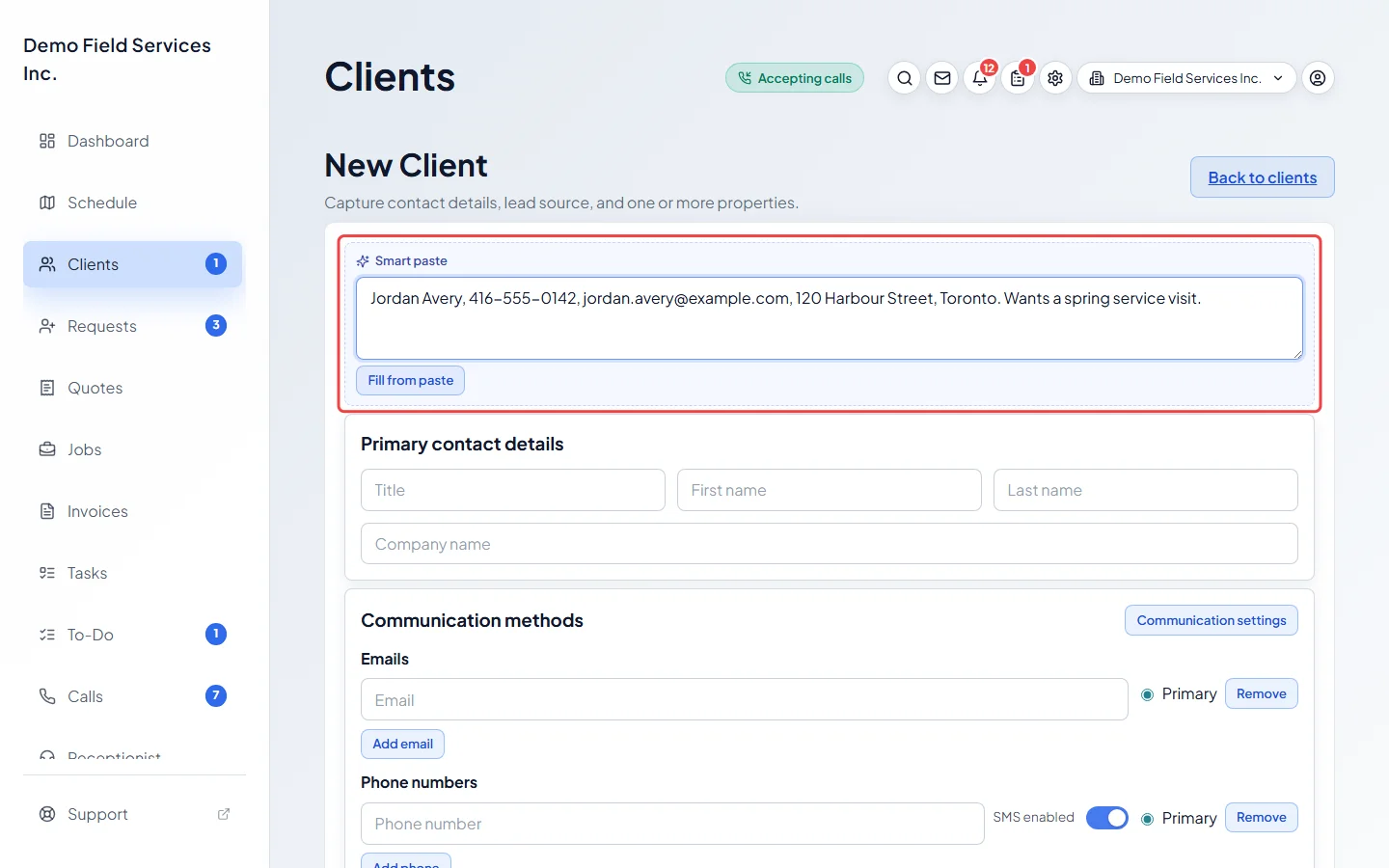
If you have the client’s details in an email or text, paste the whole block into Smart paste and click Fill from paste. Astragal fills in any empty boxes it can read (title, name, company, phone, email, address, and a separate billing address if there is one, which turns off the same-as-property switch) and highlights them so you can check them. It never overwrites something you already typed.
-
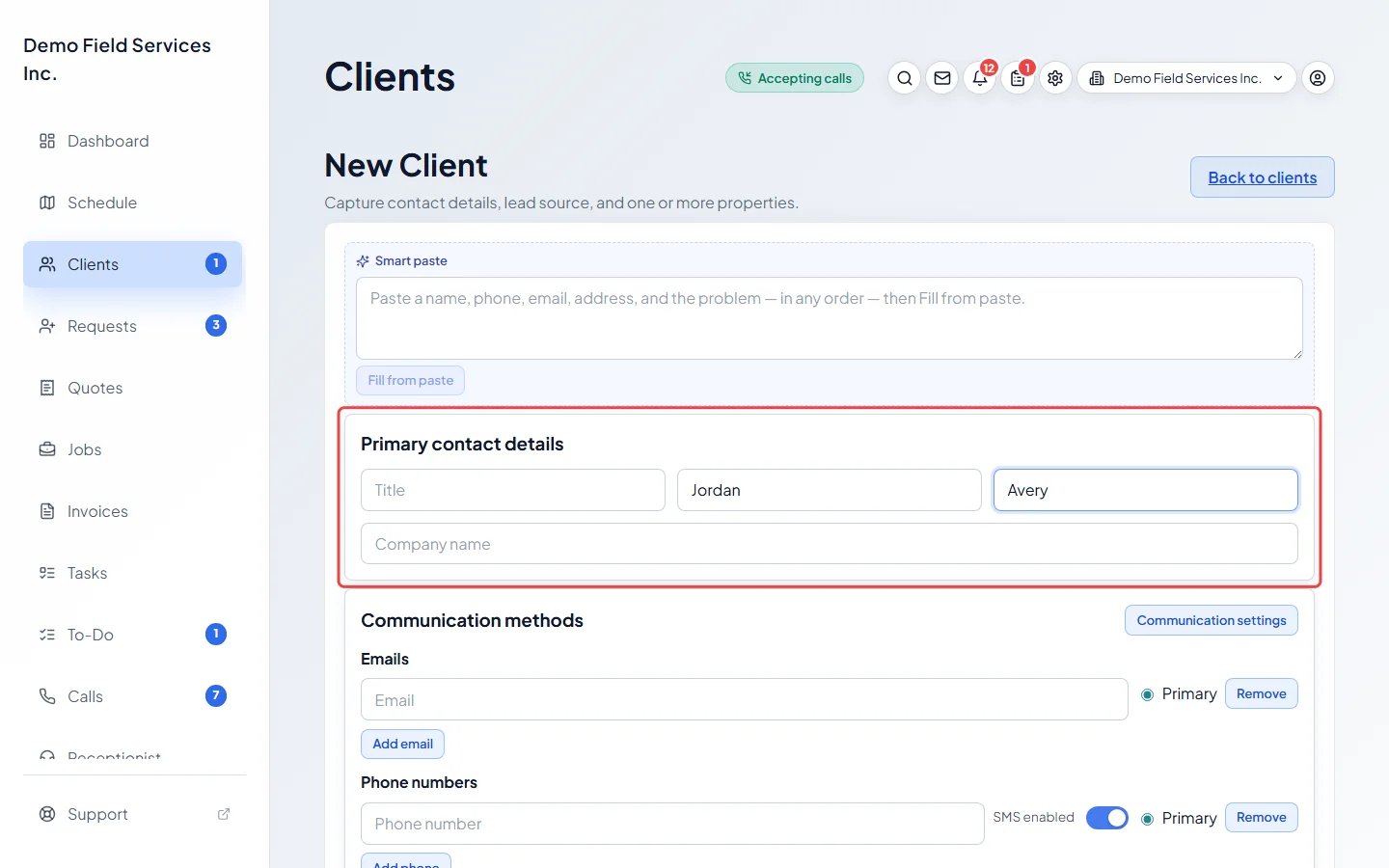
Under Primary contact details, type a first name, last name or company name. You need at least one of them. The Title box (for example “Dr.”) is optional. When you fill in both a person and a company, tick Company name is the primary name if the company should be the name you see everywhere.
-
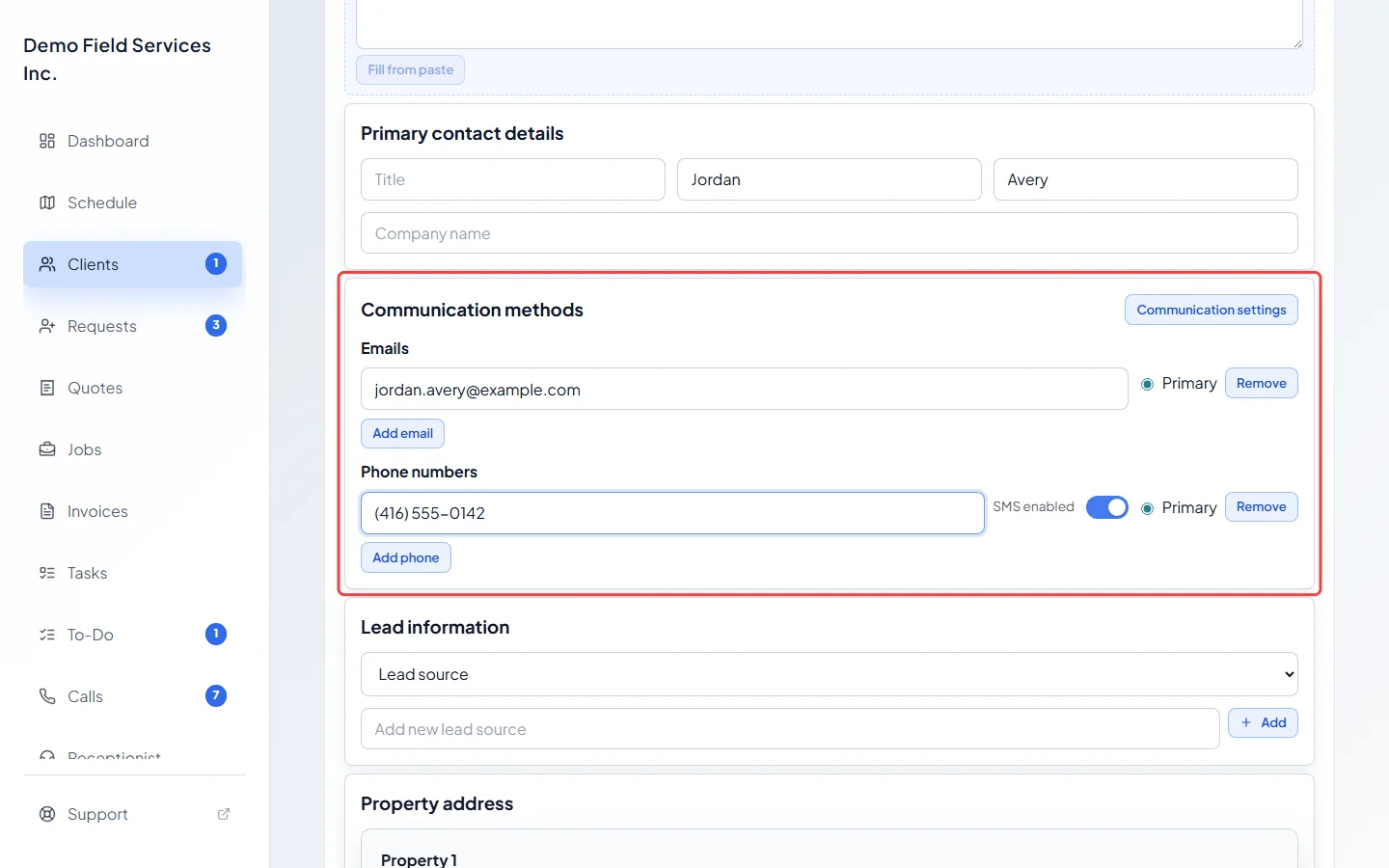
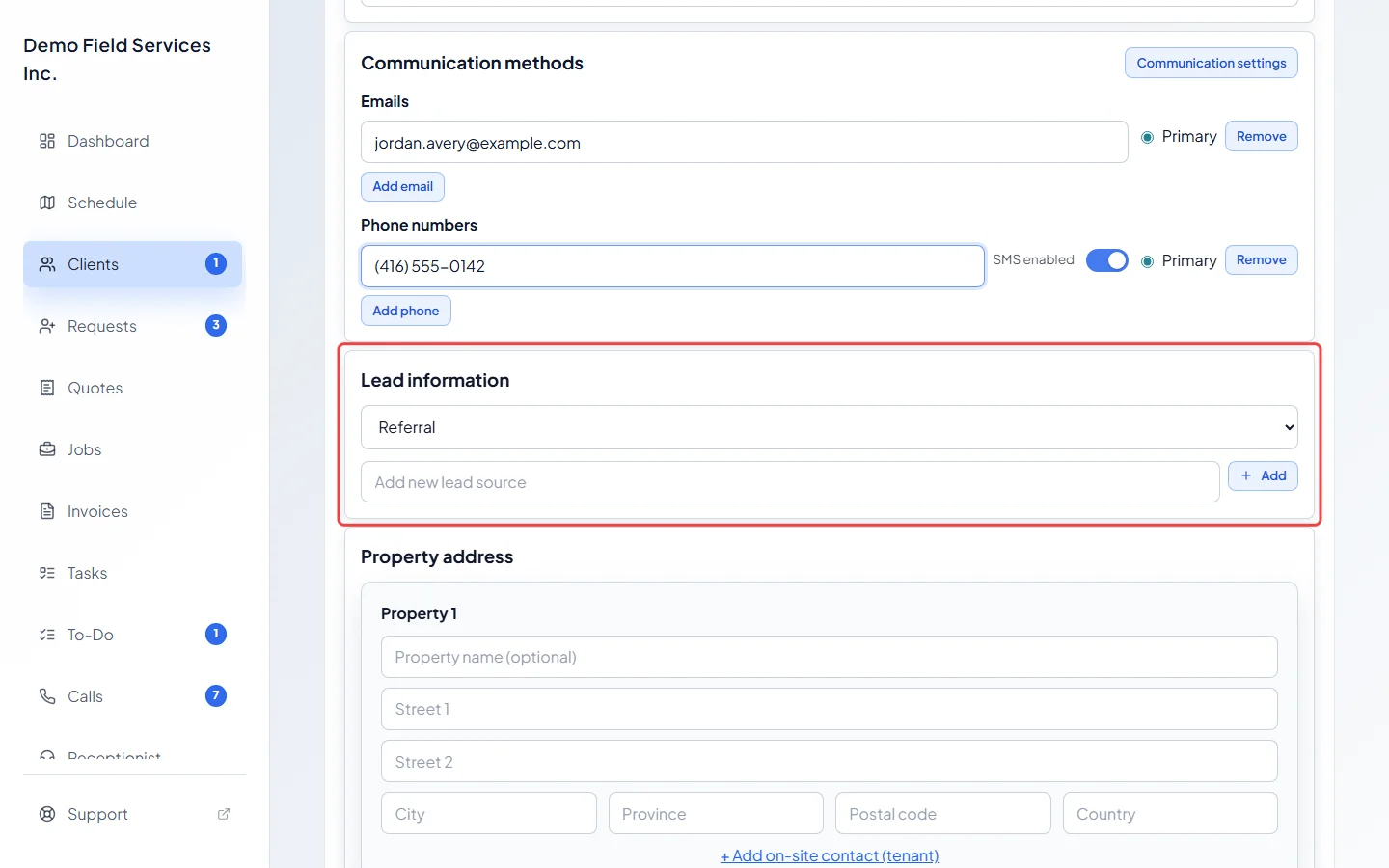
Under Communication methods, add their email and phone number. Click Add email or Add phone for more, and pick which one is Primary. Leave SMS enabled on for mobile numbers that can get texts.
-
Under Lead information, pick where the client heard about you from the Lead source list. To add a new choice, type it in Add new lead source and click Add. Only admins, dispatchers and accountants can add new choices.
-
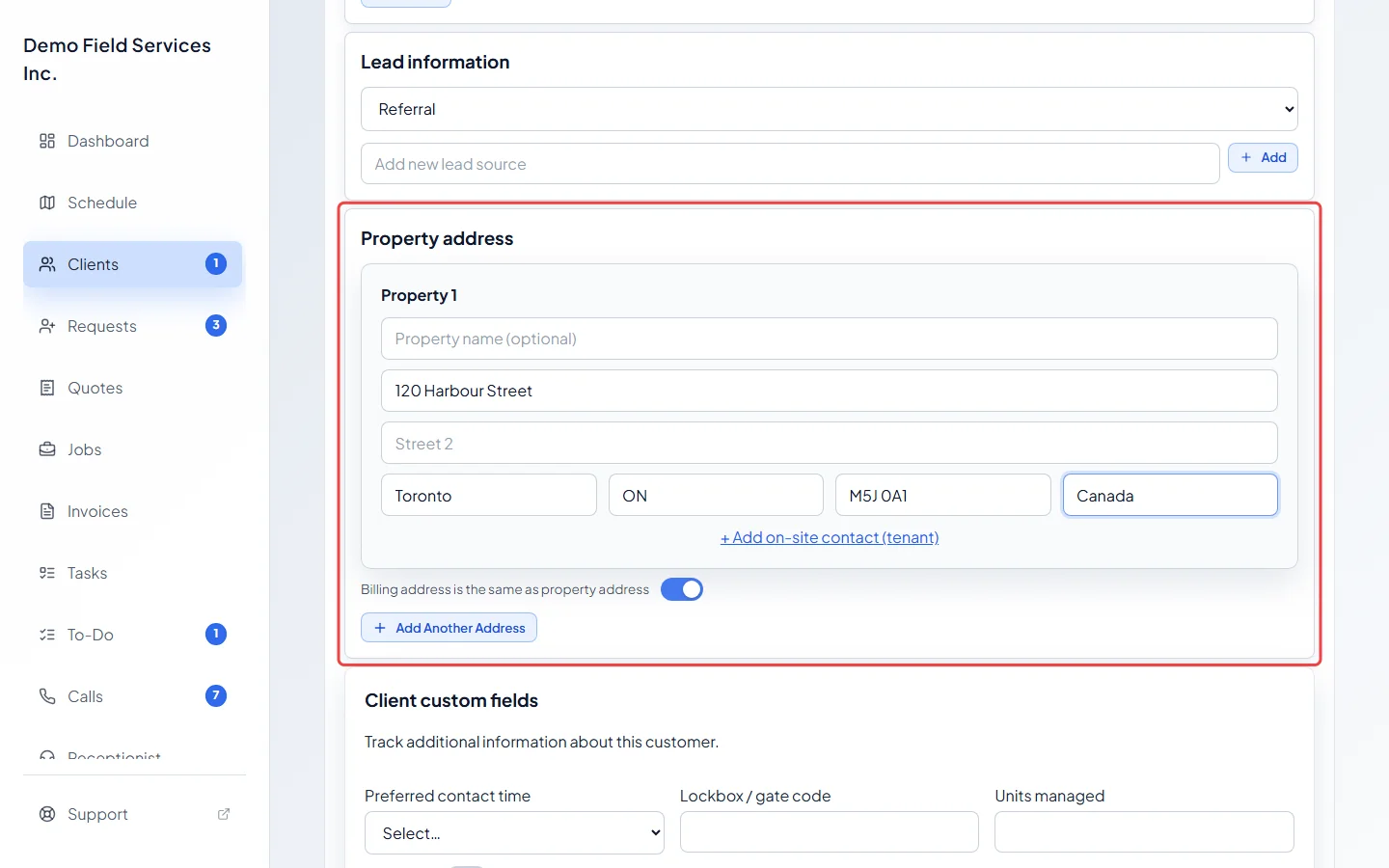
Under Property address, you can give the property a Property name (optional), then type the street in Street 1 (and Street 2 for a unit or suite). If a matching address drops down, pick it to fill in the city, province, postal code and country. Otherwise type them yourself. The address is optional, but a property is only saved when it has at least a street and a city. Leave Billing address is the same as property address on, or turn it off to type a different billing address. Click Add Another Address for a client with more than one property.
-
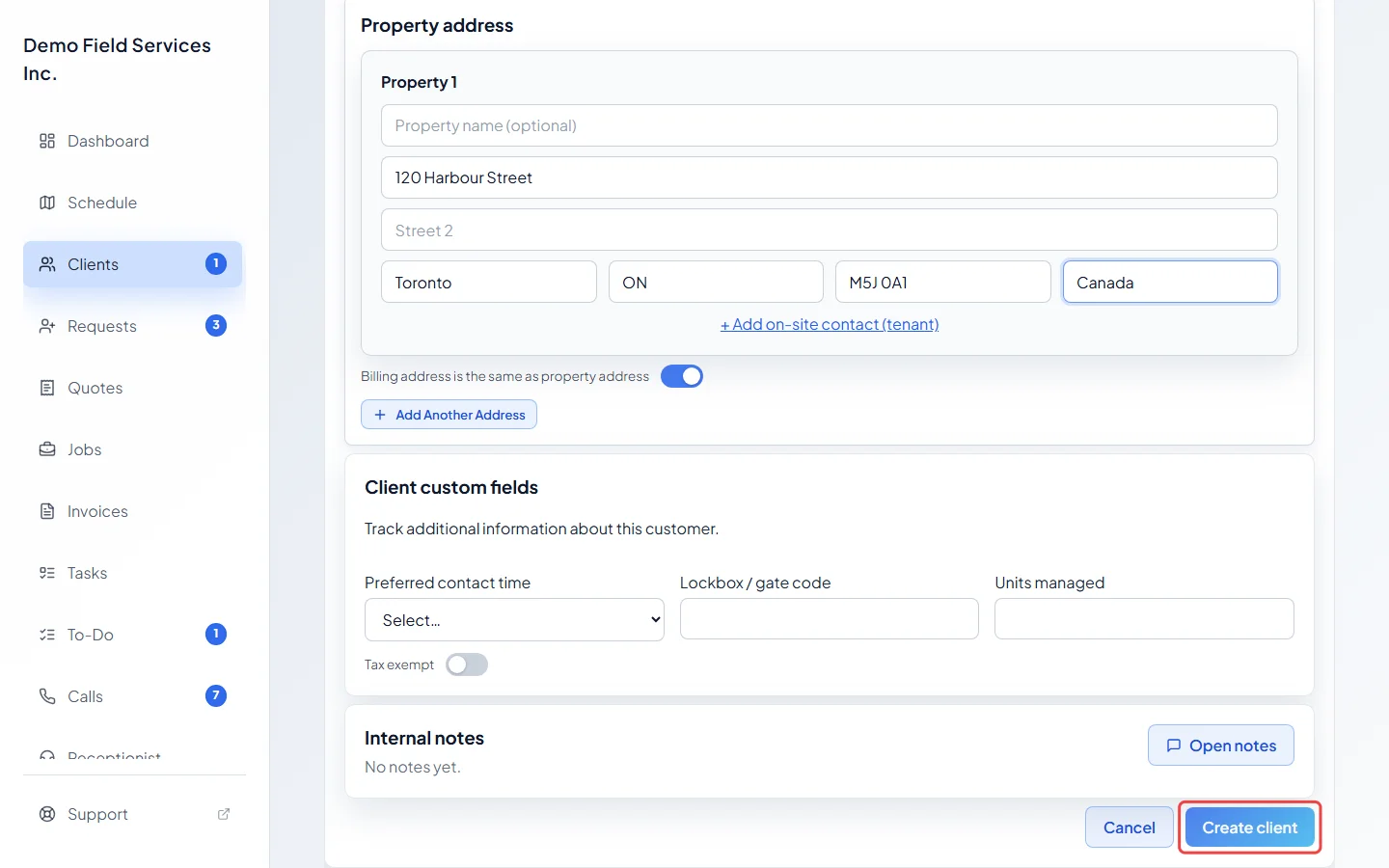
Click Create client. You go back to the clients list, and the new client is on it.
Good to know
Section titled “Good to know”- Communication settings next to Communication methods lets you switch individual automatic messages off for this client before they ever get one. It also has the switch for copying the client on tenants’ visit texts and the Automated calls settings. See Editing a client.
- Each property can have an on-site contact, such as a tenant. Click + Add on-site contact (tenant) under the address. See On-site contacts.
- If your company has client custom fields, they show under Client custom fields. You can also add Internal notes before you save. See Internal notes and custom fields.
- If the Primary email already belongs to another client, Astragal asks before saving. Click Save anyway to make a separate client, or Go back to change it.
- When you fill in a property address and the details clearly match a client you already have, Astragal uses that client instead of making a copy and says “Existing client selected.” Any boxes that were empty on the existing client are filled in from what you typed. Close matches, and different people at the same address, are added to duplicate review.
- Cancel asks before throwing away what you typed; click Discard changes to leave.
Related articles
Section titled “Related articles”Next step: Creating a quote
Checked against Astragal on October 17, 2026