

Removing a team member
Stop someone who has left from signing in, while keeping their name on the work they did.
Who can do this: Admins and dispatchers. Only an admin can remove another admin.
Also called: deactivating a user, offboarding, former employee.
-
Open Team management and find the person in the list.
On a computer: Left menu → Settings → Team management On a phone: More → Settings → Team management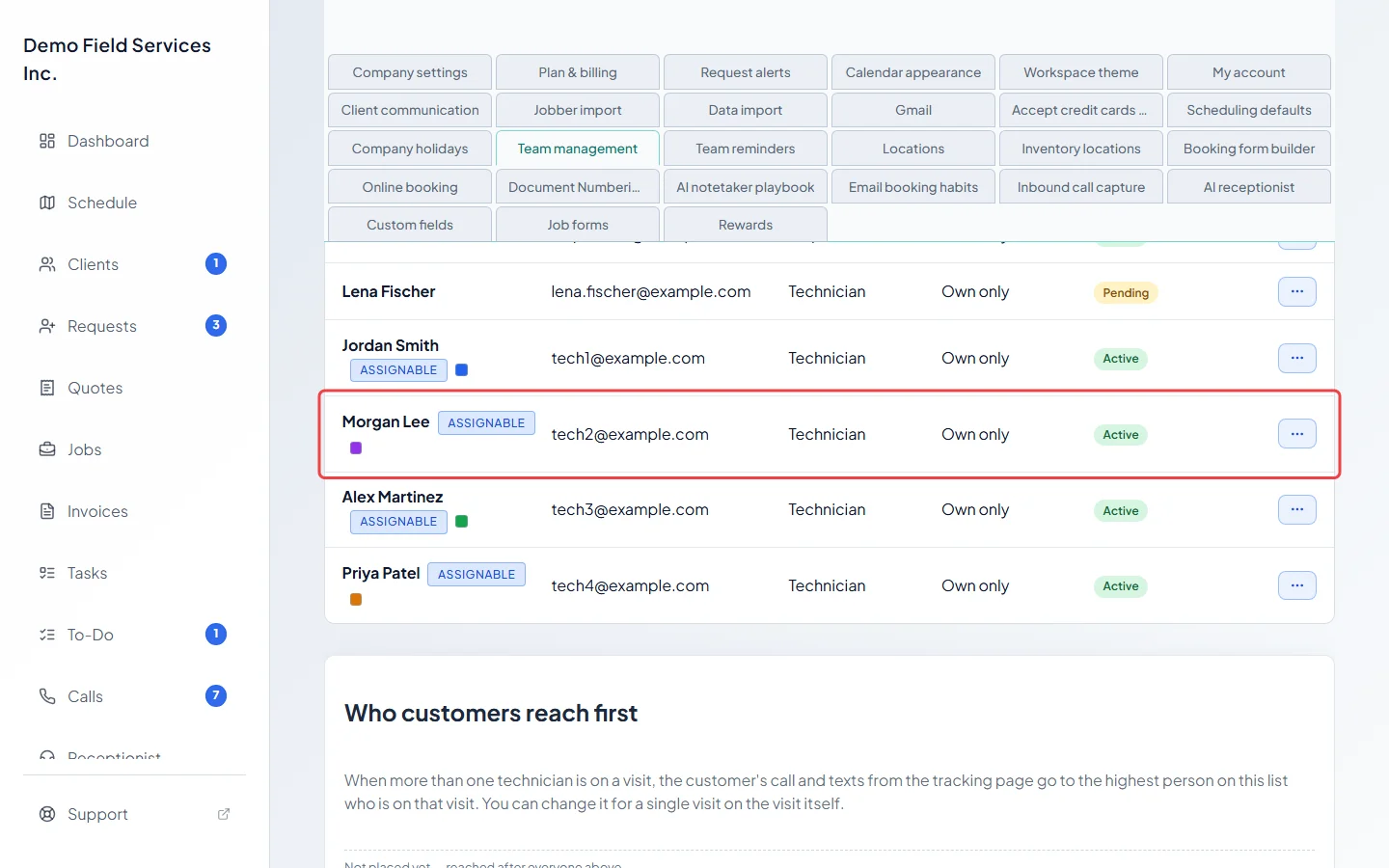
-
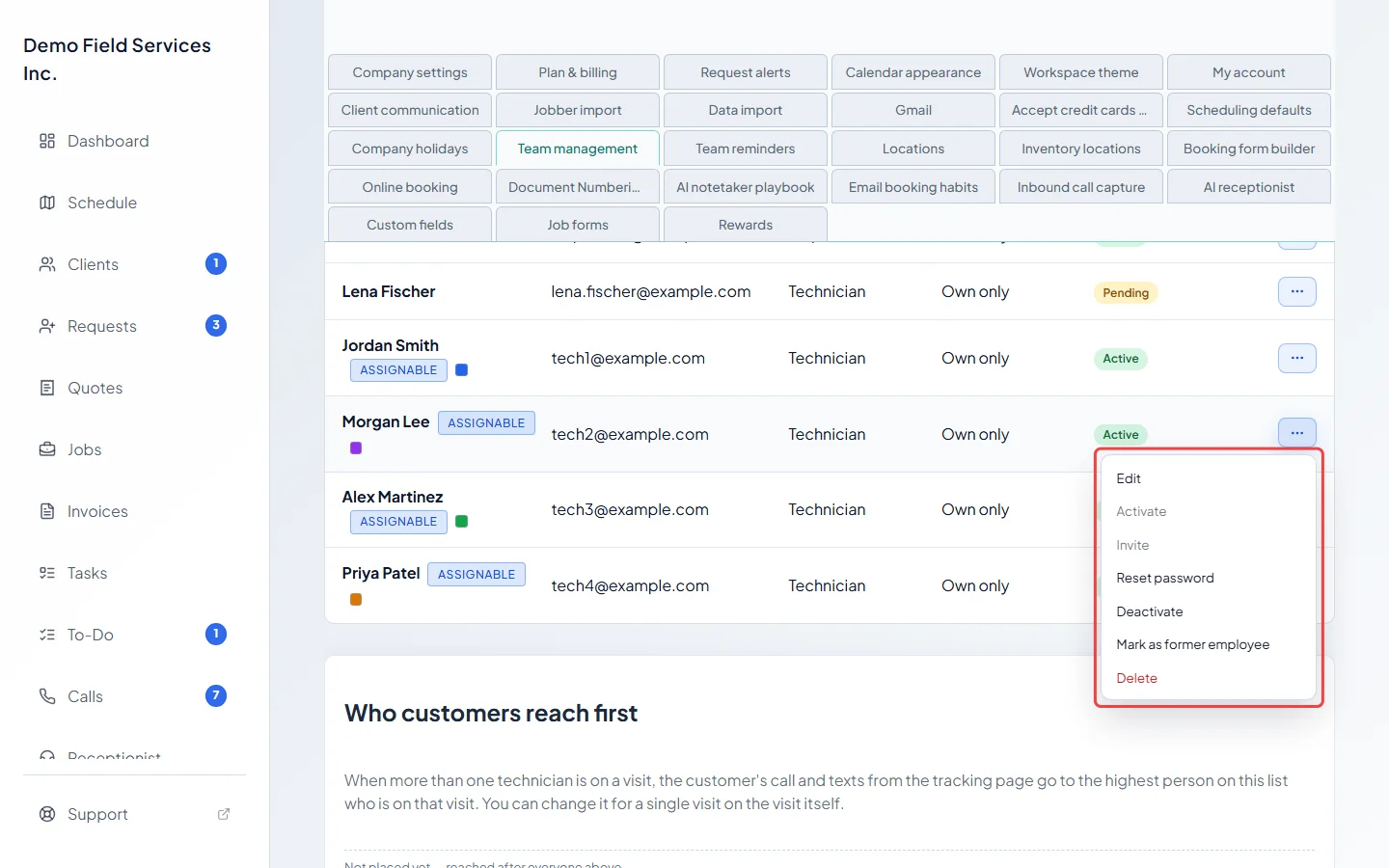
Click the ⋯ button next to them and choose what to do:
- Deactivate: for someone who has accepted their invite. They’re signed out straight away, any links already emailed to them stop working, and they drop off calendars, assignment lists and who customers reach first. Their status shows Inactive.
- Mark as former employee: the same, but also works for someone who never accepted their invite, so they show Inactive instead of Pending. Use it for people who left before they ever signed in.
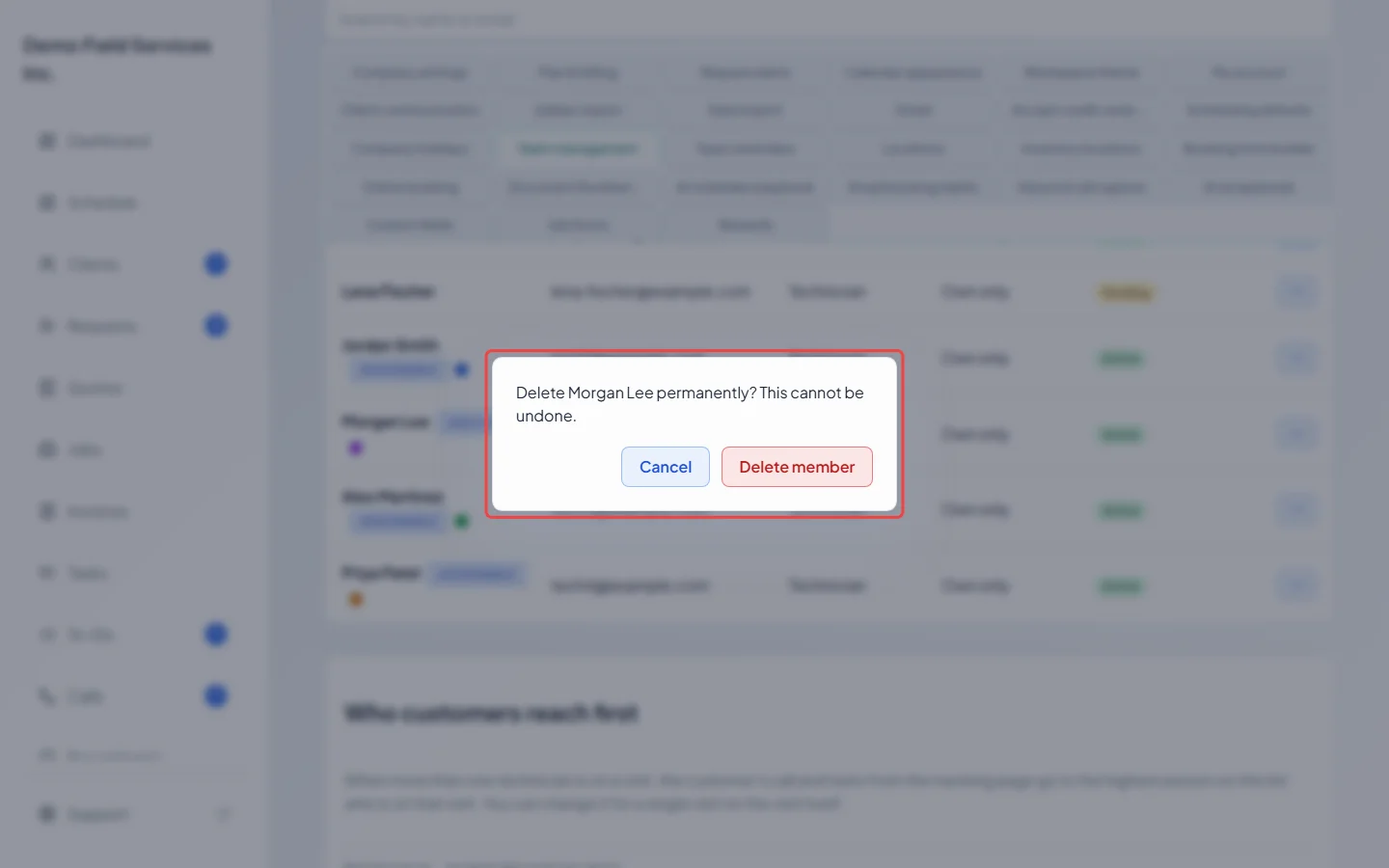
- Delete: removes the account for good. Use it only for someone added by mistake.
-
Delete asks you to confirm because it can’t be undone. Deactivate and Mark as former employee happen straight away and can be undone with Reactivate from the same menu.
When Delete isn’t allowed
Section titled “When Delete isn’t allowed”Astragal refuses to delete, and tells you to deactivate instead, when the person:
- has recorded time on a timesheet,
- is assigned to jobs or schedule records, or is the salesperson on quotes, jobs or invoices,
- has also worked for another company, or
- is your last active admin. Make someone else an admin first. The same applies to deactivating the last admin or marking them as a former employee.
You can’t deactivate, mark or delete your own account.
Good to know
Section titled “Good to know”- Deactivating doesn’t take them off visits already booked. Reassign their upcoming work on the schedule.
- Their name stays on past jobs, visits, notes and timesheets.
- Your bill counts the most people you had at any point in the month, so someone removed part-way through is still charged for the rest of that month. The note above the team list explains it.
- Someone who also belongs to another company shows Remove from this company instead. That takes them off your team only; their own login and their other company aren’t affected. To bring them back, add them again and they’ll get a new invitation. The owner of your company’s account can’t be removed.
- Reactivate someone who returns. Bringing them back takes a place on your plan again. After Reactivate, they show below the “Not placed yet” line in Who customers reach first. Move them back up if needed.
- Technicians from a Jobber import who never had a login appear in a yellow box above the list. Click Dismiss (former employee) for anyone who no longer works for you.
Related articles
Section titled “Related articles”Checked against Astragal on October 17, 2026