

Schedule colours
Choose the colours your schedule and map use, so everyone can tell jobs, tasks and requests apart at a glance.
Who can do this: Admins, dispatchers and accountants.
Also called: calendar colours, colour coding.
-
Open Calendar appearance. Under Schedule colours there is one colour for each kind of item: Jobs, Tasks, Stops, Requests, Completed, Unassigned and Warranty visits.
On a computer: Left menu → Settings → Calendar appearance On a phone: More → Settings → Calendar appearance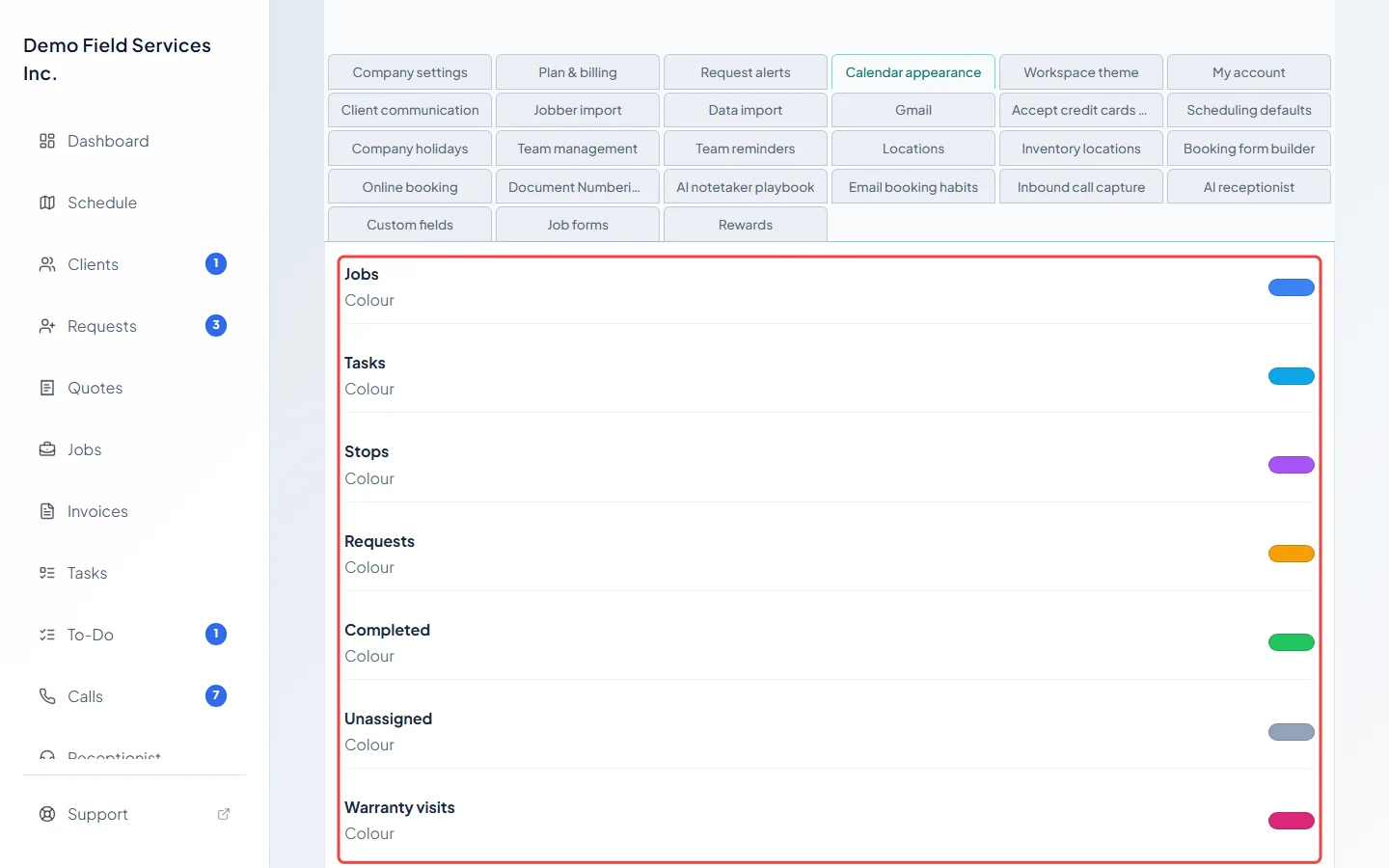
-
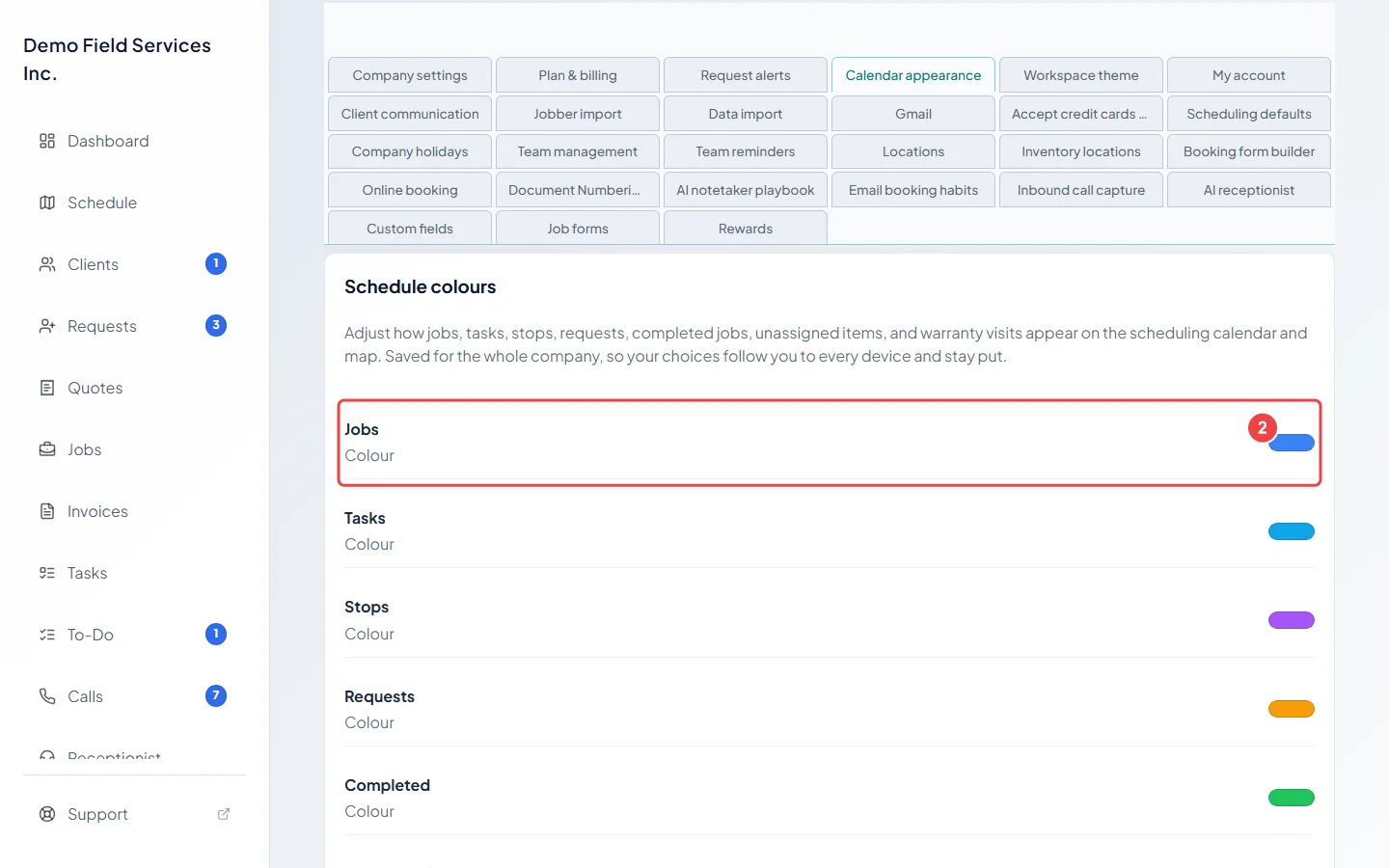
Click a colour square and pick a new colour. It saves by itself a moment later, for the whole company, and shows on the schedule and the map.
-
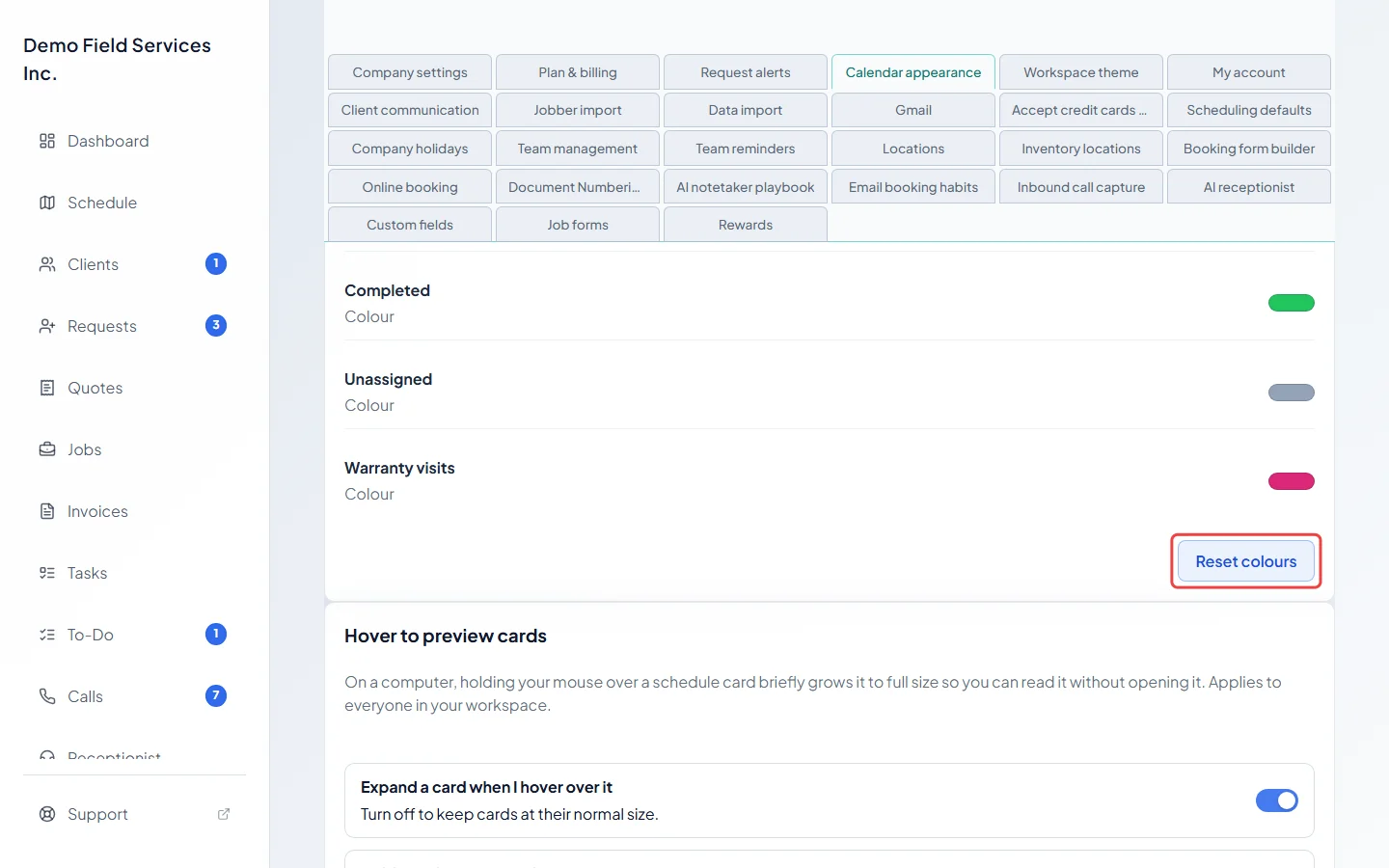
To go back to the colours Astragal started with, click Reset colours. This saves straight away.
-
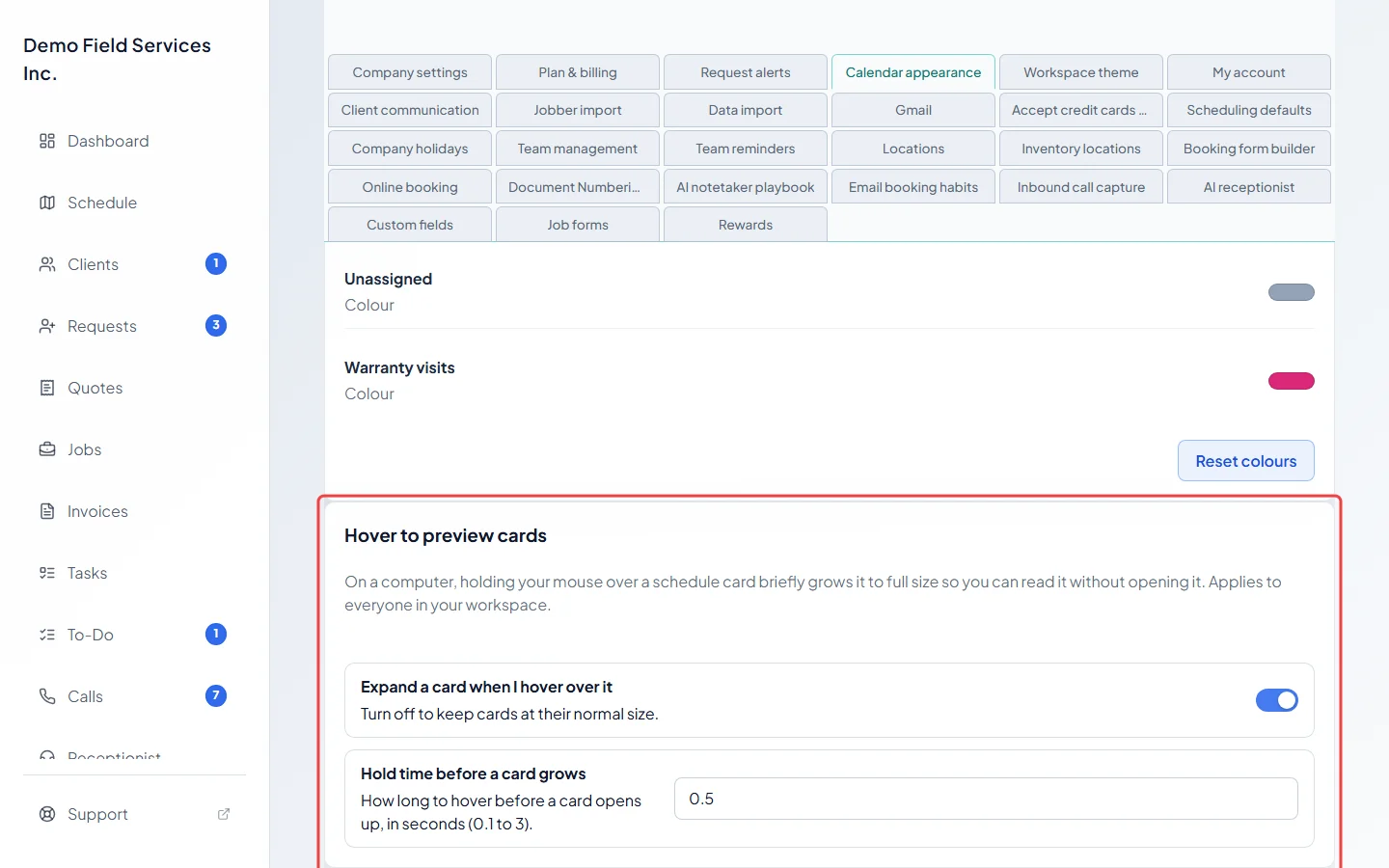
Under Hover to preview cards, choose whether holding your mouse over a schedule card grows it to full size so you can read it without opening it. Turn Expand a card when I hover over it off to keep cards their normal size, or, with it on, change Hold time before a card grows (0.1 to 3 seconds). Both save straight away and apply to everyone.
Good to know
Section titled “Good to know”- Hover to preview only works with a mouse on a computer.
- Light or dark mode is a separate, personal choice. See Theme and colours.
- Your open hours are set in Company settings, not here. See Business hours.
Related articles
Section titled “Related articles”Checked against Astragal on October 18, 2026