

Automatic client messages
One page holds every message Astragal sends by itself, so you can choose which ones go out, when and how.
Who can do this: Admins, dispatchers and accountants. Only admins can save changes to a message’s wording.
Also called: automations, client notifications, auto-messages.
-
Open the client communication settings. Automation status at the top shows when Job reminders (Visit reminder) and Invoice follow-up reminders last ran and how many messages they queued. An admin can click Run now to send any that are due right away; these are real messages to real clients.
On a computer: Left menu → Settings → Client communication On a phone: More → Settings → Client communication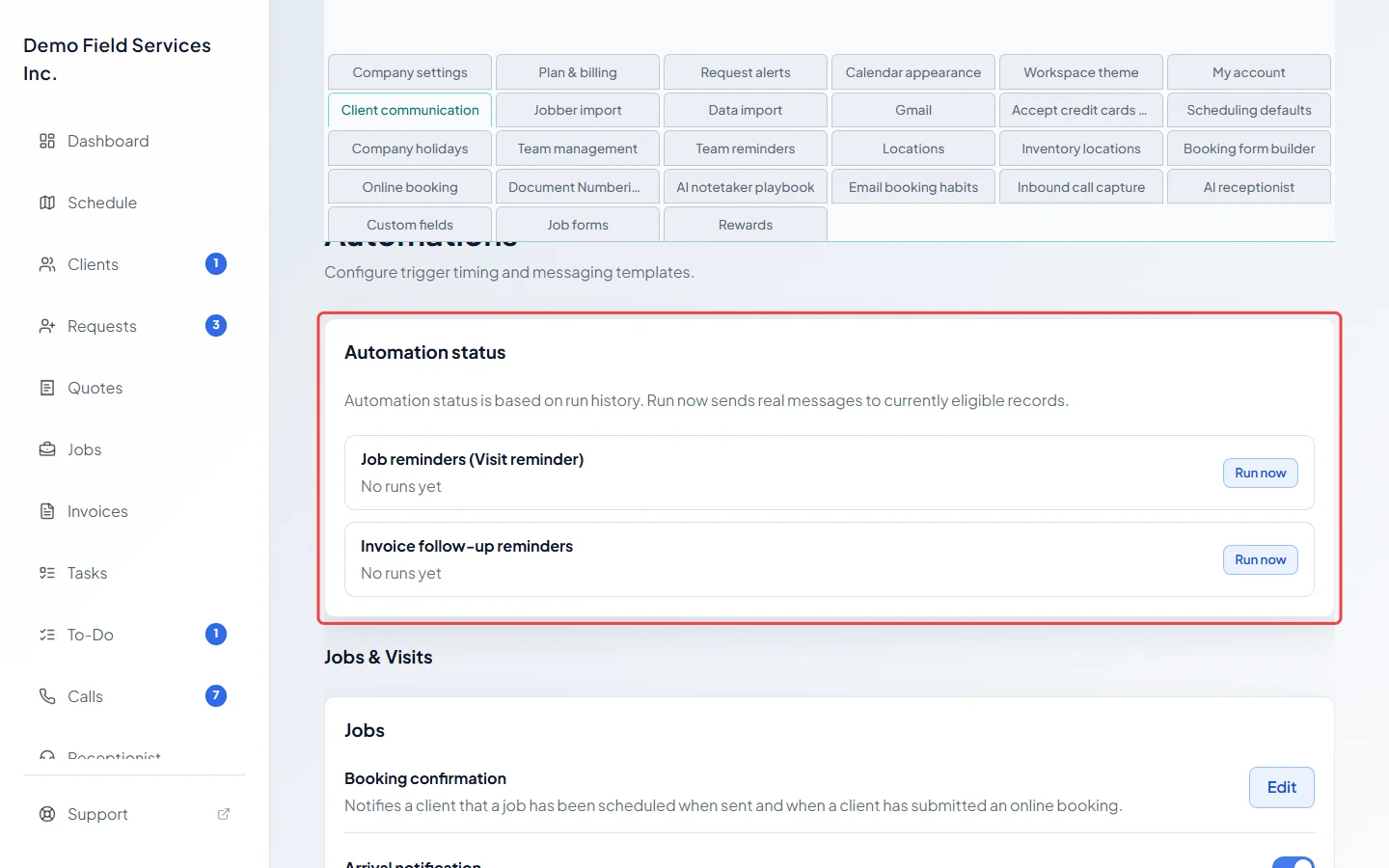
-
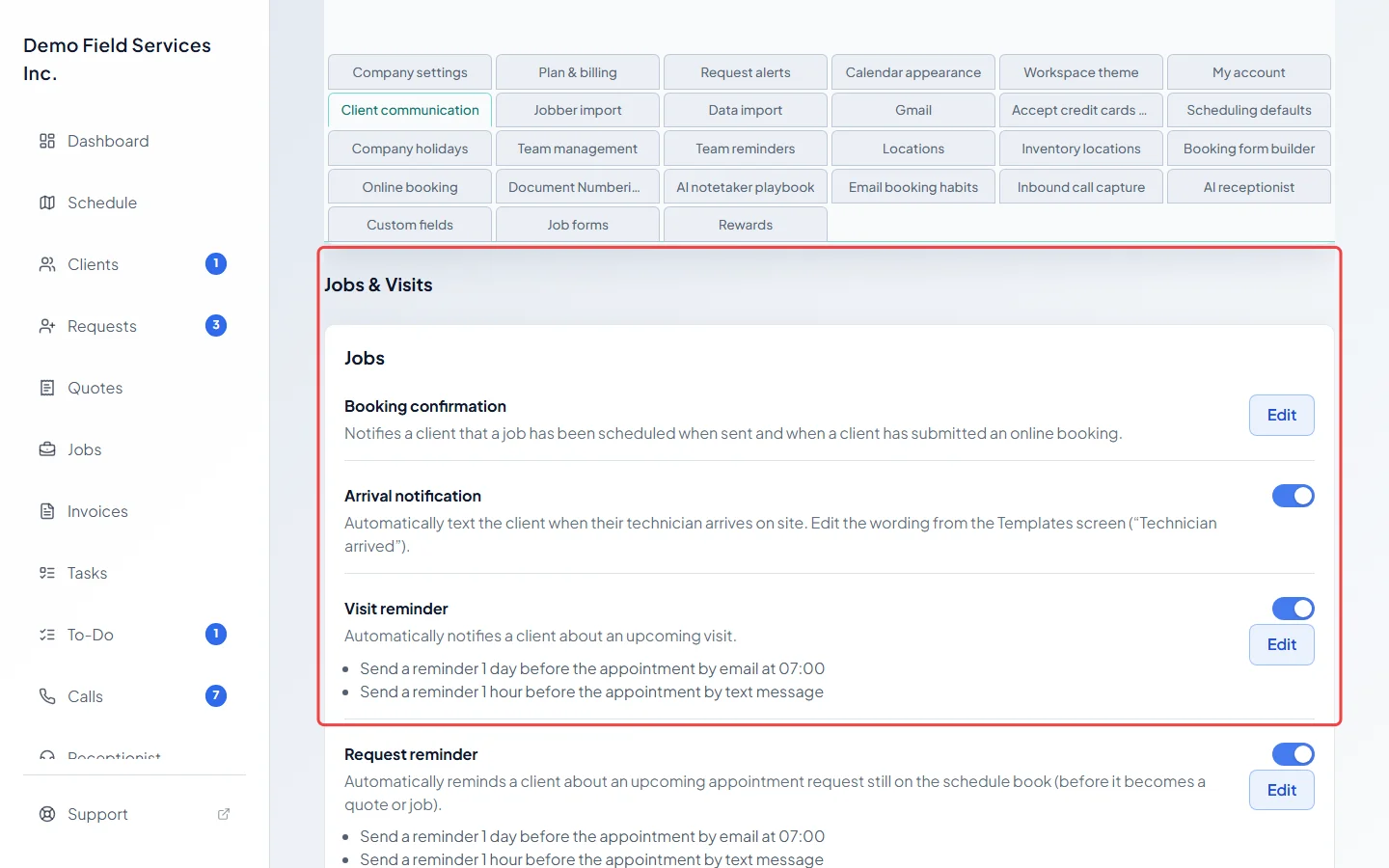
Under Jobs & Visits are the messages about appointments: Booking confirmation, Arrival notification and Visit reminder, then further down Request reminder, Job follow-up and Verbal quote follow-up. Each switch turns that message on or off for every client, and saves the moment you flip it. See Visit reminders and Booking confirmations and job follow-ups.
-
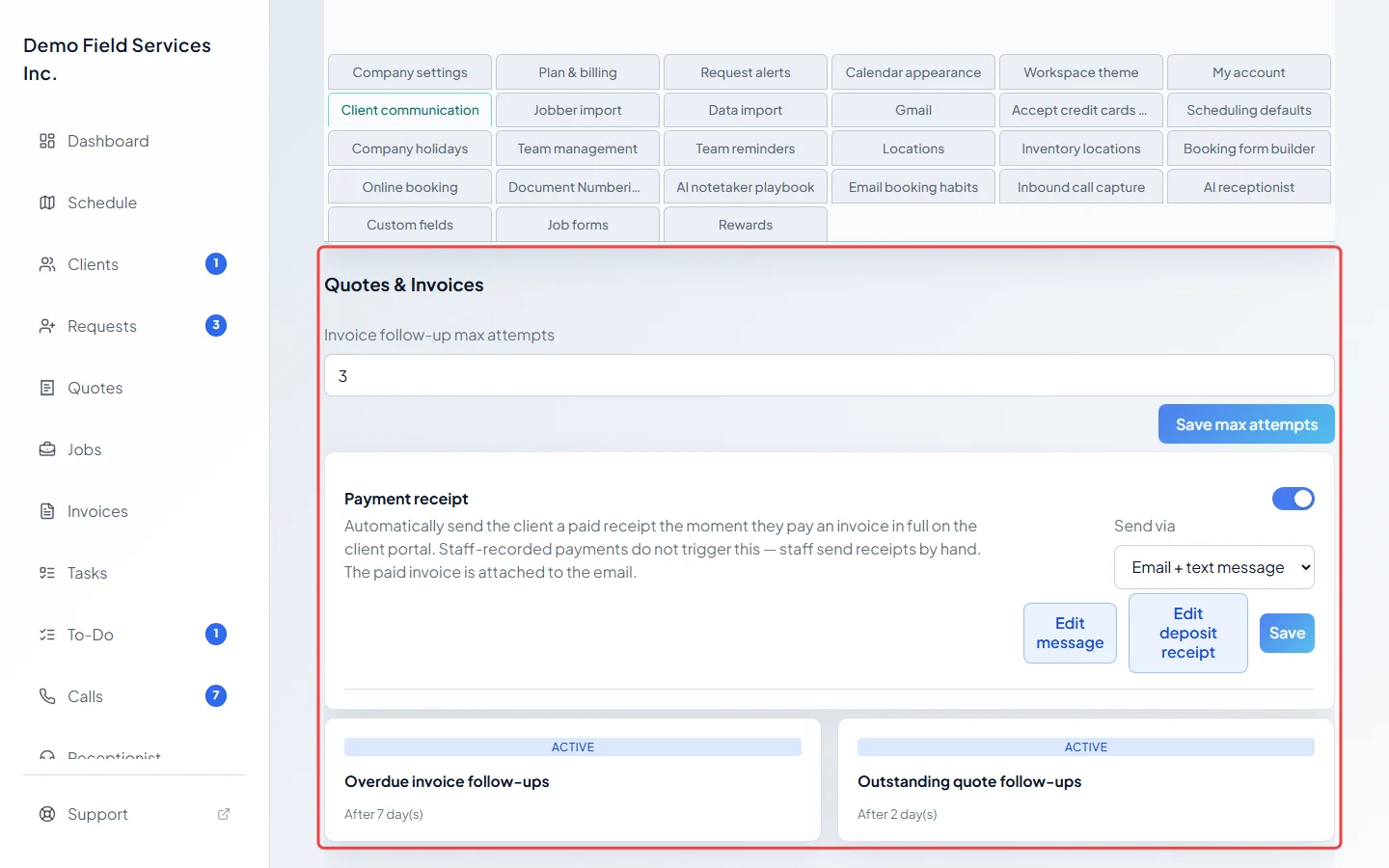
Under Quotes & Invoices are Invoice follow-up max attempts, the Payment receipt card, and a card for each follow-up (“Overdue invoice follow-ups” and “Outstanding quote follow-ups”). Payment receipt sends the client a paid receipt only when they pay an invoice in full in the client portal, never for payments your team records; Edit deposit receipt changes the receipt for deposits. Each follow-up card says Active or Inactive and how many days it waits; click it to change the timing and how it’s sent. See Automatic invoice reminders and Following up on outstanding quotes.
-
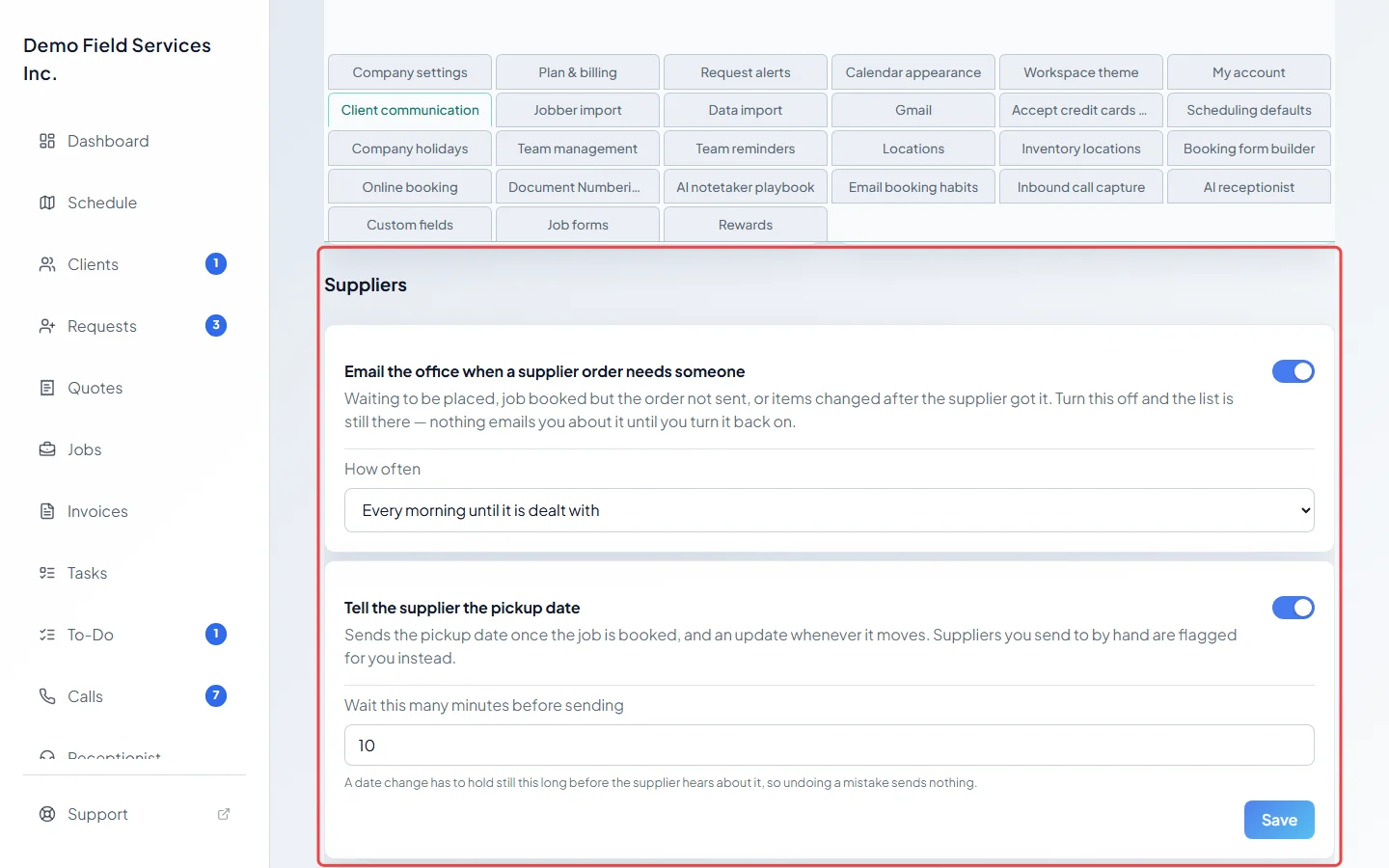
Under Suppliers are the messages about supplier orders: Email the office when a supplier order needs someone (every morning or once only), Tell the supplier the pickup date and, further down, Remind the supplier before pickup. See The daily supplier orders email.
-
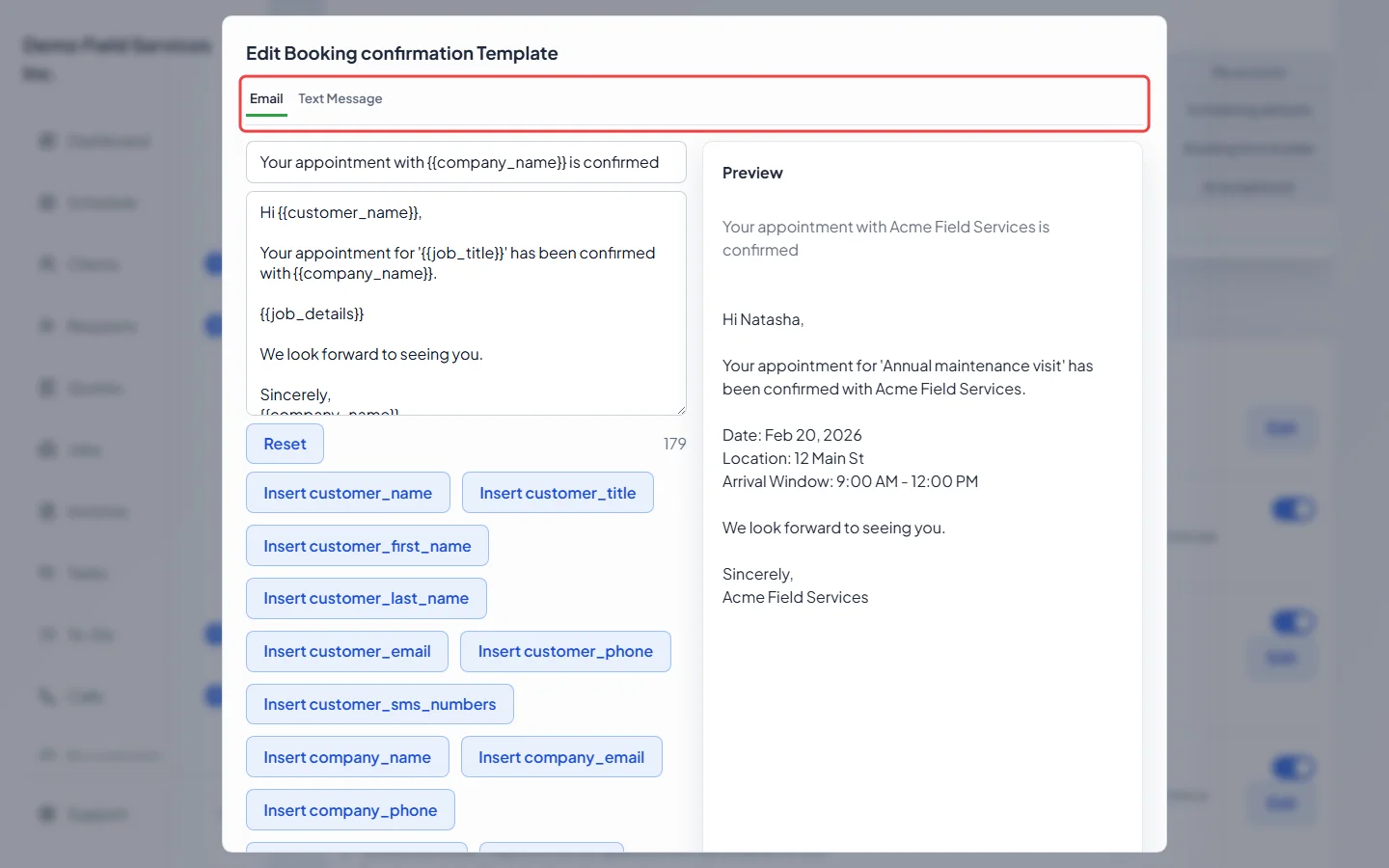
To change what a message says, click its Edit or Edit message button. Switch between Email and Text Message at the top, change the subject and message, and use the Insert buttons (such as “Insert customer_first_name”) to add details such as the client’s name or the visit date. Preview shows the message filled in with sample details. Reset puts back the wording you last saved. Click Save.
Good to know
Section titled “Good to know”- Switches, and the supplier How often list, save straight away. Number boxes such as Minutes after completion and Send via lists save only when you click the button next to them (Save, or Save max attempts).
- To stop a message for one client, open the client and click Communication settings. The names there differ slightly (for example “Upcoming assessment or visit reminders”). Arrival texts and booking confirmations can’t be switched off per client. See Editing a client.
- If the AI calling feature is available to your company, AI calls for clients without a mobile or email also appears under Jobs & Visits. It has two switches, Visit reminder calls and Quote follow-up calls. For clients who can’t get texts or emails, the AI makes a reminder call the day before a visit and one follow-up call about an unanswered quote, between 10 a.m. and 6 p.m., using your AI talk minutes. Quote calls also need the “OK to get automated calls about quotes” tick on the client. Only turn it on if your clients have agreed to automated calls.
- Every message, including ones that aren’t sent automatically, can also be edited from Templates (admins only). See Message templates.
Related articles
Section titled “Related articles”Checked against Astragal on October 18, 2026