

Multi-day appointments
Some visits run past midnight or over several days; the Schedule shows them across every day they cover.
Who can do this: Admins, dispatchers and accountants, and technicians who can edit their schedule.
-
Open the Schedule. A visit that runs over several days appears in each day’s column it covers. On its first day it runs from its start time to midnight.
On a computer: Left menu → Schedule On a phone: Bottom bar → Schedule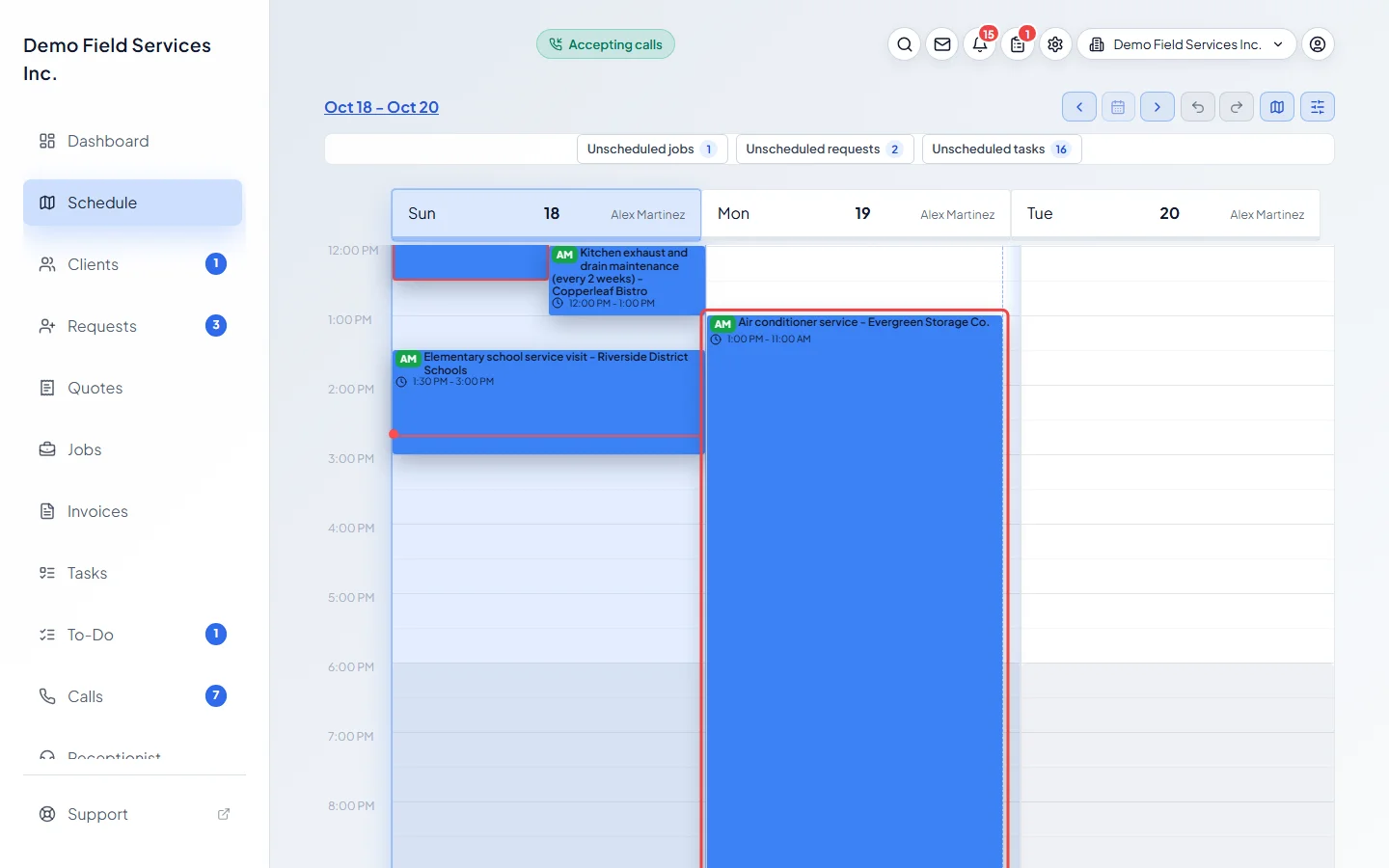
-
On the next day it carries on from midnight to its end time. To move the whole visit, drag it from any of its days: it keeps its length and moves by the same number of days and minutes.
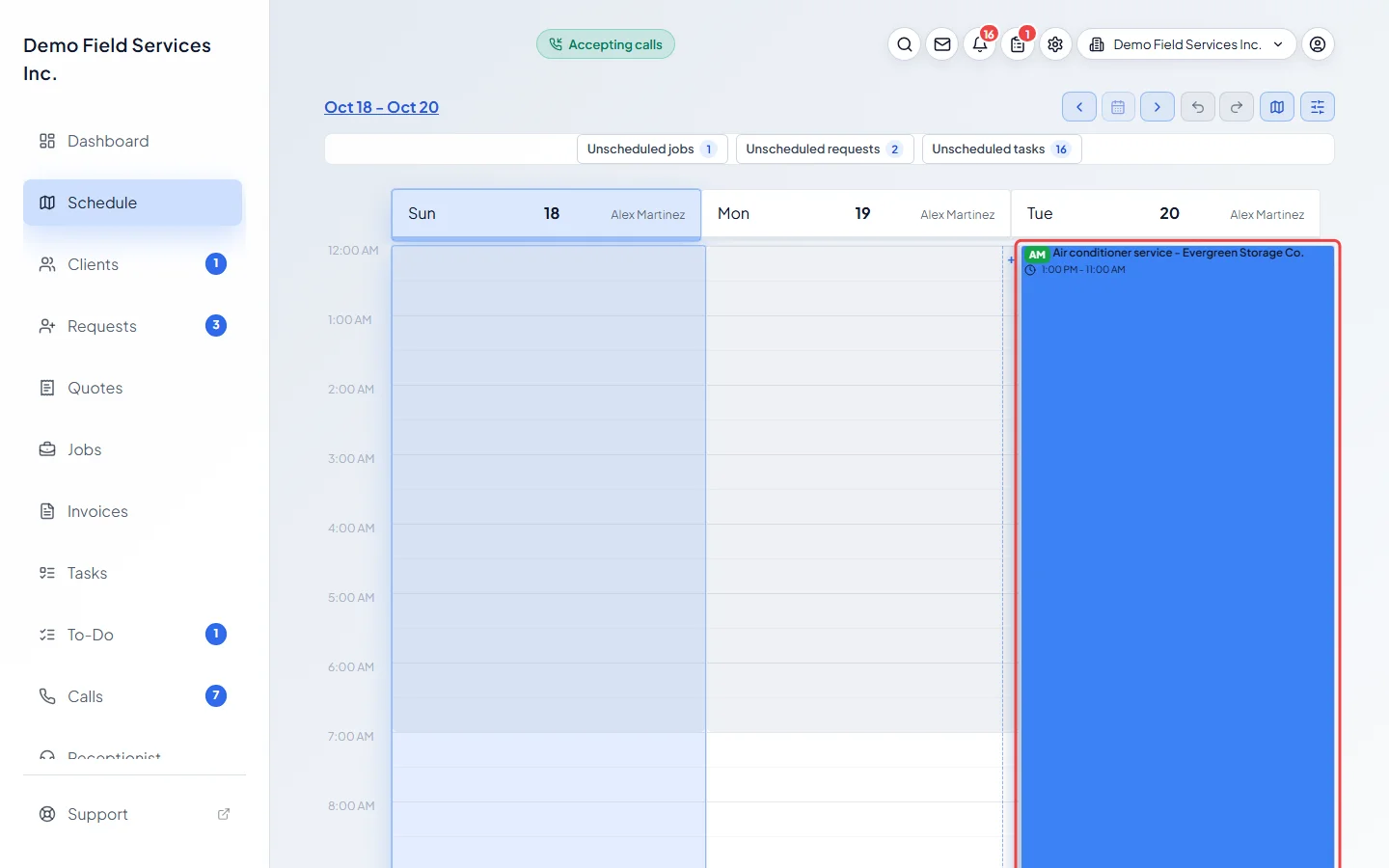
-
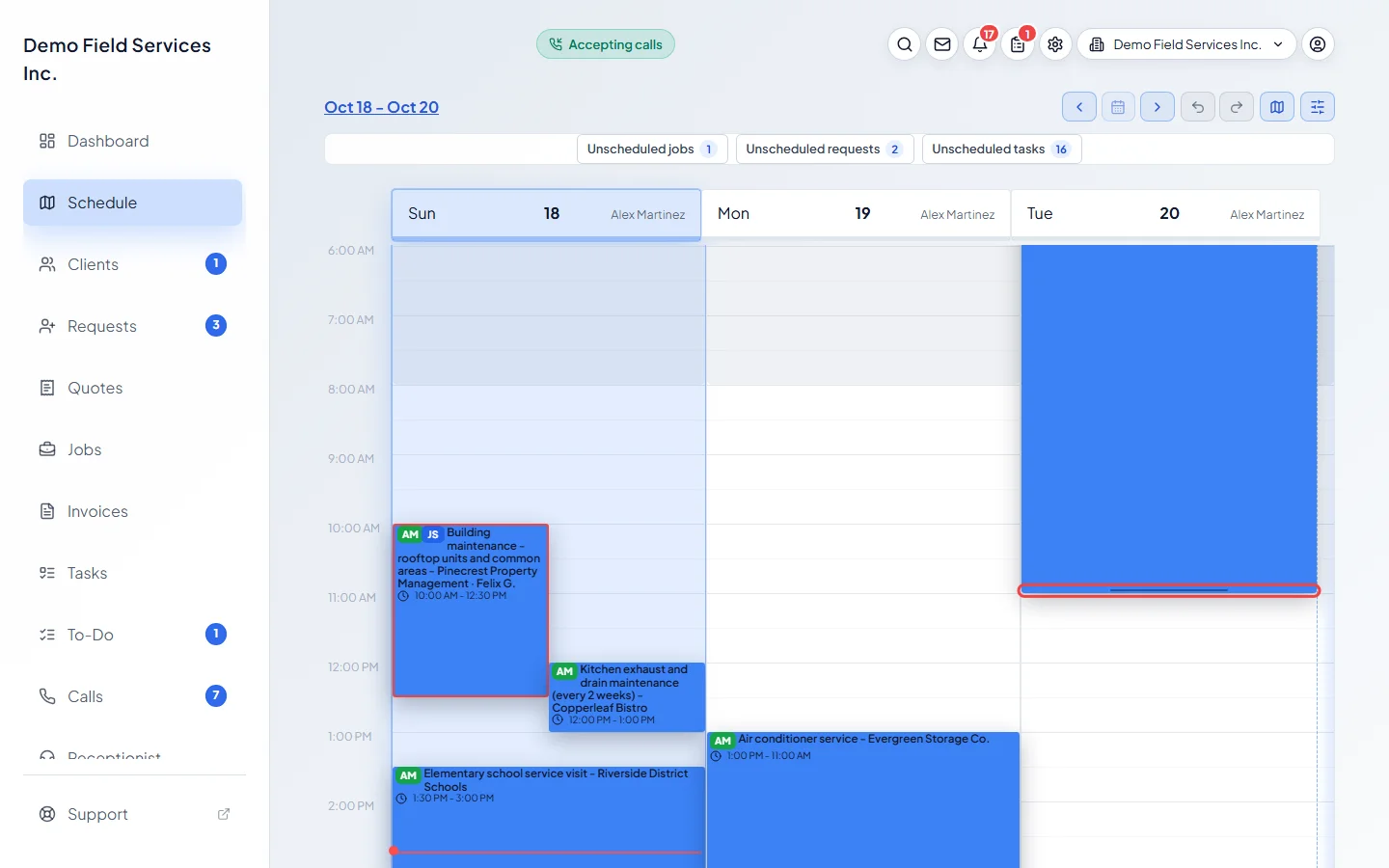
To change when it ends, drag the bottom edge of its last day. Each edge only moves within the day you grabbed.
Good to know
Section titled “Good to know”- Visits you create in Astragal start and end on the same day: the job and visit forms have one Start date. Multi-day visits come in with work you bring over, for example when moving your data from another app.
- Saving a multi-day visit in its Visit details window puts its end on the start day. To keep it over several days, move it by dragging instead.
- For work over several days that you plan yourself, add one visit for each day on the job, so each day has its own time, team and completion.
Related articles
Section titled “Related articles”Checked against Astragal on October 18, 2026