

The request details page
The request page holds everything about one request, and is where you edit it, confirm a visit, or send it on.
Who can do this: Anyone who can see requests can open one. Saving changes needs the Requests permission View, edit, and create or higher (admins, dispatchers and accountants always have it).
-
On the requests board, open a stage and click Details on a card. In All Requests, click the row. Requests you open from the schedule or a client’s page open in a window with the same parts.
On a computer: Left menu → Requests On a phone: Bottom bar → Requests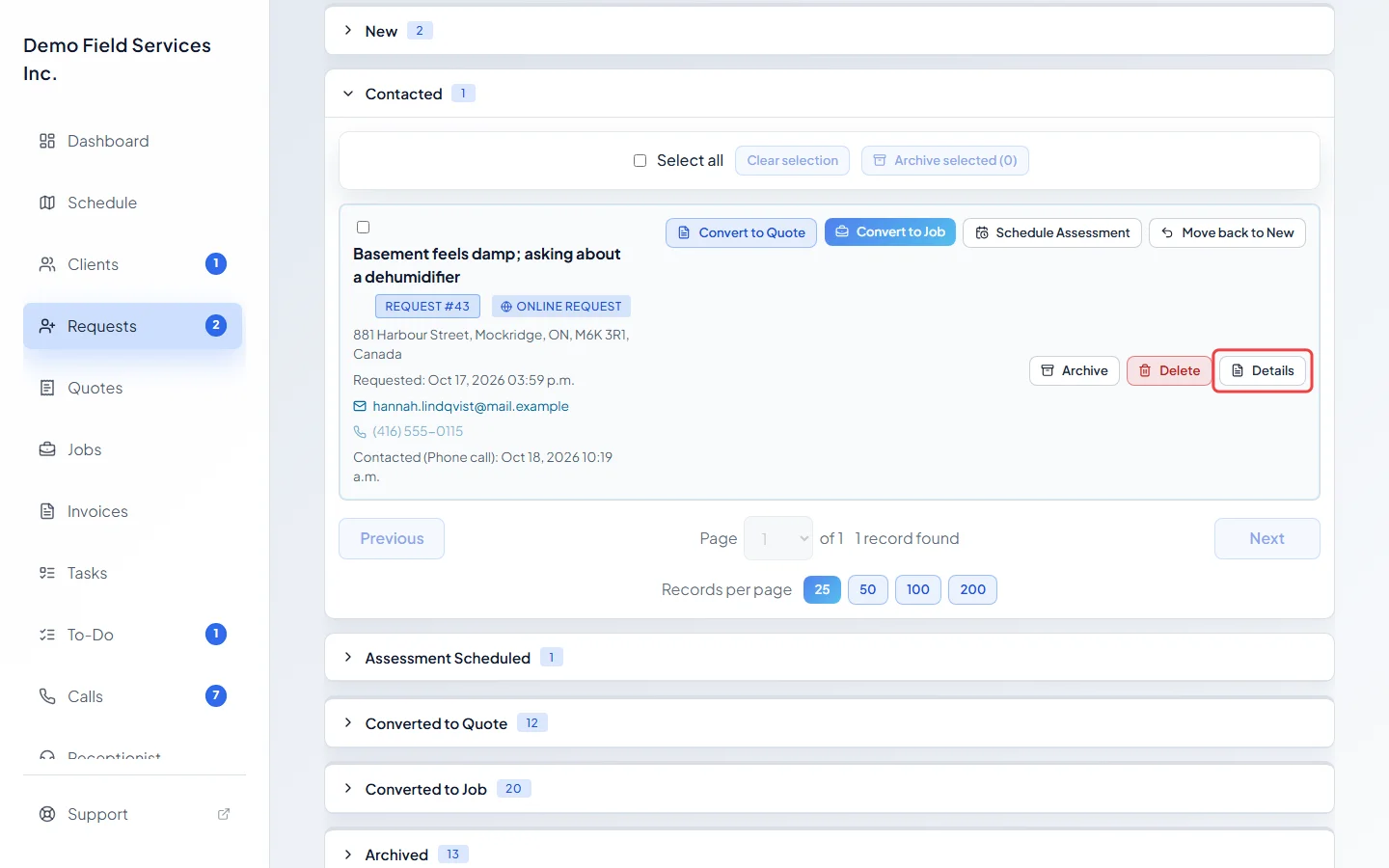
-
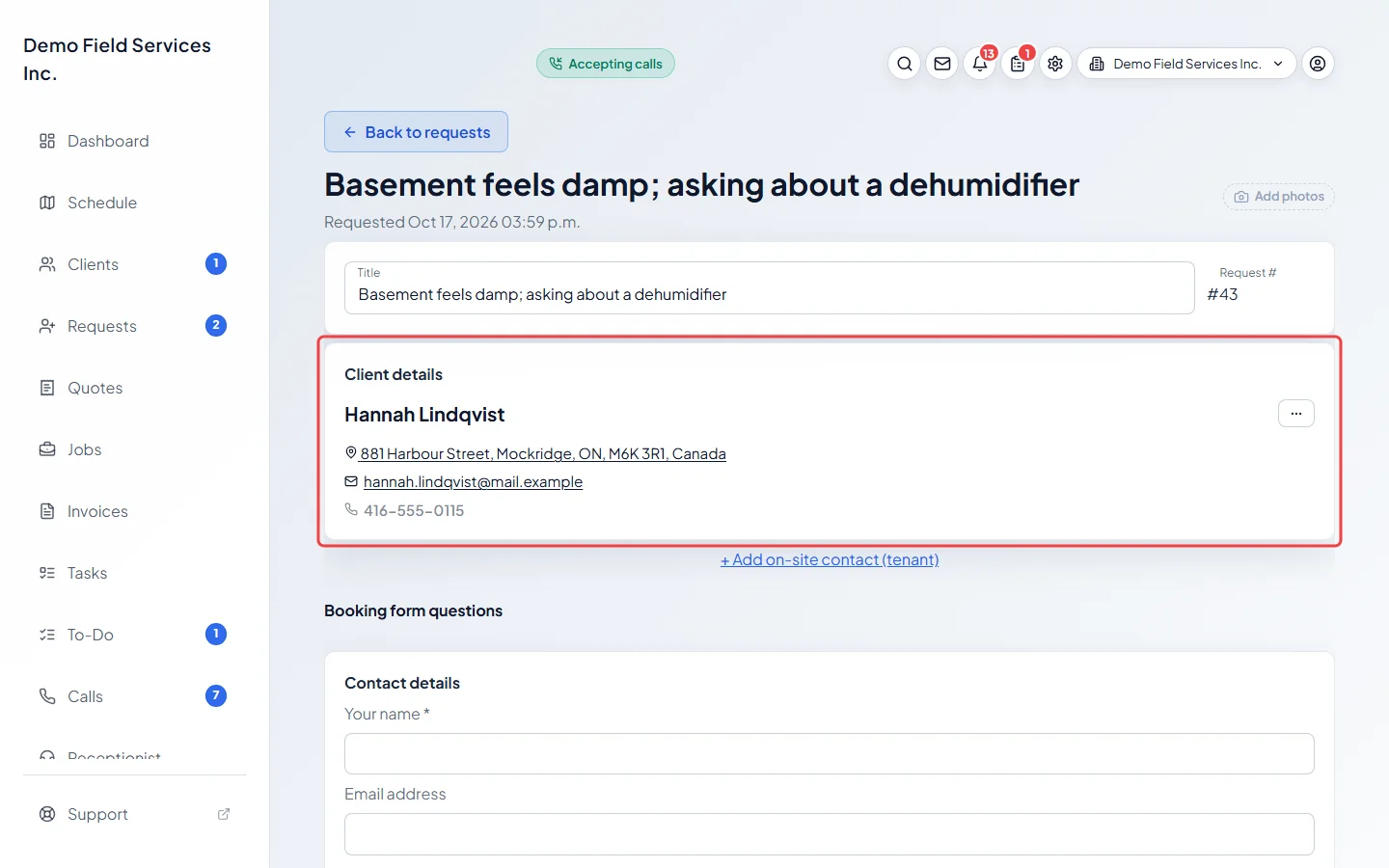
Read the top of the page. It shows the title and Requested with the date and time it came in. For website requests it also shows Came from with the page name and About with what the visitor picked. Linked records shows the quote or job it became; click one to open it. The Photos button opens the photos for the technician. With none attached it reads Add photos for admins, dispatchers and accountants, and No photos for everyone else. Under Client details are the client’s name, property, email and phone. Click the property to open it in maps.
-
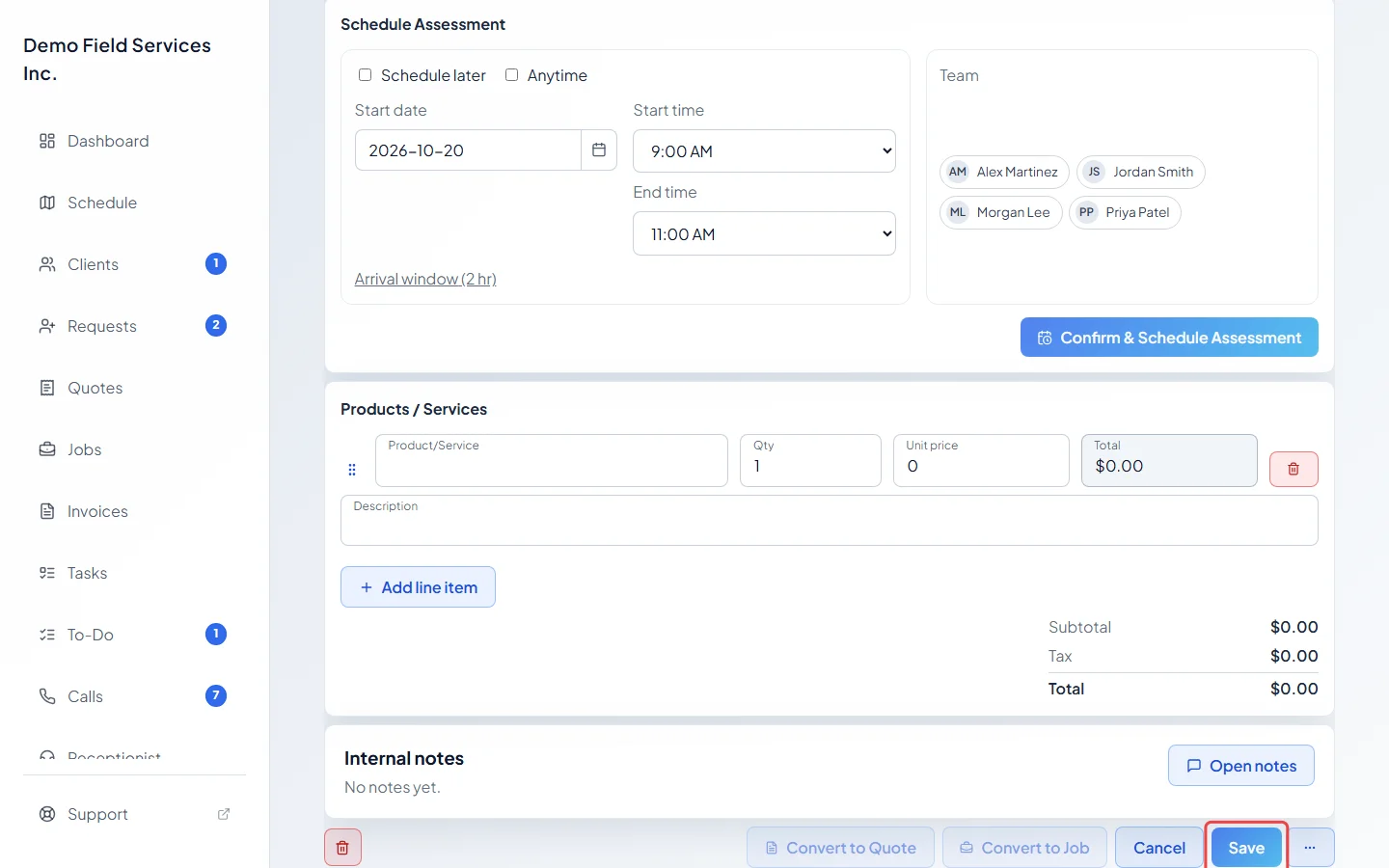
Change anything you need: the Title, Booking form questions, the time under Schedule Assessment, the Products / Services, or Internal notes. Changing who goes needs the schedule permission Edit everyone’s schedule. Click Save. It stays greyed out until you change something. The button next to Save reads Close, or Cancel once you’ve changed something; Cancel asks before throwing your changes away. Back to requests at the top also takes you back to the board.
-
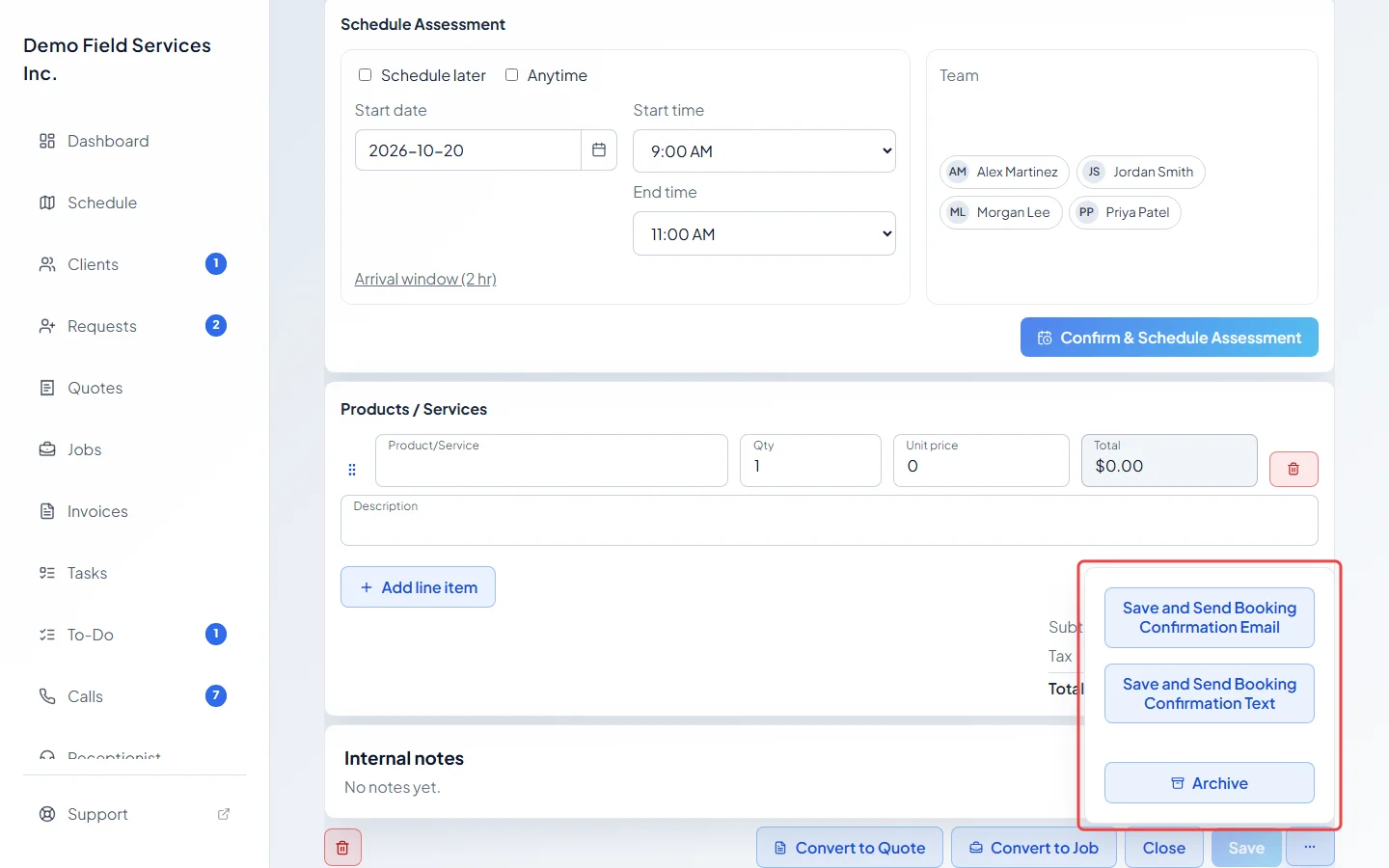
Click the … (More actions) button beside Save for everything else: Save and Send Booking Confirmation Email, Save and Send Booking Confirmation Text, and Archive. Archive, and Restore on an archived request, are only in this menu for people who can delete requests; anyone else archives from the request’s card on the board. The two confirmation choices need a date and times (or Anytime) first. They save the request, then open the message so you can check the recipients and wording before you click Send. Convert to Quote and Convert to Job sit next to Close on a wide screen, and move into this menu on a narrow one.
What else is on the page
Section titled “What else is on the page”- What the client told us shows the client’s own description, their answers to the questions of the service they booked online, and how they heard about you. It’s read-only so nobody can change what the client wrote. For online bookings, the services and prices the client was shown are listed under Products / Services, with the Booked length.
- If one of your Booking form questions changed after the client answered it, their old answer shows under it. Leave it, type a replacement, or click Delete this answer (and Keep this answer to change your mind before you save).
- If you can edit requests, click the request number to change it.
- Click the … button next to the client’s name for Edit client details and Change property.
- Navigate appears once the request has a property and a team. It opens the “On my way” message so you can tell the client you’re coming. See On my way messages.
- If you move the time and click Save, Astragal offers to tell the client about the new time. Nothing is sent unless you choose to. See Rescheduling a visit.
- An archived request shows This request is archived. and can’t be changed until you restore it. See Closing a request.
- The red bin button at the bottom left deletes a request that never became a quote or job. Only people who can delete requests see it.
Related articles
Section titled “Related articles”Next step: Turning a request into a quote or job
Checked against Astragal on October 18, 2026