

Team reminders
Have Astragal remind the right person when something that should have been done after a job hasn’t been.
Who can do this: Admins and dispatchers change the settings. Everyone gets their own reminders in the team reminders inbox.
Also called: forgotten-task alerts, staff nudges.
These remind your own team, not your clients. To chase clients about an unanswered quote, see Following up on outstanding quotes.
The reminders
Section titled “The reminders”- Draft quote not sent to client: a quote was moved off Draft but the client never received it.
- Draft invoice not sent to client: an invoice is ready but no email or text went to the client.
- Paid invoice copy not sent to client: an invoice was marked paid but the client didn’t get a paid copy.
- Photos missing on completed quote: a quote was written up with no photos in its internal notes.
- Photos missing on completed job and Photos missing on a visit: the work was finished with no photos in its internal notes. The visit one checks each visit of a job with several visits separately.
A reminder goes to the person the work belongs to. When nobody is attached, it goes to your admins, and to dispatchers too if Also notify dispatcher is on. It clears itself once the job is done, for example when the quote is sent.
Setting them up
Section titled “Setting them up”-
Open Team reminders and turn on Send team reminders. While it’s off, nothing below is used.
On a computer: Left menu → Settings → Team reminders On a phone: More → Settings → Team reminders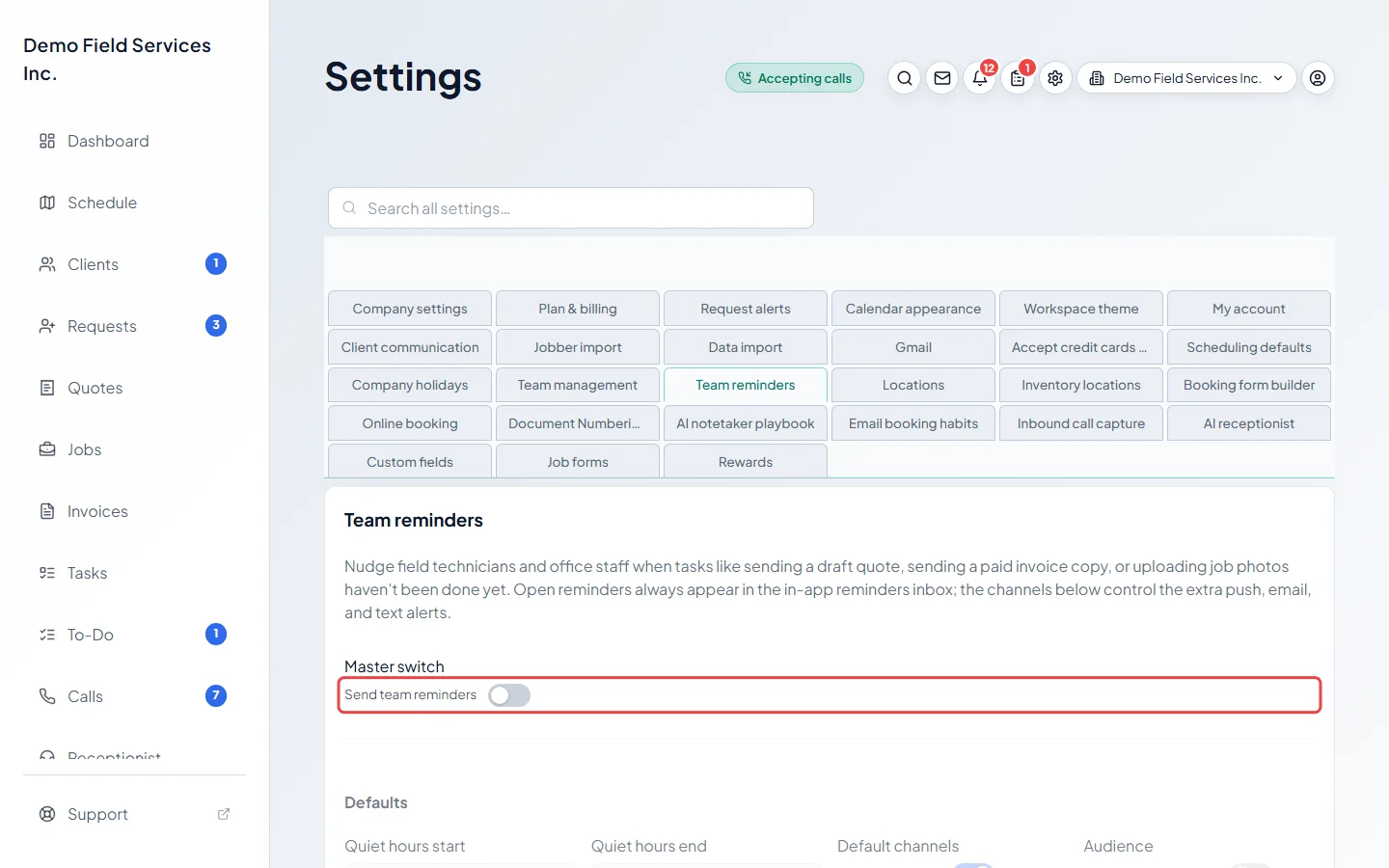
-
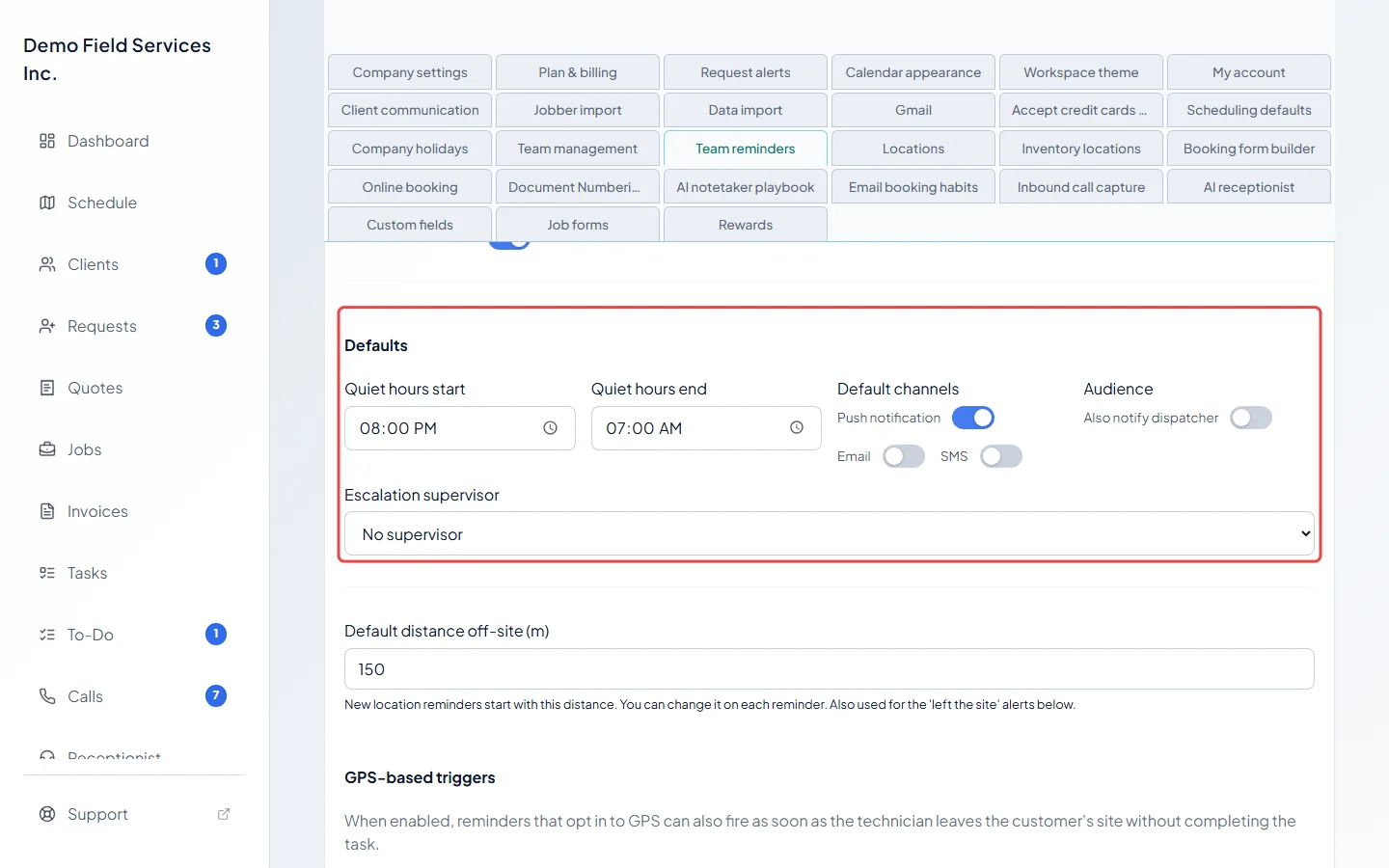
Under Defaults, set Quiet hours start and Quiet hours end (reminders wait until quiet hours end; alerts triggered by a technician leaving a site still go out), whether to Also notify dispatcher, and an Escalation supervisor who is added when a second reminder goes out. Escalation supervisor lists only admins and dispatchers. Default channels isn’t used when sending; each reminder’s own channels in step 4 decide that.
-
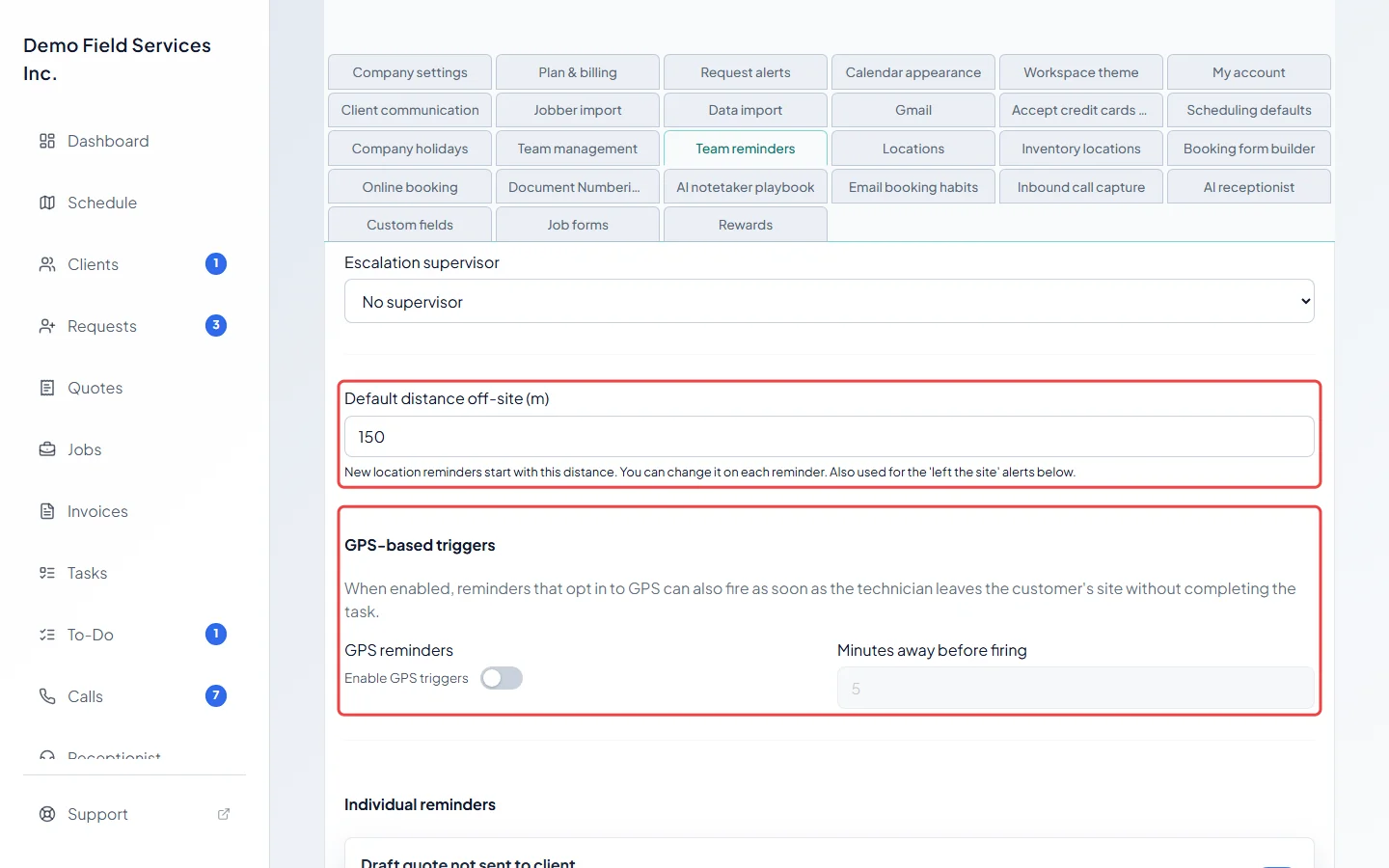
Set the Default distance off-site (m). New location reminders start with this distance, and it’s how far a technician has to be from a site to count as having left. Under GPS-based triggers, turn on Enable GPS triggers and set Minutes away before firing to let reminders fire as soon as a technician leaves the site without finishing the task.
-
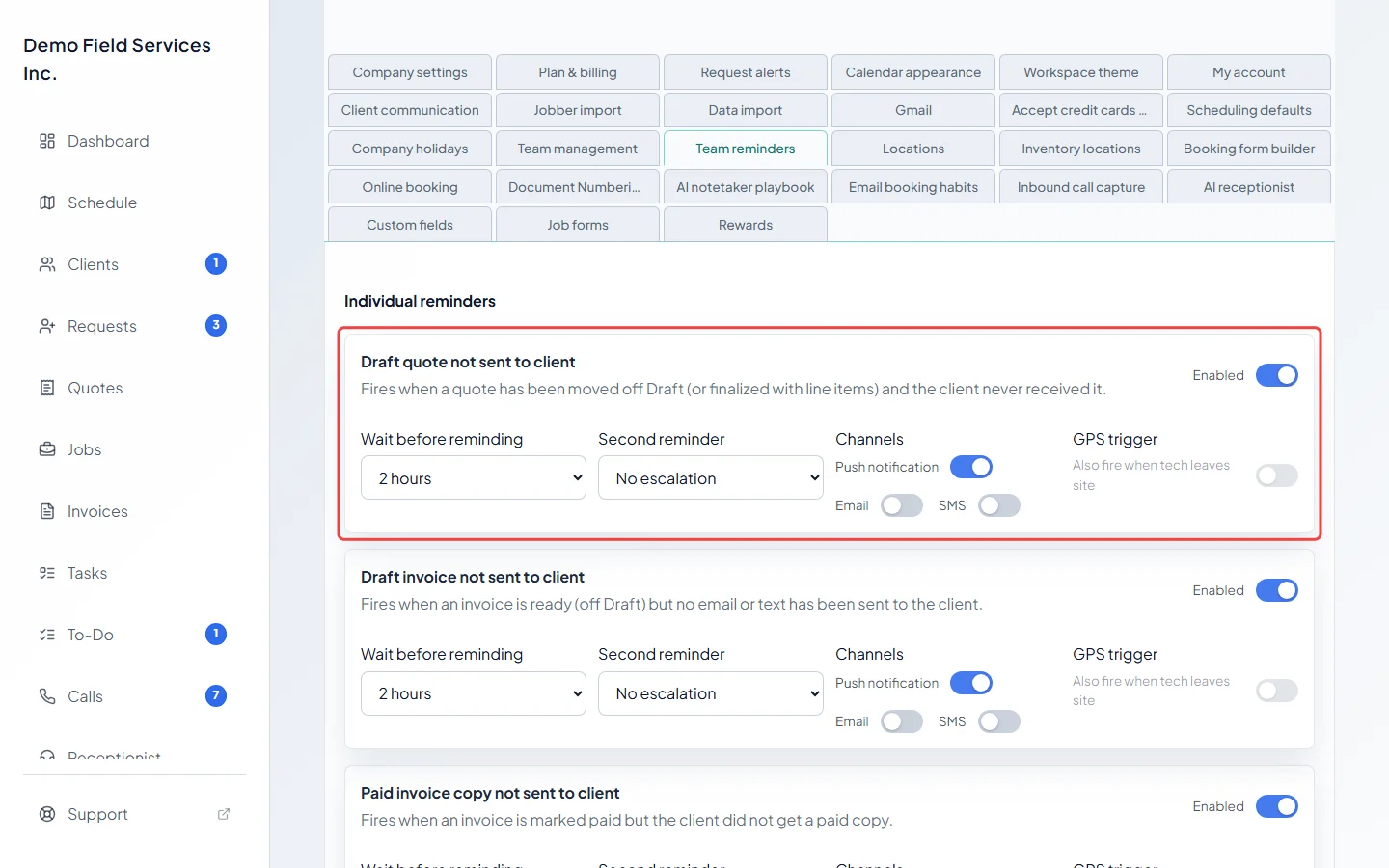
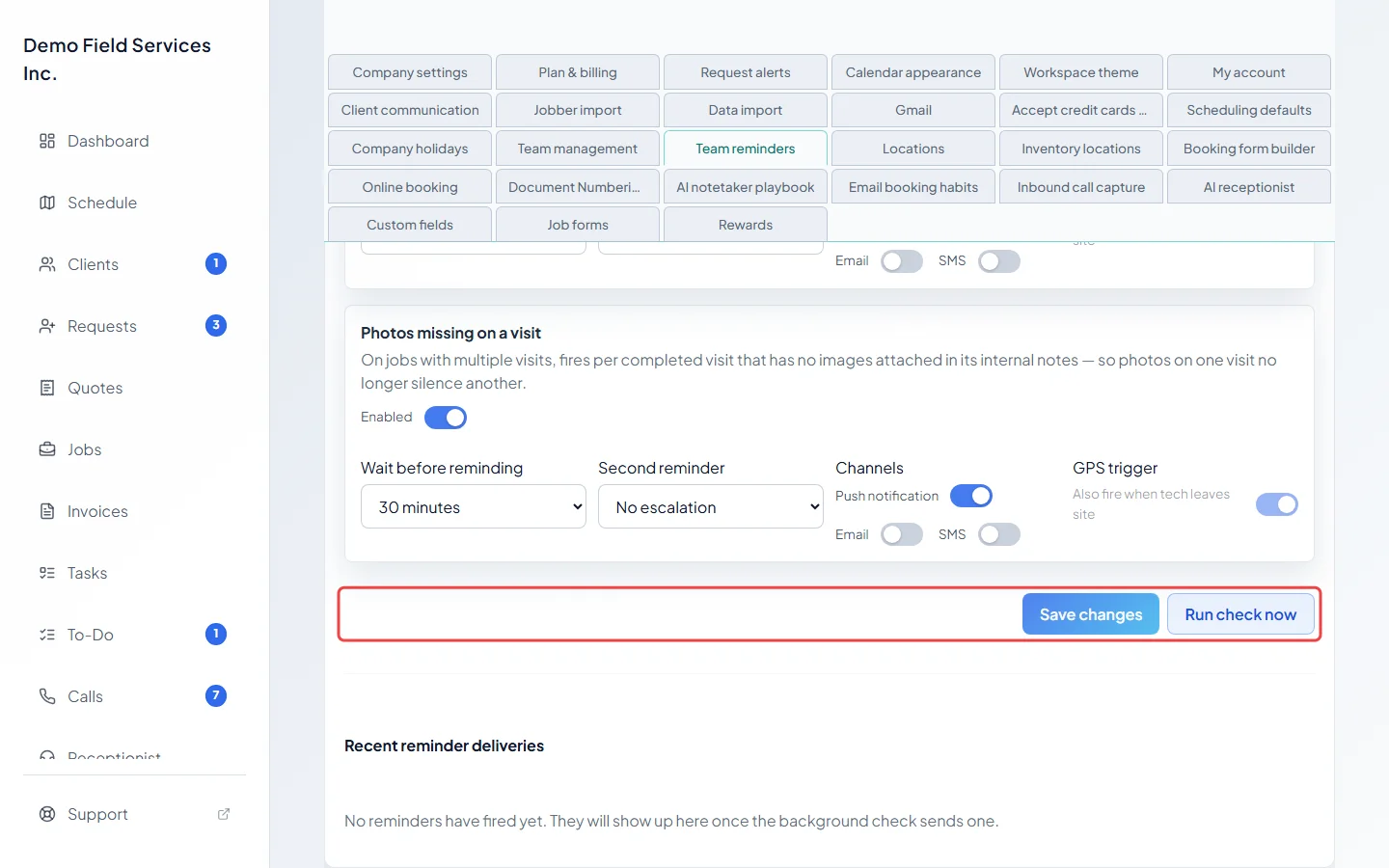
Under Individual reminders, for each reminder choose Enabled, Wait before reminding, a Second reminder (or No escalation), its channels (Push notification, Email, SMS) and Also fire when tech leaves site.
-
Click Save changes. Run check now looks for forgotten work straight away instead of waiting for the next automatic check. Sent reminders appear under Recent reminder deliveries.
Your reminders inbox
Section titled “Your reminders inbox”A reminder shows in the inbox once it has gone out on at least one of its channels. If you turn off all three for a reminder, it never appears.
-
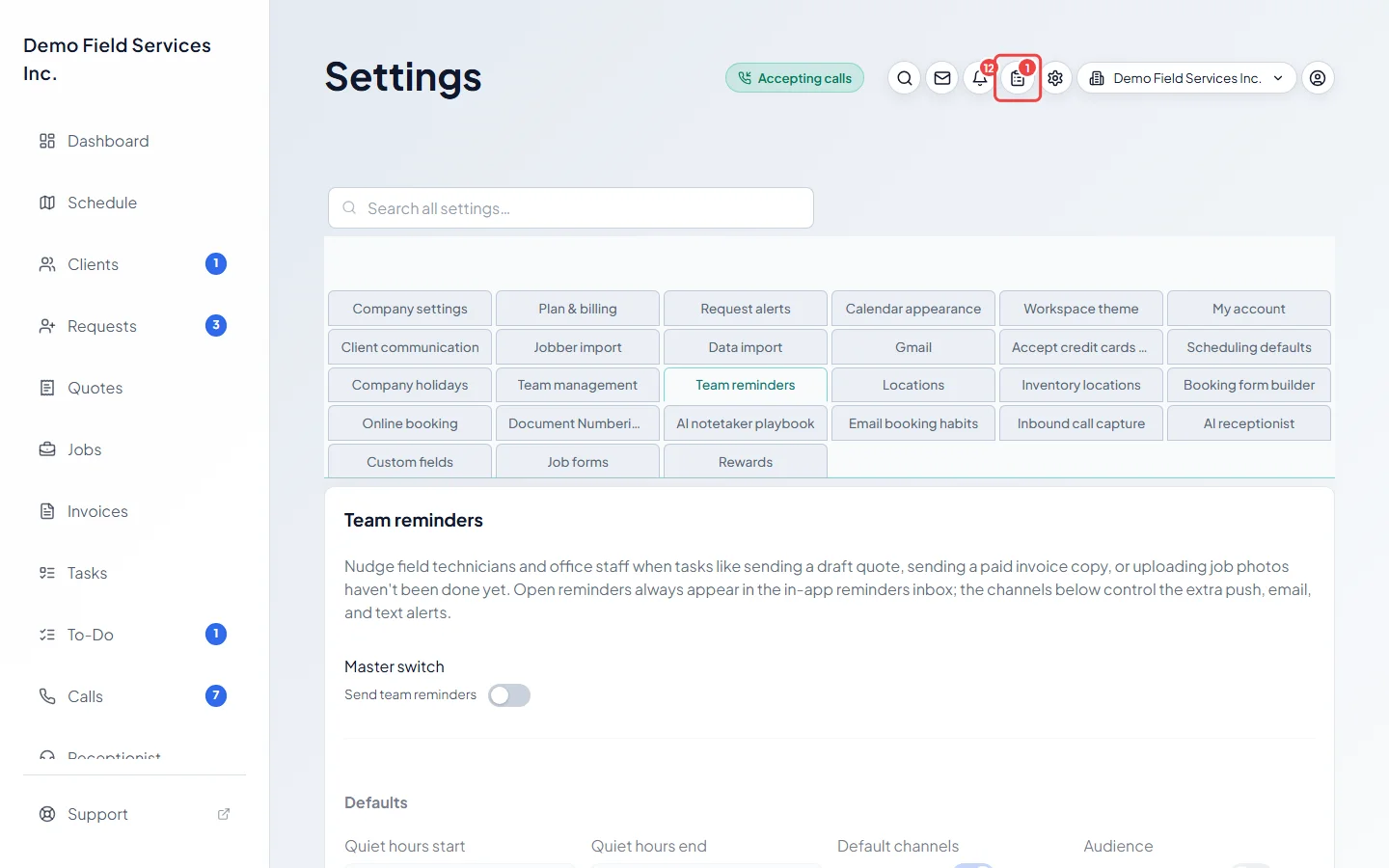
Click the clipboard button at the top of the screen. A number on it shows unread reminders. If a strip says reminders are waiting, Review opens the list that holds them.
-
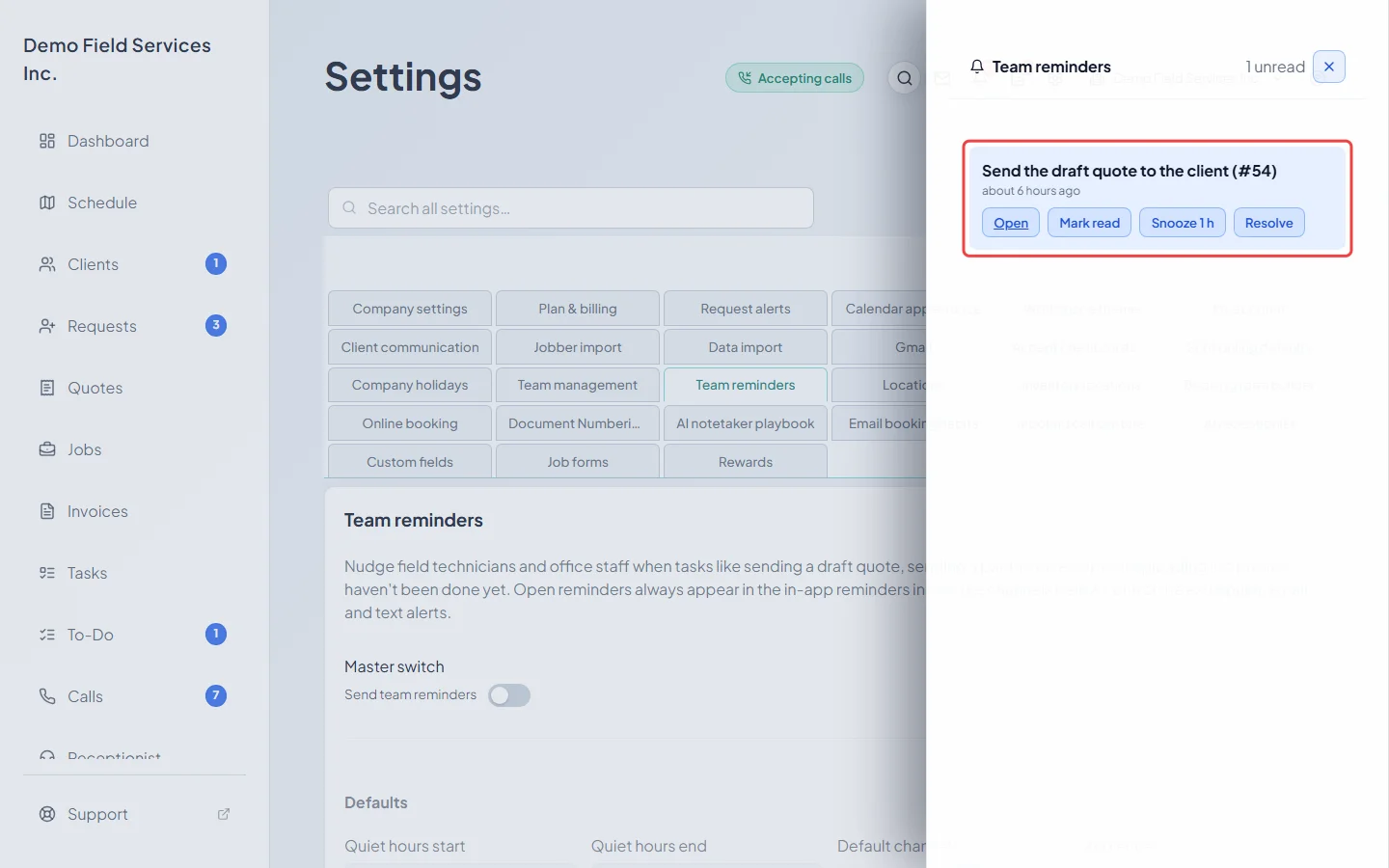
On a reminder, click Open to go to the quote, invoice, job or visit. Mark read quiets it, Snooze 1 h stops its alerts for an hour (it stays in the list showing when it comes back), and Resolve clears it.
Good to know
Section titled “Good to know”- Technicians can only act on their own reminders. Admins and dispatchers can act on anyone’s.
- Every reminder starts switched on. Before you turn on Send team reminders, switch off any you don’t need.
Related articles
Section titled “Related articles”Checked against Astragal on October 17, 2026