

Saved locations
Save the places your team goes that aren’t clients, so you can pick them when you set up a location reminder.
Who can do this: Admins and dispatchers.
Also called: places, warehouses, supplier addresses.
-
Open the Locations section of Settings. Each saved place shows its name, type and distance. Click Add location.
On a computer: Left menu → Settings → Locations On a phone: More → Settings → Locations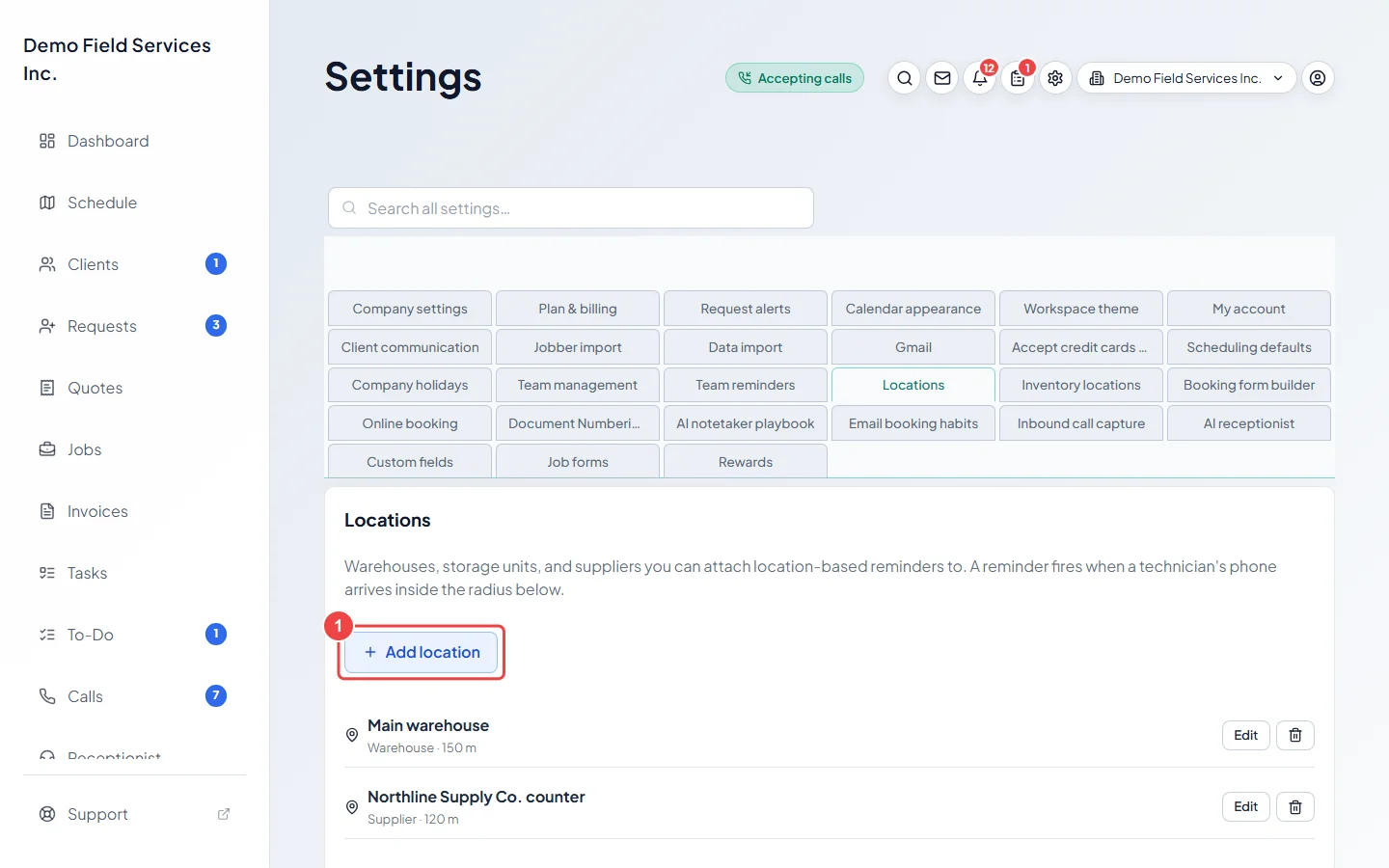
-
Type a Name (such as “Main warehouse”), pick a Type (Warehouse, Storage, Supplier or Other), and start typing the Address. Pick the matching address from the list so Astragal can place it on the map.
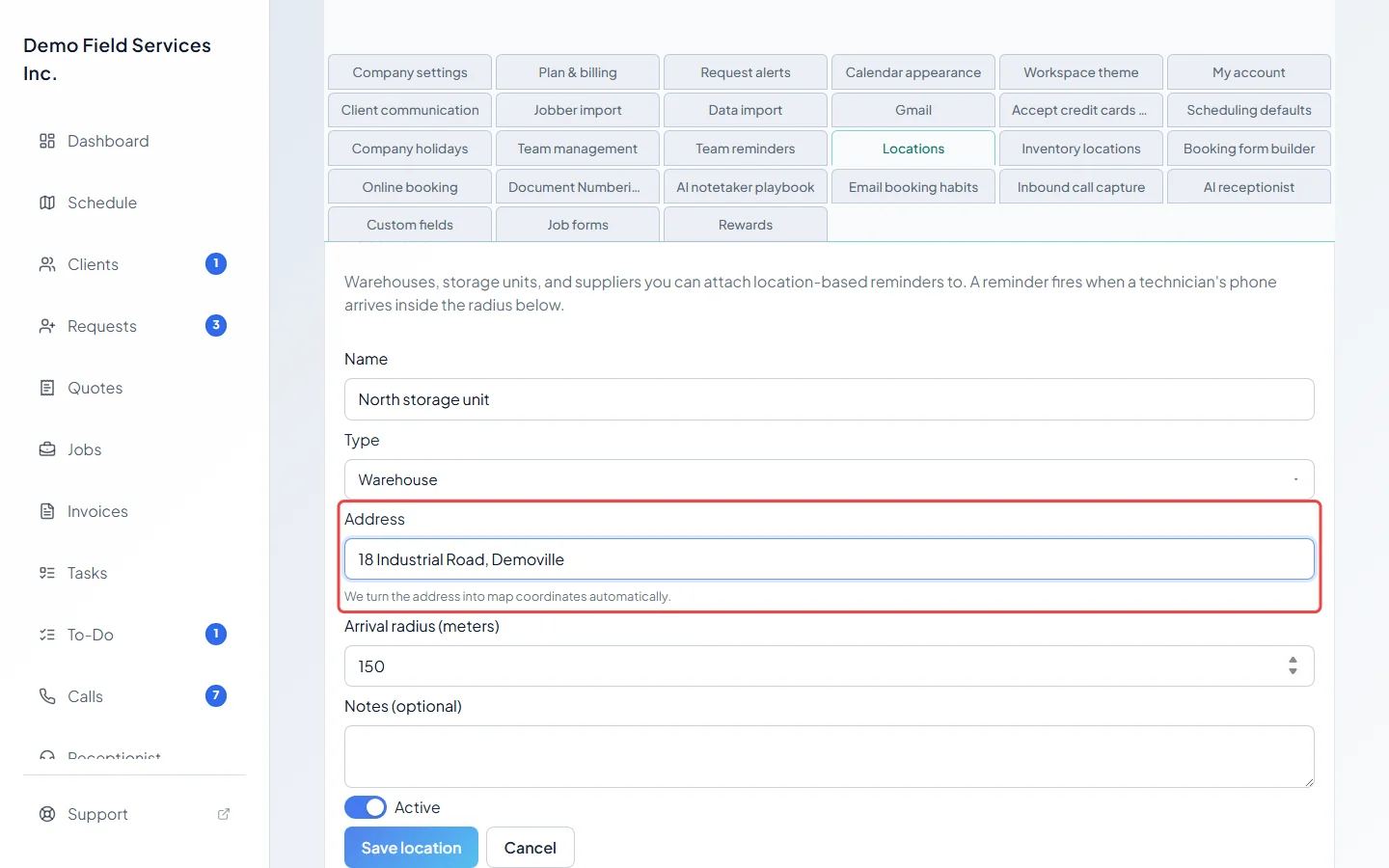
-
Set the Arrival radius (meters): how close a technician’s phone has to get for a reminder to go off. Add Notes (optional), such as where to park, leave Active on, and click Save location.
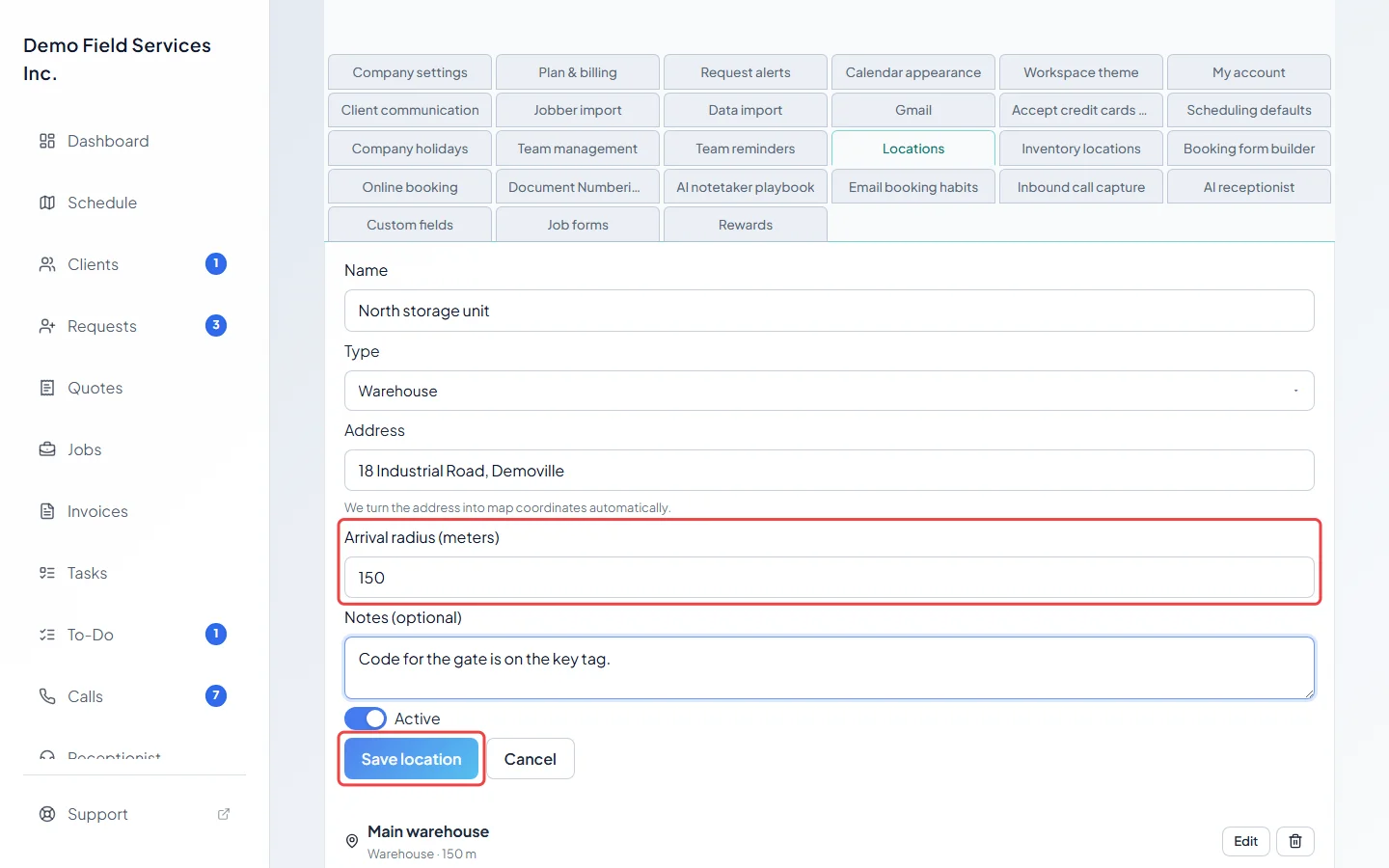
-
To change a place, click Edit next to it, make your changes and click Save location. Turn Active off to stop offering it for new reminders without losing it.
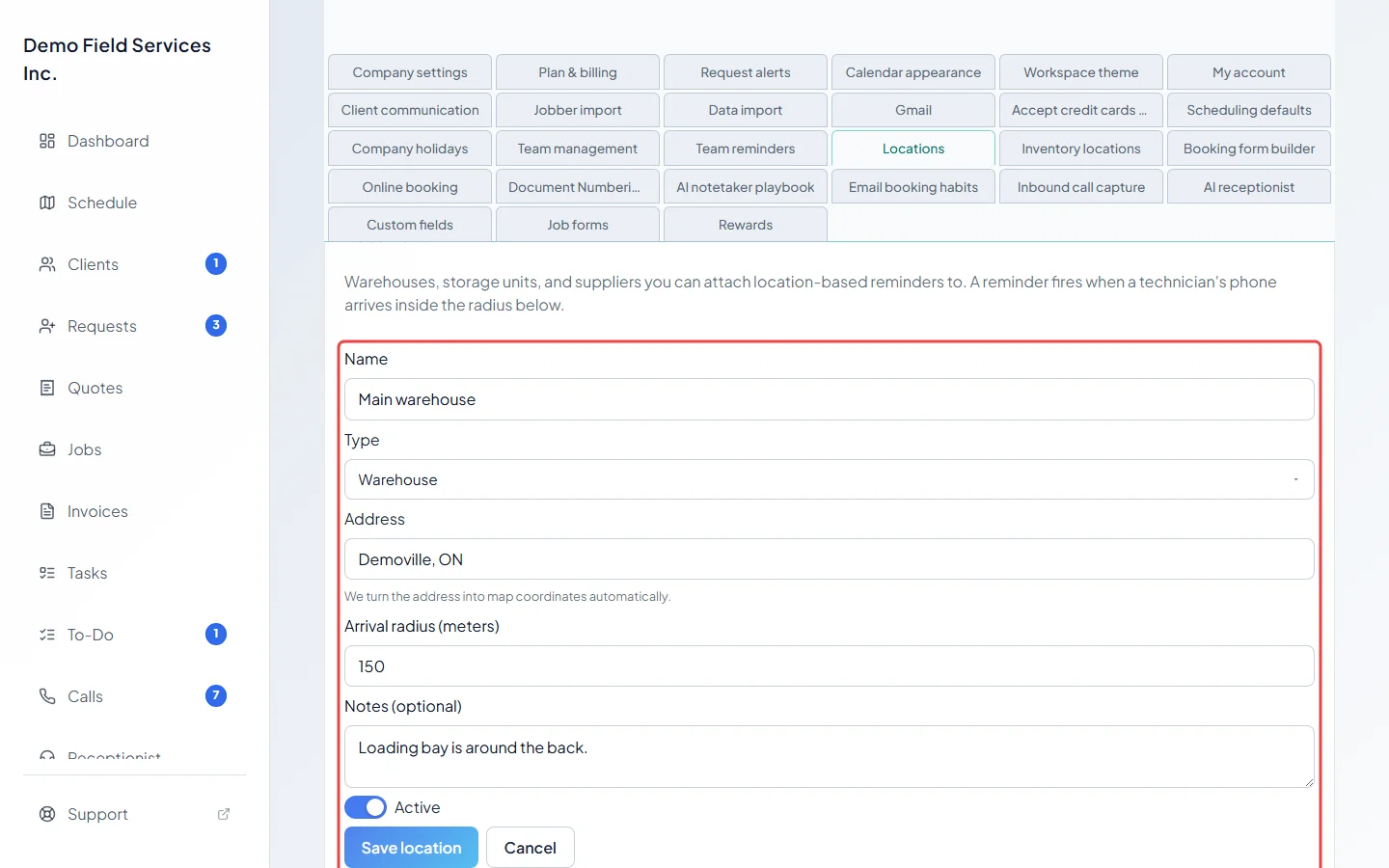
Good to know
Section titled “Good to know”- A place whose address couldn’t be found on the map shows “no coordinates”. You can’t pin a reminder to it until you fix the address.
- Deleting a place (the bin next to Edit) doesn’t break reminders that already use it: they keep the spot they were set up with.
- When you pick a saved place on a reminder, its distance becomes the reminder’s starting distance. See Location reminders.
- Changing a place’s address later doesn’t move reminders that already use it. Open each one on the Reminders page and click Update reminder to pick up the new address.
Related articles
Section titled “Related articles”Checked against Astragal on October 17, 2026