

Receiving stock
When a delivery arrives, record it on the purchase order and the stock is added to the location you choose.
Who can do this: Admins, dispatchers and accountants, on a plan that includes purchase orders.
Also called: checking in a delivery, goods received.
-
Open Purchase Orders, click the three-dot button on an ordered PO and choose Receive. (You can also open the PO and click Receive under Receive items.) Receive only works for a PO that is Ordered and still has items to come.
On a computer: Left menu → Inventory → Purchase Orders On a phone: More → Purchase Orders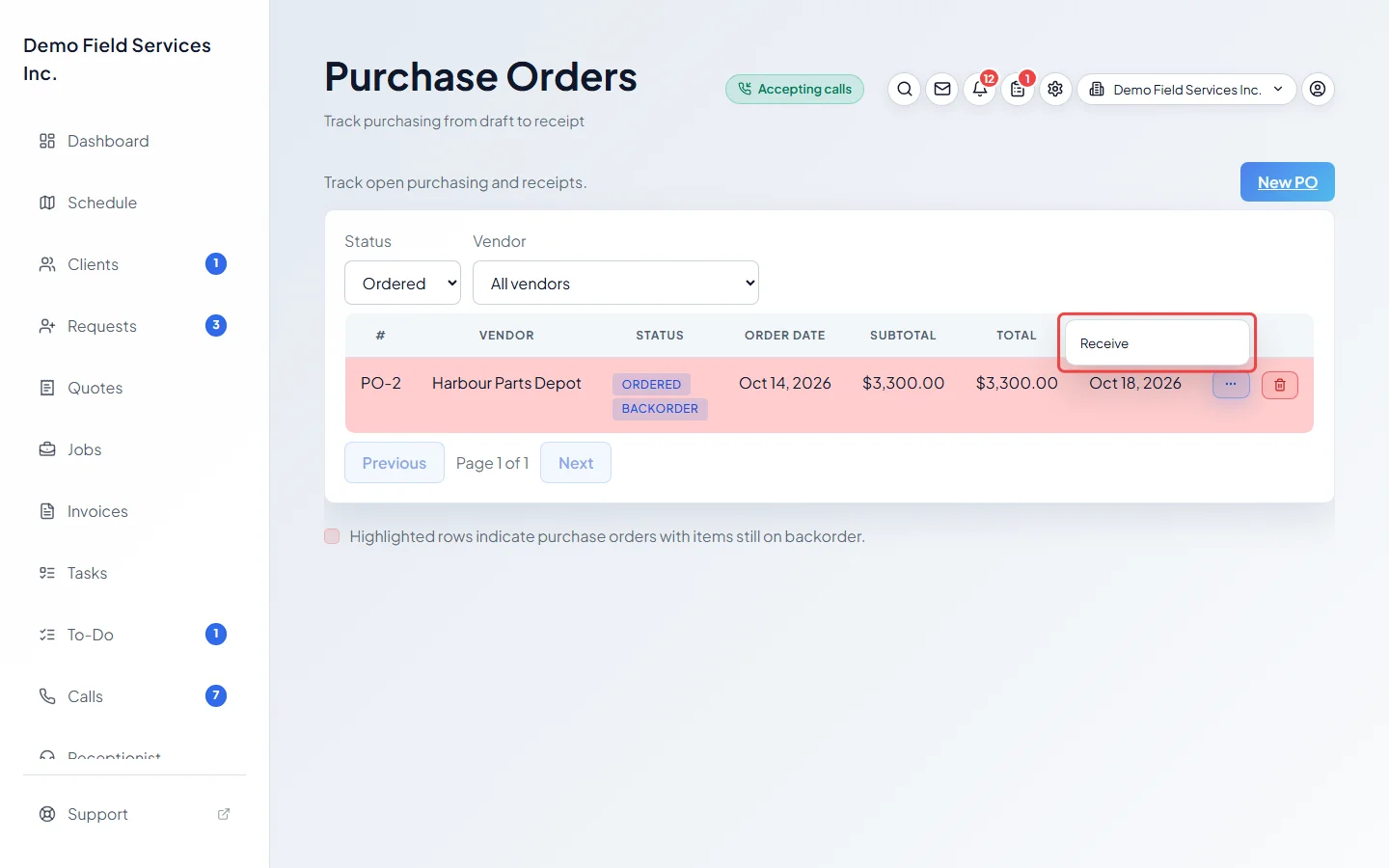
-
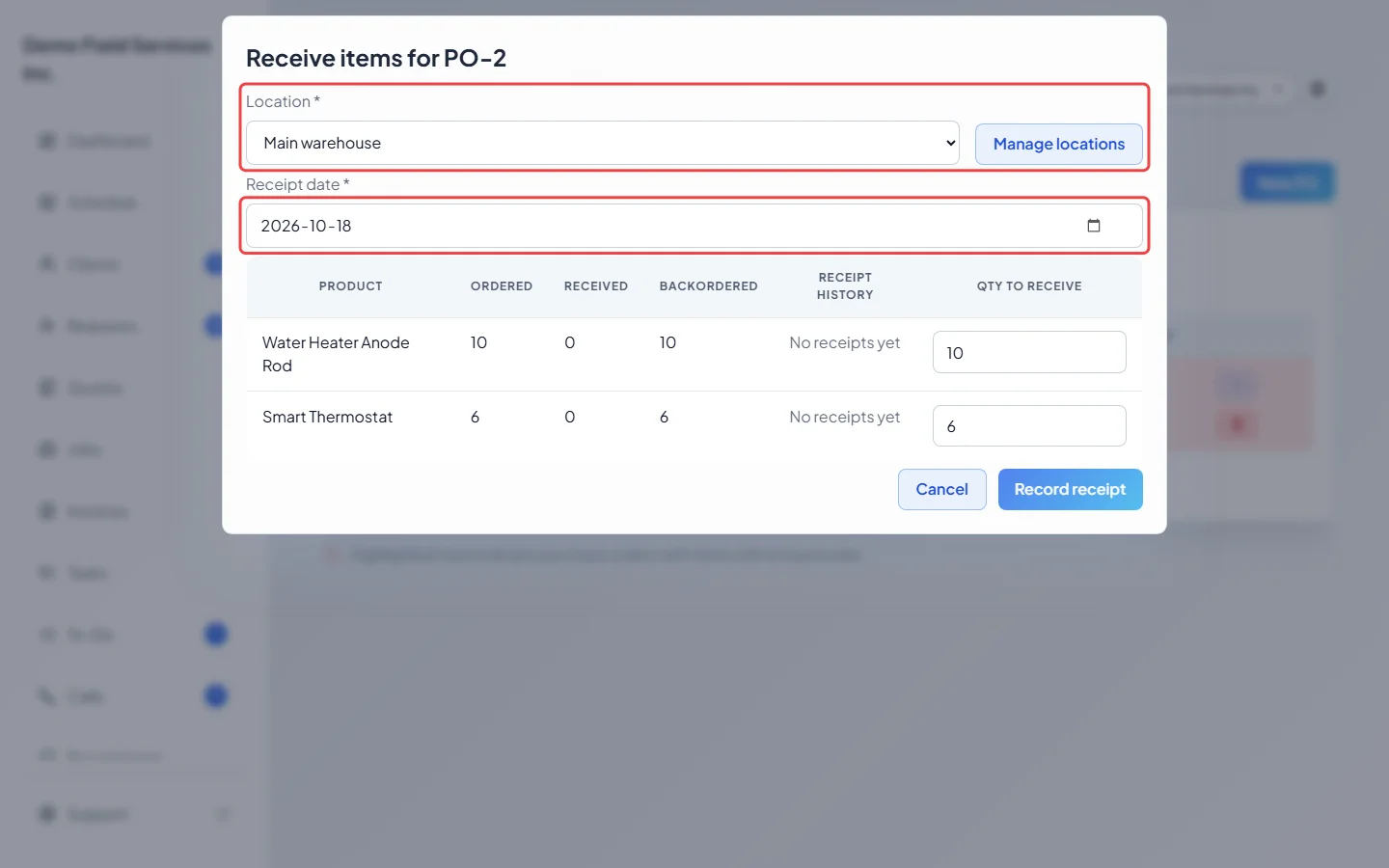
Choose the Location the stock is going to and check the Receipt date (in the evening it can show tomorrow’s date, so correct it if needed). Manage locations opens your stock location settings in a new tab if you need to add one.
-
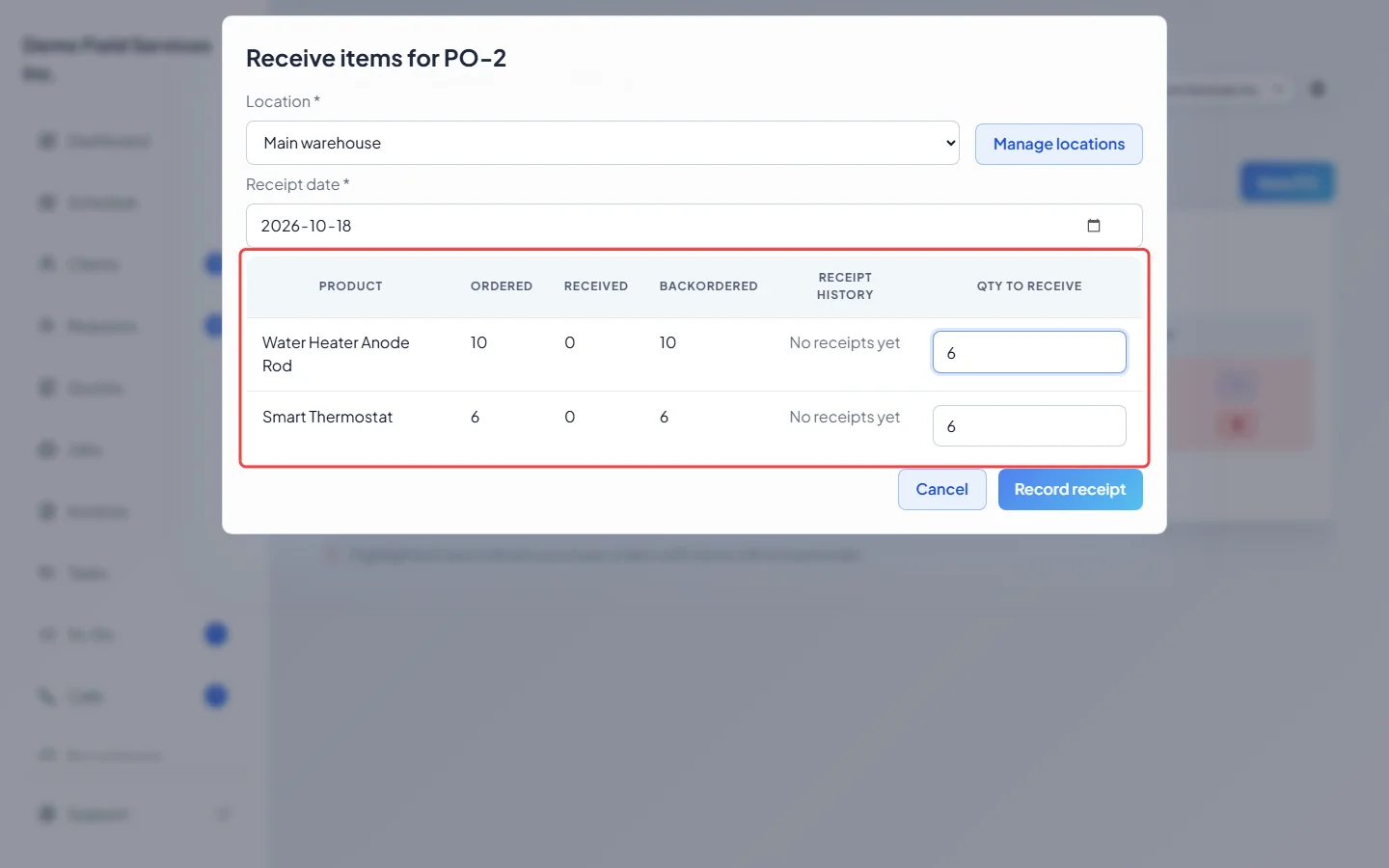
For each product, check Qty to receive. It starts at the amount still to come; lower it if only part arrived, or clear it for an item that didn’t come. The table also shows how many were Ordered, already Received, still Backordered, and each earlier delivery under Receipt history.
-
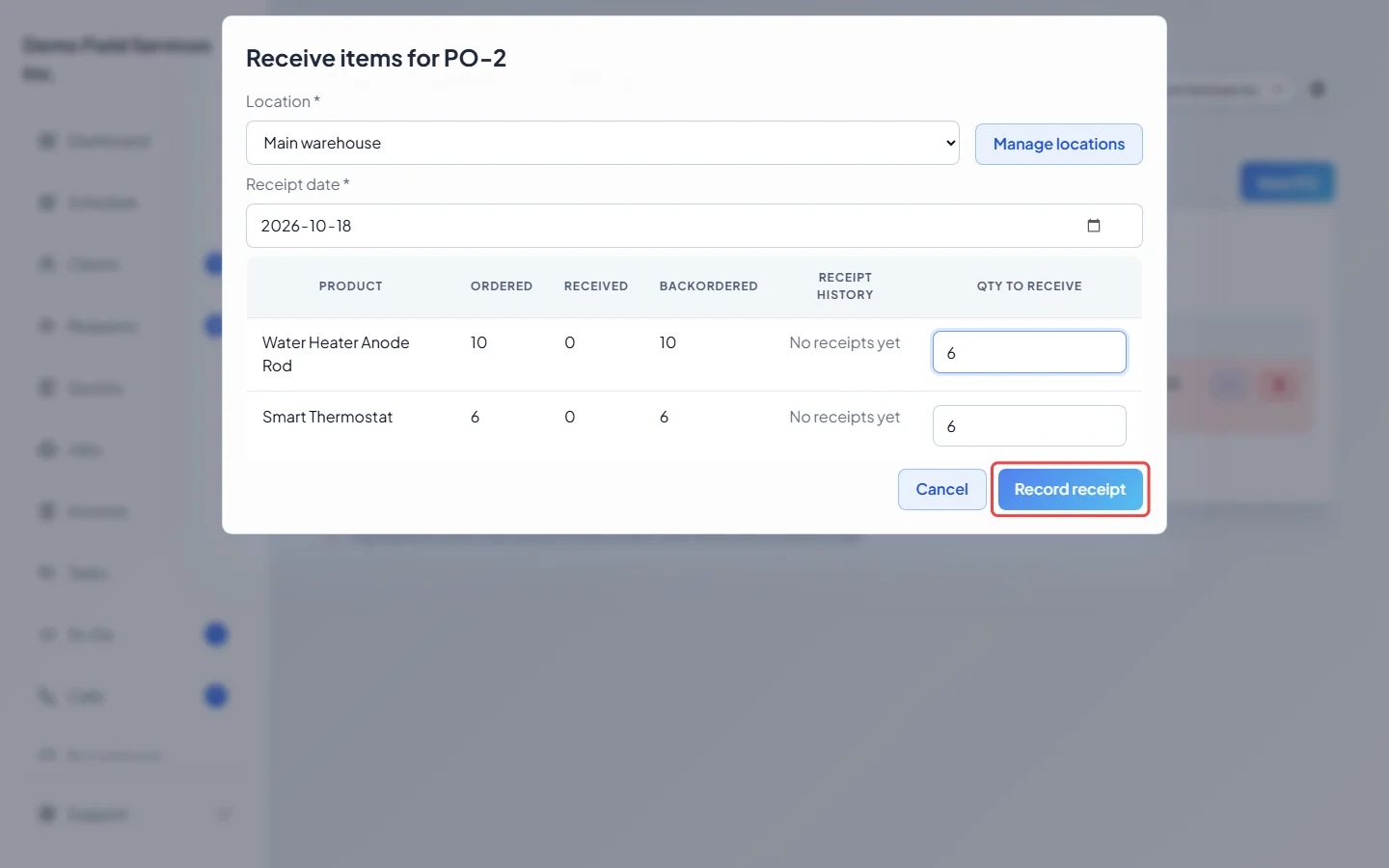
Click Record receipt. The stock is added at that location. From the list you stay on the list; from inside the order the window closes and you stay on the order.
What happens next
Section titled “What happens next”- If everything has now arrived, the PO becomes Received and is read-only.
- If some items are still to come, it stays Ordered, is highlighted on the list with a Backorder tag, and you can receive the rest later. A delivery can’t be more than what’s still to come.
- Each delivery goes into the product’s stock history at the cost on the PO line. See Stock tracking and locations.
- Products that were on the low stock list drop off once you have enough again.
Good to know
Section titled “Good to know”- One delivery goes to one location. If a delivery is split between places, record it twice, or receive it all at one place and transfer some.
Related articles
Section titled “Related articles”Checked against Astragal on October 17, 2026