

Job form answers
Pull the answers from one kind of job form into a single list, one row per completed form.
Who can do this: Admins, dispatchers and accountants who can open Reports. Technicians can’t open it, because answers can hold gate codes and access notes.
Also called: checklist answers, inspection results.
-
Open Reports and pick Job form answers. If your company has ever had more than one job form (archived ones count), the report asks you to “Pick a form to see its answers.”
On a computer: Left menu → Reports On a phone: More → Reports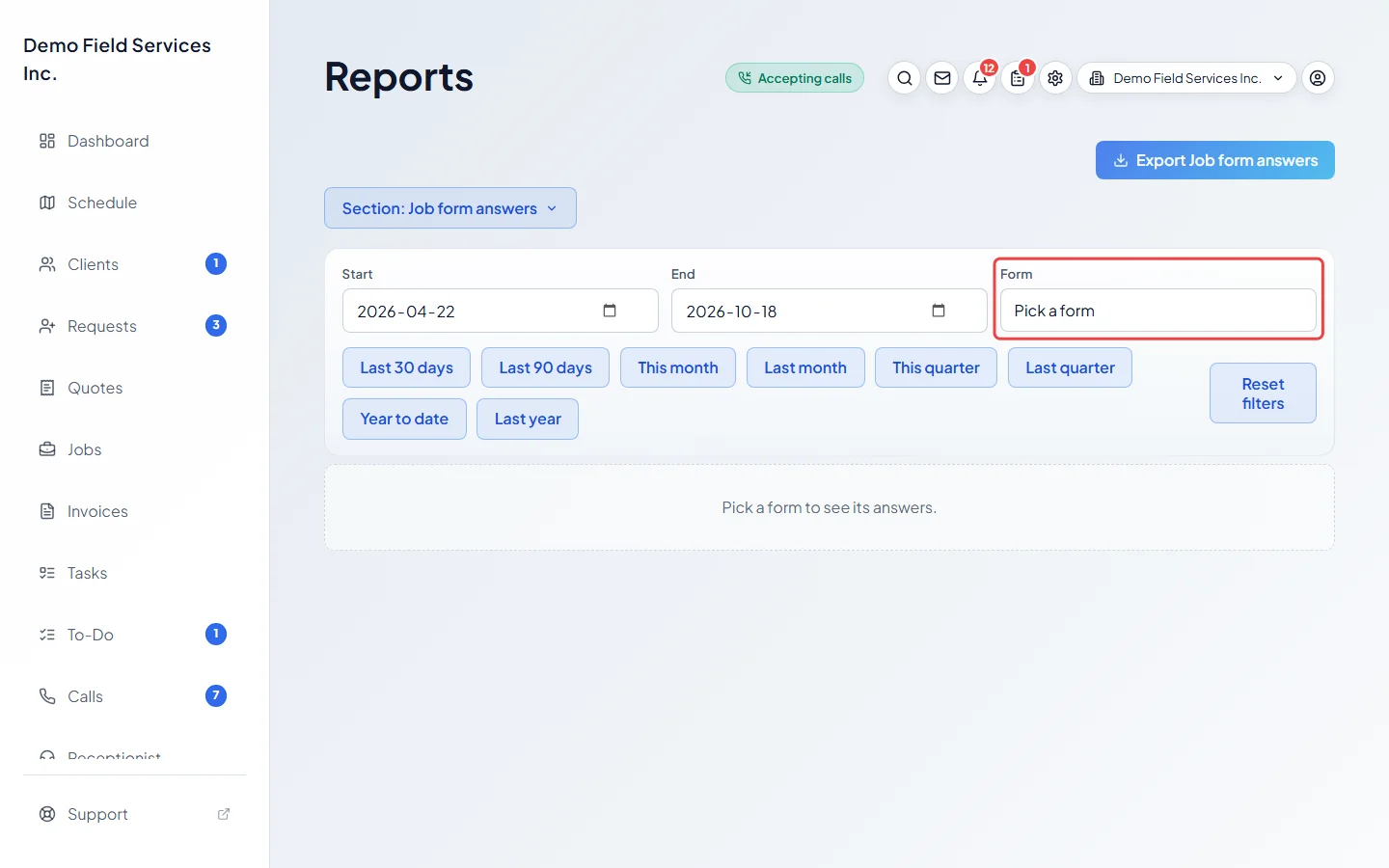
-
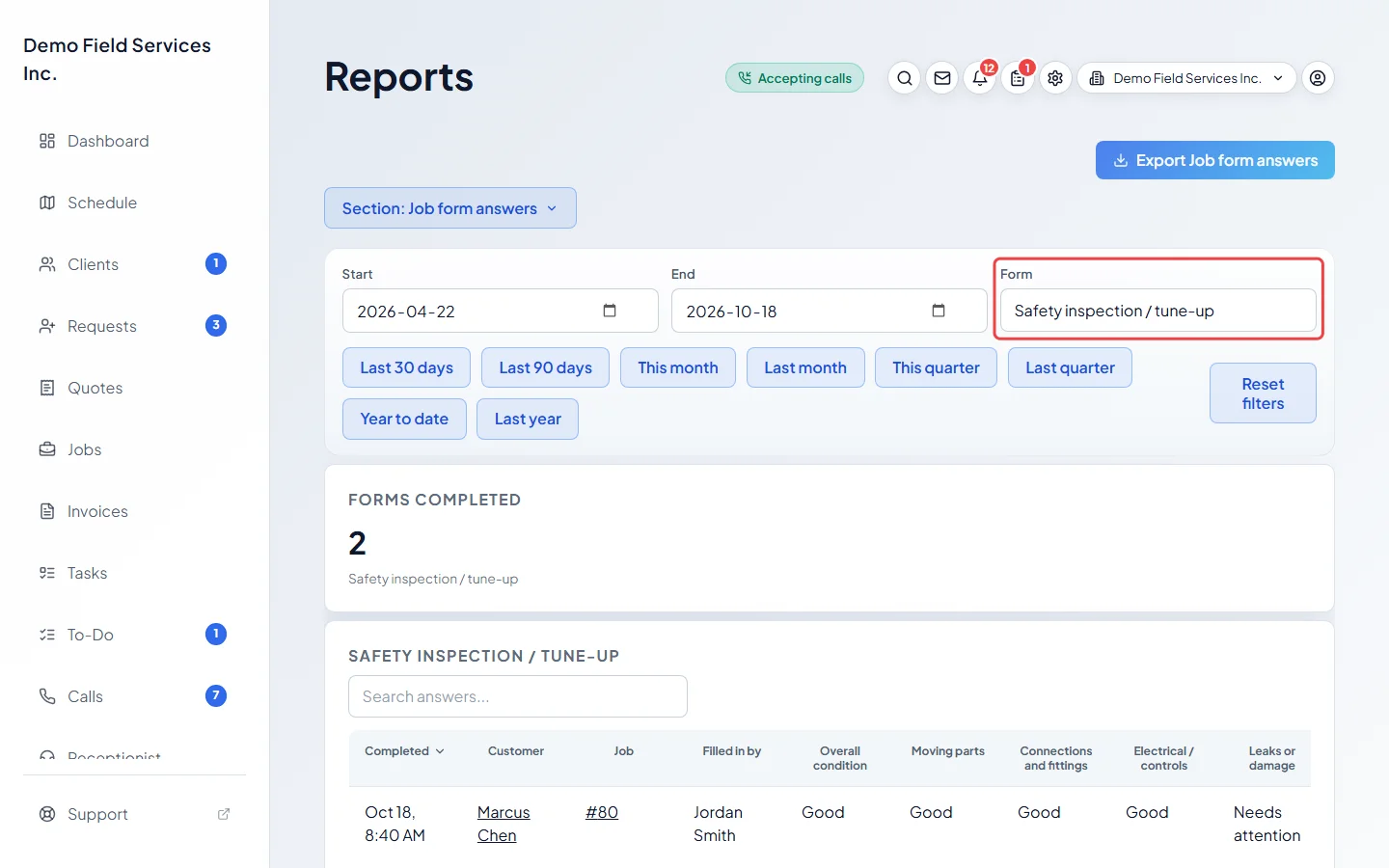
Pick the form in Form and set the dates. Each completed form is a row with Completed, the client, Job, Filled in by, and one column per question. Archived forms are in the list too, marked (archived), so older answers stay reachable.
-
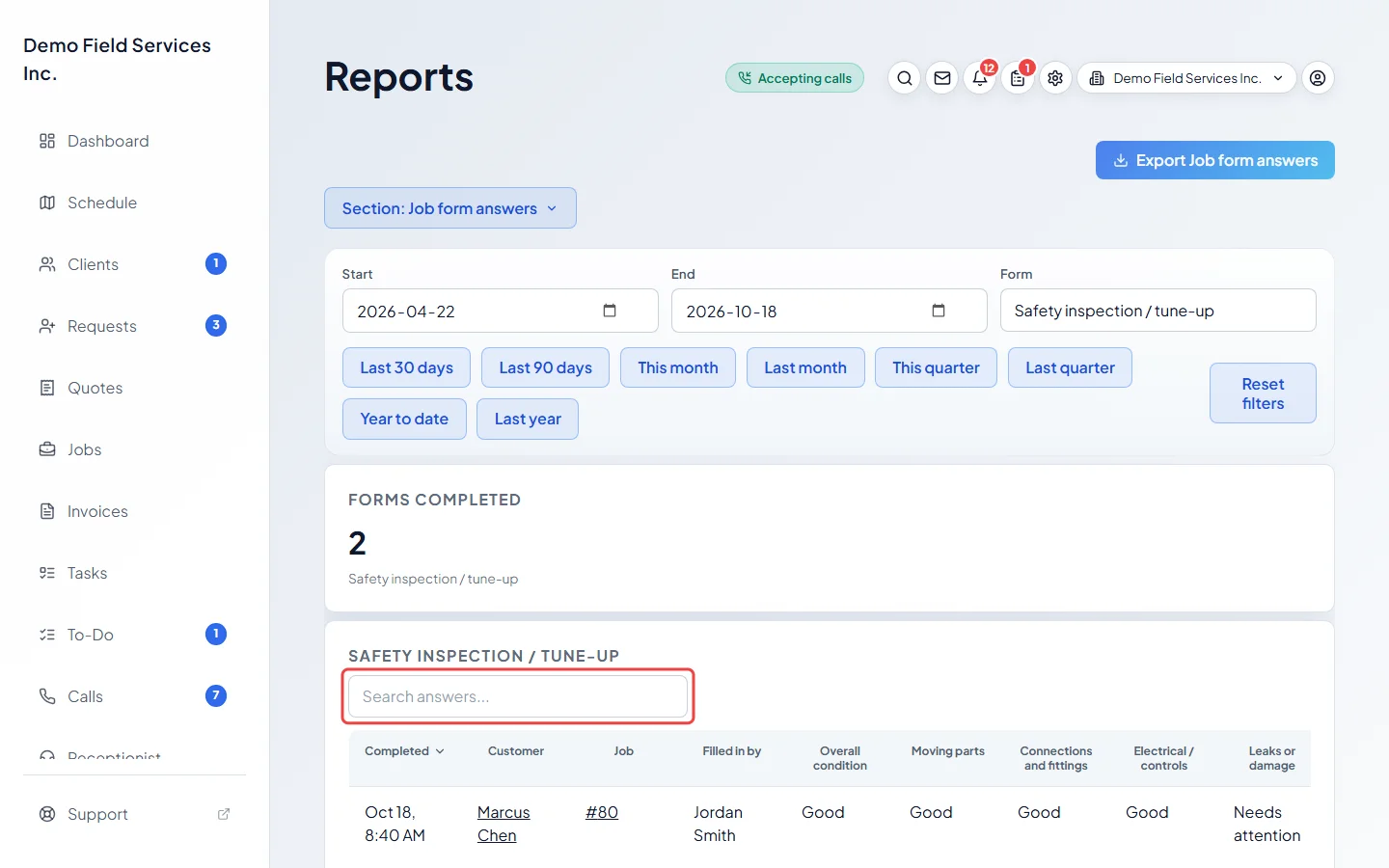
Search the answers in Search answers… (for example a part name or “Needs attention”), or click a column heading to sort. Click a client or job number to open it.
Good to know
Section titled “Good to know”- Only completed forms count, by the day they were completed (a UTC date, so an evening form in North America can land on the next day).
- Questions you’ve since removed from the form still have their own column, so older answers aren’t lost. Text blocks aren’t questions and get no column.
- How answers show: tick boxes as Yes or No, condition questions as Good, Needs attention or Unsafe, several choices separated by semicolons, numbers with their unit, photos as “Attached” with how many, and signatures as “Signed” or “Waived” with the reason.
- If anyone added a note to a question, that question gets an extra “notes” column.
- To build or change job forms, see Job forms. To fill one in, see Job forms on a visit.
Related articles
Section titled “Related articles”Checked against Astragal on October 17, 2026